How to fix
Scroll bar missing on Messenger Windows app
on Windows
Resolve the missing scroll bar issue in the Messenger Windows app effortlessly. Get expert-tested solutions for Windows 10 and 11 users. Fixed in minutes!

What causes How to fix scroll bar missing on Messenger Windows app?
- Software bug in the Messenger app
- Problems related to underlying Windows settings
- Corruption in key system files
- Using an outdated version of the Messenger app
- Unresolved Windows updates
Repairs Windows system files, removes malware, and restores a clean OS state — without reinstalling.
Hi. A scroll bar in Windows Messenger app is missing. Due to this, I simply can't scroll up or down in my conversations, which is a real pain. Why is this happening? On my other PC, there are no problems like that, and the app works fine.
Windows Messenger, a dynamic communication tool developed by Microsoft, has long been integral to our daily digital routines. Offering real-time text transmission over the internet, it has helped countless individuals and businesses stay connected, regardless of geographical constraints. However, like any software, it isn't impervious to issues, and one common problem that users have reported is the sudden disappearance of the scroll bar on the Messenger app for PC.
This issue severely limits user interaction with the Messenger platform, as, without the scroll bar, users are unable to scroll up or down in their conversations, making it impossible to review past messages or fully engage in ongoing chats. This can significantly disrupt communication, especially for businesses that rely heavily on the app for team coordination and client interaction.
The missing scroll bar issue typically stems from either a software bug in the Messenger app itself or problems related to underlying Windows settings or system files. The former might be due to coding errors or software conflicts with the Windows operating system, while the latter can result from settings misconfigurations or corruption in key system files, including the Windows registry. It's also possible that this issue could occur if you're using an outdated version of the Messenger app or if there are unresolved Windows updates.
To address the missing scroll bar in Messenger PC app, the following text will provide detailed, step-by-step instructions that will guide you through various troubleshooting steps. These steps are designed to help you isolate the problem and, if possible, fix it yourself. They range from simple measures, such as updating the Messenger app or your operating system, to more complex solutions involving the modification of certain Windows settings or system files.
Before proceeding, it is also recommended to use [d1] PC repair tool - a comprehensive software solution capable of addressing a wide array of underlying Windows issues, including problems related to the registry or system file corruption.
Fix 1. Run Windows Store Apps troubleshooter
We always recommend starting with built-in Windows troubleshooters.
- Type in Troubleshoot in Windows search and hit Enter.
- Pick Additional Troubleshooters/Other troubleshooters option.
- Scroll down to find Windows Store Apps section.
- Click Run the troubleshooter/Run and wait for the troubleshooter to finish scanning the system.
- Follow the on-screen instructions to fix any issues that the troubleshooter has found.

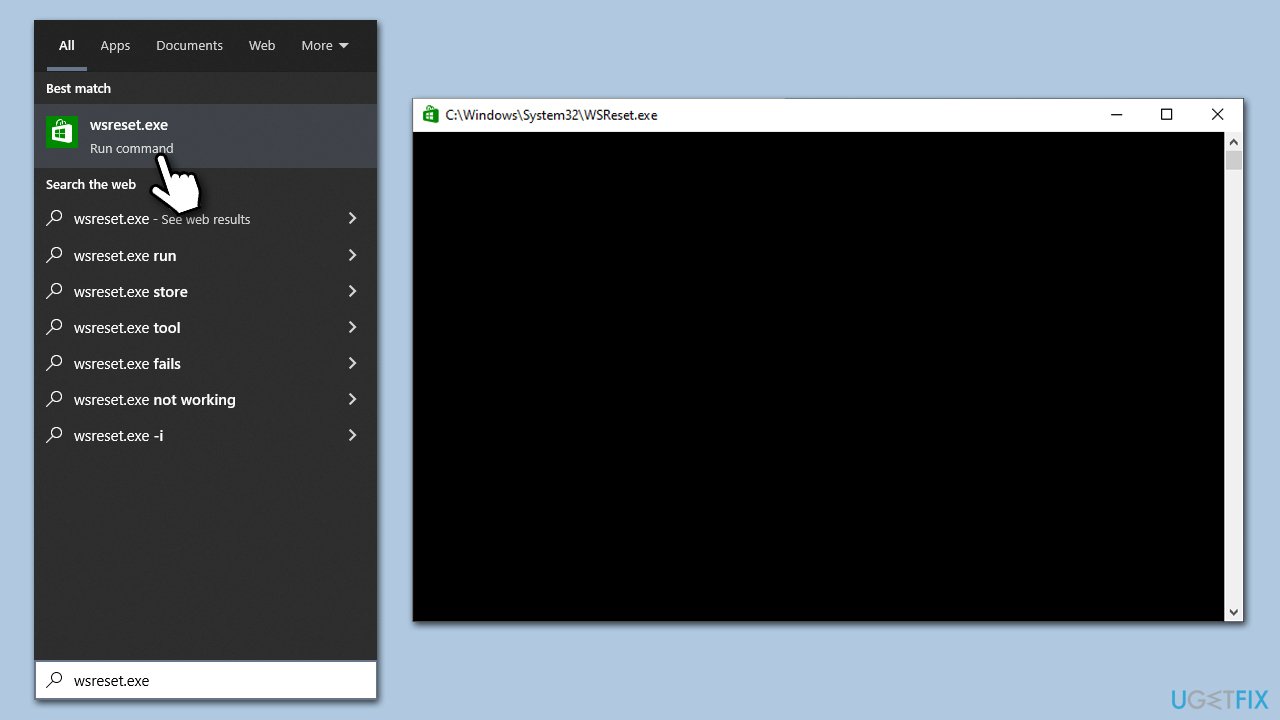
Fix 2. Reset Store cache
- In Windows search, type wsreset.exe and press Enter.
- Wait till a black window shows up – do not interact with it or close it.
- Once it's gone, Microsoft Store should restart.
- Try downloading apps once again.
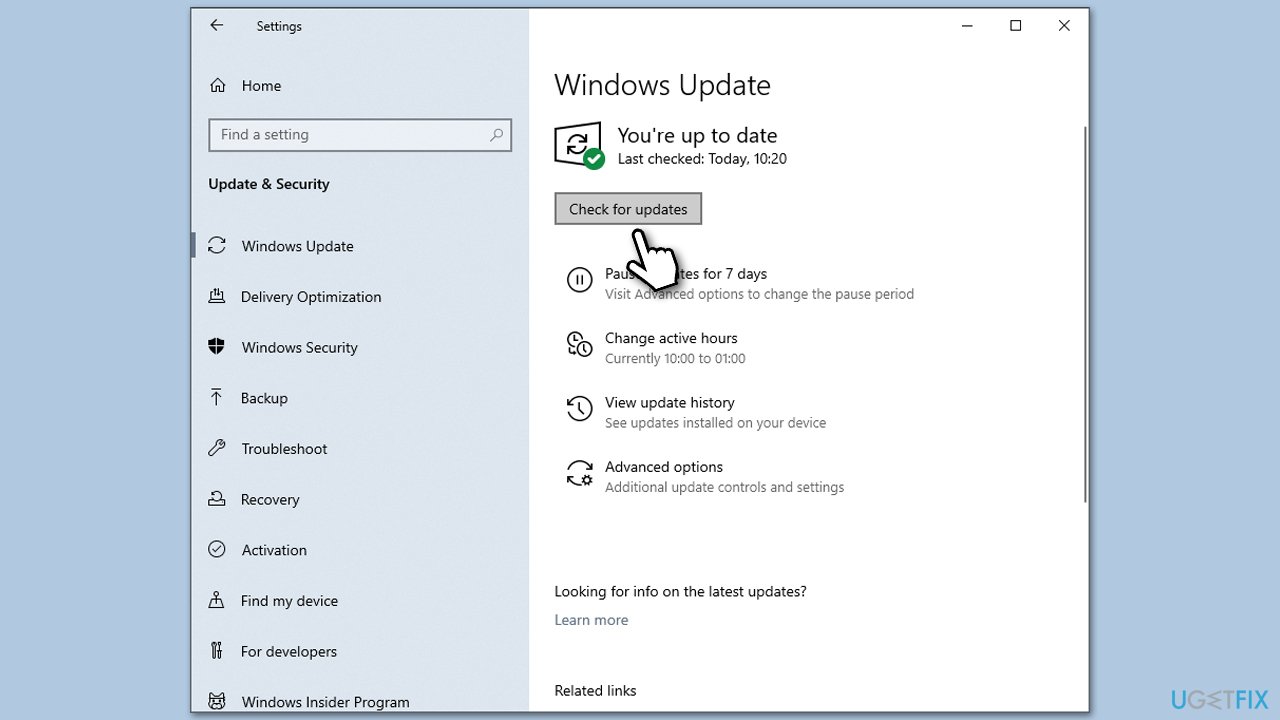
Fix 3. Install Windows updates
If you have been neglecting Windows updates, please make sure you install them, as they often address various bugs.
- Type Updates in Windows search and hit Enter.
- In the new window, click Check for updates.
- If optional updates are available, install them as well.
- Wait till all the files are downloaded and installed.
- Restart your device.
Fix 4. Uninstall the most recent Windows update
Some users said that installing cumulative updates caused the app to misbehave. You can opt to uninstall the latest Windows update if that was caused by it:
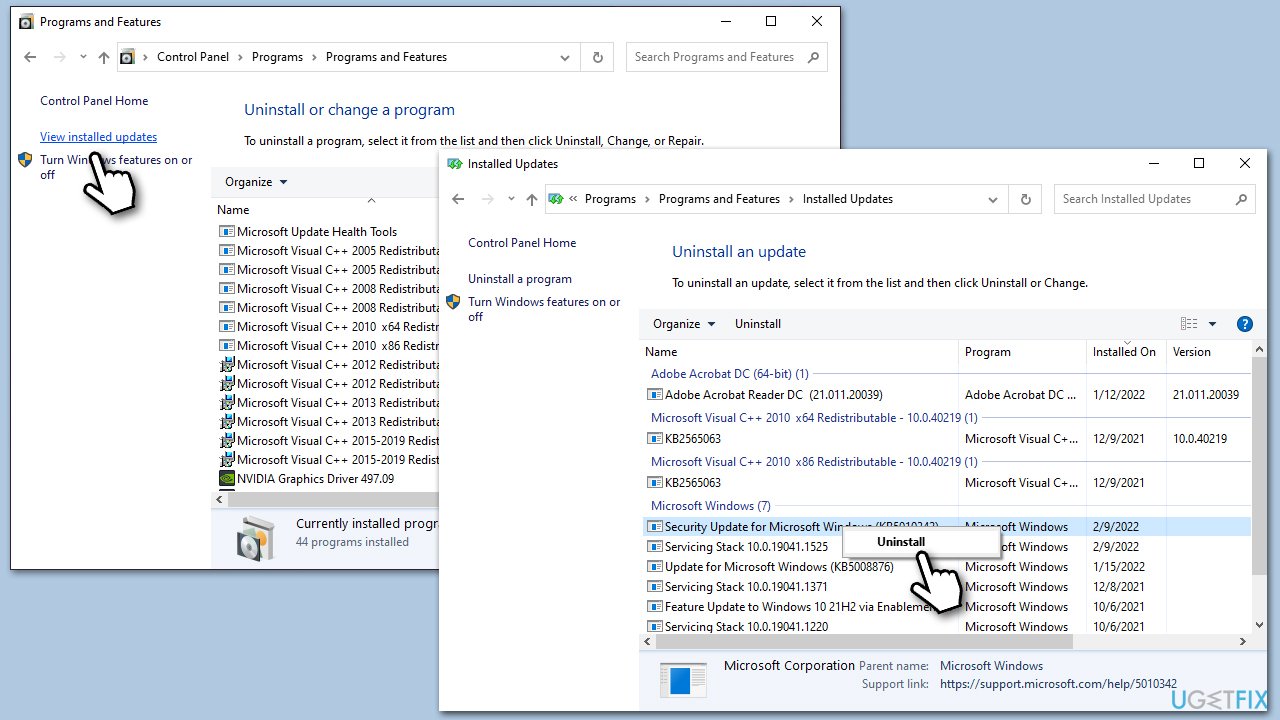
- Type Control Panel in Windows search and hit Enter.
- Select Programs > Uninstall a program.
- Pick View installed updates on the left.
- From the list, uninstall the most recent Windows update by right-clicking it and selecting Uninstall.
- Next, you should pause the updates until the issue is fixed. To do that, type in Updates in Windows search and press Enter.
- Here, click Pause updates for 7 days. In Windows 11, you can choose a longer timeframe.
Fix 5. Repair or reset the Messenger app
If the app is corrupted or bugged in some way, you could try repairing or resetting it. Here's how:
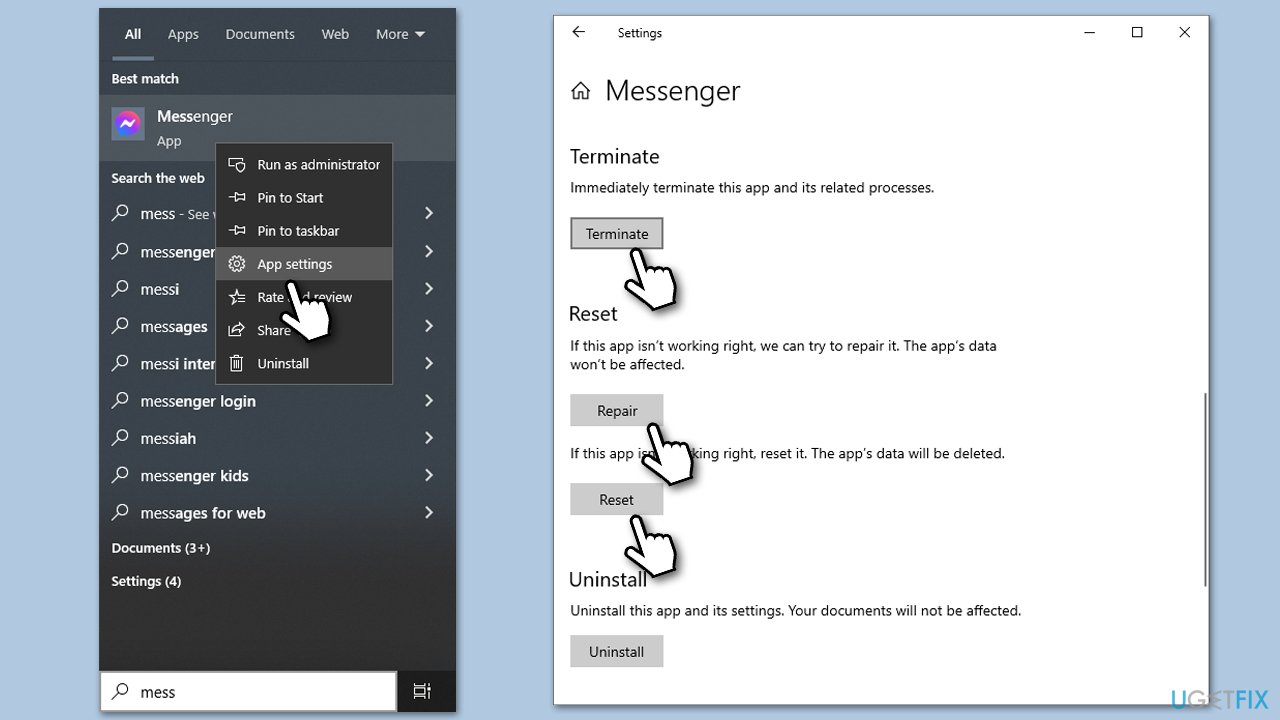
- Type Messenger in Windows search.
- Right-click on the result and select App settings.
- Here, click Terminate.
- Scroll down and click Repair - wait till the app is repaired.
- If that does not work, select the Reset option.
Fix 6. Clear cache files
- Exit the Messenger app.
- Press Windows key + R to open the Run command.
- Type
%appdata%and hit Enter. - Navigate to the Messenger folder, then open the Cache folder inside.
- Select all files (Ctrl + A) and delete them.
- Restart the Messenger app.
Fix 7. Reinstall Messenger
If the previous methods did not help, you can try reinstalling the app.
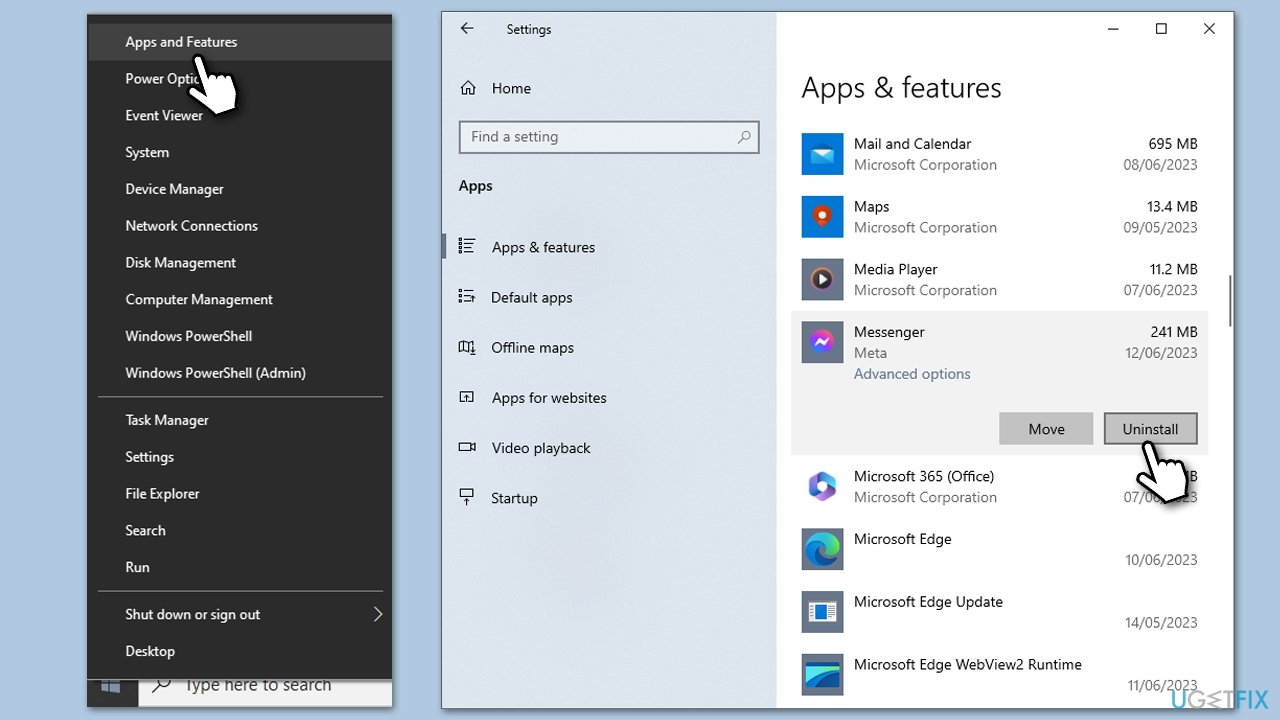
- Right-click on Start and pick Apps and Features.
- Scroll down and find the Messanger app.
- Click Uninstall and then confirm with Uninstall.
- Follow the prompts to remove the app.
- Clear the cache files as explained in the previous steps.
- Restart the computer and then reinstall the app.
Bottom line
To fix the missing scroll bar in the Messenger app, you can try updating the app and your operating system, as well as modifying certain Windows settings or system files. If these steps do not resolve the issue, consider using a PC repair tool for further assistance.
Frequently asked questions
Try resizing the Messenger window or restarting the app to see if the scroll bar reappears. If that doesn't work, check for any available updates for the Messenger app in the Microsoft Store.
Ensure that your Windows 11 is up to date and then reset the Messenger app from the Settings menu. This can often resolve display issues, including the missing scroll bar.
Yes, check the app's settings for any options related to display or layout, and make sure that the app is not minimized to a size that hides the scroll bar.




Report an issue
What's wrong with this guide? We review every report and update or remove content.
Report received — thank you. We'll review and fix it.
You need a free account to submit a report.
Be the first to comment