How to fix
SD Card That is Not Showing Up
on Windows
Resolve the frustrating issue of your SD card not showing up on Windows 10 or 11 quickly and effectively. Expert-tested solutions await!

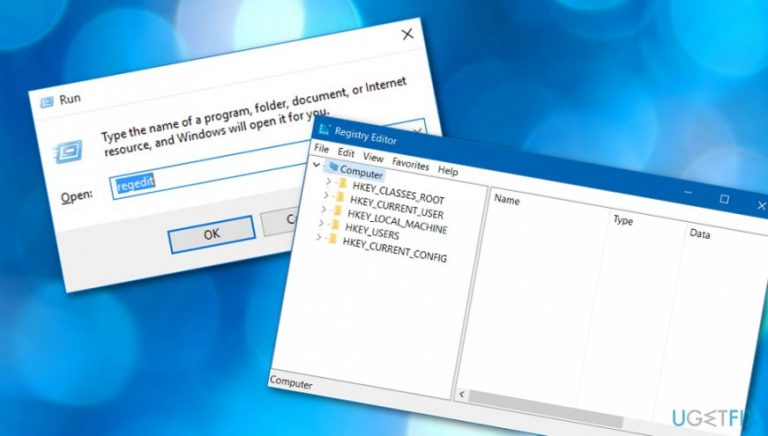
What causes How to fix SD Card That is Not Showing Up on Windows?
- Memory card is locked
- Card reader is malfunctioning
- SD card is not properly inserted
- Driver issues
- File system corruption
Repairs Windows system files, removes malware, and restores a clean OS state — without reinstalling.
Hello. I have just removed the SD Card from my Olympus camera and inserted it into my computer’s card reader but, instead of displaying the usual “AutoPlay” notification where I normally click “Open device to view files,” I see nothing. What could have possibly happened? I cannot see the memory card in My Computer next to Devices with Removable Storage. Why is my SD card not showing up and how to fix it?
SD Cards[ref en-1] are extremely popular memory cards that are mostly used in portable devices. Whether it is a phone, camera, or another computer - SD cards can be used to transfer files between them. In addition, these memory cards can be used to extend the internal memory capacity of the device, which is also an extremely useful option.
However, the device you want to transfer files from the card may fail to recognize the SD card and show no notification at all. In such cases, users tend to remove and insert the card into card reader again, although this method doesn’t always work.
If the SD Card is not showing up in My Computer/This PC[ref en-2] folder either, it means that there is a problem identifying your memory card. Consequently, it becomes impossible to move files from/to the card. However, you shouldn’t rush to format it thinking that it is faulty - you will lose all your files stored on it! Instead, try these easy methods described in detail by our experts.
How to fix SD Card That is Not Showing Up on Windows?
There might be various reasons why you have been encountering this error, so below you will find several techniques that might help you to fix SD Card That is Not Showing Up on Windows problem. Additionally, we also have provided an automatical solution in case no manual technique brings you positive results.
Technique 1. Make sure your memory card’s lock switch is in the “Unlock” position
- If possible, eject the SD Card via Safe Removal tool (you can find it in Windows taskbar - its icon looks like USB plug with a white tick sign in a green circle). Find the SD Card here, right-click it and choose Eject. If it is not showing up, just remove the SD Card.
- Now, look at your SD Card. In fact, look at the side of it - you should see a mini switch. Make sure that it is in Unlock position. If it is not, push it to the right position.
- Try to insert the SD Card into your computer again.
Technique 2. Clean the SD Card and the reader
Sometimes, the computer can fail to identify the SD card due to bad contact between the card and the card reader. You can try to fix the problem by cleaning both of them. Use a dry cloth or just strongly blow to remove the dust from them and then insert the card again. Check to see if the computer recognizes it now.
Technique 3. Modify Write Policy
- Press down Windows key and R.
- In the Run window, type regedit.exe and press Enter.
- Go to HKEY_LOCAL_MACHINE > SYSTEM > CurrentControlSet > Control > StorageDevicePolicies. If the Control folder doesn’t contain StorageDevicePolicies folder, you will need to create it yourself.
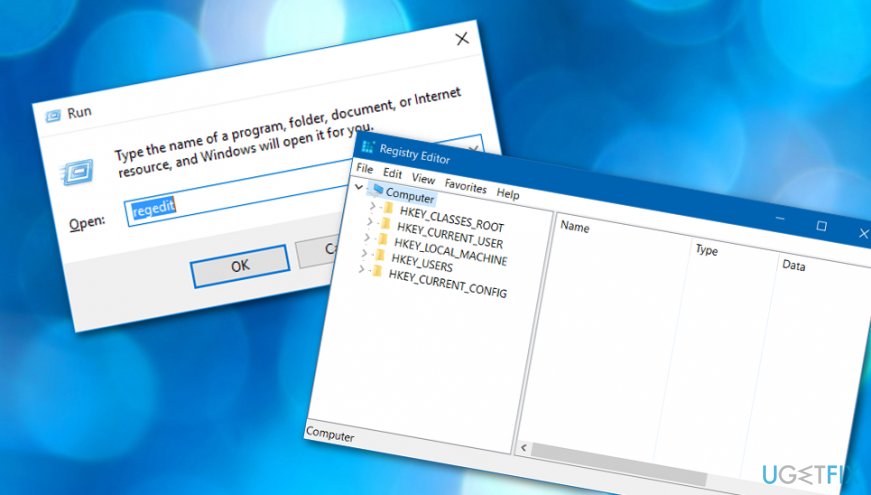
Open regedit - To create it, right-click on Control > New > Key and paste this line to name it: StorageDevicePolicies.
- Right-click on the newly created folder and click New > Choose DWORD (32-bit) value for it. Name this key WriteProject.
- Double-click the key to open it and set Value data to 0. Press OK.
- Reinsert the SD Card and see if it works.
Technique 4. Disable Write-Protection
- Press down Windows key + R at once and type devmgmt.msc into the Open: field. Click OK.
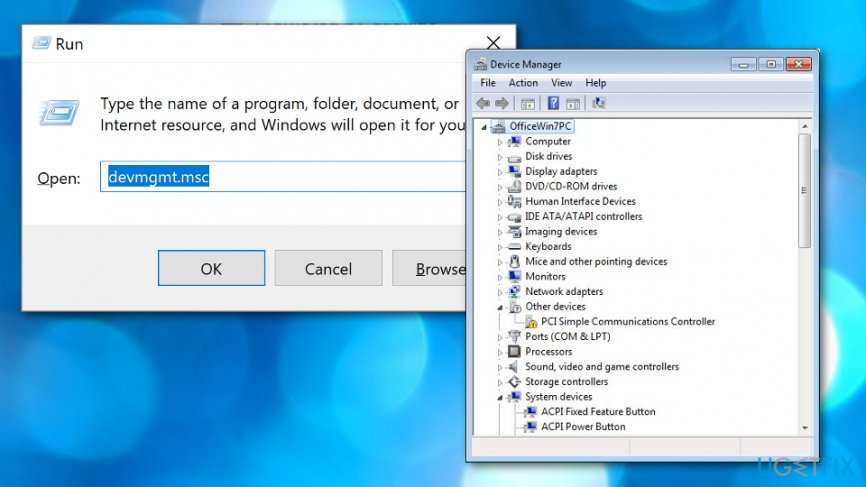
Opt for devmgmt - Open Disk Drives, find your SD Card, right-click on its name and go to Properties.
- Here, check the option related to write privacy. If possible, turn off write protection and save by clicking OK. If you can’t find the option in the General tab, make sure you check the Policies one.
Technique 5. Make sure your Card Reader/Adapter is functioning properly
- If your SD Card gets recognized by every other computer but yours, check if the problem isn’t related to your card reader. Try changing it and see if another reader reads your card properly.
- A similar issue can be associated with the Card Adapter[ref en-3] you use. If you use an adapter for your card, try changing it with another one (borrow one from your friend or buy a new one) and try inserting the card again.
Technique 6. Ensure that your SD Card can be detected
- Go to Windows search.
- Type "cmd".
- Then, access Command Prompt. Make sure that it is running administrative privileges.
- After that, type chkdsk D: /f and press the Enter key.
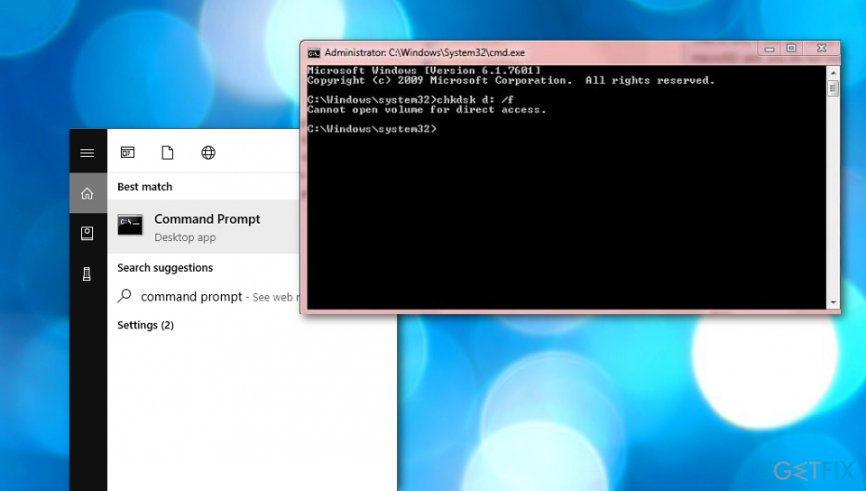
Launch cmd - Wait for the process to finish and reboot your computer.
Technique 7. Upgrade the SD Card device
- Connect the SD card to your computer.
- Go to Control panel --> System.
- Then, access the Device Manager --> Disk drivers.
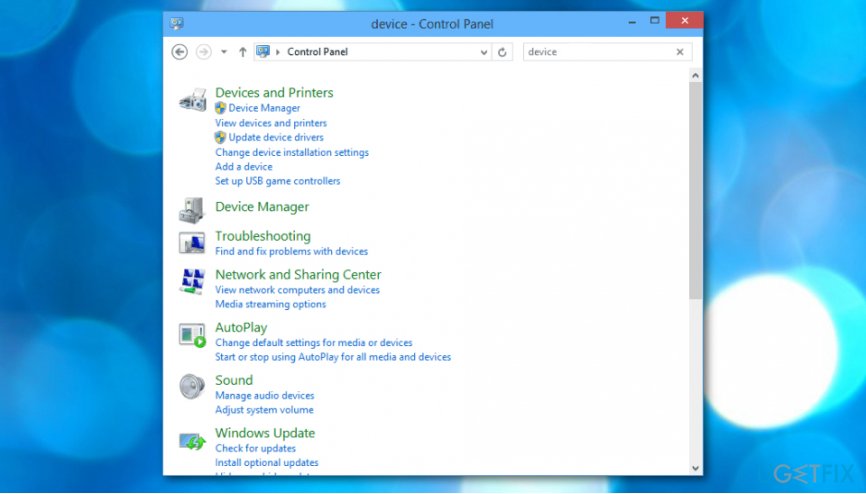
Control panel device manager - Find your SD card name and right-click on it.
- Opt for Uninstall and then select Scan for hardware changes.
If none of the described techniques failed to help you with the issue, the problem might be hidden in something malicious or some type of system corruption that you might not be able to find and fix on your own. However, you can try fixing system damage by using an automatic error-solving tool such as [d1] or any other similar program that you are likely to use and that fulfills its functionality.
Bottom line
To fix the issue of the SD card not showing up on Windows, ensure the memory card's lock switch is in the unlock position, check the card reader functionality, and verify that the SD card is properly inserted. If these methods do not resolve the problem, consider using an automatic solution as a last resort.
Frequently asked questions
Your SD card may not show up due to issues like a faulty card reader, corrupted file system, or drive letter conflicts in Windows. Check the physical connections and try a different USB port or card reader.
You can access Disk Management by right-clicking the Start menu and selecting 'Disk Management'. If your SD card appears there but without a drive letter, you can assign one to make it accessible.
If the SD card is detected but not accessible, consider running the Windows error-checking tool or formatting the card if data recovery is not a concern. Ensure to back up any important files before formatting.




Report an issue
What's wrong with this guide? We review every report and update or remove content.
Report received — thank you. We'll review and fix it.
You need a free account to submit a report.
Be the first to comment