How to fix
“Search Files and Programs” box issue
on Windows
Resolve the “Search Files and Programs” issue on Windows 10 and 11 effortlessly. Get quick fixes and expert-tested solutions for seamless searching.

What causes How to fix “Search Files and Programs” box issue?
- Unindexed files
- Files not properly organized
- System bug
- Registry key issues
- Search index problems
Repairs Windows system files, removes malware, and restores a clean OS state — without reinstalling.
When I type anything in the Search box, it does not show any results. I can’t find anything. Yet, when I locate the files by entering the local disk, they are there. Can you help me with this issue?
“Search files and programs" box stopped working error is often encountered in the older versions of Windows operating system, such as Windows 7. There are mainly two speculations about the cause of this error. In some cases, it might be triggered by the unindexed files. In other words, the files you are looking for might not be properly organized. Otherwise, a system bug may be behind this troublesome occurrence. However, you should not get worried as there are several methods to deal with this problem.
Option 1. Set new Value Data
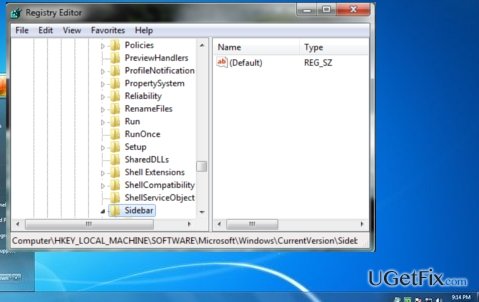
- Press Windows key + R to run Registry Editor.
- Type regedit in it and click Enter.
- When Registry Editor is opened, find HKEY_CURRENT_USER folder.
- Right-click on it and choose Expand.
- Choose Software.
- Locate Microsoft folder and click on Windows.
- Enter Current Version folder.
- Afterward, choose Explorer.
- Then click Search Platform and select Preferences.
- Right-click on the white space on the right-hand side and choose New, then DWORD (32-bit) Value
- Give it alternative title – “EnableSearchingSlowLibrariesInStartMenu”.
- Double-click on it and in the Value Data box write 1.
- Finally, reboot the system.
After the restart, the problem should disappear and Search Files and Programs function should work again. If you occasionally encounter similar errors, it would be useful to check the operation processes of your registry with [rev id=”RegCure Pro”].
Option 2. Eliminate the registry Subkey
Be aware that precision and attention are required to perform both options. Deleting the wrong registry key might result in the number of various system errors.
- Repeat the first step of the previous option to enter the Registry Editor.
- Type regedit and press Enter.
- Find this registry key -- HKEY_CURRENT_USER\Software\Microsoft\Windows\CurrentVersion\Explorer\FolderTypes\{ef87b4cb-f2ce-4785-8658-4ca6c63e38c6}
- Right-click on it and choose Delete.
- Restart the device.
Option 3. Rebuild your Search Index.
This step does not require any special preparation or knowledge. Click Start button and enter the Control Panel folder. Choose Indexing Options. Afterward, click Advanced and finally Rebuild button.
Bottom line
To fix the 'Search Files and Programs' box issue, you can set a new value data in the Registry Editor, eliminate a specific registry subkey, or rebuild your search index. If these methods do not resolve the problem, consider checking the operation processes of your registry with a tool like RegCure Pro.
Frequently asked questions
Try restarting the Windows Search service by typing 'services.msc' in the Run dialog, then locate 'Windows Search' and restart it. If that doesn't work, consider rebuilding the search index in the Indexing Options.
You can run the Search and Indexing troubleshooter by going to Settings > Update & Security > Troubleshoot > Additional troubleshooters. This tool can help identify and fix problems related to the search feature.
This issue may occur due to a corrupted search index or misconfigured settings; try resetting the search settings or running the Indexing Options to rebuild the index. Additionally, ensure that Windows is up to date to fix any underlying bugs.




Report an issue
What's wrong with this guide? We review every report and update or remove content.
Report received — thank you. We'll review and fix it.
You need a free account to submit a report.
Be the first to comment