How to fix
Search history not working in File Explorer
on Windows
Resolve File Explorer search history issues on Windows 10 and 11 with expert-tested solutions. Get your search functionality back in minutes!

What causes How to fix search history not working in File Explorer?
- System updates that reset preferences
- Changes in system settings
- Registry values that manage search history
- Issues with the Windows Search service
Repairs Windows system files, removes malware, and restores a clean OS state — without reinstalling.
I often rely on File Explorer for searching local files. Up until a couple of days ago, it used to keep a record of my previous searches, but suddenly, without any prior notice, File Explorer stopped saving those searches; now, the search bar comes up blank. How can I turn this feature back on?
File Explorer is a key component for users who search for local files on Windows. It used to remember previous searches, which made it easier to revisit past queries. However, some users have encountered an issue where File Explorer stops saving search history without any warning, resulting in an empty search bar. This sudden change disrupts the workflow of those who depend on the feature for efficient file management.
The feature to remember past searches in File Explorer enhances user experience by reducing the need to retype similar queries. When this function is disabled or malfunctions, it not only slows down the search process but also affects productivity. The cause of this issue can vary, ranging from system updates that reset preferences to changes in system settings or registry values that manage this feature.
To address File Explorer's search history not working, users may need to explore a few potential solutions. These include adjusting system settings that control search history, modifying registry values related to File Explorer, or troubleshooting potential issues with the Windows Search service. While direct instructions are beyond the scope of this discussion, users are encouraged to consult Windows support resources or seek professional assistance to safely implement any changes.
For a more straightforward and hands-off solution, we recommend employing a powerful PC repair application [d1], which scans system files and repairs any inconsistencies and other issues that could contribute to search history being broken in File Explorer.
Fix 1. Clear File Explorer history via Folder Options
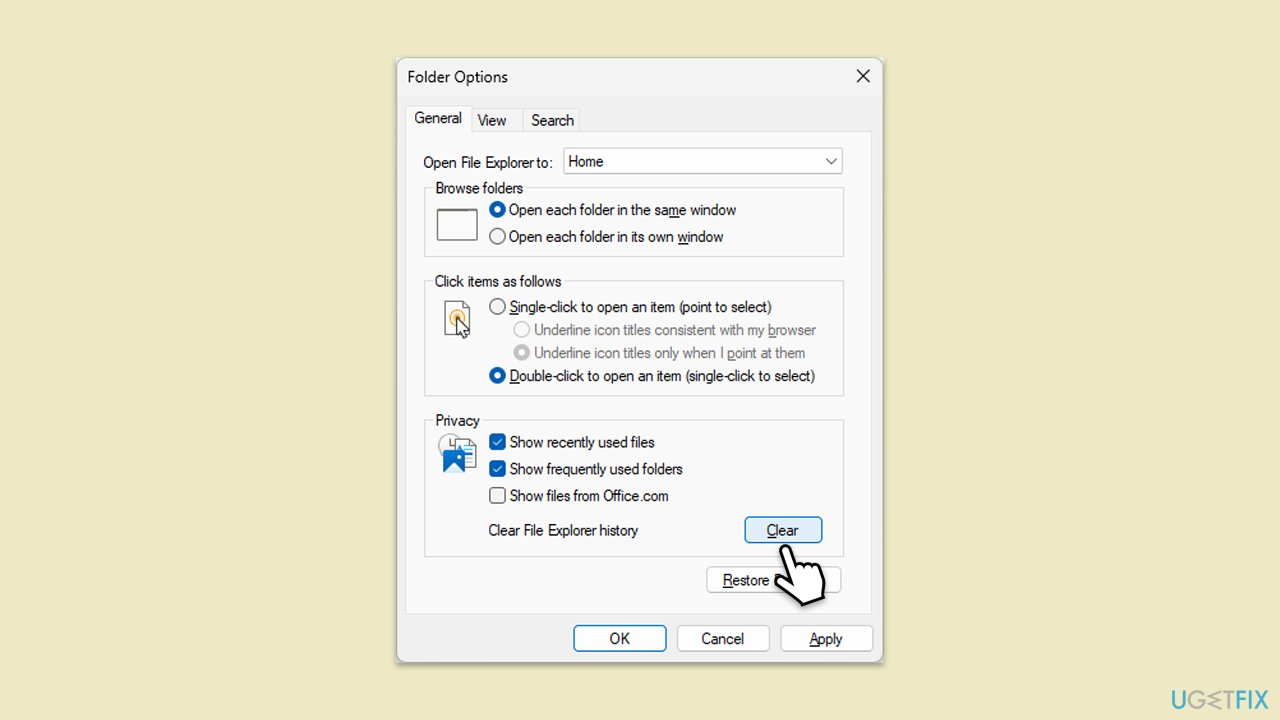
This method directly clears the history of your searches and recently accessed files in File Explorer.
- Press Win + E to open File Explorer.
- Click on the View tab, then select Options to open Folder Options.
- In the General tab, under Privacy, click on the Clear button next to Clear File Explorer history.
- Click OK to apply the changes.
Fix 2. Restart Windows Explorer
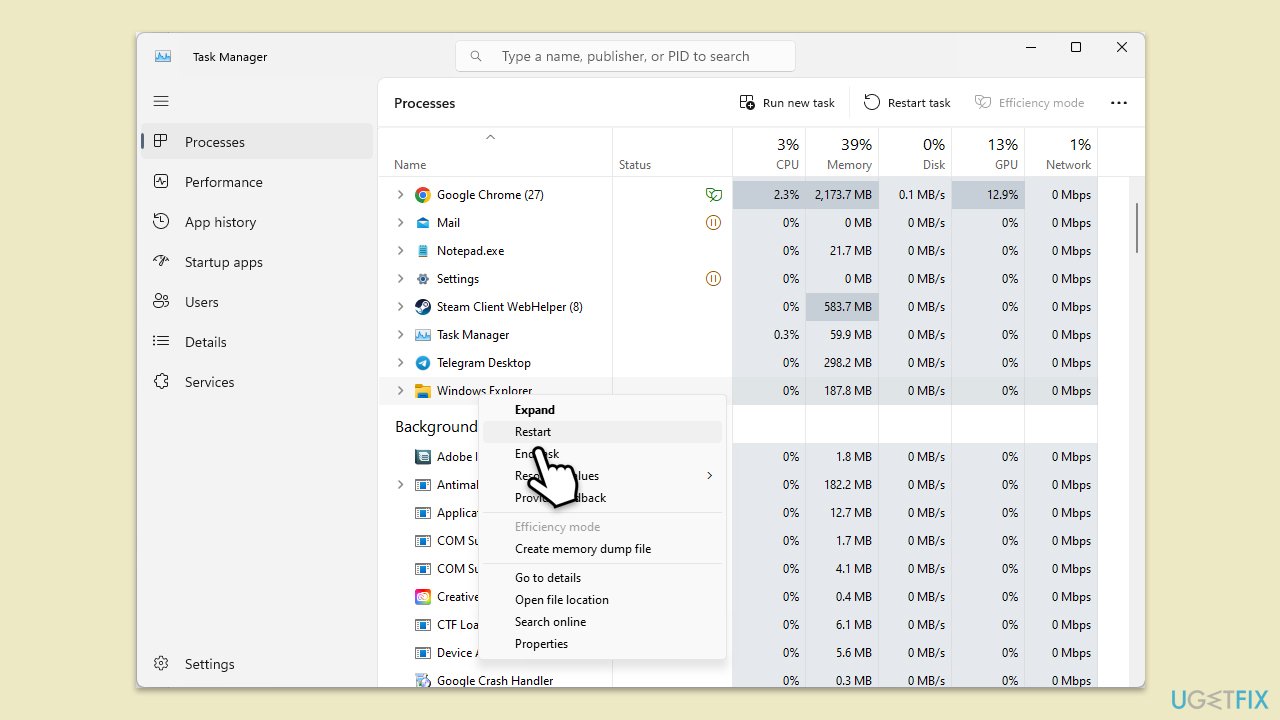
Restarting Windows Explorer can refresh the system and potentially restore the search history functionality.
- Press Ctrl + Shift + Esc to open Task Manager.
- Click More details if needed.
- Look for Windows Explorer.
- Right-click and select Restart.
- Several UI elements will disappear for a few moments and reappear soon thereafter.
Fix 3. Use the Registry Editor to enable search history
Modifying the Windows Registry can re-enable search history, but caution is advised to avoid system issues.
- Press Win + R, type "regedit," and press Enter.
- Navigate to the following location: HKEY_CURRENT_USER\Software\Microsoft\Windows\CurrentVersion\Explorer\Advanced
- Find and double-click on EnableAutocomplete.
- Set the value to 1 and click OK.
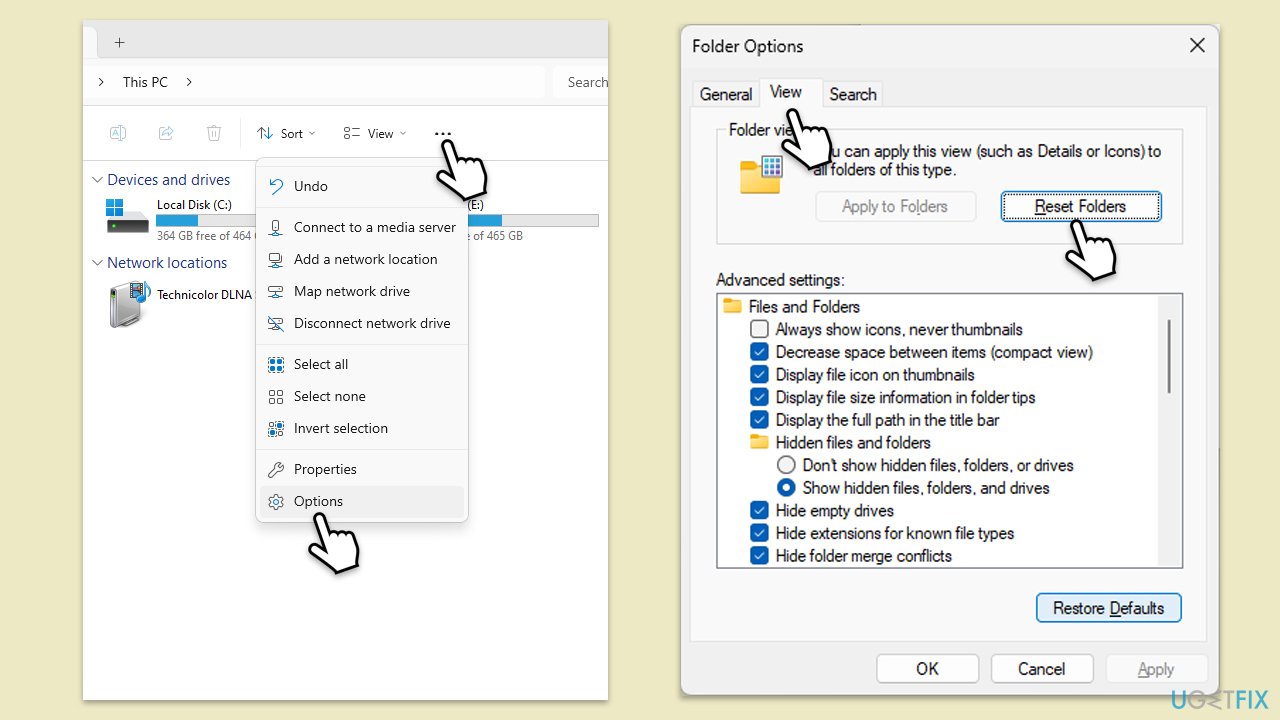
Fix 4. Reset Folder Options to default
Resetting Folder Options to their default settings can sometimes resolve issues with search history.
- On Windows 10, File Explorer and go to View > Options.
- On Windows 11, select See more and click Options.
- In the Folder Options dialog, click on the View tab.
- Click Reset Folders followed by Apply to Folders.
- Click OK.
Fix 5. Check Group Policy settings
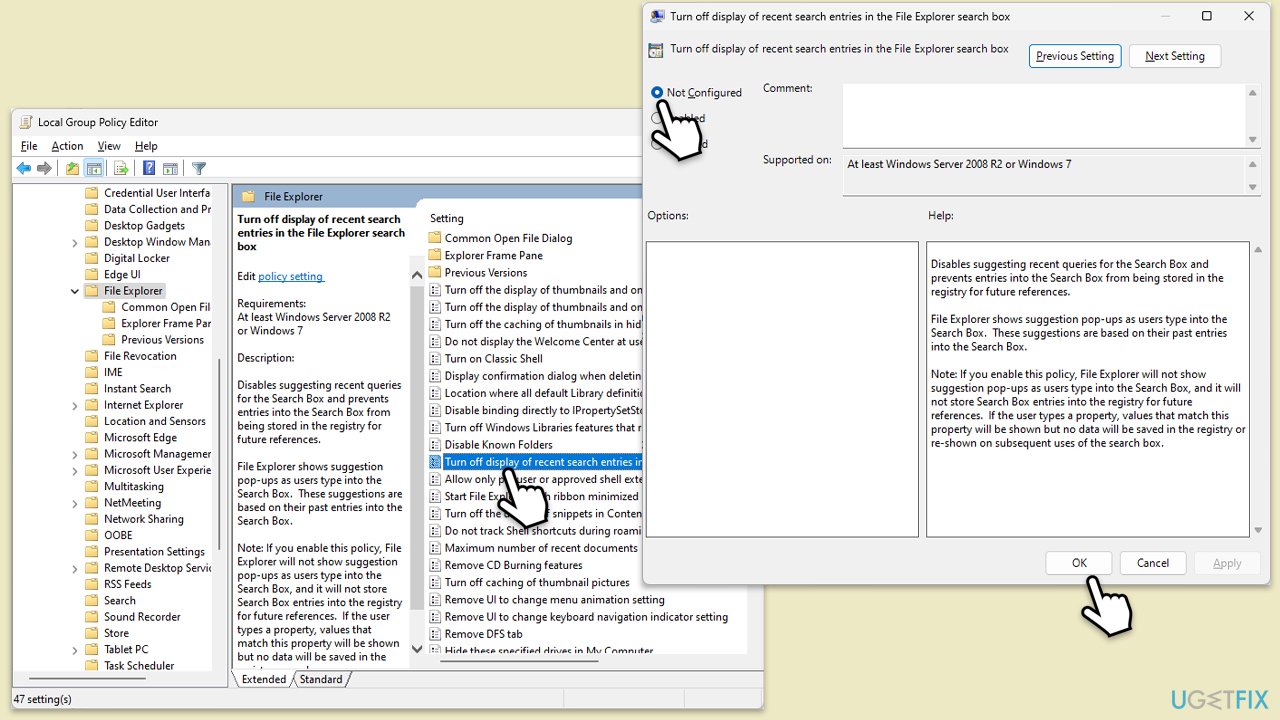
Group Policy settings can affect the behavior of search history in File Explorer.
- Press Win + R, type "gpedit.msc," and press Enter.
- Navigate to User Configuration > Administrative Templates > Windows Components > File Explorer.
- Look for and double-click on Turn off display of recent search entries in the File Explorer search box.
- Set it to Disabled or Not Configured, then click Apply and OK.
Fix 6. Run Search and Indexing troubleshooter
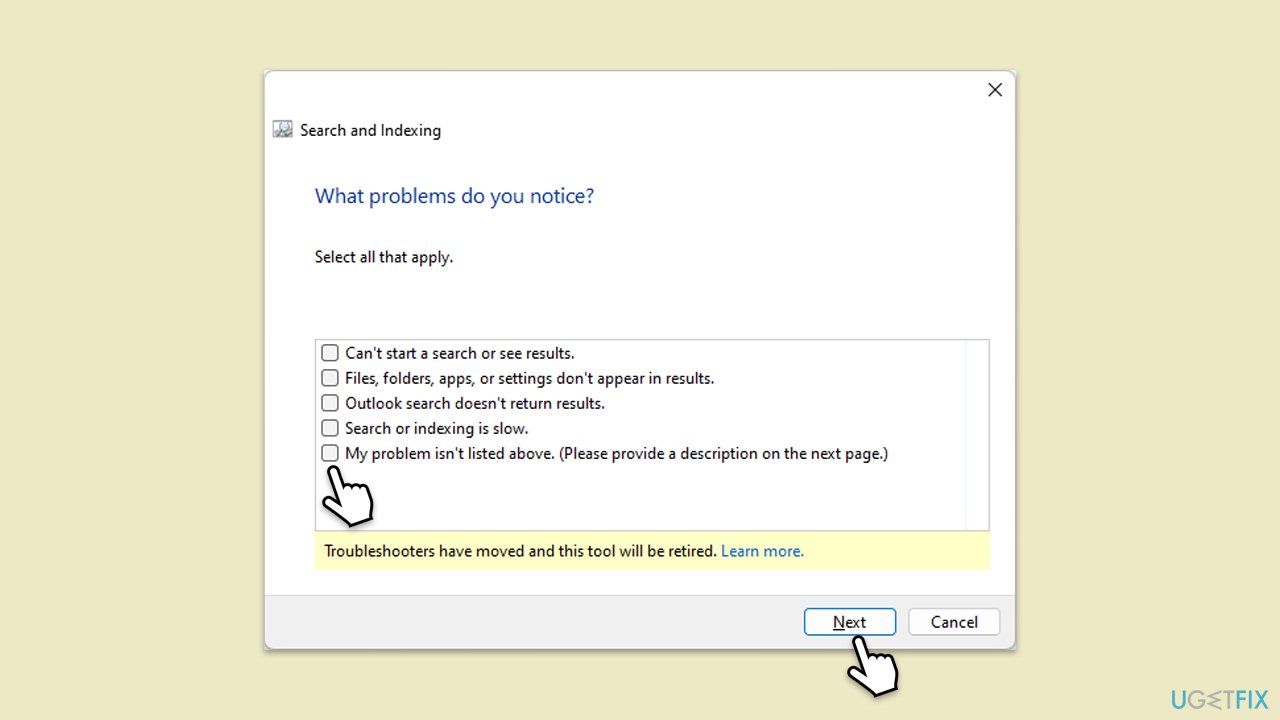
Issues with Windows Search can affect File Explorer's search history. Running the troubleshooter can identify and fix these problems.
- In Windows search, type Troubleshoot and hit Enter.
- Choose Additional troubleshooters/Other troubleshooters.
- Find the Search and Indexing option and click on Run/Run the troubleshooter.
- Wait till the scan is finished, apply any suggested fixes and restart your device.
Fix 7. Check for Windows Updates
Sometimes, a bug in the system could cause search history issues, which can be resolved by updating Windows.
- In Windows search, type Updates and hit Enter.
- In the new window, click Check for updates and wait till everything is installed.
- Make sure you also install any available optional updates.
- When done, restart your system to implement the changes.
Fix 8. Create a new user profile
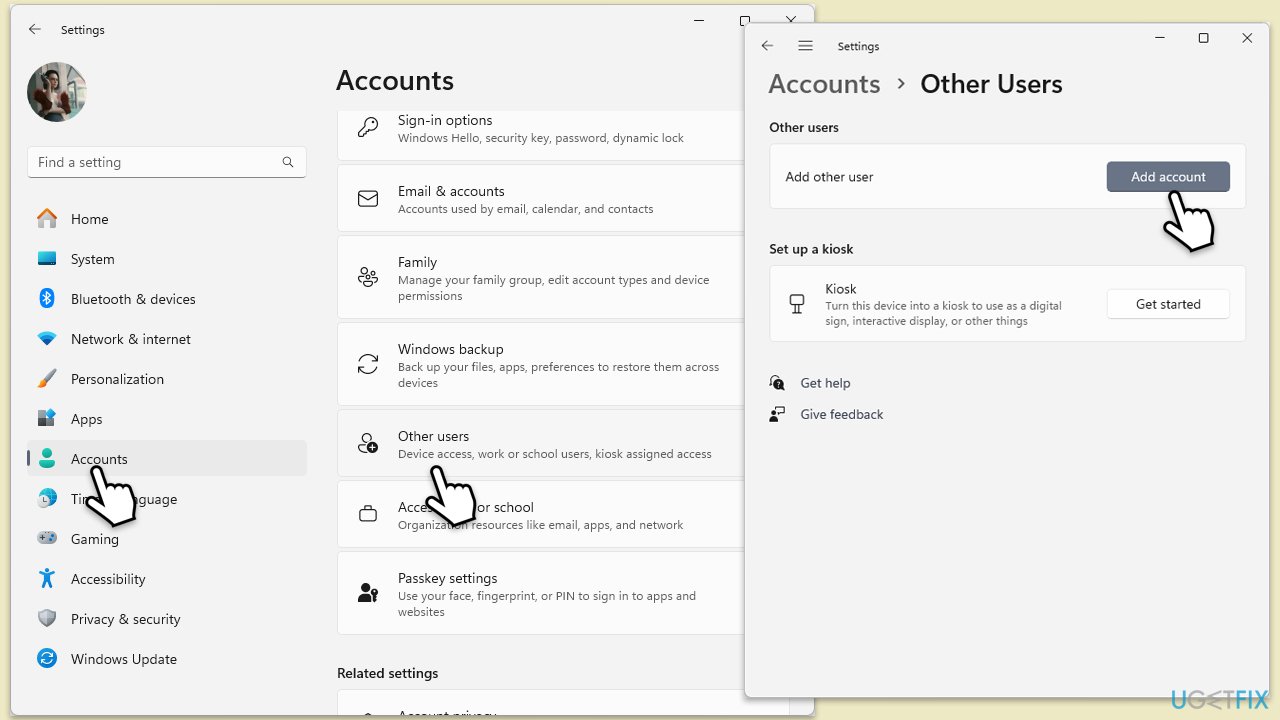
If the issue is profile-specific, creating a new user profile can resolve the problem.
- Open Windows Settings.
- Go to Accounts then Family/Family & other users.
- Under Other users, click Add account/Add someone else to this PC.
- Follow the prompts to create a new user account. If you don't have Microsoft account details, you can choose I don't have this person's sign-in information followed by Add a user without a Microsoft account.
- Assign a username and password for the new account and complete the setup.
- Log out of your current account and log into the new account.
- Try installing Microsoft Office again using the new user profile.
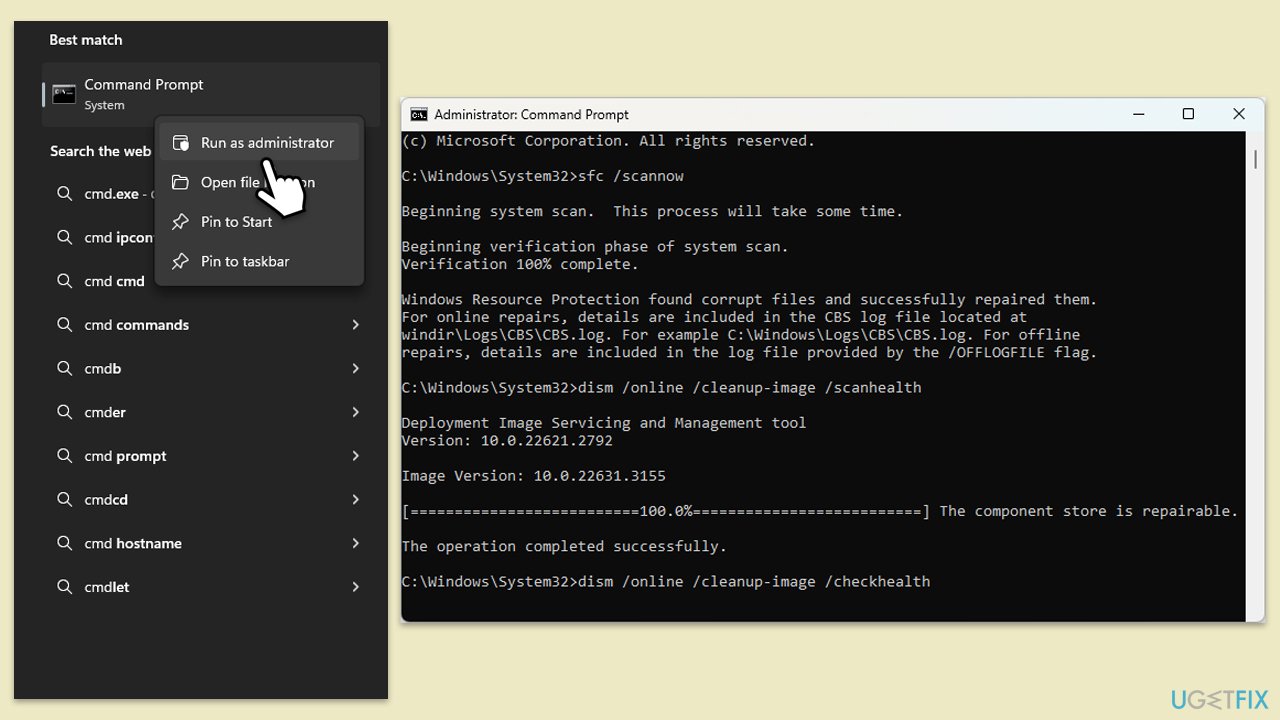
Fix 9. Repair system file corruption
- Type cmd in Windows search.
- Right-click on the Command Prompt result and select Run as administrator.
- When the UAC window pops up, click Yes.
- In the Command Prompt window, paste the following command and press Enter:
sfc /scannow - Wait for the scan to complete.
- Once the SFC scan is finished, run the following set of DISM commands, pressing Enter after each one:
DISM /Online /Cleanup-Image /CheckHealth
DISM /Online /Cleanup-Image /ScanHealth
DISM /Online /Cleanup-Image /RestoreHealth - After completing the DISM commands, restart your system.
Bottom line
To fix the search history not working in File Explorer, users can clear File Explorer history via Folder Options, adjust system settings, modify registry values, or troubleshoot the Windows Search service. If these solutions do not resolve the issue, it is recommended to consult Windows support resources or seek professional assistance.
Frequently asked questions
You can try resetting the File Explorer settings by going to the View tab, selecting Options, and then clicking on 'Restore Defaults'. If that doesn't work, consider running the Search and Indexing troubleshooter from the Windows Settings.
To enable search history in Windows 11, go to File Explorer options, click on the Search tab, and ensure that 'Show search suggestions' is checked. Additionally, make sure that indexing is enabled for the folders you want to search.
This issue might occur if the Windows Search service is disabled; check its status in the Services app. Also, ensure that the privacy settings for search history aren't blocking the feature.




Report an issue
What's wrong with this guide? We review every report and update or remove content.
Report received — thank you. We'll review and fix it.
You need a free account to submit a report.
Be the first to comment