How to fix
“Search Indexing Was Turned Off” Error
on Windows
Resolve the “Search Indexing Was Turned Off” error on Windows 10 effortlessly with our expert tips. Fix it in minutes and enhance your search experience!


What causes How to Fix “Search Indexing Was Turned Off” Error on Windows 10 Search?
- Search indexing service is turned off
- Search indexing service is not running
- Improper folder indexing settings
- Resource consumption concerns with indexing
- Default settings may have been altered
Repairs Windows system files, removes malware, and restores a clean OS state — without reinstalling.
Does anyone else encounter a problem related to Windows 10 search? For a couple of month already I can’t resolve an error, which shows up when I try to search for a file or folder on my Windows 10 system. The error says: "Search indexing was turned off". Ok, so I turned on the search indexing, but then received another error message reporting that “Search Indexing is not running.” I’ve noticed that there are many similar threads on online forums, but Microsoft seems to be ignorant because there are no fixes since 2015. Please help!
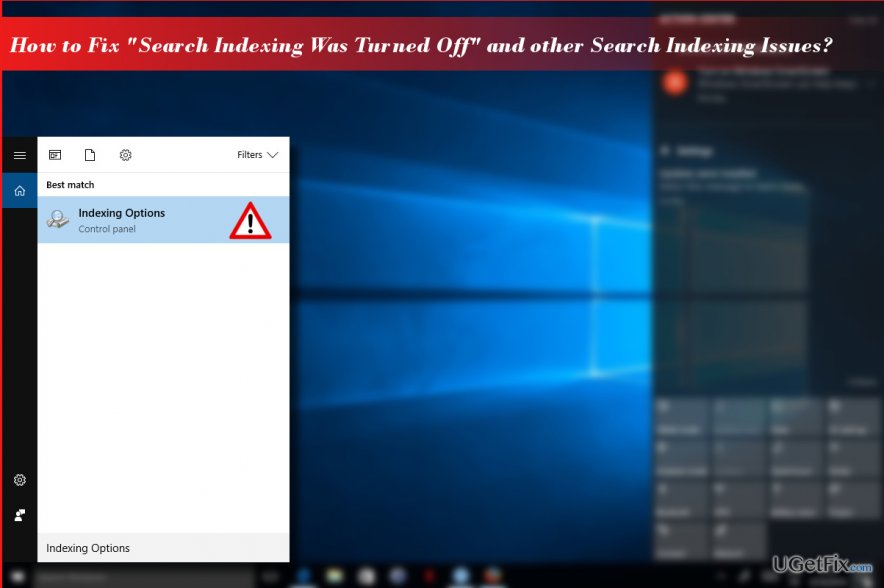
Search Indexing service has been inherited by Windows 10 from the previous Windows versions. The service aims at creating the indexes of files stored on the system and keeping them in a index database. Although there are many discussions where Windows 10 users and IT specialists claim that search indexing negatively affect PC’s performance, the service, in its general sense, it absolutely useful. Search Indexing enabled fast file and folder lookup, thus preventing people from digging into hundred or even thousands of folders to find one small file. To minimize the Search indexing resource consumption, specialists recommend indexing only the folders that you are regularly accessing and searching for files in. For this purpose, type “indexing” in Windows search and open Indexing Options. Click on Modify button and select the folder that you want to be indexed. Then press OK and wait while the folder is being indexed.
“Search Indexing Was Turned Off” when searching for a file
It’s a common experience when useful services on Windows 10 fail to work. Search is not an exception. Many people complain that when trying to search for a file or folder, Windows Search displays an error saying “Search Indexing Was Turned Off.” Initially, you may think that you should start the Search Indexing manually, but that may lead to another error “Search Indexing is not running.” By default, Windows 10 turns on search indexing, so it doesn’t have to be enabled manually. The “Search Indexing Was Turned Off” error means that there are some problems deep in your Windows 10 OS, which triggered the failure of Search Indexing.
The first thing that you should do is to run a scan with a professional optimization tool to detect if the system is not storing malicious or damaged files that may be negatively influencing system’s performance. Our recommendation would be [d1]. If that did not resolve the problem, run an in-built Search and Indexing Troubleshooter. For this purpose, you have to:
- Press Windows key + I and open Update & Security.
- Select Troubleshoot and find Search and Indexing.
- Double-click on the Search and Indexing Troubleshooter to run it.
- Wait for the scan to be completed.
If these steps did not help to fix “Search Indexing Was Turned Off” error, our last recommendation would be to rebuild the Search Indexing:
- Open Windows Search and type Indexing Options.
- Click on the first matching option to open it.
- Click Advanced and open Advanced Options.
- Select Rebuild and white while indexing will be rebuild from scratch.
Bottom line
To fix the 'Search Indexing Was Turned Off' error, ensure that the search indexing service is enabled and running. Additionally, modify indexing options to include only frequently accessed folders. If these steps do not resolve the issue, further troubleshooting may be necessary.
Frequently asked questions
This error typically occurs when the Windows Search Indexing feature is disabled or corrupted, affecting the search functionality in Windows 10.
You can enable search indexing by going to 'Control Panel' > 'Indexing Options' and clicking on 'Modify' to select the locations you want to index.
Yes, resetting the search index can resolve the error; you can do this by going to 'Indexing Options,' clicking on 'Advanced,' and selecting 'Rebuild' under the Troubleshooting section.




Report an issue
What's wrong with this guide? We review every report and update or remove content.
Report received — thank you. We'll review and fix it.
You need a free account to submit a report.
Be the first to comment