How to fix
SearchProtocolHost.exe Application Error
on Windows
Resolve the SearchProtocolHost.exe Application Error on Windows 10 and 11 quickly. Expert-tested solutions ensure your system runs smoothly, fixed in mi…


What causes How to fix SearchProtocolHost.exe Application Error on Windows?
- Conflict between software
- Outdated drivers
- Damaged files on the system
- Potential malware infection
- Multiple SearchProtocolHost processes running
Repairs Windows system files, removes malware, and restores a clean OS state — without reinstalling.
Hi. I have recently upgraded t Windows 10 from Windows 7. The strange thing happened then - started to receive an error message "SearchProtocolHost.exe - Application Error." Additionally, my CPU usage sometimes spikes to 100%, especially when the error occurs. Please help me fix this issue!
A lot of Windows 10 users reported SearchProtocolHost.exe errors recently, and the cause of such system response might be caused by several different issues, including the conflict between software,[ref en-1] outdated drivers, damaged files on the system and similar bugs.[ref en-2] Nevertheless, our security team prepared a detailed description and guide for this problem, so keep reading this article to find a way how to fix SearchProtocolHost.exe errors.
SearchProtocolHost.exe is an executable file[ref en-3] and a part of Windows operating system, developed by Microsoft. The process is also known as Microsoft Windows Search Protocol Host. Typically, it is located in C:\\Windows\\System32 folder and the size of the file varies between 164,352 bytes and 184,832 bytes. However, users should beware if the file is located in other locations, such as C:\\Windows or other sub-folders, as it could indicate a potential malware infection.
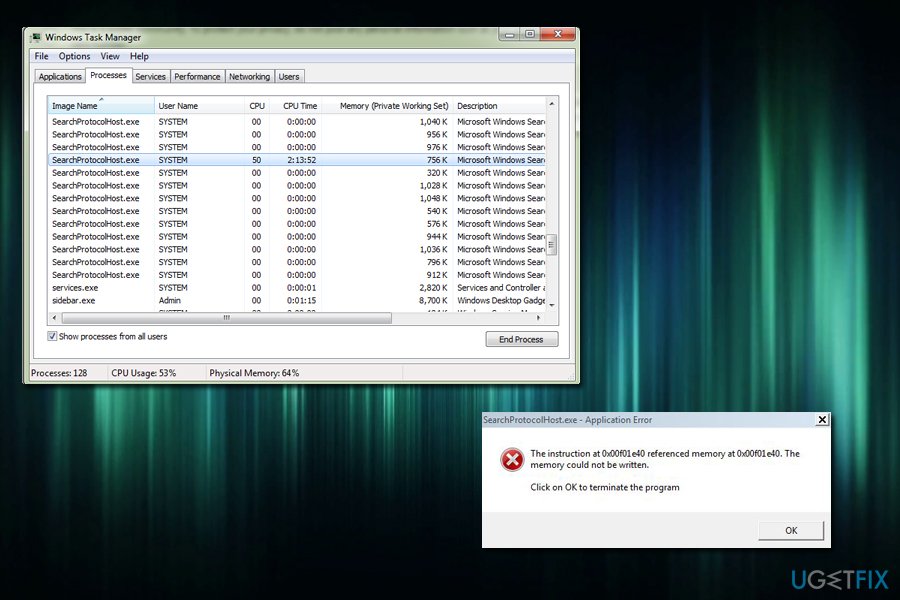
The type of errors that users experience include:
- SearchProtocolHost.exe does not have a valid signature
- SearchProtocolHost.exe stopped working
- SearchProtocolHost.exe application error
- Outlook 2016: SearchProtocolHost.exe stopped working
The latter has been reported by many and is related to Microsoft Outlook in Office 365. Another problem users are facing with Search Protocol Host is linked to ntdll.dll file and can be fixed via System File Checker.
Other users also indicate several SearchProtocolHost processes are running on their Windows Task Manager - up to 10 or even more. This is another feature that points to a virus, such as a trojan horse.[ref en-4] Remember that viruses can disguise as legitimate processes, or sometimes even replace them.
Regardless what is the problem with your system, please follow the guide below to fix a SearchProtocolHost.exe error.
Fix 1. Check your system for malware infections
This solution is necessary if your Task Manager is running several SearchProtocolHost.exe tasks at the same time, or/and if it is not located in C:\\Windows\\System32 folder. To check for malware, we suggest restarting your PC and booting it in Safe Mode with Networking, and then scanning it with [d1]. To enter Safe Mode, follow these steps:
- While keeping the Shift key pressed, click on Restart
- When the PC will restart, pick Troubleshoot option
- Then, select Advanced options and Startup Settings
- Press Restart
- When the computer loads again, press F5
Fix 2. Use System File Checker to repair data
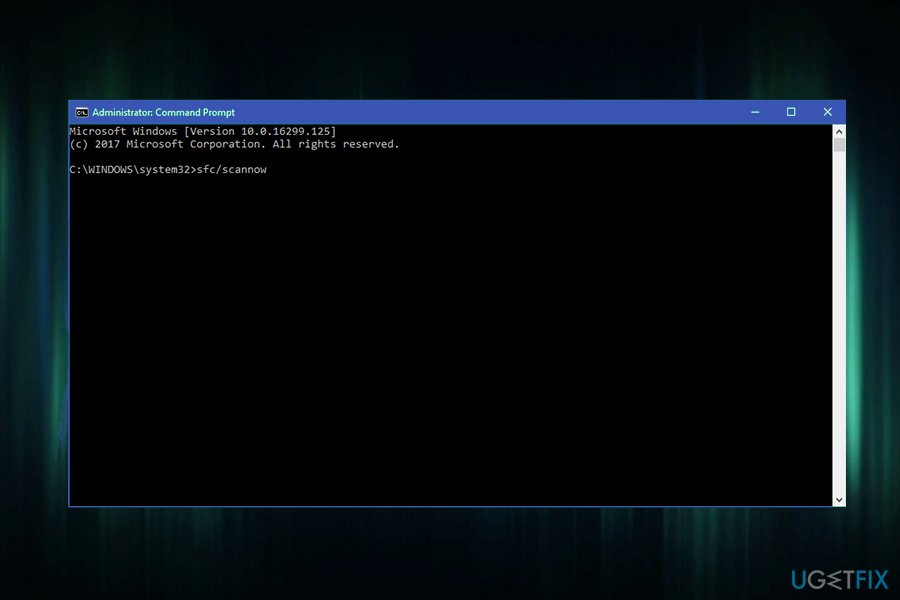
If the cause of the problem is corrupt ntdll.dll file, you should fix it using System File Checker. Follow these steps:
- Click Search and then type cmd into the search box
- Right-click on Command Prompt and pick Run as Administrator
- When Command Prompt window opens, type in the following sfc /scannow
- Press Enter and restart your machine
Fix 3. Make sure that Windows Search Service is enabled
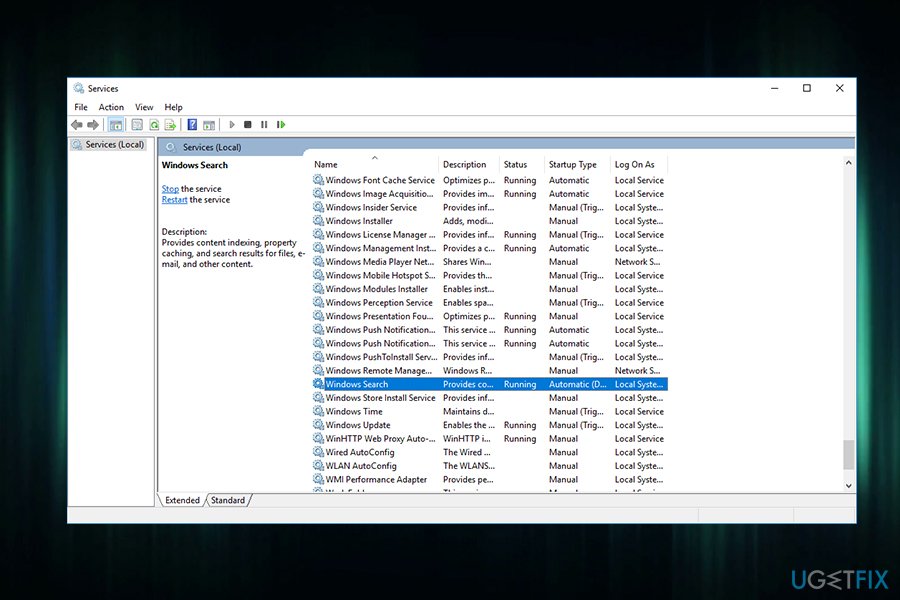
If Windows Search Service failed to start correctly or is stuck, it is a good idea to make sure it is running properly:
- Click Search and type administrative tools
- Open administrative tools and click on Services
- Scroll down to Windows Search and make sure it is enabled
If the service is not active, right-click on Windows Search and click Start.
Fix 4. Re-install Microsoft Office
If the error is related to Microsoft Office, you should reinstall the application by following these steps:
- Click on Start and pick Apps and Features
- Find Microsoft Office from the list, click on it and press Uninstall
- Follow on-screen instructions provided
- To install the application again, download it from official Microsoft page
Fix 5. Complete Disk Cleanup
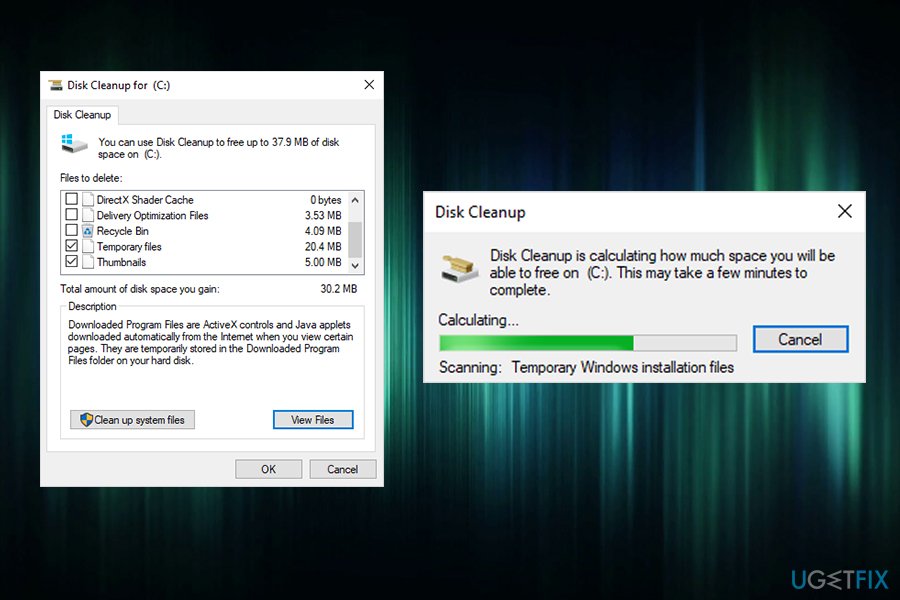
If any files on your hard drive are corrupt, perform the following actions:
- Click on Start and type Disk Cleanup
- Select the hard drive where Windows 10 is installed (C: by default) and click OK
- Disk Cleanup will scan your computer and select all the junk files
- Click OK after making sure that Temporary files option is ticked
Bottom line
To fix the SearchProtocolHost.exe application error, you should check your system for malware infections, ensure your drivers are up to date, and use the System File Checker to repair damaged files. If these solutions do not resolve the issue, consider seeking further technical support.
Frequently asked questions
The SearchProtocolHost.exe application error on Windows 10 is often caused by corrupted system files, issues with the Windows Search service, or conflicts with third-party applications.
To repair SearchProtocolHost.exe errors on Windows 11, you can run the System File Checker tool by executing 'sfc /scannow' in the Command Prompt.
Yes, disabling the Windows Search feature can help fix the SearchProtocolHost.exe error by preventing it from running; you can do this via the Windows Features settings.




Report an issue
What's wrong with this guide? We review every report and update or remove content.
Report received — thank you. We'll review and fix it.
You need a free account to submit a report.
Be the first to comment