How to fix
SearchUI.exe high CPU usage
on Windows
Fix high CPU usage from SearchUI.exe in Windows 10 and 11 effortlessly. Follow our expert-tested solutions for a smoother experience, zero traces left.


What causes How to fix SearchUI.exe high CPU usage in Windows?
- Overload of indexing tasks
- Outdated system files
- Software conflicts
- Presence of malware disguised as SearchUI.exe
Repairs Windows system files, removes malware, and restores a clean OS state — without reinstalling.
Hello, I've noticed that my PC is making a lot of noise, and after checking the Device Manager, I saw that SearchUI.exe is using way too much CPU. What is that and how can I fix it?
Resource consumption on a Windows PC is dynamic, continually adjusting based on the tasks and applications running. There will be instances where the Central Processing Unit (CPU), the heart of the computer, will experience temporary spikes in its usage. This is a normal occurrence and should not cause alarm.
However, consistent and prolonged high CPU usage can become a concern, affecting a computer’s performance. One such instance that some Windows users have reported is frequent or sustained high CPU usage by the SearchUI.exe process.
SearchUI.exe is a core component of Windows, specifically responsible for the search bar functionality located in the taskbar. This feature allows users to search for files, applications, and other data stored on their computer. It's noteworthy to mention that SearchUI.exe has undergone some changes over the years.
In earlier versions of Windows, it also catered to Cortana, Microsoft's voice-activated digital assistant. However, with Cortana becoming obsolete in later updates, the sole function of SearchUI.exe now revolves around providing search capabilities within the Windows interface.
There could be several reasons behind the high CPU usage of SearchUI.exe. Some potential triggers include an overload of indexing tasks, outdated system files, or even software conflicts. Another possibility could be the presence of malware disguised under the same name, which could increase resource consumption.

While these are some of the reasons why high CPU usage by SearchUI.exe might occur, it's essential to remember that each situation can differ. Therefore, it's advisable to seek detailed solutions to address this issue, which will be provided below this article.
Lastly, for users looking for a comprehensive fix, the [d1] PC repair tool offers an efficient solution to diagnose and resolve system-related issues.
Fix 1. Restart the Search service
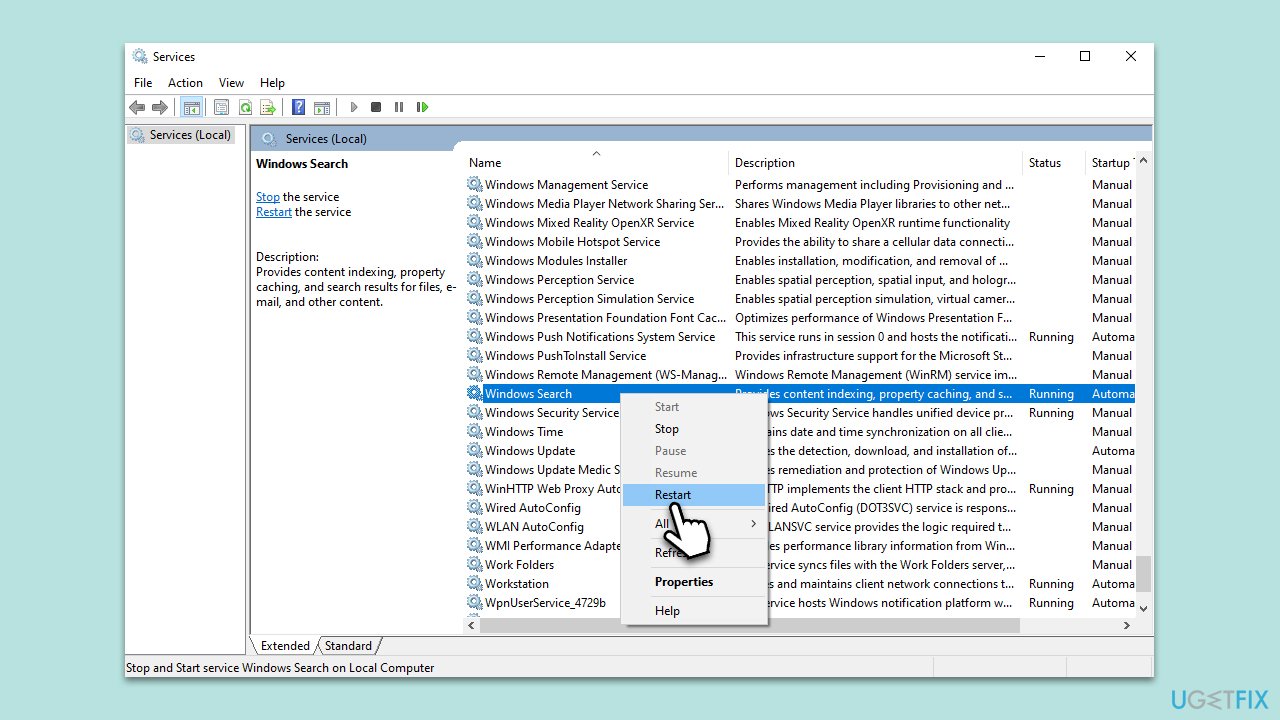
Windows Search service is responsible for indexing content, and at times, it might misbehave. Restarting the service can reset its behavior.
- Press Win + R to open the Run dialog.
- Type services.msc and press Enter.
- Locate Windows Search in the list.
- Right-click on it and select Restart.
- If the service is not running, select Start instead.
Fix 2. Check for malware
Malicious software might masquerade as genuine processes. To check your system, scan it with reputable third-party security software or simply employ Microsoft Defender (or Microsoft Safety Scanner):
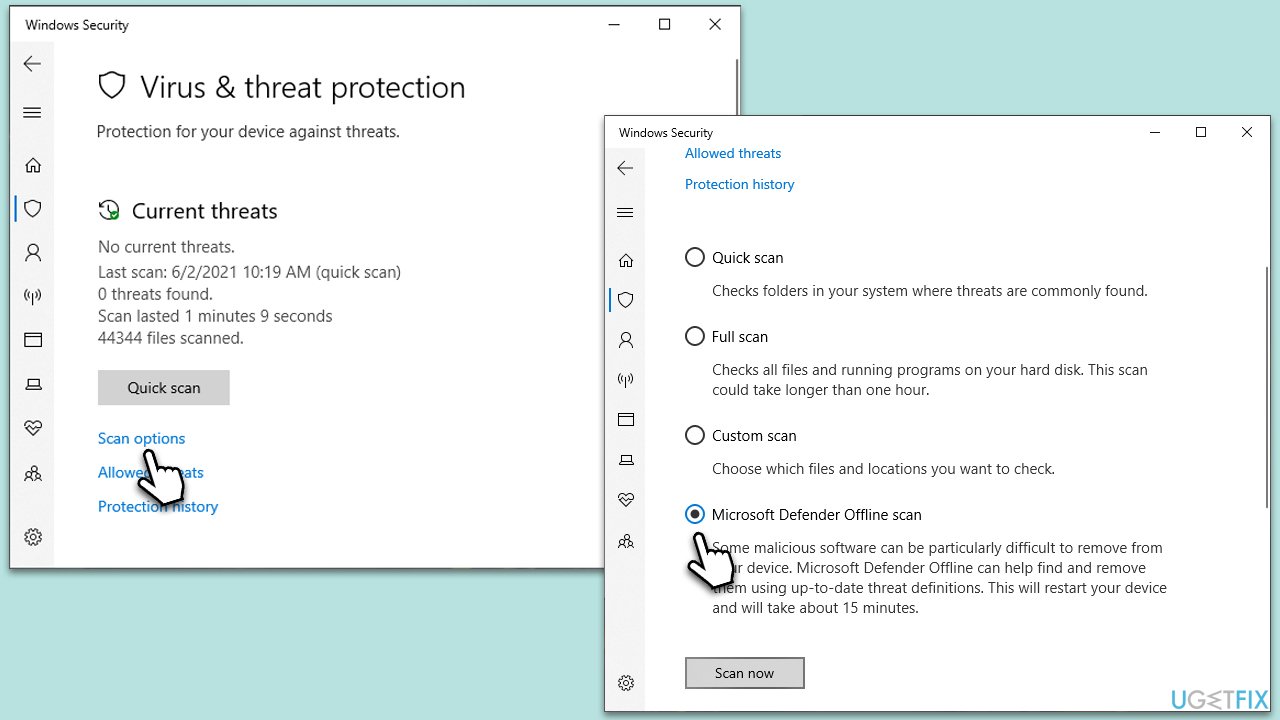
- Type Windows Security in the Windows search bar and hit Enter.
- Select Virus & threat protection.
- Pick Scan options.
- Choose Microsoft Defender Offline scan and click Scan now.
- Your computer will immediately restart and begin a deep scan.
Fix 3. Update Windows
Ensuring your operating system is updated can resolve various issues, including those that may cause high CPU usage. Microsoft frequently releases updates that address known bugs.
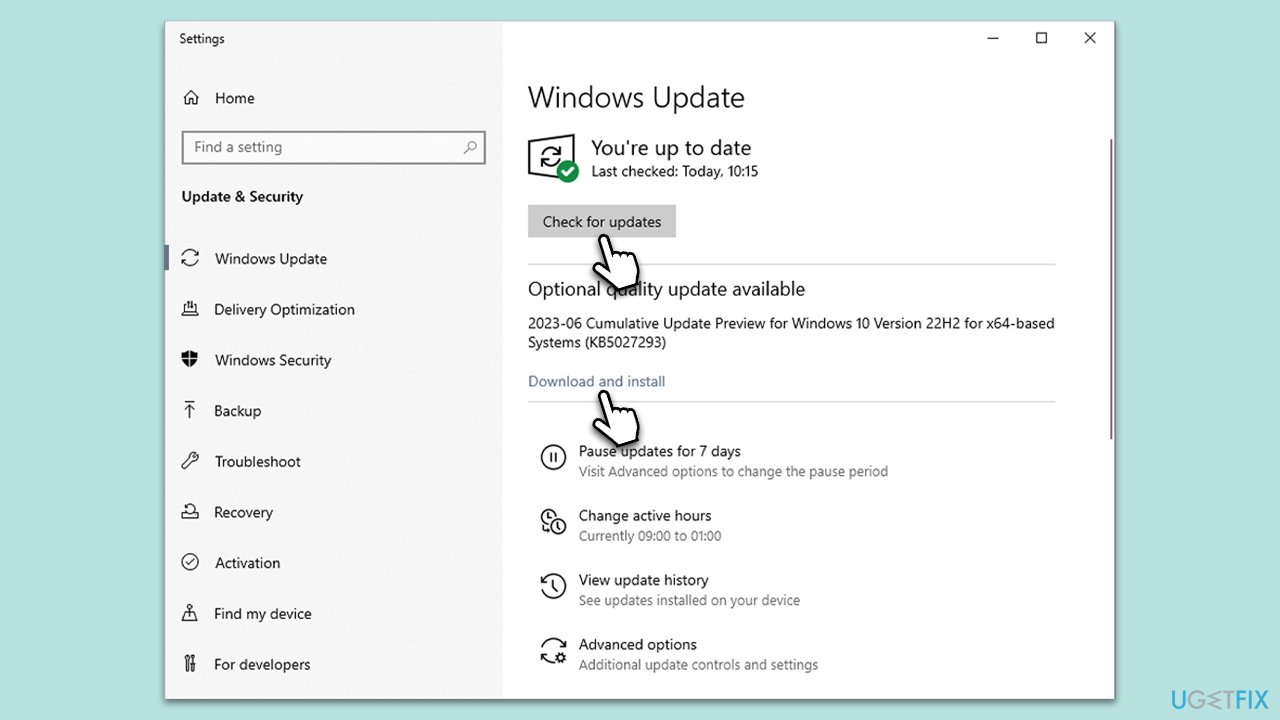
- Type Updates in Windows search and press Enter.
- When the new window opens, click Check for updates and wait.
- If there are optional updates available, install them as well.
- Restart your computer to implement the changes.
Fix 4. Uninstall the latest Windows updates
While updates are meant to improve the system, they can sometimes introduce new issues. If you've noticed the high CPU usage after a recent update, you might consider uninstalling it to see if it resolves the issue.
- Type Control Panel in Windows search and press Enter.
- Select Programs > Uninstall a program.
- Click on View installed updates on the left side of the window.
- Sort all the updates by date.
- Right-click on the most recent update and select Uninstall.
- Proceed with on-screen instructions.
- Then, type Updates in Windows search and press Enter.
- Click Pause the updates for 7 days (in Windows 11, you can pick a different time period).
- Install updates only once the issue is addressed by Microsoft.

Fix 5. Repair corrupted system files
Damaged system files can cause erratic behavior, including high CPU usage. Please follow these steps to address this with SFC and DISM scans:
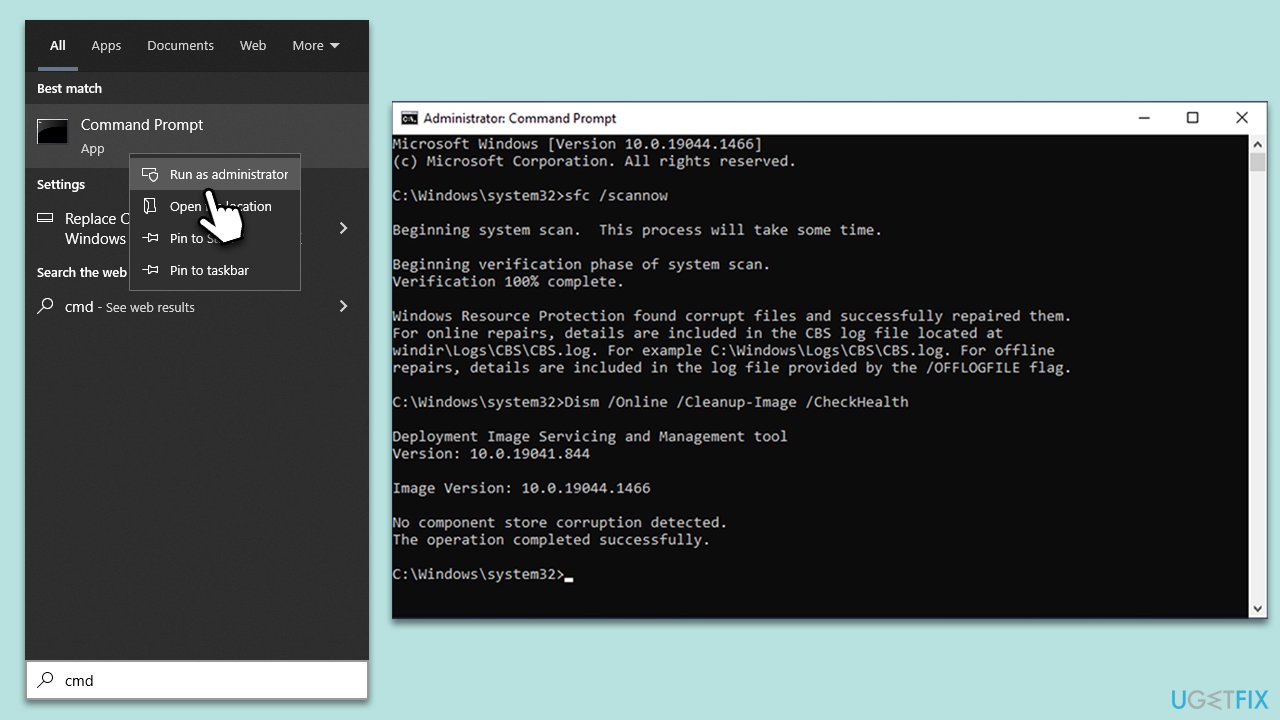
- Type cmd in Windows search.
- Right-click on Command Prompt and pick Run as administrator.
- User Account Control window will show up - click Yes when prompted.
- Then, copy and paste the following command, pressing Enter after:
sfc /scannow - Wait till the scan is finished. If Windows finds system file integrity violations, it will attempt to fix them. After this, use the set of the following commands, pressing Enter each time:
DISM /Online /Cleanup-Image /CheckHealth
DISM /Online /Cleanup-Image /ScanHealth
DISM /Online /Cleanup-Image /RestoreHealth - (Note: if you get an error executing this last command, add /Source:C:\RepairSource\Windows /LimitAccess to it and try again).
- Close down the Command Prompt and restart your system.
Fix 6. Check for software conflicts
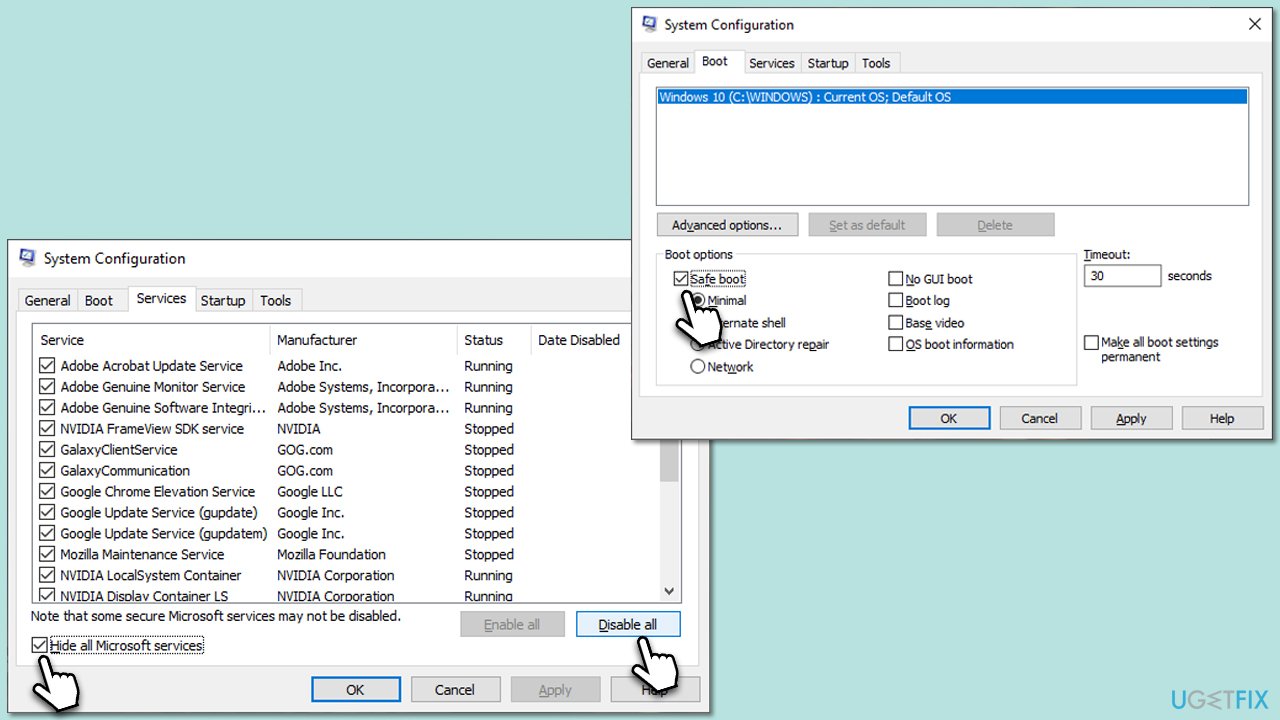
Certain third-party software can conflict with native Windows processes, leading to elevated CPU usage. Safe Boot, which starts Windows with a minimal set of drivers and services, can help identify such conflicts.
- Type msconfig in Windows search and hit Enter.
- Go to the Services tab and tick the Hide all Microsoft services checkbox.
- Select Disable all.
- Go to the Startup tab and click Open Task Manager.
- Here, right-click on each of the non-Windows entries and select Disable.
- Close down the Task Manager.
- Go to the Boot tab and tick the Safe boot option.
- Restart your device.
Bottom line
To address the high CPU usage of SearchUI.exe, you can restart the Search service, check for system updates, and run a malware scan. If these solutions do not resolve the issue, consider using a PC repair tool for a comprehensive fix.
Frequently asked questions
High CPU usage by SearchUI.exe in Windows 10 can be caused by corrupted search index files or issues with Cortana's functionality. Disabling Cortana or rebuilding the search index may help resolve this issue.
In Windows 11, you can troubleshoot high CPU usage by SearchUI.exe by resetting the Windows Search feature or running the Search and Indexing troubleshooter from Settings. Additionally, checking for pending updates may also resolve underlying issues.
Disabling SearchUI.exe can improve performance if it's causing high CPU usage, but it will disable Cortana and Windows Search functionalities. Consider this option only if other troubleshooting steps do not resolve the issue.




Report an issue
What's wrong with this guide? We review every report and update or remove content.
Report received — thank you. We'll review and fix it.
You need a free account to submit a report.
Be the first to comment