How to fix
Sechost.dll is missing or not found error
on Windows
Resolve the Sechost.dll missing error in Windows 10 or 11 effortlessly. Our expert-tested solutions will have you back up and running in minutes!

What causes How to fix Sechost.dll is missing or not found error in Windows?
- Sechost.dll file is missing
- Sechost.dll file is corrupt
- Sechost.dll file is not properly registered
- Issues with the affected applications
- Windows system files are damaged
Repairs Windows system files, removes malware, and restores a clean OS state — without reinstalling.
Yesterday I tried to open Discord on my Windows laptop, and I received an error "The code execution cannot proceed because C:\Windows\SYSTEM32\sechost.dll was not found." I decided to wait and see what would happen, and today nothing changed. I can't open several other apps. Any ideas on how to deal with this?
Windows is a complex operating system that comprises thousands of files, including dynamic-link library files, also known as DLLs. These files contain code and resources that are used by multiple programs and applications. DLLs are essential for the proper functioning of Windows, and when they are missing or not found, it can cause errors that prevent users from opening or running certain apps.
One common error that some Windows users may encounter is the "Sechost.dll is missing or not found" error. This error message can appear when attempting to open certain applications, such as Discord, Steam, Teams, and others. The error message usually indicates that the Sechost.dll file is either missing, corrupt or not properly registered in the system.
The Sechost.dll file is a critical system file that is used to manage security and authentication processes in Windows. It is responsible for managing processes related to security protocols, such as Windows Firewall, authentication, and authorization. When this file is missing or not found, it can cause errors that prevent users from running certain applications.
Fortunately, there are several ways to resolve the "Sechost.dll is missing or not found" error. One of the easiest and most effective solutions is to restore the missing or corrupted Sechost.dll file using the System File Checker tool (SFC). This tool scans the system for missing or corrupted system files and replaces them with the correct versions.
Another solution is reinstalling the affected applications, which can sometimes resolve any issues related to missing or corrupted DLL files. Additionally, performing a clean install of Windows can help resolve the error, as this will replace all system files, including DLLs, with fresh copies.
You will find several solutions to fix the "Sechost.dll is missing or not found" error below, although we do recommend trying automatic repair with [d1], which can quickly and easily replace corrupted system files and resolve errors.
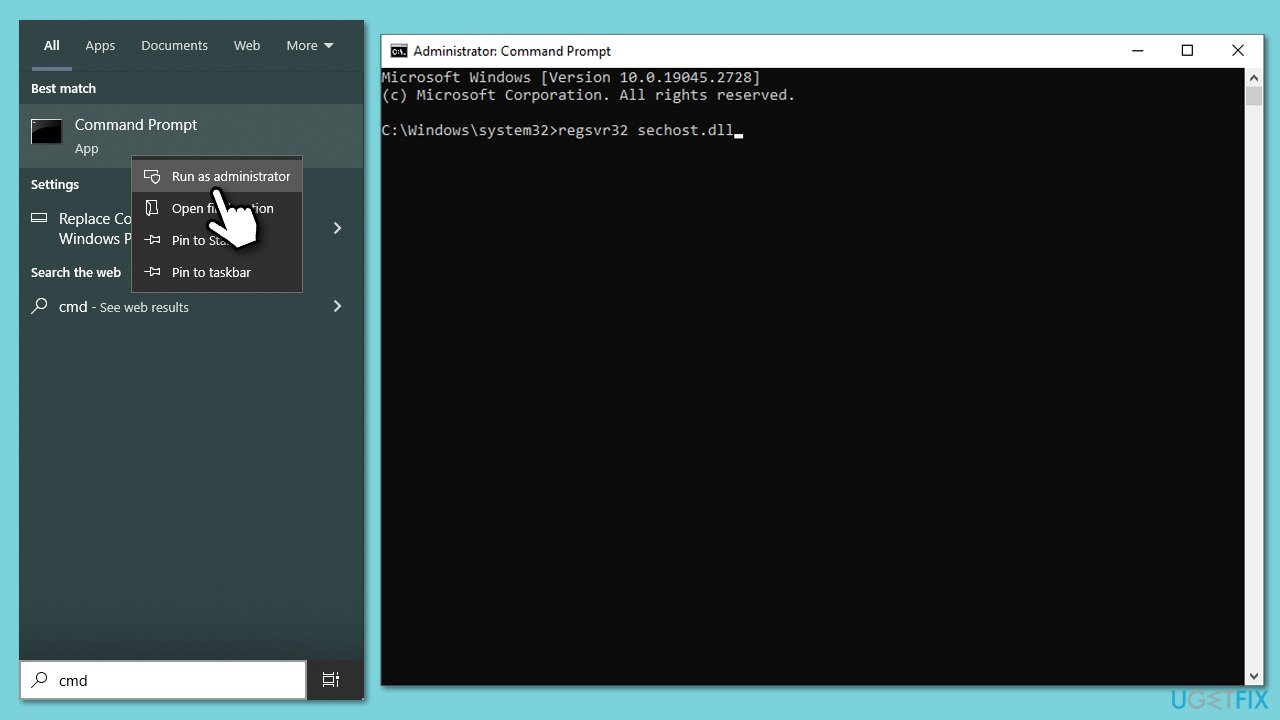
Fix 1. Re-register the DLL file
- Type cmd in Windows search.
- Right-click on the Command Prompt search result and select Run as administrator.
- When UAC (User Account Control) window shows up, select Yes.
- In the new window, copy and paste the following command:
regsvr32 sechost.dll - Press Enter and let it execute.
- Close down everything and restart your system.
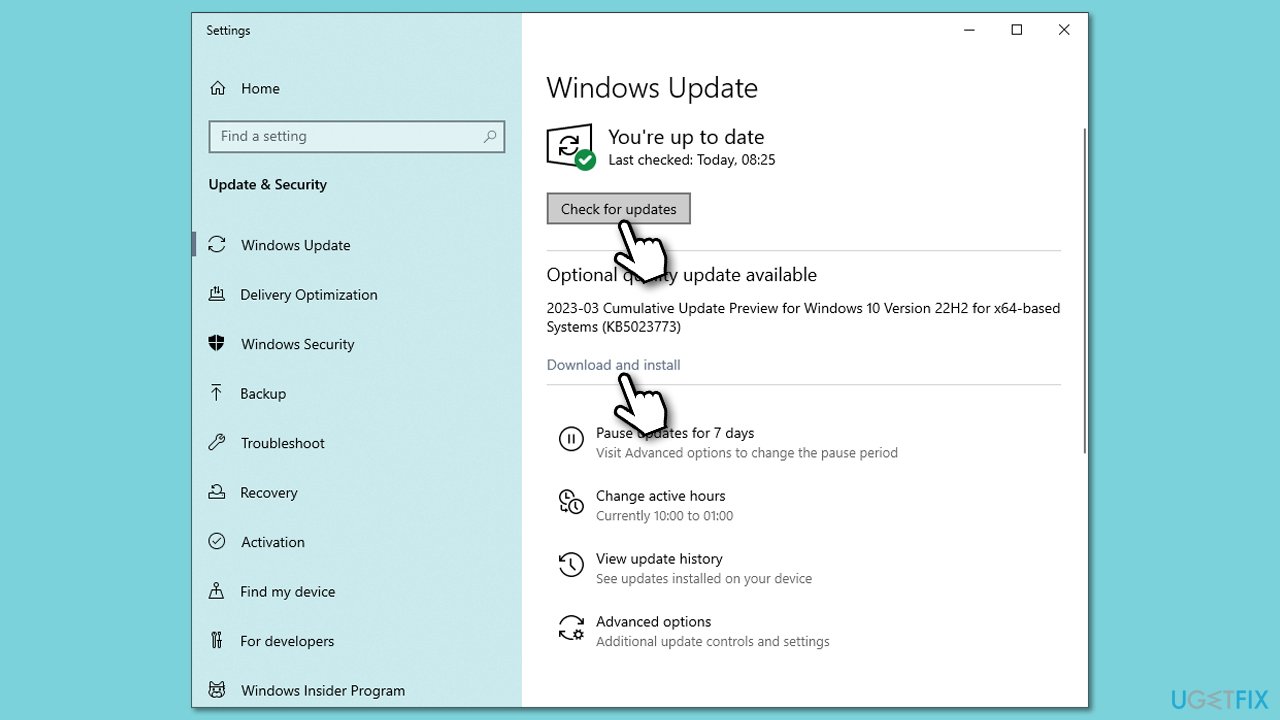
Fix 2. Update Windows
Apply all the available Windows updates to make sure that the system is patched with all bug fixes from Microsoft.
- Type Updates in Windows search and hit Enter.
- Here, click Check for updates - Windows will download all the necessary files.
- If optional updates are available, install them as well.
- Finally, reboot your device.
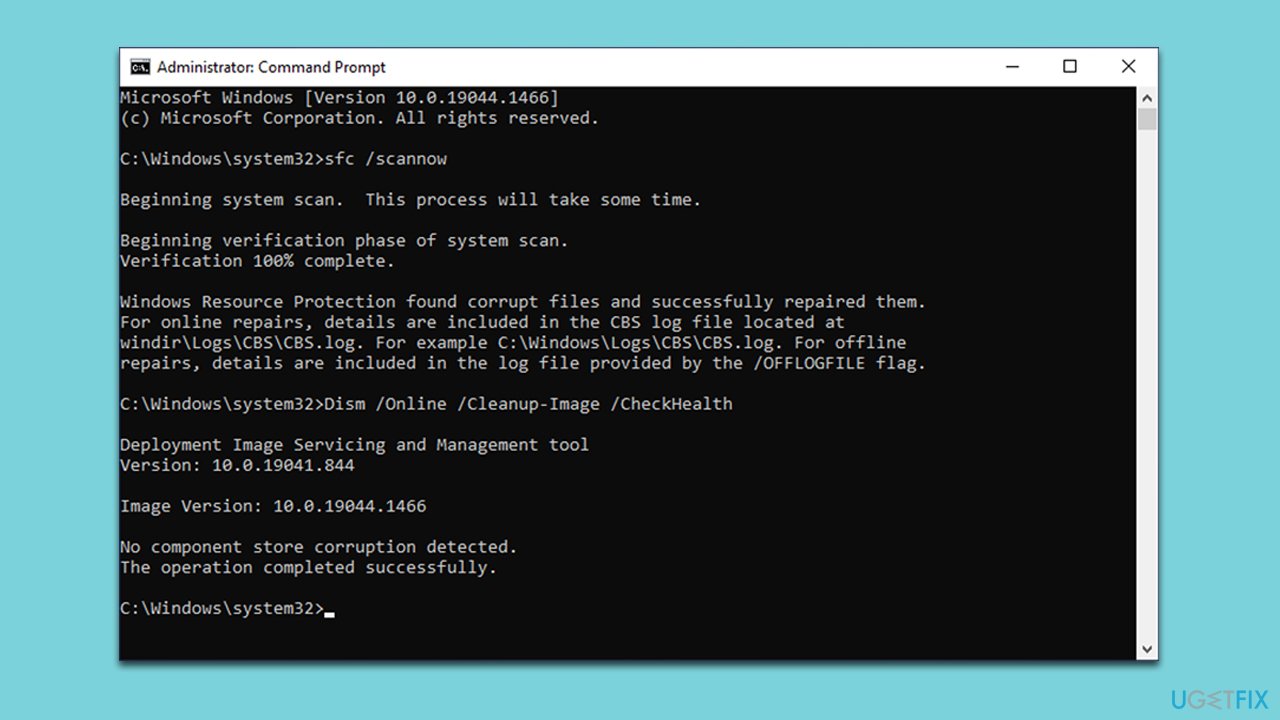
Fix 3. Check for corrupted files
- Open Command Prompt as administrator.
- Next, type in the following command and press Enter:
sfc /scannow - Once done, run the following commands as well:
dism /online /cleanup-image /scanhealth
dism /online /cleanup-image /checkhealth
dism /online /cleanup-image /restorehealth - Restart your device.
Fix 4. Reinstall the app causing the problem
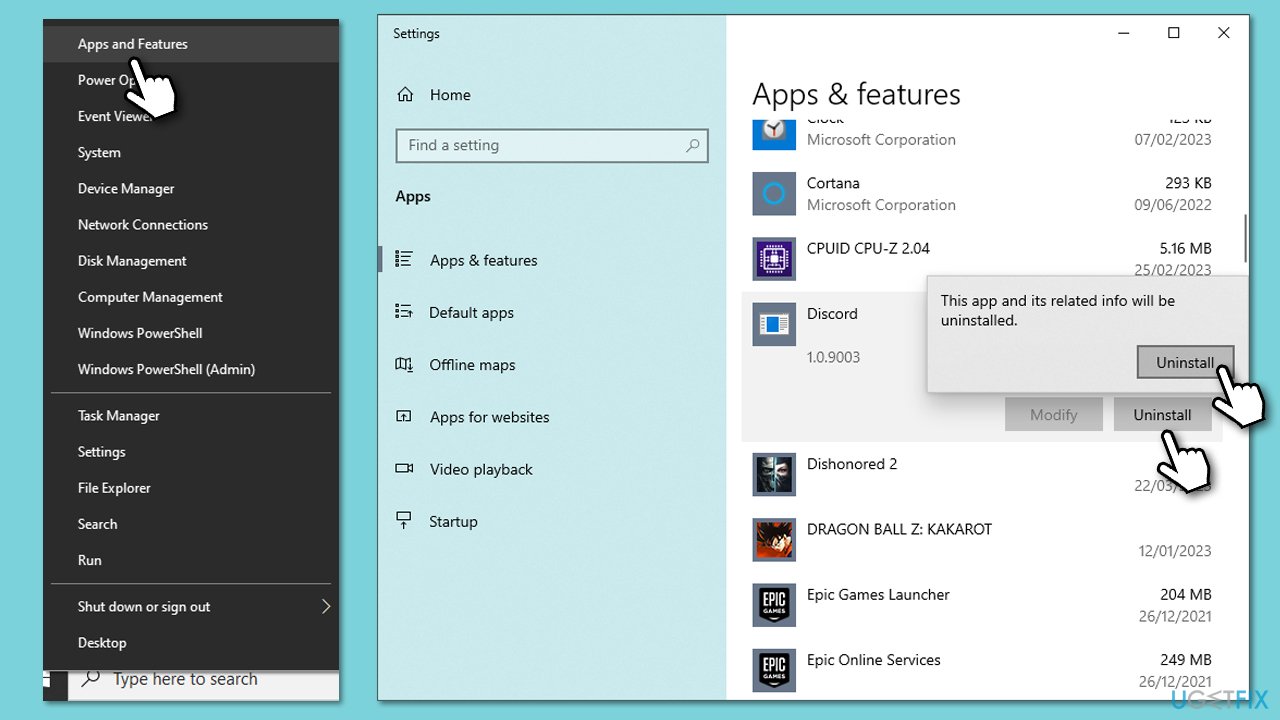
In some cases, DLL errors can be fixed by reinstalling the application that is causing the error.
- Right-click on Start and pick Apps and Features.
- Scroll down to locate the app in question, for example, Discord.
- Click Uninstall and confirm with Uninstall.
- Follow on-screen instructions to remove the app.
- Then, download the installer from the official website and install the program once again.
Fix 5. Reset Windows
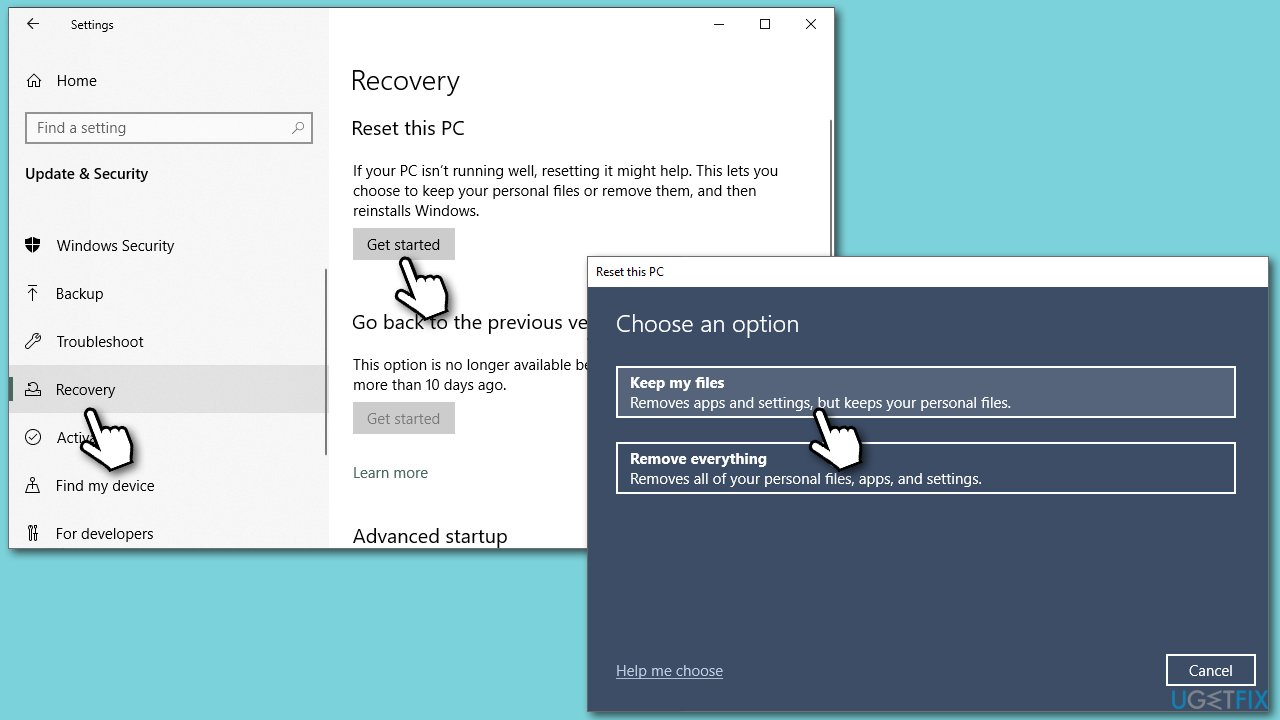
- Right-click on Start and pick Settings.
- Go to Update & Security and pick Recovery.
- Find Reset this PC section and click Get Started.
- Select Keep my files > Cloud download.
- Proceed with the on-screen instructions (your computer may restart several times).
Fix 6. Reinstall Windows
Before proceeding, make sure you back up your files, disconnect all unnecessary devices, and uninstall a third-party anti-malware app.
- Download Windows 10 installation media (Windows 11 version) from the official Microsoft website.
- Double-click the installer to launch it.
- Agree to Terms and select Next.
- Select Create installation media (USB flash drive, DVD or ISO file) for another PC and click Next.
- Pick a USB flash drive (make sure you have USB connected to your PC).
- Mark the Use Recommended options for this PC checkbox and click Next.
- Connect the USB to the PC that you are having trouble with.
- Boot into BIOS (typically by pressing F2, F8, F12, Del, or another key several times) and go to Boot menu.
- Here, select the Boot priority option and set it to USB.
- Restart the computer.
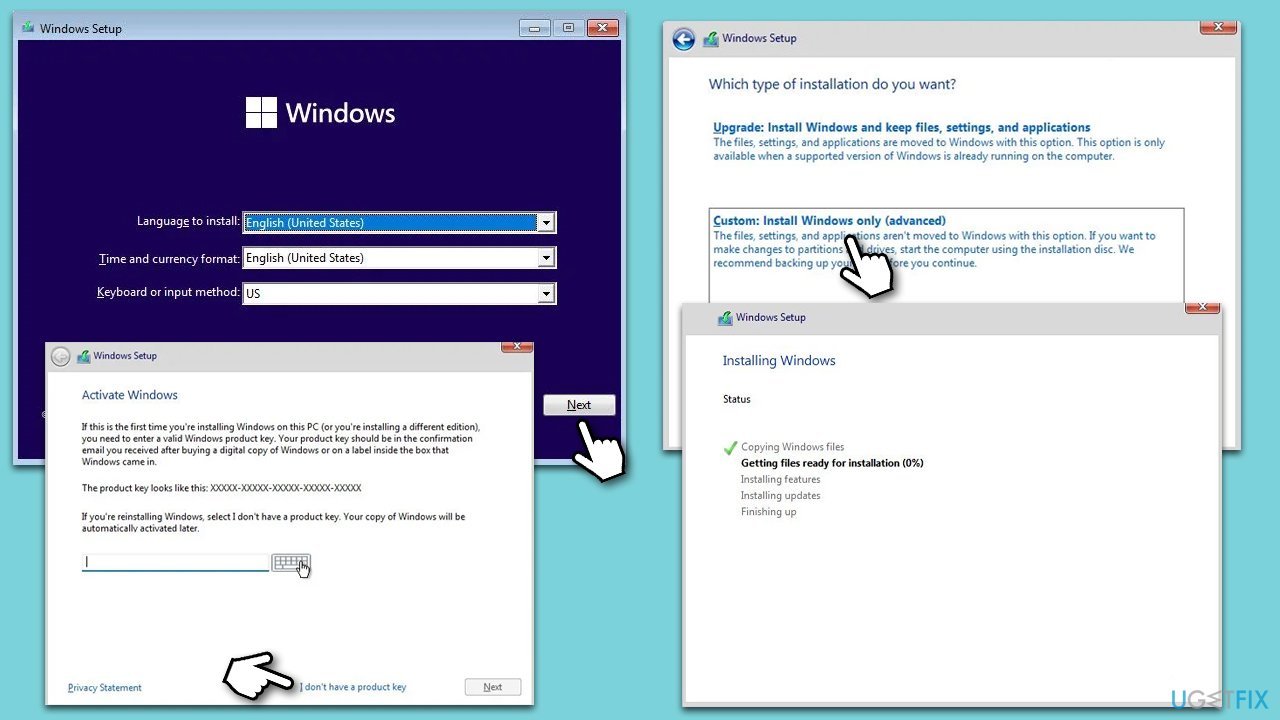
- When the system boots, you should see the Install now option - click it.
- Pick all the preferences and click Next.
- Skip Windows activation for now - select I don't have a product key.
- Select the correct operating system version.
- Pick Custom: Install Windows only option.
- Select the partition and then begin the installation process.
Bottom line
To fix the 'Sechost.dll is missing or not found' error, you can use the System File Checker tool to restore the missing or corrupted file, reinstall the affected applications, or perform a clean install of Windows. If none of these solutions work, further troubleshooting may be necessary.
Frequently asked questions
The Sechost.dll is missing error in Windows 10 can be caused by corrupted system files, malware infections, or improper software installations that affect the DLL file.
To restore the Sechost.dll file in Windows 11, you can run the System File Checker tool by opening Command Prompt as an administrator and typing 'sfc /scannow'.
No, downloading Sechost.dll from the internet can be risky as it may introduce malware; it's safer to use built-in Windows tools to repair the file.




Report an issue
What's wrong with this guide? We review every report and update or remove content.
Report received — thank you. We'll review and fix it.
You need a free account to submit a report.
Be the first to comment