How to fix
Second monitor not detected
on Windows
Resolve your second monitor not detected issue on Windows 10 quickly and easily. Expert-tested solutions ensure your setup is back in action, with scree…

What causes How to fix second monitor not detected on Windows 10?
- Connection problems with the physical cable
- Incorrect input selection on the monitor
- Potential malware infection
- Issues with the operating system
- Faulty monitor or display device
Repairs Windows system files, removes malware, and restores a clean OS state — without reinstalling.
I decided to use two monitors to improve multitasking. However, once I tried to connect them both, one of them doesn't work. I saw an error saying that the second monitor is not detected. Currently, I'm using Windows 10. So, could you help me with this issue?
Second monitor not detected is an issue related to the connection of display. Usually, this option is excellent for those who want to improve their gaming experience, maintain work productivity, or increase multitasking. Even though connecting an additional display isn't an advanced procedure, people might encounter monitor-related issues on Windows 10[ref en-1].
The most common reason why Windows 10 cannot detect the second monitor is the connection problems. Thus, you should make sure that the physical cable to plugged correctly from the display to the video port. Additionally, ensure that you are using the correct input if you have the ability to choose between multiple ones[ref en-3].
Furthermore, in some rare cases, you can encounter "Second monitor not detected" on Windows 10 if your computer is infected with potentially dangerous programs. Experts note that the activity of some cyber threats might interfere with the operating system and prevent you from connecting the additional display.
You can scan your device with a professional system optimization tool to fix Second monitor not detected issue on Windows 10 automatically. For that, we highly recommend using [d1] as it can also help you repair your PC from malware[ref en-2] damage and prevent further infections.
If none of the methods mentioned above helped you to fix "Second monitor not detected" error, try following the more advanced guidelines. You can find them just below. However, it is essential to read them attentively and ensure that the procedure is held with extreme care.
Learn how to fix Second monitor not detected issue on Windows 10
Before you start reading the instructions on how to fix Second monitor not detected problem, try connecting your display to another device. In case the issue is the monitor itself, you will be able to identify the problem quickly. Additionally, our experts recommend using verified cables from official manufacturers since it might be the cause of the error as well.
This is a video that will help you with this problem:
[youtube y69Z0UakA9M]
Method 1. Update monitor and display drivers
- Open the Windows Start menu and enter Device Manager;
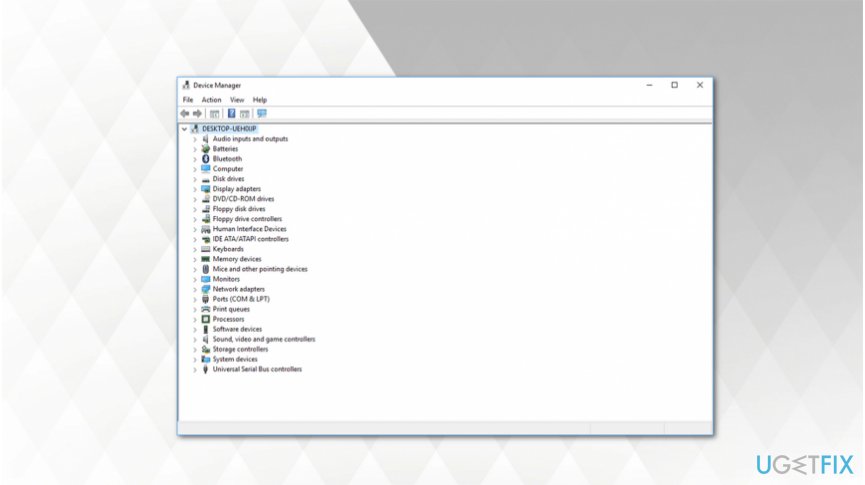
Open device manager - Open the window and search for Display Adapters;
- Right-click on it and select Update Driver;
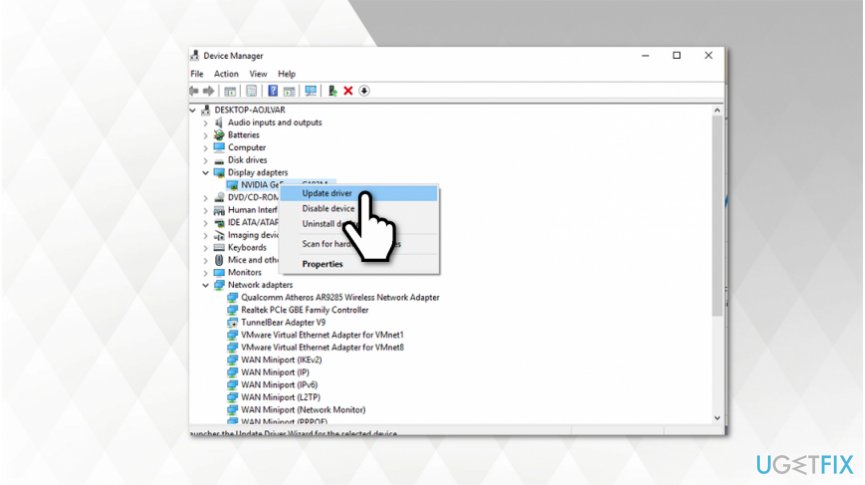
Update display drivers - Find Monitor in the Device Manager and right-click on it;
- Select Update Driver as well.
Method 2. Reinstall display drivers
- Open Device Manager and search for Display Adapters;
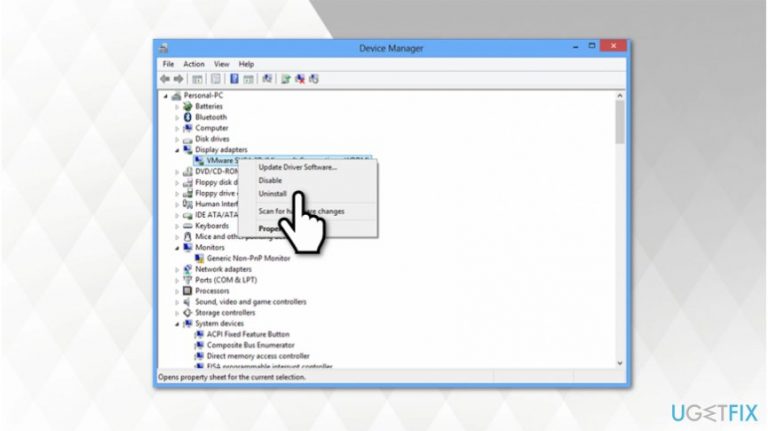
- Right-click on it and select Uninstall Device;
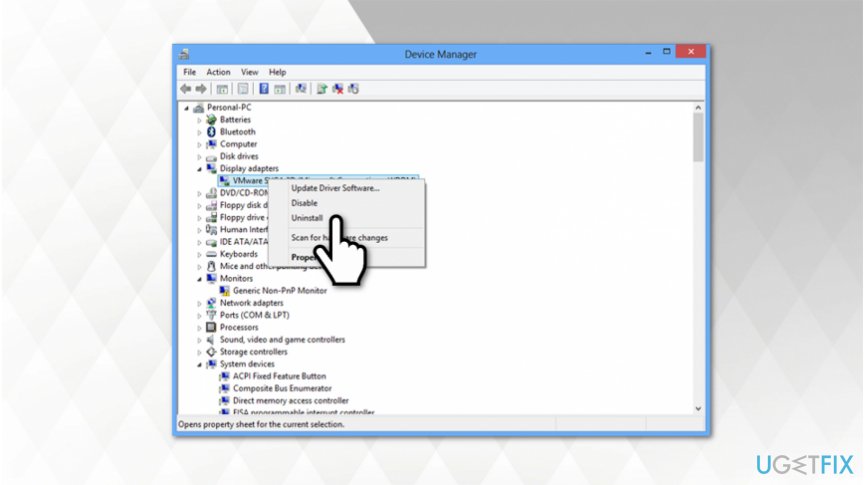
Uninstall display drivers - Tick Delete the Driver Software for this Device box and click Uninstall;
- Restart your computer.
Method 3. Detect your second monitor manually
- Go to the Windows Start menu and open Settings;
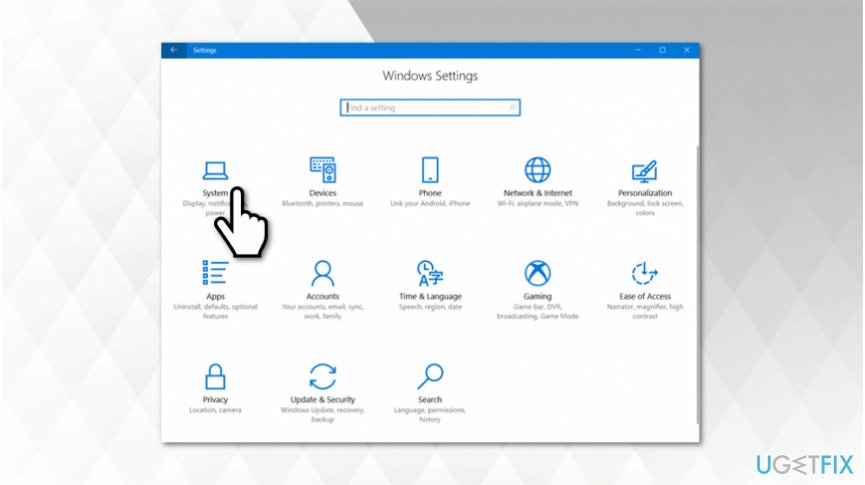
Detect second monitor manually - Click on System and find Multiple Displays section;
- Hit the Detect button and follow the on-screen guidelines.
Bottom line
To fix the 'Second monitor not detected' issue, ensure the physical cable is properly connected and the correct input is selected. If problems persist, scan your device for malware and consider connecting the monitor to another device to identify if the issue lies with the monitor itself. If none of these solutions work, follow more advanced troubleshooting guidelines.
Frequently asked questions
Try rolling back the graphics driver to a previous version, as updates may sometimes cause detection issues. You can do this via Device Manager by right-clicking on your graphics device and selecting 'Roll Back Driver.'
Ensure that the monitor is powered on and connected securely to the computer's HDMI or DisplayPort. You can also test the monitor with another device to confirm it is functioning correctly.
Go to Settings > System > Display and click 'Detect' to see if Windows can find the second monitor. Additionally, check the display settings to ensure that the multiple displays option is set to 'Extend these displays'.




Report an issue
What's wrong with this guide? We review every report and update or remove content.
Report received — thank you. We'll review and fix it.
You need a free account to submit a report.
Be the first to comment