How to fix
SECURE_PCI_CONFIG_SPACE_ACCESS_VIOLATION BSOD
on Windows
Resolve the SECURE_PCI_CONFIG_SPACE_ACCESS_VIOLATION BSOD on Windows 10 and 11 with expert-tested solutions that fix issues in minutes.

What causes How to fix SECURE_PCI_CONFIG_SPACE_ACCESS_VIOLATION BSOD in Windows?
- Hardware problems
- Software conflicts
- Malware infections
- System file corruption
- Incorrect system configurations
Repairs Windows system files, removes malware, and restores a clean OS state — without reinstalling.
Hello. My Windows PC crashed several times with the SECURE_PCI_CONFIG_SPACE_ACCESS_VIOLATION Blue Screen error. Is it possible to fix this?
SECURE_PCI_CONFIG_SPACE_ACCESS_VIOLATION is an error code. The Blue Screen of Death (BSOD)[ref en-1] is a type of error that can occur in Microsoft Windows operating systems. BSODs are critical system failures that cause the computer to shut down in order to avoid further damage. They are represented by blue screens with white text that contains error codes and diagnostic information.
BSOD errors can be caused by a variety of factors, including hardware problems, software conflicts, malware infections, system file corruption, or incorrect system configurations. The SECURE_PCI_CONFIG_SPACE_ACCESS_VIOLATION error refers to a violation when accessing the PCI configuration space, which is related to hardware and driver[ref en-2] interactions.
SECURE_PCI_CONFIG_SPACE_ACCESS_VIOLATION is an error code. BSODs can have a significant impact on users, resulting in unexpected system crashes, data loss, interrupted work, and general inconvenient situations. It may make it difficult for users to access their computers and may disrupt critical tasks or operations. Recurrent BSOD errors can also cause frustration and anxiety because you never know when the next crash will occur.
Resolving BSOD errors necessitates a methodical approach. Updating drivers, ensuring hardware compatibility and functionality, scanning for malware infections, repairing system files, and checking for recent software or hardware changes that may have caused the error are all potential solutions for the SECURE_PCI_CONFIG_SPACE_ACCESS_VIOLATION BSOD.
In this guide, you will find 8 steps that should help you fix the Blue Screen error. Follow the step-by-step instructions below.
Solution 1. Install Windows Updates
- Press the Windows key + R to open the Run box.
- Type ms-settings:windowsupdate in the text box and press Enter.
- Click the Check for updates button.
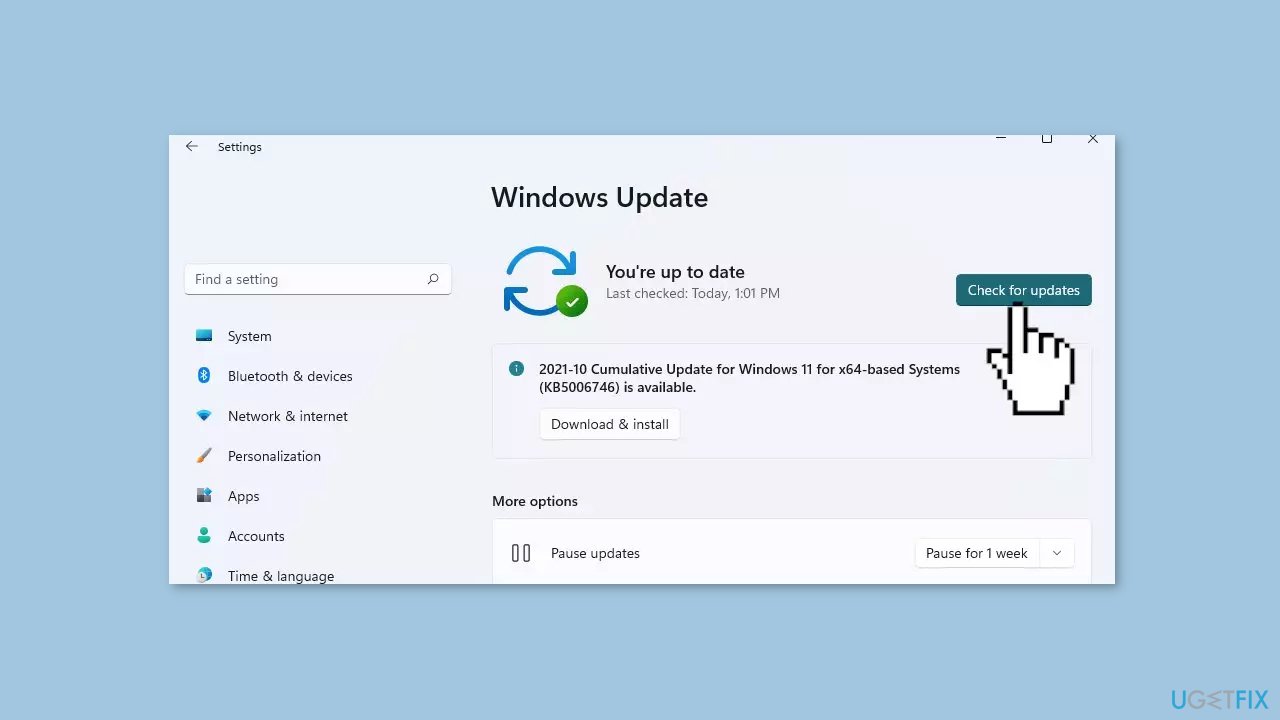
- If a new update is available, click the Download & Install all button.
- Restart your computer after the process is finished and check to see if the problem is fixed.
Solution 2. Turn off Memory Integrity
- Open the Start Menu.
- Type Windows Security in the search bar.
- Press Enter.
- Click on the three vertical lines located in the top left corner of the window to expand the menu items.
- Locate and click on Device security.
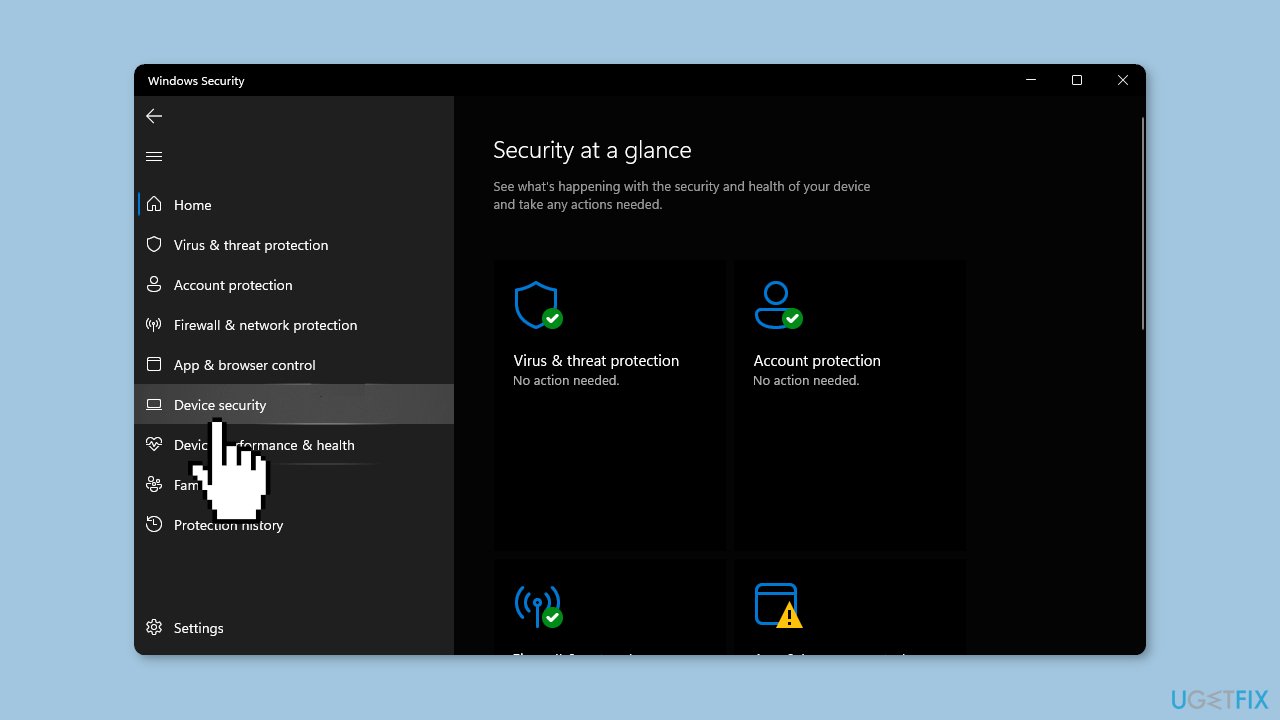
- Look for Core isolation details under the Core isolation section.
- Click on Core isolation details.
- Toggle the switch to turn it off.
Solution 3. Uninstall AMD Software
- Press the Windows key on your keyboard.
- Click on the Settings icon in the Start Menu.
- In the Settings window, navigate to the Apps section on the left pane.
- Click on Apps & features in the right pane.
- Scroll through the list of installed apps and locate AMD software.
- Click on the three ellipses (three dots) next to AMD software.
- From the options that appear, select Uninstall.
Solution 4. Reinstall Riot Vanguard
- Press the Windows key on your keyboard.
- Type Control Panel in the search bar.
- Click on Control Panel to open it.
- In the Control Panel window, navigate to the Uninstall a program option under the Programs category.
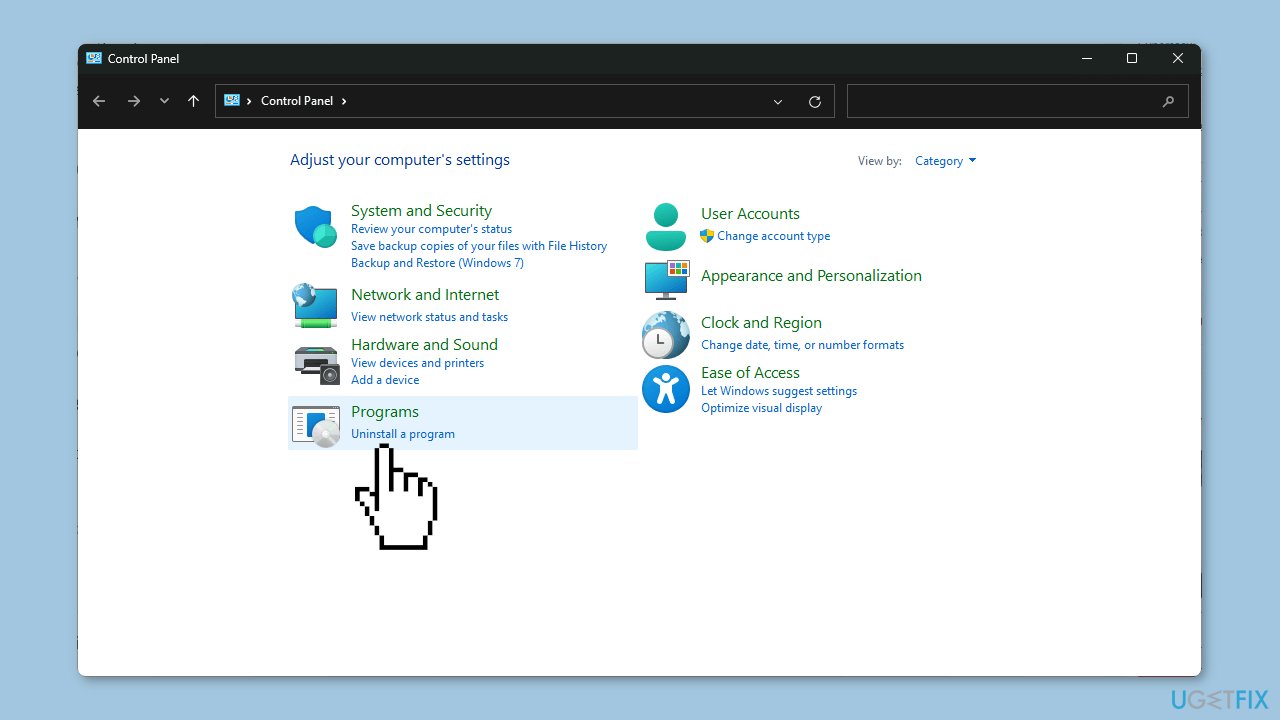
- Locate Riot Vanguard in the list of installed programs.
- Select Riot Vanguard.
- Click on the Uninstall button to remove Riot Vanguard.
- Go to the official site for Valorant.
- Click on the download link to start the download process.
- Once the download is complete, locate the downloaded file.
- Double-click on the downloaded file to start the installation process.
- Follow the on-screen prompts to install Valorant on your computer
Solution 5. Uninstall Recent Windows Updates
- Press the Windows key + I simultaneously to open the Settings menu.
- In the Settings window, navigate to Windows Updates.
- Click on Update history.
- Locate and click on Uninstall updates.
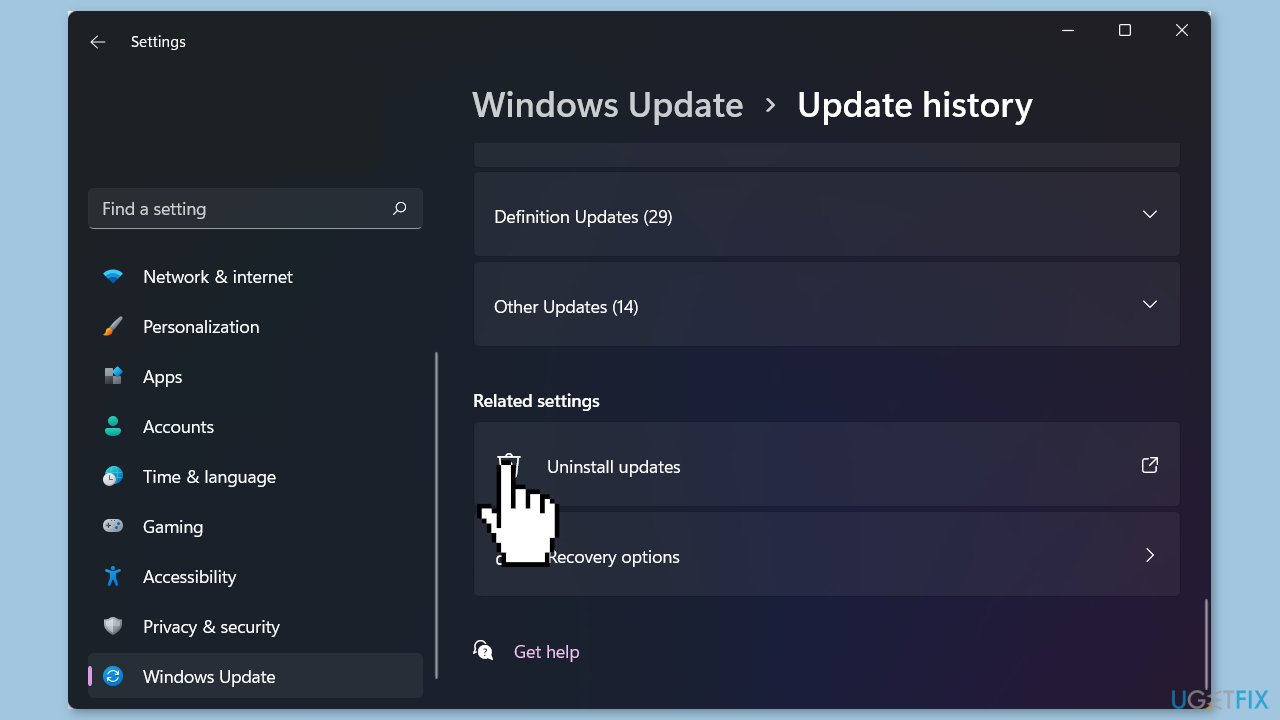
- Look for the most recent update from the list.
- Select the most recent update.
- Click on Uninstall to remove the selected update.
Solution 6. Try Clean Boot
- Press the Windows key + R on your keyboard.
- Type msconfig in the Run dialog box that appears.
- Click on OK or press Enter to open the System Configuration window.
- Select the Services tab at the top of the window.
- Check the box next to Hide all Microsoft services.
- Click on the Disable all button.
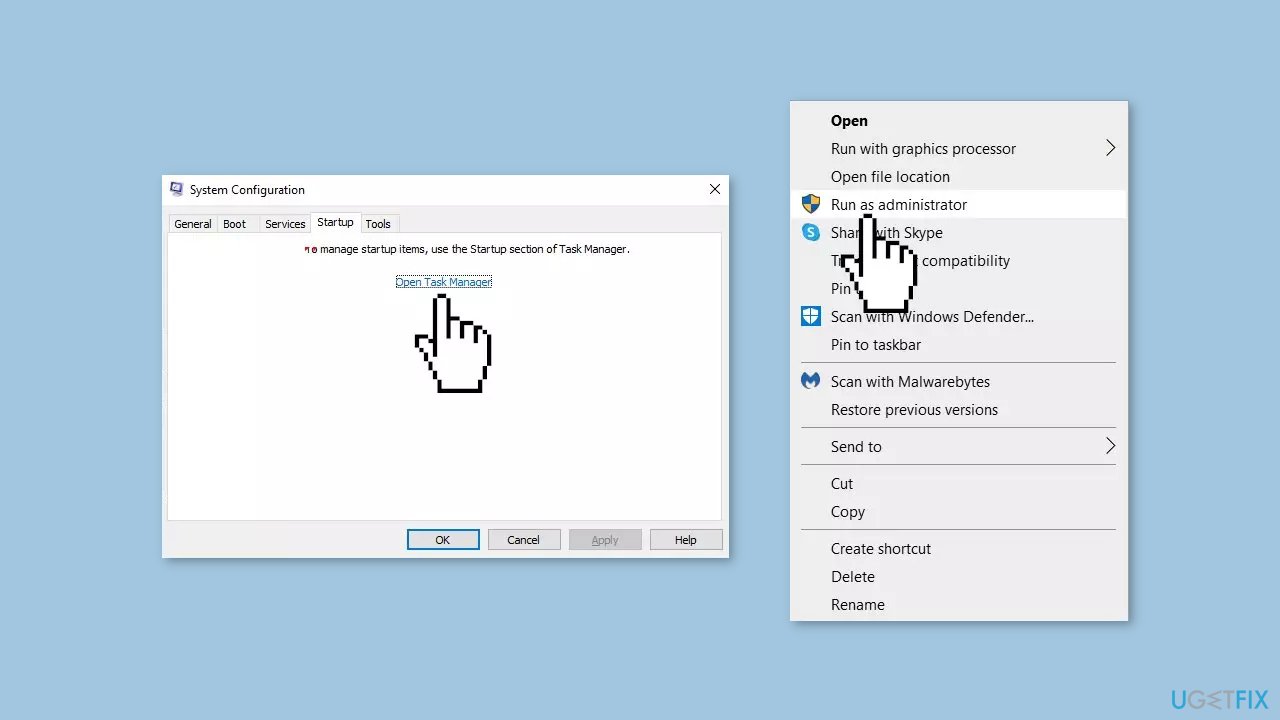
- Select the Startup tab at the top of the window.
- Click on the Open Task Manager link.
- In the Task Manager window that appears, right-click on each app listed under the Startup tab.
- Select Disable from the context menu for each app.
- Close the Task Manager window and go back to the System Configuration window.
- Click on the Apply button and then click on OK to save the changes.
- Restart your PC.
- Once your PC has restarted, uninstall the faulty app.
- Download the app from official sources.
- Right-click on the installer and select Run as administrator.
- Follow the on-screen instructions to install the app.
Solution 7. Use System Restore
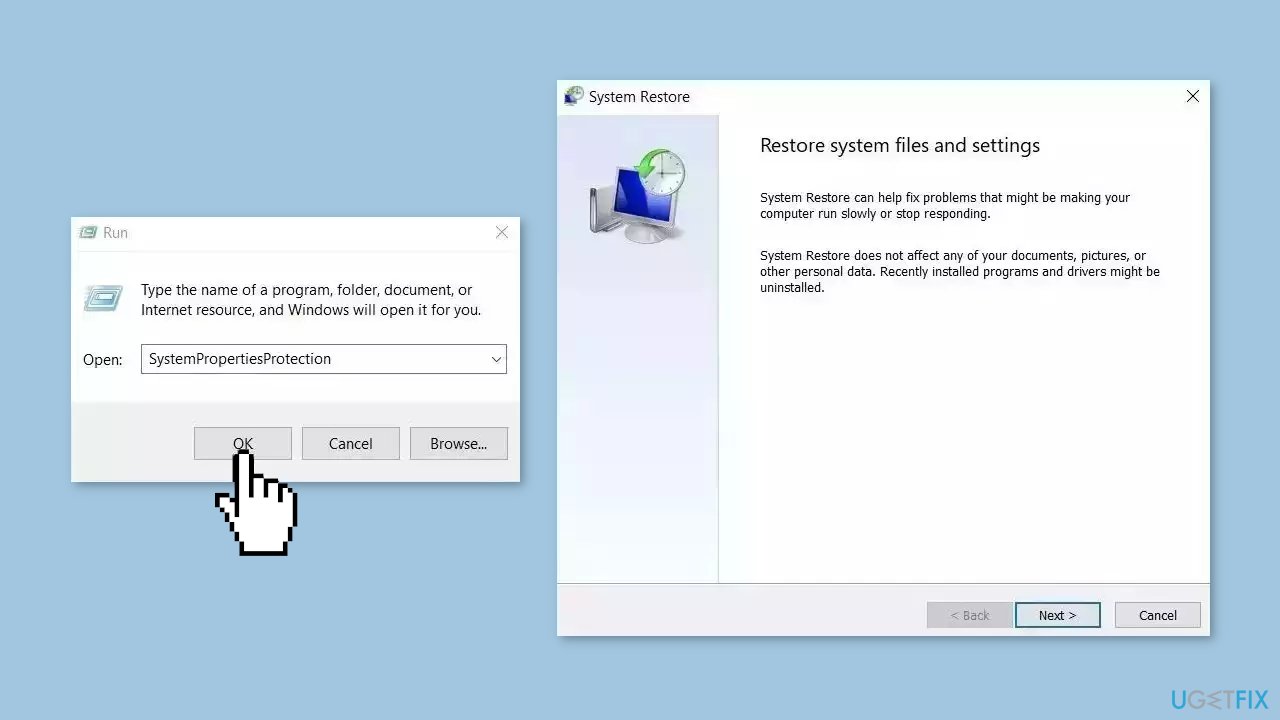
System Restore is a feature in Microsoft Windows that allows users to revert their computer's state to a previous point in time. This can be helpful if you have made changes to your system that are causing problems.
- Go to the Start menu, type restore, and click on Create a restore point.
- Click System Restore, then follow the prompts until you can select a restore point.
- Select the one you want (ideally before the issue started occurring) and go ahead with the process.
Solution 8. Run a System Repair Tool
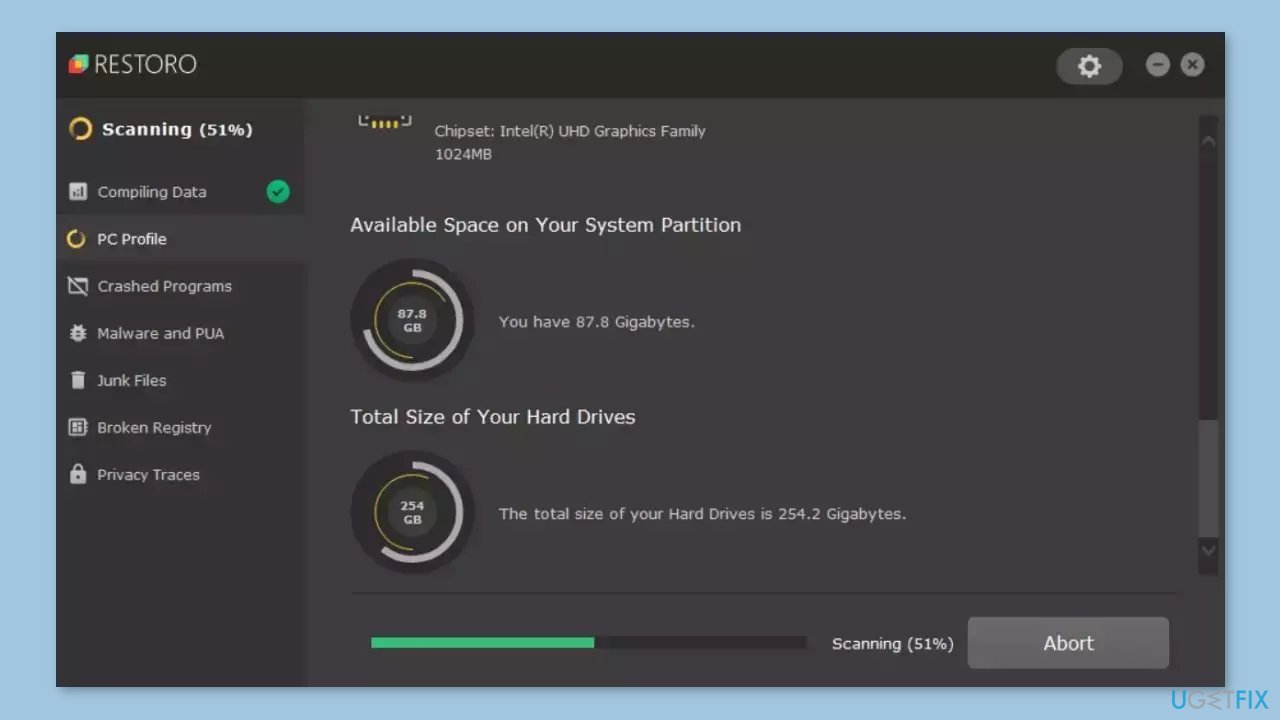
[d1] is a tool that is designed to diagnose and fix problems with a computer's operating system. It can effectively troubleshoot and repair system errors, BSODs, corrupted files, registry[ref en-3] issues, and other problems that can cause a computer to perform poorly or become unresponsive. Additionally, it can automatically clear cookies and cache which are often the cause of many malfunctions.
To identify and repair problems, the tool performs a scan of the system and replaces or repairs any damaged or corrupted files and other issues that it finds. While many users have reported that it is effective at fixing certain types of computer problems, it is important to note that it is not a guaranteed solution and may not work for all issues.
Bottom line
To fix the SECURE_PCI_CONFIG_SPACE_ACCESS_VIOLATION BSOD, you can try installing Windows updates, turning off Memory Integrity, and ensuring hardware compatibility. If these solutions do not resolve the issue, further troubleshooting may be necessary.
Frequently asked questions
This BSOD error is typically caused by driver issues, hardware incompatibility, or a corrupted system file related to PCI devices.
You can start by updating your device drivers, running a system file check, or performing a clean boot to identify any conflicting software.
To prevent this error, ensure that all your drivers are up to date, especially for your motherboard and graphics card, and regularly check for Windows updates.




Report an issue
What's wrong with this guide? We review every report and update or remove content.
Report received — thank you. We'll review and fix it.
You need a free account to submit a report.
Be the first to comment