How to fix
Security Error 0x00759B
on Windows
Resolve Security Error 0x00759B on Windows 10 and 11 quickly with our expert-tested solutions. Fix issues effortlessly and enjoy a seamless experience!

What causes How to Fix Security Error 0x00759B on Windows?
- Installation of third-party applications
- Agreement to install attachments during software installation
- Presence of ad-supported plug-ins
- Infection by malware
- Vulnerability of the PC
Repairs Windows system files, removes malware, and restores a clean OS state — without reinstalling.
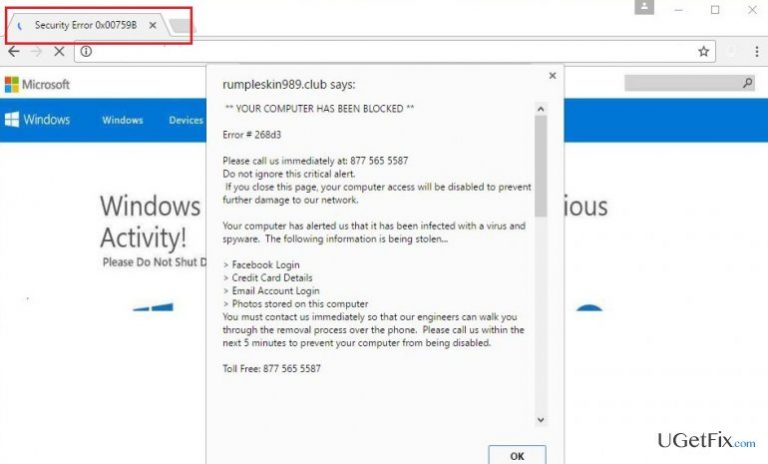
I’ve received a Security Error 0x00759B. It says to call a toll free number and ask professional technicians for help as my PC is infected and suspicious activities are being executed on it. Have you heard something about such error? It looks like a security warning from Microsoft. Is this a real error message or a scam? What should I do?
We know what you should and what you should NOT do when the Security Error 0x00759B pop-up shows on the screen. At the bottom of this article, we will provide the instructions how to delete this notification from your web browsers, but, first of all, we would like to explain what it is and why it shows up.
To begin with, you should NOT call for the professional technicians or at least for the ones whose number is indicated on the Security Error 0x00759B pop-up alerts. That’s because this message is yet another Tech Support Scam, which is used by suspicious parties that may have bad intentions, for example, they may try to spread dangerous programs, try to collect personal information about you, encourage people to subscribe useless services or buy bogus products. Besides, the telephone number given on the fake Microsoft Support Scam message may be premium service located outside the country or simply highly charged, which is why your mobile account may be significantly increased.
Why am I seeing Fake Microsoft Security Error 0x00759B?
Security Error 0x00759B Tech Support Scam is not dangerous as long as you dismiss its content and do not call a given number (877 565 5587). Nevertheless, its occurrence is a signal meaning that your PC is highly vulnerable and may have been affected by malware. In most of the cases, this message shows up right after the owner of a PC installs a third-party application and agrees with the installation of its attachments. Such freeware attachments usually appear to be ad-supported plug-ins, extensions, and add-ons, which once added to the system and web browsers start bringing Security Error 0x00759B pop-ups.
In addition, Security Error 0x00759B virus may also be triggered by a compromised website or when you open infected email attachments. Anyway, it means some malicious activities are being executed within your PC, so to stop this intimidating error message you have to removal malware or block malicious websites.
How to fix Security Error 0x00759B on Windows?
Method 1. Run the Microsoft Safety Scanner
- First of all, you have to boot the system into Safe Mode. For this purpose, reboot your PC.
- Before Windows logo appears, click Shift + F8.
- Select See Advanced Repair Options and then select Troubleshoot.
- Opt for Advanced Options and click Windows Startup Settings.
- Click Restart and then choose either Safe Mode or Safe Mode with Networking.
- Once you are logged in, click this link and download the Microsoft Safety scanner
- Let it troubleshoot the system.
Method 2. Run a professional anti-malware
Another way to get rid of Fake Microsoft Security Error 0x00759B is to execute a scan with a professional malware removal tool. We would highly recommend using [d1]. It will help to remove malware, fix registries, corrupted system files, delete third-party software, and many more.
Method 3. Delete malware manually
Windows OS:
- Go to Start → Control Panel → Programs and Features. (Windows 7 or Vista)
- Go to Start → Control Panel → Add/Remove Programs (Windows XP)
- Right-click in the lower-left corner of the screen and wait until Quick Access Menu appears.
- Go to Control Panel → Uninstall a Program. (Windows 8/10)
- On the list of programs locate the ones that you are not familiar with or that you find suspicious. Click on them and select Uninstall.
- If the confirmation window shows up, click OK to proceed.
Clean web browser's Target Field:
- Find your web browser's shortcut on the desktop and right-click on it.
- Select Properties and open Shortcut tab.
- Find Target Field and delete the suspicious URL address.
- After that, click OK and close the window.
- Repeat these steps with each of your web browsers.
Method 4. Reset Google Chrome
- Open Google Chrome and click on the three horizontal lines at the top right corner of the screen.
- Select More Tools and go to Extensions.
- Find any suspicious extension, select it and then click on the Recycle Bin icon to remove it.
- Check the URL address for any suspicious entries in Open a specific page or set of pages function.
- If you spot any unwanted links, close the window.
- Now return to the main settings windows and click Manage search engines under the Search headline.
- Go to the Search Engines and remove the unwanted URL addresses.
- Finally, open Settings again, expand Advanced Settings, and click Reset browser settings.
- You should reset other web browsers as well.
Bottom line
To fix Security Error 0x00759B, you should avoid calling the number provided in the pop-up and remove any suspicious applications or browser extensions. Additionally, running a malware scan can help identify and eliminate potential threats. If these steps do not resolve the issue, consider seeking professional help from a trusted source.
Frequently asked questions
The Security Error 0x00759B typically indicates an issue with the system's security settings or corrupted files affecting user access. This error can prevent certain applications from running properly.
To fix the Security Error 0x00759B on Windows 11, try running the System File Checker by executing 'sfc /scannow' in Command Prompt as an administrator. Additionally, ensure that your Windows updates are current to prevent compatibility issues.
To prevent the Security Error 0x00759B on Windows 10, regularly update your system and perform routine maintenance checks, including disk cleanup and antivirus scans. Also, ensure that user permissions are correctly set for applications.




Report an issue
What's wrong with this guide? We review every report and update or remove content.
Report received — thank you. We'll review and fix it.
You need a free account to submit a report.
Be the first to comment