
How to fix "Security or Firewall Settings might be blocking the connection" in Windows?

Prefer to fix it yourself? The manual steps follow.
- 8methods
- 5 to 30 minutes
- Intermediate
Applies to Windows 11 (25H2, 26H2) and Windows 10 22H2, on Wi-Fi and Ethernet
8 methods in this guide
For some reason, whenever I try to use the internet on my laptop I get a message "Security or Firewall Settings might be blocking the connection." This is kind of annoying, so I was wondering if I could get my internet back. I'm running Windows 11 on it.
"Security or firewall settings might be blocking the connection" is a finding of the Windows network troubleshooter, not an error code. It means the troubleshooter suspects something on your PC is stopping traffic: a security suite, a VPN, a proxy or a firewall rule. Find that program and allow your apps there instead of turning protection off.
The troubleshooter could reach your router but not the internet, and it suspects a filter on the PC. If your phone works on the same Wi-Fi, the block is on the PC. Open your third-party security suite and allow your browser and apps in its firewall (Fix 1), then turn off a stuck proxy or VPN kill switch (Fix 2). Restore Windows Firewall defaults only after that (Fix 4).
| Error | Security or firewall settings might be blocking the connection, a result line of Windows network diagnostics. It has no error code. |
|---|---|
| Where it appears | In the Problems found list after you run the Network and Internet troubleshooter, or after you select Running Windows Network Diagnostics on a browser's error page. |
| Main cause | A program on the PC filters traffic: a third-party firewall or web shield, a VPN app, a leftover filter of removed software, or a manual proxy. |
| Fastest fix | Allow your browser and apps in the security suite's firewall, or switch off a stuck proxy or VPN kill switch (Fixes 1 and 2). |
| Also written as | "Security or firewall might be blocking the connection", "a firewall could be blocking the connection", "Your Internet access is blocked" (Chrome). |
| Affects | Windows 11 (25H2, 26H2) and Windows 10 22H2. Windows 10 has had no security updates since 14 October 2025. |
| Vendor status | Not a Windows bug. Microsoft advises allowing a blocked app through the firewall rather than turning the firewall off. |
| Time to fix | 5 to 30 minutes; a full network reset adds a restart. |
Facts checked on 15 October 2026. Steps written for Steps checked against Microsoft Support pages for Windows Security and Wi-Fi troubleshooting (updated 2026) on Windows 11 and Windows 10.
What "Security or firewall settings might be blocking the connection" means
The message is not shown by a website or by the firewall itself. It is one of the results the Windows network troubleshooter can list under Problems found after it tests your connection. The word might matters: the troubleshooter saw that traffic did not get through and guessed that a security program or firewall on the PC is the reason. It does not name the program.
On Windows 11 you reach the troubleshooter in Settings > System > Troubleshoot > Other troubleshooters > Network and Internet, and Microsoft now runs it in the Get Help app. On Windows 10 it is in Settings > Network & Internet > Status > Network troubleshooter. Browsers also open it: Chrome's error page offers Running Windows Network Diagnostics.
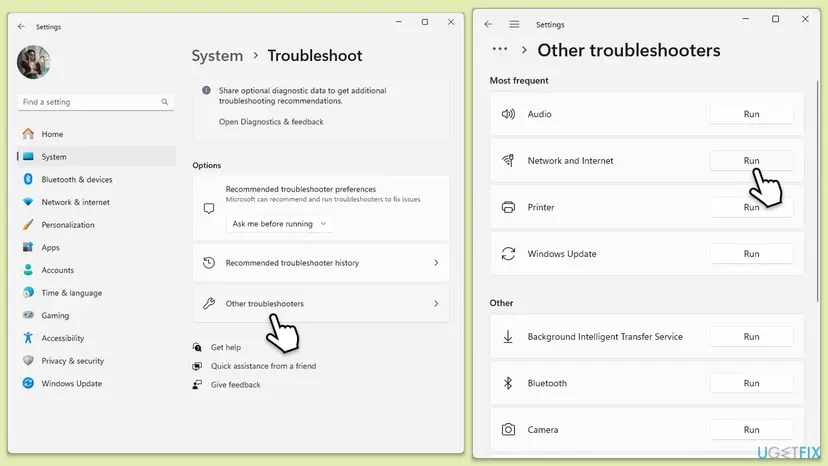
- Exact wording: "Security or firewall settings might be blocking the connection". People also search it as "security or firewall might be blocking the connection" and "security firewall blocking connection".
- Similar wording, other source: "a firewall could be blocking the connection" is a generic line many apps and games show when they cannot reach their server. The causes and fixes below are the same.
- In Chrome: the page Your Internet access is blocked with the line "Firewall or antivirus software may have blocked the connection." is the browser's own version. We explain it in our ERR_NETWORK_ACCESS_DENIED guide.
- Not this message: "No Internet" under the Wi-Fi name means Windows cannot reach the internet at all. Microsoft treats that as a separate problem with the router, DHCP or DNS.
Why security or firewall settings block the connection
Because the troubleshooter only guesses, start from what usually filters traffic on a home PC. The causes are listed from the most common to the rarest, each with the fix that removes it.
| Cause | How often | Typical sign | Fix |
|---|---|---|---|
| A third-party internet security suite, its firewall or web shield blocks apps | Most often | Started after the suite was installed or updated | Fix 1 |
| A manual proxy or a VPN app with a kill switch | Often | Started after a VPN dropped, closed or was removed | Fix 2 |
| A Windows Firewall rule aimed at one app | Often when only one app fails | The browser fails, other apps work | Fix 3 |
| Changed or broken Windows Firewall rules | Less often | You or a tool changed firewall rules earlier | Fix 4 |
| Leftover filters of an uninstalled antivirus or VPN | Less often | The program is gone, the block stayed | Fixes 5 and 6 |
| A firewall policy set by an employer or school | Rare at home | Firewall settings are greyed out | Fix 7 |
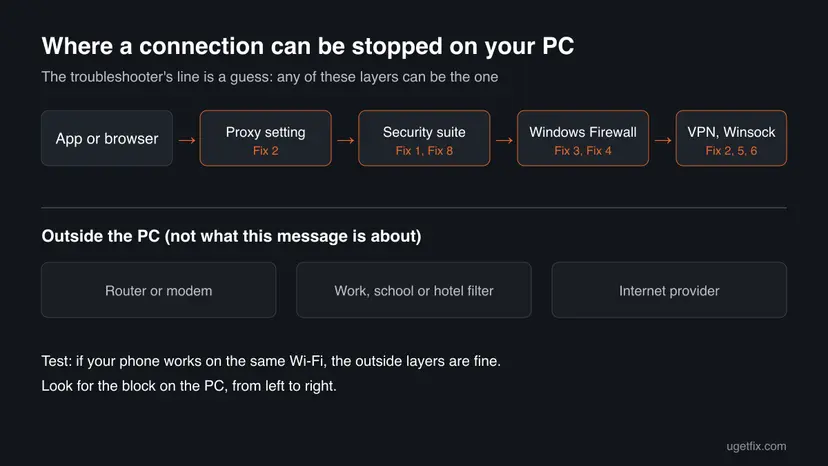
Microsoft's own advice is to connect another device to the same network. If the phone or another laptop works, your router and provider are fine and the block is on this PC. If nothing connects, restart the modem and router first; this guide is not about that case.
How to fix "Security or firewall settings might be blocking the connection"
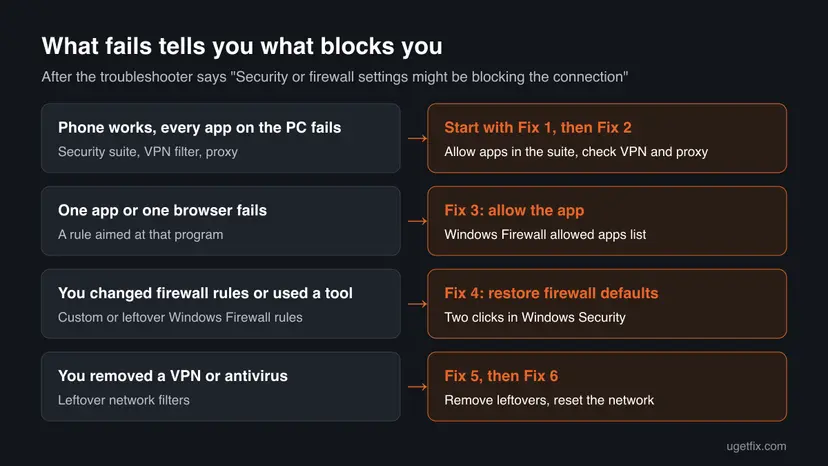
Fixes 1 and 2 remove the most common blocks: a security suite, a proxy or a VPN. Fixes 3 and 4 deal with Windows Firewall itself. Fixes 5 and 6 clear leftovers and reset the network stack. Fix 7 is for managed PCs, and Fix 8 is a single test, never a permanent setting.
| What you see or have | Start with |
|---|---|
| A third-party antivirus or internet security suite is installed. | Fix 1 |
| A VPN app is installed, or a proxy was set by an app or by you. | Fix 2 |
| Only one browser, game or app cannot connect. | Fix 3 |
| You changed firewall rules or used a tool that blocks apps. | Fix 4 |
| You recently uninstalled an antivirus or VPN. | Fix 5 |
| Nothing above fits, or the network stack seems broken. | Fix 6 |
| A work or school laptop, or settings you cannot change. | Fix 7 |
Fix 1. Allow your apps in the third-party security suite and update it
10 minutesLow riskA third-party antivirus with a firewall, web shield or internet security module is installed.
When a third-party firewall is installed, it takes over filtering from Windows Firewall and keeps its own app rules. One rule set to block, or a stale rule from an older app version, is enough to make the troubleshooter report a security block.
- Open the security suite from its icon in the notification area or from Start.
- Open its Firewall section and find the list of app or program rules. The name differs by product: app rules, program control, application access.
- Find your browser and the apps that fail. If a rule says block, ask or restricted, set it to Allow. Check duplicate entries too: an old path can stay after an update.
- Open the suite's event, firewall or threat history and look for blocked connections at the time the problem started.
- If the suite has a web shield or HTTPS scanning, add the affected app or site to its exclusions instead of turning the shield off.
- Run the suite's own update, then restart the PC.
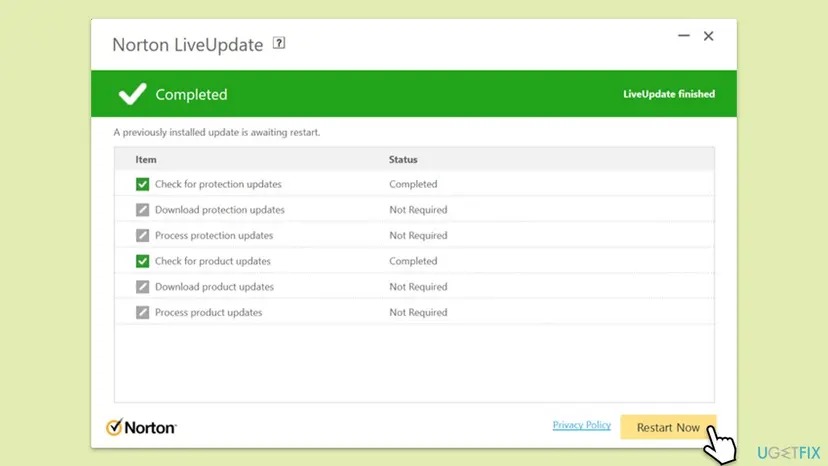
If two security programs with a firewall are installed, each filters on its own and either can block you. Keep one, and check the app rules in both until the second one is removed.
It worked if: Websites and apps connect again while the suite stays on and lists your apps as allowed.
If not: If no rule blocks your apps in the suite, check the proxy and VPN in Fix 2.
Fix 2. Turn off a stuck proxy and check the VPN kill switch
5 minutesLow riskA VPN app is installed, connected or not, or the problem began after a VPN or a free proxy tool was used.
A proxy that no longer exists, or a VPN kill switch that blocks all traffic outside the tunnel, stops every app at once. The troubleshooter cannot tell this apart from a firewall and reports a security block.
- Open Settings > Network & internet > Proxy.
- Under Manual proxy setup, if Use a proxy server is on and you did not set it on purpose, turn it off. Microsoft lists this step for PCs that are connected but cannot reach the internet.
- Open your VPN app. If it says disconnected, connect to a server and test again.
- In the VPN app's settings, find Kill switch (sometimes network lock). If it is in a permanent or advanced mode, switch it to the standard mode.
- Quit the VPN app completely, not only its window, and test the connection without it.
- Browser VPN extensions change only that browser's proxy. Remove or disable the extension if only that browser fails.
- Company VPN clients may set a proxy on purpose. On a work laptop ask IT before you change it (Fix 7).
- Uninstalled VPN but the block stayed: go to Fix 5.
It worked if: Apps connect with the VPN off and the proxy switch off, and again when you reconnect the VPN.
If not: If only one app or browser still fails, go to Fix 3. If all fail, go to Fix 4.
Fix 3. Allow the app that cannot connect through Windows Firewall
5 minutesLow riskOnly one browser, game or program cannot connect while other apps work.
Windows Firewall filters by the program's path. If you once answered no to the firewall's prompt for an app, Windows can keep a block for that app, and only that app fails.
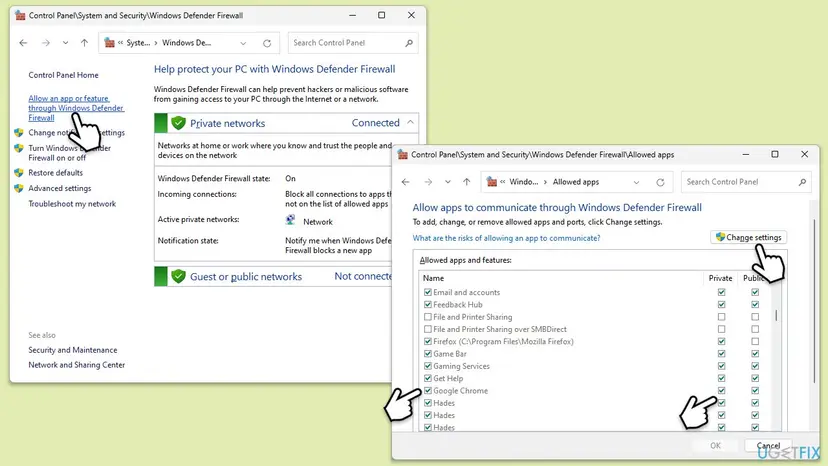
- Select Start, type Windows Security and open it. Select Firewall & network protection.
- Select Allow an app through firewall, then Change settings, and approve the administrator prompt.
- Find the app in the list. Tick it, with Private and Public both ticked if you use it on both kinds of network.
- If it is already ticked, select it, select Remove, then Allow another app... and add its
.exefile again. - Select OK and restart the app.
Microsoft warns that every allowed app is another way into the PC. Allow the program you trust and use, not every unknown entry in the list.
It worked if: The app connects, and the troubleshooter no longer reports a security or firewall block for it.
If not: If the app was allowed already and still fails, reset all firewall rules in Fix 4.
Fix 4. Restore Windows Firewall to its default settings
5 minutesLow riskYou or a program changed firewall rules, or you cannot find which rule blocks you.
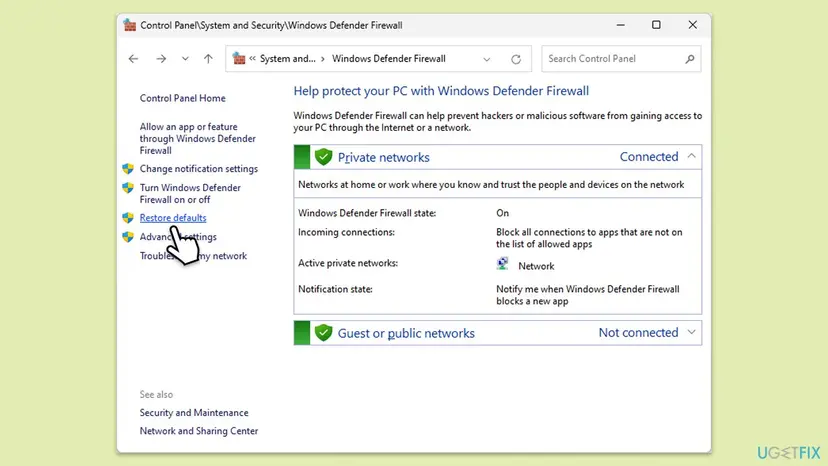
Microsoft describes this button for the case where someone or something changed Windows Firewall settings so that things stop working. It removes custom rules in one step and keeps the firewall on.
- Open Windows Security > Firewall & network protection.
- Check that Domain network, Private network and Public network show the firewall as on. Open the active one and make sure Blocks all incoming connections, including those in the list of allowed apps is not ticked unless you want it.
- Select Restore firewalls to default at the bottom of the page.
- Select Restore defaults, then Yes to confirm.
- Restart the PC and test the connection.
- What you lose: custom allow and block rules. Apps you allowed earlier will ask again the first time they connect; answer Allow for programs you trust.
- On a managed PC: Microsoft notes that organisation policies are applied again after the reset.
It worked if: The firewall is on with default rules and your apps connect again.
If not: If the reset changed nothing, the block is not a Windows Firewall rule. Look for leftovers in Fix 5.
Fix 5. Remove leftovers of an uninstalled antivirus or VPN
15 minutesLow riskYou uninstalled a security program or VPN and the problem stayed or began right after.
Security programs and VPNs install network drivers and filters. When an uninstall is cut short, those parts can keep filtering traffic with nothing on screen to turn them off.
- Open Settings > Apps > Installed apps and check that the old program is really gone. Remove what is left: Uninstall a program or app in Windows.
- Check Device Manager > Network adapters for a virtual adapter named after the removed VPN or suite.
- If the vendor offers a removal tool for its product, download it from the vendor's own site and run it.
- Restart the PC and test before you do anything else.
It worked if: After the restart apps connect, and the old program is gone from Installed apps and the notification area.
If not: If nothing was left or the problem stays, reset the network stack in Fix 6.
Fix 6. Reset Winsock, TCP/IP and the network adapters
10 minutes plus a restartRead the warningNothing above found the block, or the problem began after a VPN, a security program or a Windows upgrade.
The Winsock and TCP/IP resets return the network stack to its default state and drop leftover entries that can still filter traffic. A Microsoft forum user who got this exact message reported that a network reset fixed it.
The commands keep your adapters. The full network reset in Settings removes and reinstalls every network adapter: you will need your Wi-Fi password, VPN clients and virtual switches may need to be set up again, and networks may switch to the public profile. Write down any fixed IP or DNS settings first.
Start with these commands in Terminal (Admin), then restart. Use the full reset only if they do not help. Step by step: Reset the network and flush DNS.
netsh winsock reset
netsh int ip reset
ipconfig /release
ipconfig /renew
ipconfig /flushdns
- Windows 11: Settings > Network & internet > Advanced network settings > Network reset > Reset now.
- Windows 10: Settings > Network & Internet > Status > Network reset > Reset now.
It worked if: After the restart the connection works and the troubleshooter finds no problem.
If not: If you are on a work or school PC, go to Fix 7. Otherwise run the one pause test in Fix 8.
Fix 7. On a work or school PC, ask the administrator
5 minutesNo riskThe laptop belongs to an employer or a school, or firewall settings are greyed out.
Microsoft notes that on a device managed by an organisation, policy settings can stop you from changing Windows Firewall. Such rules come back at the next policy refresh, so only the administrator can change them.
- Open Windows Security > Firewall & network protection and look for a note that some settings are managed by your organisation.
- Write down the app or address that fails, the time and the network you were on.
- Send these details to IT support and ask whether that app may connect on this network.
It worked if: IT allows the app or tells you which approved app or network to use.
If not: If the PC is not managed, run the test in Fix 8.
Fix 8. Pause your security software for one test
5 minutesRead the warningNothing above helped and you still suspect your security program.
A short pause shows whether the security program is the one blocking the connection. It is a diagnosis, not a fix: the fix is the allow rule in Fix 1 or Fix 3.
While protection is paused the PC is less protected. Open only one site you trust, download nothing, and turn protection back on as soon as the test is done.
- Close every app and browser tab except one with a site you trust.
- Pause the third-party suite with its own pause option for the shortest time it offers. For Microsoft Defender follow Turn off Microsoft Defender protection for a moment.
- Reload the page and note whether it opens.
- Turn protection back on at once, even if the timer has not run out.
It worked if: The page opens while protection is paused and fails again when it is back on, which proves the program is the cause.
If not: If it also fails while paused, the security program is not the cause. Collect the details in the next section.
Still blocked: find the cause and what to send to support
The troubleshooter's line is a guess, so check the facts it skipped. Microsoft's ping test shows whether the PC reaches your router: run ipconfig, note the Default gateway, then run ping followed by that address.
- Replies from the router, no internet: the block is beyond the PC or in a filter on it. Check the suite's firewall log again, and test another device on the same network.
- No replies from the router: this is a Wi-Fi or cable problem, not a firewall one. Restart the modem and router and try a cable.
- An address that starts with 169.254: Windows got no address from the router. Microsoft points to DHCP on the router in that case.
- To your security vendor: the product version, the app that was blocked and an export of its firewall log.
- Hardware: a faulty adapter or cable shows as no connection at all, not as a block on some apps. If no device on the network connects, it is the router or provider.
How to keep security software from blocking your connection again
- Answer the firewall's prompt with Allow for programs you trust.
- Keep one security suite and update it.
- Remove VPNs and security programs with their own uninstaller or removal tool.
- Note any proxy or VPN setting before you change it.
- Do not switch the firewall or antivirus off for good to get online.
- Do not install two firewalls side by side.
- Do not use tools that block apps unless you know which rules they made.
- Do not allow unknown apps just to make the message go away.
Windows 10 left support on 14 October 2025. The steps here still work on Windows 10 22H2, but its firewall and network stack get no more security fixes, so moving to Windows 11 is the safer long-term answer.
Frequently asked questions
What does "Security or firewall settings might be blocking the connection" mean?
It means the Windows network troubleshooter tested your connection, saw that traffic did not get through and suspects a security program or firewall on the PC. It is a guess, not a confirmed diagnosis, and it does not name the program. Most often the cause is a third-party security suite, a VPN or a proxy. Test another device on the same network first: if that works, the block is on the PC and Fixes 1 to 4 cover it.
How do I stop the firewall from blocking my internet connection?
Allow the app instead of switching the firewall off. Open Windows Security > Firewall & network protection > Allow an app through firewall, select Change settings and tick the app for the network type you use, as in Fix 3. If a third-party security suite is installed, its own firewall makes the decision, so allow the app there (Fix 1). If nothing works, restore the firewall to its defaults (Fix 4).
How can I check if my firewall is blocking the internet?
Compare what fails. If your phone works on the same Wi-Fi but the PC does not, the block is on the PC. If one app fails and others work, a rule aimed at that app is likely. A short pause of the security program, as in Fix 8, is the clearest test: if the page opens while paused and fails after, that program is the cause. Turn protection back on right after the test.
Why is my firewall blocking everything?
When every app fails, a single rule rarely explains it. More often a third-party suite set to a strict mode, a VPN kill switch, a stuck proxy or the Windows Security option Blocks all incoming connections, including those in the list of allowed apps is involved. Check them in Fixes 1, 2 and 4. If even the router does not answer a ping, the problem is the network, not the firewall.
Should I turn off the firewall to fix this message?
No. Microsoft warns that turning off Windows Firewall can make the device more open to unauthorised access and advises allowing the blocked app instead. Turning it off may get you online, but it removes protection from every app on the PC. Use a short pause only as a test (Fix 8) and then add an allow rule in the program that blocked you.
How do I reset or adjust firewall settings in Windows 10 and Windows 11?
On both systems open Windows Security > Firewall & network protection. From there you can allow an app, turn notifications on or off, open Advanced settings for inbound and outbound rules, or select Restore firewalls to default to undo all changes. On Windows 10 the Control Panel path System and Security > Windows Defender Firewall > Restore defaults still works too. Organisation policies are applied again after a reset.
Why is my firewall turned off?
A third-party security suite usually turns Windows Firewall off because its own firewall takes over, and Windows Security then names that product. On a work PC, a policy can do it. If neither applies and you did not turn it off, run a full scan with Microsoft Defender, because some unwanted programs change security settings: How to scan for malware with Microsoft Defender. Then turn the firewall on again in Firewall & network protection.
The message says "a firewall could be blocking the connection". Is it the same?
It is a similar warning, usually shown by an app or game that cannot reach its server, not by the Windows troubleshooter. The checks are the same: allow the app in your security suite (Fix 1) and in Windows Firewall (Fix 3), and check the VPN and proxy (Fix 2). If only that app fails while websites open, also check the app's own server status page.
Does a network reset fix this message?
Sometimes. A user who saw this exact message on Microsoft's forum reported that a network reset fixed it. The reset reinstalls the adapters and clears leftover settings of VPNs and security programs. It is not the first step, because you then need your Wi-Fi password again and may have to reinstall a VPN client. Try the commands first, as in Fix 6.
Sources
- Microsoft Support: Firewall and network protection in the Windows Security app (support.microsoft.com)
- Microsoft Support: Fix Wi-Fi connection issues in Windows (troubleshooter, network commands, network reset) (support.microsoft.com)
- Microsoft Q&A: Security or firewall settings might be blocking the connection (user report) (learn.microsoft.com)
Did this fix work?
One click, no account. It tells the next reader which guides are worth their time.
Questions and experiences: fix "Security or Firewall Settings might be blocking the connection" in Windows
Still broken, or found a fix we did not cover? Ask here: members and our editors answer. Reading is open; writing needs a free account.
…