How to fix
“Self Update Failed” error in Epic Games launcher
on Windows
Resolve the "Self Update Failed" error in the Epic Games launcher on Windows 10 or 11 easily with our expert-tested solutions. Fixed in minutes!

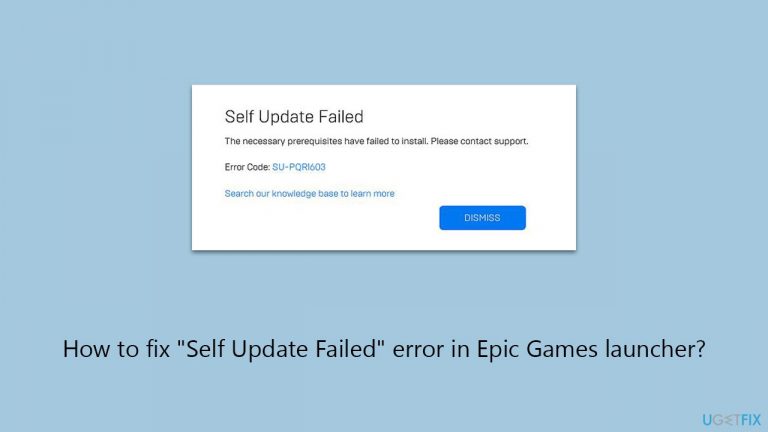
What causes How to fix “Self Update Failed” error in Epic Games launcher?
- Insufficient permissions
- Outdated Microsoft Visual C++ Redistributable
- Corrupted Microsoft Visual C++ Redistributable
- Conflicting software
Repairs Windows system files, removes malware, and restores a clean OS state — without reinstalling.
After the recent update, I can't use the Epic Games launcher properly. It crashes with a "Self Update Failed" error, apparently when it tries to install the "necessary prerequisites." Any idea of what is going on and how to fix this?
Despite several controversies surrounding it, Epic Games has become a significant player when it comes to video game distribution. Most notably, it's highly-rated game giveaways and steep discounts that users are attracted to.
This platform occasionally encounters technical issues that can prevent its smooth operation - one such hiccup is the "Self Update Failed" error, which users might experience particularly during the process of updating the Epic Games launcher. Not only does this prevent the update from being correctly installed but also leads to the app crashing.
The "Self Update Failed" error typically surfaces due to several reasons, most commonly linked to issues within the user's system rather than the Epic Games launcher itself. One of the primary causes is insufficient permissions.
Permissions are critical for the operation of software, as they determine what actions a program can perform on a system. When Epic Games launcher lacks the necessary permissions, it fails to execute its update process successfully, resulting in the "Self Update Failed" error.
Another potential culprit could be issues with the Microsoft Visual C++ Redistributable – a package that many applications, including gaming platforms like Epic Games, rely on for essential functions. If this package is outdated or corrupted, the launcher might fail to update correctly, leading to the error.
To fix the "Self Update Failed" error on the Epic Games store, you need to ensure the launcher has the necessary permissions, check the status of the Microsoft Visual C++ Redistributable, or look for any conflicting software. Before trying out the manual troubleshooting steps below, we recommend you check out an automatic option - [d1] PC repair.
Fix 1. Run Epic Games as administrator
Elevated privileges, granted by running a program as administrator, can be essential for tasks like software updates. In the case of the Epic Games Launcher, this approach may overcome restrictions that block the update process.
- Locate the Epic Games Launcher shortcut on the desktop.
- Right-click and choose Properties from the context menu.
- Navigate to the Compatibility tab.
- Tick the box for Run this program as an administrator.
- Click Apply, then OK.
- Open Epic Games Launcher to check if the issue is resolved.

Fix 2. Utilize -SkipBuildPatchPrereq launch parameter
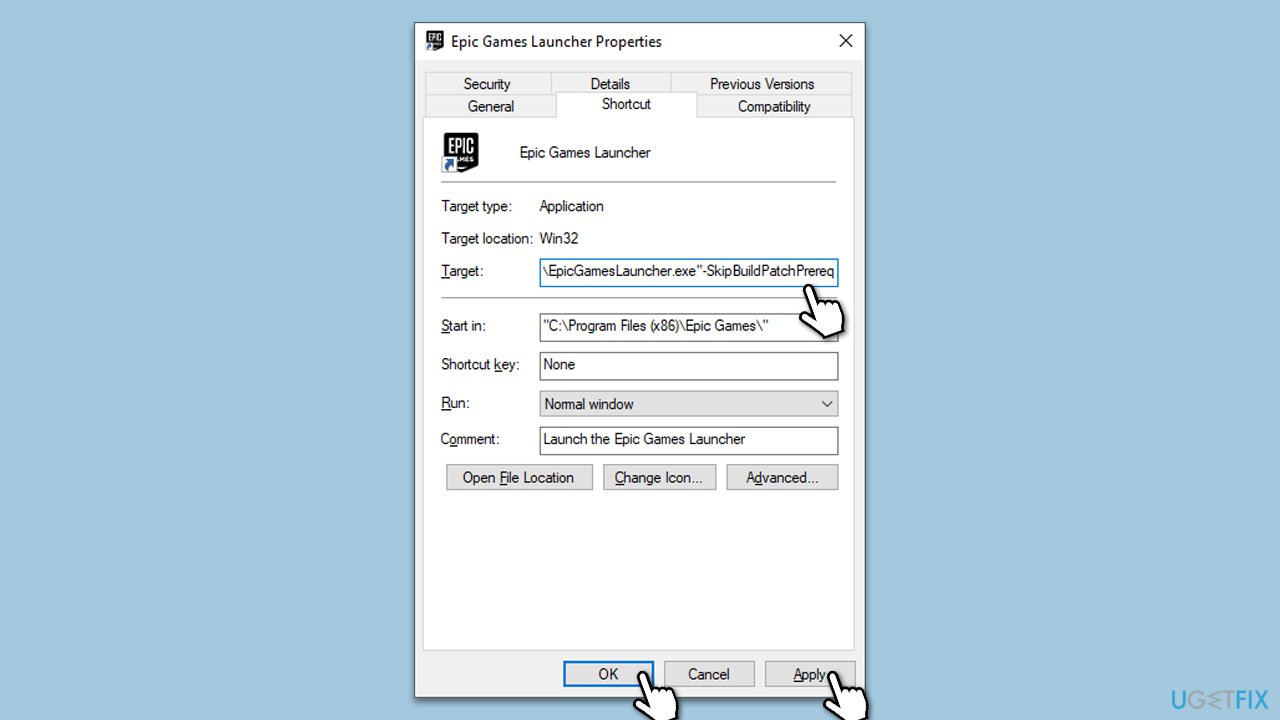
Adding the -SkipBuildPatchPrereq parameter to the launcher's shortcut bypasses certain update steps. This can be effective if those steps are causing the update failure, allowing the update process to proceed without encountering the error.
- Right-click on the Epic Games Launcher shortcut.
- Choose Properties.
- In the Shortcut tab, find the Target field.
- Append -SkipBuildPatchPrereq to the end of the line in the Target field.
- Select Apply and then OK.
- Try launching the Epic Games Launcher again.
Fix 3. Install or reinstall Visual C++ Redistributables
Epic Games Launcher relies on the Microsoft Visual C++ Redistributable package. If this package is missing or corrupted, updating or reinstalling it can resolve launcher issues. If you have some of the components missing, try installing them first and then reinstalling those you already have on your system.
- Open the Control Panel and go to Programs > Uninstall a program.
- Here, scroll down and check the list of the installed Visual C++ versions.
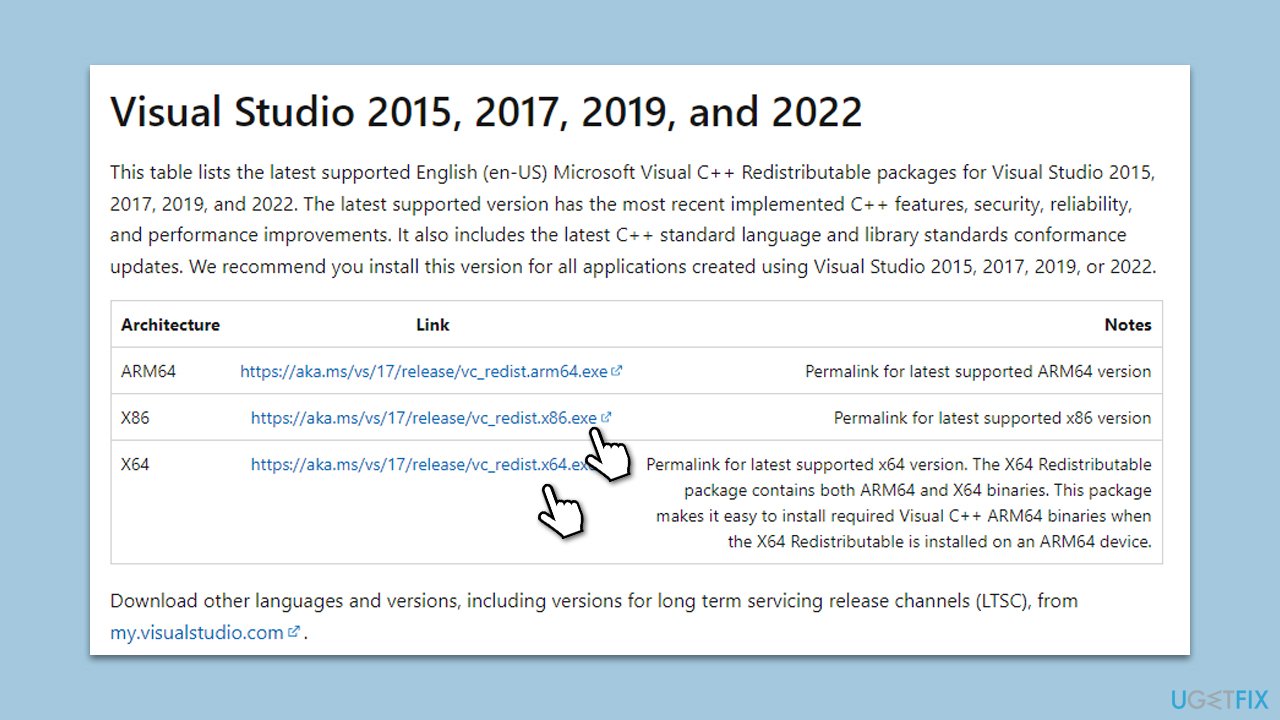
- Open your browser and navigate to the official Microsoft Visual C++ download page.
- Download and install all the missing versions of Visual Studio (note: if you are using a 64-bit system, install both x86.exe and x64.exe files)
- Restart your system and check whether the problem is resolved.
- If not, try reinstalling each of the following components:
Microsoft Visual C++ 2010 Redistributable Package (x86)
Visual C++ Redistributable for Visual Studio 2012
Visual C++ Redistributable Packages for Visual Studio 2013
Visual C++ Redistributable Packages for Visual Studio 2015, 2017, 2019, and 2022.
Fix 4. Adjust permissions for the Epic Games folder
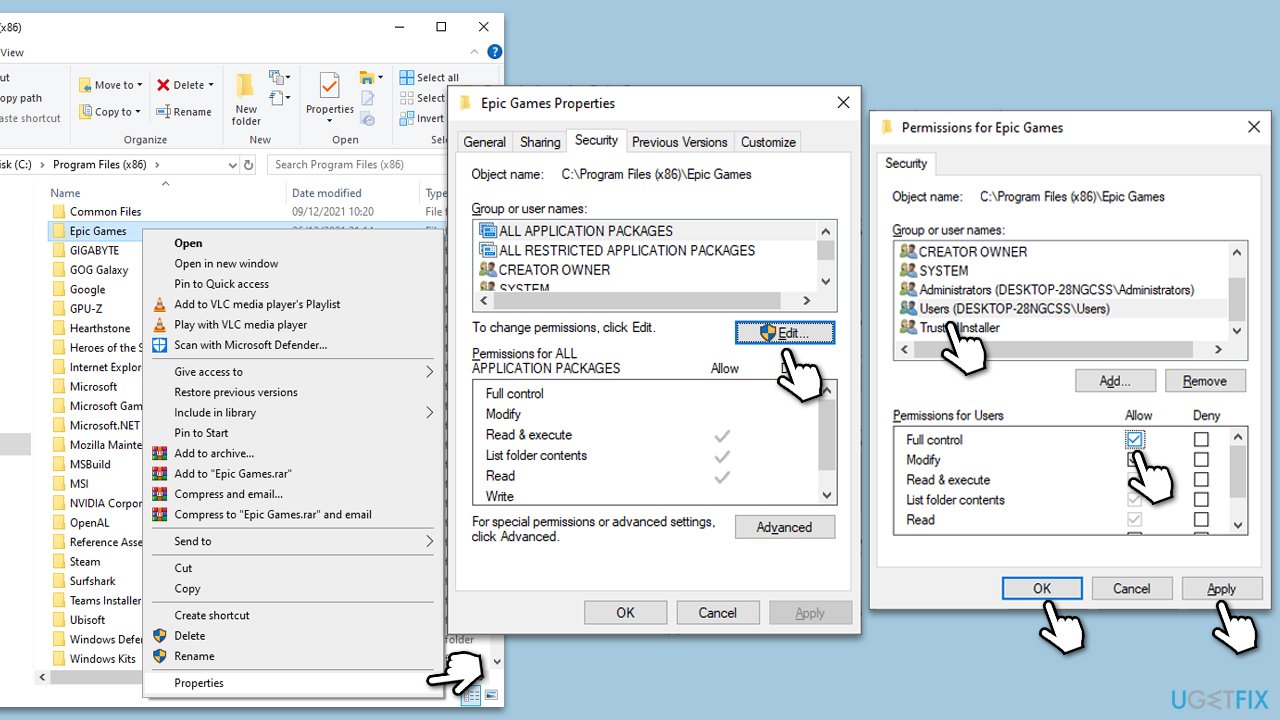
The update process may fail if the Epic Games folder lacks proper read and write permissions. Adjusting these permissions ensures the launcher can access and modify necessary files.
- Go to the Epic Games folder, by default located in C:\Program Files\Epic Games.
- Right-click on the folder and select Properties.
- Switch to the Security tab.
- Click Edit to modify permissions.
- Confirm Full control is checked for your user profile.
- Apply the changes and close the dialog boxes.
- Restart the Epic Games Launcher.
Fix 5. Perform a Clean Boot
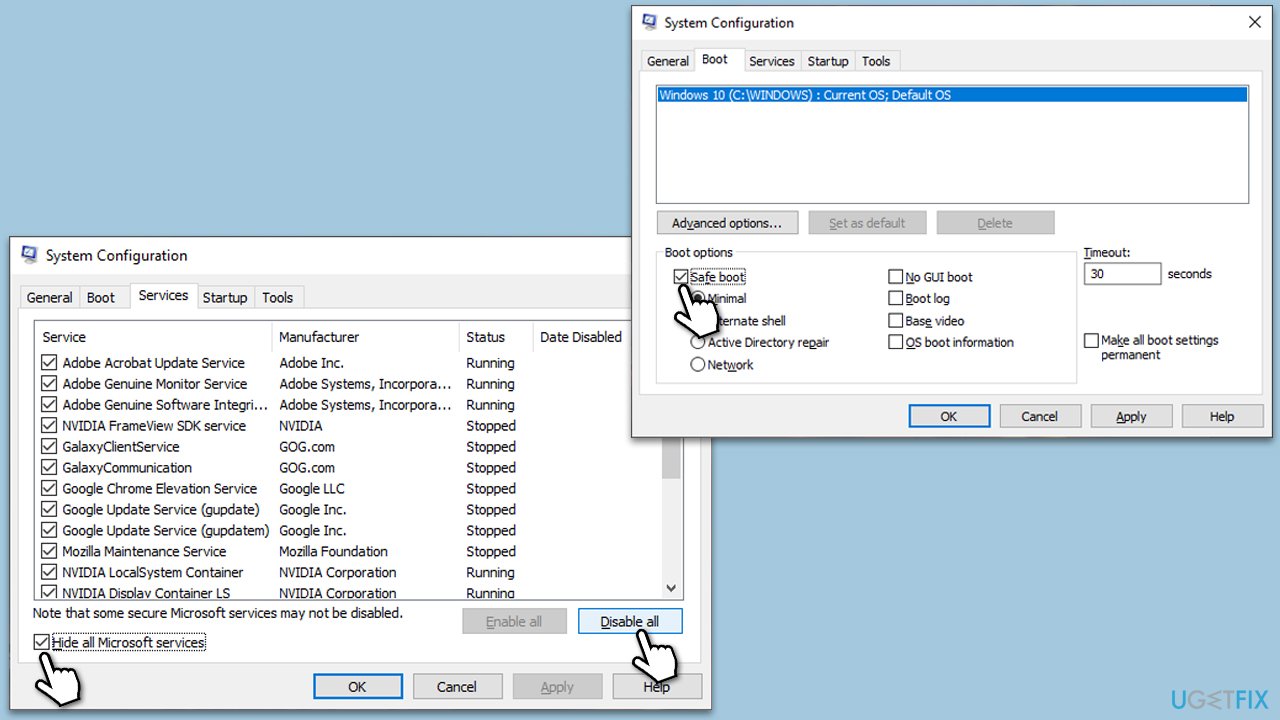
A Clean Boot starts Windows with minimal drivers and programs, helping to identify if third-party software conflicts with the Epic Games Launcher. This method is useful for isolating software conflicts.
- Type msconfig in the Windows search bar and open System Configuration.
- Go to the Services tab and tick the Hide all Microsoft services checkbox.
- Select Disable all.
- Go to the Startup tab and click Open Task Manager.
- Here, right-click on each of the non-Windows entries and select Disable.
- Close down the Task Manager.
- Go to the Boot tab and tick the Safe Boot option.
- Restart your computer.
- Check whether the error occurs. If it doesn't, one of the disabled items was causing the issue.
- To identify the problematic service or program, re-enable services and startup items one at a time or in small groups.
- After each change, restart your computer to check if the error reappears.
Bottom line
To fix the "Self Update Failed" error, ensure the Epic Games launcher has the necessary permissions, check the status of the Microsoft Visual C++ Redistributable, and look for any conflicting software. If these steps do not resolve the issue, consider using an automatic PC repair option.
Frequently asked questions
First, try running the Epic Games launcher as an administrator. If that doesn't work, check your internet connection and ensure that your Windows 10 is up to date.
You can repair the Epic Games launcher by going to the Control Panel, selecting 'Programs and Features', right-clicking on Epic Games, and choosing the 'Repair' option.
Yes, you can manually reinstall the Epic Games launcher by downloading the latest version from the official Epic Games website, which should resolve the 'Self Update Failed' error on both Windows 10 and Windows 11.




Report an issue
What's wrong with this guide? We review every report and update or remove content.
Report received — thank you. We'll review and fix it.
You need a free account to submit a report.
Be the first to comment