How to fix
“Server execution failed” Windows Media Player error
on Windows
Resolve the "Server execution failed" error in Windows Media Player quickly and easily. Expert-tested methods for Windows 10 and 11, fixed in minutes!

What causes How to fix “Server execution failed” Windows Media Player error?
- Problem with underlying services or processes
- Windows Media Player settings need to be reset
- Necessary services are not running
- Corrupted system files
- Application needs to be reinstalled
Repairs Windows system files, removes malware, and restores a clean OS state — without reinstalling.
Hello. When I try to play media files in Windows Media Player, I get the "Server execution failed" error. How can I resolve this?
When using Windows Media Player, a popular media player application developed by Microsoft, users may encounter the "Server execution failed" error. Windows Media Player is a piece of multimedia software that allows Windows users to play various types of audio and video files. It comes with most Windows versions and includes a variety of features such as media playback, media library management, CD ripping, and CD burning.
When there is a problem with the underlying services or processes required by Windows Media Player to function properly, the "Server execution failed" error usually occurs. This error can prevent users from playing media files or using certain application features. It may also cause unexpected program crashes or freezing.
This problem may have a significant impact on users who rely on Windows Media Player for media playback. When attempting to access or play their media files, it can disrupt their entertainment experience and cause frustration. Furthermore, if Windows Media Player is integrated with other applications or services, such as media streaming or media server functionality, this error may have an impact on how those systems function as a whole.
There are several potential solutions to the "Server execution failed" error. Restarting the computer, checking for updates, resetting Windows Media Player settings, ensuring necessary services are running, repairing system files, or reinstalling the application are all examples of troubleshooting steps.
In this guide, you will find 6 steps that should help you fix "Server execution failed" error in Windows. You can also try a maintenance tool like [d1] that can fix most system errors, BSODs,[ref en-1] corrupted files, and registry[ref en-2] issues. Otherwise, follow the step-by-step instructions below.
Solution 1. Restart the Windows Media Player Process
- Open Task Manager by pressing Ctrl + Shift + Esc keys simultaneously.
- If the Processes tab doesn't open automatically, click on it to view the processes.
- Locate and select the Windows Media Player process in Task Manager.
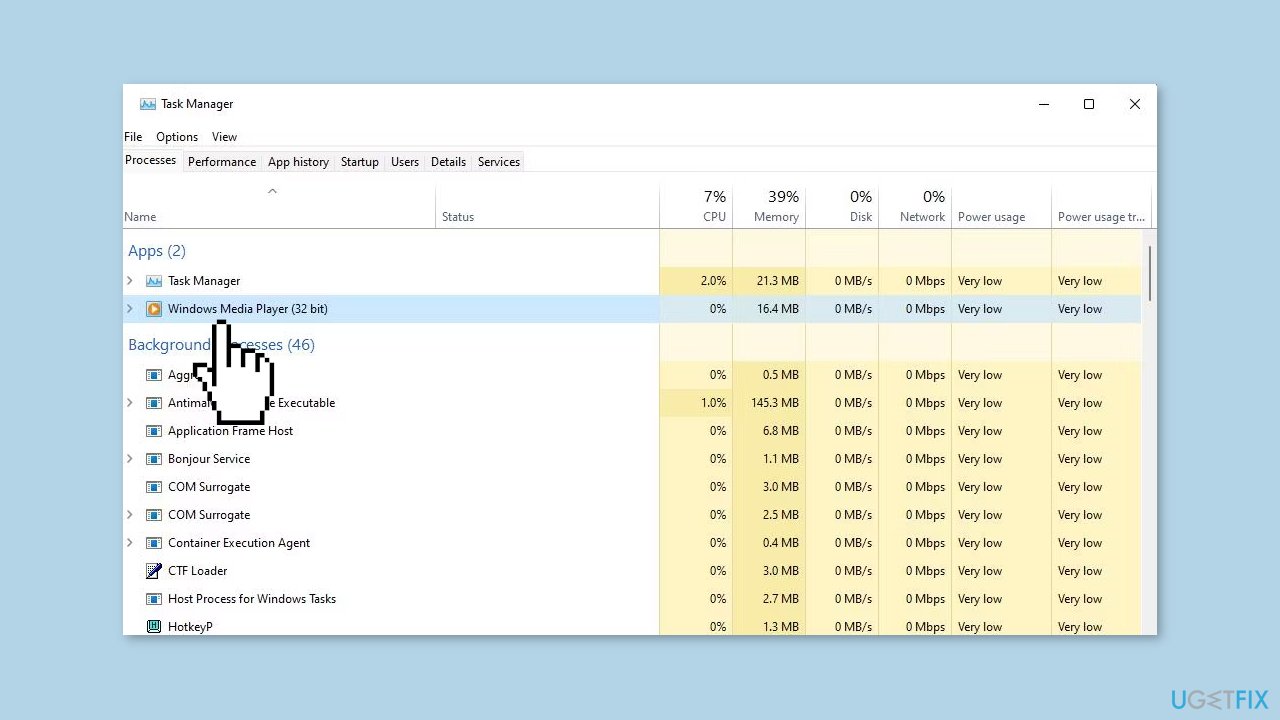
- Click on the End task button to terminate the selected Windows Media Player process.
- Close Task Manager.
- Open Windows Media Player to check if the error persists.
Solution 2. Run the Video Playback Troubleshooter
- Hold the Windows key + I to quickly open Settings.
- Select System and navigate to the Troubleshoot option within that tab.
- Click on Other trouble-shooters to access a list of troubleshooting utilities.
- Locate and click on the Video Playback troubleshooter's Run option.
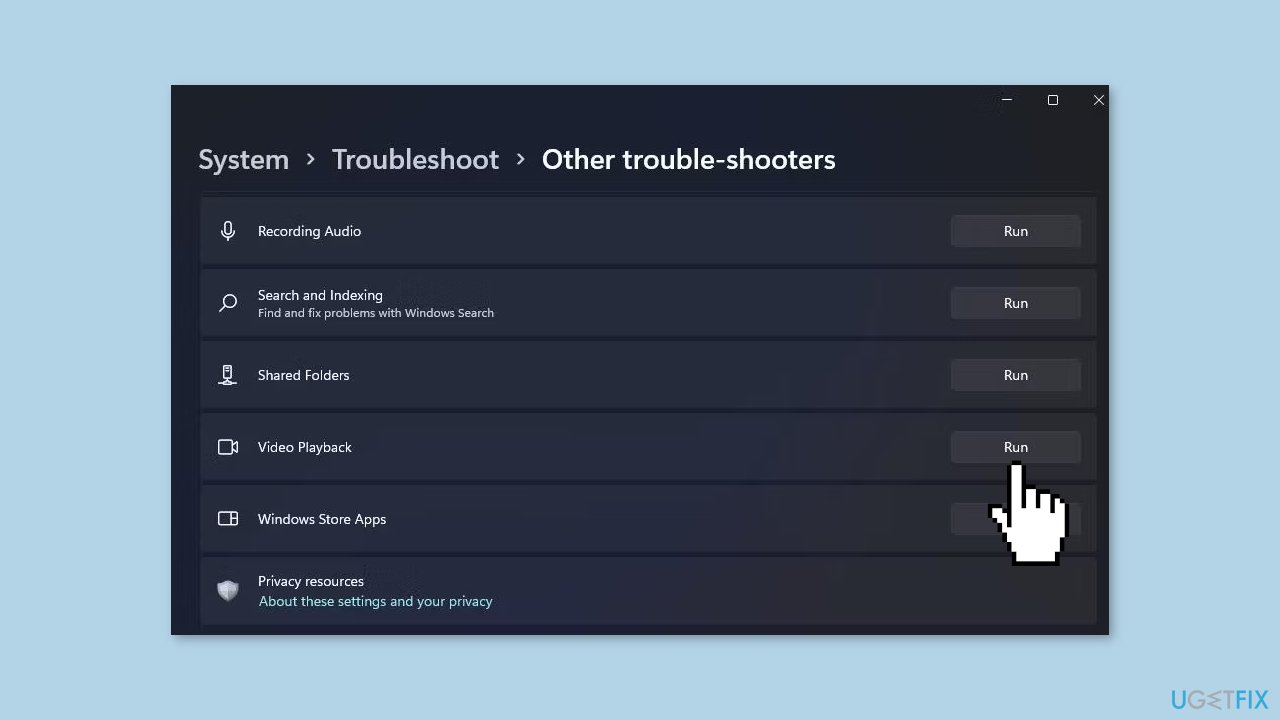
- In the Video Playback troubleshooter, select I want to continue with this troubleshooter.
- Apply any possible fixes that the Video Playback troubleshooter offers.
Solution 3. Register DLL Files
- Open Command Prompt as an administrator to access the app with elevated privileges.
- Type the following command and press Enter:
regsvr32 jscript.dll
- Click OK on the RegSvr32 confirmation box.
- Execute the command to register the VBScript file, and press Enter.
regsvr32 vbscript.dll
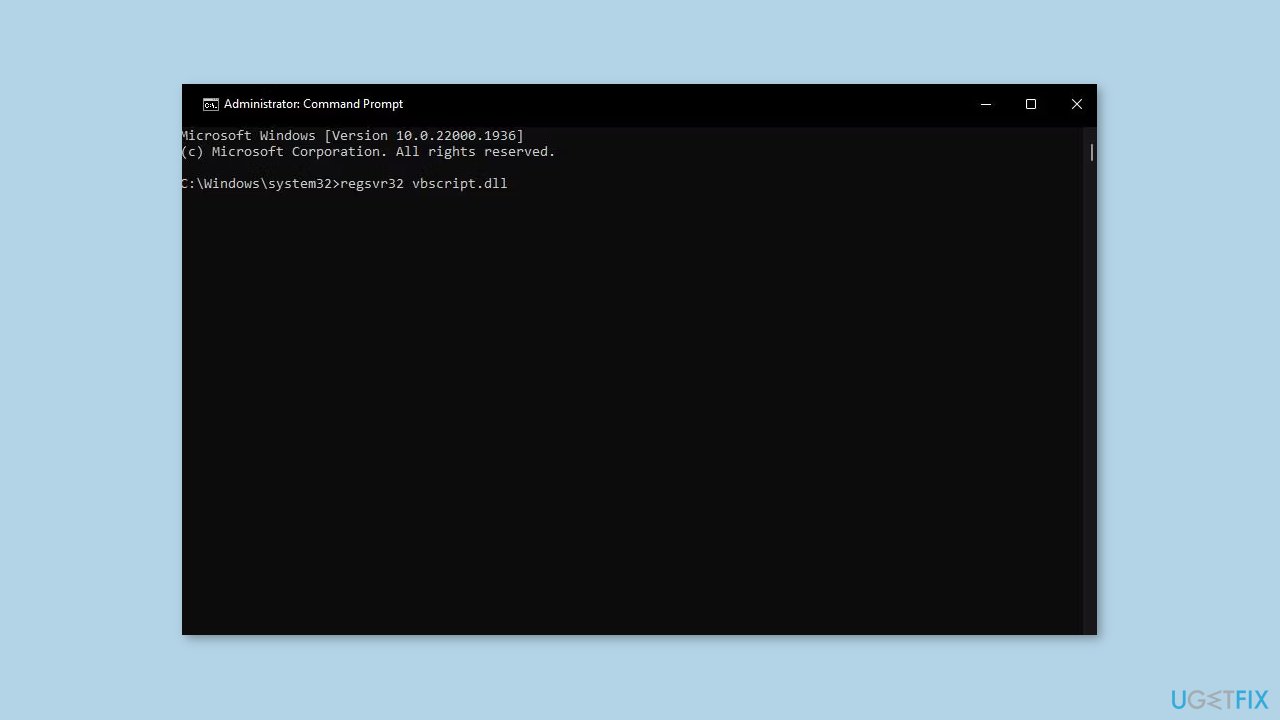
- Click OK again.
- Go to your Start menu and select Restart to restart your computer.
Solution 4. Disable the Windows Media Player Network Sharing Service
- Click on the magnifying glass icon or search box in the taskbar.
- Enter a keyword related to services to find the corresponding app in the search results.
- Run the Services app by clicking on it in the search results.
- Double-click on Windows Media Player Network Sharing to access its service's property settings.
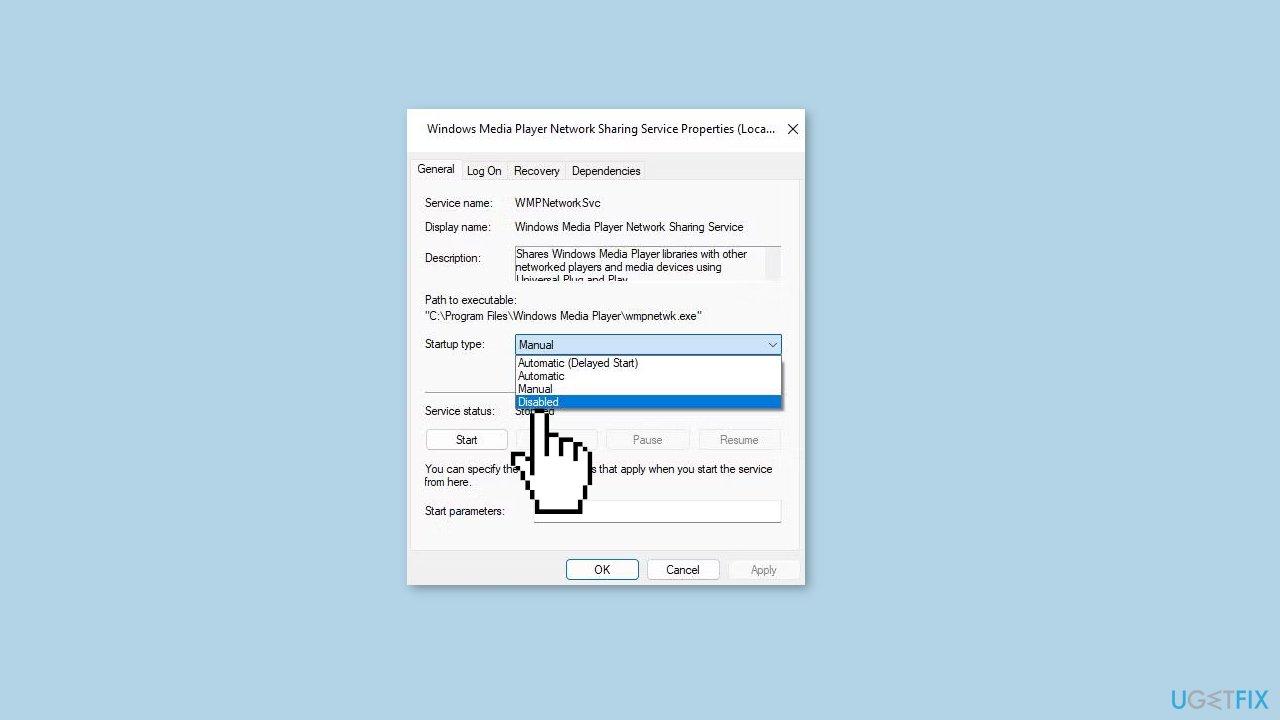
- In the service properties window, select the Disabled option from the Startup menu.
- Click on Stop just below the Startup type menu.
- Select Apply and then OK to save the settings and exit the Windows Media Player Network Sharing Service Properties window.
Solution 5. Apply Full Access to Your Local User Folder
- Open File Explorer and navigate to the following folder path: C:\Users.
- Right-click on your user folder, which contains the media files, and select Properties. Choose the Security tab in the properties window.
- Click on Advanced to access more security settings.
- Next, click on the Change option for the owner. On the Select User or Group window, click Advanced and then Find now.
- Choose your user account from the list and click OK twice.
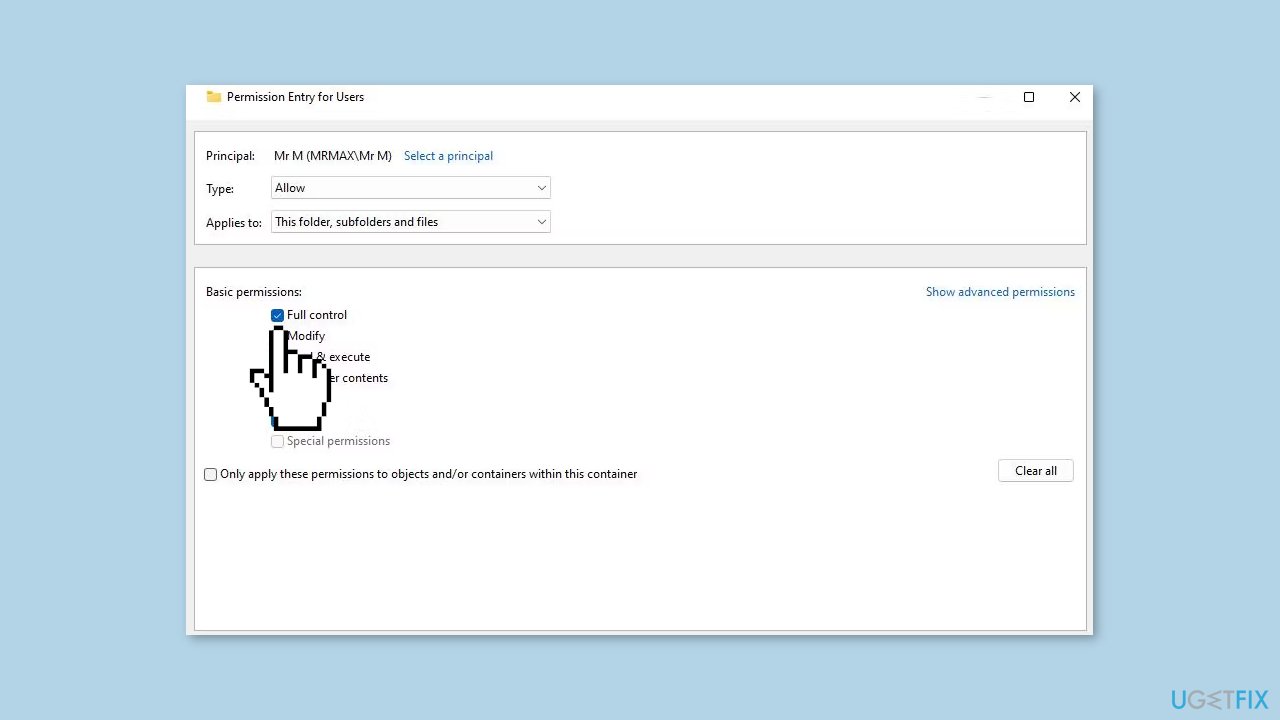
- Press Add on the Advanced Security Settings window.
- Click Select a Principal to open a user group selection window.
- Select your user account again.
- Click the checkbox for Full control to select the basic permission setting. Click OK on the Permissions Entry window and any other open windows.
Solution 6. Try Clean Boot
- Press the Windows key + R on your keyboard.
- Type msconfig in the Run dialog box that appears.
- Click on OK or press Enter to open the System Configuration window.
- Select the Services tab at the top of the window.
- Check the box next to Hide all Microsoft services.
- Click on the Disable all button.
- Select the Startup tab at the top of the window.
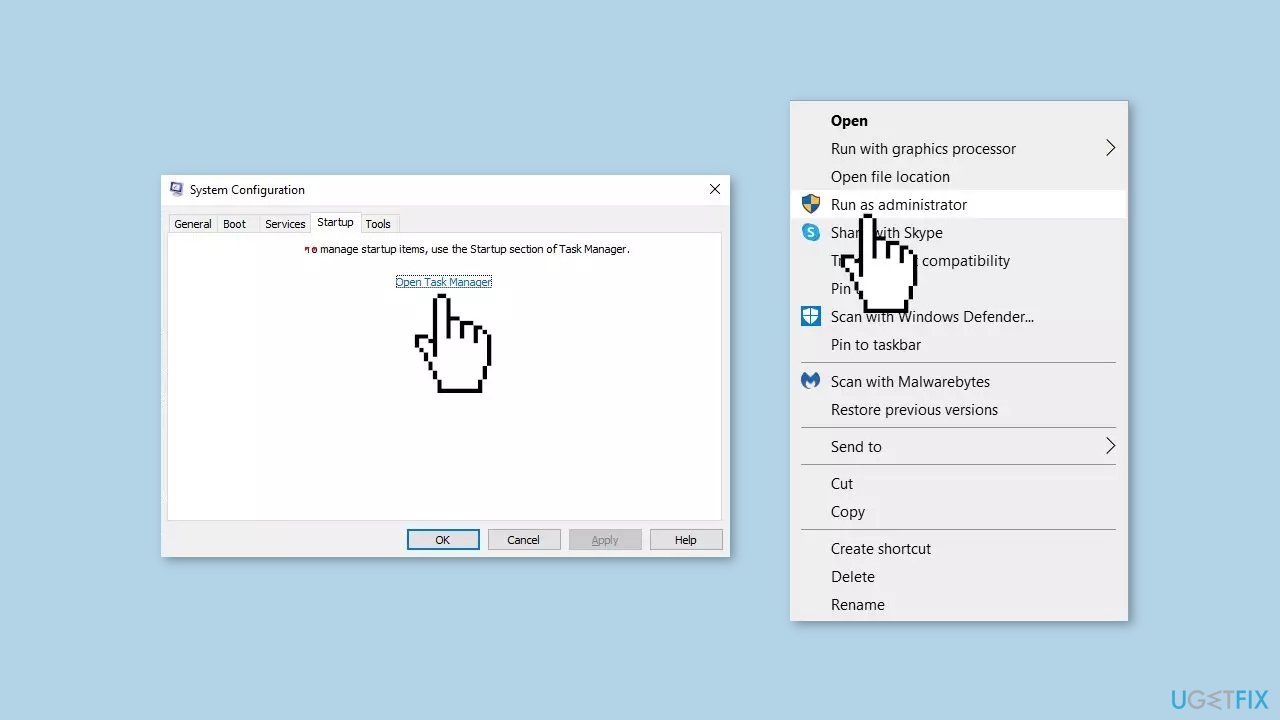
- Click on the Open Task Manager link.
- In the Task Manager window that appears, right-click on each app listed under the Startup tab.
- Select Disable from the context menu for each app.
- Close the Task Manager window and go back to the System Configuration window.
- Click on the Apply button and then click on OK to save the changes.
- Restart your PC.
- Once your PC has restarted, uninstall the faulty app.
- Download the app from official sources.
- Right-click on the installer and select Run as administrator.
- Follow the on-screen instructions to install the app.
Solution 6. Reinstall Windows Media Player
- Follow the method provided in an article on how to open Programs and Features to access the Windows uninstaller tool.
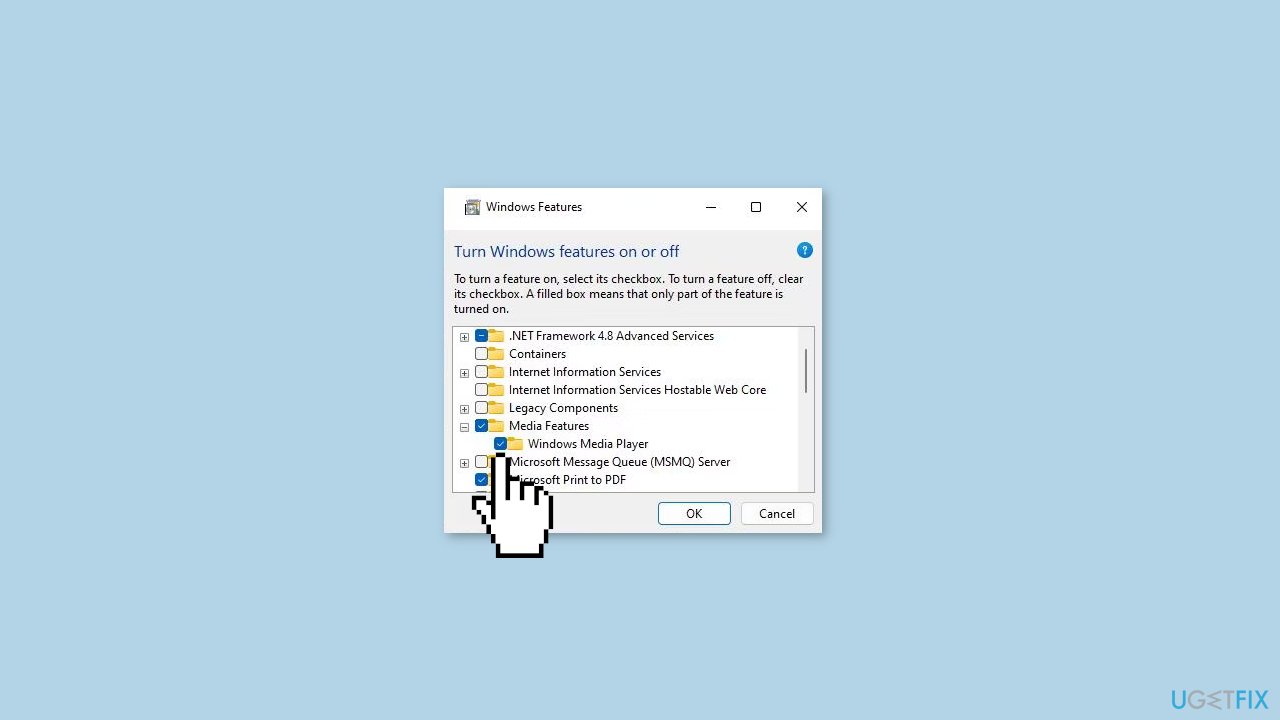
- In the Programs and Features window, click on Turn Windows features on or off to open the utility for enabling/disabling features.
- Double-click on Media Features to expand the options.
- Uncheck the checkbox next to Windows Media Player and select Yes. Click OK to disable Windows Media Player.
- Restart your Windows system after disabling Windows Media Player.
- After restarting, open the Windows Features window again.
- Select the checkbox next to Windows Media Player.
- Click OK to reinstall the software.
Bottom line
To resolve the 'Server execution failed' error in Windows Media Player, you can try restarting the Windows Media Player process, checking for updates, resetting settings, ensuring services are running, repairing system files, or reinstalling the application. If none of these solutions work, consider using a maintenance tool to fix system errors.
Frequently asked questions
The 'Server execution failed' error can be caused by corrupted Windows Media Player settings, outdated system files, or conflicts with third-party software. Updating your system or resetting the Media Player can often resolve the issue.
To reset Windows Media Player on Windows 11, go to Settings > Apps > Apps & features, find Windows Media Player, click on it, and select 'Advanced options' to reset the app. This action will clear any corrupted settings that might be causing the error.
Yes, reinstalling Windows Media Player can help fix the 'Server execution failed' error by replacing any damaged files or settings. You can do this through the Control Panel under 'Turn Windows features on or off'.




Report an issue
What's wrong with this guide? We review every report and update or remove content.
Report received — thank you. We'll review and fix it.
You need a free account to submit a report.
Be the first to comment