How to fix
“server IP address could not be found” Chrome error
on Windows
Resolve the "server IP address could not be found" error in Windows 10 and 11 with our expert-tested solutions. Get back online in minutes!

What causes How to fix “server IP address could not be found” Chrome error in Windows?
- Misconfigurations of the DNS
- Problems with the local network connection
- Wrong browser settings
- Issues with the server hosting the website
Repairs Windows system files, removes malware, and restores a clean OS state — without reinstalling.
Hello. When I try to access certain websites on Chrome I get the "server IP address could not be found" error. How do I resolve this?
Due to its frequent occurrence and disruptive nature, the "server IP address could not be found" error in the Chrome web browser on Windows might irritate users. This error message typically displays when Chrome is unable to determine the IP address of the server hosting the website you're trying to access. The website becomes inaccessible as a result of the browser's inability to connect to it.
The underlying causes of this error can be diverse. Misconfigurations of the DNS (Domain Name System), problems with the local network connection, wrong browser settings, or even issues with the server hosting the website are a few of the possible causes. Troubleshooting can be difficult when there is no obvious single cause, as users may need to take into account a number of different variables in order to identify and fix the problem.
Users may think about doing a number of troubleshooting measures to solve this problem. Some of these might be clearing the DNS cache, making sure the DNS server settings are accurate, looking for browser extensions that might clash, and briefly turning off firewall or security software to rule out interference. If the problem is connected to the user's internet connection or network configuration, it may be helpful to examine the router's settings and run network diagnostics.
In this guide, you will find 8 steps that should help you fix "server IP address could not be found" Chrome error. You can also use a maintenance tool like [d1] that can fix most system errors, BSODs,[ref en-1] corrupted files, registry[ref en-2] issues, or clear cookies and cache[ref en-3] automatically. Otherwise, follow the step-by-step instructions below.
Solution 1. Check Network
- Open the Start menu.
- Search for Command Prompt in the search bar.
- Click on Command Prompt in the search results to open it.
- In the Command Prompt window, you'll see a blinking cursor.
- Type the following line: ping google.com

- Press the Enter key on your keyboard.
- The Command Prompt will now send a series of packets to Google's servers.
- Wait for the process to complete; you'll see various lines of text appearing in the Command Prompt window.
- Look at the results displayed in the Command Prompt.
- You'll see information about the packets sent and received, as well as the response times.
- Use this information to investigate the network connectivity and response times to Google's servers.
Solution 2. Clear Browsing Data
- Launch the Chrome web browser.
- On your keyboard, simultaneously press Ctrl + Shift + Del.
- A new window or tab will appear, allowing you to clear browsing data.
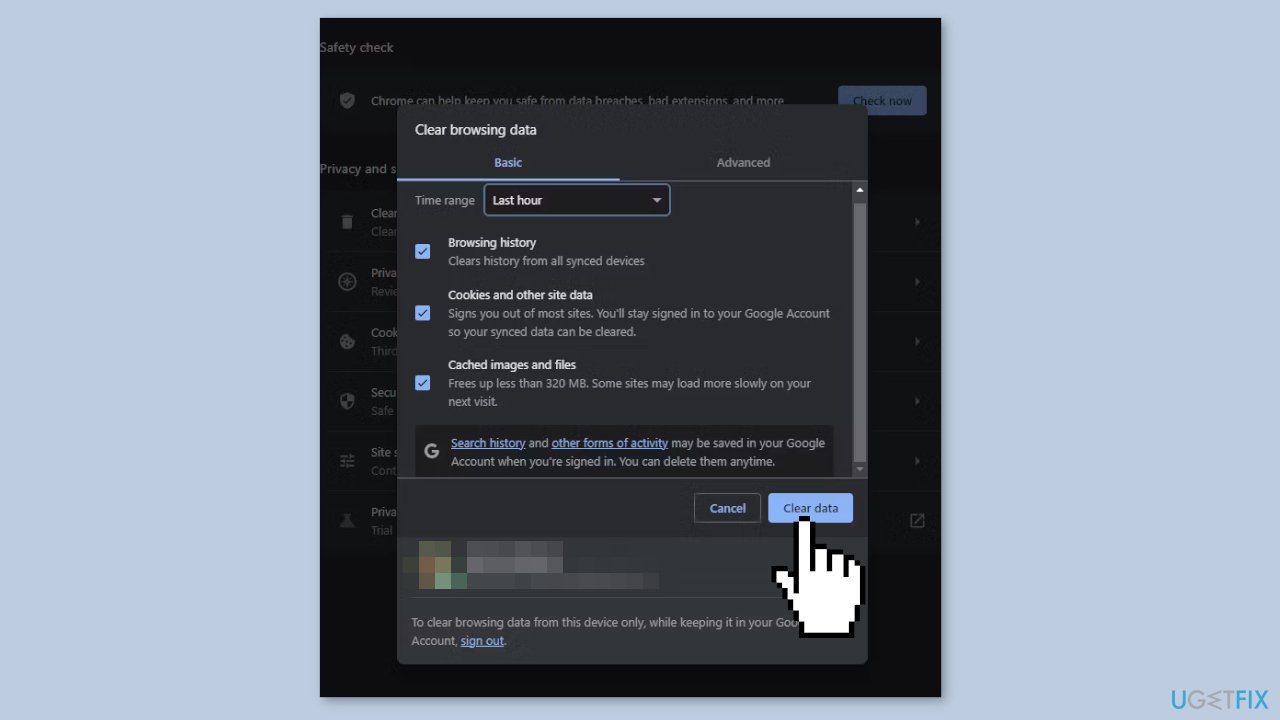
- Choose a time range for the data you want to clear (e.g., last hour, last 24 hours, all time).
- Locate and click on the Clear data button.
- Chrome will then remove the selected browsing data according to the chosen time range.
Solution 3. Check Proxy Settings
- Open the Start menu on your computer.
- In the search bar, type Proxy and select Proxy settings from the search results.
- The Proxy settings window will open.
- Find the option labeled Automatically detect settings and turn it off (disable it).
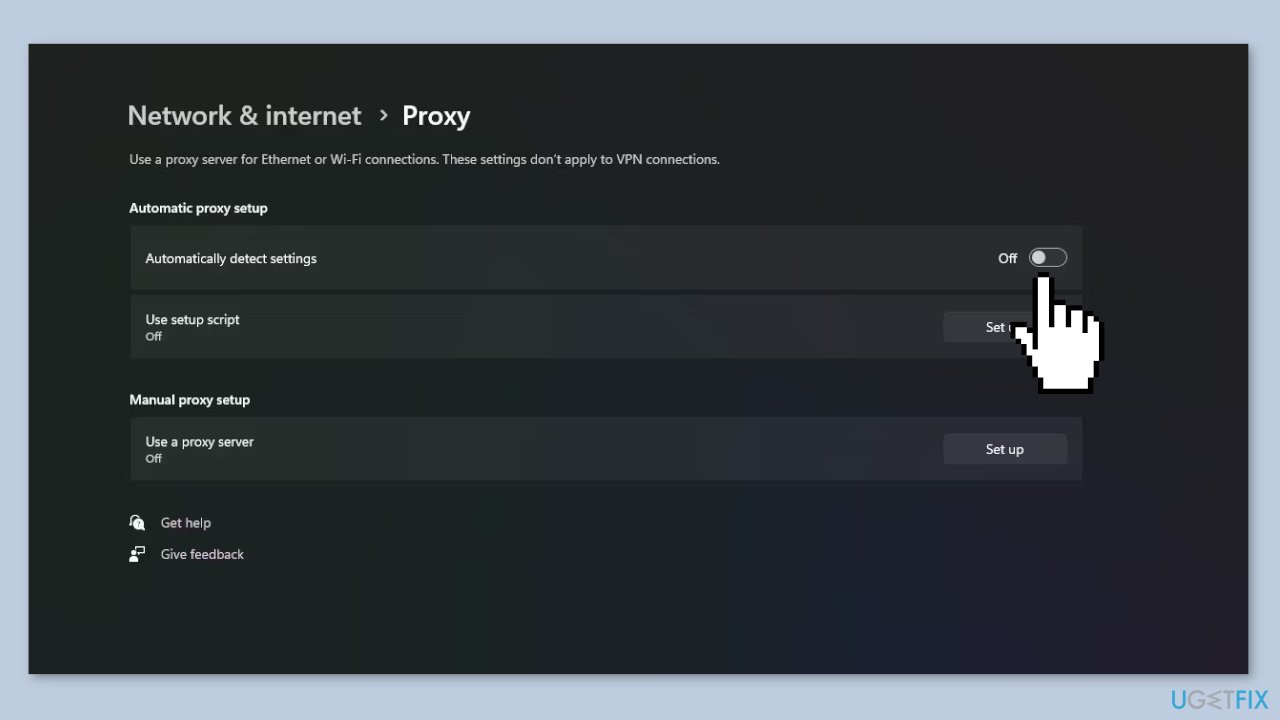
- Scroll down within the Proxy settings window to locate the Manual proxy setup section.
- If enabled, disable the Manual proxy setup option as well.
Solution 4. Change Network Adapter Settings
- Open the Control Panel on your computer.
- Within the Control Panel, locate and click on the Network and Internet option.
- From the options presented, choose Network and Sharing Center.
- In the Network and Sharing Center window, navigate to the left menu bar and select Change adapter settings.
- This action will launch a new window displaying all your network adapters.
- Identify the network adapter you're currently using (Ethernet or Wi-Fi), then right-click on it.
- From the context menu, choose Properties.
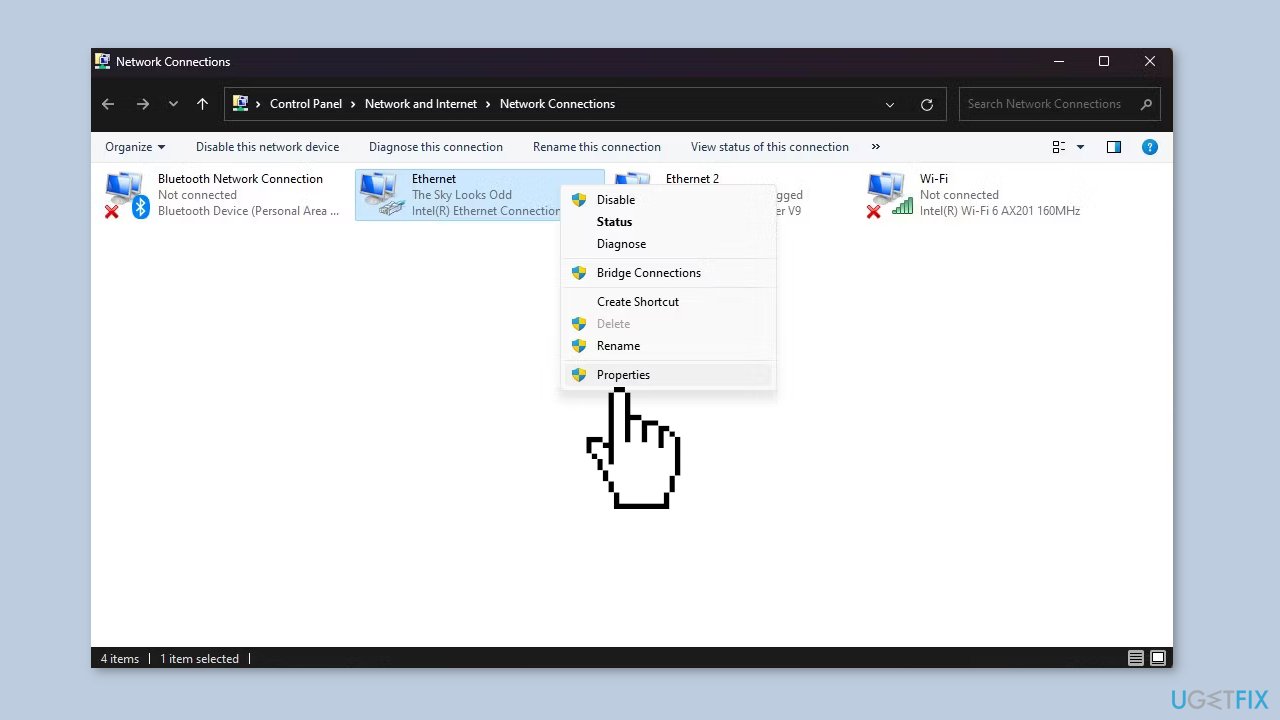
- In the network adapter's properties window, find and double-click on Internet Protocol Version 4 (TCP/IPv4).
- This action will open the properties window for TCP/IPv4.
- Within the TCP/IPv4 properties, select the options Obtain an IP address automatically and Obtain DNS server addresses automatically.
- After configuring the settings, click the OK button to save your changes.
Solution 5. Update Network Driver
- Locate the Start menu and right-click on it.
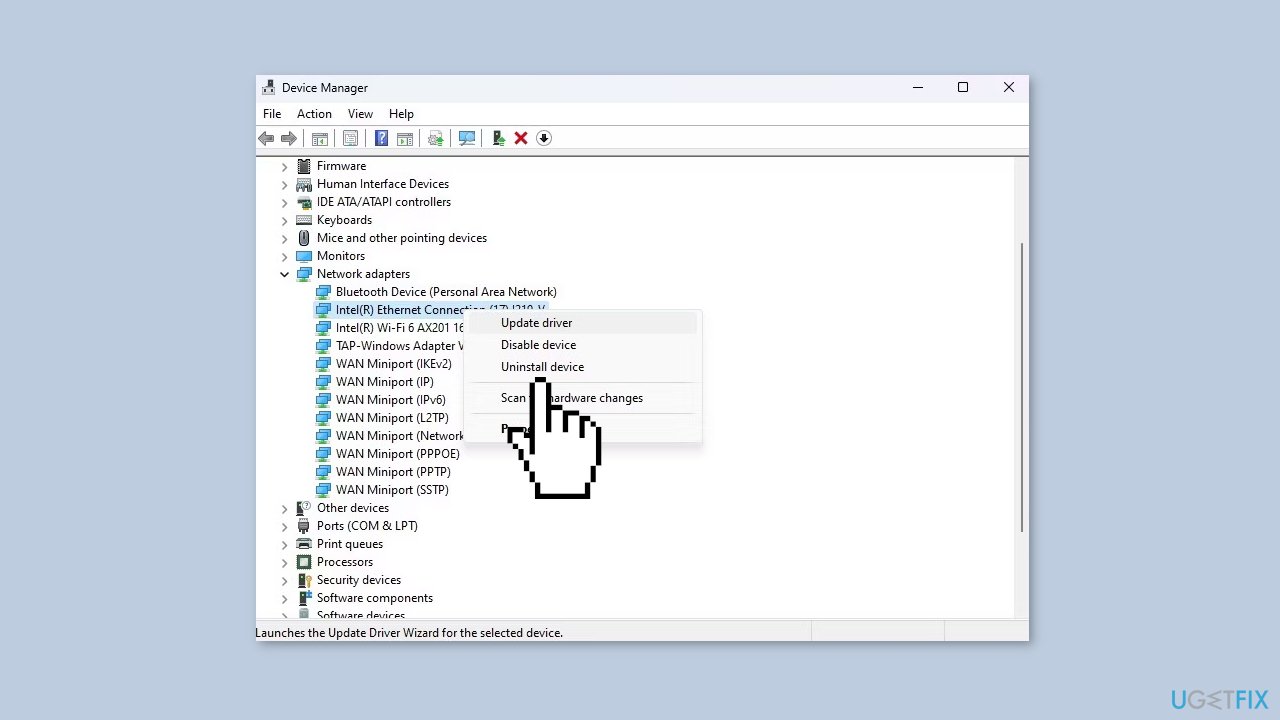
- From the menu that appears, choose Device Manager.
- Within the Device Manager window, find and click on the category labeled Network adapters.
- Identify your specific network adapter, then right-click on it.
- From the context menu, select Update driver.
Solution 6. Use Windows Network Diagnostics
- Open the Start menu on your computer.
- In the search bar, type Find and fix network problems and then click to open it.
- Click on the Next button to proceed.
- Choose between the options: Can't connect to a specific website or Can't connect to the internet.
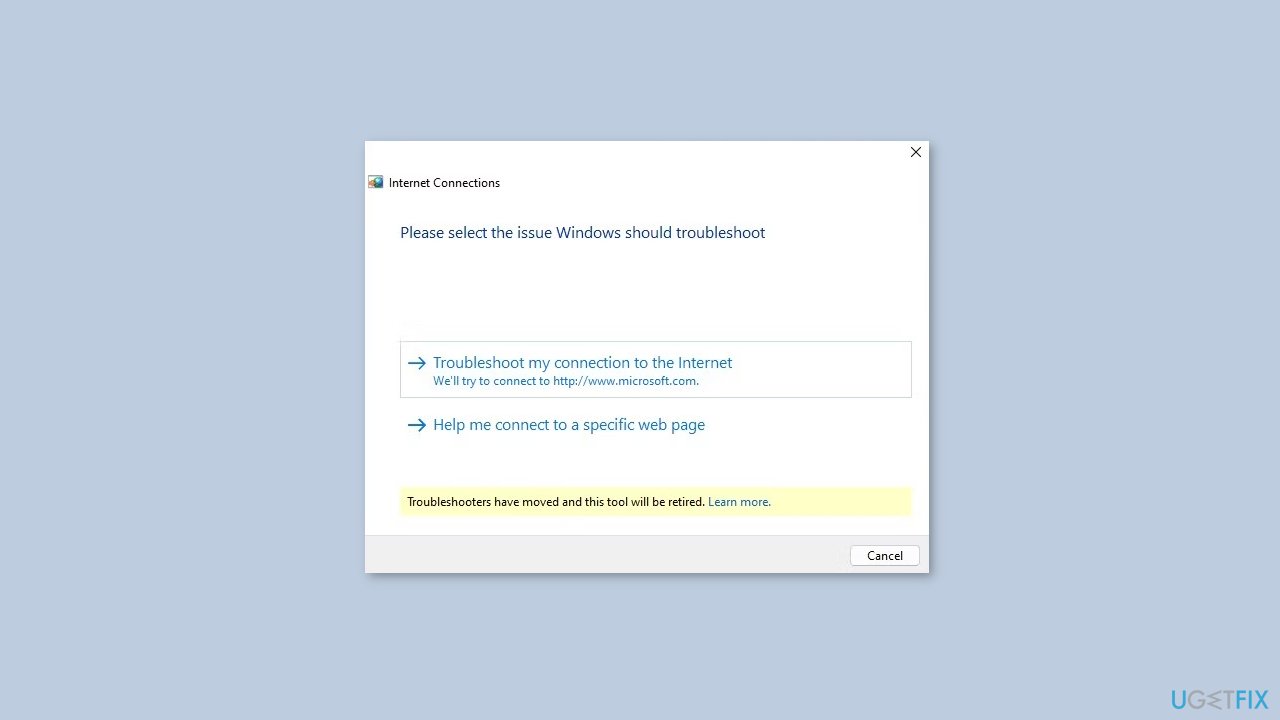
- Based on your selection, the troubleshooter will provide specific instructions.
- Follow the troubleshooting steps provided by the tool to address the network issue.
Solution 7. Restart the Windows DNS Client Service
- Press the Windows key + R on your keyboard to open the Run dialog.
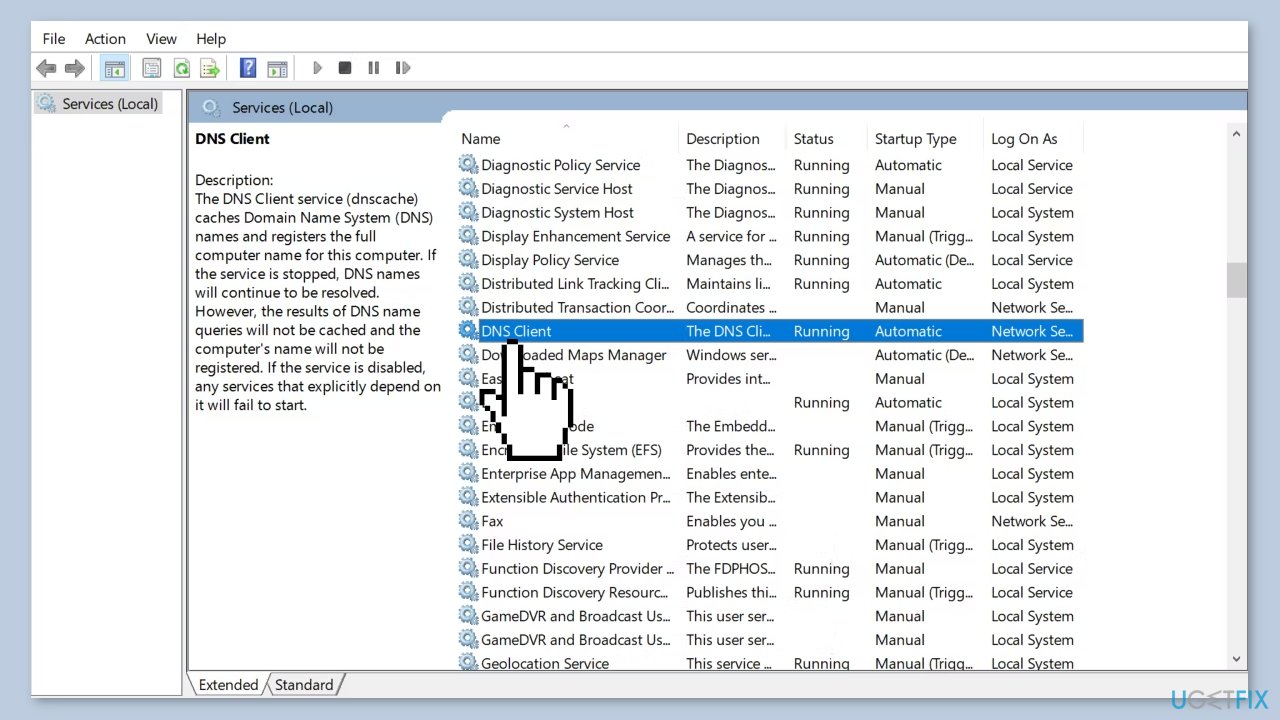
- In the Run dialog, type services.msc and hit Enter. This will display the Windows services window.
- Scroll through the list to locate the DNS Client service.
- Right-click on the DNS Client service and choose Stop to halt the service.
- Allow a few moments for the service to completely stop.
- Right-click the DNS Client service again and select Start to restart the service.
- Press the Windows key + R on your keyboard to open the Run dialog.
- Type msconfig in the Run dialog and press Enter.
- In the opened window, navigate to the Services tab.
- Locate the DNS Client service; you can sort the services by name for easier identification.
- Uncheck the box next to DNS Client to deactivate the service. Click OK to confirm and stop the service.
- Wait for approximately a minute.
- Check the box next to DNS Client to enable the service again.
- Click OK to save the changes and start the service.
Solution 8. Reset Winsock and IPv4 Settings
- Open the Start menu.
- Search for Command Prompt in the search bar.
- Right-click on Command Prompt in the search results.
- Select Run as administrator from the context menu.
- In the Command Prompt window, type the following command and press Enter to reset the Winsock:
netsh winsock reset
- After executing the command, restart your computer.
- Once your computer restarts, open the Command Prompt again as administrator.
- Enter the following command in the Command Prompt:
netsh int ipv4 reset reset.log
- After typing the command, restart your computer.
Bottom line
To resolve the 'server IP address could not be found' error, you can clear the DNS cache, check DNS server settings, look for conflicting browser extensions, and temporarily disable firewall or security software. If the issue persists, examine your router's settings and run network diagnostics. If none of these solutions work, consider using a maintenance tool to fix system errors.
Frequently asked questions
This error typically arises due to DNS issues, incorrect network settings, or problems with the internet connection on Windows 10. Ensuring that your network is properly configured can often resolve the issue.
To flush the DNS cache in Windows 11, open Command Prompt as an administrator and type 'ipconfig /flushdns', then press Enter. This can help clear any outdated or corrupted DNS entries.
Yes, you should check your DNS settings to ensure they are set to automatic or try using public DNS servers like Google (8.8.8.8). Additionally, verifying your network adapter settings can help resolve connectivity issues.




Report an issue
What's wrong with this guide? We review every report and update or remove content.
Report received — thank you. We'll review and fix it.
You need a free account to submit a report.
Be the first to comment