How to fix
Service Error 2: The system cannot find the file
on Windows
Resolve Service Error 2 on Windows 10 and 11 effortlessly. Get expert-tested solutions to restore system functionality and avoid future issues. Fixed in…

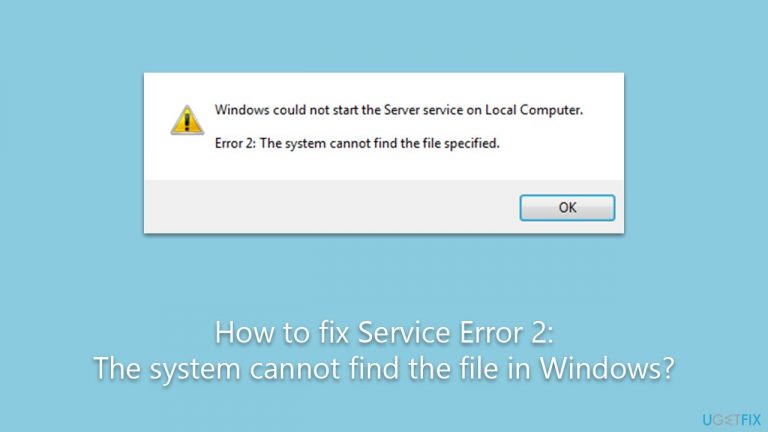
What causes How to fix Service Error 2: The system cannot find the file in Windows?
- Accidental deletion of files
- Improper application uninstallation
- Corruption of system files
- File path no longer exists
- File has been moved
Repairs Windows system files, removes malware, and restores a clean OS state — without reinstalling.
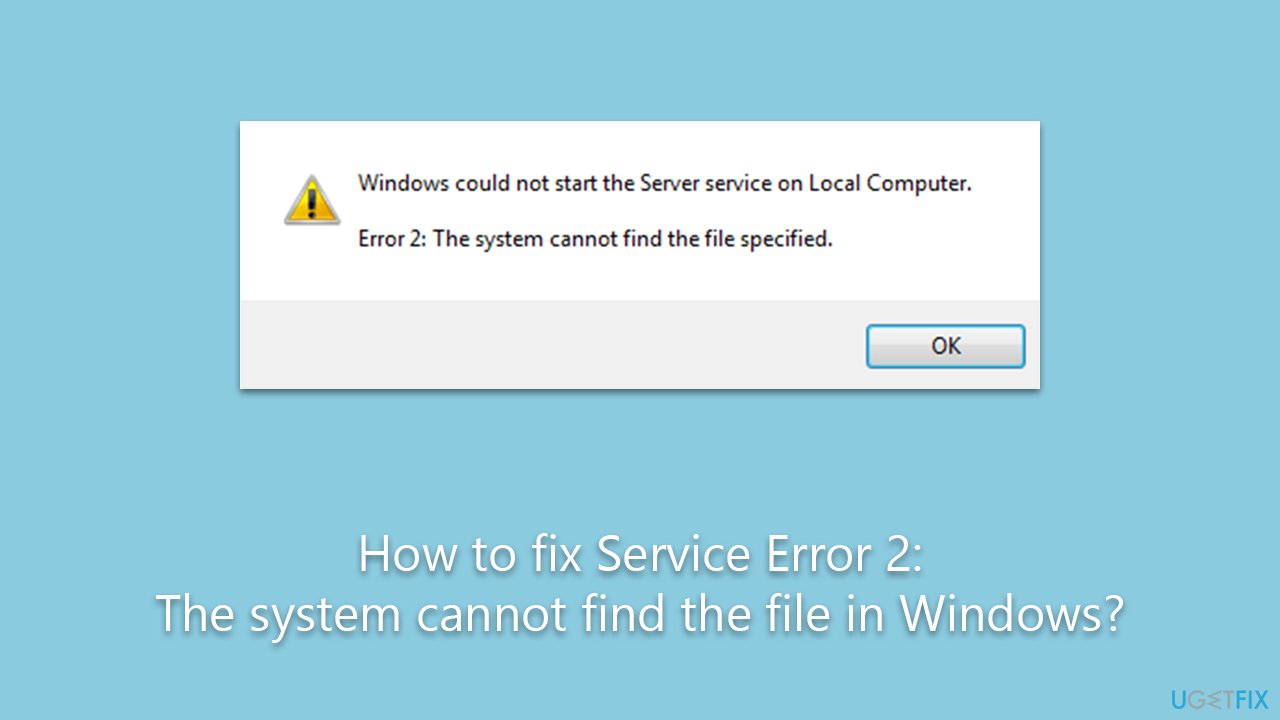
Hello, I had issues with updating Windows, so I checked the Windows update service, and when I attempted to start it I received an error "Error 2: The system cannot find the file." Any tips on this would be welcome.
Services play a pivotal role in the operation of Windows, the world's most widely used operating system. These background processes control numerous aspects of your system, including network connections, user logins, and interaction with hardware devices. The operations are primarily managed by service-oriented applications, contributing to the overall performance, security, and stability of your computer.
Occasionally, users may find it necessary to modify the settings of certain services. The rationale for doing so can range from optimizing system performance and security to resolving specific issues that emerge during the use of particular applications. However, the modification process is not always straightforward, and it is not uncommon for users to encounter roadblocks along the way.
One such issue that users frequently report is "Error 2: The system cannot find the file." This error typically occurs when the user attempts to alter the settings of a service, but the system is unable to locate the file that is associated with that service. This could be due to several reasons, including but not limited to accidental deletion of files, improper application uninstallation, or corruption of system files. In some cases, the service may be referencing a file path that no longer exists or that has been moved.
Addressing the "Error 2: The system cannot find the file" issue involves identifying and rectifying the cause behind the missing or inaccessible file. Repairing corrupted system files or adjusting Windows settings might resolve this error. The comprehensive instructions for resolving this error can be found below this article, designed to guide you through the necessary steps.
In parallel, it's advisable to consider utilizing a PC repair tool, such as [d1]. While it may not directly fix the "Error 2: The system cannot find the file" issue, it proves incredibly useful in handling related challenges. This app excels at fixing corrupted system files, repairing malware damage, and addressing a multitude of underlying Windows problems.
It is important to note that the resolution to this error often depends on which service you having issues with, so keep in mind that the below are just general suggestions that might resolve the problem at hand.
Fix 1. Run SFC and DISM
Both the System File Checker (SFC) and the Deployment Image Servicing and Management (DISM) tools are integral utilities in Windows that can diagnose and repair issues related to system files. They work together to fix file corruption and restore the health of your system.
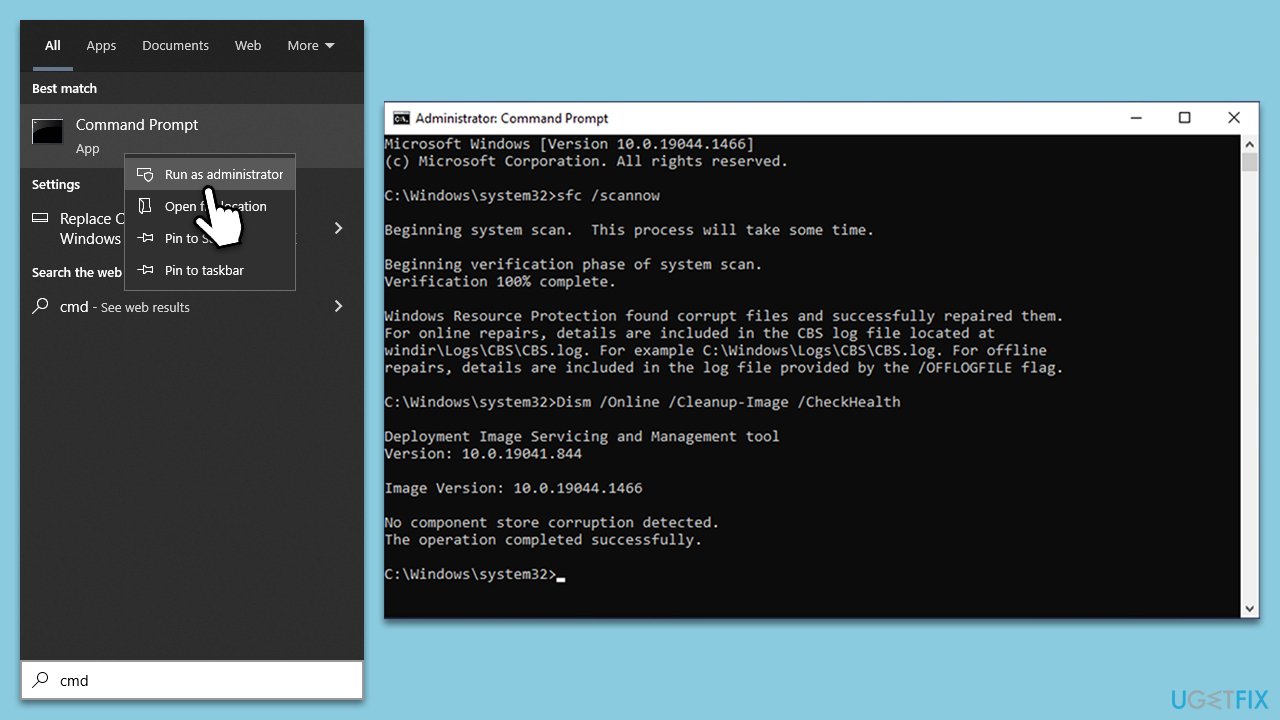
- Type in cmd in Windows search.
- Right-click on Command Prompt and select Run as administrator.
- When User Account Control asks you whether you allow changes to your system - click Yes.
- In the Command Prompt window, paste the following command and hit Enter:
sfc /scannow - Next, use the following commands, pressing Enter after each:
Dism /Online /Cleanup-Image /CheckHealth
Dism /Online /Cleanup-Image /ScanHealth
Dism /Online /Cleanup-Image /RestoreHealth
(Note: if you get an error executing this last command, add /Source:C:\RepairSource\Windows /LimitAccess to it and try again). - Reboot your device.
Fix 2. Check service dependencies
Services in Windows often rely on other services to function correctly, known as dependencies. If a service that your current service depends on isn't running properly, it could lead to an error. Checking and ensuring all service dependencies are correctly functioning can help resolve this.
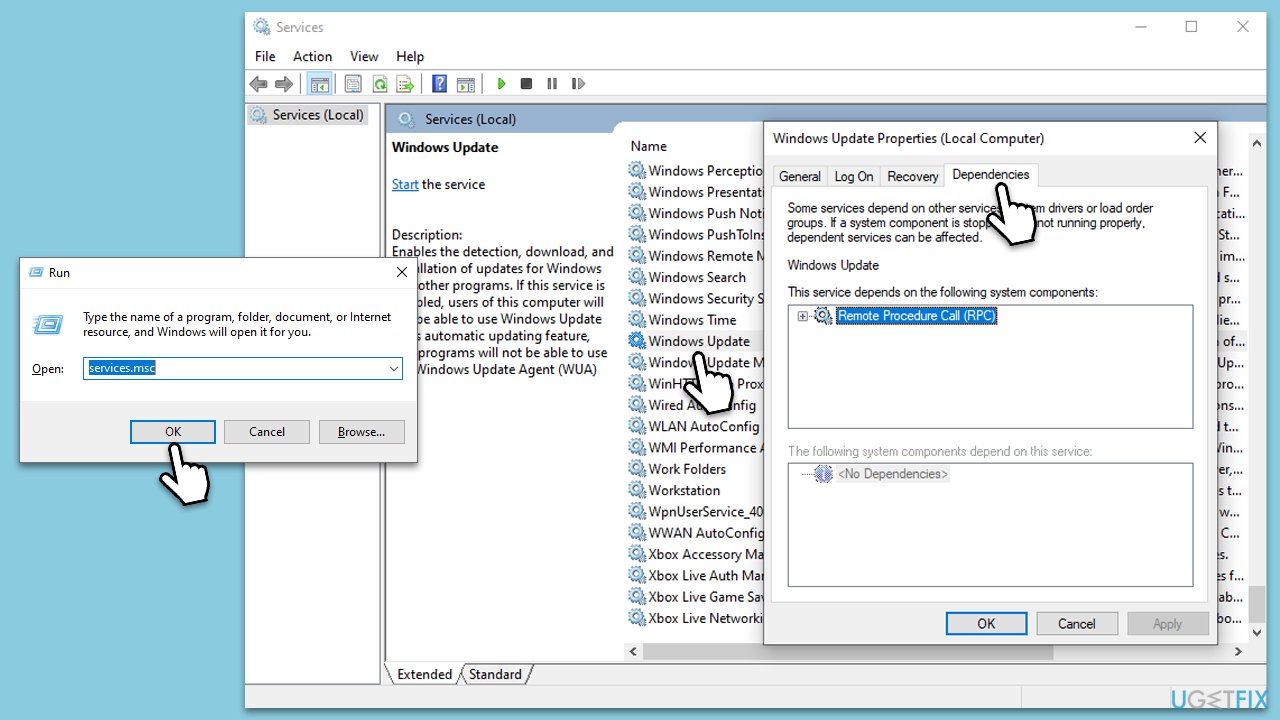
- Press Windows key + R, type services.msc, and press Enter.
- Find and double-click the problematic service.
- Go to the Dependencies tab to see which services your current service depends on.
- Check if all dependent services are running correctly. If not, right-click on each one and select Start.
- After ensuring all dependencies are running, try starting the problematic service again.
Fix 3. Run suitable troubleshooter
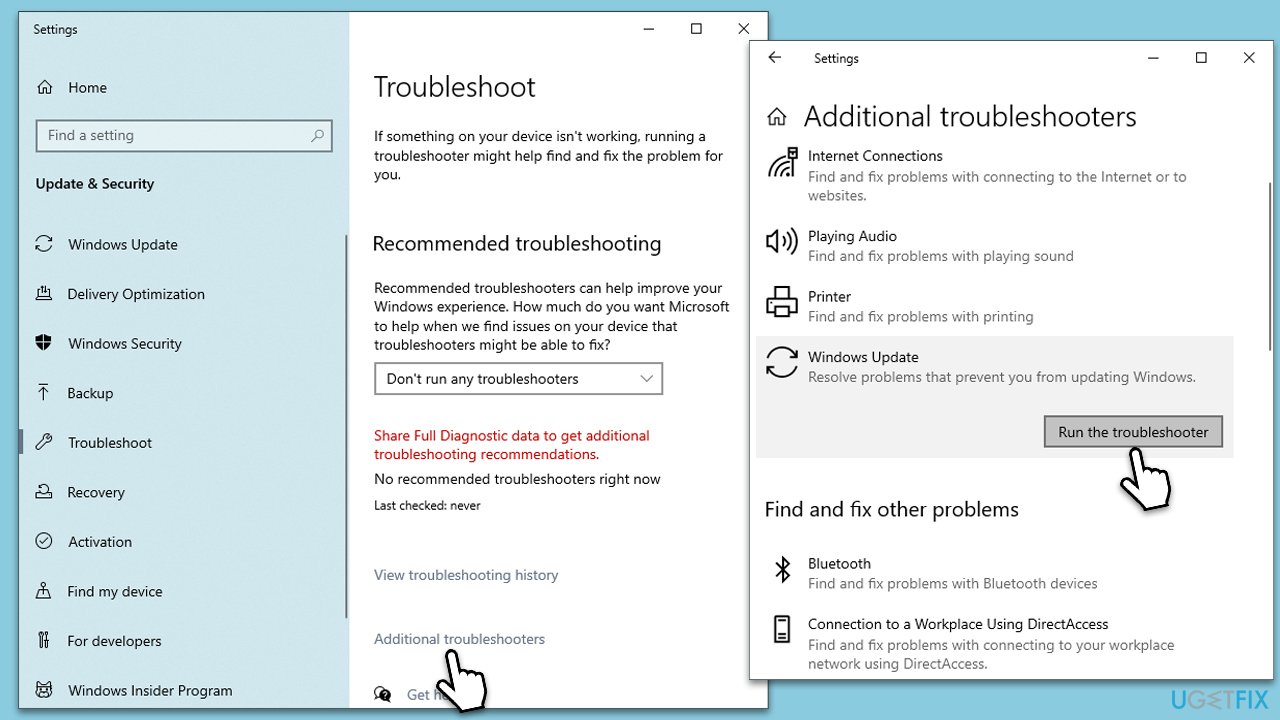
Windows incorporates various troubleshooters designed to automatically diagnose and fix a range of computer issues. Running a relevant troubleshooter might help identify and resolve the problem causing the service error. For example, if you are having trouble with the Windows Update service, you should run the Windows Update troubleshooter.
- Type Troubleshoot in Windows search and hit Enter.
- Select Additional troubleshooters/Other troubleshooters.
- Locate the troubleshooter representing the service you are having issues with from the list and select Run the troubleshooter/Run.
- Once the scan is finished, apply the recommended changes.
Fix 4. Create a new user profile
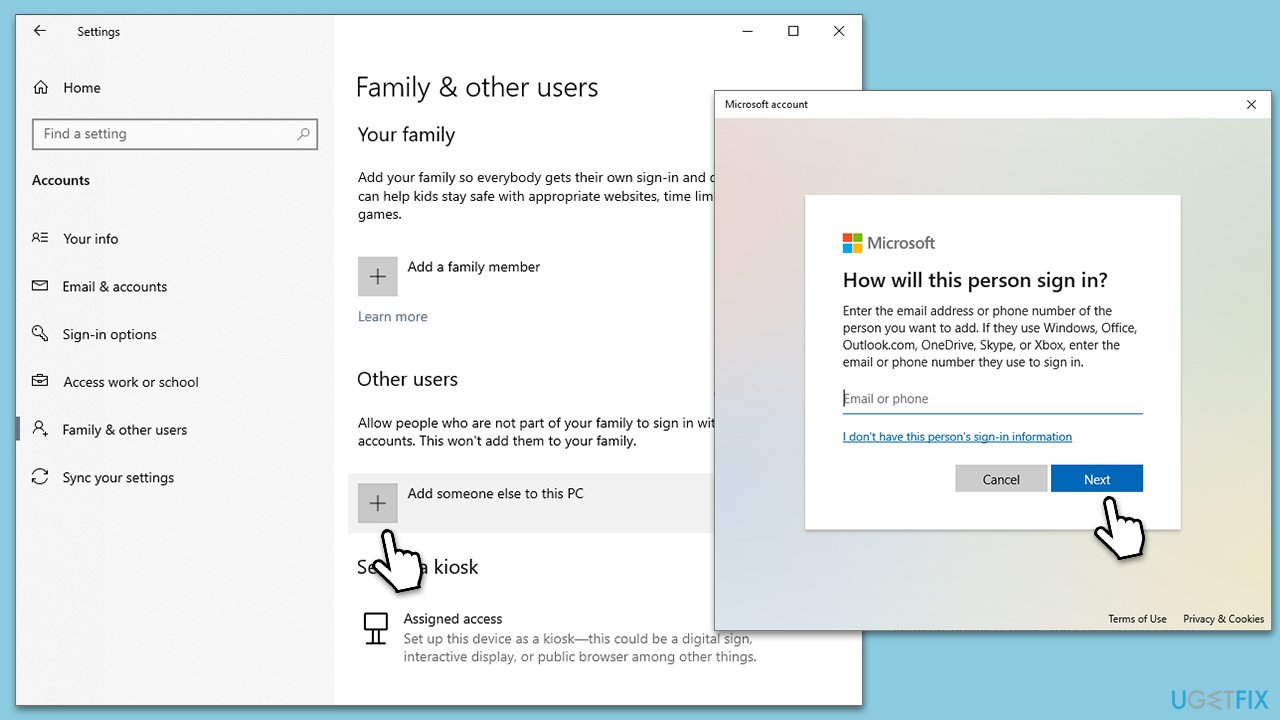
At times, the issue may lie not with the service itself but with the user profile you're currently using. Corrupt user profiles can often cause errors and inconsistencies with system functions. In this case, creating a new user profile and assigning the necessary permissions can potentially solve the issue.
- Select Start/right-click Start and pick Settings
- Go to Family and & other users
- In the Other users section, click the Add someone else to this PC option
- Select I don't have this person's sign-in information, and then pick Add a user without a Microsoft account.
Fix 5. Use System Restore
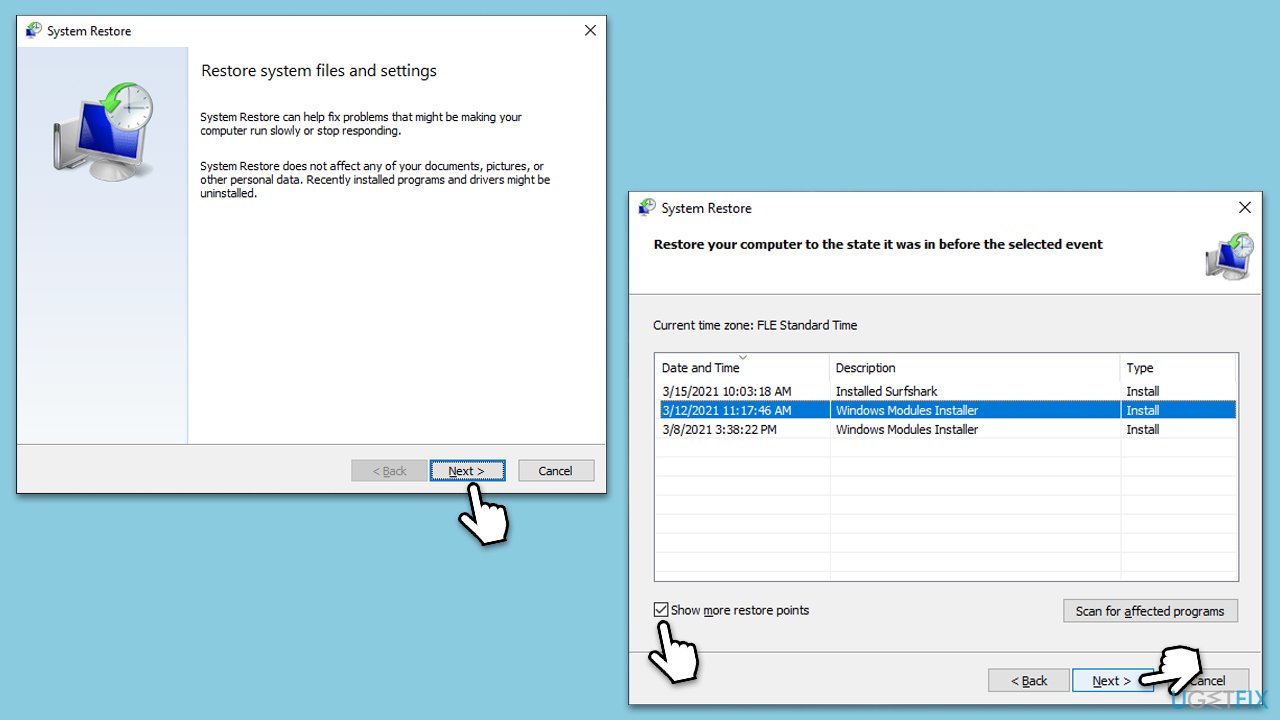
System Restore is a utility in Windows that allows you to revert your computer's system files, programs, and settings to a previous state. This function is particularly helpful if your system has been negatively impacted by a change, such as a software update or manual modification of services.
- Type in Create a Restore point in Windows search and hit Enter.
- In the System Protection tab, pick System restore.
- Click Next.
- Click Show more restore points (if available).
- Pick the time before the problem occurred and click Next.
- Your computer will reboot.
Bottom line
To fix the 'Error 2: The system cannot find the file' issue, you can repair corrupted system files or adjust Windows settings. If these steps do not resolve the problem, consider utilizing a PC repair tool for further assistance.
Frequently asked questions
Service Error 2 typically occurs when a required service file is missing or corrupted, preventing the system from locating it properly. This can happen due to improper updates, file deletions, or system file corruption.
You can use the System File Checker tool by running 'sfc /scannow' in an elevated Command Prompt to scan and repair missing or corrupted system files in Windows 10 or Windows 11.
Yes, you should check the services related to the application or feature that is generating the error, as well as the Windows Update and Background Intelligent Transfer Service, which may impact system functionality.




Report an issue
What's wrong with this guide? We review every report and update or remove content.
Report received — thank you. We'll review and fix it.
You need a free account to submit a report.
Be the first to comment