How to fix
“Service registration is missing or corrupt” error
on Windows
Resolve the "Service registration is missing or corrupt" error on Windows 10 easily. Follow our expert-tested guide for quick and effective solutions.

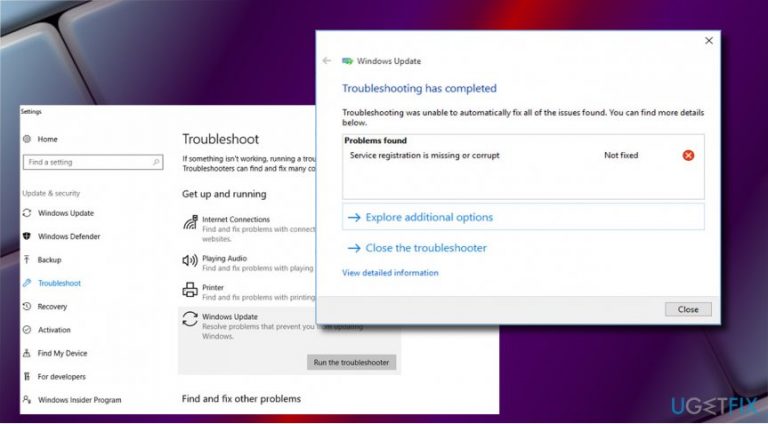
What causes How to fix “Service registration is missing or corrupt” error on Windows 10?
- Damaged registry entries
- Incompatible software
- Stopped Windows services
- Outdated operating system
- Disabled automatic updates
Repairs Windows system files, removes malware, and restores a clean OS state — without reinstalling.
Hello, I am trying to update my Windows 10 but it keeps returning error which prevents me from doing so. Thus, I ran the Windows update troubleshooter, and it returned an error "Service registration is missing or corrupt," which could not be fixed automatically. Any ideas? Thanks in advance.
"Service registration is missing or corrupt" error can be encountered when running a Windows update troubleshooter. In some cases, the troubleshooter manages to fix the found issues automatically, although quite often, the action from the user's side is required. In this article, we will help you perform the necessary steps to fix Service registration is missing or corrupt error.
Windows 10 operating system, just like every other software, is constantly patched with the newest updates, and it is up to the user how they are applied. As a general rule, all the updates are shipped automatically, although this function can be disabled if so desired. Nevertheless, it is not recommended, as an outdated operating system is more vulnerable to virus infections[ref en-1] and faces BSOD errors/fatal crashes[ref en-2] more frequently.
Those who face Service registration is missing or corrupt or similar errors that do not allow users to update their systems are more prone to malware attacks and will not receive the most up-to-date features, skip the bug[ref en-3] fixes, among others. Therefore, it is vital to get rid of "Service registration is missing or corrupt" error as soon as possible.
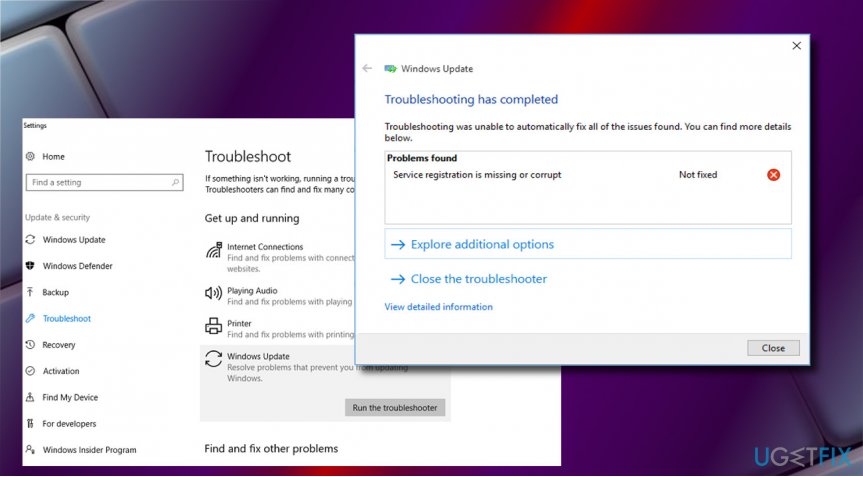
"Service registration is missing or corrupt" Troubleshooter error states the following:
Troubleshooting has completed
Troubleshooting was unable to automatically fix all the issues found. You can find more details below.
Problems found
Service registration is missing or corrupt
Unfortunately, Windows Update service or rather Windows Update Troubleshooter may fail with an error "Service registration is missing or corrupt" is one of many Windows Update Troubleshooter errors - actually, Windows Update service stops working quite frequently - you can find tons of articles about Windows Update errors in our blog.
Windows Update "Service registration is missing or corrupt" error may occur due to a variety of issues, including damaged registry entries, incompatible software, stopped Windows Update services, and so on. While experts claim that the Windows Update Troubleshooter (an in-built tool) can fix "Service registration is missing or corrupt" error, people reported that the troubleshooter is often incapable of doing so.
It is also worth noticing that users may encounter the same error when using Windows Store Apps troubleshooter when they are unable to update or install new apps via the Microsoft Store. Nevertheless, "Service registration is missing or corrupt" error fix for the issue is the same, and you can find it below.
Note: If you want an easy fix, you can try running a scan with PC repair software [d1] - in case the cause of Service registration is missing or corrupt error is corrupted system files or similar, the repair tool will get rid of the issue automatically.
Fix 1. Run System File Checker
System File Checker is a great built-in tool that can check the integrity of Windows system files. In case some are corrupted, they will be fixed automatically. Tu run SFC scan, you must open Command Prompt with Administrator rights:
- Type in cmd into Windows search
- From the search results, right-click on Command Prompt and select Run as administrator
- In the new window, type in the following command and press Enter:
sfc /scannow
- In case any integrity errors will be found, Windows will repair then automatically and inform you about it
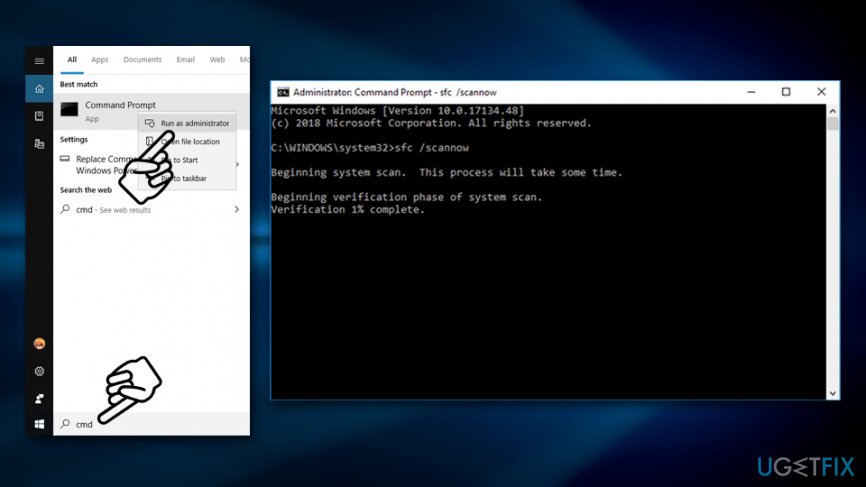
Service registration is missing or corrupt run sfc scan
Fix 2. Reset Windows settings via Command Prompt
This solution can help you fix "Service registration is missing or corrupt" error, as it helped many people. Similarly to the method we applied in the first fix, you will have to enter Command Prompt once again.
- Access Command Prompt with Administrator rights as explained in the first fix
- Copy and paste the following commands, pressing Enter after each:
net stop wuauserv
net stop cryptSvc
net stop bits
net stop msiserver
ren C:\\Windows\\SoftwareDistribution SoftwareDistribution.old
ren C:\\Windows\\System32\\catroot2 catroot2.old
net start wuauserv
net start cryptSvc
net start bits
net start msiserver - Close Command Prompt and reboot the system.
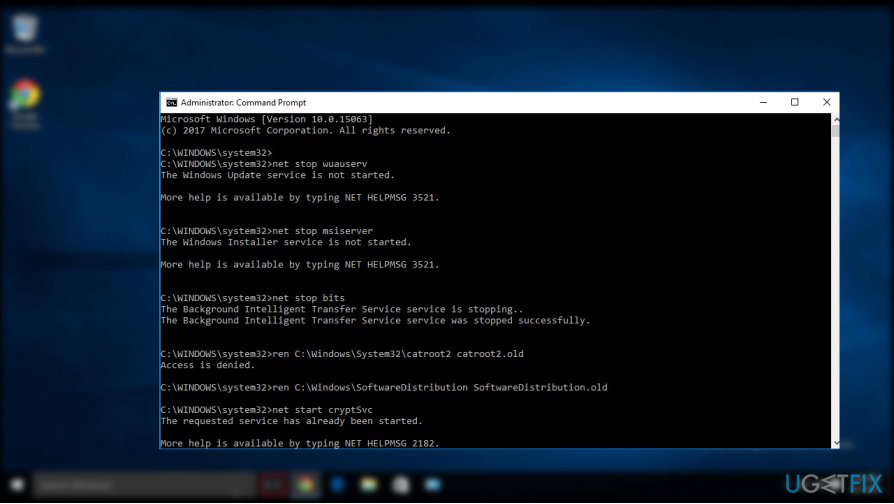
Step2 - After that, try to update Windows once again.
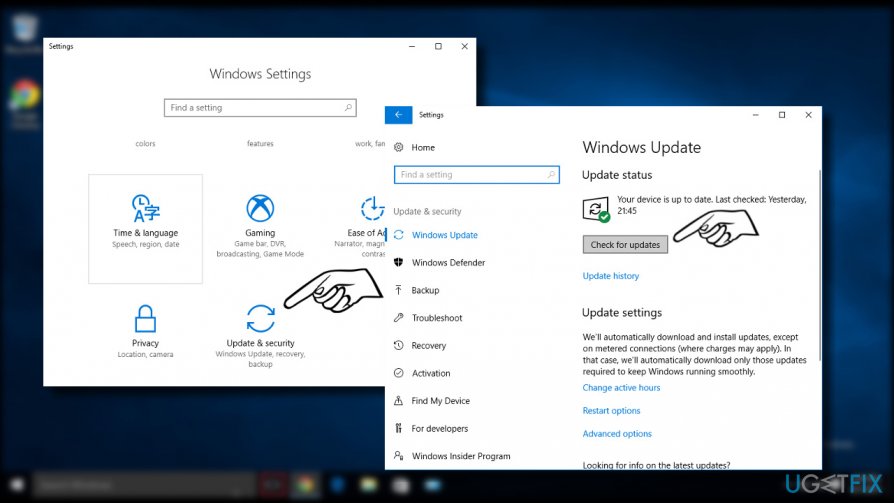
Check for updates
Fix 3. Make sure Windows update services are running
In some cases, users may not be able to update their systems due to Windows Update service not running. Here's how to change that:
- Type in services.msc into Windows search and hit Enter
- In the newly opened window, sort the service list by the the Name
- Scroll down and locate WindowsUpdate service
- Right-click and select Properties
- In General tab, under the Startup type, make sure the option is set to Automatic
- Once selected, click Start under Service Status and then Apply
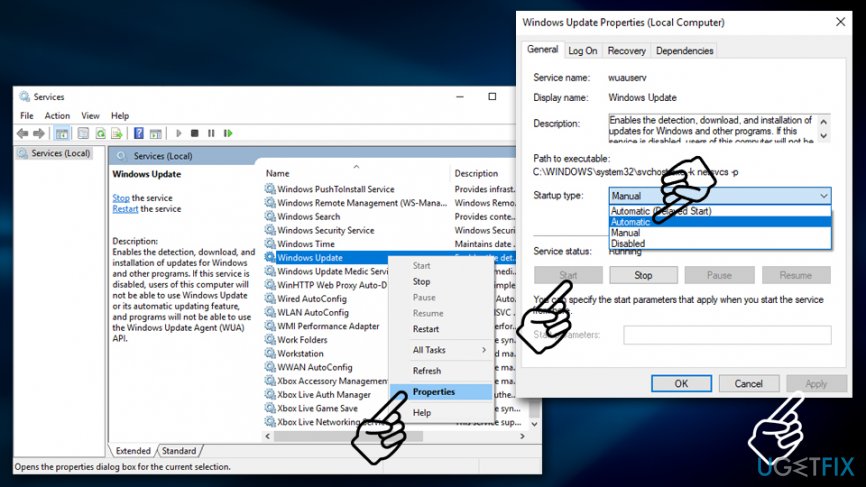
Service registration is missing or corrupt ensure windows update service is running
Fix 4. Remove the registry value
This method helped many users who faced the
- To start with, create a backup of the Registry. For this purpose, press Windows key + R, type regedit, and hit Enter
- Now click File at the top-left corner of the window and select Export
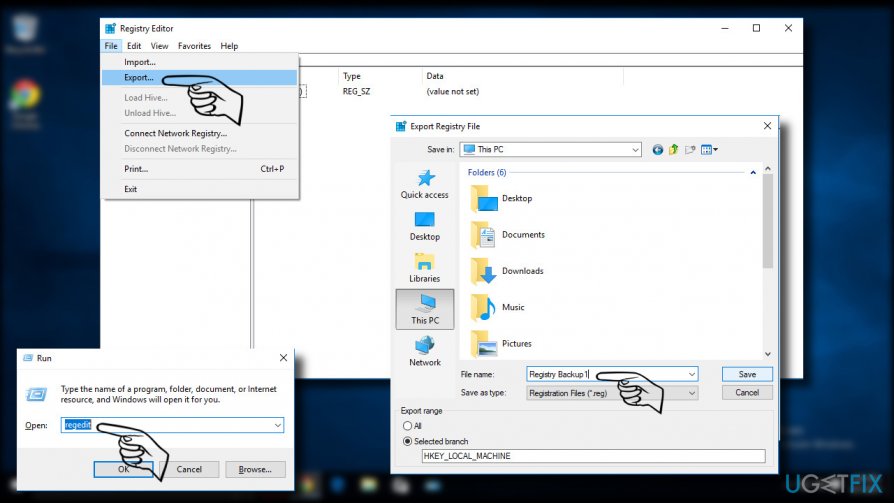
Registry backup - Select the location where you want to save the backup
- Enter the name for the backup in the File Name field and click Save
- Now you’ll have to remove the value ThresholdOptedIn. Navigate to the HKEY_LOCAL_MACHINE\\SOFTWARE\\Microsoft\\WindowsSelfHost\\Applicability
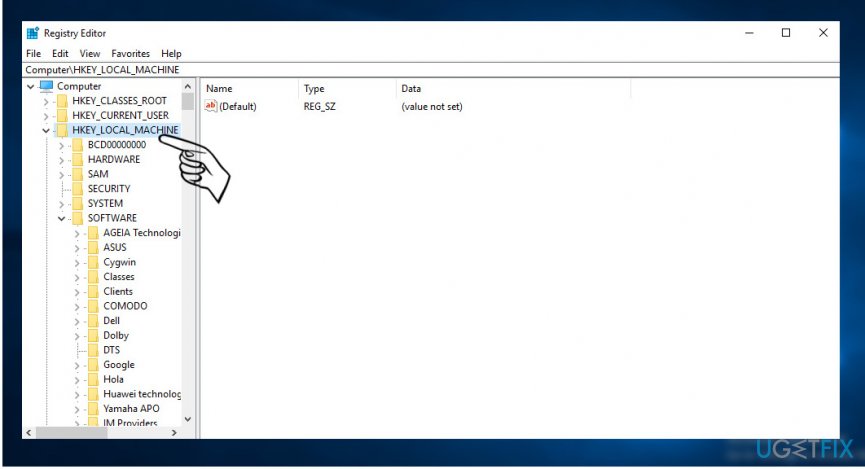
Step1 - Find the ThresholdOptedIn value on the right pane. If it’s there, click it, and remove.
Fix 5. Reset Microsoft Store cache
In case you are experiencing "Service registration is missing or corrupt" error when trying to use Microsoft Store (previously known as Windows Store), you should reset its cache and see if that helps:
- Type in WSReset.exe into Windows search and hit Enter
- A pop-up window should appear briefly - wait till it disappears

Service registration is missing or corrupt run wsreset command to reset store cache - This action will reset the cache of Microsoft Store
Bottom line
To fix the 'Service registration is missing or corrupt' error, users can try running the Windows update troubleshooter, checking for incompatible software, and ensuring that all necessary Windows services are running. If these steps do not resolve the issue, consider seeking further assistance or exploring additional troubleshooting articles.
Frequently asked questions
You can try running the System File Checker (SFC) and DISM tools to repair corrupted files. Open Command Prompt as an administrator and run 'sfc /scannow' followed by 'DISM /Online /Cleanup-Image /RestoreHealth'.
This error can prevent services like Windows Update and others from functioning properly, leading to issues with system updates and application installations. Resolving it is crucial for maintaining system stability.
Yes, the troubleshooting methods such as using the SFC and DISM tools are applicable for both Windows 10 and Windows 11, ensuring that system files are intact.




Report an issue
What's wrong with this guide? We review every report and update or remove content.
Report received — thank you. We'll review and fix it.
You need a free account to submit a report.
Be the first to comment