How to fix
“Services.msc Access Denied” error
on Windows
Resolve the "Services.msc Access Denied" error in Windows 10 or 11 effortlessly with our expert-tested solutions. Fixed in minutes!


What causes How to fix “Services.msc Access Denied” error in Windows?
- Not running the console as an administrator
- Interference from third-party security software
- Corrupted system files
- Incorrect user account permissions
Repairs Windows system files, removes malware, and restores a clean OS state — without reinstalling.
Hello. Please help me with the “Services.msc Access Denied” error in Windows. I get this pop-up window and the message pretty much states that the system cannot start the service. I have no idea what is happening and why or how to fix this. Can I possibly do it myself with your help?
The “Services.msc Access Denied” error in Windows is an issue that is related to third-party problems in most cases. Common reasons for this error include not running the console as an administrator, interference from third-party security software, corrupted system files, or incorrect user account permissions.
Encountering the "Services.msc Access Denied" error can be quite frustrating, especially when you're trying to manage system services. This error usually happens because you don't have the necessary permissions and people often are puzzled why this appears or how to deal with it.
This “Services.msc Access Denied” error on Windows can occur on both Windows 10 and Windows 11, and it often surfaces during Windows updates, acting as a significant roadblock. There are particular problems with quickly released updates, so people who installed them right after the release might encounter various errors out of nowhere.
The file that is indicated in the common access denied error, in this case is a Windows services file. These services are essential background processes that handle various tasks on your computer. Sometimes, even with administrative privileges, you might encounter this error when managing these services.
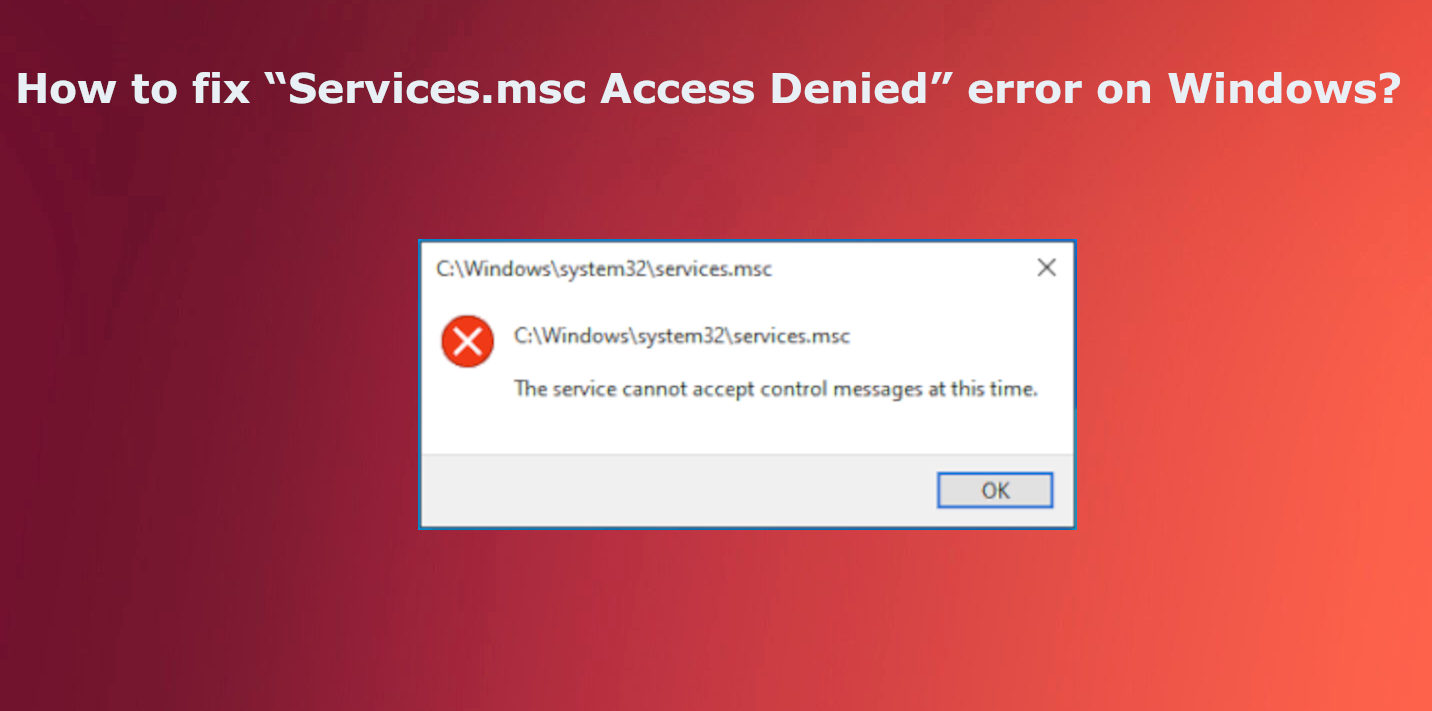
How to fix “Services.msc Access Denied” error in Windows?
Before troubleshooting and fixing the “Services.msc Access Denied” error on Windows, it's important to know what Windows services are. These independent processes run in the background, providing essential functions for the operating system and applications. Managed through tools like services.msc or the command prompt, these services come with specific permissions and dependencies.
“Services.msc Access Denied” error on Windows can happen for several reasons:
- Insufficient Permissions: Your user account might not have the required permissions to control the service. Ensure your account has administrative privileges.
- User Account Control (UAC): This feature in Windows 10 may restrict your ability to modify services. Try temporarily disabling UAC or run the service management tools as an administrator.
- Service Dependencies: The service you're trying to manage might depend on other services. Make sure these dependent services are running correctly, as errors with them can cause access-denied issues.
If you are dealing with this error because of the problematic Windows OS update, waiting for another update without these additional bugs could help. However, when it comes to permissions and even system issues, it is not easy to fix the “Services.msc Access Denied” error on Windows just by checking for more recent OS updates. This is where some tools like [d1] designed for system optimization can come. Also, we have gathered a few methods for the manual solutions.
Check User account permissions
- Press Windows Icon + R.
- Type compmgmt.msc, and press Enter to open Computer Management.
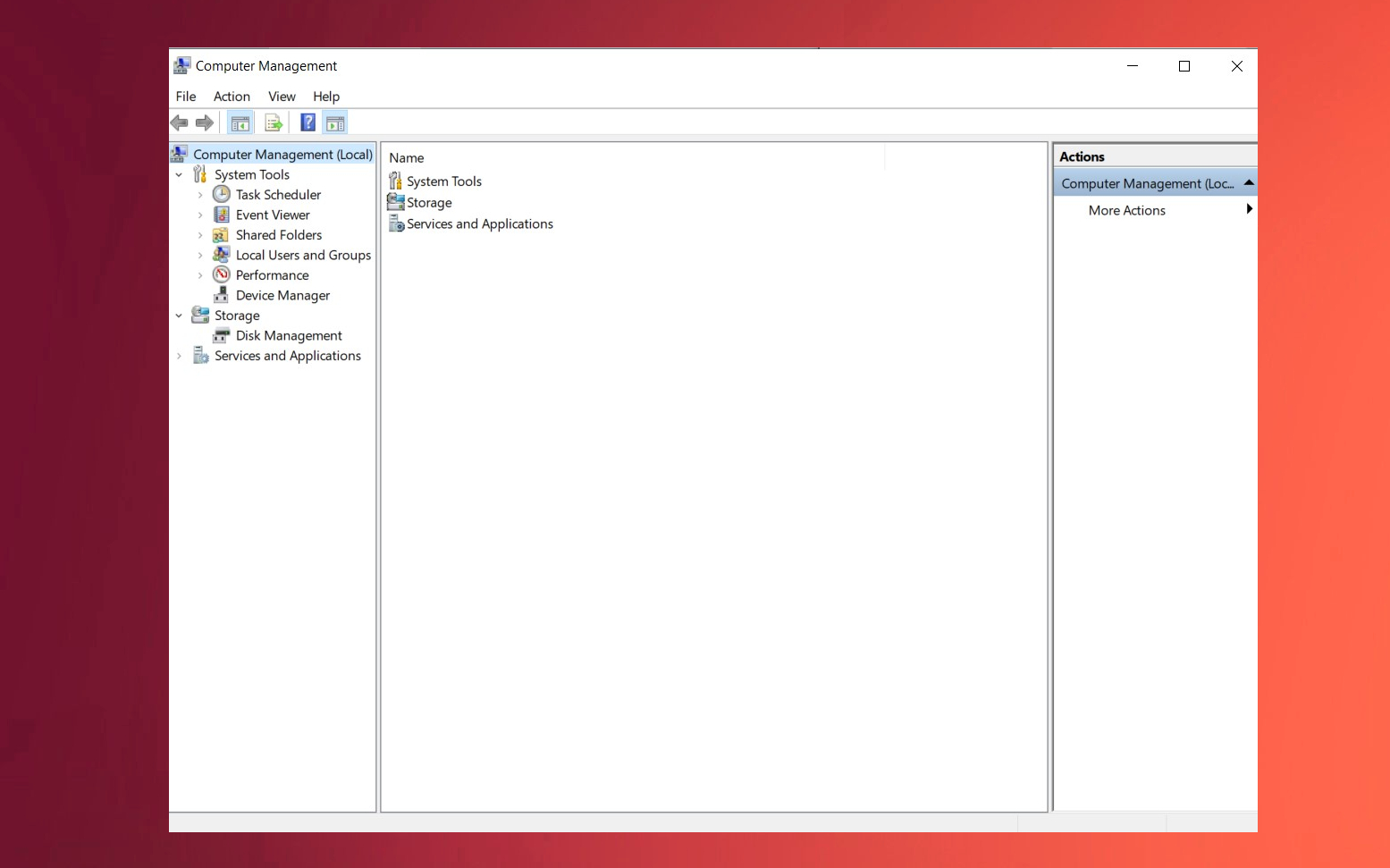
Services msc access denied error computer management - Click Local Users and Groups then double-tap Users.
- Double-click Administrator.
- Go to the Member Of tab and ensure that your account is a member of the Administrators group. If not, click Add.
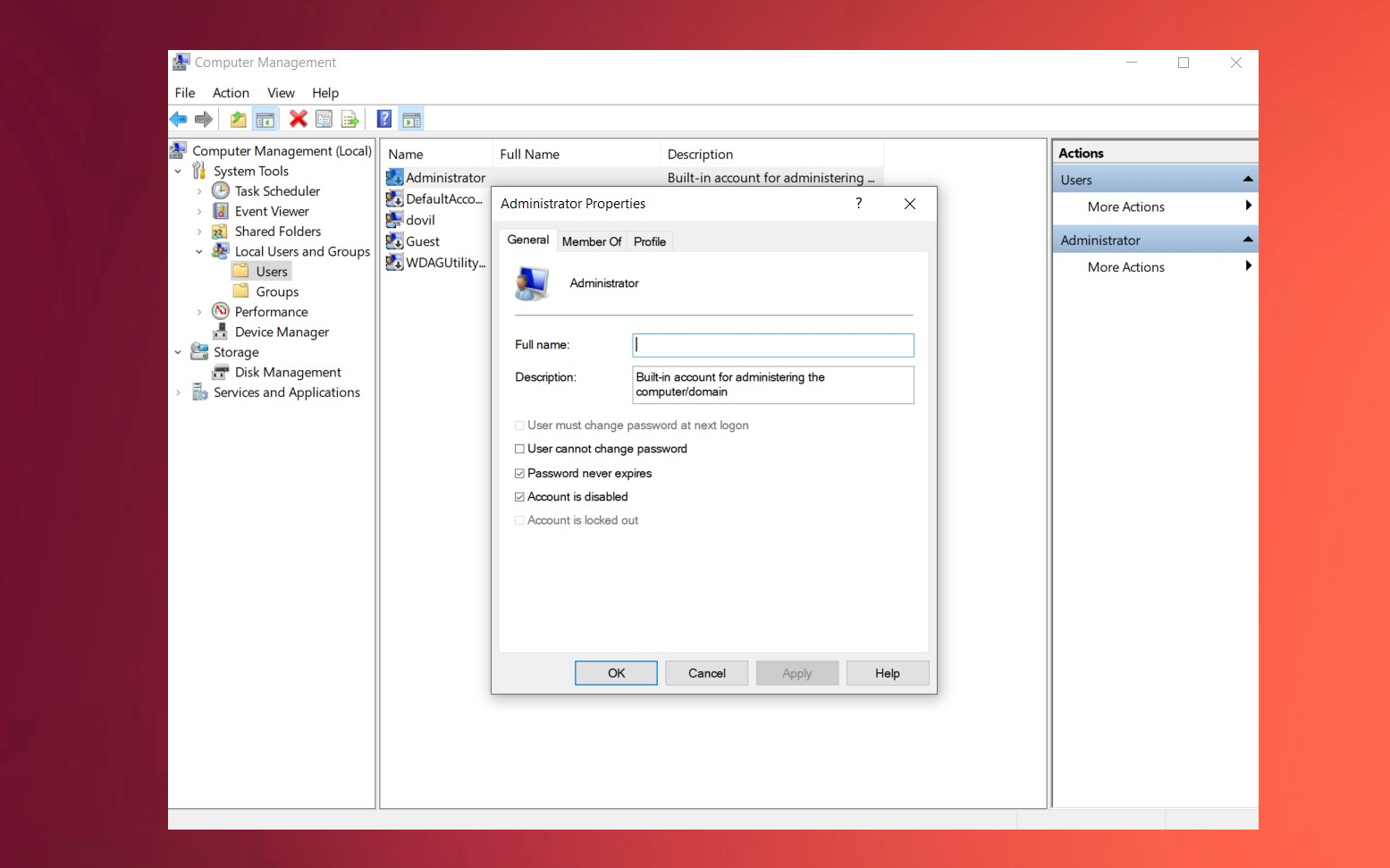
Services msc access denied error management - Add Administrators as the object name, and click Check Names and then OK.
- Log out and log back in to apply the changes.
Alter UAC settings
- Hit the Windows button and open the Control panel.
- Choose System and Security.
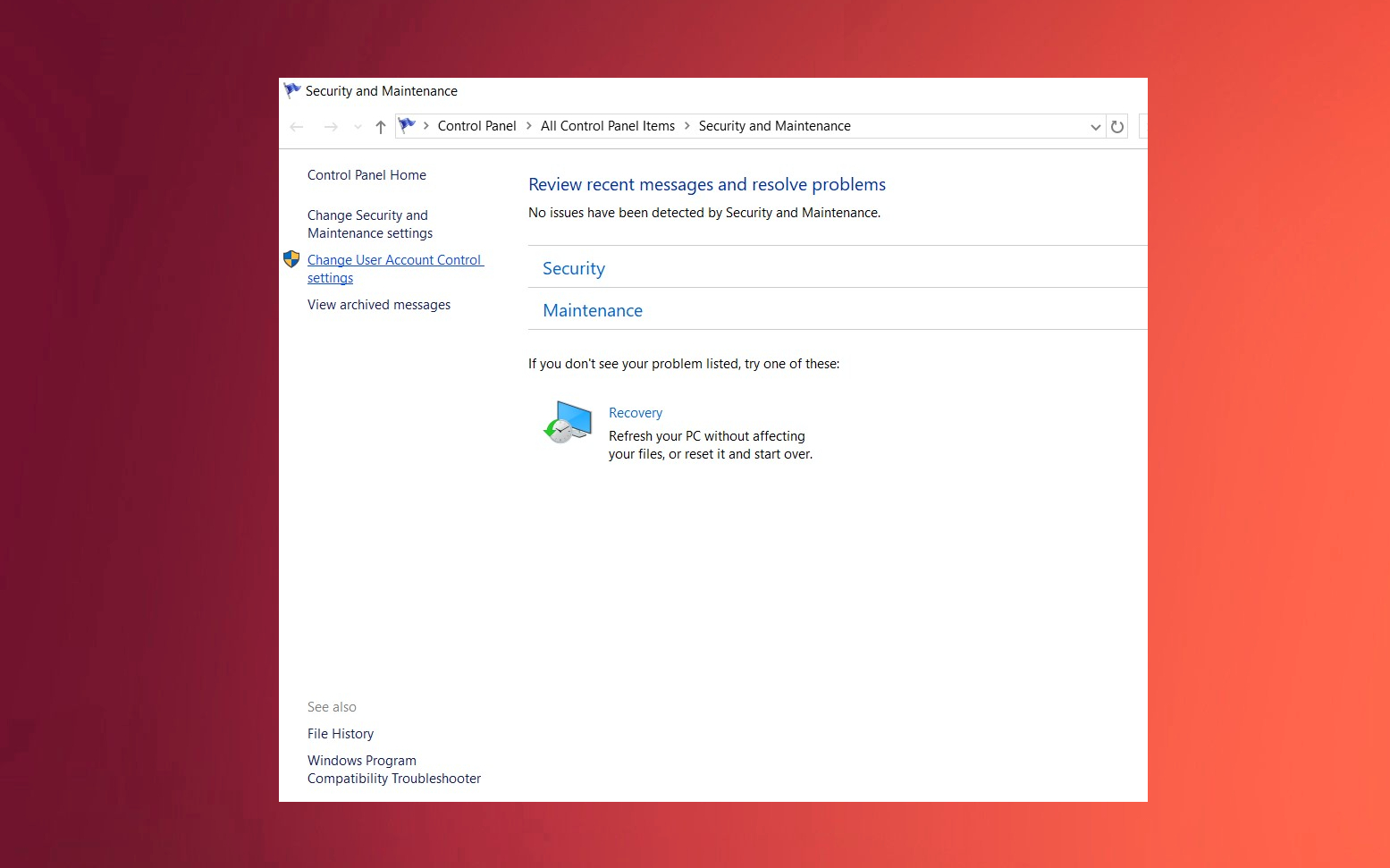
Services msc access denied error maitenance - Go to Security and Maintenance.
- Click on Change User Account Control settings.
- In the UAC settings window, move the slider to the second notch from the top, which is Notify me only when apps try to make changes to my computer (default).
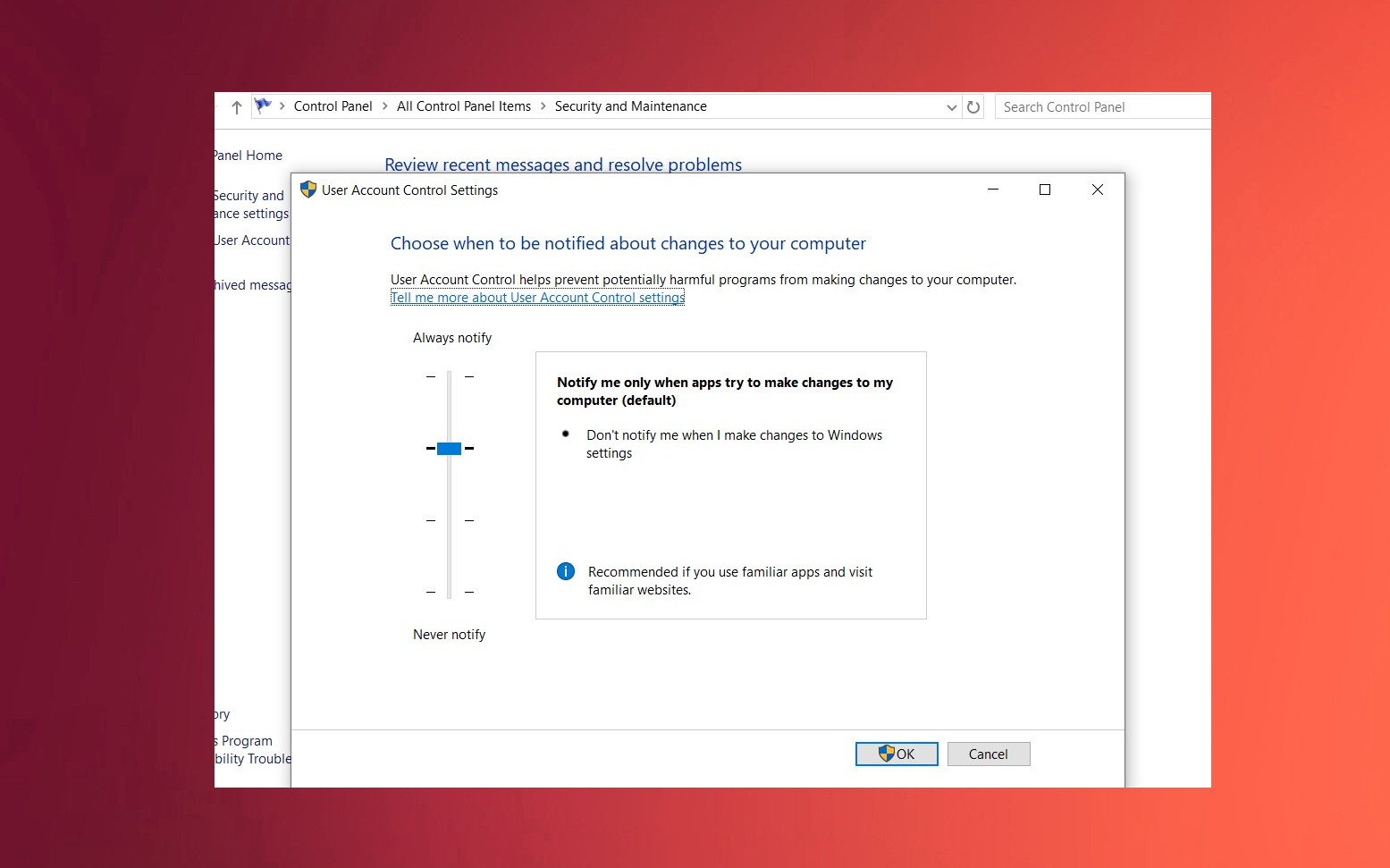
Services msc access denied error security - Click OK and confirm any prompts.
- Restart your computer to apply the changes.
Uninstall third-party security software
- Go to Settings.
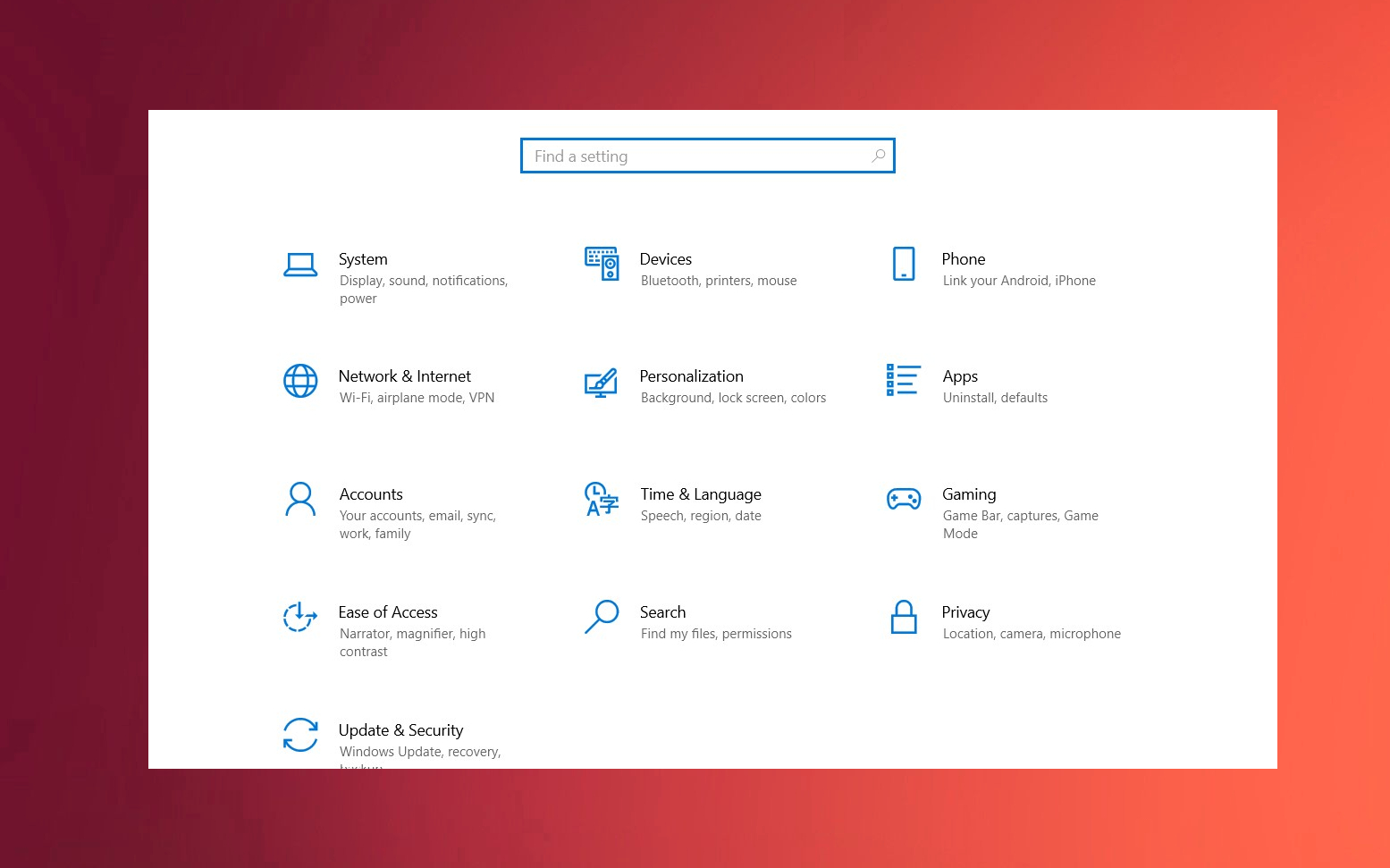
Services msc access denied error settings - Go to Apps.
- Then, find your Apps & Features.
- Find the program in the list and click on it.
- Press Uninstall and wait for the process to finish.
Alter setting in WIndows Registry
- Press the Windows key + R to open the Run box
- Type regedit and press Enter to open Registry Editor
- Navigate to HKEY_LOCAL_MACHINE\SYSTEM\CurrentControlSet\Services.
- Right-click on the service and choose Permissions.
- Choose Advanced.
- Alter the owner to your user account via Change. Enter the object name anc click Check Names.
- Click OK, then check Replace owner on subcontainers and objects and click Apply.
- Go back to the Permissions window, select your user account, and grant it Full Control. Click OK to apply the changes.
Bottom line
To fix the 'Services.msc Access Denied' error, ensure you are running the console with administrative privileges, check for any interference from security software, and verify your user account permissions. If these steps do not resolve the issue, consider checking for corrupted system files or seeking further assistance.
Frequently asked questions
This error typically occurs due to insufficient user permissions or corrupted system files that restrict access to the Services management console.
You can resolve this by running the Services application as an administrator or by adjusting your user account control settings to grant elevated permissions.
Yes, you can run the System File Checker tool by executing 'sfc /scannow' in Command Prompt to repair any corrupted files that may be causing the access issue.




Report an issue
What's wrong with this guide? We review every report and update or remove content.
Report received — thank you. We'll review and fix it.
You need a free account to submit a report.
Be the first to comment