How to fix
Services Startup Type is grayed out
on Windows
Resolve the grayed-out Services Startup Type issue in Windows 10 and 11 quickly. Expert-tested solutions ensure fast fixes with zero traces left!


What causes How to fix Services Startup Type is grayed out in Windows?
- User does not have sufficient permissions to change service settings
- Service is set to a startup type that cannot be altered
- Group Policy settings restrict changes to service startup types
- Service dependencies prevent modification of startup type
- System errors or corrupted files affect service settings
Repairs Windows system files, removes malware, and restores a clean OS state — without reinstalling.
Hello. I wanted to change the Startup type of one Windows service but the setting is grayed out. What can I do?
Users can control how different services behave when the system boots up using the Services Startup Type function in Windows. Users can specify whether a service should start with the operating system automatically, when requested, or be disabled until manually started using this functionality. This level of control over services is critical for efficient and responsive computing by maximizing system performance, effectively allocating resources, and ensuring that only essential services are running.
The Services Startup Type choice occasionally appears grayed out or locked in the Windows Services administration interface, which is an irritating problem for Windows users. Users are practically unable to change the startup configuration of certain services as a result of this issue, which results in a lack of control over how certain services are launched when the system starts.
Numerous services have the potential to use a significant amount of system resources. The inability to alter their launch behavior can result in unjustified resource usage, which could slow down the system and reduce performance as a whole. Users frequently need to temporarily switch services to manual startup in order to identify and fix problems. These troubleshooting efforts are complicated by the grayed-out option, potentially delaying the solution.
In this guide, you will find 3 steps that should help you fix the Services Startup Type is grayed out in Windows. You can also use a system repair tool like [d1] that can fix most system errors, BSODs,[ref en-1] corrupted files, and registry[ref en-2] issues. Otherwise, follow the step-by-step instructions below.

Method 1. Run Services as Administrator
- Left-click on the Windows icon.
- In the search bar, type Services.
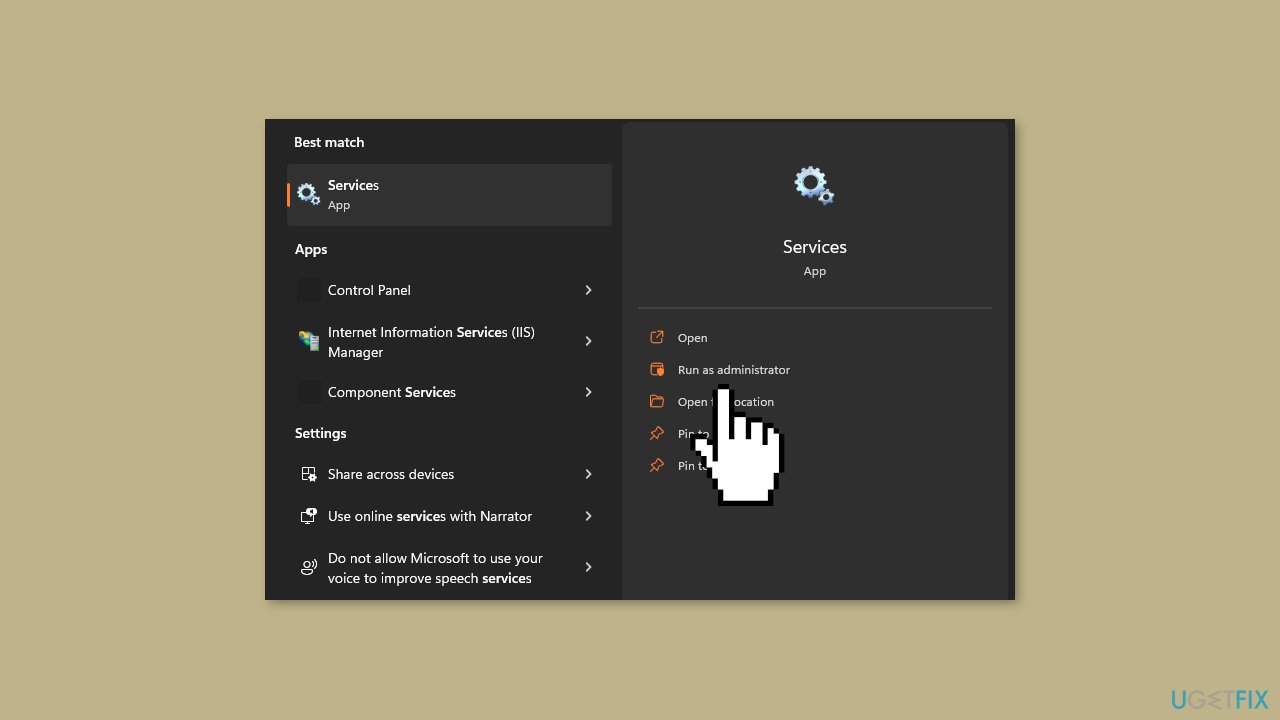
- From the search results, right-click on Services and select Run as Administrator.
- This action will open the Windows services application with administrator privileges.
Method 2. Disable Services Temporarily
- Press the Windows key on your keyboard.
- Type Services and press Enter.
- From the search results, select Services while holding the Shift key and then right-click.
- Choose Run as administrator from the context menu to open the Services application with elevated privileges.
- In the Services window, locate and select the service you wish to modify.
- Right-click on the selected service to open the context menu.
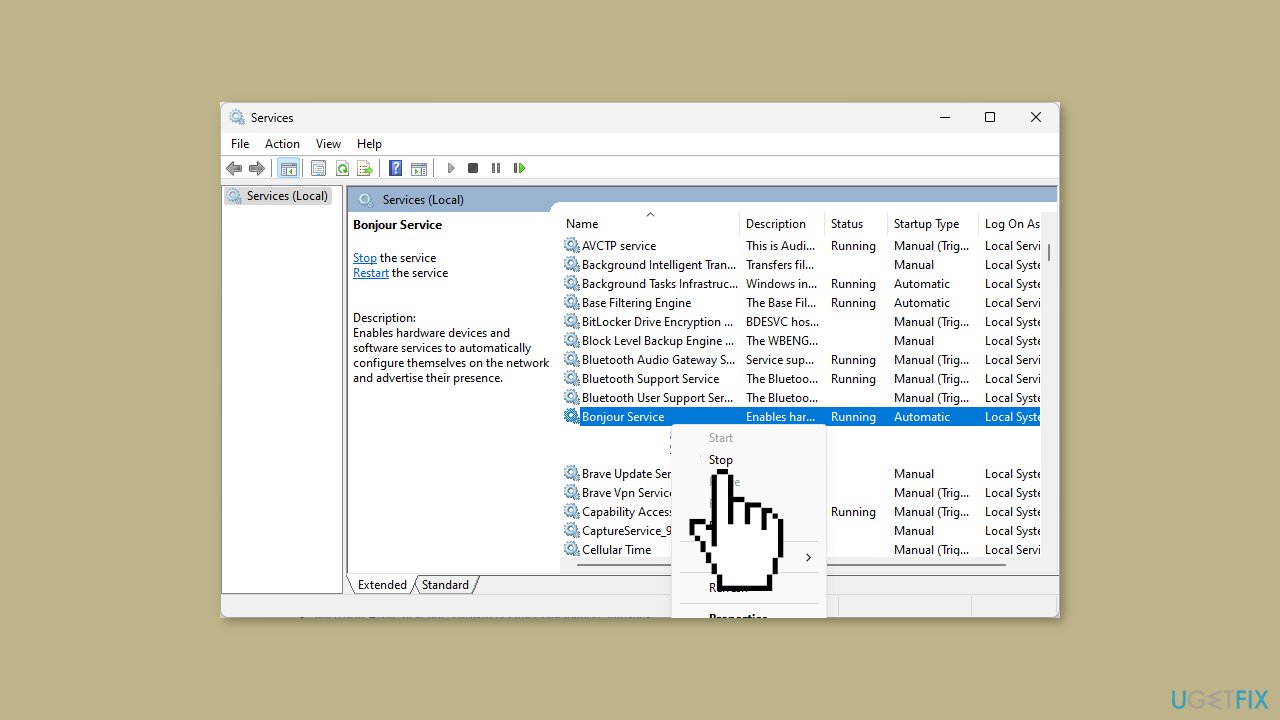
- From the context menu, click on Stop to halt the chosen service.
- Proceed to the service you intended to modify and verify if the error still persists.
Method 3. Modify the Windows Registry
- Left-click on the Windows icon.
- In the search bar, type Regedit and press Enter.
- The Windows Registry Editor will open.
- Copy and paste the following directory into the address bar: HKEY_LOCAL_MACHINE\SYSTEM\CurrentControlSet\Services\
- Press Enter to navigate to this directory.
- In the left pane, find the startup service you wish to modify (if it's grayed out).
- Click on the service to select it.
- Right-click on an empty area in the right-side pane.
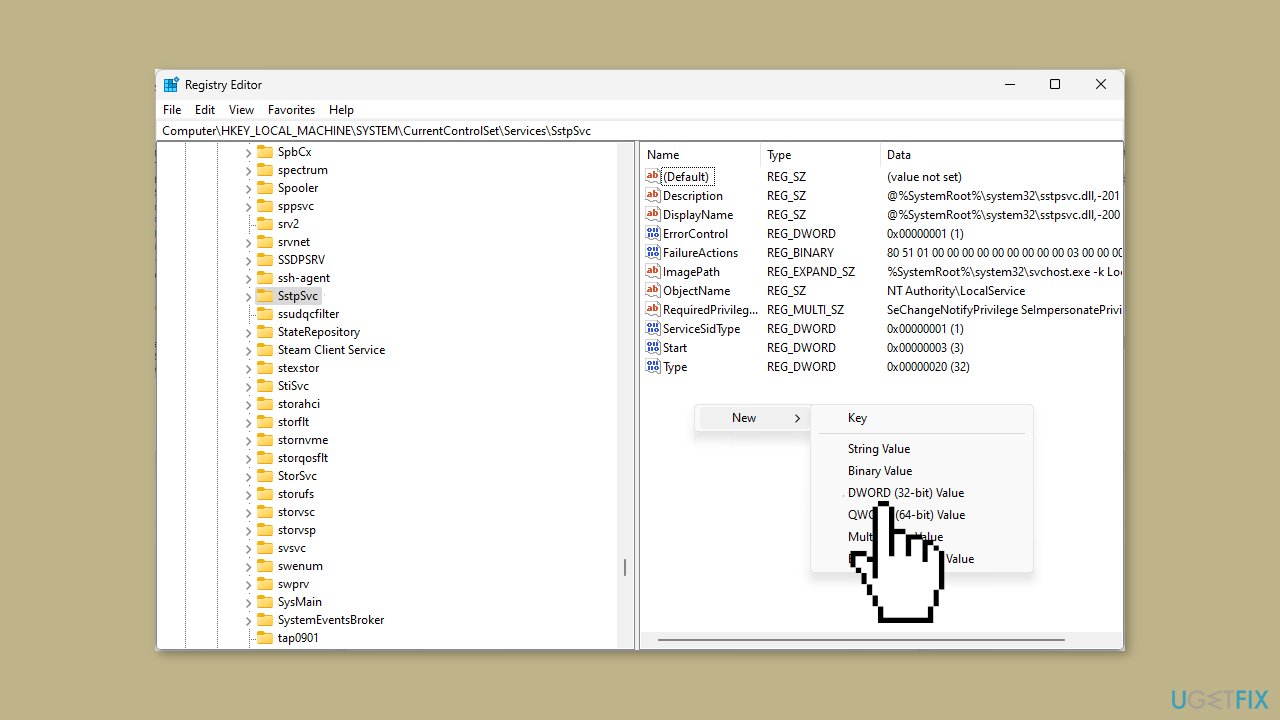
- From the context menu, select New and then choose DWORD Value.
- Rename the newly created DWORD Value to DelayedAutostart.
- Double-click on the Start DWORD Value that you've just created for DelayedAutostart.
- Modify the value data according to your preference:
To disable the service, set Start to 4 and DelayedAutostart to 0.
For manual startup, set Start to 3 and DelayedAutostart to 0.
For automatic startup, set Start to 2 and DelayedAutostart to 0.
For automatic (delayed start), set Start to 2 and DelayedAutostart to 1.
- After making the desired changes, close the Registry Editor.
- Restart your device to apply the modifications.
- Check to see if the error still persists after the changes have been applied.
Bottom line
To fix the issue of the Services Startup Type being grayed out, you can run Services as an administrator or temporarily disable certain services. If these methods do not resolve the problem, consider using a system repair tool to address potential system errors.
Frequently asked questions
The Services Startup Type may be grayed out due to insufficient user permissions or because the service is managed by Group Policy. Check your user account control settings and ensure you have administrative privileges.
To enable the Services Startup Type in Windows 11, try running the Services app as an administrator by right-clicking on it and selecting 'Run as administrator.' This should allow you to modify the settings.
If the issue persists, it may be due to a corrupt system file; running the System File Checker tool (sfc /scannow) in Command Prompt can help resolve this in both Windows 10 and Windows 11.




Report an issue
What's wrong with this guide? We review every report and update or remove content.
Report received — thank you. We'll review and fix it.
You need a free account to submit a report.
Be the first to comment