How to fix
Settings app not working
on Windows
Resolve the Settings app issue in Windows 10 or Windows 11 effortlessly. Expert-tested solutions ensure quick fixes and smooth performance. Fixed in min…

What causes How to fix Settings app not working in Windows?
- Some system files got corrupted
- A Windows update did not install correctly
- Registry issues
- Blue screen of death
- Cookies and cache taking up space
Repairs Windows system files, removes malware, and restores a clean OS state — without reinstalling.
Hello. I have an issue with my Settings app on Windows - it does not open. I have tried restarting my PC multiple times but it does not help. Any tips would be appreciated.
Windows is one of the most popular operating systems in the world, but it still does not come without any bugs or errors. Windows errors cause a lot of frustration for users. Soon after encountering them, they are left confused, as there is usually no explanation as to what is causing the issue or how it should be fixed. That is because it is extremely complicated and there are multiple possibilities why you could be encountering a particular problem.
Sometimes users are unable to open or interact with the Settings app inside Windows. It is a component of Microsoft Windows and allows users to adjust their user preferences, configure their operating system, and manage their connected devices. Anything related to how the operating system functions can be altered through the Settings app.
It is not hard to see how frustrating this could be for Windows users, if there is something important they have to fix in the settings, like configure the Internet settings because it is not connecting. It is not completely clear what exactly could be causing this, but the most likely reason is that some of the system files got corrupted,[ref en-1] or you installed a Windows update that did not install correctly.
Troubleshooting could take a while, so you can try using an automatic solution [d1] to avoid going through all of the possibilities that may be causing this file system error. The repair tool can identify the damaged system components, fix the Blue screen of death[ref en-2] (which could save you from having to reinstall your Windows operating system), and registry issues by scanning the system. This software could also be used to free up space by clearing cookies and cache,[ref en-3] which should boost the device's performance.
Below you will find a few manual methods that could fix the Settings app in Windows and bring back a smooth user experience to you. Note that this will take a while; please follow all of the steps very carefully:
Solution 1. Repair corrupted files
Use Command Prompt commands to repair system file corruption:
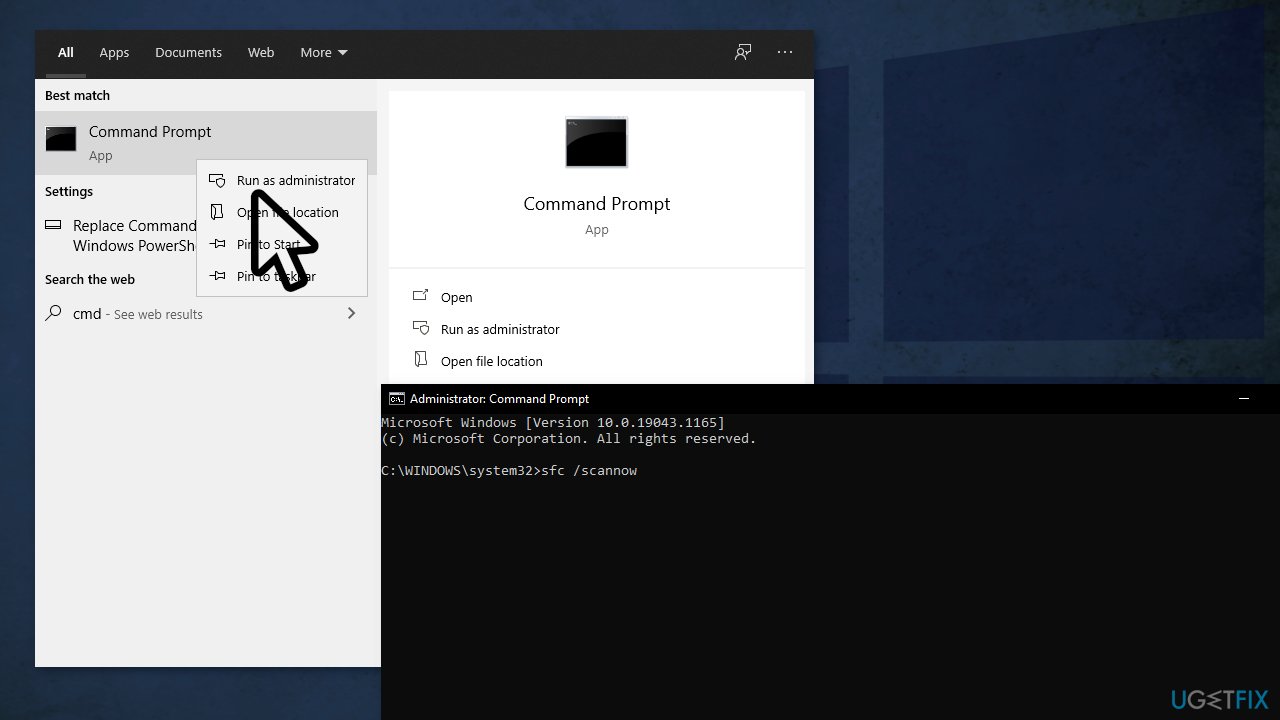
- Open Command Prompt as administrator
- Use the following command and press Enter:
sfc /scannow
- Reboot your system
- If SFC returned an error, then use the following command lines, pressing Enter after each:
DISM /Online /Cleanup-Image /CheckHealth
DISM /Online /Cleanup-Image /ScanHealth
DISM /Online /Cleanup-Image /RestoreHealth
Solution 2. Reset app settings
- Click the Start button, right-click the cog icon that would normally lead to the Settings apps, then click More and App settings
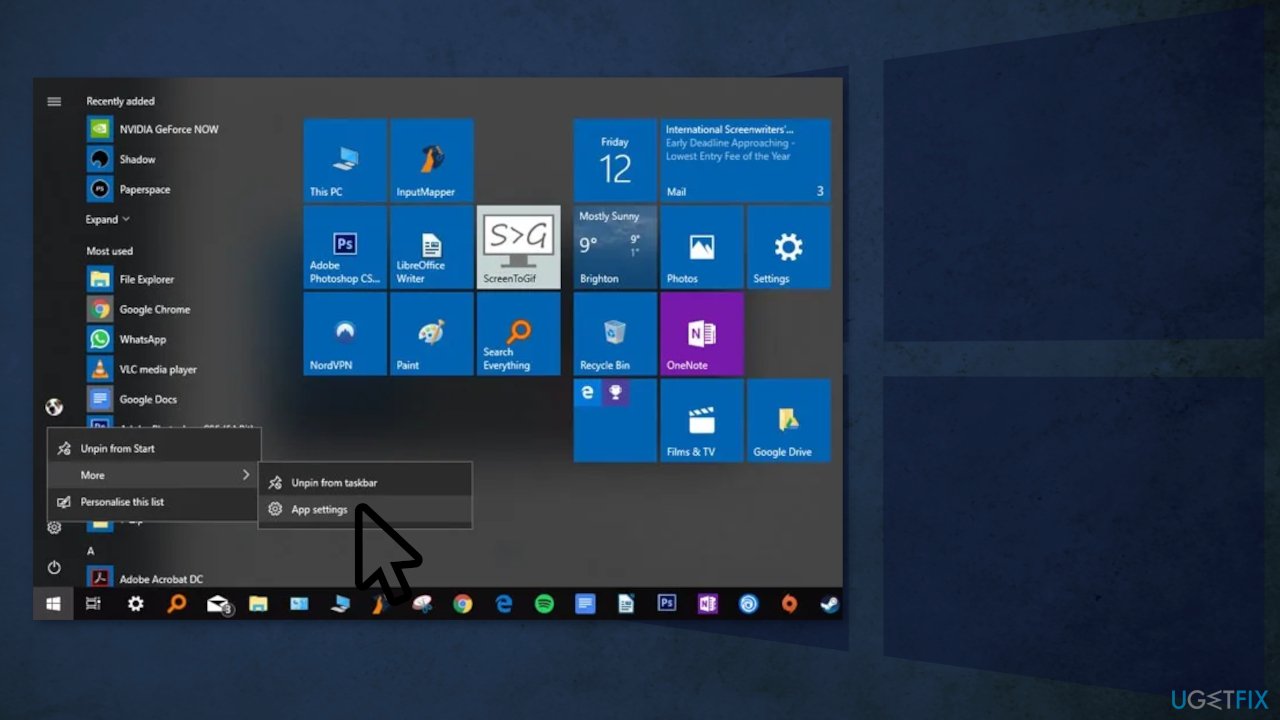
- Scroll down until you see the Reset button, then click it
Solution 3. Enable Settings App via Registry Editor
- In the Start menu, type
regeditand open the Registry Editor - Navigate to HKEY_CURRENT_USER\\Software\\Microsoft\\Windows\\CurrentVersion\\Policies\\
- Right-click Policies, then click New, Key and rename it Explorer
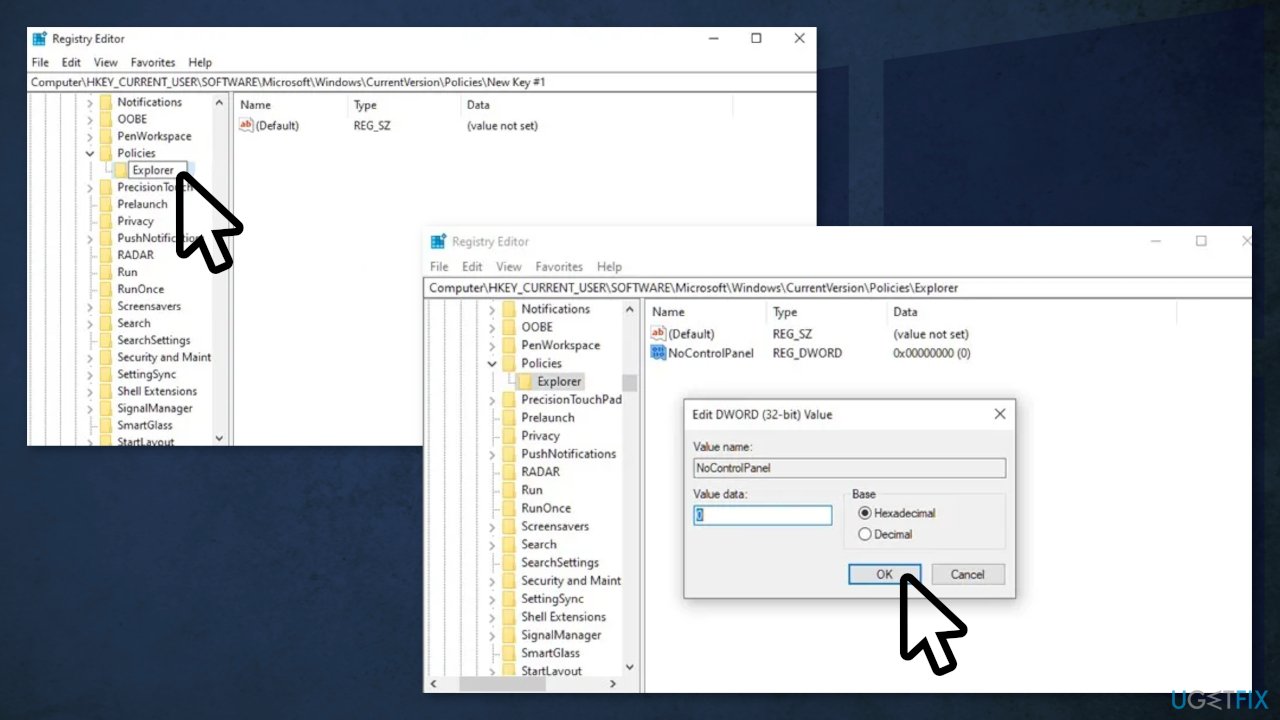
- Right-click an empty area in the right-hand pane then press New, DWORD (32-bit) Value and call it NoControlPanel
- Double-click NoControlPanel, and set the Value data to 0
Solution 4. Update Windows
When you update, you will get the latest fixes and security improvements, helping your device run efficiently and stay protected:
- Type Updates in Windows search and press Enter
- On the right side of the window, click Check for updates
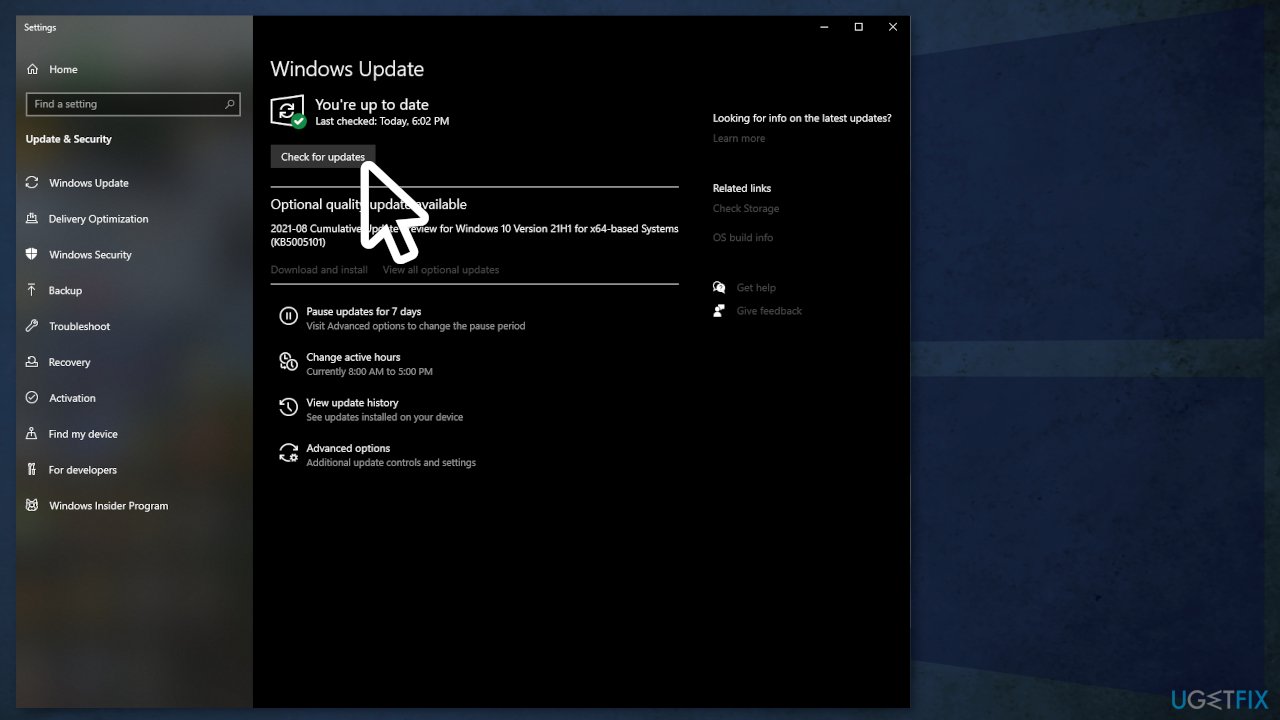
- Install all the optional updates as well
- Restart your PC
Solution 5. Re-Register Windows Apps
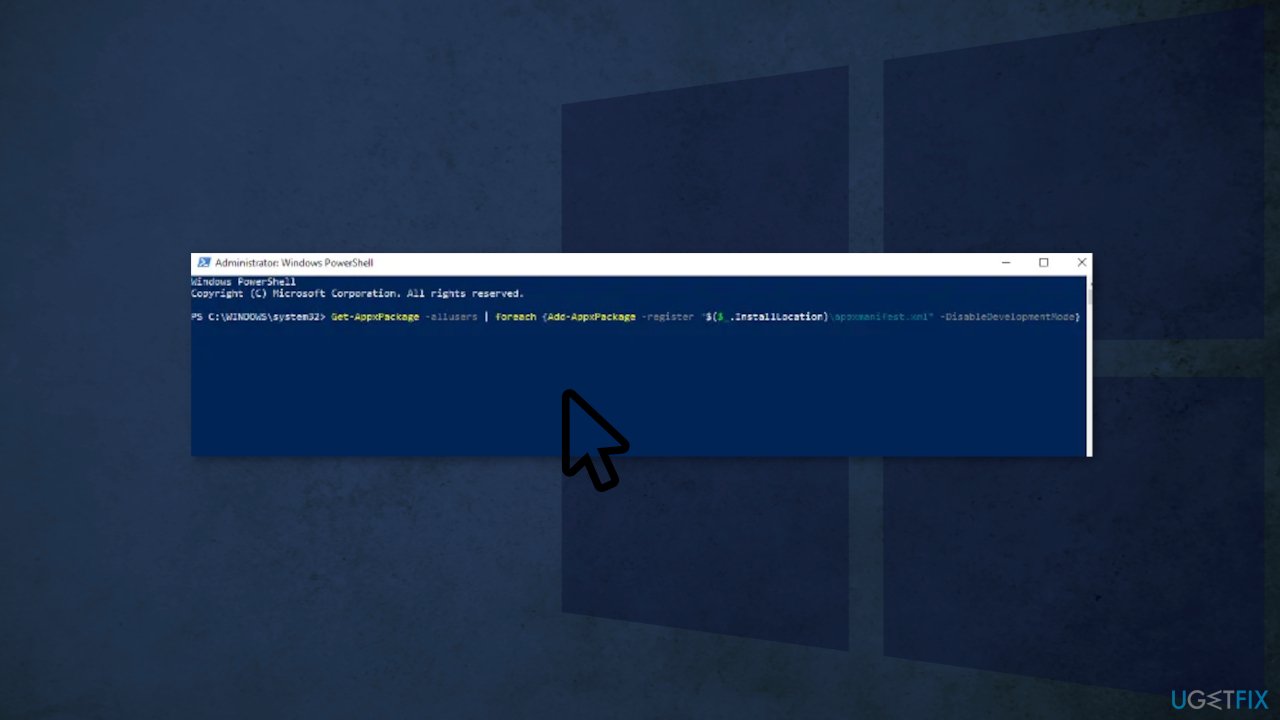
- Type powershell into the Start menu, right-click it and choose Run as administrator
- Copy-paste the following command and press Enter:
Get-AppXPackage | Foreach {Add-AppxPackage -DisableDevelopmentMode -Register "$($_.InstallLocation)\\AppXManifest.xml"}
Solution 6. Create a New Windows User
- Click Start and type lusrmgr.msc
- In the Common Console Document, click Users, then add new user
- Enter your info, then sign out of your current account and into your new one by pressing Ctrl + Alt + Del
If you have Windows 10 Home Edition, then you’ll need to create a new user through the Command Prompt instead
- Click the Start menu, type cmd, right-click Command Prompt, and then click Run as administrator
- In the Command Prompt type the following command but with the username and password that you want to create for the new administrator account:
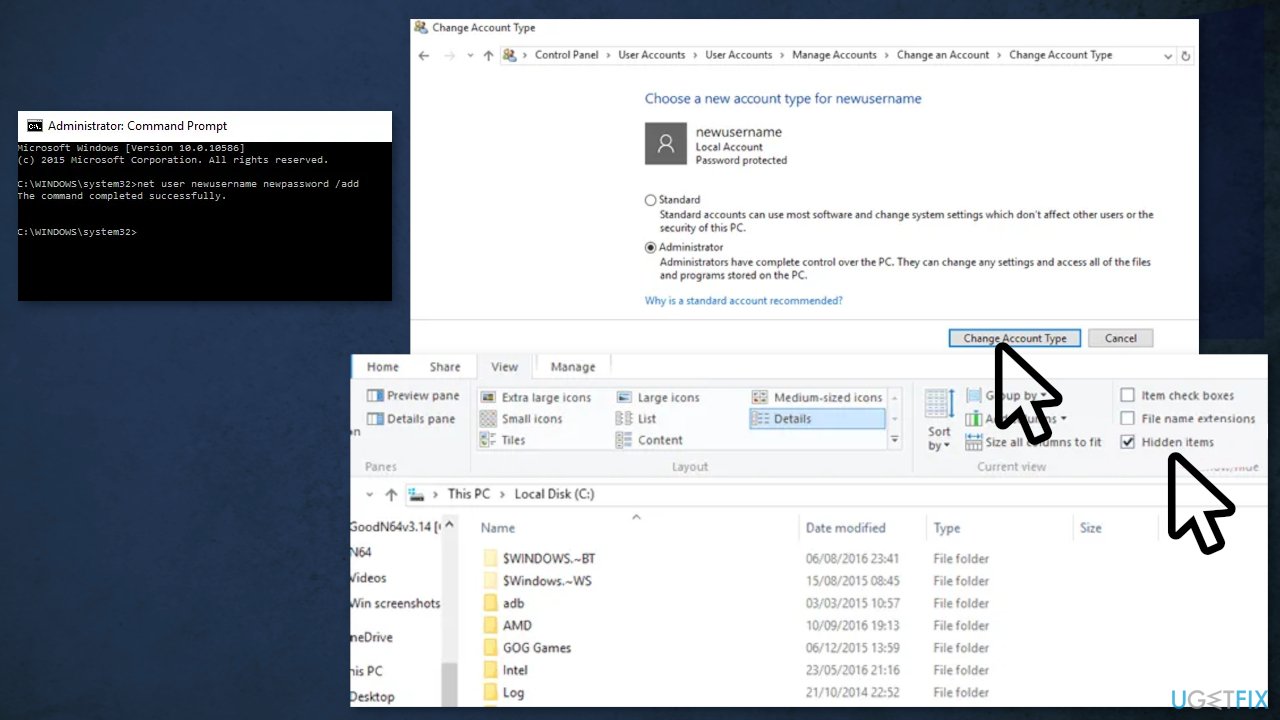
net user newusername newpassword /add
- Go to Control Panel, then User Accounts -> User Accounts -> Manage another account
- Select the new account you just created, Change the account type, then click Administrator in the new window, followed by Change Account Type
- Sign out of your current account and into the new user account. Try accessing the Settings app, and it should now work
The next step is to transfer your files from your old Windows account to your new one
- Go to the system hard drive (where Windows is installed) in File Explorer, click View in the tab at the top, then tick the Hidden items box
- Navigate to your old user account in File Explorer (C:/Users/old account name by default) and double-click it
- Click Continue, enter your account password when prompted, then copy and paste all the files from that account to your new one (located at C:/Users/newusername by default)
Bottom line
To fix the Settings app not working in Windows, you can try using an automatic repair tool to identify and fix corrupted files, or manually troubleshoot by checking for updates and clearing cookies and cache. If none of these methods work, consider seeking further technical support.
Frequently asked questions
Try restarting your PC first; if that doesn't work, use the 'sfc /scannow' command in Command Prompt to repair corrupted system files.
You can reset the Settings app by going to Settings > Apps > Apps & features, selecting 'Settings', and then clicking on 'Advanced options' followed by 'Reset'.
Yes, you can access Settings using the Run dialog by pressing 'Windows + R' and typing 'ms-settings:' to open the Settings interface directly.




Report an issue
What's wrong with this guide? We review every report and update or remove content.
Report received — thank you. We'll review and fix it.
You need a free account to submit a report.
Be the first to comment