How to fix
SFC error “Windows resource protection cannot perform the requested operation”
on Windows
Resolve the SFC error "Windows resource protection cannot perform the requested operation" on Windows 10 and 11 with expert-tested solutions. Fixed in m…

What causes How to fix SFC error “Windows resource protection cannot perform the requested operation”?
- SFC detected issues related to system files
- SFC utility is malfunctioning
- Corrupted file system
- Insufficient permissions to run SFC
- System disk errors
Repairs Windows system files, removes malware, and restores a clean OS state — without reinstalling.
Hello. I have been offered on IT forums to run an SFC scan after I asked for advice due to a slow PC. The problem is that whenever I try to run SCF, the process stops at a certain percentage and delivers a notification "windows resource protection cannot perform the requested operation." Don’t have any idea why does it show up and how to restore sfc. Please help!
SFC or System File Checker[ref en-1] is one of the Windows[ref en-3] maintenance utilities, which comes by default with all Windows OS versions. Its purpose is to scan Windows system thoroughly, discover damaged/corrupted/missing system files, and fix them automatically. Thus, SFC usefulness is unquestionable and it seems to be a truly necessary component of any operating system.
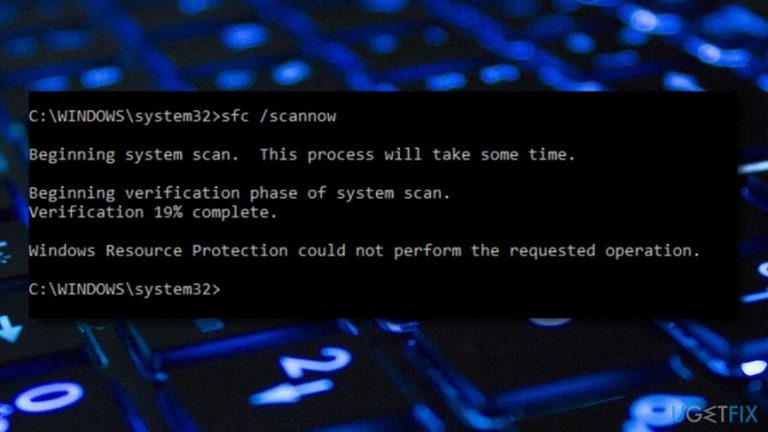
In order to run sfc / scannow (a.k.a sfc.exe), the user has to access elevated Command Prompt[ref en-5] and run the command on it. Unfortunately, but quite often sfc scan fails during the process or immediately after it informs the users that “Windows resource protection cannot perform the requested operation”.
First of all, this notification informs that sfc detected some issues related to system files, but could not repair them. Second of all, it indicates the fact that SFC utility is malfunctioning as well. Microsoft[ref en-2] hasn’t yet acknowledged this bug and probably is not going to do so in the future because it’s not very common and shows up on random occasions only.
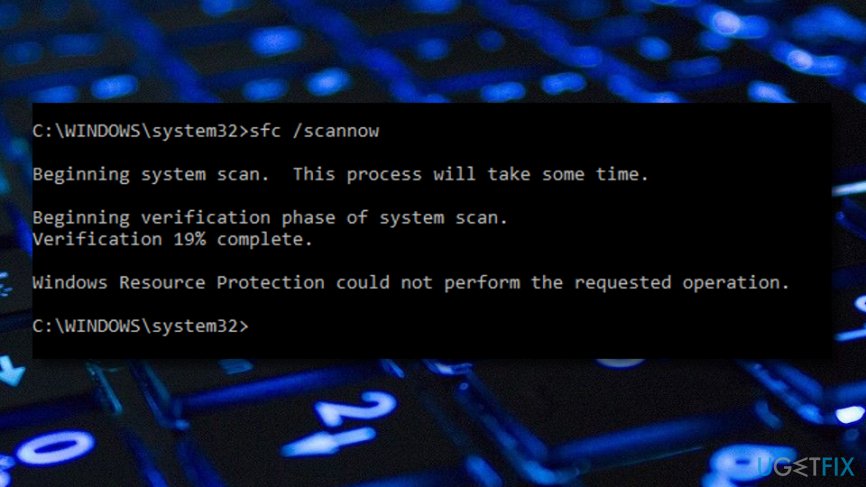
The bad news is that SCF - Windows resource protection cannot perform the requested operation error as causes are not known. The good news is that specialists have found the way to fix it and we are going to share those ways with you. Look through all below-provided solutions and pick the one you want to use. After that, make sure you perform each step as required. If it did not help - try the other given method.
How to fix SFC “Windows resource protection cannot perform the requested operation” error?
To learn how to fix this error, check the video:
[youtube V90BdjLgqhY]
Solution 1. Launch CHKDSK
- Click Win key and press cmd.
- Right-click on the search results and select Run as Administrator.
- If you are asked to enter your administrator password, make sure you enter it correctly.
- Type CHKDSK C: /R in the Command Prompt window and press Enter.
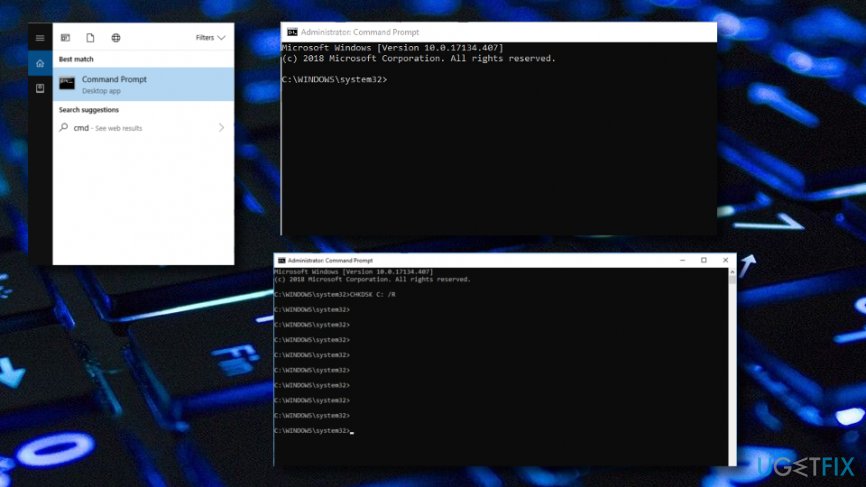
Fixing solution - After that, type y and press Enter again.
- Reboot your PC and wait for the CHKDSK scan to finish.
- If after that you can run SFC scan, it means that the problem has been fixed.
Solution 2. Change security descriptors
In case SFC scan fails due to the fact that it cannot access winsxs folder, you should modify security descriptors of this folder manually. This can be done by performing the following steps:
- Click Win key and type cmd.
- Right-click on the results and select Run as Administrator.
- If a confirmation window appears and asks you to type in an administrator password, make sure that you type it correctly.
- Type ICACLS C:\\Windows\\winsxs in the Command Prompt window and press Enter.
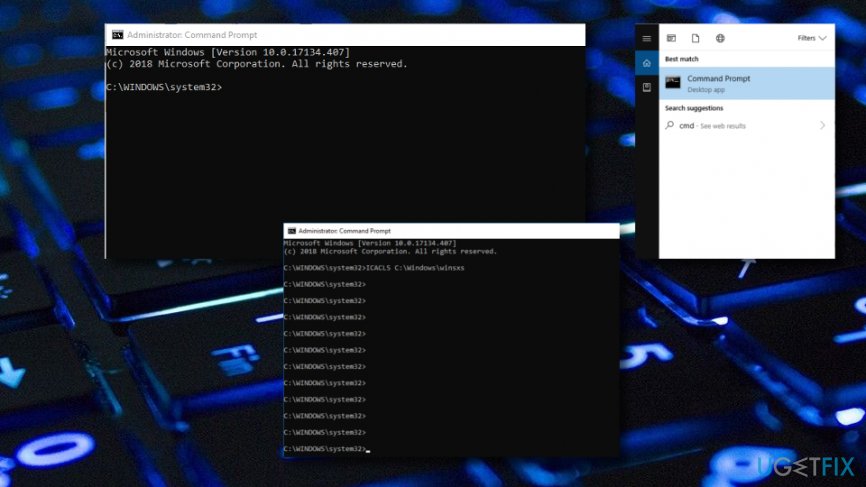
Fixing solution - After that, close Command Prompt window and reboot your PC.
Solution 3. Try to run SFC in Safe Mode
- Click the Windows key and R key at the same time on your keyboard, and a run box will appear.
- Type msconfig and press Enter.
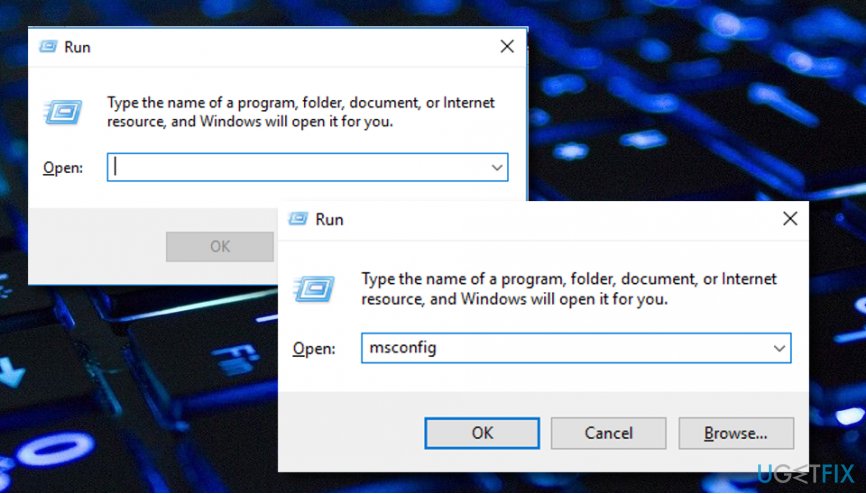
Fixing solution - Choose to Restart when asked.
- Now Windows will reboot in Safe Mode.
- Try sfc / scannow and look if it operates properly after this change.
Solution 4. Start Windows Module service
Windows Services are integral parts of any operating system, as they provide functionality for various system components. In some cases, a disabled Windows Module Installer service can cause the "Windows resource protection cannot perform the requested operation" error. Thus you should enable it as follows:
- Type in Services in Windows search bar and click on the result.
- In the new window, sort the services by the name.
- Scroll down until you locate Windows Module Installer service.
- Right-click and select Start.
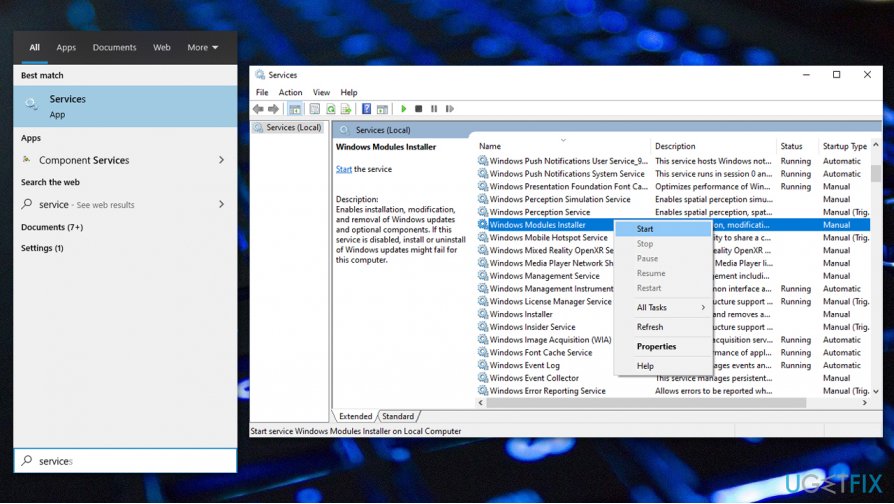
Windows resource protection cannot perform the requested operation fix start windows modules installer service
Solution 5. Carry out a repairing installation of Windows OS
All Windows users have the option to repair install of Windows. This is very useful if wanted to fix some corrupted system components, struggling software, or get rid of errors like these. If you choose to perform this method, note that it will not reinstall your operating system, it will just try to repair it if something is wrong. After the process is finished, you might have a chance that the error message was successfully removed and whatever that caused the struggle, was fixed.
If these methods did not help to fix SFC scan failed with “Windows resource protection cannot perform the requested operation” notification, you can also try to run a scan with a PC optimization tool in case the failure is triggered by malware[ref en-4], software incompatibilities, or similar problems. For this purpose, you can use [d1].
Bottom line
To fix the SFC error, you can try launching CHKDSK, ensuring you have the necessary permissions, and checking for system disk errors. If these solutions do not resolve the issue, consider trying additional methods provided in the guide.
Frequently asked questions
You can try running the System File Checker in Safe Mode or use the DISM tool to repair the Windows image before running SFC again.
Use the Command Prompt to run 'sfc /scannow' as an administrator in Safe Mode, or perform a repair install of Windows 11 to fix any underlying issues.
Yes, you can use the DISM command to repair the Windows image without losing your personal files, then rerun the SFC command.




Report an issue
What's wrong with this guide? We review every report and update or remove content.
Report received — thank you. We'll review and fix it.
You need a free account to submit a report.
Be the first to comment