How to fix
Shlwapi.dll missing or not found error
on Windows
Resolve the Shlwapi.dll missing error in Windows 10 and Windows 11 quickly. Get expert-tested solutions that work—fixed in minutes!

What causes How to fix Shlwapi.dll missing or not found error in Windows?
- Accidental deletion
- File corruption
- Malware infections
- Outdated system updates
Repairs Windows system files, removes malware, and restores a clean OS state — without reinstalling.
Hello, I keep getting the "Shlwapi.dll missing" error as soon as I boot up my PC. Any tips on how to fix this?
Shlwapi.dll is a dynamic link library file that is an essential part of the Windows operating system. This file provides functions for handling paths, URLs, and registry entries, which are crucial for the smooth functioning of many applications and system processes. If Shlwapi.dll is missing or not found, it can lead to various errors and prevent certain programs from running correctly.
The problem: Shlwapi.dll missing or not found
Experiencing an error related to Shlwapi.dll can be frustrating as it disrupts your workflow and may cause some applications to fail to start. Typically, this error message appears during the startup of an application or the Windows operating system itself.
You might see messages such as "Shlwapi.dll is missing" or "Shlwapi.dll not found," indicating that the system cannot locate this essential file. This issue can arise due to several reasons, including accidental deletion, corruption of the file, or issues related to malware infections.
Why Shlwapi.dll is missing
There are several reasons why Shlwapi.dll might be missing from your system. One common cause is accidental deletion, where the file might have been removed mistakenly by the user or an application. Another possibility is file corruption, which can occur due to sudden shutdowns, software conflicts, or issues with the hard drive.
Additionally, malware infections can target system files, leading to their corruption or removal. Outdated or incompatible system updates can also cause this error by disrupting the normal functioning of the operating system and its components.
Possible solutions for Shlwapi.dll missing error
To resolve the issue of Shlwapi.dll missing or not found, you can try several potential solutions. Addressing this problem promptly will help restore the functionality of affected applications and improve overall system stability. These are a few solutions you could try in order to fix the Shlwapi.dll error:
- Repair corrupted system files.
- Update Windows.
- Scan for malware.
- Reinstall the affected app.
- Use System Restore.
If you need guidelines on how to perform these steps, please follow the detailed instructions below; for a more hands-off approach, you can always rely on a powerful PC repair app [d1].
Fix 1. Restore Shlwapi.dll from Recycle Bin
If Shlwapi.dll was accidentally deleted, it might still be in the Recycle Bin, and restoring it can resolve the issue.
- Open the Recycle Bin on your desktop.
- Look for Shlwapi.dll.
- Right-click on it and select Restore.
Fix 2. Update Windows
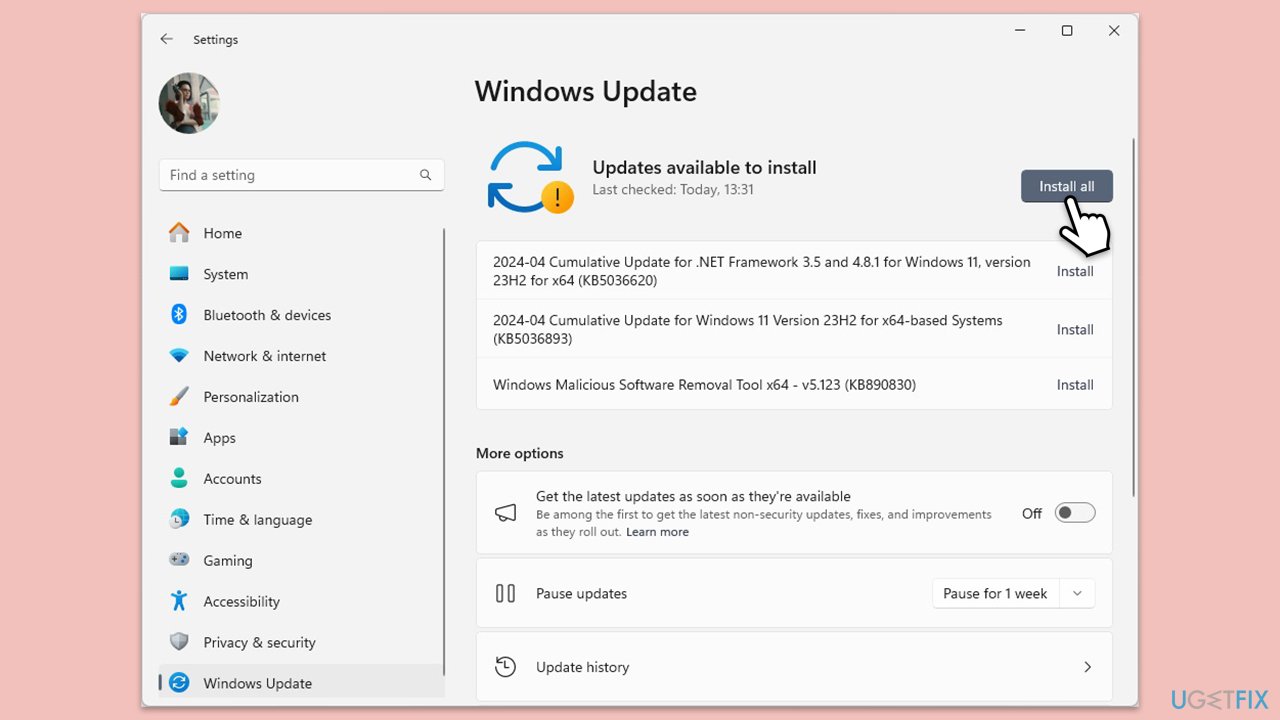
Keeping Windows updated can fix compatibility issues and restore missing files, which may include Shlwapi.dll.
- Type Updates in Windows search and press Enter.
- When the new window opens, click Check for updates (or Install all if pending) and wait.
- If there are optional updates available, install them as well.
- After updating, restart your computer.
Fix 3. Repair system files
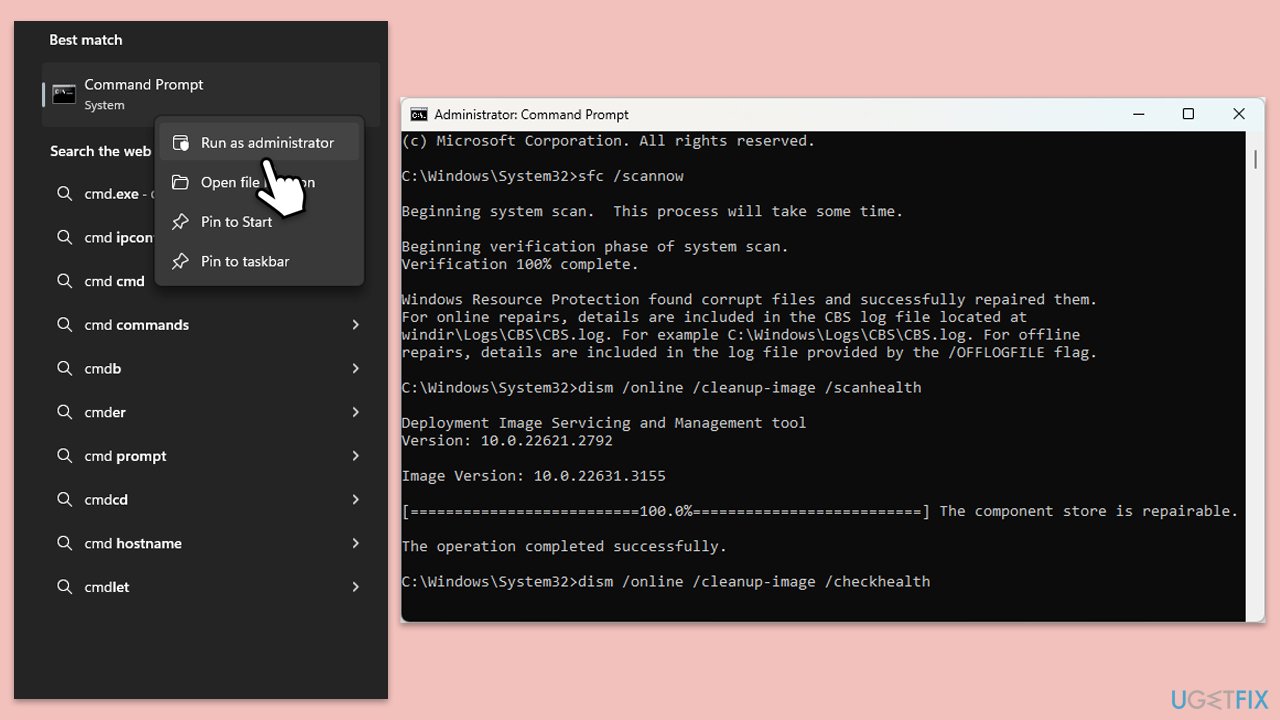
Running the System File Checker (SFC) and Deployment Imaging Service and Management Tool (DISM) can scan for and repair corrupted system files.
- Type cmd in Windows search.
- Right-click on Command Prompt and pick Run as administrator.
- User Account Control window will show up - click Yes when prompted.
- Then, copy and paste the following command, pressing Enter after:
sfc /scannow - Wait till the scan is finished. If Windows finds system file integrity violations, it will attempt to fix them. After this, use the set of the following commands, pressing Enter each time:
DISM /Online /Cleanup-Image /CheckHealth
DISM /Online /Cleanup-Image /ScanHealth
DISM /Online /Cleanup-Image /RestoreHealth - (Note: if you get an error executing this last command, add /Source:C:\RepairSource\Windows /LimitAccess to it and try again).
- Close down the Command Prompt and restart your computer.
Fix 4. Scan for malware
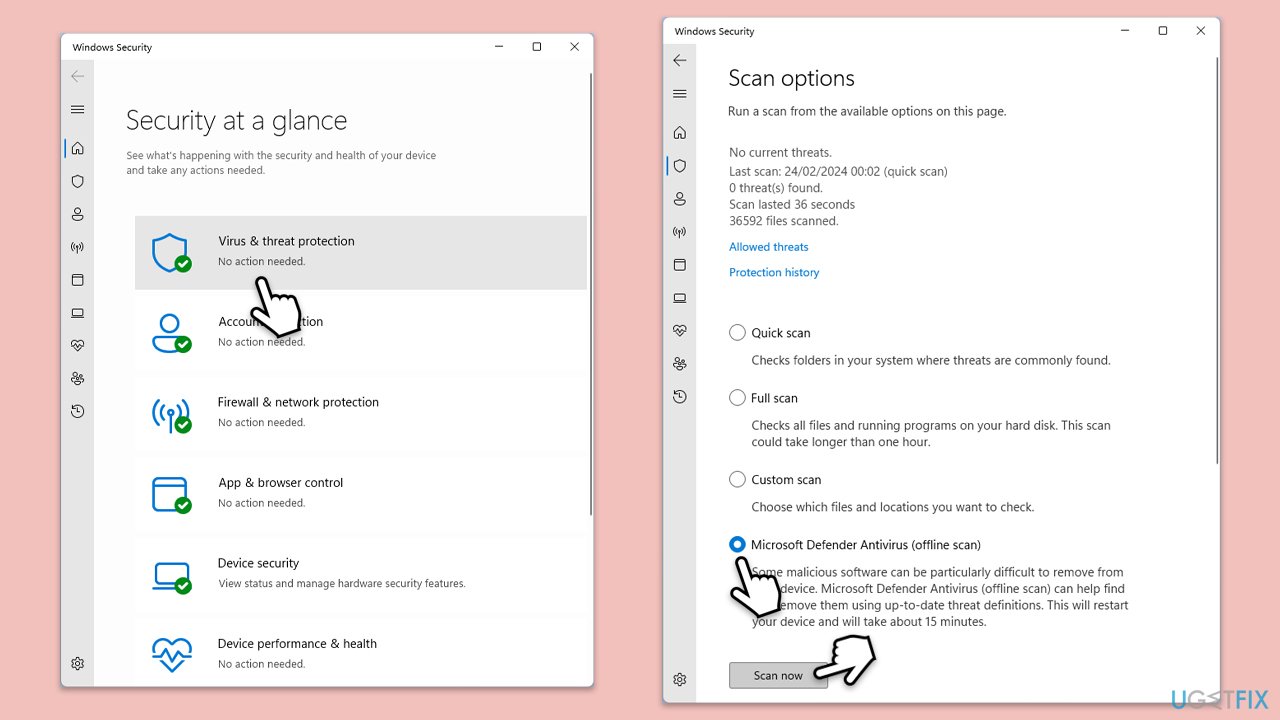
Malware infections can corrupt or delete system files, including Shlwapi.dll. Running a full system scan can detect and remove such threats. You can use Microsoft Safety Scanner, employ a reputable third-party app, or use the built-in Defender offline scan:
- Type Windows Security in the Windows search bar and hit Enter.
- Select Virus & threat protection.
- Pick Scan options.
- Choose Microsoft Defender Offline scan and click Scan now.
- Your computer will immediately restart and begin a deep scan.
Fix 5. Reinstall the affected app
If the Shlwapi.dll error occurs when using a specific program, reinstalling that program might resolve the issue.
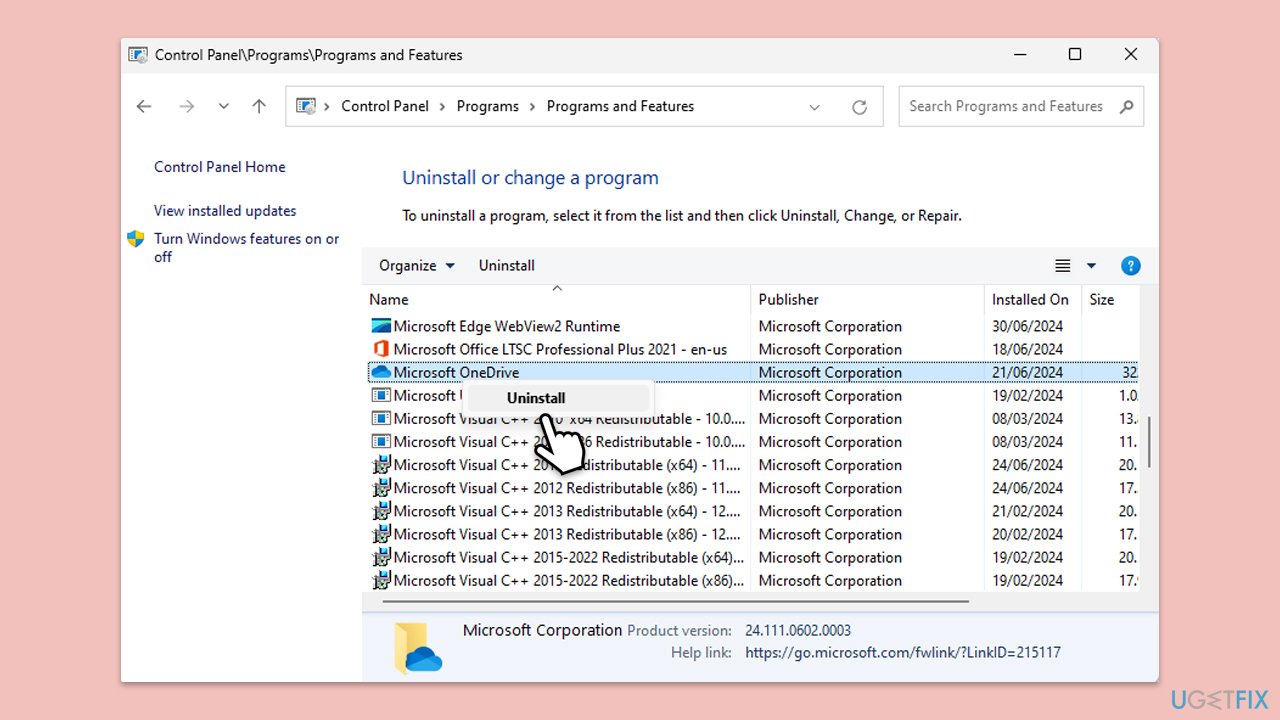
- Type Control Panel in Windows search and hit Enter.
- Go to Programs > Uninstall a program.
- Locate the app that is mentioned in the error message, right-click and select Uninstall, then follow the prompts.
- Restart your PC.
- Download the latest version from the official website.
- Install the program and check if the error is resolved.
Fix 6. Use System Restore
Using System Restore can revert your computer to a previous state before the issue with Shlwapi.dll started.
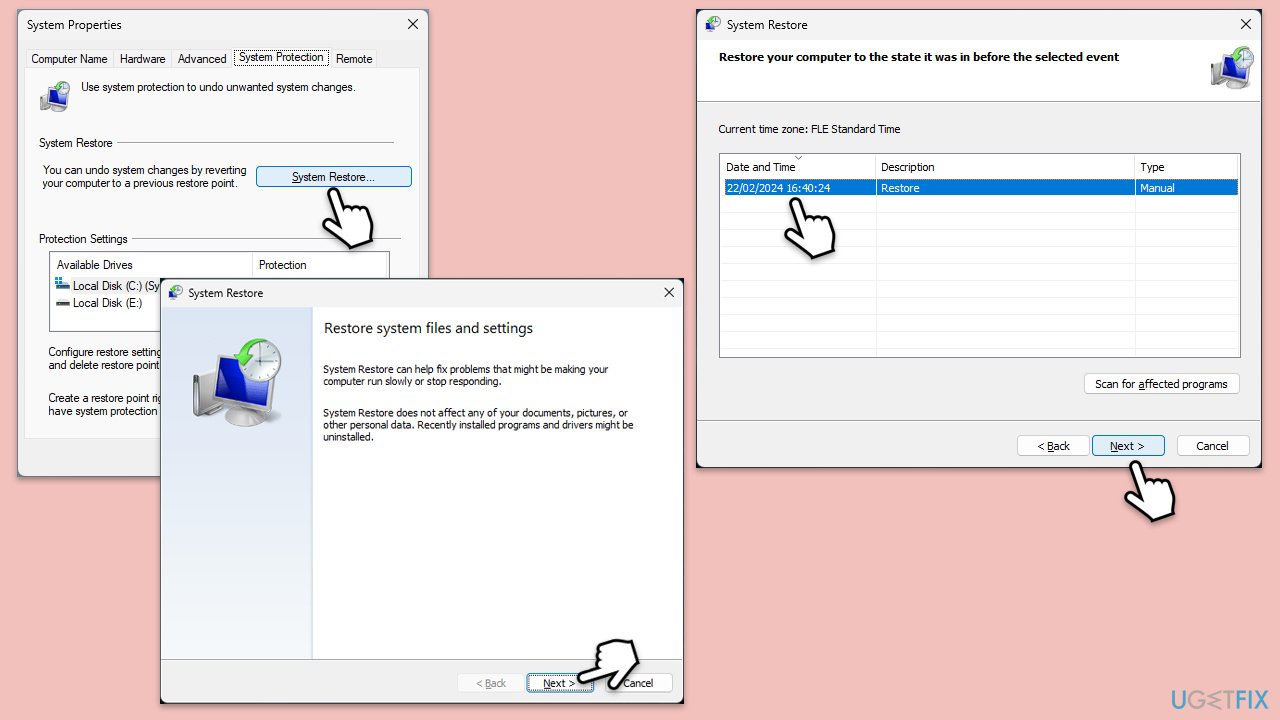
- Type in Create a Restore point in Windows search and hit Enter.
- Go to the System Protection tab and pick System Restore.
- Click Next.
- Click Show more restore points (if available).
- Pick the time before the problem occurred and click Next.
- Follow the prompts to finish the process.
Bottom line
To fix the Shlwapi.dll missing error, you can repair corrupted system files, update Windows, scan for malware, reinstall the affected application, or use System Restore. Addressing these issues promptly will help restore functionality and improve system stability. If none of these solutions work, consider seeking professional assistance.
Frequently asked questions
The Shlwapi.dll missing error can be caused by corrupted system files, incorrect software installation, or malware infections that have affected the DLL file.
You can restore the Shlwapi.dll file by running the System File Checker tool with the command 'sfc /scannow' in the Command Prompt, which will scan and repair missing or corrupted system files.
No, downloading Shlwapi.dll from third-party websites is not recommended as it can lead to further issues, including malware infections; instead, use built-in Windows repair tools.




Report an issue
What's wrong with this guide? We review every report and update or remove content.
Report received — thank you. We'll review and fix it.
You need a free account to submit a report.
Be the first to comment