How to fix
Shortcut tab missing in Properties
on Windows
Resolve the Shortcut tab missing in Properties on Windows 10 and 11 effortlessly. Get expert-tested solutions to restore functionality in minutes!

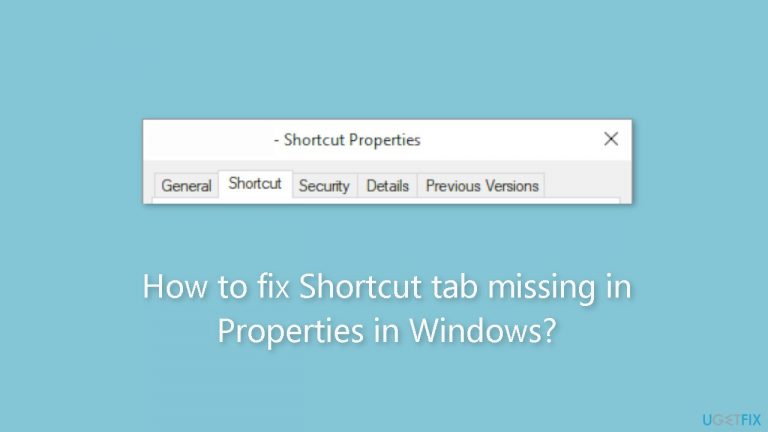
What causes How to fix Shortcut tab missing in Properties in Windows?
- System not running the most recent version of Windows
- User lacks administrative privileges
- Third-party utilities or system optimization tools may interfere
- Corrupted files or registry issues
- Missing updates from Microsoft
Repairs Windows system files, removes malware, and restores a clean OS state — without reinstalling.
Hello. I wanted to modify shortcut behavior for an application on Windows, but when I open Properties the Shortcut tab is not there. What should I do?
Many Windows users have been searching for solutions since the "Shortcut" tab for an application (.exe) file is frequently missing from the Properties window. For people who need to enter particular arguments or parameters while running an application, this tab often offers a crucial feature. Users who depend on customizing application behavior can be significantly impacted by its absence, and it may even cause workflow disruptions.
Users are impacted by this problem in many ways. First and foremost, not being able to access the Shortcut tab prevents users from making the usual changes to an application's attributes. They are unable to configure some options that may be necessary for the application to run properly or to provide the needed functionalities. Without access to this tab, users who depend on scripts or customized start settings would find their customary techniques useless, which would impair their productivity.
Additionally, users who have grown to rely on the Shortcut tab for particular needs may be perplexed and frustrated by this situation. It could result in time lost trying to find workarounds or figuring out how to fix the missing tab, which can be difficult for those who are less tech-savvy.
There are numerous possible strategies to deal with this problem. Users should make sure their system is running the most recent version of Windows and check their Windows updates first because Microsoft may have fixed this issue in a later update. They might also think about running the program as an administrator since there might be constraints preventing the tab from appearing. Another choice is to investigate third-party utilities or system optimization tools, as these can provide a workaround or expose hidden functions.
In this guide, you will find 5 steps that should help you fix Shortcut tab missing in Properties in Windows. You can also use a system repair tool like [d1] that can fix most system errors, BSODs,[ref en-1] corrupted files, and registry[ref en-2] issues. Otherwise, follow the step-by-step instructions below.

Method 1. Fix Corrupted System Files
Use Command Prompt commands to repair system file corruption:
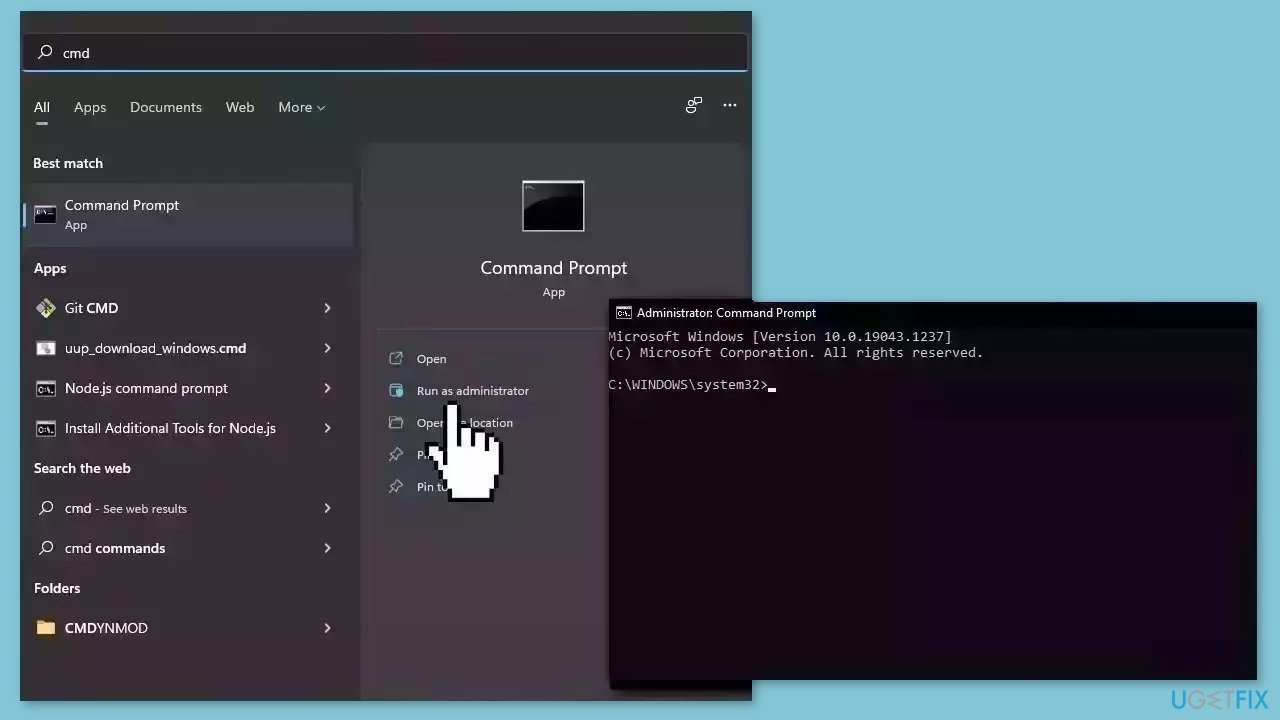
- Open Command Prompt as administrator
- Use the following command and press Enter:
sfc /scannow
- Reboot your system
- If SFC returned an error, then use the following command lines, pressing Enter after each:
DISM /Online /Cleanup-Image /CheckHealth
DISM /Online /Cleanup-Image /ScanHealth
DISM /Online /Cleanup-Image /RestoreHealth
Method 2. Change the Location from where you open the File Properties
- Right-click anywhere on your desktop.
- Select New > Shortcut.
- Follow the on-screen wizard to create a desktop shortcut.
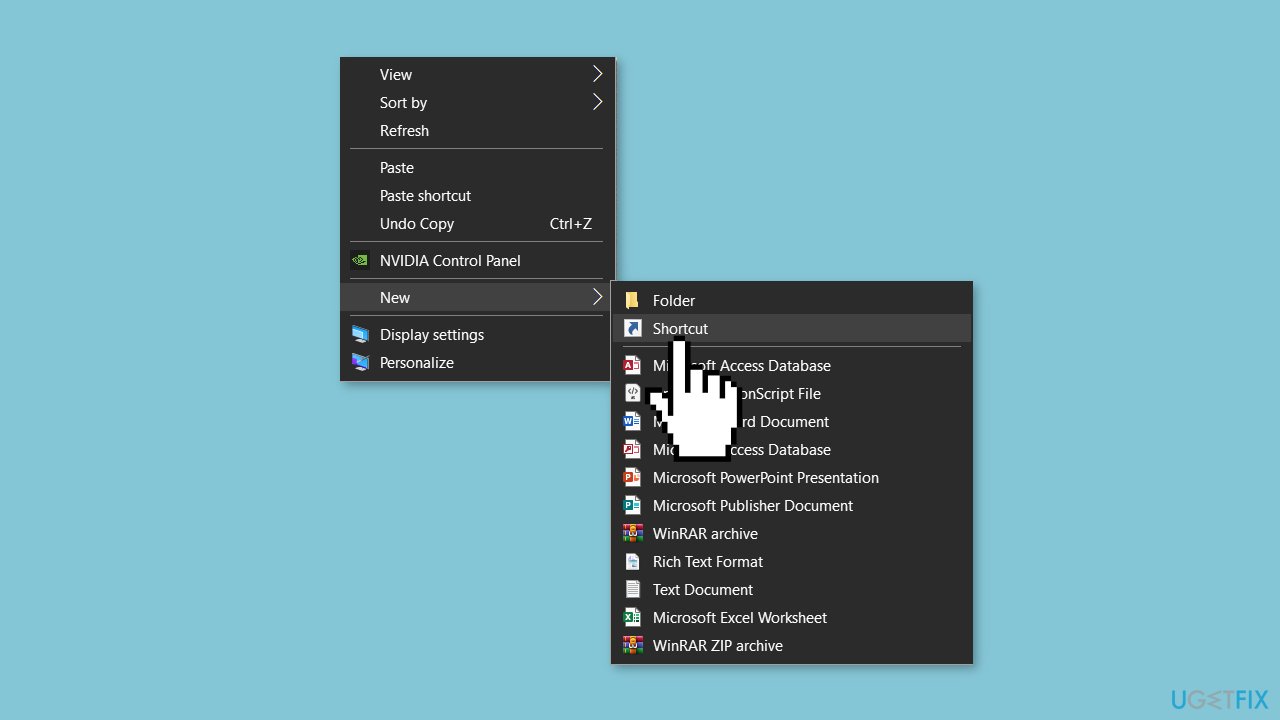
Alternatively, to create a desktop shortcut:
- Click on Windows Search.
- Type the name of the application.
- Right-click on the application in Windows Search Results.
- Select Open file location.
- This will open the installation directory of the selected application.
- Right-click on the exe file.
- Select Show more options > Send to > desktop (create shortcut).
- After creating the desktop shortcut of the application, open its Properties.
- Look for the Shortcut tab in its Properties.
Method 3. Recreate the Shortcut on Desktop
- Delete the shortcut of the application.
- Recreate it by following these steps:
- Right-click anywhere on your desktop.
- Select New > Shortcut.
- Follow the on-screen wizard to create a desktop shortcut.
Method 4. Use System Restore
System Restore is a feature in Microsoft Windows that allows users to revert their computer's state to a previous point in time. This can be helpful if you have made changes to your system that are causing problems.
- Press the Windows key + R on your keyboard to open the Run box.
- Type SystemPropertiesProtection and press Enter.
- Go to the System Protection tab.
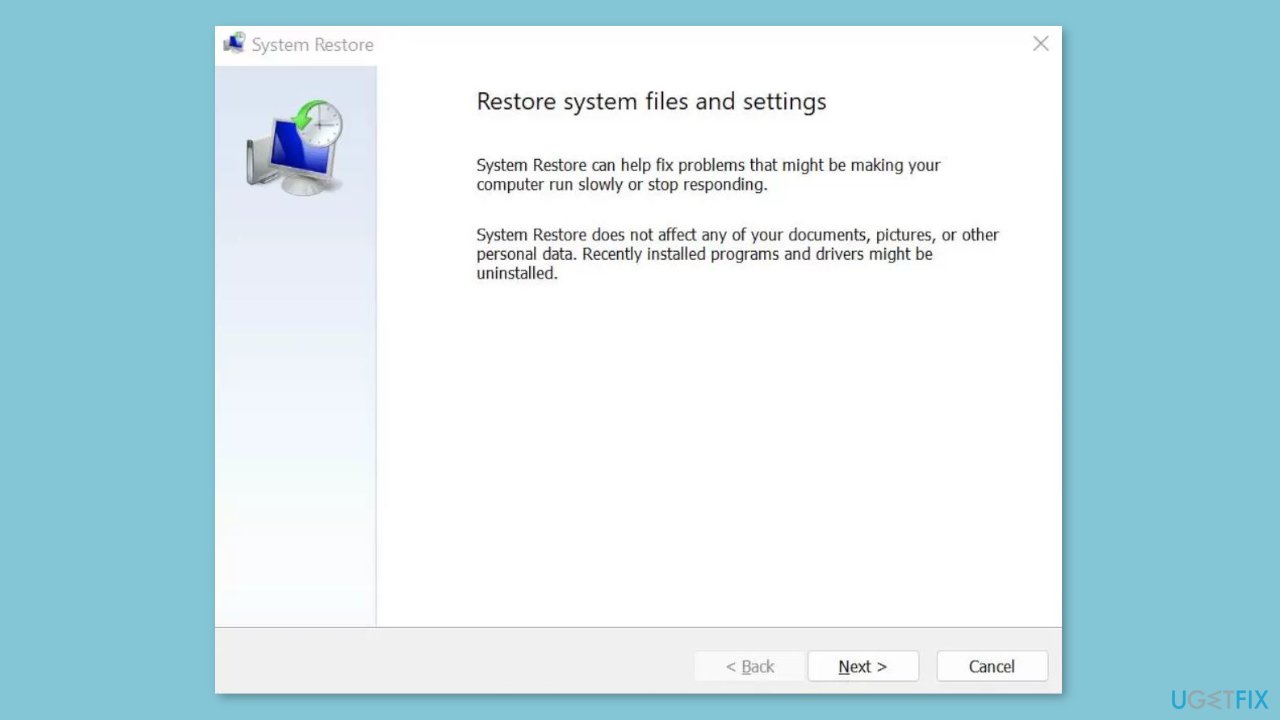
- You will see the System Restore… button. Click it to run System Restore.
- Follow the prompts until you can select a restore point.
- Select the one you want (ideally before the issue started occurring) and go ahead with the process.
Method 5. Reset Windows
- Restart your computer a few times during the boot sequence.
- Choose Troubleshoot.
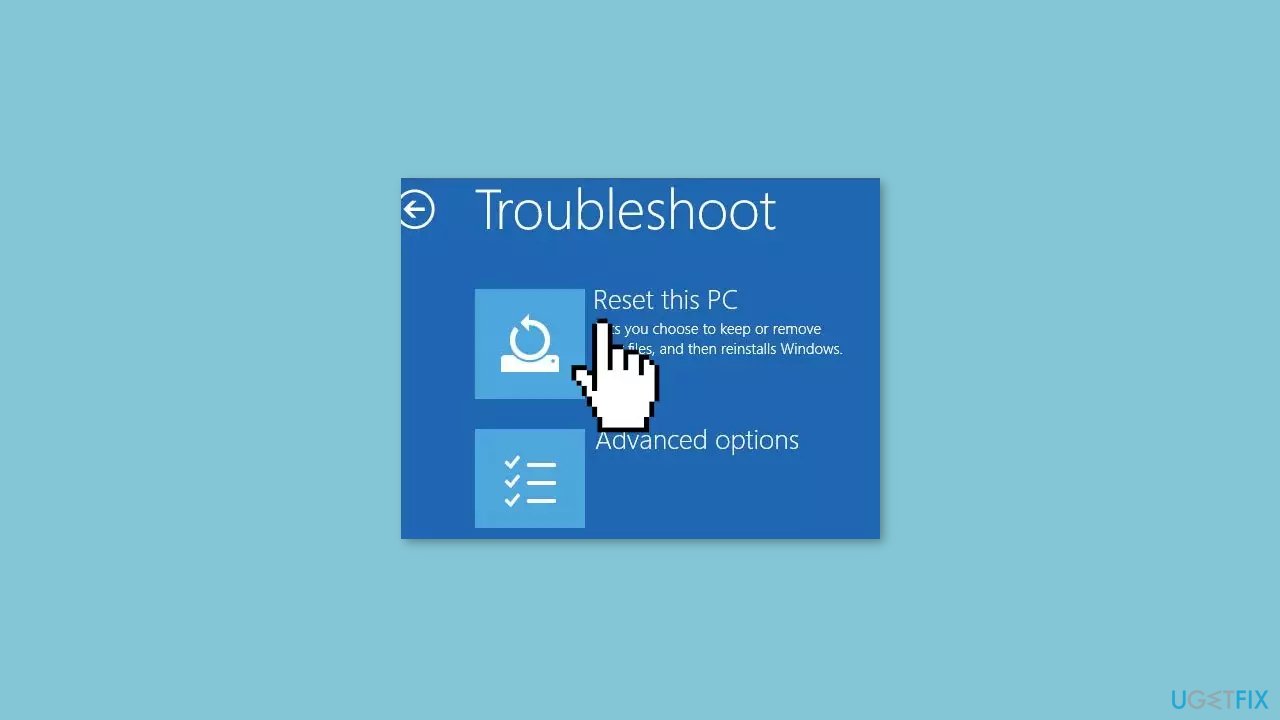
- Now, select Reset this PC.
- Finally, choose the Remove files option and follow the onscreen instructions to complete the process.
Bottom line
To fix the missing Shortcut tab in Properties, ensure your system is updated, run the application as an administrator, and consider using third-party utilities. If these solutions do not resolve the issue, using a system repair tool may help address underlying system errors.
Frequently asked questions
Try right-clicking on the file and selecting 'Open file location' to ensure it's a shortcut. If it is and the tab is still missing, consider recreating the shortcut or checking for file system issues.
You can restore the Shortcut tab by ensuring that the file is indeed a shortcut, or by running a system file check via Command Prompt to repair any corrupted system files.
Yes, you can check the Windows Registry for specific entries related to shortcuts, but make sure to back up the registry before making any changes.




Report an issue
What's wrong with this guide? We review every report and update or remove content.
Report received — thank you. We'll review and fix it.
You need a free account to submit a report.
Be the first to comment