How to fix
Silent Hill 2 stuttering
on Windows
Eliminate Silent Hill 2 stuttering on Windows 10 or 11 with our expert-tested tips. Enjoy smooth gameplay once again, fixed in minutes!

What causes How to fix Silent Hill 2 stuttering in Windows?
- Hardware Accelerated GPU Scheduling (HAGS) conflicts with the game
- Micro stutters from high-end hardware
- Brief game freezes interrupting experience
- Inadequate GPU driver updates
- Improper in-game settings like V-Sync and frame rate limits
Repairs Windows system files, removes malware, and restores a clean OS state — without reinstalling.
Today was finally the day when I could play Silent Hill 2 Remake as I was very much looking forward to it. However, despite surpassing the recommended requirements by a mile, the game stutters quite a bit - from micro stutters to even up to a second hangs. This is really frustrating and is ruining my experience.
The Silent Hill 2 Remake by Bloober Team officially became available on October 8, 2024. However, early access was allowed for fans pre-ordering the Deluxe Edition on October 6, 2024, so some people dove into the Silent Hill atmosphere much earlier than its official release.
It has garnered an "Overwhelmingly Positive" review scores on Steam, where players seem quite impressed by how the developer maintained the generally unsettling tone and immersive storytelling from the original.
Still, even on generally positive reviews, some users were indicating that there are technical issues with the game-playing, particularly those of stuttering. Even users with high-end hardware have faced micro stutters or brief game freezes that interrupt their experience.
One common solution to fixing Silent Hill 2 stuttering reported by the community is disabling Hardware Accelerated GPU Scheduling (HAGS). This setting is known to optimize performance by reducing latency, but in some cases, it conflicts with how the game interacts with the system’s GPU, leading to stuttering. Disabling it may resolve this issue for some users, as it allows the game to run without interference from this optimization setting.
However, disabling HAGS does not work for everyone. Some players continue to experience performance issues despite this change, suggesting that other factors might be contributing to the problem.
In such cases, other fixes might be necessary, including changing startup parameters for the game, tweaking in-game settings like V-Sync and frame rate limits, updating GPU drivers, or even running the game with administrative privileges.
If the stuttering persists, users may need to explore different solutions systematically to find the one that works for their setup. Detailed instructions for these and previously mentioned methods will be provided below. For those who prefer an automated approach, using a [d1] repair tool can streamline the troubleshooting process, detecting and fixing common performance issues with minimal manual effort.
Fix 1. Disable Hardware Accelerated GPU Scheduling (HAGS)
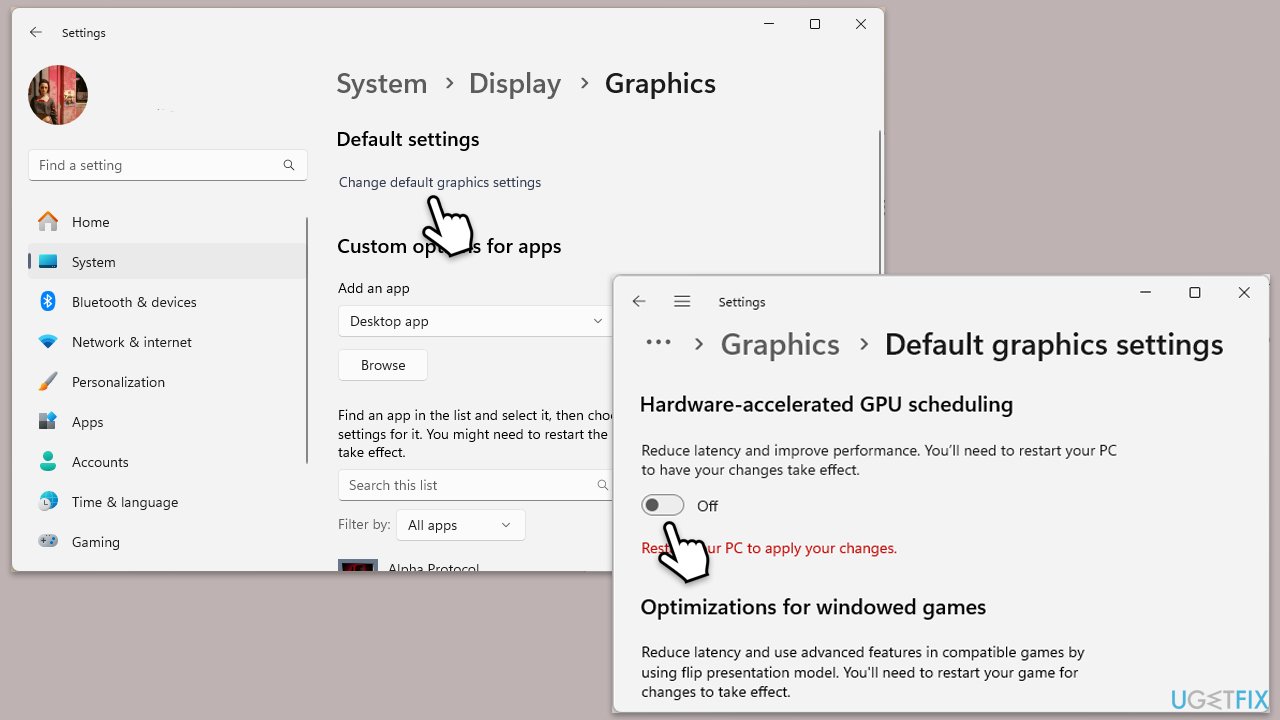
Disabling HAGS can help resolve stuttering as this setting sometimes conflicts with the game’s optimization, causing lag. Turning it off forces the GPU to process graphics without added latency management, which may smooth gameplay.
- Right-click on Start and pick Settings.
- Select System and then go to Display.
- Scroll down to Related settings and click Graphics.
- Under Default settings, click Change default graphics settings.
- Disable Hardware-accelerated GPU scheduling.
- Restart your computer and launch Silent Hill 2 to check if the stuttering improves.
Fix 2. Change startup parameters
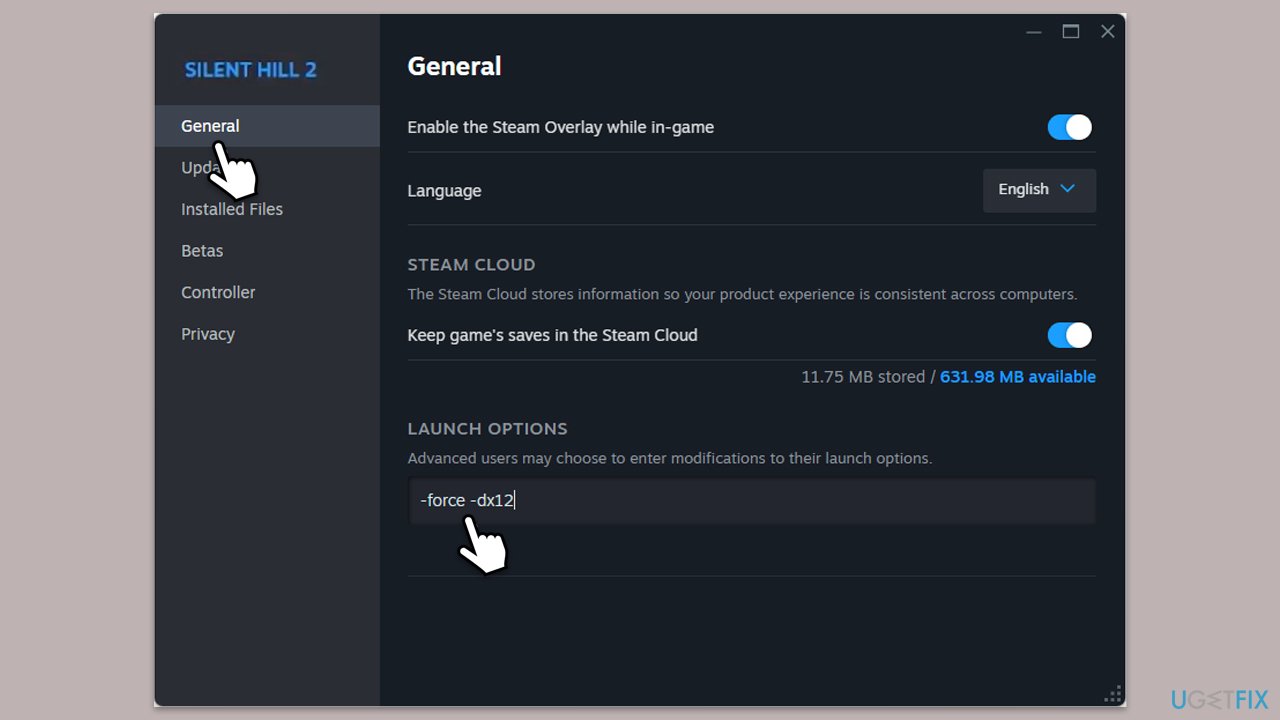
Adjusting startup parameters can optimize the game’s performance by limiting processes that may cause stuttering.
- Open Steam and go to your Library.
- Right-click Silent Hill 2 and select Properties.
- Under the General tab, find the Launch Options box.
- Here you can enter various parameters and see if that changes anything for you:
-high (to prioritize CPU usage)
-novid (to skip intro videos).
-force -dx12 (forcing DX12)
-dx11 (using DX11 if previous option doesn't work)
-xgeshadercompile -nothreadtimeout (for low VRAM) - Launch the game to see if performance improves.
Fix 3. Update GPU drivers
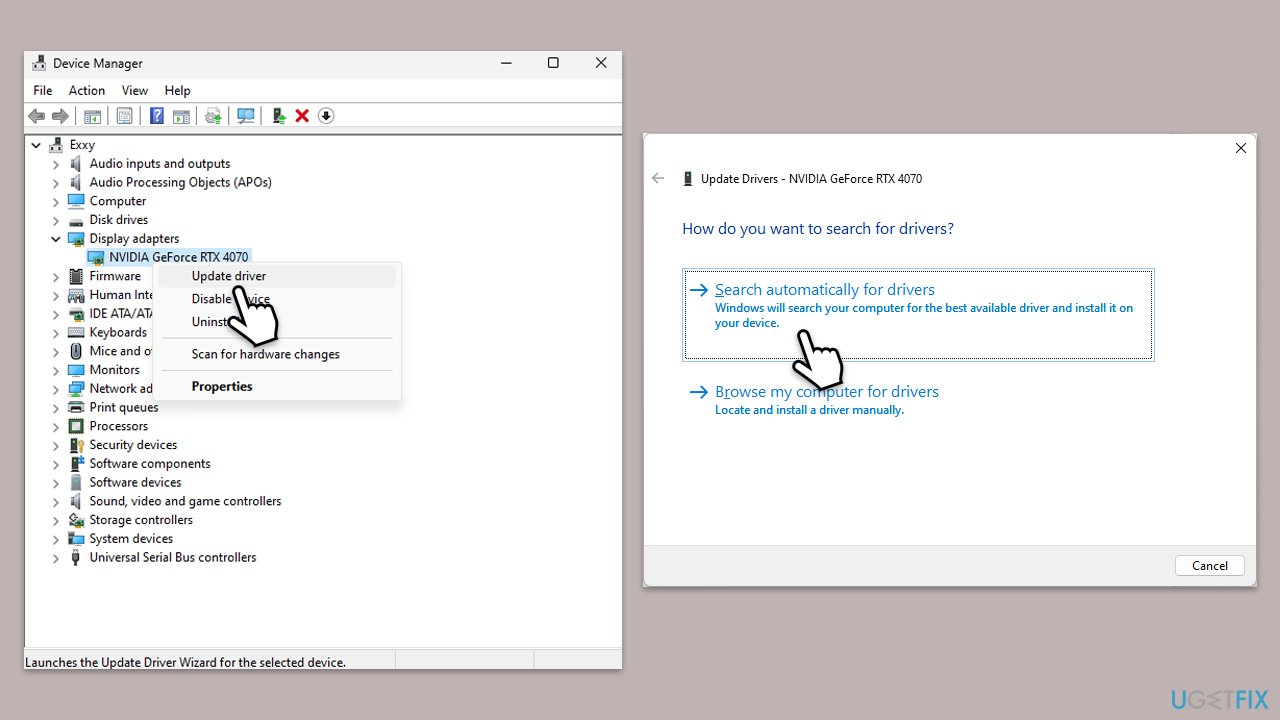
Outdated graphics drivers can cause performance issues and stuttering. To update drivers easily, you can leave this job for automatic tools such as [rev id="DriverFix"] or use the manual method:
- Right-click on Start and pick Device Manager.
- Expand the Display adapters section.
- Right-click on your graphics card and choose Update driver.
- Select Search automatically for drivers.
- Follow the on-screen instructions to complete the process.
- Restart your computer after the update.
Fix 4. Lower in-game graphics settings
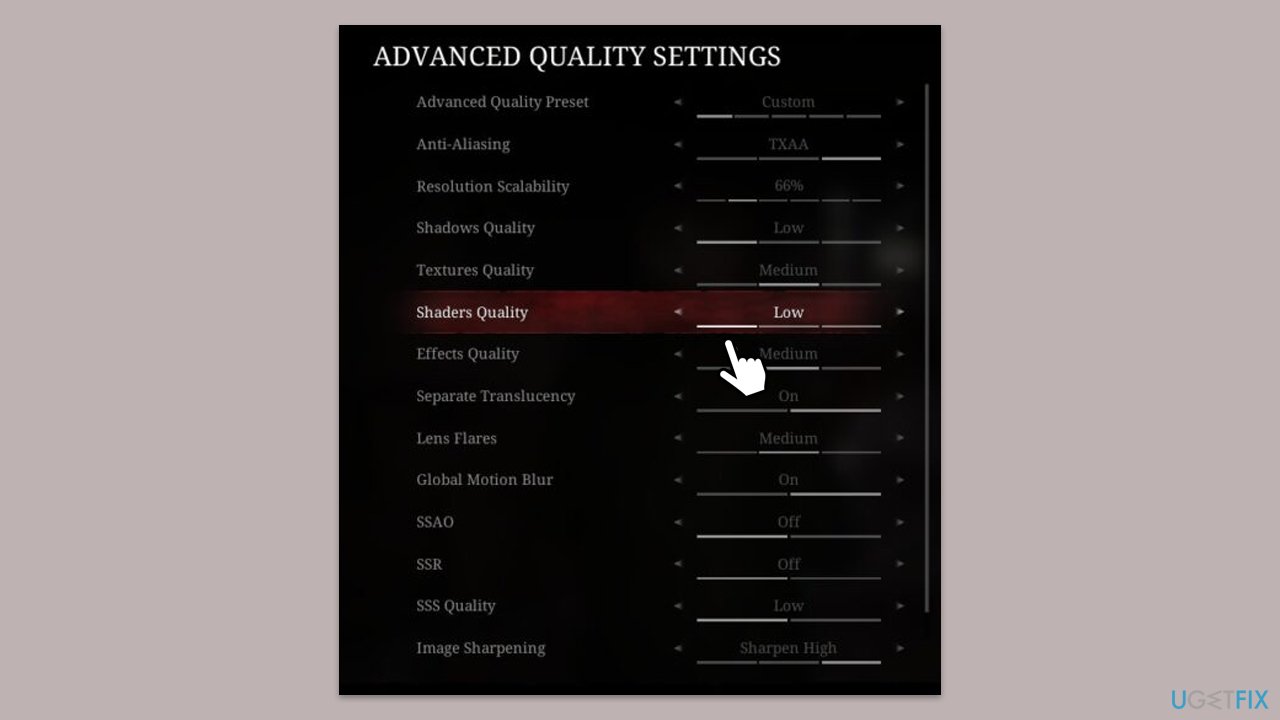
High graphics settings can be too demanding on some systems, causing stuttering even on capable hardware. Lowering these settings can stabilize performance.
- Launch Silent Hill 2 and go to Settings.
- Navigate to Advanced quality settings.
- Lower options like Texture Quality, Shadow Quality (this one is a big deal), and Anti-Aliasing.
- Disable V-Sync or set a frame rate limit to match your monitor’s refresh rate.
- Save changes and test the game to see if the stuttering reduces.
Fix 5. Run the game as an administrator
Running the game with administrative privileges can help resolve performance issues caused by insufficient permissions.
- Right-click the Silent Hill 2 shortcut on your desktop or in the Steam library.
- Select Properties and go to the Compatibility tab.
- Check the box labeled Run this program as an administrator.
- Click Apply and OK, then start the game again.
Fix 6. Verify game files
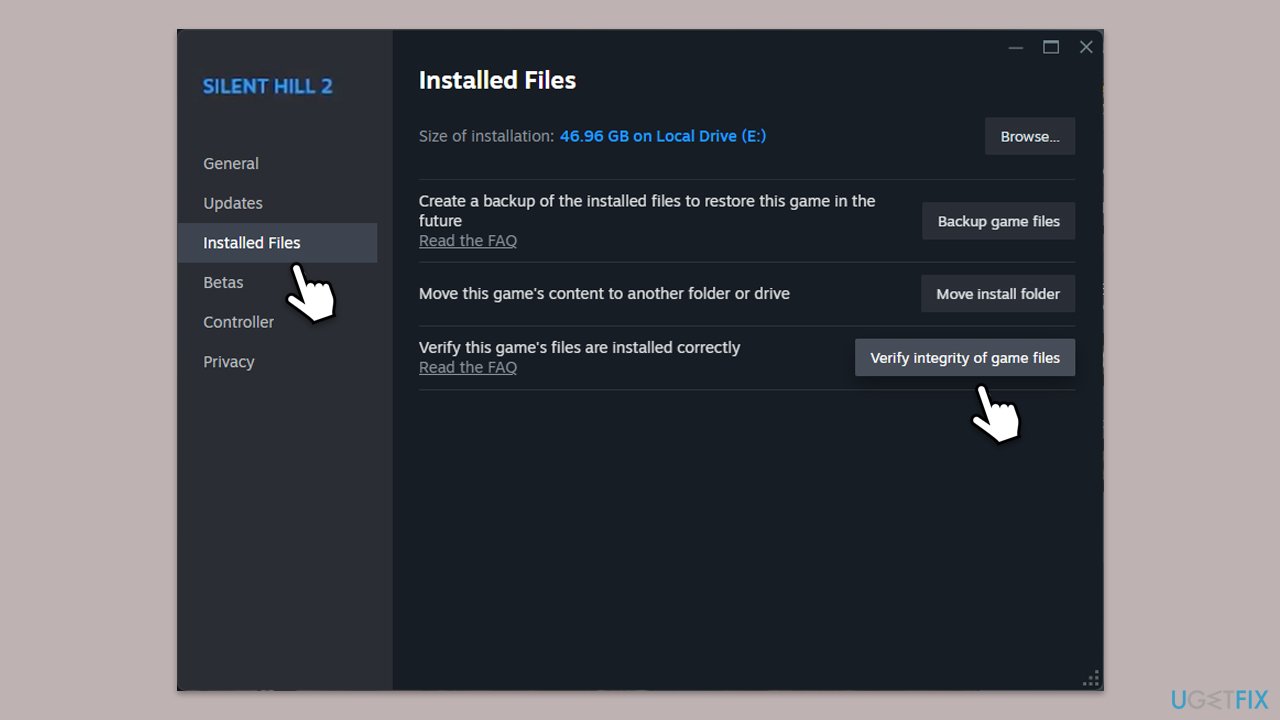
Corrupted or missing files can cause stuttering during gameplay. Verifying the game’s files through Steam can restore any missing or corrupted data.
- Open Steam and go to your Library.
- Right-click on the Silent Hill 2 and select Properties.
- Go to the Local Files section on the left.
- Here, click Verify integrity of game files and wait till the process is complete.
- Try launching the problematic game again.
Fix 7. Adjust power settings
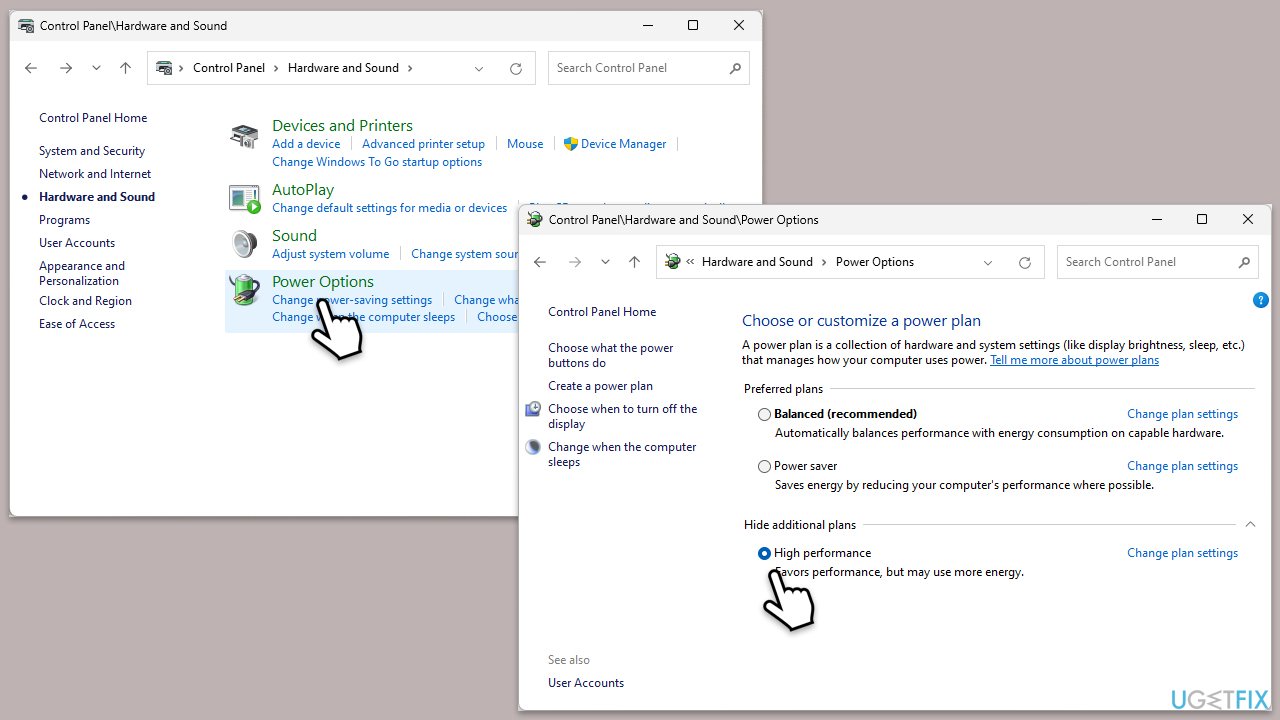
Ensuring that your computer is using a high-performance power plan can prevent stuttering by providing the necessary power for optimal game performance.
- Type Control Panel in Windows search and hit Enter.
- Here, go to Hardware and Sound > Power options.
- Here, you will see the listed plans.
- Click on Show additional plans.
- Change the plan from Power saver to High performance.
Bottom line
To fix the stuttering in Silent Hill 2, users can disable Hardware Accelerated GPU Scheduling, update GPU drivers, and tweak in-game settings such as V-Sync and frame rate limits. If these solutions do not resolve the issue, players may need to explore additional fixes systematically.
Frequently asked questions
Common causes include outdated graphics drivers, insufficient system resources, and compatibility issues with the operating system. Ensuring your drivers are updated and adjusting in-game settings can often resolve these problems.
You can lower the resolution, reduce texture quality, and disable V-Sync in the game's graphics settings. These adjustments can help improve performance and reduce stuttering.
Yes, running the game in compatibility mode for Windows XP or Windows 7 can help resolve stuttering issues by optimizing performance for the older game engine.




Report an issue
What's wrong with this guide? We review every report and update or remove content.
Report received — thank you. We'll review and fix it.
You need a free account to submit a report.
Be the first to comment