How to fix
Slow LAN speed
on Windows
Boost your LAN speed on Windows 10 with proven troubleshooting tips. Speed up your connection and enjoy seamless browsing, expert-tested for reliability.

What causes How to fix slow LAN speed on Windows 10?
- Outdated drivers
- Incorrect browser settings
- IPv6 protocol issues
- Hardware failure
- Viruses or malware
Repairs Windows system files, removes malware, and restores a clean OS state — without reinstalling.
Hello. I used to always use WiFi at home as I did not have a possiblily to use cable. However, due to recent move to a different house, I managed to sort out the positioning of computer and get the LAN cable to be connected to it. I thought that it will be an improvement over the WiFi connection, but I was wrong. Since I swapped to LAN, my browsing and downloading became at least twice slower. What is the deal?
Even though WiFi[ref en-1] connections are prevalent in small businesses and even households, LAN ethernet connection cannot be beaten by wireless technologies so far. Those people who download a vast amount of videos or play video games find LAN connection essential for the daily computer use. Nevertheless, if WiFi works faster than LAN connection, there is a problem. Fortunately, there are plenty of fixes that can be applied.
According to official Microsoft forums, many people complained about slow LAN speeds soon after they upgraded to the latest version of Windows (Windows 10). They said that before the update they had a breakneck internet speed, but later had problems with downloading of even browsing simple websites.
Problems with LAN connection can occur due to several reasons, including outdated drivers,[ref en-2] incorrect browser settings, IPv6[ref en-3] protocol, hardware failure, and similar. Nevertheless, our team compiled detailed step-by-step instructions to help you fix slow LAN speed on Windows 10.
Before you proceed, we recommend you scan your machine using [d1]. Several viruses, especially trojan horses,[ref en-4] might slow down not only your computer's performance but also affect your internet connection speed. This is especially important if the slow speed is accompanied by high CPU/GPU usage, software crashes, and frequent BSoDs.
You will find everything you need in this video:
[youtube 3NH0nl581ec]
Fix 1. Update Windows to the latest version
Windows updates are set to update automatically, although the user might postpone the restart for as long as it's needed. Nevertheless, some users may even have the automatic update function off (not recommended! OS updates are vital not only for optimal performance but also for patching vulnerabilities in the system). Thus, make sure that your Windows 10 is running the latest version:
- Type in Update into the search box located in the taskbar
- Click on Check for updates
- See if there are any updates available by clicking Check for updates
- Make sure computer restarts after the update
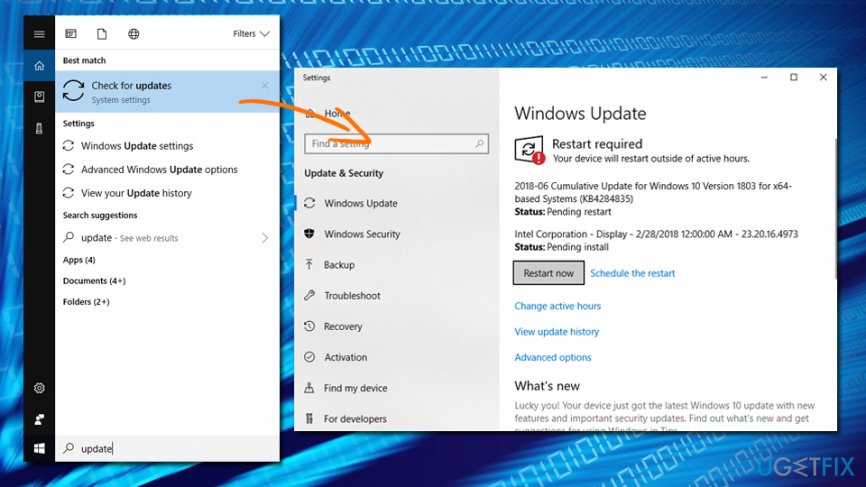
Slow lan speed check for windows updates
Fix 2. Update your network drivers
Outdated network drivers is also a common issue when it comes to slow LAN speed. Thus, make sure your drivers are up to date:
- In the search box, type in Device Manager
- Expand Network adapters
- Select the network adapter, right-click it and choose Update driver
- Then, pick Search automatically for updated driver software
- If Windows detects any updates, they will be installed automatically
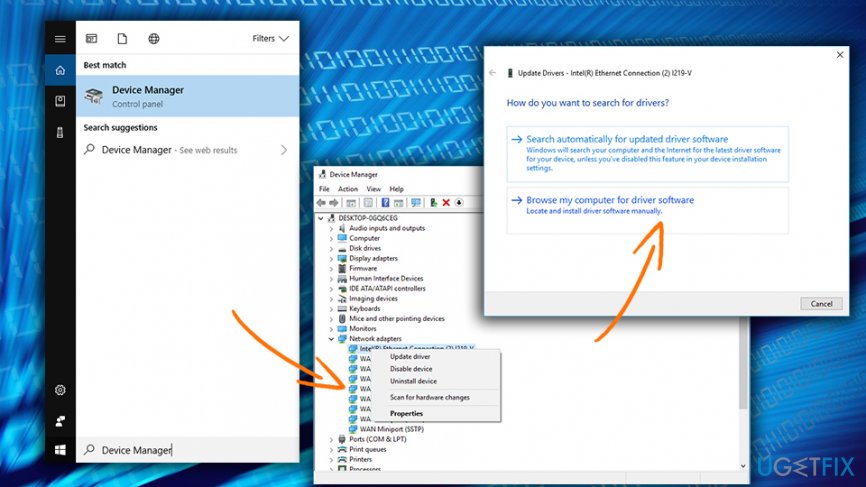
Slow lan speed update network drivers
Fix 3. Reboot your hardware
If you can any tech support with any problem, the most probable answer would be "reboot your device." Since your internet speed is dependent on your modem or router, it is a good idea to restart it. DO NOT use Reset button as it may set the device to factory defaults. Instead, unplug everything it is attached to (including a power source).
TIP: try using a different port as well
Fix 4. Disable Large send offload feature
Before you can send out a large amount of data, it needs to be segmented first. The Large Send Offload feature uses a network card to segment these pieces of information, instead of letting the processor do the work. Therefore, you can ease the workload of your network adapter by disabling this feature in the following way:
- Right-click on the Start button and select Device Manager
- Double-click on the network card and go to Advanced tab
- Pick Large Send Offload V2 (IPv4) and, under Value, select Disabled
- Do the same with Send Offload V2 (IPv6) and click OK
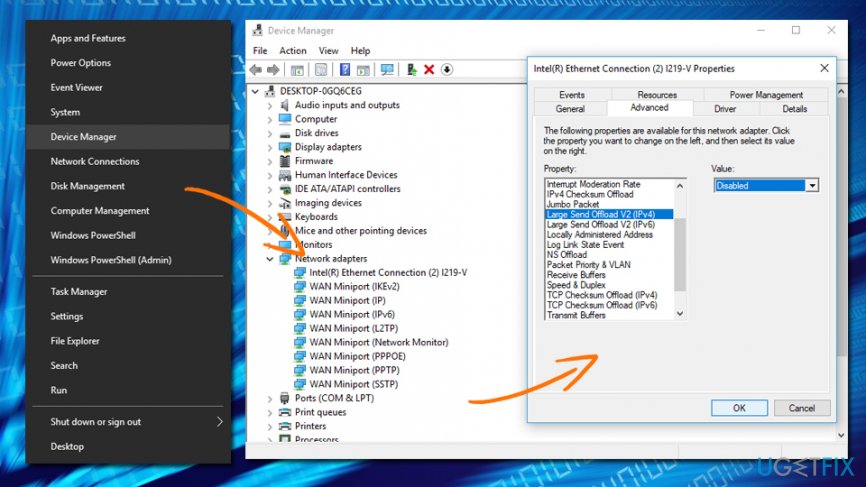
Slow lan speed disable large offload
Fix 5. Alter duplex settings
You need to increase the duplex speed in the following way:
- Double-click on your network card in the Device manager
- Go to Advanced tab and find Speed/Duplex settings under Property
- Under Value, select 100Mb Full Duplex
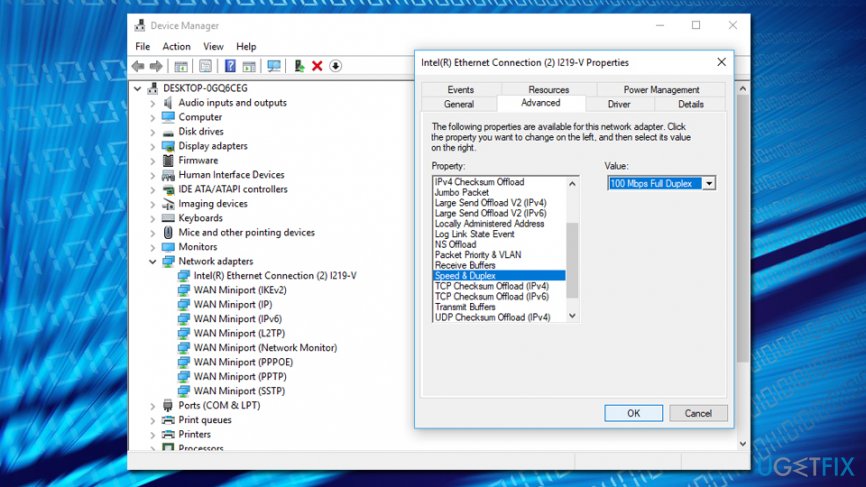
Slow lan speed change speed duplex
Fix 6. Disable IPv6
- Click on the Network icon located in the taskbar
- In the Settings window, pick Change adapter options
- Pick your network connection, right-click and choose Properties
- Find Internet Protocol Version 6 (TCP/IPv6), un-tick the tick box and click OK
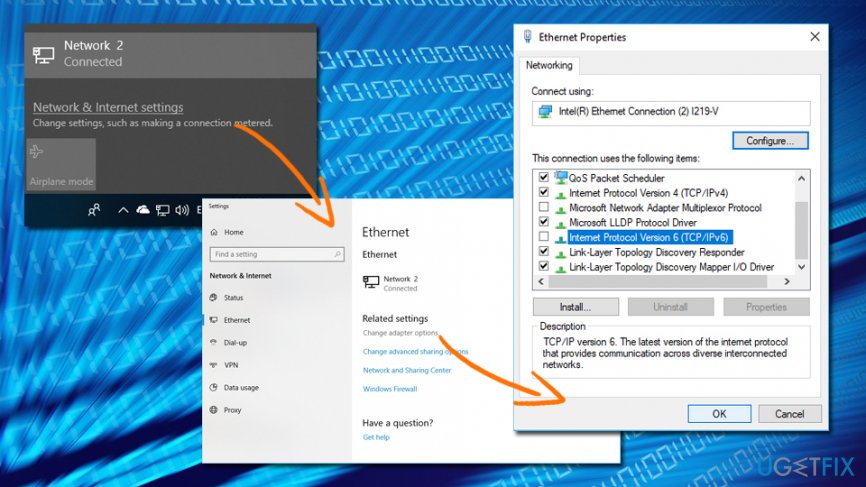
Slow lan speed disable ipv6
Bottom line
To fix slow LAN speed on Windows 10, you can update Windows to the latest version, check your drivers, and ensure your browser settings are correct. If these solutions do not resolve the issue, consider scanning your machine for viruses or seeking further technical assistance.
Frequently asked questions
You can adjust your network adapter settings by navigating to Control Panel > Network and Sharing Center > Change adapter settings, then right-click your LAN connection, select Properties, and configure the settings for better performance.
You can test your Ethernet cable by swapping it with a different one or using a cable tester to ensure it’s functioning properly, as a faulty cable can significantly decrease LAN speed.
Yes, ensure your Windows 10 is updated to the latest version, as updates often include fixes and optimizations for network performance.




Report an issue
What's wrong with this guide? We review every report and update or remove content.
Report received — thank you. We'll review and fix it.
You need a free account to submit a report.
Be the first to comment