How to fix
Slow Trackpad
on Windows
Struggling with a slow trackpad on Windows 10 or Windows 11? Discover effective solutions to boost your performance and enhance usability. Expert-tested.

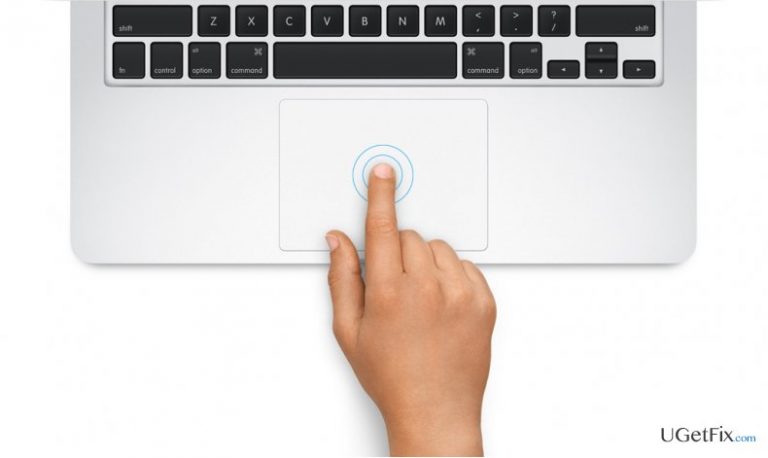
What causes How to Fix Slow Trackpad on Mac OS Sierra?
- Slow trackpad response after upgrading to Mac OS Sierra
- Settings reset after waking from sleep
- Default tracking speed may not be optimal
- Multi-Touch trackpad bug in Mac OS Sierra
- User unfamiliarity with trackpad settings
Repairs Windows system files, removes malware, and restores a clean OS state — without reinstalling.
I’ve recently upgraded my MacOS to Sierra and noticed that when I’m using two-finger-scrolling, the trackpad runs much slower than it used to on El Capitan. Could you please help me to solve the issue on Mac Pro? Would highly appreciate your help!
Trackpad both on Windows laptops and Apple Mac devices is a crucial part, which enables the users to perform tasks, such as click, navigate through the desktop or scroll. However, Apple Mac users are lucky to use Multi-Touch trackpads, which allow performing multiple gestures to do various tasks on Macs in a smart way. For example, with a Multi-Touch trackpad, people can tap, swipe, spread, pinch rotate, zoom in/out, open notification center, and much more. If you are a new user of the smart touchpad, you can find more information here:
Navigate to Apple menu -> System Preferences -> Trackpad.
Here you will find options like turn a particular gesture off or change its type. Besides, you will be able to learn which gestures can work on your Mac. However, Mac OS discussion forums are full of users’ reports about Multi-Touch trackpad becoming slow after the update to Mac OS Sierra. Apple is already aware of this trackpad bug, and the fixes are expected to be released soon, but until that happens, there are several fixes to perform by yourself.
How to Fix Slow Trackpad on Mac OS Sierra?
The issue with Multi-touch trackpad may happen after upgrading any older Mac OS version to Sierra. While Apple is working on this issue, there are a couple of fixes that you can perform before the patch is released. Several people have reported that the problem may be fixed by performing the steps given below. However, that’s just a temporary fix, which will last until your Mac goes to sleep or is turned off.
Fix 1.
- Open System Preferences -> Trackpad -> Point & Click.
- Move the Tacking speed slider to set the preferred speed.
That’s it, but don’t forget that the settings will be reset automatically to the previous state when you wake the machine up from sleep or restart it. If the previous steps did not help, you might try the ones provided below. This method is very similar to the previous one because it’s not permanent meaning that you will have to perform these steps regularly, for example, every few hours.
Fix 2.
- Navigate to Accessibility -> Mouse & Trackpad -> Trackpad Options.
- Find Scrolling and uncheck the option. Even if it has already been unchecked, slide a toggle to on and then get back to off.
- After that, open System Preferences -> Trackpad.
- Find Scrolling and uncheck it as well.
While the previous steps were approved by most of the Mac OS Sierra users to be working, there are always exceptional cases. If the first two fixes for slow trackpad on MacOS Sierra did not work, you can also try to reset SMC and PRAM/NVRAM
Fix 3.
- Shut down the device and unplug it from the power.
- Press and hold the power button and keep it for 5sec.
- Plug it to the power and turn it on. This way, you will reset SMC.
- To reset PRAM/NVRAM, shut down your device (not log out, but fully shut down).
- Click Power button and press the command option PR keys before the gray screen appears.
- Hold command option PR keys until your Mac device reboots.
Once you're done, don't forget to protect your Mac from malware and ensure its proper maintenance by installing an optimization tool, such as [rev id=”MacKeeper”].
Bottom line
To address the slow trackpad issue on Mac OS Sierra, you can adjust the tracking speed in System Preferences under Trackpad. Keep in mind that this setting may reset after the Mac goes to sleep. If these fixes do not resolve the problem, you may need to wait for an official patch from Apple.
Frequently asked questions
Yes, many troubleshooting steps for slow trackpads on Mac can be adapted for Windows 10 or Windows 11 laptops, such as updating drivers and adjusting sensitivity settings.
If your trackpad becomes unresponsive, try restarting your device, and check if the trackpad is enabled in the device settings under 'Touchpad' in Windows 11.
You can use built-in Windows 10 troubleshooting tools or third-party applications to diagnose and fix trackpad issues, ensuring your drivers are up to date.




Report an issue
What's wrong with this guide? We review every report and update or remove content.
Report received — thank you. We'll review and fix it.
You need a free account to submit a report.
Be the first to comment