How to fix
SMART Hard Disk Error 301
on Windows
Resolve the SMART Hard Disk Error 301 in Windows 10 or 11 effortlessly with our expert-tested solutions. Get your system running smoothly again!


What causes How to fix SMART Hard Disk Error 301 in Windows?
- Overheating problems
- Physical hardware damage
- System file corruption
- Malware infections
Repairs Windows system files, removes malware, and restores a clean OS state — without reinstalling.
Hello. For a few months not, I receive the black screen error SMART Hard Disk Error 301 every time before Windows starts loading in. Nothing has happened so far when it comes to my laptop's usability, so I wondered how do I fix this error for good?
SMART Hard Disk Error 301 is an error message which is shown right before booting into Windows, and it indicates that the hard drive on the computer is failing. It occurs during this stage of the bootup because the firmware performs checks on the system, looking for issues with the hardware. If you received this error, it means that this check found hard drive corruption, and you need to take action as soon as possible.
SMART Hard Disk Error 301 is unique to HP laptops only, as it is a result of an HP SMART check - a customized version of power-on-self-test, otherwise known as POST,[ref en-3] which is a diagnostic testing sequence initiated by all Windows machines before it begins to load all the needed components.
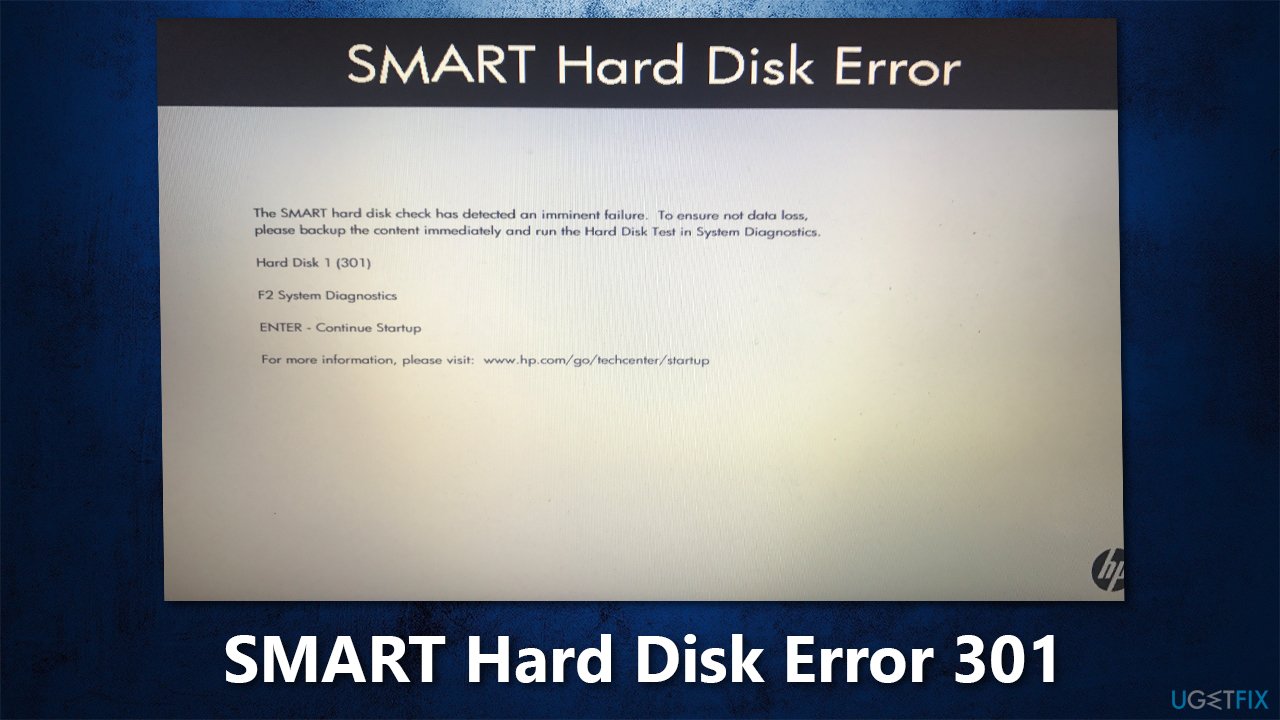
Once the boot sequence begins, users experiencing this problem would see the following message:
SMART Hard Disk Error
The SMART hard disk check has detected an imminent failure. To ensure no data loss, please backup the content immediately and run the Hard Disk Test in System Diagnostics.
Hard Disk 1 (301)
As the message claims, it is important to backup all the data stored on the hard drive, which should be done immediately. Unfortunately, some users said that they were unable to boot into Windows completely after receiving the SMART Hard Disk Error.
While the reason for the error is a failing or corrupted hard drive, there are several reasons why the error might show up in the first place. Most commonly, it is related to overheating problems (which are well known on laptops overall), physical hardware damage, or, in some cases, system file corruption and malware infections.
In this article, we will show you how to fix SMART Hard Disk Error 301 correctly and take appropriate actions once such error is observed. Regardless if you can or can't boot into Windows, you should perform several troubleshooting steps we provide below.
Fix 1. Restart your computer
If you are experiencing SMART Hard Disk Error 301 for the first time, the first thing you should do is try to restart your computer. The error might be a false positive, so it is worth checking whether it occurs again after restarting your laptop.
If that did not help, you could also try using a hard restart. Here's how:
- Completely turn off your computer
- Pull out the battery plug if it is connected to the socket
- Remove the batter fully
- Now, press the power button on your laptop and hold it for around 30 seconds
- Put the battery back in and try starting the device once again - see if the problem is solved.
How to fix smart hard disk error 301 on windows restart laptop
Fix 2. Test hard disk from the BIOS
You can run a hard drive check within BIOS[ref en-2] environment if you are unable to boot into Windows normally. Here's how:
- Restart your device
- When it begins booting, keep pressing F10 on your keyboard to access BIOS
- Use Right arrow on your keyboard to go to the Diagnostics tab
- Pick Primary Hard Drive Self Test and press Enter
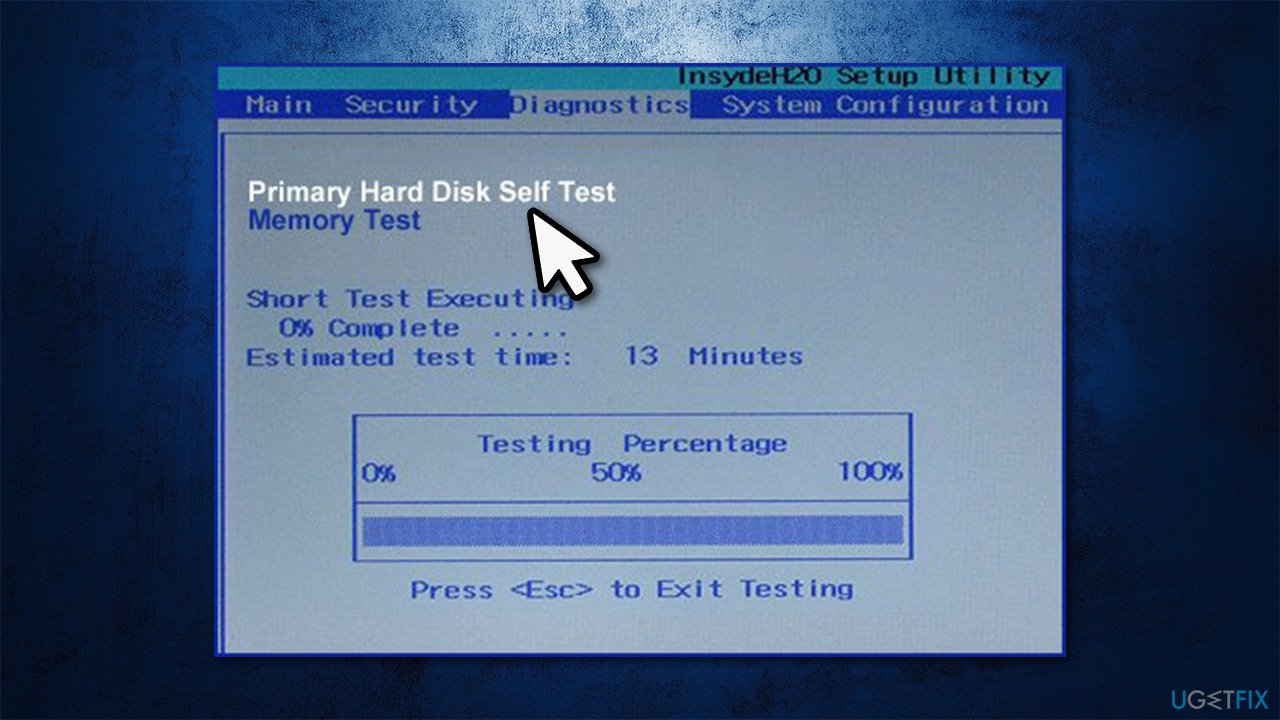
How to fix smart hard disk error 301 on windows primary hard disk self test - Let the test run - it may take awhile.
If the check detects problems, it further confirms that your hard drive is about to get corrupted. If no errors were found, proceed with the steps below.
Fix 3. Run check disk
Most people who do receive the SMART Hard Disk Error 301 error are able to access their normal Windows interface.[ref en-1] If you also can, you should perform a check disk via Command Prompt - it can fix bad sectors and directory errors that could be causing the error in the first place.
- Type in cmd in Windows search
- Right-click on Command Prompt search result and select Run as administrator
- In the new window, copy and paste the following command, pressing Enter after:
chkdsk C: /f /r /x
- The check will not run yet, so you have to in Y and press Enter
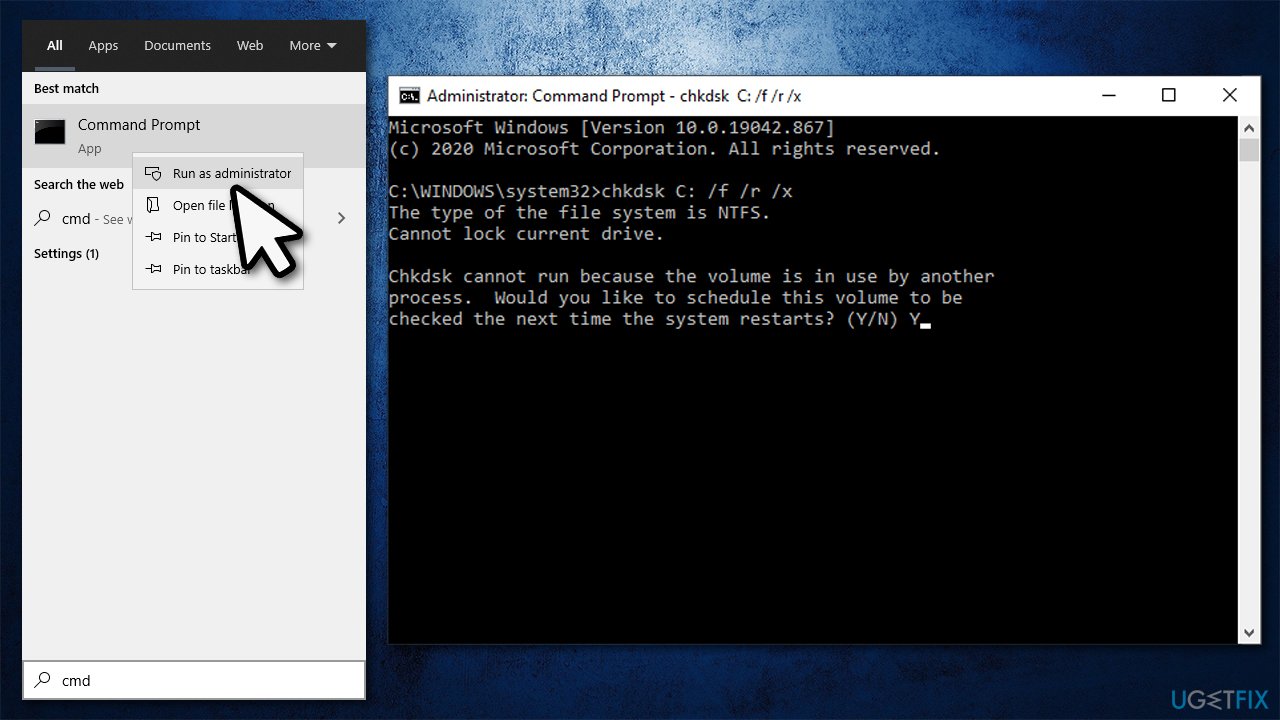
How to fix smart hard disk error 301 on windows run checkdisk - Finally, restart your PC to start the check.
Fix 4. Check for file system errors
- Press Win + E to open File explorer
- On the left side, click This PC
- Right-click on your main drive (C: by default) and select Properties
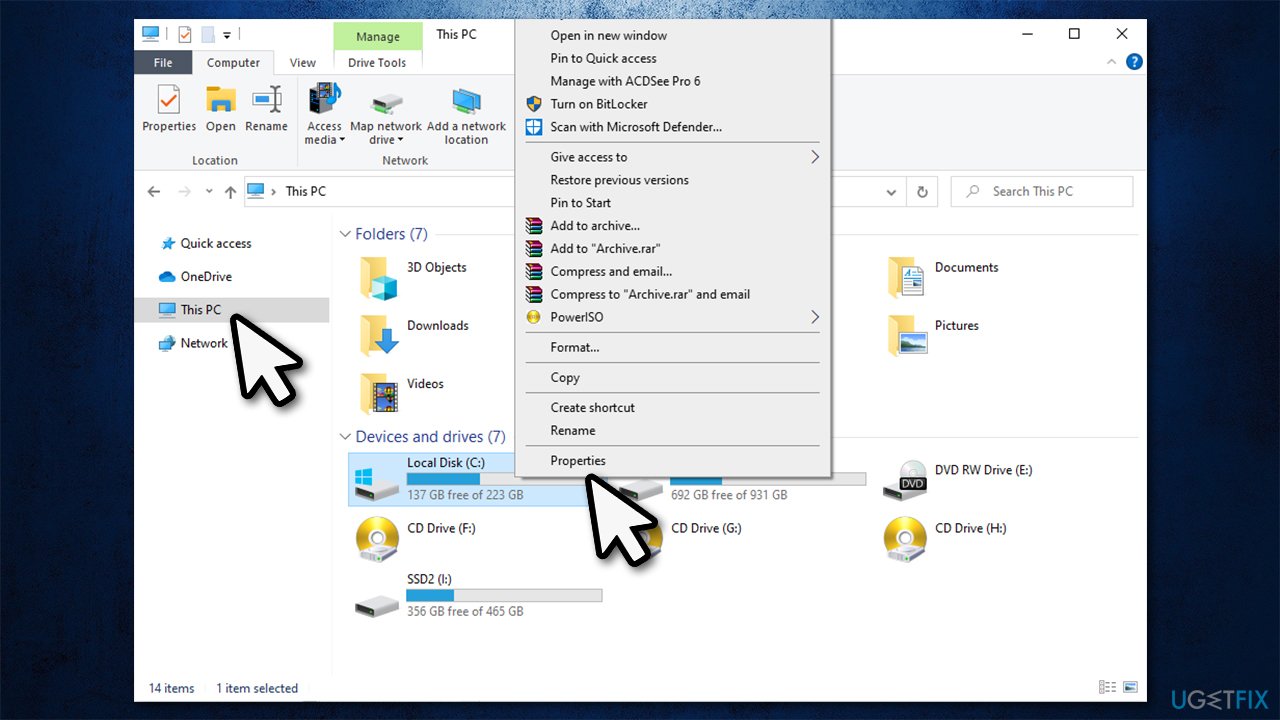
How to fix smart hard disk error 301 on windows go to properties - Go to Tools tab
- Under Error checking click Check
- If User Account Control shows up, click Yes
- If the popup says you don't need to scan the drive, pick Scan drive
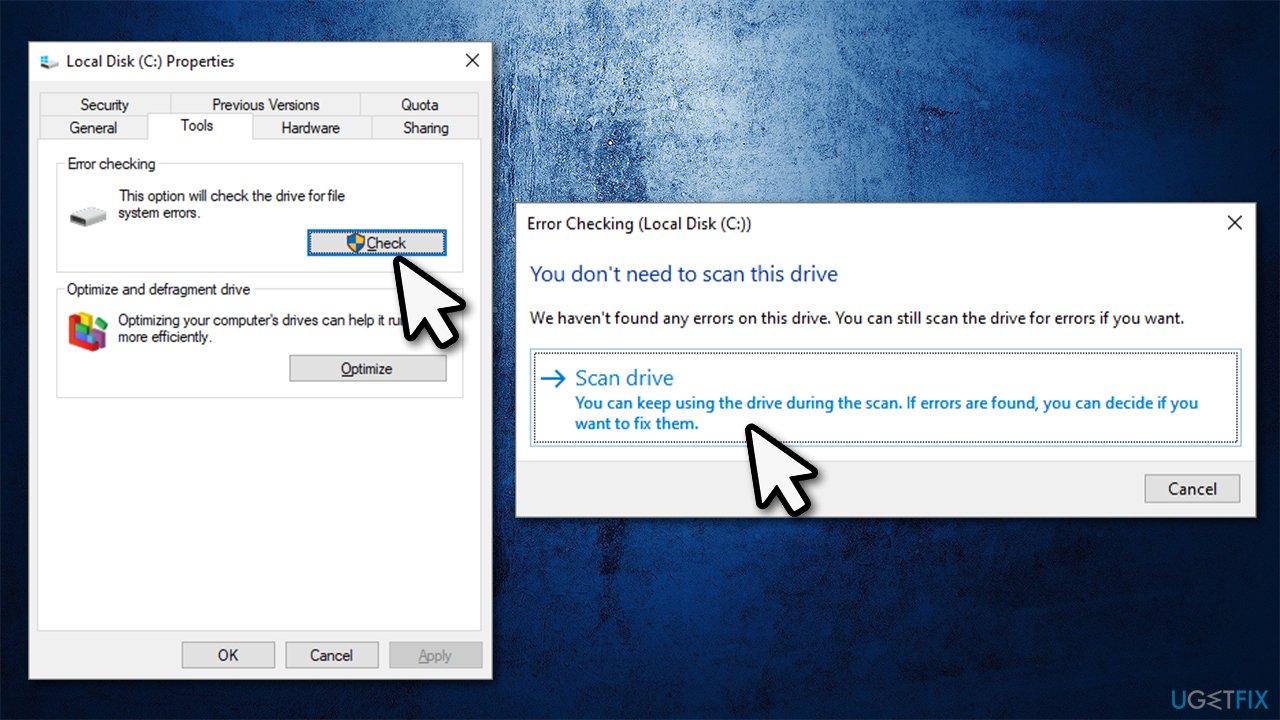
How to fix smart hard disk error 301 on windows perform error check - Wait till the scan finishes and reports findings.
Fix 5. Run an automatic repair tool
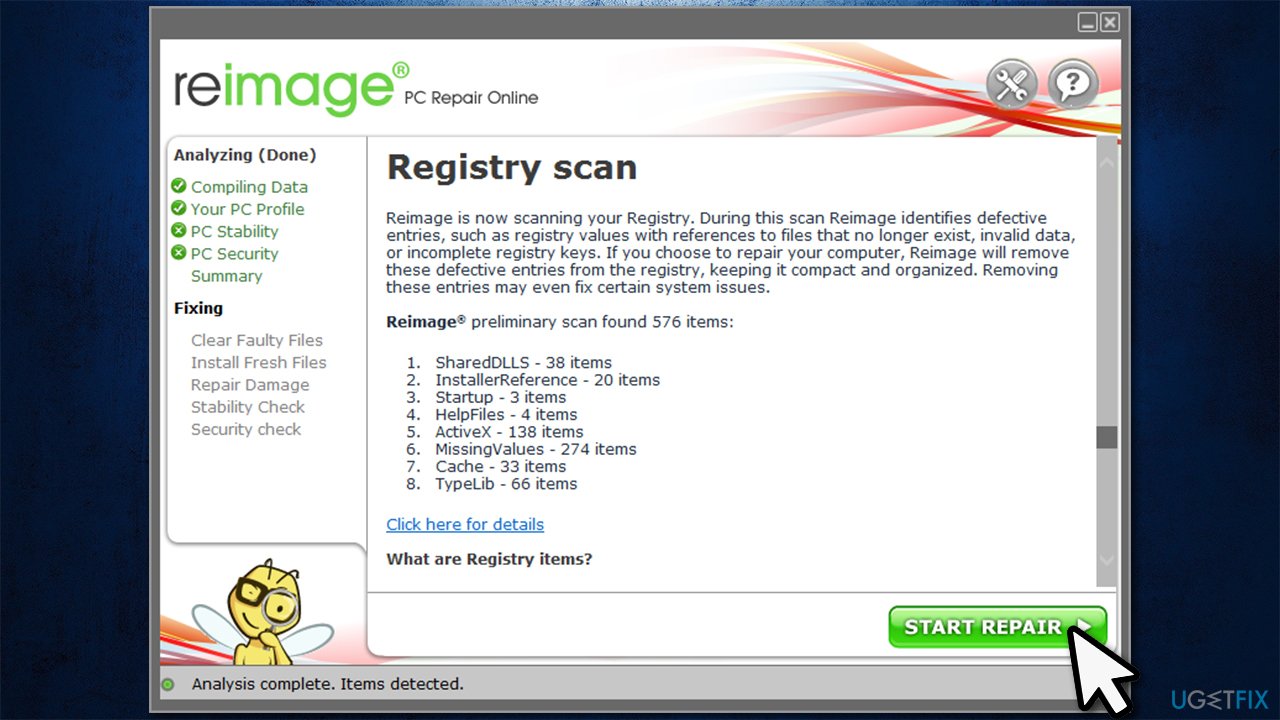
If you are not that familiar with Windows or troubleshooting is difficult, there are automatic solutions for your PC problems - [d1]. This repair tool can find and replace damaged Windows system files, remove malware, fix missing DLLs, registry errors, and much more. If you are suffering from multiple errors and frequent BSODs, this tool is right for you.
Fix 6. Backup your data and replace your hard drive
If all the above steps did not help you fix SMART Hard Disk Error 301 error, you need to replace your hard drive. Since it is likely you are using a laptop, the process is quite a bit different than it would be on a PC.
If you still have a warranty for your HP laptop, we strongly advise you to contact your local HP branch and explain the situation. It is likely that you will get full support and a replacement of the hard drive.
Finally, before you do anything, make sure you backup all the personal files you hold on your computer, as hard drive corruption may cause a full data loss. For that, you can employ [rev id="Data Recovery Pro"].
Bottom line
To fix SMART Hard Disk Error 301, it is crucial to backup your data immediately and run the Hard Disk Test in System Diagnostics. If the error persists, consider checking for overheating issues, inspecting for physical damage, or scanning for malware. If none of these solutions work, it may be necessary to replace the hard drive.
Frequently asked questions
SMART Hard Disk Error 301 indicates that your hard drive is failing or has detected potential issues, which can lead to data loss if not addressed promptly.
To resolve the SMART Hard Disk Error 301, you can back up your data immediately, run a disk check using the 'chkdsk' command, or consider replacing the hard drive if the error persists.
It is not safe to continue using your computer with SMART Hard Disk Error 301, as this could result in severe data loss; immediate action is recommended.




Report an issue
What's wrong with this guide? We review every report and update or remove content.
Report received — thank you. We'll review and fix it.
You need a free account to submit a report.
Be the first to comment