How to fix
Snipping Tool video recording not working
on Windows
Resolve Snipping Tool video recording issues in Windows 10 or Windows 11 quickly and easily. Get expert-tested solutions for a smooth experience!


What causes How to fix Snipping Tool video recording not working in Windows?
- Conflicts with other running applications
- Limited system resources
- Potential glitches in the updated software
- Underlying issues within Windows 11
Repairs Windows system files, removes malware, and restores a clean OS state — without reinstalling.
I was trying to record something on my Windows 11 PC and found out that the Snipping Tool has this feature. Unfortunately, it doesn't work for me. It just says, "Something happened and recording has stopped." Any advice?
Snipping Tool has been an integral part of the Windows operating system for years. Initially designed to capture screenshots, this application allows users to capture selected parts of their screen without the need for additional software.
Over time, its functionalities have expanded to include not just still images but video recordings as well. With these advancements, the Snipping Tool has become even more valuable to Windows users, enabling them to capture both static and dynamic content from their screens with ease.
However, with the release of Windows 11, some users have reported an issue with the video recording feature of the Snipping Tool. Specifically, they encounter an error message stating, "Recording stopped. Something happened, and we've stopped recording. Wait a bit, then try again." This unexpected interruption can be frustrating, especially when attempting to capture important on-screen activities.
Several reasons might cause this problem. It could be due to conflicts with other running applications, limited system resources, or potential glitches in the updated software itself. Furthermore, there might be underlying issues within the Windows 11 operating system that prevent the Snipping Tool from accessing the necessary resources to carry out the recording task.
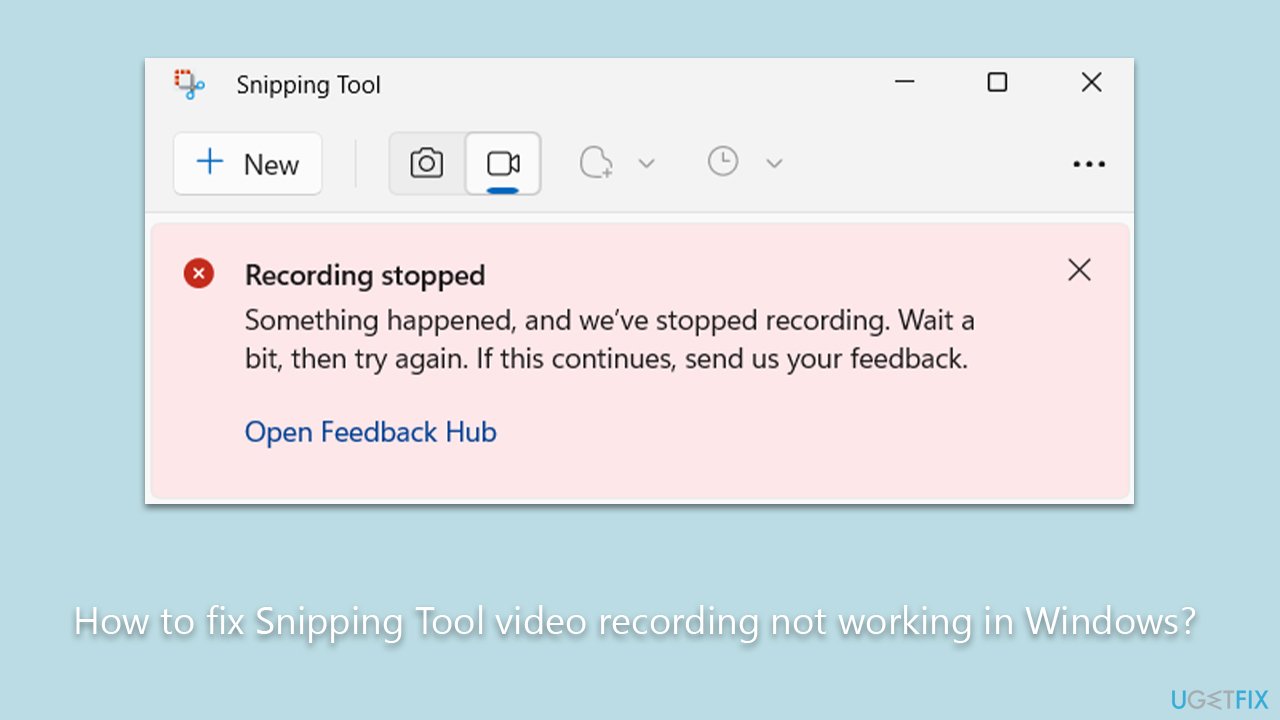
For those experiencing Snipping Tool video recording not working, there are potential solutions to troubleshoot and address the problem. Detailed instructions are provided below this article. In many cases, it's essential to ensure that you have the latest updates installed, that corrupted files are fixed, or the app itself is reset to iron out any potential bugs.
It is worth noting that Snipping Tool is not a video recorder but a screen recorder, which means that it does not have the capability to record sound. So, if you are looking for sound in your recordings, they will be absent.
If you're looking for a quick solution to this and other Windows-related problems, consider using the [d1] PC repair tool. It's an excellent resource for addressing Windows errors and other system issues promptly and efficiently.
Fix 1. Clear cached files
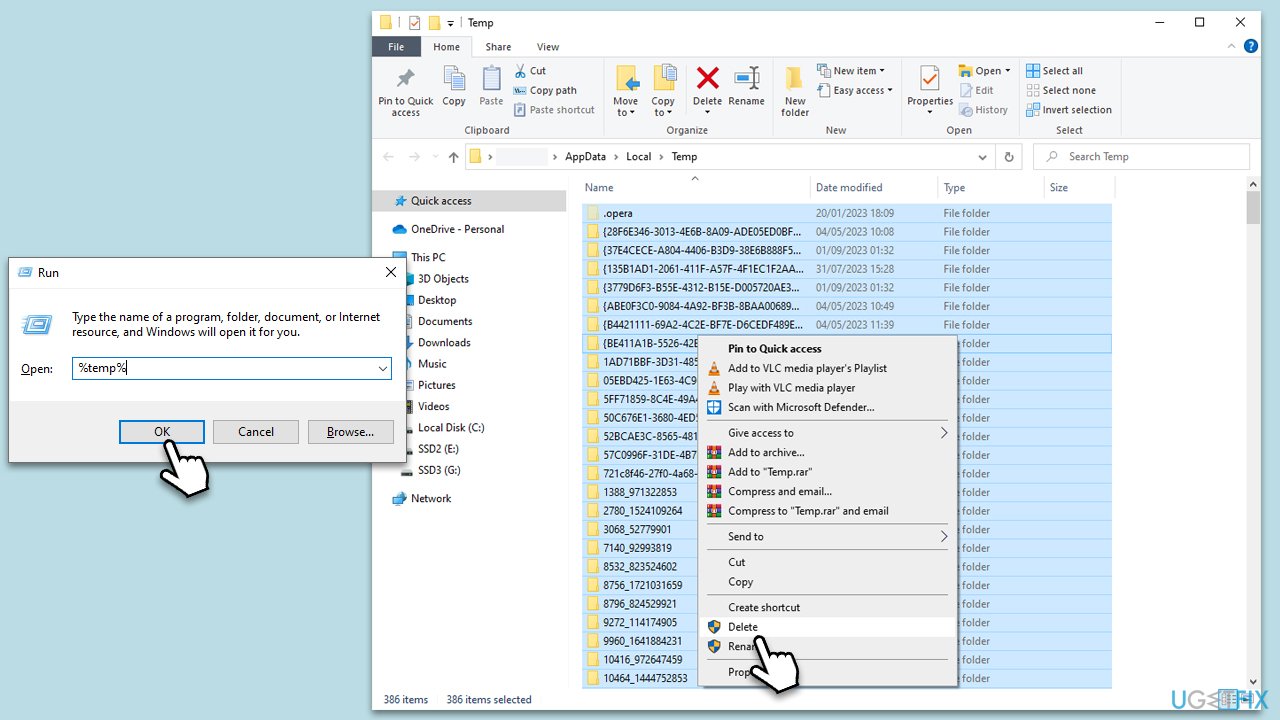
Cached files are temporary files stored on your computer to speed up processes. Over time, they can become outdated or corrupted, which might affect the Snipping Tool's performance.
- Press the Win + R keys to open the Run dialog.
- Type %temp% and press Enter.
- In the folder that opens, select all files and folders.
- Right-click and choose Delete.
- Restart your computer and try using the Snipping Tool again.
Fix 2. Update Windows
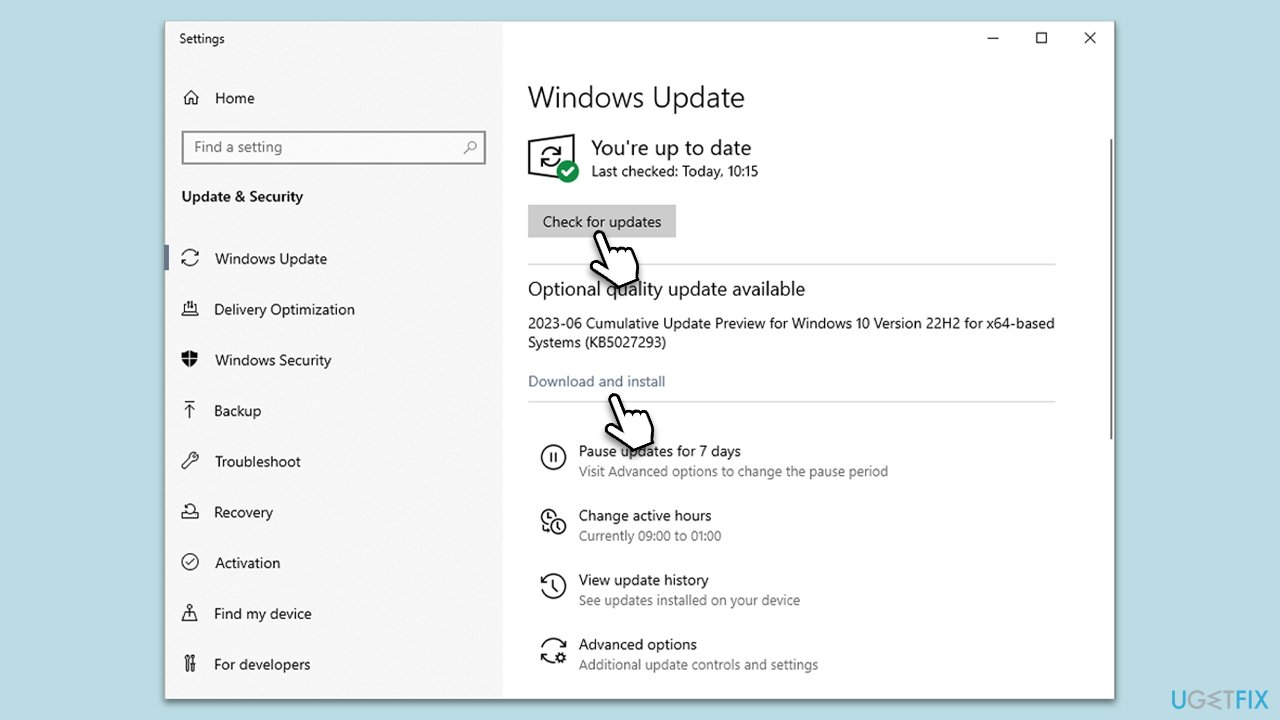
Ensuring you have the latest updates can resolve potential compatibility and bug issues.
- Go to Settings.
- Click on Update & Security.
- Click on Windows Update.
- Choose Check for updates - Windows should start downloading and installing new files.
- If optional updates are available, install them too.
- Restart your PC.
Fix 3. Run SFC and DISM
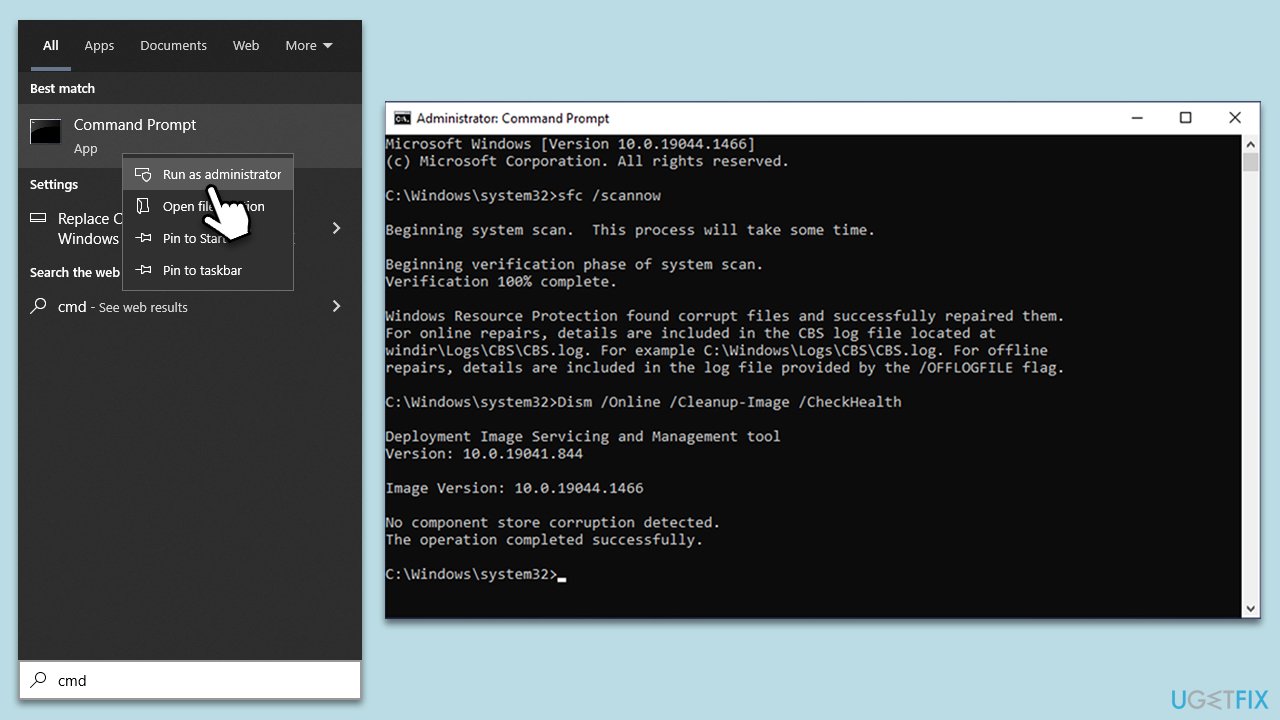
These are built-in Windows tools that scan and repair potential system file issues.
- To run an elevated Command Prompt, type in cmd in Windows search.
- Right-click the Command Prompt result and pick Run as administrator.
- User Account Control will ask whether you want to allow changes - click Yes.
- Type this command and press Enter:
sfc /scannow - Wait for the scan to finish.
- Then, use the following commands, pressing Enter after each:
Dism /Online /Cleanup-Image /CheckHealth
Dism /Online /Cleanup-Image /ScanHealth
Dism /Online /Cleanup-Image /RestoreHealth - Reboot your system.
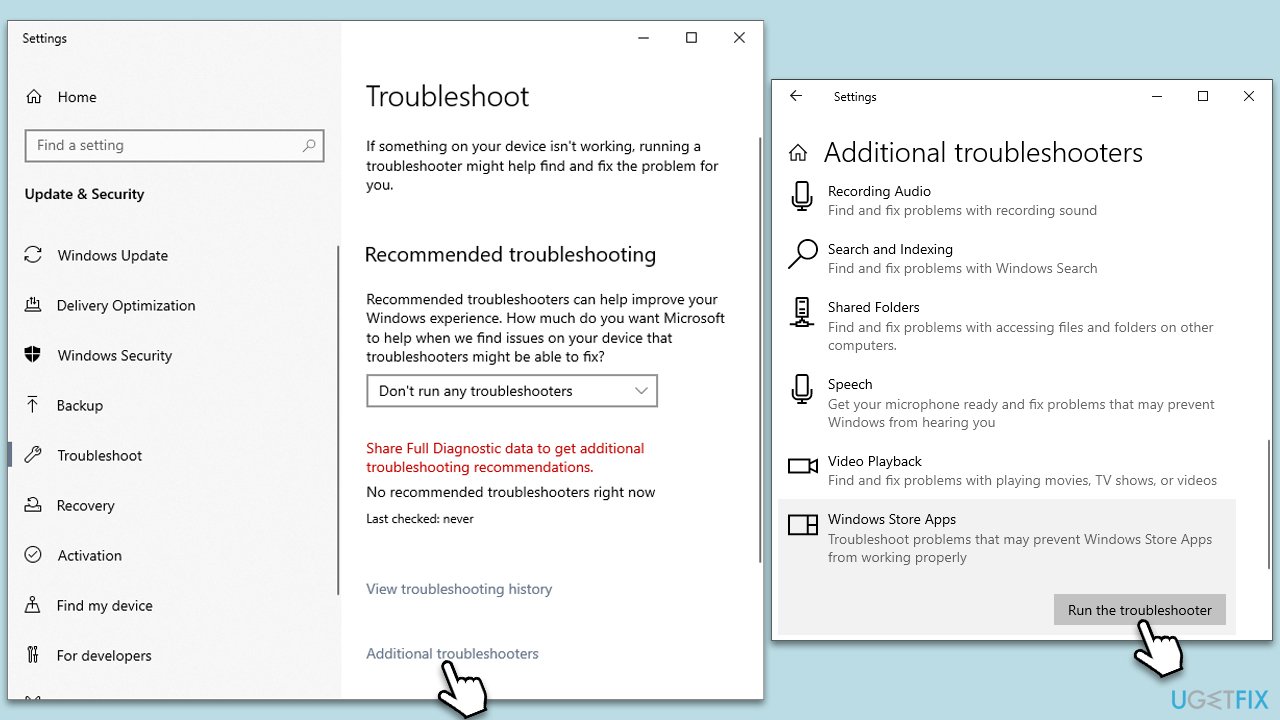
Fix 4. Run Windows Store Apps troubleshooter
This troubleshooter can identify and automatically fix some problems with apps from the Microsoft Store.
- Type Troubleshoot in Windows search and hit Enter.
- Click Additional troubleshooters/Other troubleshooters.
- Scroll down to find Windows store apps and select it.
- Click Run the troubleshooter/Run.
- Wait till the process is finished and apply the fixes, then try updating again.
Fix 5. Reset the Snipping Tool
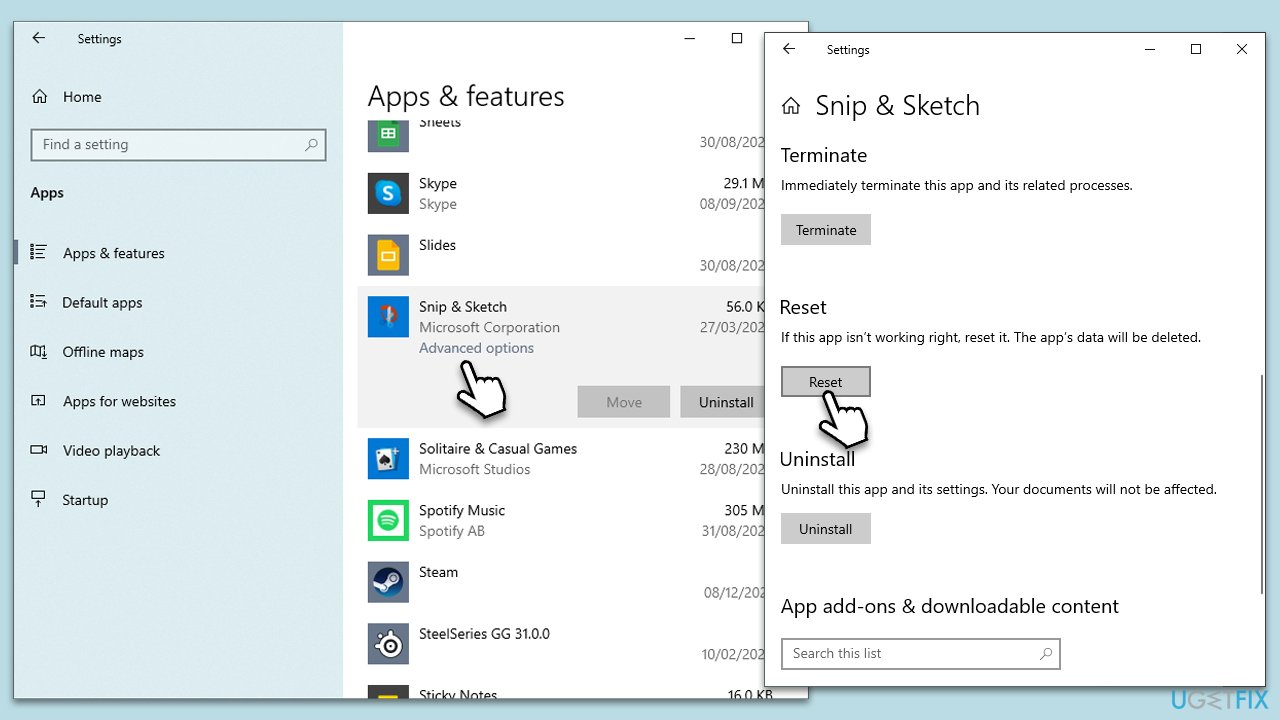
This process can revert the Snipping Tool to its default settings, potentially resolving issues.
- Open the Start menu and select All apps.
- Locate the Snipping Tool, right-click it, and select More/Advanced options from the context menu.
- Choose App settings; this will open a new settings window.
- Navigate through the list until you find the Snipping Tool and select it.
- Click Reset.
- Once the Snipping Tool has been reset, reboot your computer.
Fix 6. Disable Focus Assist
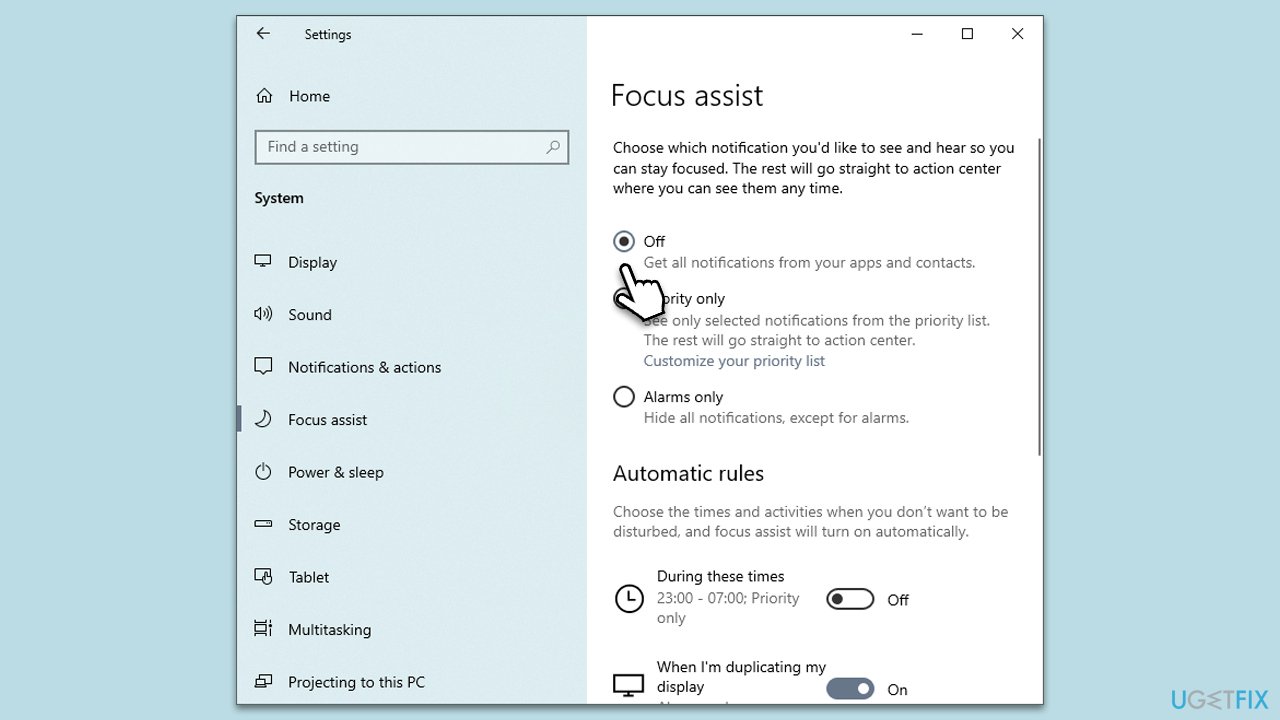
Focus Assist can sometimes interfere with apps when they try to send notifications.
- Go to Settings.
- Click on System.
- Choose Focus Assist.
- Turn off any automatic rules or set it to Off entirely.
Fix 7. Re-register Microsoft Store apps
This process can fix potential conflicts or issues within the Microsoft Store's apps.
- Type PowerShell in Windows search.
- Right-click on PowerShell and select Run as administrator.
- In the new window, copy and paste the following, and then press Enter:
Get-AppXPackage -AllUsers | Foreach {Add-AppxPackage -DisableDevelopmentMode -Register "$($_.InstallLocation)\AppXManifest.xml"} - Wait for the process to complete, then restart your computer.

Bottom line
To fix the Snipping Tool video recording issue, ensure you have the latest updates installed, repair any corrupted files, or reset the app to resolve potential bugs. If these solutions do not work, consider seeking additional troubleshooting steps or alternative screen recording software.
Frequently asked questions
Try restarting the Snipping Tool app and ensuring that your Windows 10 is updated to the latest version, as updates often fix bugs.
Check for any pending Windows updates and install them, then try resetting the Snipping Tool through Settings > Apps > Apps & features.
Make sure your audio input device is correctly set up in Windows 10 or Windows 11 and that the Snipping Tool has permission to access your microphone.




Report an issue
What's wrong with this guide? We review every report and update or remove content.
Report received — thank you. We'll review and fix it.
You need a free account to submit a report.
Be the first to comment