How to fix
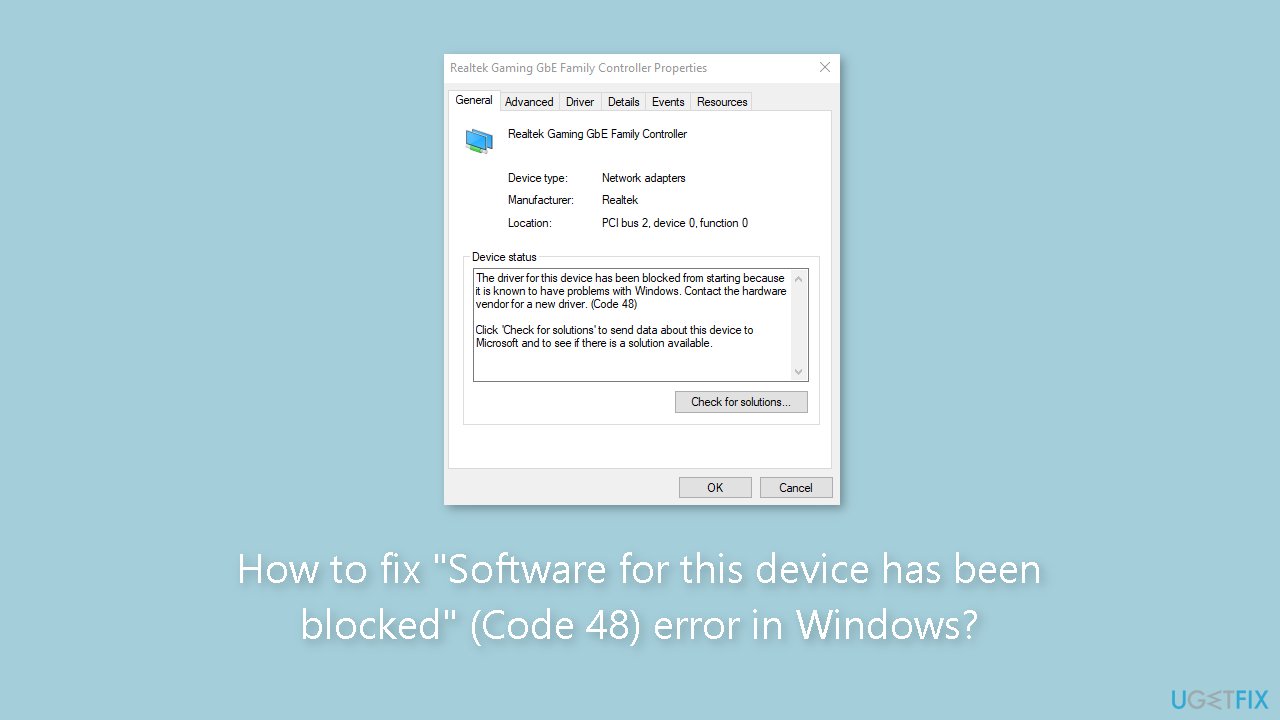
“Software for this device has been blocked” (Code 48) error
on Windows
Resolve the "Software for this device has been blocked" error in Windows 10 and 11 effortlessly. Get expert-tested solutions and fix it in minutes!


What causes How to fix “Software for this device has been blocked” (Code 48) error in Windows?
- Device driver issues
- Incompatibility between the driver and the operating system
- Outdated drivers
- Corrupted driver files
Repairs Windows system files, removes malware, and restores a clean OS state — without reinstalling.
Hello. I keep getting the "Software for this device has been blocked" message with (Code 48) error in Windows. Is there a way to fix this?
When encountering the "Software for this device has been blocked" (Code 48) error in Windows, users may be perplexed. This error message typically indicates a problem with a device driver,[ref en-1] a critical software component that allows communication between the operating system and hardware devices.
Device drivers are critical in ensuring the proper operation of hardware devices within a computer system. They serve as intermediaries between the operating system and the connected hardware, facilitating the exchange of commands and data. These drivers provide the instructions required for the hardware to function properly and to establish compatibility between the device and the operating system.
Hardware devices would struggle to function effectively, if at all, without drivers. Drivers unlock the full potential of hardware features and functionalities, allowing users to get the most out of their devices. They also ensure that the operating system recognizes and interacts with the hardware seamlessly, resulting in a more fluid and efficient user experience.
When confronted with the Code 48 error, users may experience a number of issues that may limit their ability to use the affected device. For starters, the device may not function properly or be recognized by the operating system at all. This can result in limited or restricted access to the device's features and functionalities, effectively rendering it unusable. In more severe cases, the error can cause system instability, performance issues, or even system crashes, disrupting the computer's overall functionality.
The Code 48 error is especially aggravating because it prevents users from installing or updating device drivers. This impediment prevents users from resolving compatibility issues or taking advantage of new driver updates that may improve performance, fix bugs, or introduce new features. Users may be forced to use outdated drivers, resulting in suboptimal device performance and potential security vulnerabilities.
In this guide, you will find 5 steps that should help you fix "Software for this device has been blocked" (Code 48) error. You can also try a maintenance tool like [d1] that can fix most system errors, BSODs,[ref en-2] corrupted files, and registry[ref en-3] issues. Otherwise, follow the step-by-step instructions below.
Solution 1. Fix Corrupted System Files
Use Command Prompt commands to repair system file corruption:
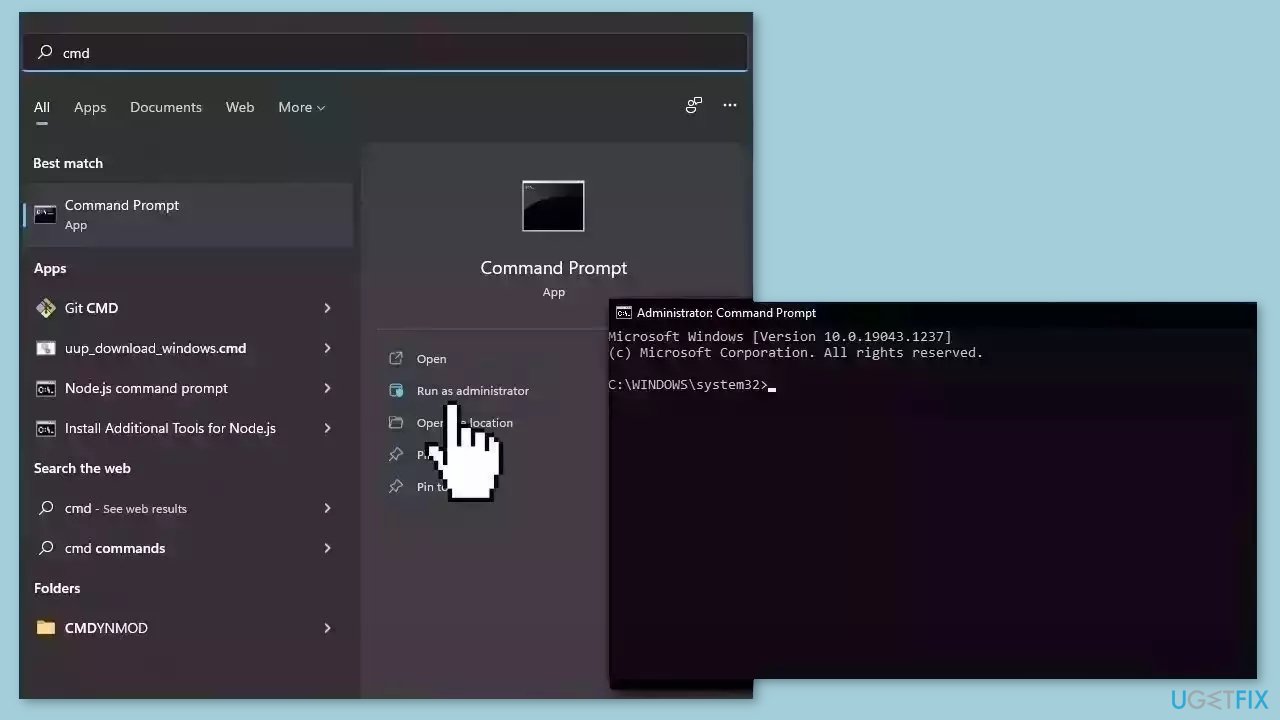
- Open Command Prompt as administrator
- Use the following command and press Enter:
sfc /scannow
- Reboot your system
- If SFC returned an error, then use the following command lines, pressing Enter after each:
DISM /Online /Cleanup-Image /CheckHealth
DISM /Online /Cleanup-Image /ScanHealth
DISM /Online /Cleanup-Image /RestoreHealth
Solution 2. Update or Reinstall the Driver
- Right-click the Start button and select Device Manager.
- Expand the problematic adapters category.
- Right-click on the device driver.
- Select Update driver.
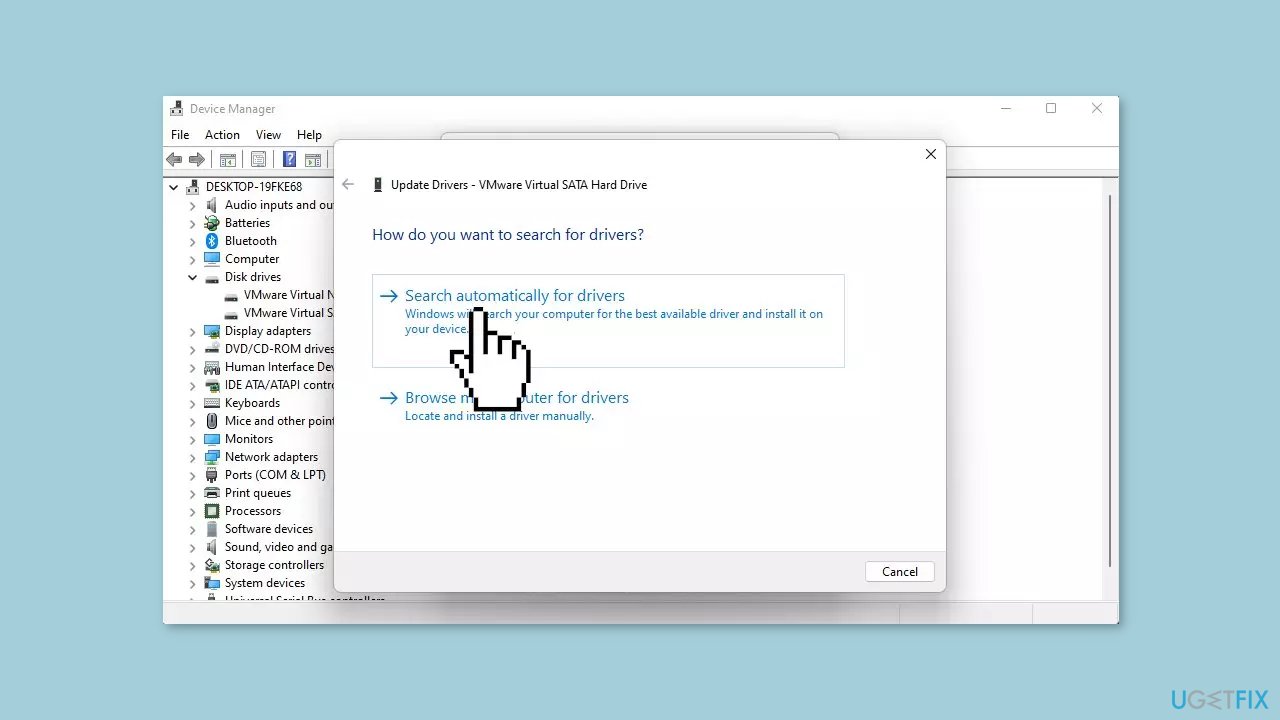
- Click on Search automatically for drivers.
- If the system finds any new versions, it will install the newest, if not, right-click the Start button.
- Select Device Manager.
- Expand the adapters category.
- Right-click on the driver.
- Select Uninstall device and restart the PC.
- Windows will find the appropriate driver and install it automatically.
You can also use a dedicated utility, like [rev id="DriverFix"] that can find the best drivers for your machine and install them automatically.
Solution 3. Disable Hyper-V
- Press the Windows key to open the Start menu.
- Open Control Panel.
- Select Programs and Features.
- Click Turn Windows features on or off.
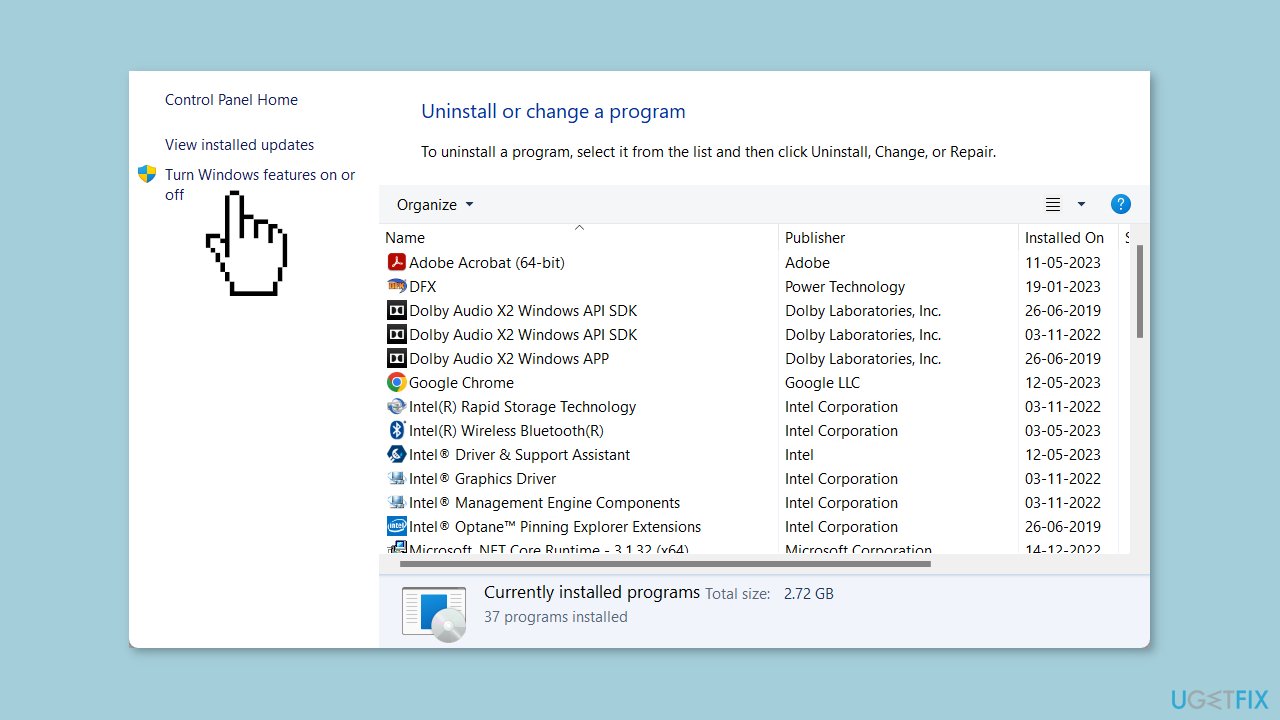
- Uncheck the Hyper V box.
- Click OK to disable Hyper-V on your system.
- Restart your PC.
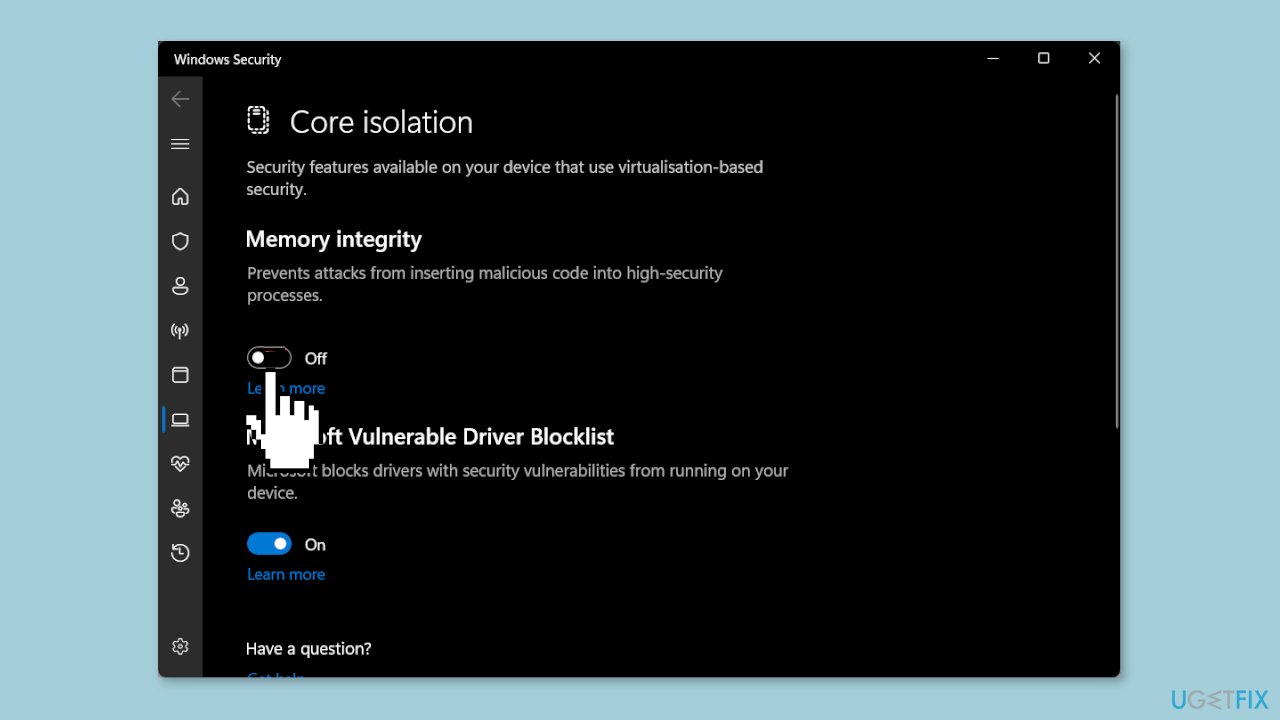
Solution 4. Turn off Memory Integrity in Core Isolation
- Open the Start menu by pressing the Windows key.
- Type Core Isolation and open the top result.
- Toggle off the Memory integrity option.
- Restart your PC.
Solution 5. Run the Windows Memory Diagnostic Tool
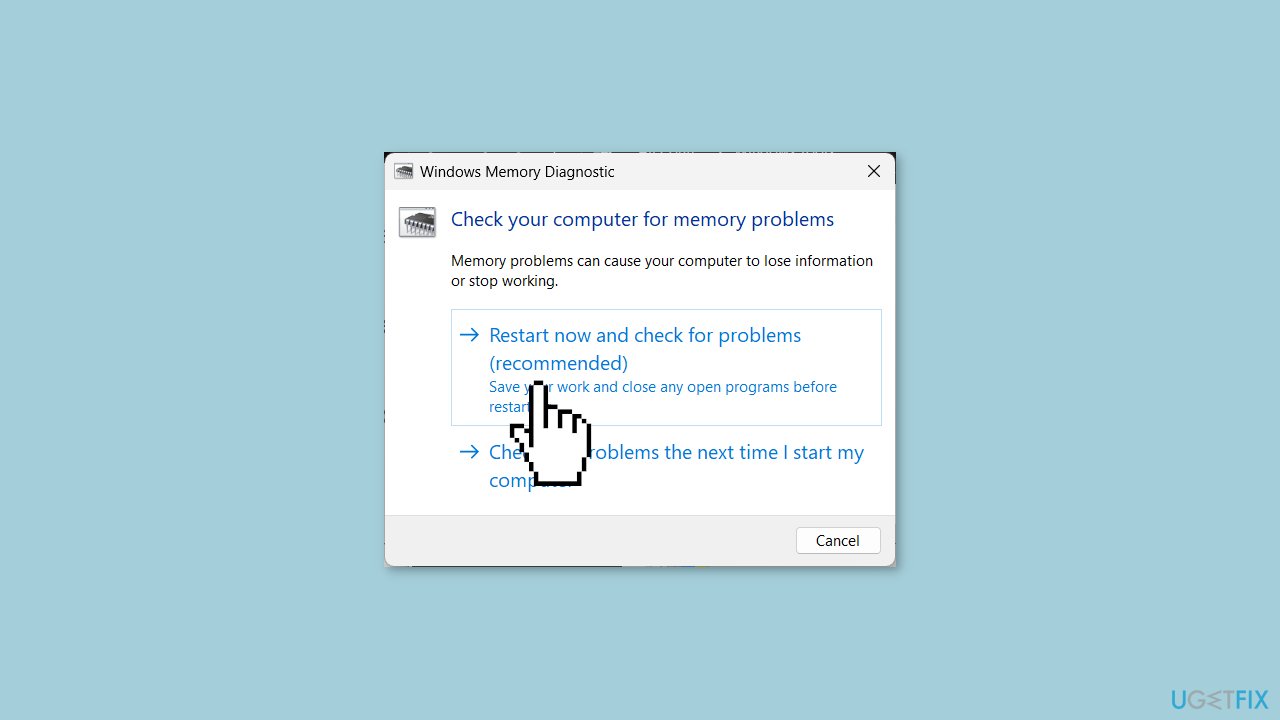
- Press the Windows key + R to open the Run dialogue.
- Type control admintools and press Enter. You will be shown two options.
- Choose either:
Restart now and check for problems (recommended)
Check for problems the next time I start my computer
- Select the option based on your convenience, but we suggest choosing the first one.
Bottom line
To fix the 'Software for this device has been blocked' (Code 48) error, users can try reinstalling the device drivers, updating them, or checking for compatibility issues. If none of these steps work, consider seeking further technical support or exploring additional troubleshooting methods.
Frequently asked questions
This error usually occurs when Windows 10 detects that the driver or software for a device is not digitally signed or has issues that prevent it from being loaded properly.
To fix the Code 48 error in Windows 11, you can try uninstalling the device from Device Manager and then reinstalling it, or updating the driver to ensure it is compatible and properly signed.
Yes, you can disable driver signature enforcement in Windows 10 by accessing the Advanced Startup Options and selecting 'Disable driver signature enforcement' before attempting to install the software again.




Report an issue
What's wrong with this guide? We review every report and update or remove content.
Report received — thank you. We'll review and fix it.
You need a free account to submit a report.
Be the first to comment