How to fix
“Some Studio Files are missing or corrupted” error in Roblox
on Windows
Resolve the "Some Studio Files are missing or corrupted" error in Roblox on Windows 10 or 11 quickly and effectively. Expert-tested solutions await!

What causes How to fix “Some Studio Files are missing or corrupted” error in Roblox?
- Problem with the computer's local cache
- Corrupted installation of Roblox Studio
- Virus or malware infection
- Missing necessary files
Repairs Windows system files, removes malware, and restores a clean OS state — without reinstalling.
Hello. I tried to launch the Roblox Studio but I received the "Some Studio Files are missing or corrupted" error. What do I do?
Roblox is a massively popular online gaming platform where users can create and play games created by other users. It is primarily targeted towards children and teenagers, but has a wide range of users of all ages. The platform allows for easy creation and sharing of games through its proprietary programming language, Lua, and its visual scripting tool, Roblox Studio.
The Roblox Studio app is the software used by developers to create games on the Roblox platform. It includes a wide range of tools and features for designing and building 3D worlds, scripting game mechanics, and testing and publishing games. The app is available for free on Windows and Mac and can be downloaded from the official Roblox website.
Many people use Roblox Studio to create their own games and share them with the community. It's a great way to learn game development and also allows people to create their own worlds and experiences. There are also a lot of tutorials, forums and communities that help new developers to learn the basics and more advanced features.
The "Some Studio Files are missing or corrupted" error in Roblox occurs when the Roblox Studio, the software used to create and edit games on the Roblox platform, is unable to access certain files that it needs to run properly. This can happen due to a variety of reasons, such as a problem with the computer's local cache, a corrupted installation of the Roblox Studio, or a virus or malware infection.
In this guide, you will find 3 steps that should help you fix "Some Studio Files are missing or corrupted" error in Roblox. You can also use a maintenence tool like [d1] that can fix most system errors, BSODs,[ref en-1] corrupted files, registry[ref en-2] issues or clear cookies and cache.[ref en-3] Otherwise, follow the step-by-step instructions below.
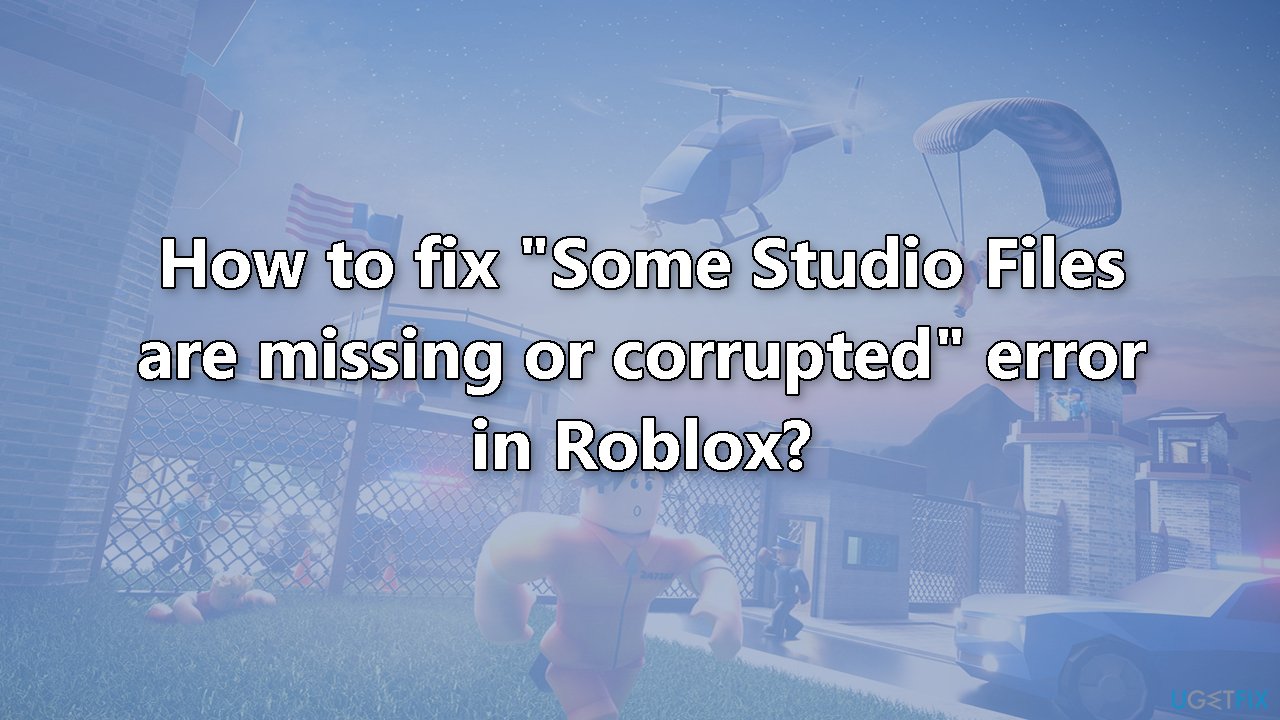
Method 1. Run Roblox Studio as an Administrator
- Right-click on the Roblox Studio icon
- Click Run as Administrator
- Check if the issue is solved
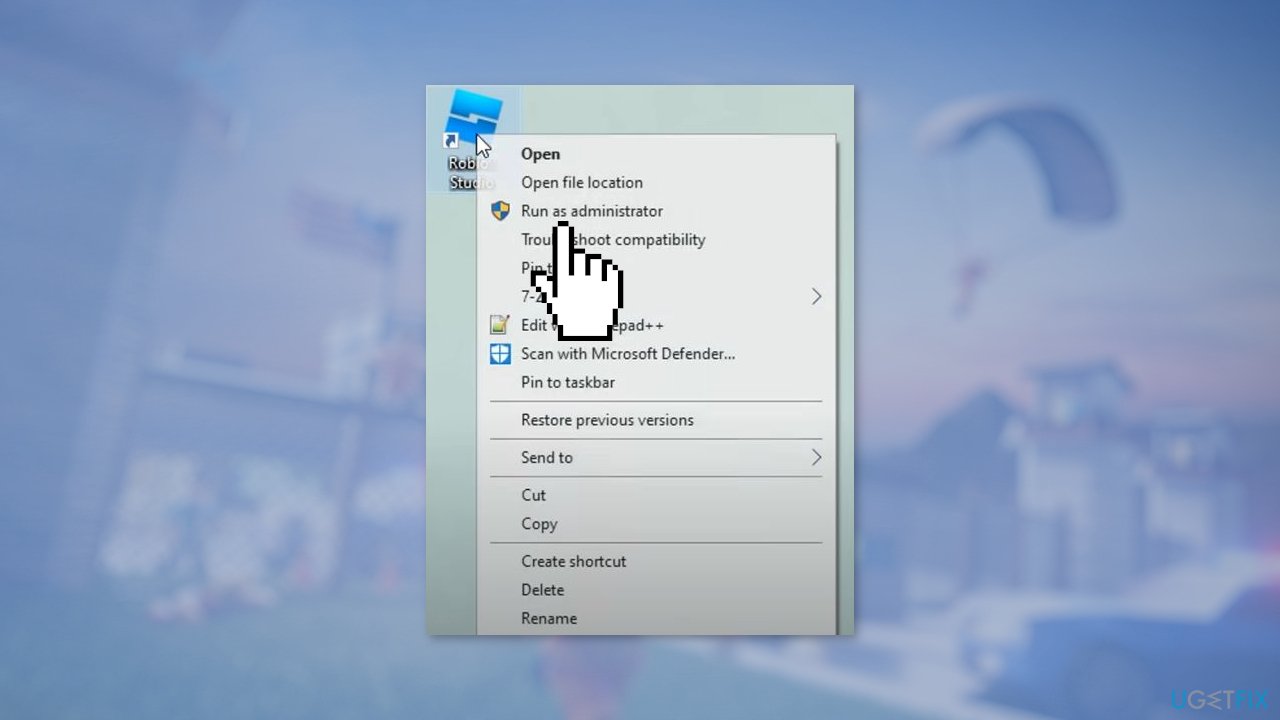
Method 2. Check Run this program as an administrator box in Properties
- Right-click on the Roblox Studio icon
- Click on Properties at the bottom
- Go to the Compatibility tab
- Check the Run this program as an administrator box
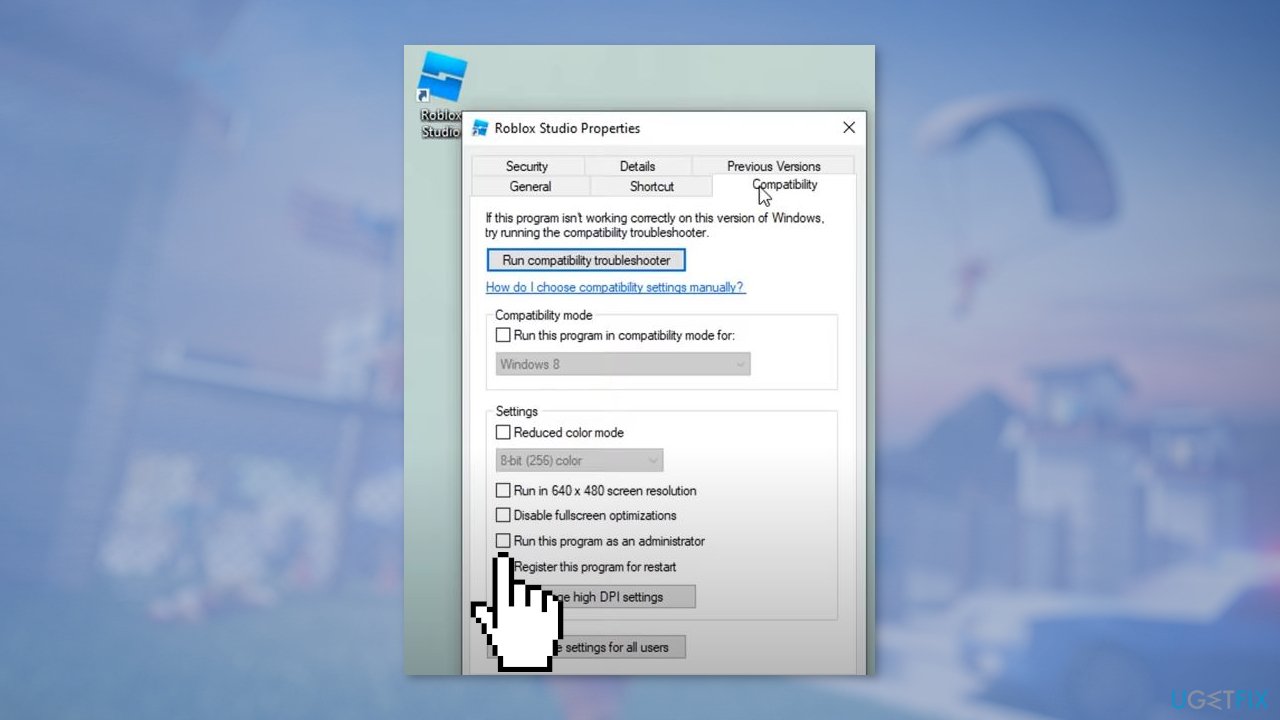
- Click on Apply and then OK
- Try to launch Roblox Studio
Method 3. Reinstall Roblox Studio
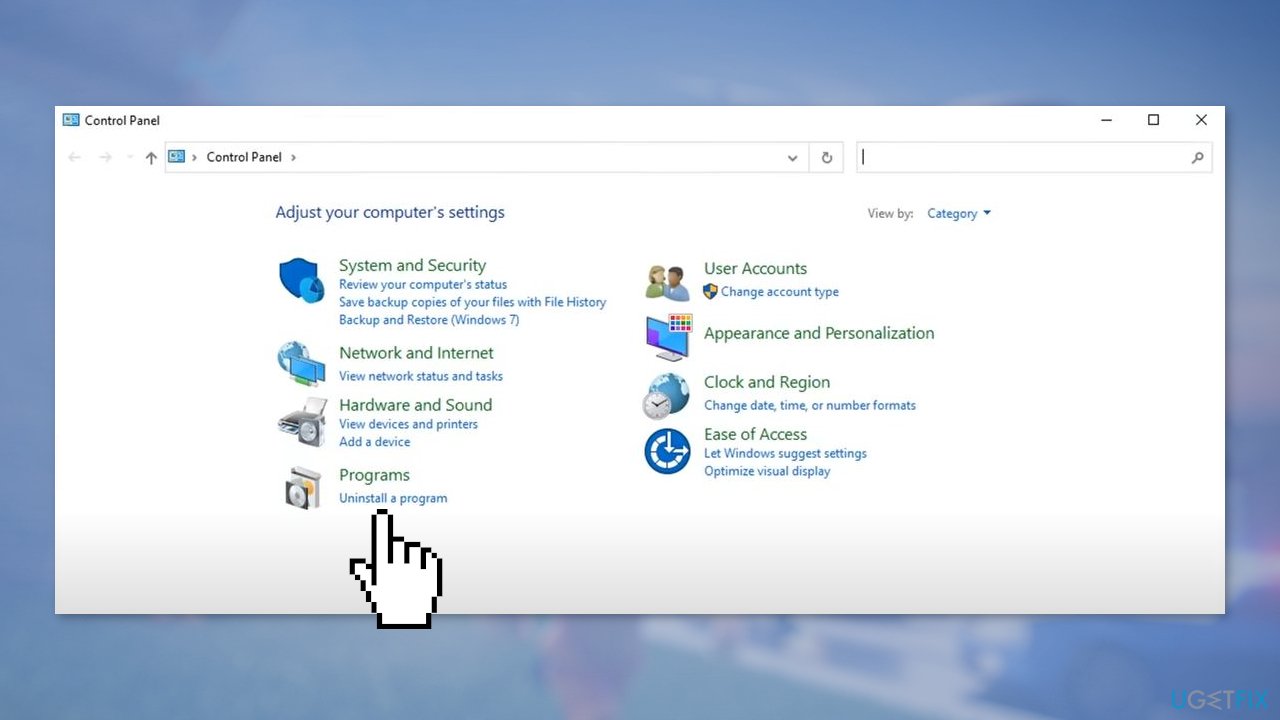
- Click on the Windows Search Menu
- Search for Control Panel and click on it
- Make sure View by in the upper right corner is set to Category
- Click on Uninstall a program
- Scroll down until you find Roblox
- Select Roblox Studio and click Uninstall at the top
- Wait for the process to finish
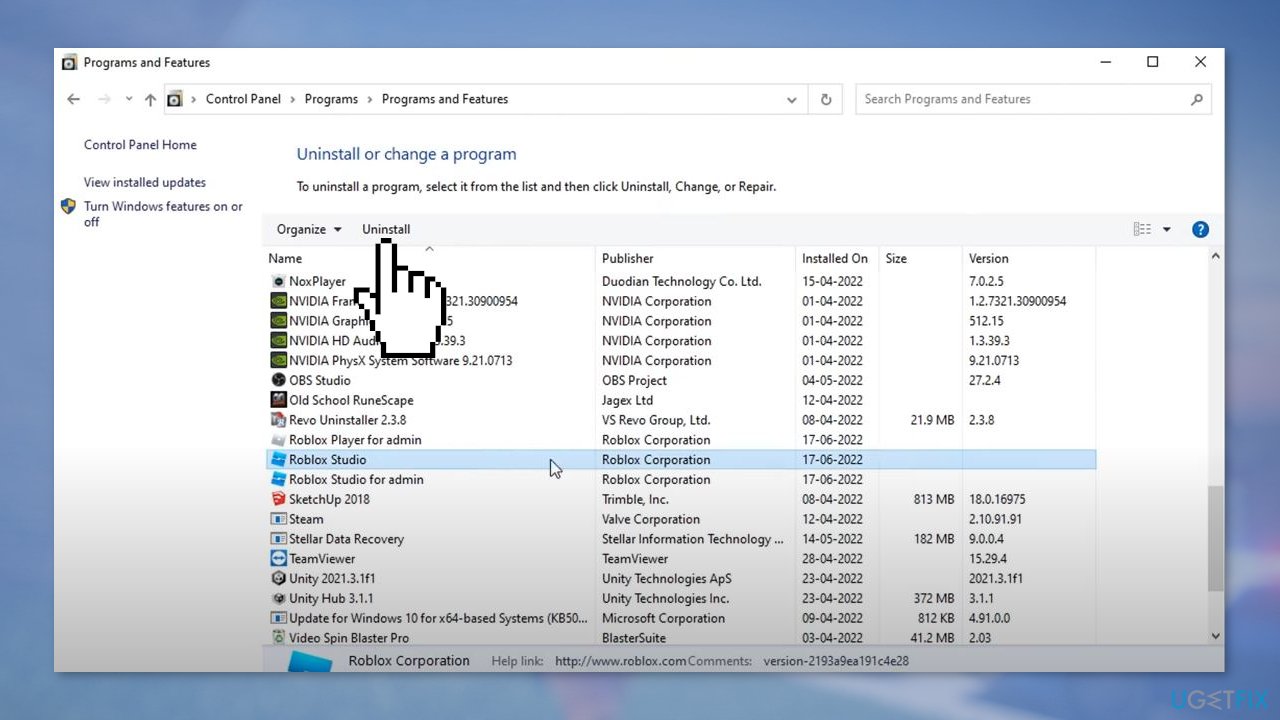
- Find the Roblox Player for admin, and Roblox Studio for admin apps and Uninstall them as well
- Close the Programs and features window and restart your device
- When the system reboots, open your browser, and go to the official Roblox website
- Log into your Roblox account by entering your Username and Password
- Choose any game and click on the Play button
- Press Download and Install Roblox
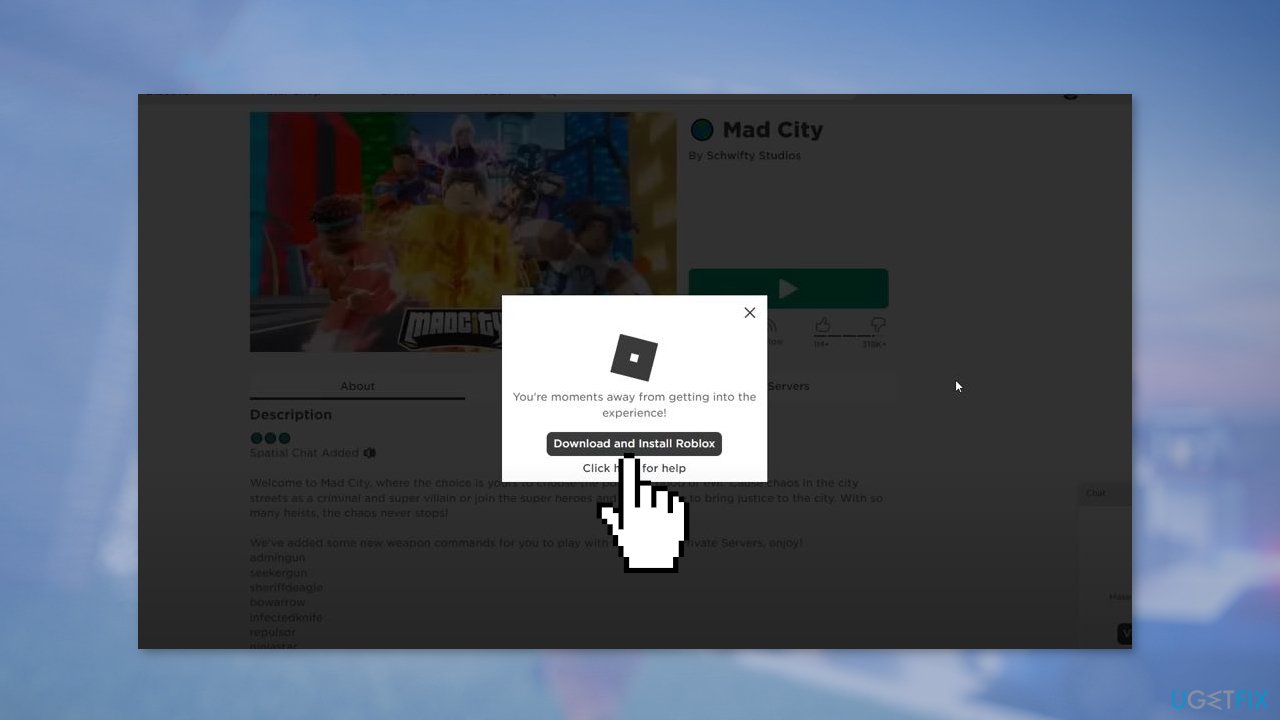
- Click on the downloaded RobloxPlayerLauncher.exe file
- Wait for the installation process to finish and click OK
- Now right-click on Roblox Studio and choose Run as administrator
Note: If the issue persists, you may need to contact the Roblox Support Team for further assistance.
Bottom line
To fix the "Some Studio Files are missing or corrupted" error in Roblox, you can try running Roblox Studio as an administrator, using a maintenance tool to fix system errors, or reinstalling the application. If none of these solutions work, consider seeking further assistance from Roblox support or community forums.
Frequently asked questions
First, try repairing the Roblox installation through the Windows Settings app by navigating to Apps, selecting Roblox, and choosing the Repair option. If that doesn't work, reinstall Roblox completely to ensure all files are restored.
Yes, you can verify the integrity of the game files by using the Roblox Studio settings, or you can manually delete the Roblox application data from your system and reinstall it to ensure all necessary files are present.
To minimize future occurrences, ensure your Windows 10 or Windows 11 system is up to date and regularly check for updates within the Roblox Studio application itself.




Report an issue
What's wrong with this guide? We review every report and update or remove content.
Report received — thank you. We'll review and fix it.
You need a free account to submit a report.
Be the first to comment