How to fix
“Some update files aren’t signed correctly” error
on Windows
Resolve the "Some update files aren't signed correctly" error in Windows 10/11 quickly and efficiently, with expert-tested solutions and screenshots.

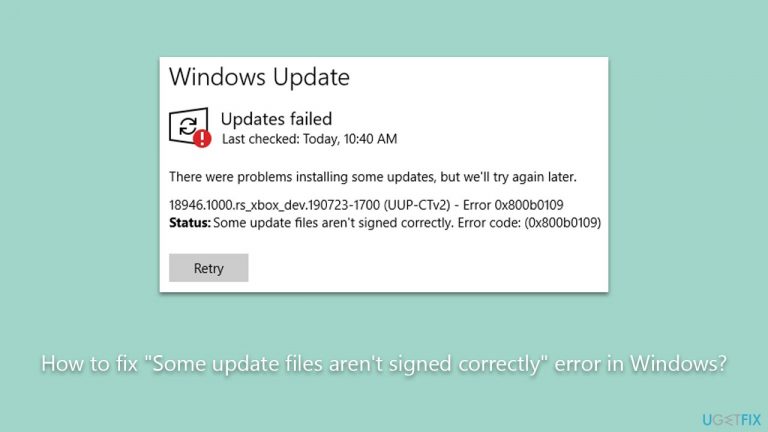
What causes How to fix “Some update files aren’t signed correctly” error in Windows?
- Improperly signed update files
- Tampered update files
- Issues with Windows Update components
- Conflicts during the update process
- Lack of administrator rights
Repairs Windows system files, removes malware, and restores a clean OS state — without reinstalling.
I'm trying to install Update on Windows 11, but it always fails with an error "Some update files aren't signed correctly. Error code: (0x800b0109)." What can I do to fix this?
Microsoft's Windows operating system is the backbone of countless computers worldwide. Periodically, Microsoft releases updates for Windows, typically on the second Tuesday of each month, a day widely known as "Patch Tuesday." These updates are crucial for the system's smooth operation, as they enhance its functionality, improve security, and correct bugs and issues discovered since the last update.
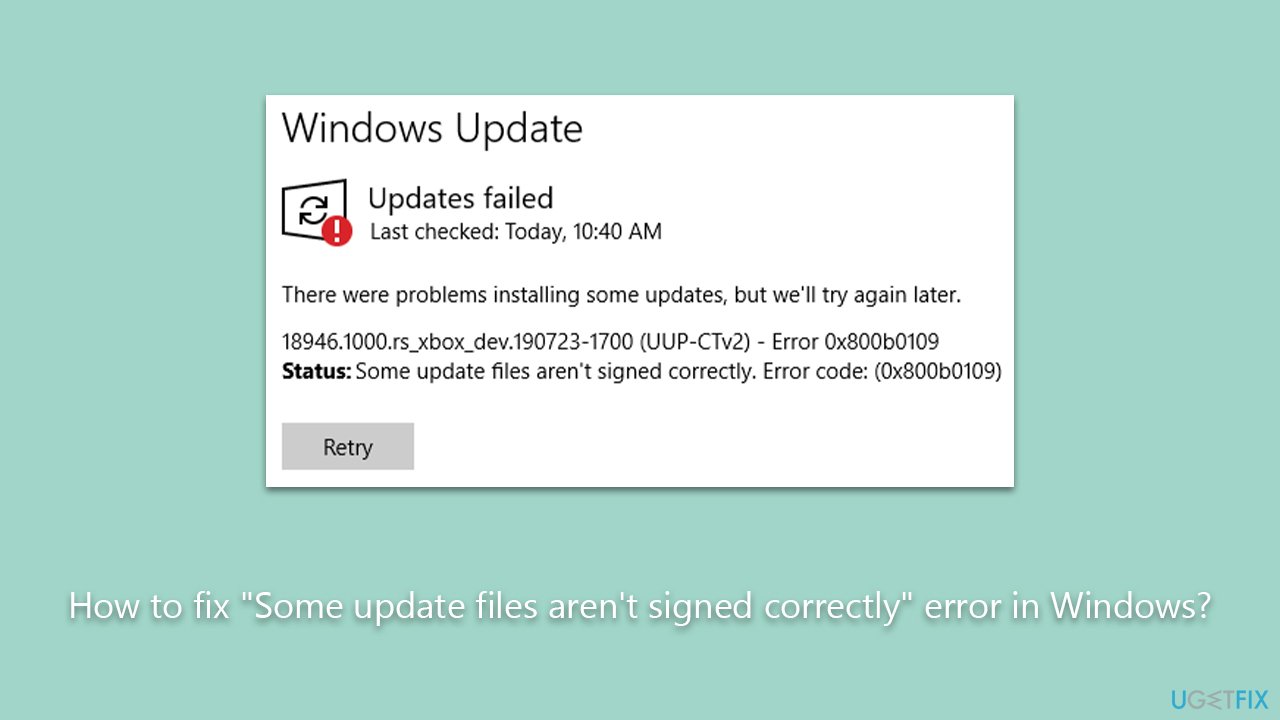
However, sometimes Windows updates might fail due to various reasons. One such case is encountering the error message "Some update files aren't signed correctly." This issue is often accompanied by error codes such as 0x800b0109 and 0x800b0100, signaling specific issues with the update process.
Errors regarding improperly signed files typically occur because Windows updates consist of digitally signed files to verify their authenticity and ensure that they haven't been tampered with. The digital signature is akin to a security seal, confirming that the file is safe and originated from the stated source, in this case, Microsoft. If the operating system can't verify this digital signature, it sees the update file as a potential threat, leading to the aforementioned error.
Fixing the "Some update files aren't signed correctly" error involves a few potential routes. One option is to reset the Windows Update components manually. This process includes stopping the Windows Update Services, clearing the Update cache, and then restarting the Update service. Another solution could be to download the updates manually from Microsoft's Update Catalog, which bypasses the normal update process and can avoid potential conflicts.
It is also possible to use Windows' built-in troubleshooter, a tool specifically designed to resolve common system issues. For this error, users would run the Windows Update troubleshooter, which automatically checks for problems preventing updates from installing correctly and attempts to fix them.
In all these procedures, users must have administrator rights, as modifying system files and services requires such privileges. As always, users should also ensure they have a backup of their data before attempting these solutions, as system manipulation carries a risk of data loss.
Lastly, the efficient utilization of reputable PC repair software, like [d1], can be instrumental in detecting and resolving common Windows errors, further simplifying the process of maintaining a healthy operating system.
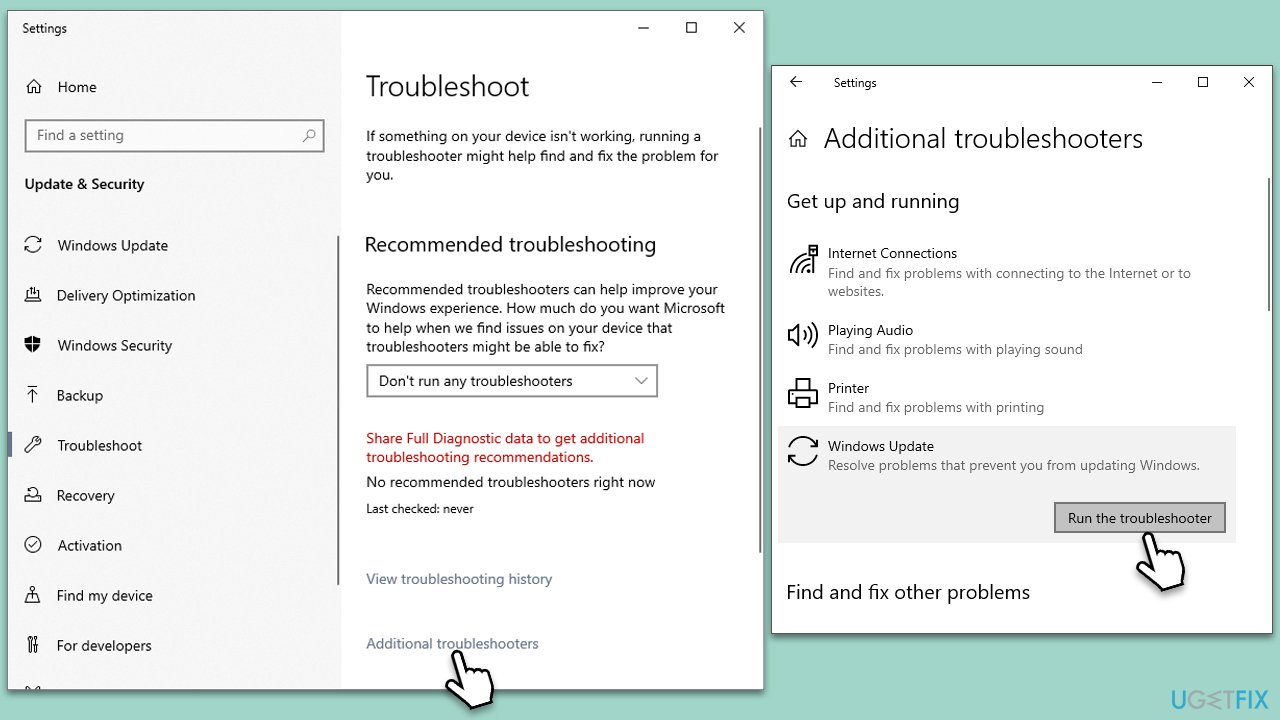
Fix 1. Run Windows update troubleshooter
The Windows update troubleshooter is a built-in tool designed to diagnose and resolve common issues with Windows updates. It scans for problems in the update process and automatically applies appropriate fixes.
- Type Troubleshoot in Windows search and press Enter.
- Select Additional troubleshooters/Other troubleshooters.
- Find Windows Update from the list.
- Click it and select Run the troubleshooter/Run.
- Restart your computer when the update process is finished.
Fix 2. Disable third-party security software
Sometimes, third-party antivirus or security software can interfere with Windows updates, leading to errors related to improperly signed files. Temporarily disabling such software can allow updates to proceed unhindered.
- Right-click on the antivirus/security software icon in the system tray.
- Choose Disable or Turn Off temporarily.
- Confirm any prompts that may appear.
- Proceed with downloading and installing the Windows updates.
- Re-enable the antivirus/security software once the updates are successfully installed.
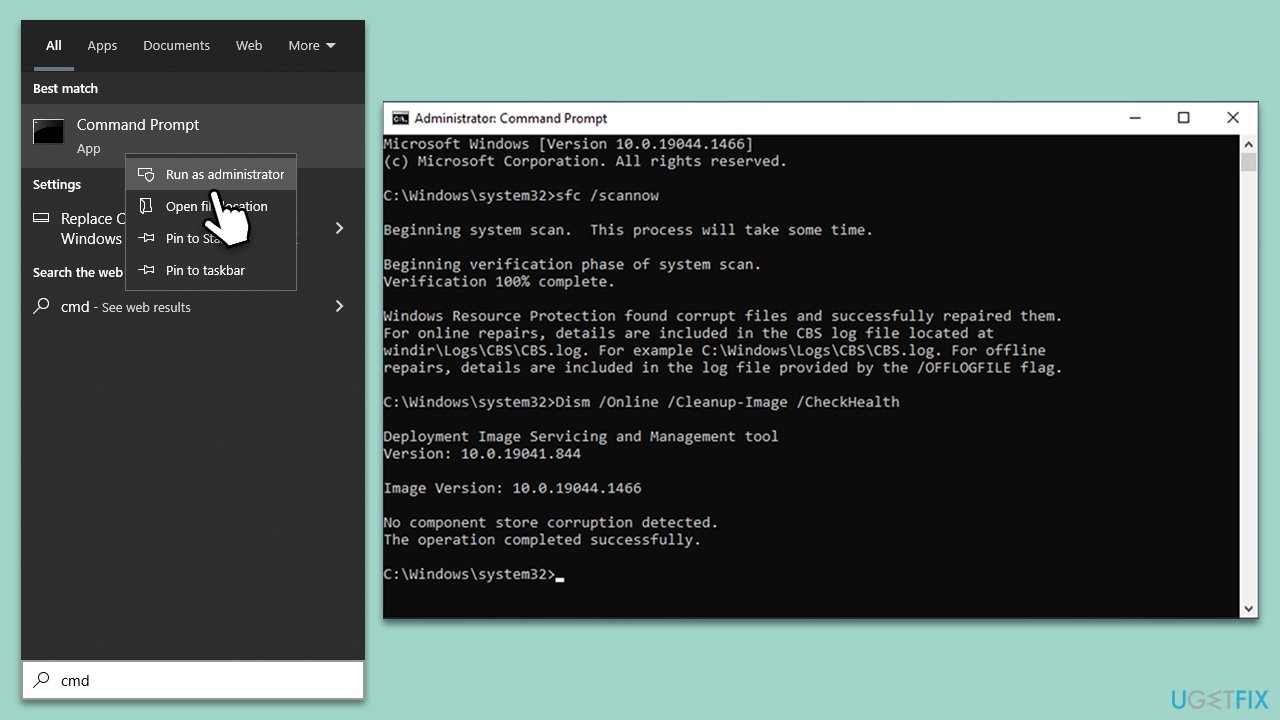
Fix 3. Run SFC and DISM
SFC and DISM are command-line utilities that help fix corrupted system files and resolve update-related issues.
- Type cmd in Windows search.
- Right-click on Command Prompt and pick Run as administrator.
- User Account Control window will show up - click Yes when prompted.
- Then, copy and paste the following command, pressing Enter after:
sfc /scannow - Wait till the scan is finished. If Windows finds system file integrity violations, it will attempt to fix them. After this, use the set of the following commands, pressing Enter each time:
DISM /Online /Cleanup-Image /CheckHealth
DISM /Online /Cleanup-Image /ScanHealth
DISM /Online /Cleanup-Image /RestoreHealth - (Note: if you get an error executing this last command, add /Source:C:\RepairSource\Windows /LimitAccess to it and try again).
- Close down the Command Prompt and restart your device.
Fix 4. Reset Windows update components
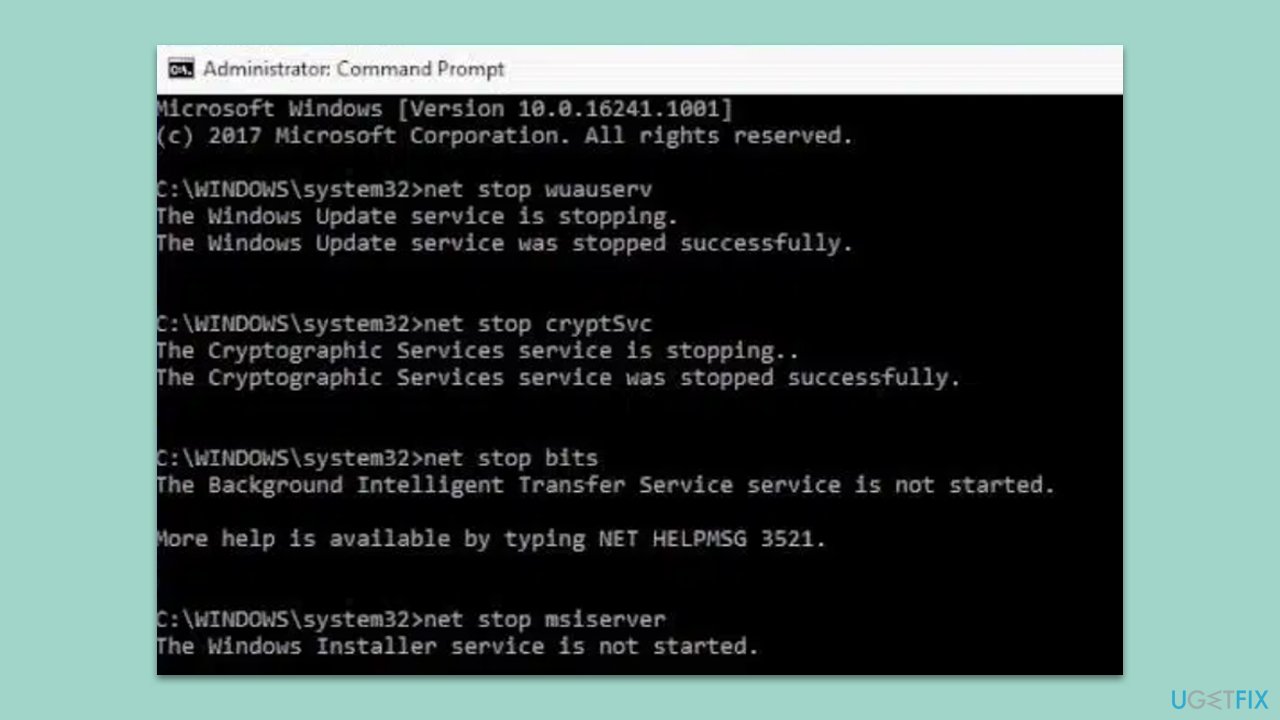
Resetting Windows update components involves stopping related services, renaming software distribution folders, and then restarting the services.
- Open Command Prompt as administrator.
- Copy and paste the following commands, pressing Enter each time:
net stop bits
net stop wuauserv
net stop appidsvc
net stop cryptsvc
Del “%ALLUSERSPROFILE%\Application Data\Microsoft\Network\Downloader\*.*”
rmdir %systemroot%\SoftwareDistribution /S /Q
rmdir %systemroot%\system32\catroot2 /S /Q
regsvr32.exe /s atl.dll
regsvr32.exe /s urlmon.dll
regsvr32.exe /s mshtml.dll
netsh winsock reset
netsh winsock reset proxy
net start bits
net start wuauserv
net start appidsvc
net start cryptsvc - Restart your device.
Fix 5. Install the update manually
If the automated update process fails, manually downloading and installing the update can bypass any issues with the automatic update system.
- Type in Updates in Windows search and press Enter.
- Select View update history.
- Find the update that failed with an error and copy that KB number.
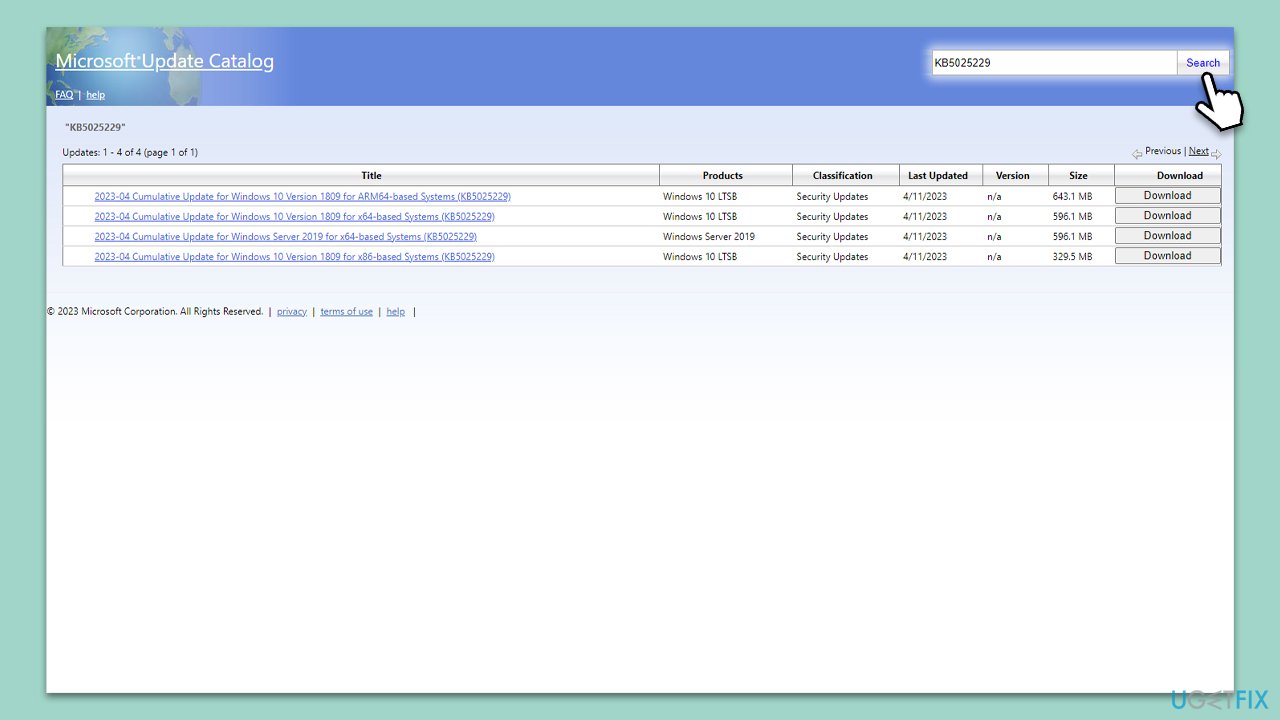
- Open your browser and go to Microsoft Update Catalog.
- Within the search bar, type in the KB number and clicks Search.
- Find the correct version of the update for your operating system (to check this, right-click on Start and pick System. Under Device specifications and check the System type) and click Download.
- Use on-screen guidelines to finish the installation process and restart your system.
Fix 6. Delete Windows update registry key
Deleting the Windows update registry key can resolve certain update-related errors by forcing Windows to re-create the update history. Make sure you back up your registry before proceeding.
- Type regedit in Windows search and press Enter.
- When UAC shows up, click Yes.
- After Registry Editor opens, navigate to the following location:
HKEY_LOCAL_MACHINE\SOFTWARE\Policies\Microsoft\Windows\WindowsUpdate - In the left pane, right-click on the WindowsUpdate key and select Delete. Close down Registry Editor.
- Type Services in Windows search and hit Enter.
- Scroll down to the Windows Update service, right-click, and select Restart.

Fix 7. Use Media Creation Tool
The Media Creation Tool allows you to create installation media or directly upgrade your system, which can often resolve update-related problems.
- Visit the official Microsoft website and download Windows 10 installation media (Windows 11 version).
- Double-click the installer, select Yes when UAC shows up, and agree to the terms.
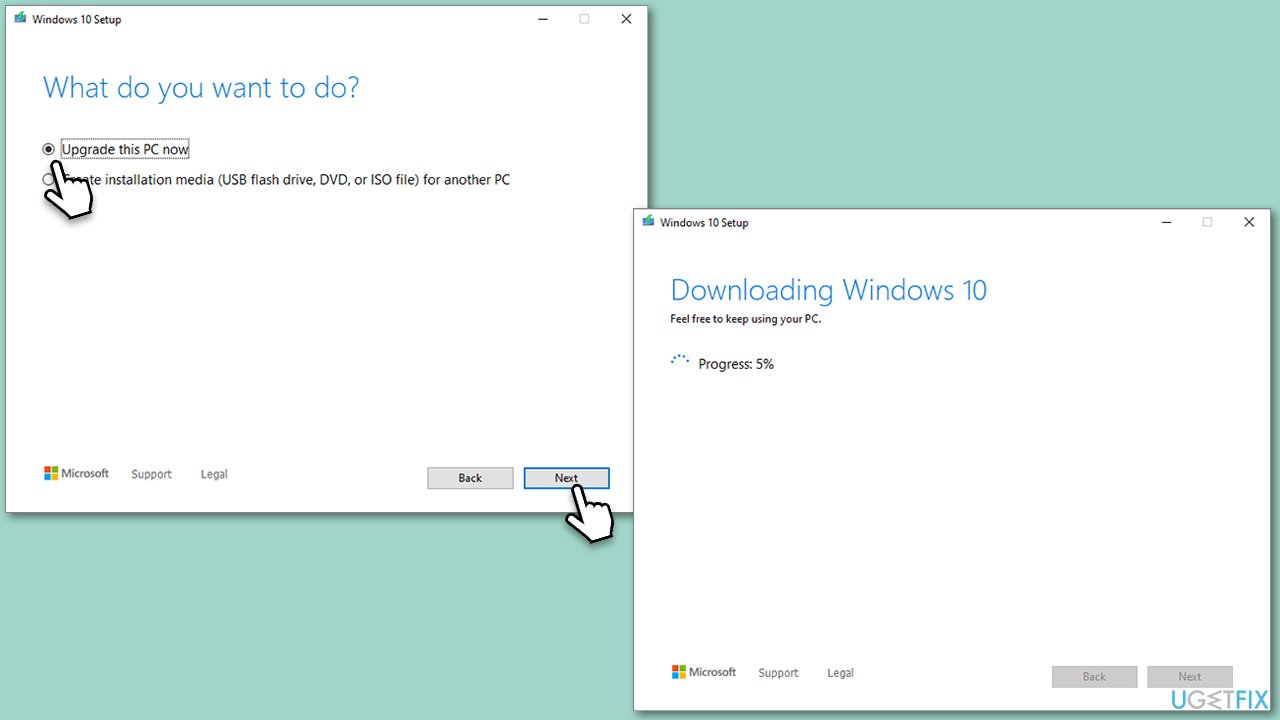
- Select Upgrade this PC now and click Next.
- Windows will start downloading the needed files.
- Agree to the terms once again and click Next.
- Before installing, make sure that you are happy with your choices (otherwise, you can click Change what to keep option).
- Finally, click Install to begin the upgrade process.
Bottom line
To fix the 'Some update files aren't signed correctly' error, users can reset the Windows Update components, download updates manually from the Microsoft Update Catalog, or run the Windows Update troubleshooter. If none of these solutions work, further investigation into system settings or contacting Microsoft support may be necessary.
Frequently asked questions
This error typically occurs due to corrupted update files or issues with the Windows Update service. It can also be triggered by system file corruption or improper permissions.
You can try running the Windows Update Troubleshooter, resetting the Windows Update components, or performing a system file check using the Command Prompt.
Reinstalling Windows 10 or Windows 11 can resolve this error, but it should be considered a last resort after attempting simpler troubleshooting methods.




Report an issue
What's wrong with this guide? We review every report and update or remove content.
Report received — thank you. We'll review and fix it.
You need a free account to submit a report.
Be the first to comment