How to fix
“Something didn’t go as planned” error
on Windows
Resolve the “Something didn’t go as planned” error in Windows 10 or 11 quickly and easily. Get expert-tested solutions that fix issues in minutes.

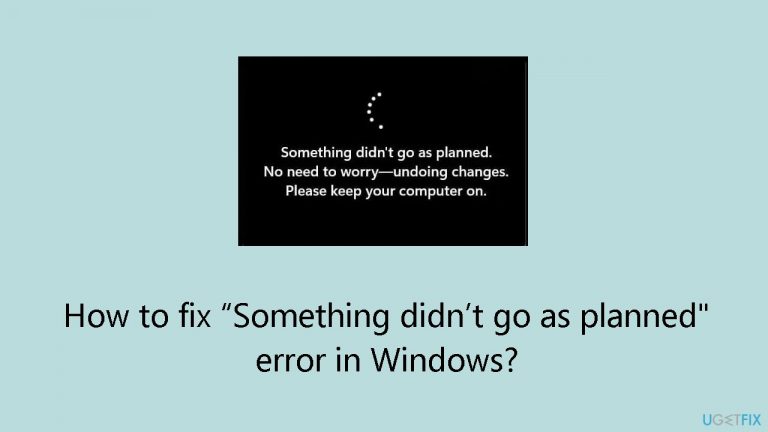
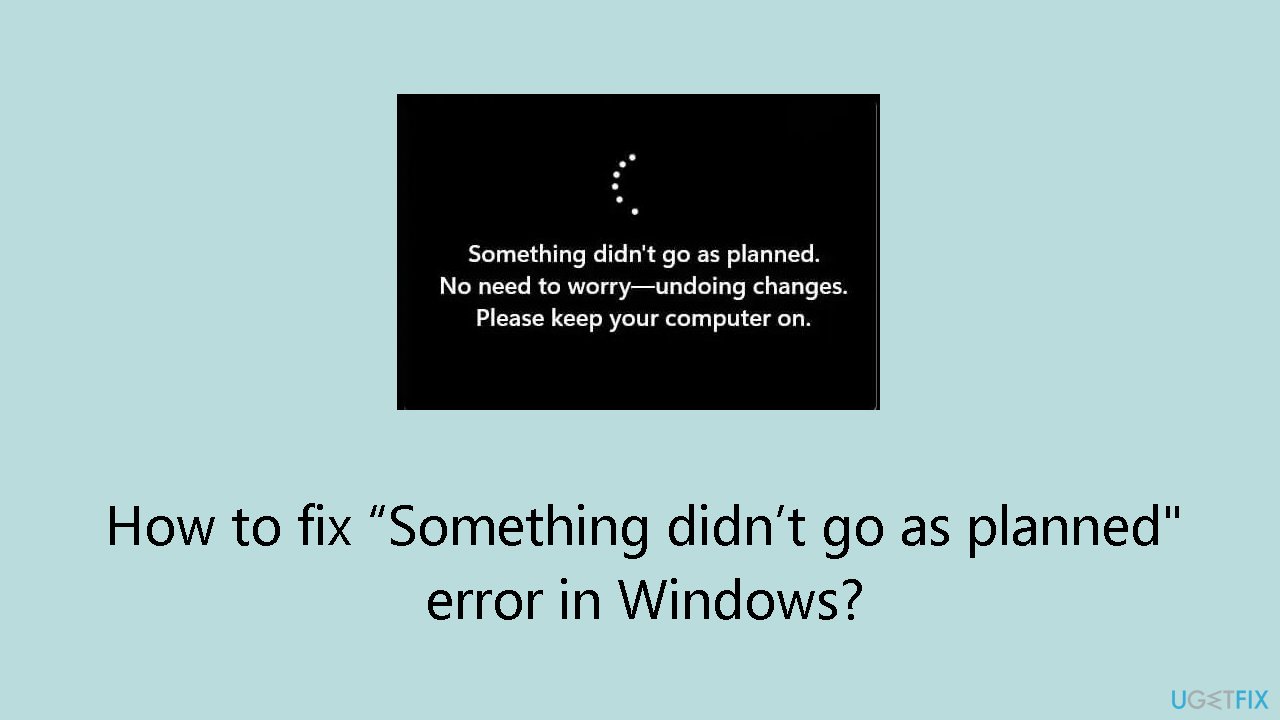
What causes How to fix “Something didn’t go as planned” error in Windows?
- Conflicting software
- Corrupted system files
- Malware infections
- Unexpected power interruptions
- Incomplete updates
Repairs Windows system files, removes malware, and restores a clean OS state — without reinstalling.
Hello. I tried to install Windows updates but I received an error - “Something didn’t go as planned". Is there a way to fix this?
Users may experience the Windows "Something didn't go as planned" error during the update process, which results in the display of the message "No need to worry - undoing changes." This error message usually displays when the update procedure tries to update the computer's operating system and runs across an unforeseen issue or barrier. Conflicting software and corrupted system files are frequently the primary reasons for this issue.
Malware infections, unexpected power interruptions during the update process, and incomplete updates are only a few of the causes of system file corruption. The update procedure may not complete, resulting in the "Something didn't go as planned" error when crucial system files are damaged. Conflicting software might also cause unanticipated problems during the update process. Examples of such software include third-party antivirus products and system optimization tools.
Because it may cause the system to become inconsistent and disturb the regular update flow, this problem could have a major negative effect on users. Missed security patches, bug fixes, and new features due to unsuccessful upgrades might expose the system to security risks and performance problems. When this problem prevents users from keeping the operating system updated, they may also feel irritated and inconvenienced.
Users frequently need to troubleshoot and rectify the underlying issues causing the update failure to handle the "Something didn't go as planned" message. This could be finding and fixing faulty system files, temporarily turning off incompatible software, or making sure the system satisfies the update's requirements. Resolving the root reasons is essential to guaranteeing a seamless update process and preserving the security and functionality of the Windows operating system, even if remedies may differ depending on the particular situation.
In this guide, you will find 5 steps that should help you fix “Something didn’t go as planned" error in Windows. You can also run a maintenance tool like [d1] that can fix most system errors, BSODs, corrupted files, and registry issues. Otherwise, follow the step-by-step instructions below.
Solution 1. Run Windows Update Troubleshooter
- Click the Windows button and select Settings
- Select System from the left pane, then scroll down on the right pane, and click on Troubleshoot
- Click on Other troubleshooters
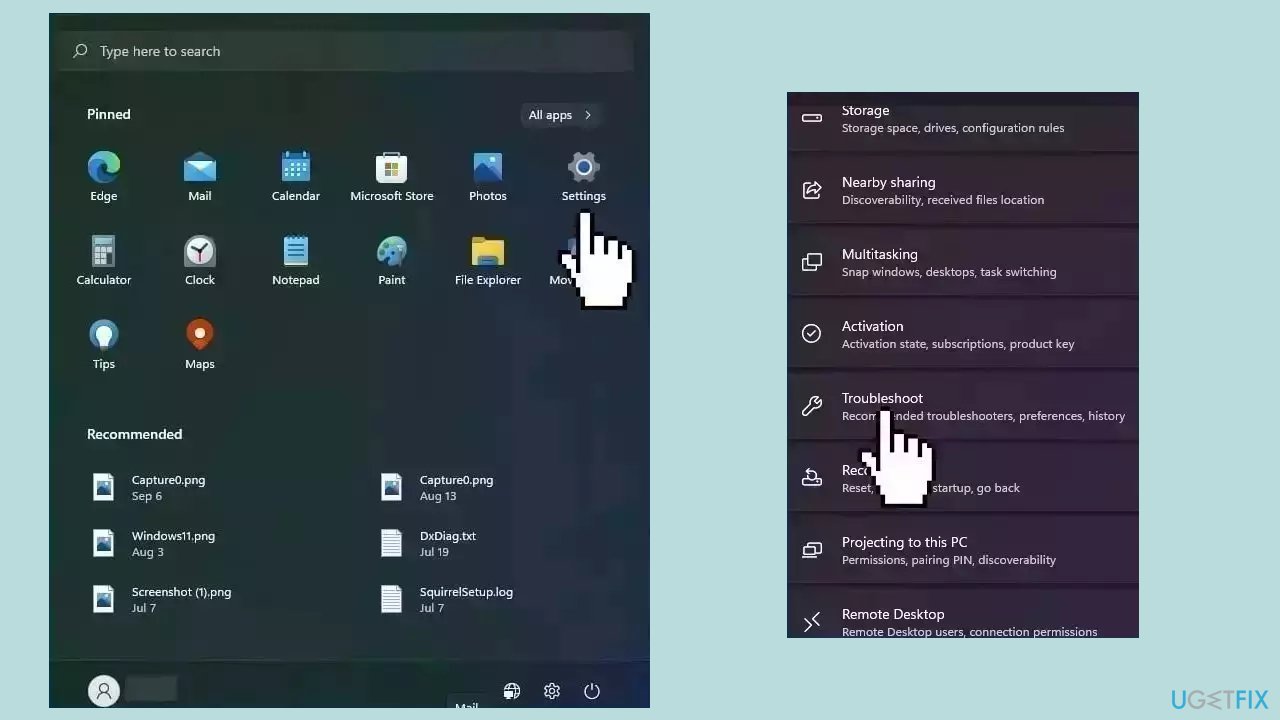
- Locate the Windows Update troubleshooter and hit the Run button
Solution 2. Fix Corrupted System Files
Use Command Prompt commands to repair system file corruption:
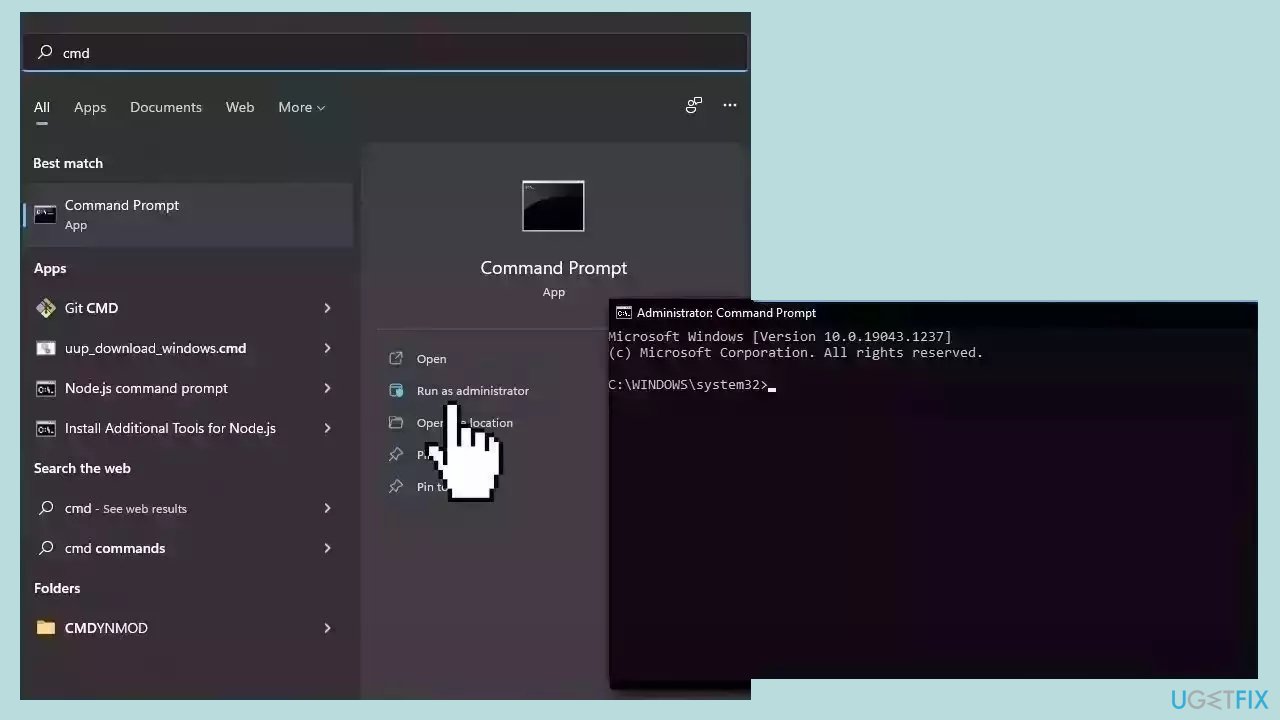
- Open Command Prompt as administrator
- Use the following command and press Enter:
sfc /scannow
- Reboot your system
- If SFC returned an error, then use the following command lines, pressing Enter after each:
DISM /Online /Cleanup-Image /CheckHealth
DISM /Online /Cleanup-Image /ScanHealth
DISM /Online /Cleanup-Image /RestoreHealth
Solution 3. Reset Windows Update Components
- Open the Start menu.
- In the search bar, type cmd.
- Right-click on Command Prompt and select Run as administrator.
- In the Command Prompt console, run the following commands consecutively:
net stop wuauserv
net stop bits
net stop cryptsvc
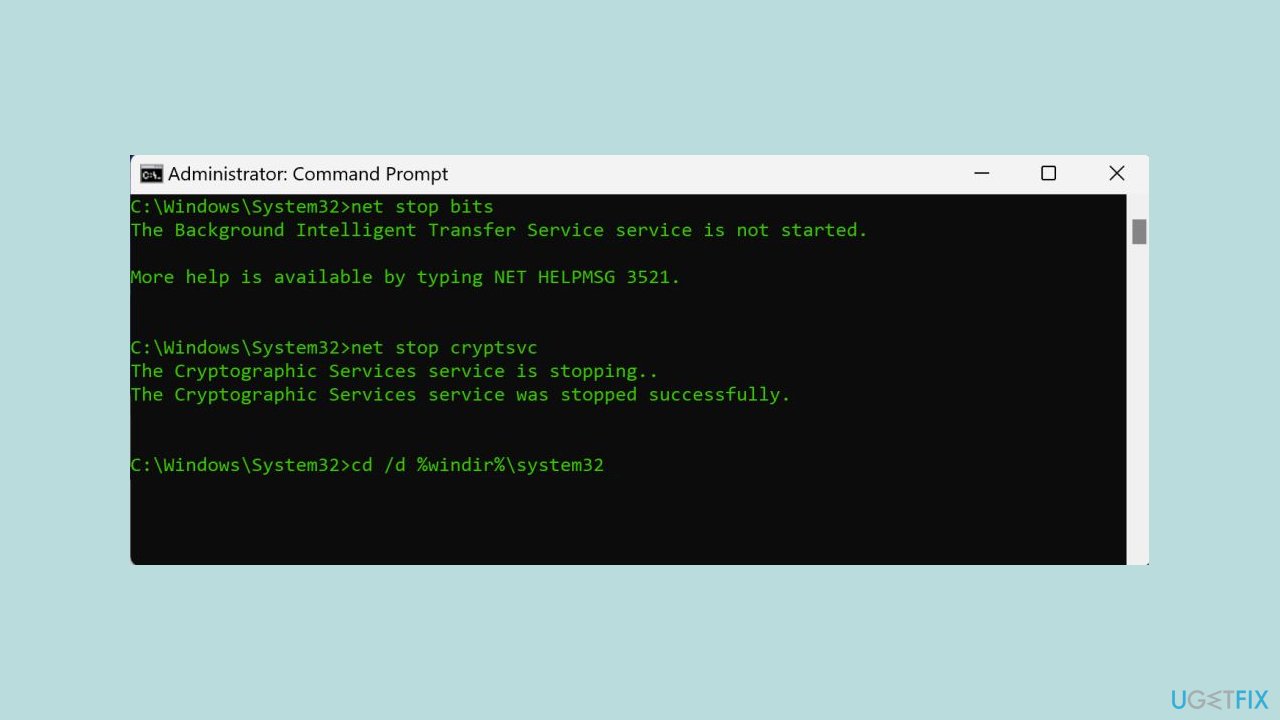
- (These commands terminate the Windows Update, Background Intelligent Transfer Service, and Cryptographic services.)
- Type or paste cd /d %windir%\system32 in the console and press Enter.
- Run the following commands to reregister the BITS and Windows Update DLL files in the Windows Registry:
regsvr32.exe atl.dll
regsvr32.exe urlmon.dll
regsvr32.exe mshtml.dll
regsvr32.exe shdocvw.dll
regsvr32.exe browseui.dll
regsvr32.exe jscript.dll
regsvr32.exe vbscript.dll
regsvr32.exe scrrun.dll
regsvr32.exe msxml.dll
regsvr32.exe msxml3.dll
regsvr32.exe msxml6.dll
regsvr32.exe actxprxy.dll
regsvr32.exe softpub.dll
regsvr32.exe wintrust.dll
regsvr32.exe dssenh.dll
regsvr32.exe rsaenh.dll
regsvr32.exe gpkcsp.dll
regsvr32.exe sccbase.dll
regsvr32.exe slbcsp.dll
regsvr32.exe cryptdlg.dll
regsvr32.exe oleaut32.dll
regsvr32.exe ole32.dll
regsvr32.exe shell32.dll
regsvr32.exe initpki.dll
regsvr32.exe wuapi.dll
regsvr32.exe wuaueng.dll
regsvr32.exe wuaueng1.dll
regsvr32.exe wucltui.dll
regsvr32.exe wups.dll
regsvr32.exe wups2.dll
regsvr32.exe wuweb.dll
regsvr32.exe qmgr.dll
regsvr32.exe qmgrprxy.dll
regsvr32.exe wucltux.dll
regsvr32.exe muweb.dll
regsvr32.exe wuwebv.dll
- Type or paste netsh winsock reset in the Command Prompt console and press Enter.
- Reboot your computer when you see a "Successfully reset the Winsock Catalog" message.
Solution 4. Clear Windows Update Cache
- Press the Windows key + R.
- Type services.msc in the Windows Run box and select OK.
- Right-click on Windows Update in the Services Manager and choose Stop.
- Press the Windows key + E to open Windows File Explorer.
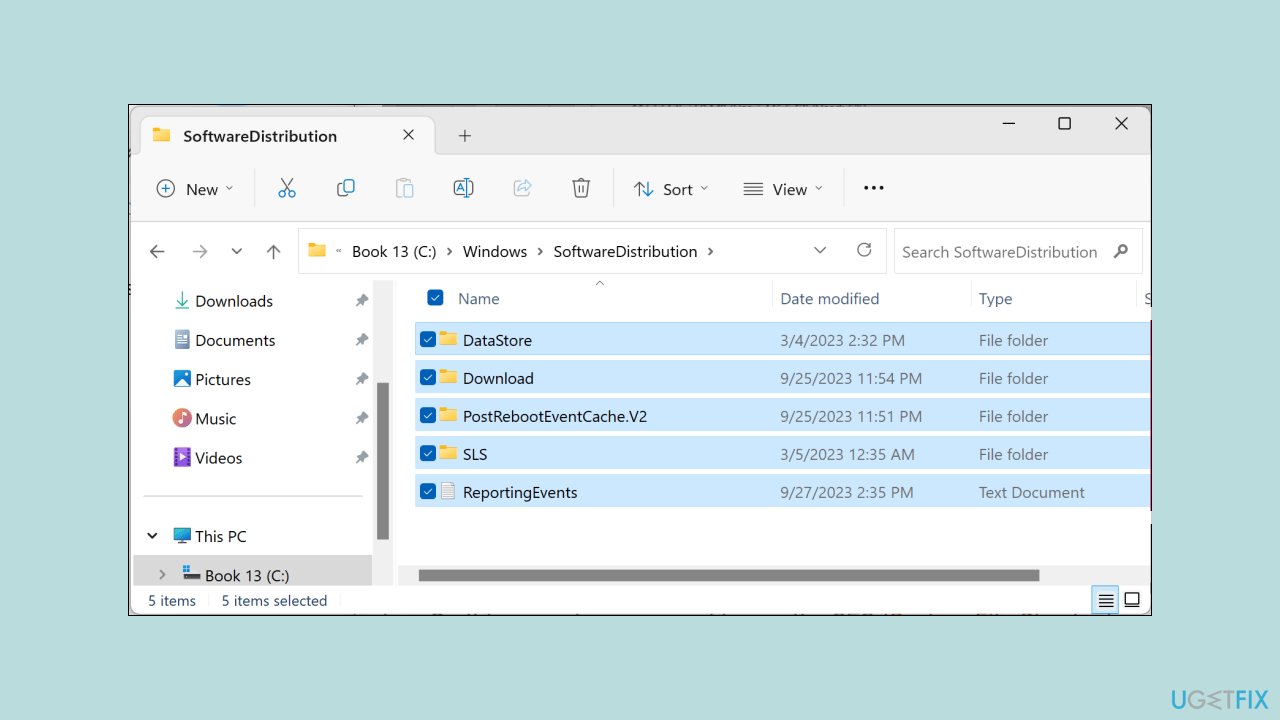
- In the navigation pane, paste C:\Windows\SoftwareDistribution and press Enter.
- Delete all files and sub-folders in the SoftwareDistribution folder or relocate them to another location on your computer.
- Restart the Windows Update service by returning to the Services Manager, right-clicking on Windows Update, and selecting Start.
- Try reinstalling the update.
Solution 5. Try Clean Boot
- Open the Search menu, type in system configuration, and press Enter.
- Under the Services tab, tick the Hide all Microsoft services box.
- Click on Disable all button.
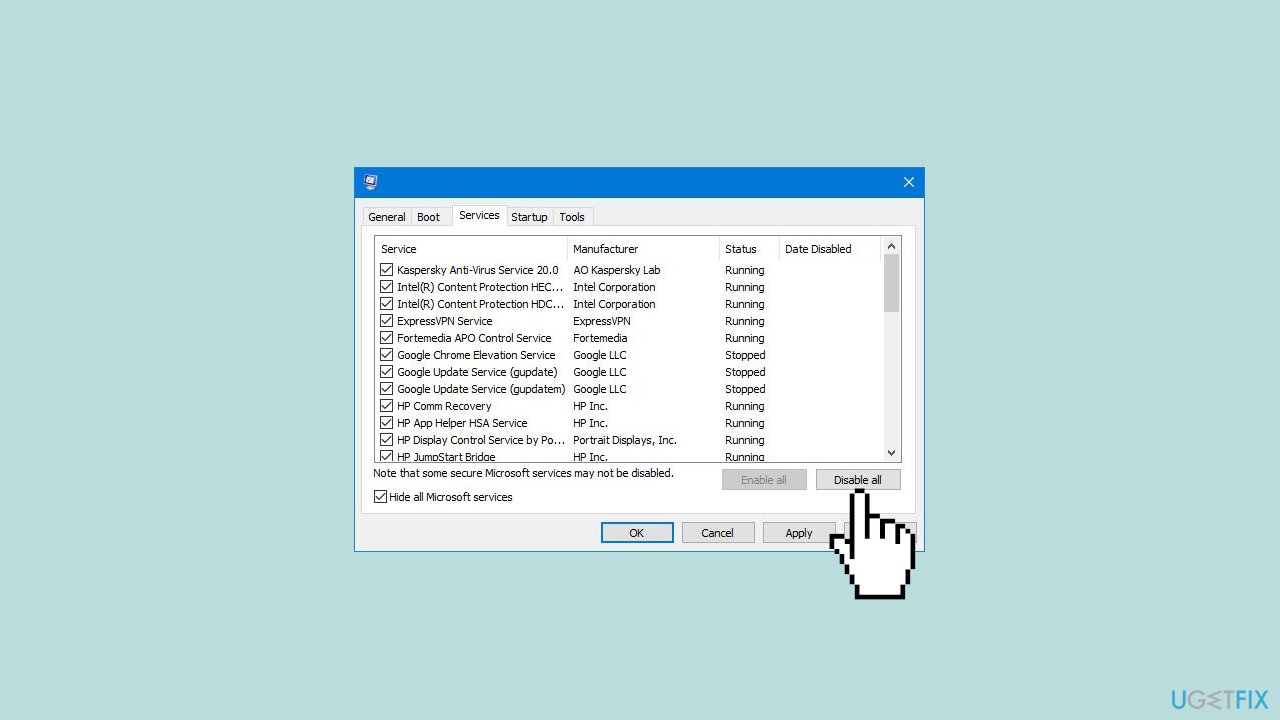
- Head over to the Startup tab and click on Open Task Manager.
- Select a third-party program and click on Disable at the top.
- Repeat this step to disable all third-party apps and programs.
- Restart your PC to enter the clean boot state and see if the issue persists.
- If the issue disappeared in the clean boot state, then you can be certain that a third-party app is causing it.
- Go through all recently installed apps or programs and remove them one by one.
Bottom line
To resolve the 'Something didn’t go as planned' error, users should troubleshoot by fixing faulty system files, temporarily disabling incompatible software, and ensuring the system meets update requirements. If these steps do not resolve the issue, consider running a maintenance tool to address system errors.
Frequently asked questions
Try running the Windows Update Troubleshooter to identify and fix any issues related to updates. If that doesn’t work, consider resetting the Windows Update components manually.
Yes, running the System File Checker (SFC) tool can help repair corrupted files that might be causing this error in Windows 11. Open Command Prompt as an administrator and type 'sfc /scannow' to initiate the scan.
Absolutely, a stable internet connection is crucial for updates and installations; ensure your connection is working properly. If issues persist, try restarting your router or switching to a wired connection.




Report an issue
What's wrong with this guide? We review every report and update or remove content.
Report received — thank you. We'll review and fix it.
You need a free account to submit a report.
Be the first to comment