How to fix
“Something went wrong” error in Spotify
on Windows
Resolve the "Something went wrong" error in Spotify on Windows 10 or 11 easily with our expert-tested solutions and screenshots. Fixed in minutes!


What causes How to fix “Something went wrong” error in Spotify?
- Internet connection issues
- Cache problems
- Corrupted files
- Registry issues
- System errors
Repairs Windows system files, removes malware, and restores a clean OS state — without reinstalling.
Hello. I cannot use Spotify because I receive the "Something went wrong" message when I try to open it. What should I do?
Spotify is one of the largest music streaming service providers with over 406 million monthly active users, including 180 million paying subscribers, as of December 2021. It offers digital copyright-restricted recorded music and podcasts. Unlike physical or download sales, which pay artists a fixed price per song or album sold, Spotify pays royalties based on the number of artist streams as a proportion of total songs streamed.
Streaming has changed the music industry forever. Although Spotify has received a lot of criticism from artists because of royalties being distributed unfairly, regular users seem to enjoy the service. People can create playlists, and find new music with ease from Spotify curated playlists, and playlists based on algorithms.[ref en-1]
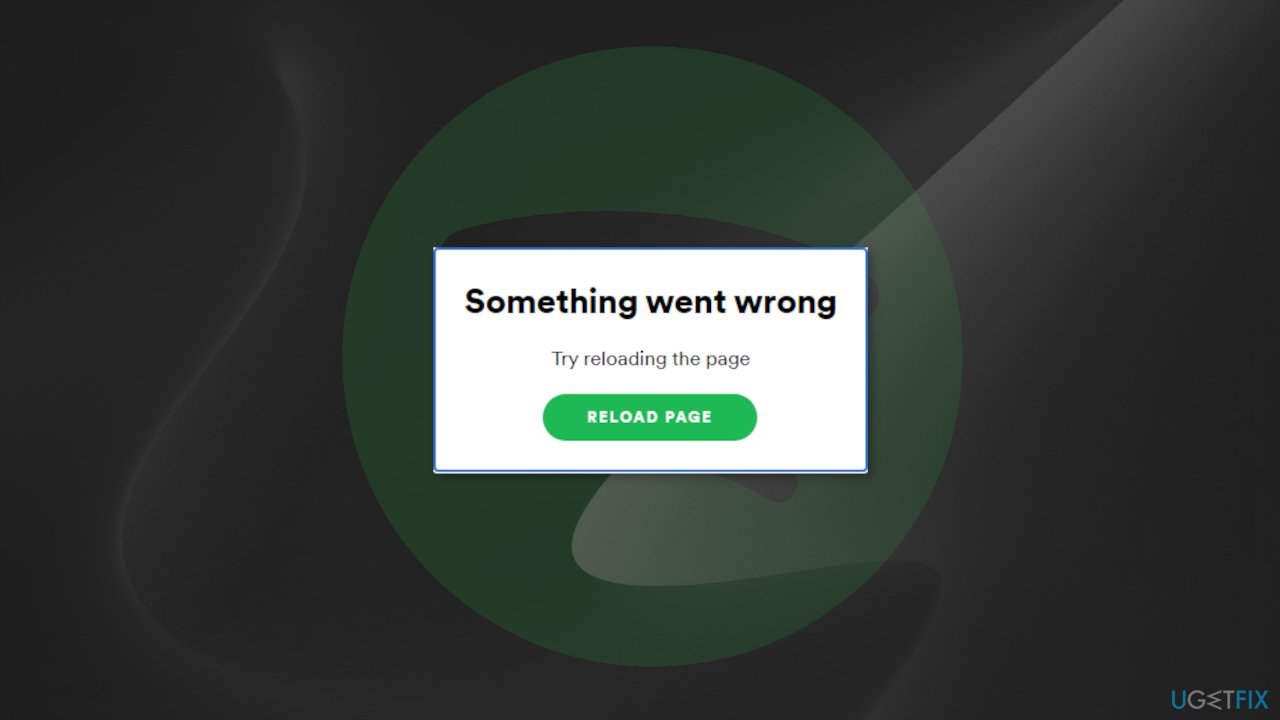
However, some users report having trouble when trying to launch the Spotify app. People say that they receive "Something went wrong" error when they open the desktop app, web player, or mobile app. It is unclear what could be causing the error but it should be repaired with easy troubleshooting steps which we provide in this guide. Some people report that the error was caused by Internet connection issues, so the first thing you should do is check if you have a reliable connection.
The "Something went wrong" error in Spotify could also be caused by cache[ref en-2] which is often the culprit of many malfunctions. We suggest employing a maintenance tool like [d1] that can clear cookies and cache automatically. This powerful software can also fix various system errors, BSODs,[ref en-3] corrupted files, and registry issues which can help in keeping the system running smoothly.
Otherwise, if you are ready to begin the manual troubleshooting guide, proceed with the steps below carefully.
Method 1. Log out and Log in
Mobile:
- Tap Home
- Tap Settings
- Scroll to the bottom
- Tap Log out
- Now log in again
Desktop and web player:
- Click the arrow in the top-right corner
- Select Log Out
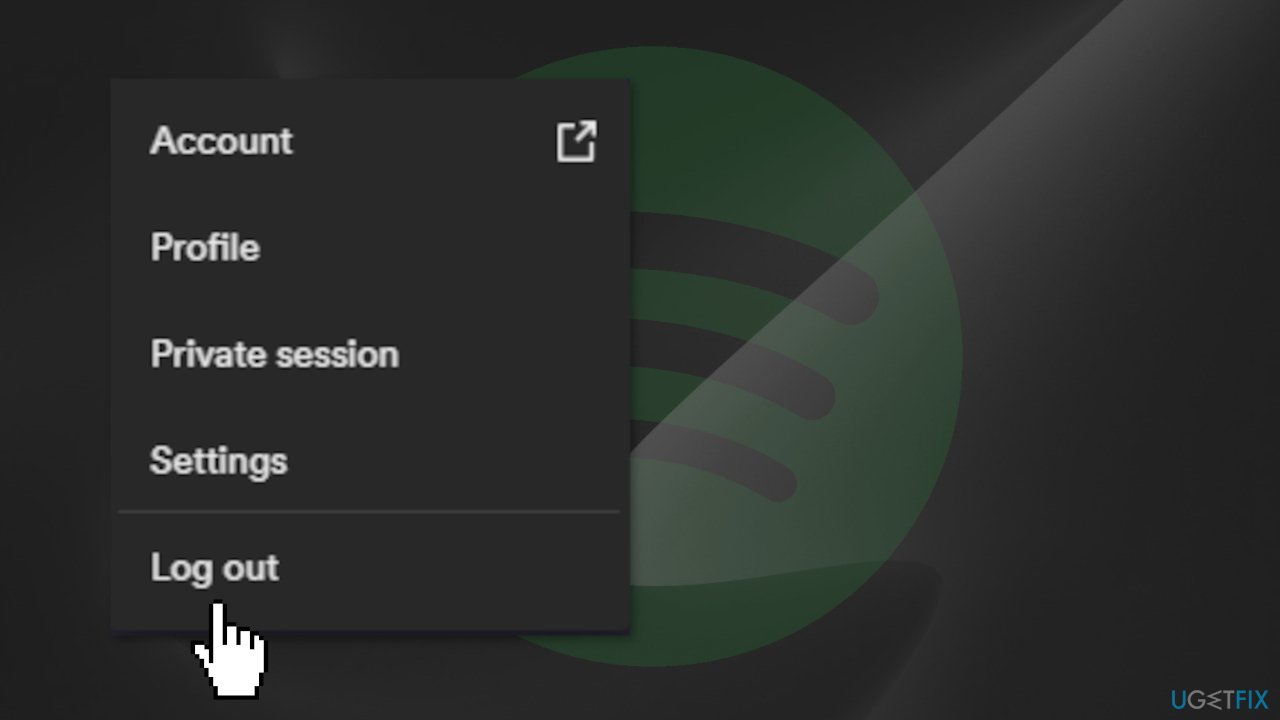
- Now log in again
Spotify.com website:
- Click your profile in the top-right
- Select LOG OUT
- Now log in again
Method 2. Clear Cache
Android:
- Tap Home
- Tap Settings
- Tap Delete cache under Storage
iOS:
- Tap Home
- Tap Settings
- Tap Storage
- Tap Delete cache
Desktop:
- Click in the top-right and select Settings
- Scroll down to Offline storage location to see where your cache is stored
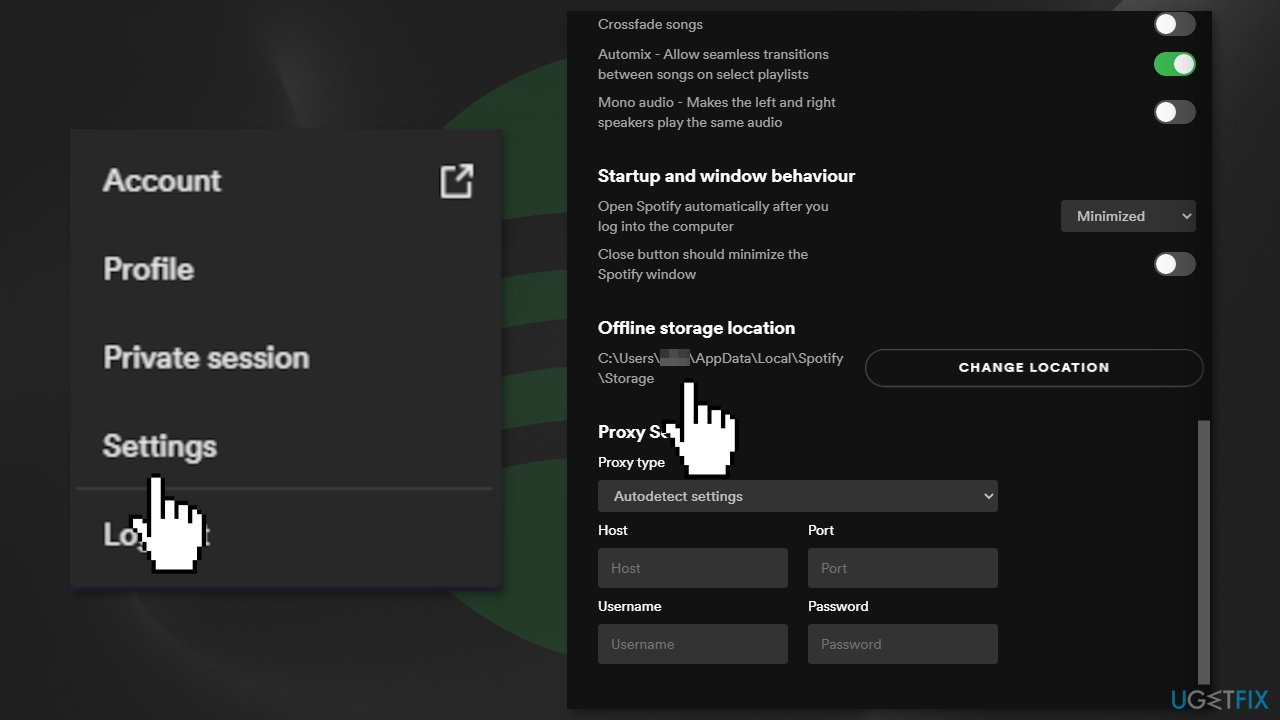
- Go to that folder on your computer
- Select and delete all the files in that folder
Method 3. Update Spotify
Switch on automatic updates on Android:
- Open the Google Play Store
- Search Spotify
- Tap the three dots in the top right
- Check Auto-update.
If there’s no option to update, your app is on the latest version
iOS:
- Go to Settings
- Tap iTunes & App Store
- Switch App Updates on
Desktop:
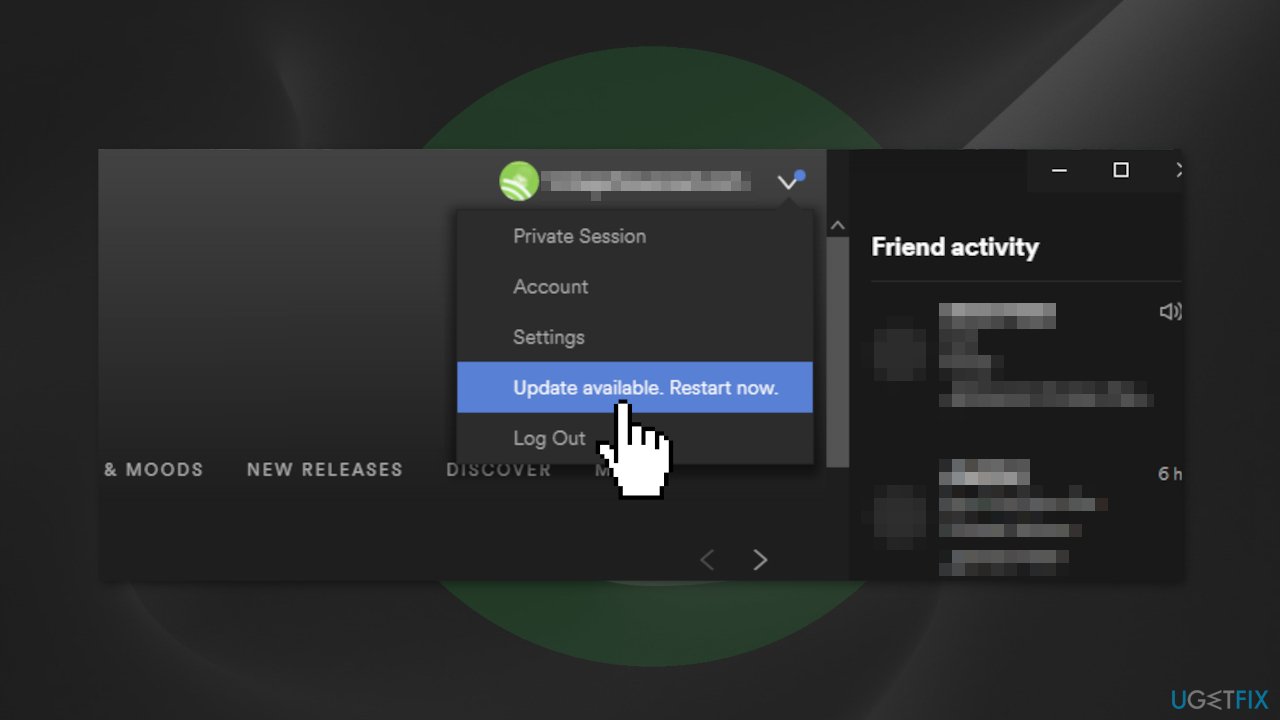
When an update is available, a blue dot appears next to the menu button in the app's top-right corner.
- Click the arrow button in the top-right
- Select Update Available. Restart Now.
Method 4. Update OS
Android:
- Open your phone's Settings app
- Near the bottom, tap System, then System update
- You'll see your update status. Follow any steps on the screen
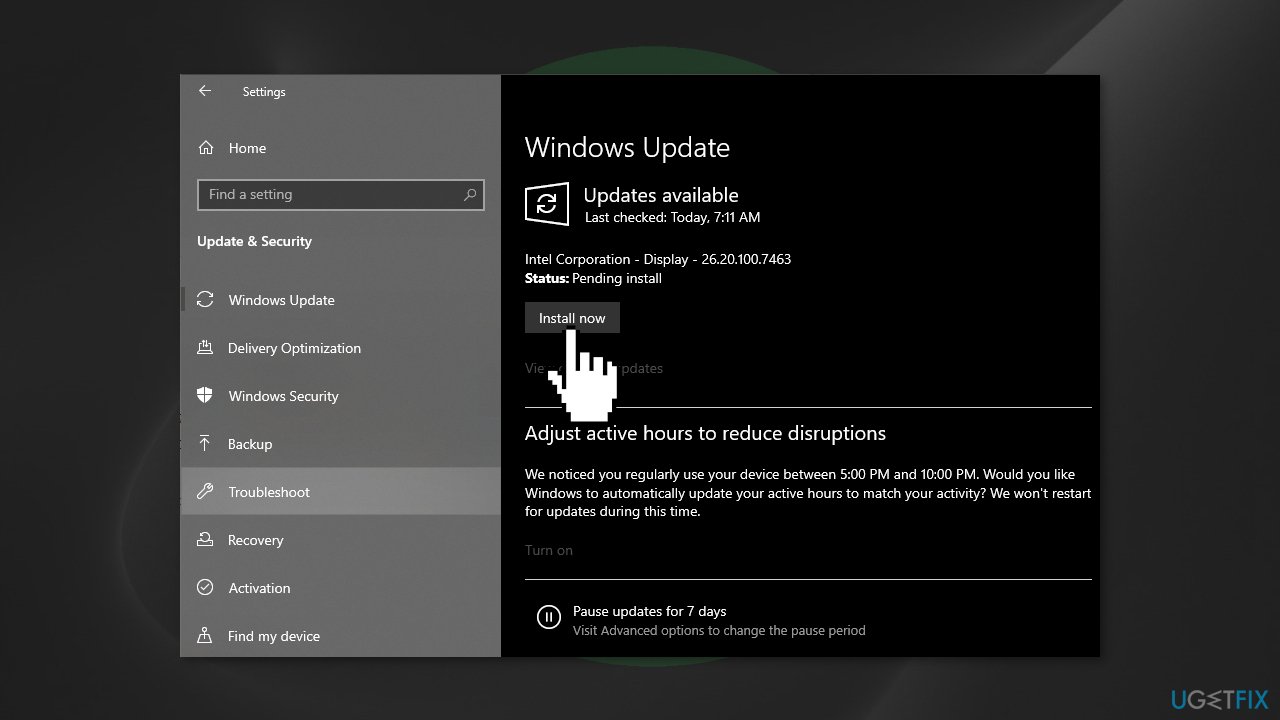
Windows:
- Click Settings from your start menu and click Update & Security
- Choose Windows Upgrade from the left panel and click the Check for updates button, and then your computer will check for, download, and install any updates found
iOS:
- Go to Settings > General, then tap Software Update
- If you see two software update options available tap Install Now
Mac:
- From the Apple menu in the corner of your screen, choose System Preferences
- In the System Preferences window, click Software Update
- Click Update Now or Upgrade Now
Method 5. Reinstall Spotify
Android:
- Go to your phone’s Settings
- Select Apps
- Find Spotify in your list of apps
- For a clean reinstall, tap Storage, then Clear Data
- Tap Uninstall
- Go to Google Play and install the Spotify app
Windows:
- Close Spotify
- Go to the Control Panel
- Click Apps and Features
- Select Spotify in the list and click Uninstall
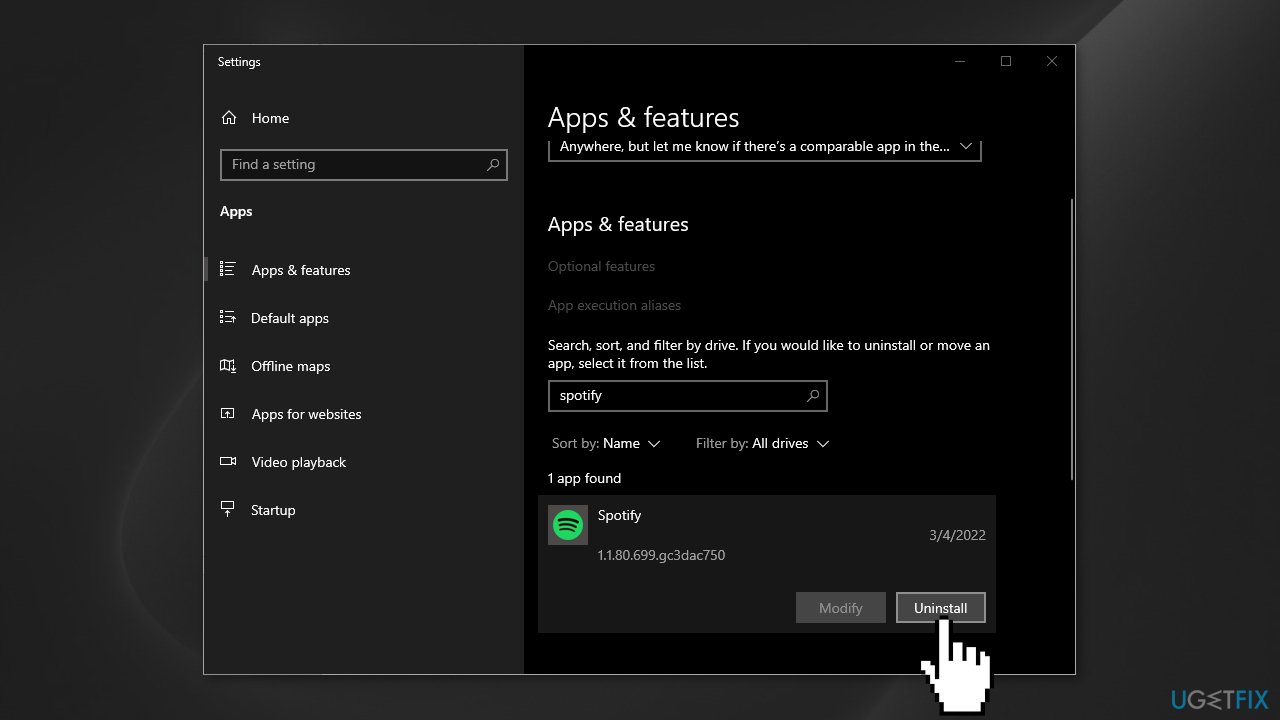
- Follow the instructions on the screen
- Download and install Spotify
iOS:
- Tap and hold the Spotify app icon
- Tap Delete App, then Delete
- Go to the App Store and install the Spotify app
Mac:
- Quit Spotify
- Open Finder
- Click Go in the menu at the top, then hold the Option / Alt key and select Library
- Open Caches and delete the com.spotify.Client folder
- Click the back arrow
- Open Application Support and delete the Spotify folder
- Open Finder
- Go to Applications in the sidebar menu
- Find the Spotify app and drag it to the Trash
- Download and install Spotify
Additional fixes that may help fix "Something went wrong" error in Spotify:
- Restart your device
- Disable VPN
- Disable third-party security software
Bottom line
To fix the 'Something went wrong' error in Spotify, you can try logging out and logging back in, checking your internet connection, and clearing cache. If these steps do not resolve the issue, consider using a maintenance tool to address potential system errors.
Frequently asked questions
Try restarting the Spotify app and your computer first. If the issue persists, consider reinstalling Spotify to ensure you have the latest version.
Navigate to 'C:\Users\YourUsername\AppData\Local\Spotify\Storage' and delete all files in the Storage folder. Restart Spotify after clearing the cache.
Check your internet connection and try switching between Wi-Fi and Ethernet. If that doesn't work, resetting your network settings in Windows 10 or 11 may help.




Report an issue
What's wrong with this guide? We review every report and update or remove content.
Report received — thank you. We'll review and fix it.
You need a free account to submit a report.
Be the first to comment