How to fix
“Something went wrong. Try to reopen Settings later” error
on Windows
Resolve the "Something went wrong" error in Windows 10 or 11 effortlessly. Get back to your settings with expert-tested solutions. Fixed in minutes!

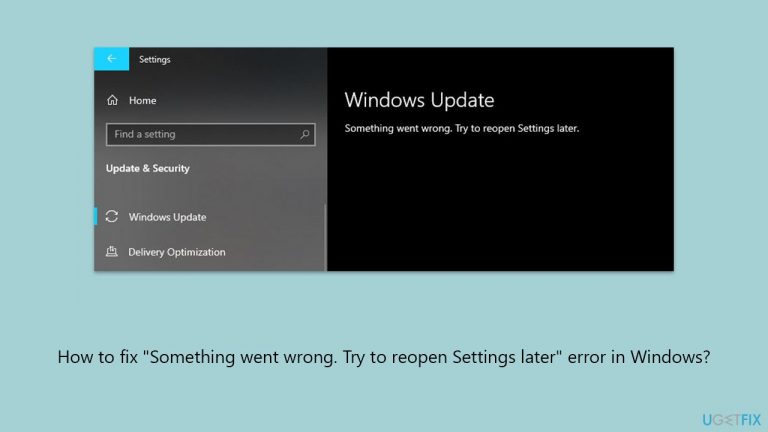
What causes How to fix “Something went wrong. Try to reopen Settings later” error in Windows?
- Windows update mechanism issues
- Corrupted system files
- Faulty update components
- Registry errors
- Clutter and useless files
Repairs Windows system files, removes malware, and restores a clean OS state — without reinstalling.
Every time I go to the Windows update section all I can see is "Something went wrong. Try to reopen Settings later." It seems like they are stuck and I can no longer apply any updates because of this.
Microsoft's flagship operating system, Windows, is well-known for receiving frequent upgrades that improve stability, security, and speed. But while you work to keep your system secure and up to date, you may receive an unexpected notice saying, "Something went wrong. Try to reopen Settings later" instead of the usual "Check for updates" option.
This statement is not consistent with the way that Windows updates are typically applied and checked for. Such a notice is troublesome because it makes it more difficult for you to search for and install the most recent updates, which could leave your system open to known problems that these updates could have fixed.
Resolving the "Something went wrong. Try to reopen Settings later" issue may require a series of steps that delve into the system's update mechanism. The first step in identifying and maybe fixing the issue is frequently to run a Windows update troubleshooter. Furthermore, manually resetting the update components can be beneficial in removing any problems that may have arisen within the update system.
Another important step is to fix faulty system files since these are frequently the cause of update failures. All the instructions for these steps can be found below; although keep in mind that you might have to try several of them before one works for you.
If you would like to try to fix the "Something went wrong. Try to reopen Settings later" error automatically, we highly recommend using a potent PC repair app [d1]. It can easily find and fix corrupted system files, resolve registry errors, clear the clutter and useless files from Windows, and much more.
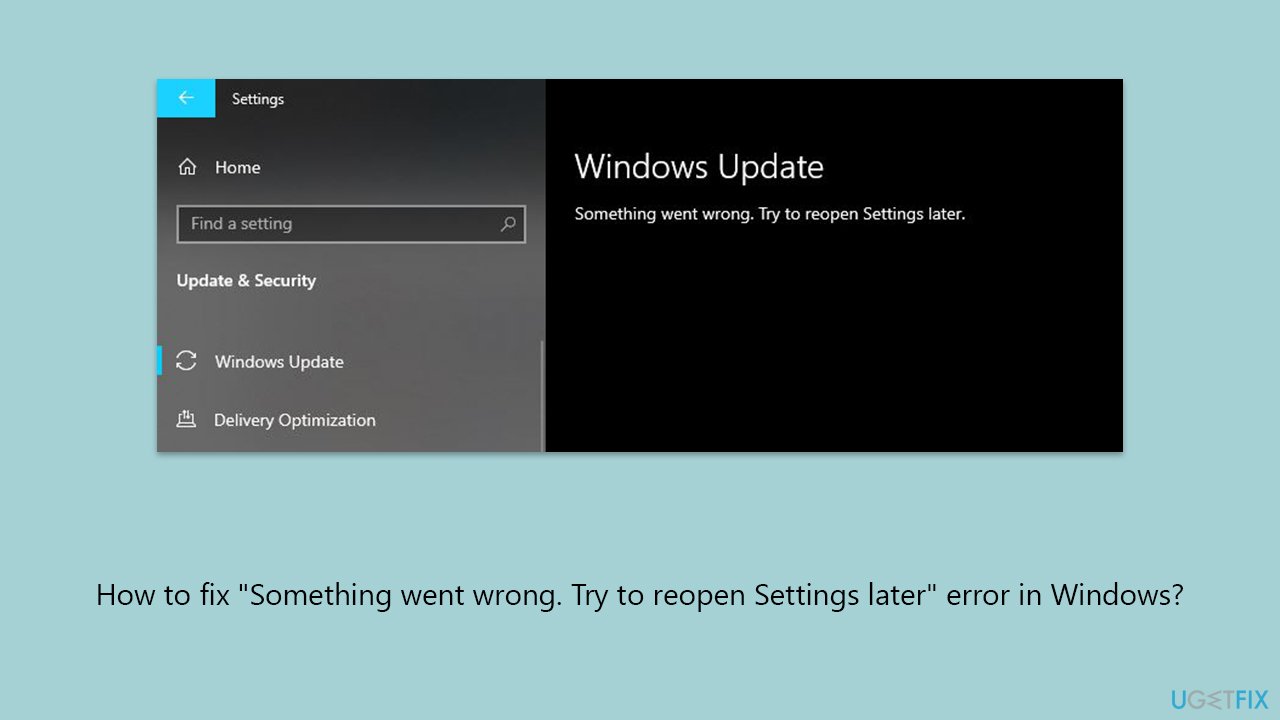
Fix 1. Run Windows Update troubleshooter
The Windows Update troubleshooter works by checking the system for update-related problems and attempting to fix them automatically.
- Type Troubleshoot into the Windows search bar and press Enter.
- Next, on the right side of the window, select Additional troubleshooters/Other troubleshooters.
- Scroll down to locate the Windows update option and click on it.
- Click on Run the troubleshooter/Run and allow the troubleshooter to finish.
- Apply all the fixes and restart your computer.
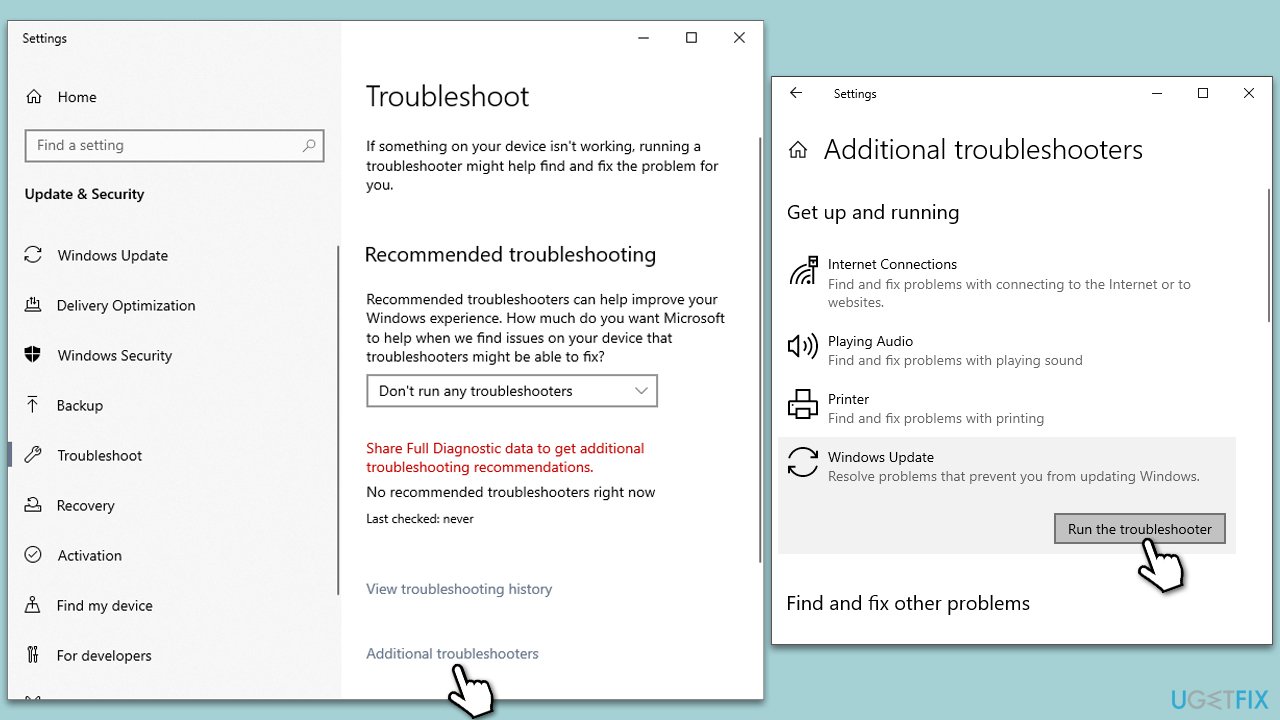
Fix 2. Check your disk for errors
In order to find and fix any logical or physical faults with your hard drive that might be causing problems with Windows updates, check your disk for errors. The Check Disk tool examines the disk and corrects faulty sectors, disk faults, and file system errors.
- Type cmd in Windows search.
- Right-click on the Command Prompt result and select Run as administrator.
- When User Account Control shows up, click Yes.
- In the new window, type in the following command and press Enter after:
chkdsk c: /f
(Note: use chkdsk c: /f /r /x command if you are using SSD as your primary partition) - If you receive an error, type in Y, close down Command Prompt and restart your system.
- Wait until the scan is finished - you can find the results in the Event Viewer.
Fix 3. Use Disk Cleanup
Disk Cleanup can enhance system performance and help clear up space on your hard disk. It gets rid of temporary files and other junk files that could get in the way of Windows updates.
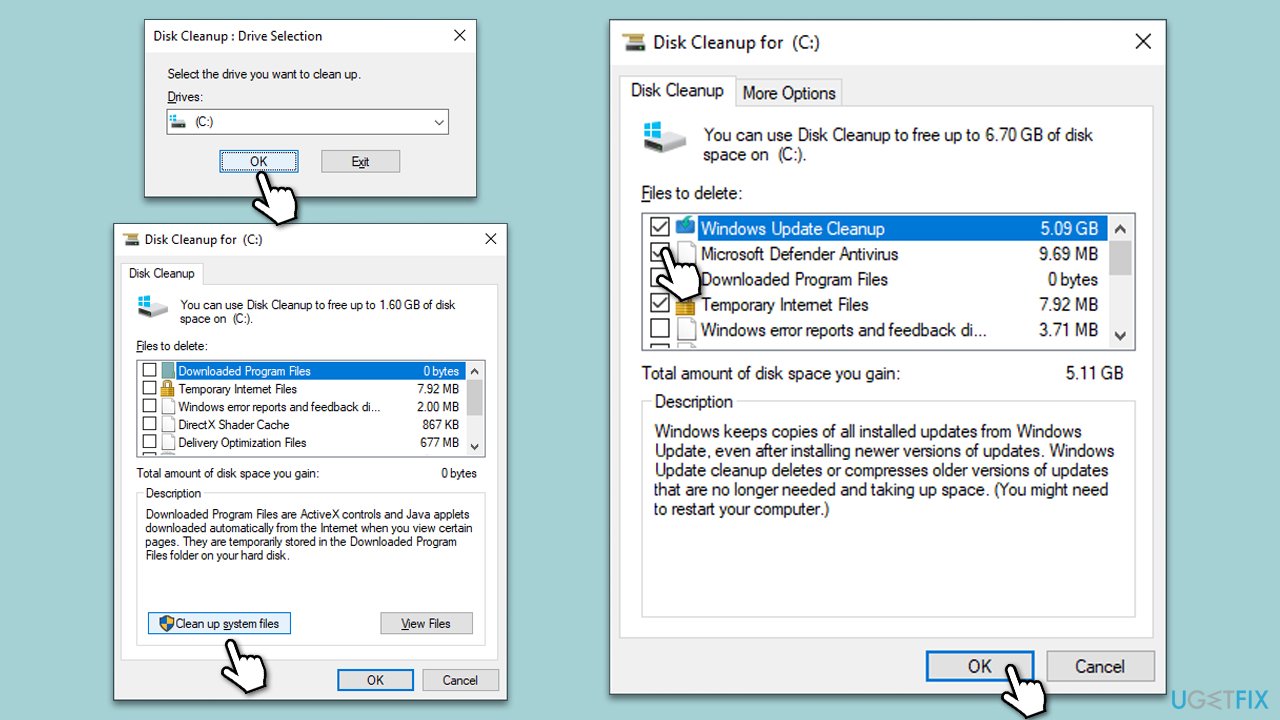
- Type Disk Cleanup in Windows search and press Enter.
- Select your main drive (C: by default).
- Click Clean up system files and select your main drive again.
- Select the largest sections you'd like to remove, for example, Temporary Internet Files, Windows Update Cleanup, Delivery, and Optimization Files
- Click OK, and Windows will begin the disk cleanup process.
Fix 4. Run SFC and DISM
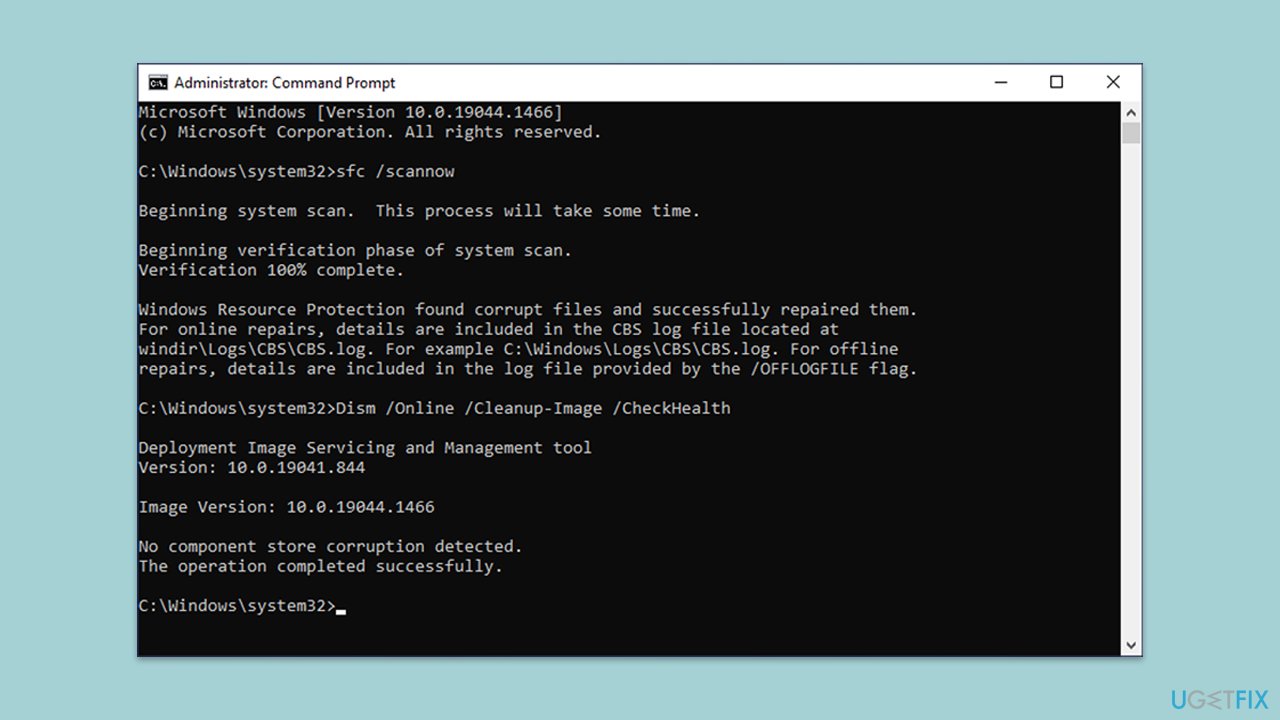
Corrupt system files can be fixed using SFC and Windows image files can be fixed with DISM tools. To run them, you need to enable Command Prompt as administrator:
- Open Command Prompt as administrator.
- Paste the following command into the new window:
sfc /scannow - Press Enter and wait till the scan is finished
- Once done, run this set of commands, pressing Enter every time:
DISM /Online /Cleanup-Image /CheckHealth
DISM /Online /Cleanup-Image /ScanHealth
DISM Online /Cleanup-Image /RestoreHealth
(Note: if you get an error executing this last command, add /Source:C:\RepairSource\Windows /LimitAccess to it and try again). - Restart your system.
Fix 5. Reset Windows update components
Resetting Windows update components clears the update cache and restarts the update services, which can resolve issues with stuck or failed updates.
- Open Command Prompt as administrator, as previously explained
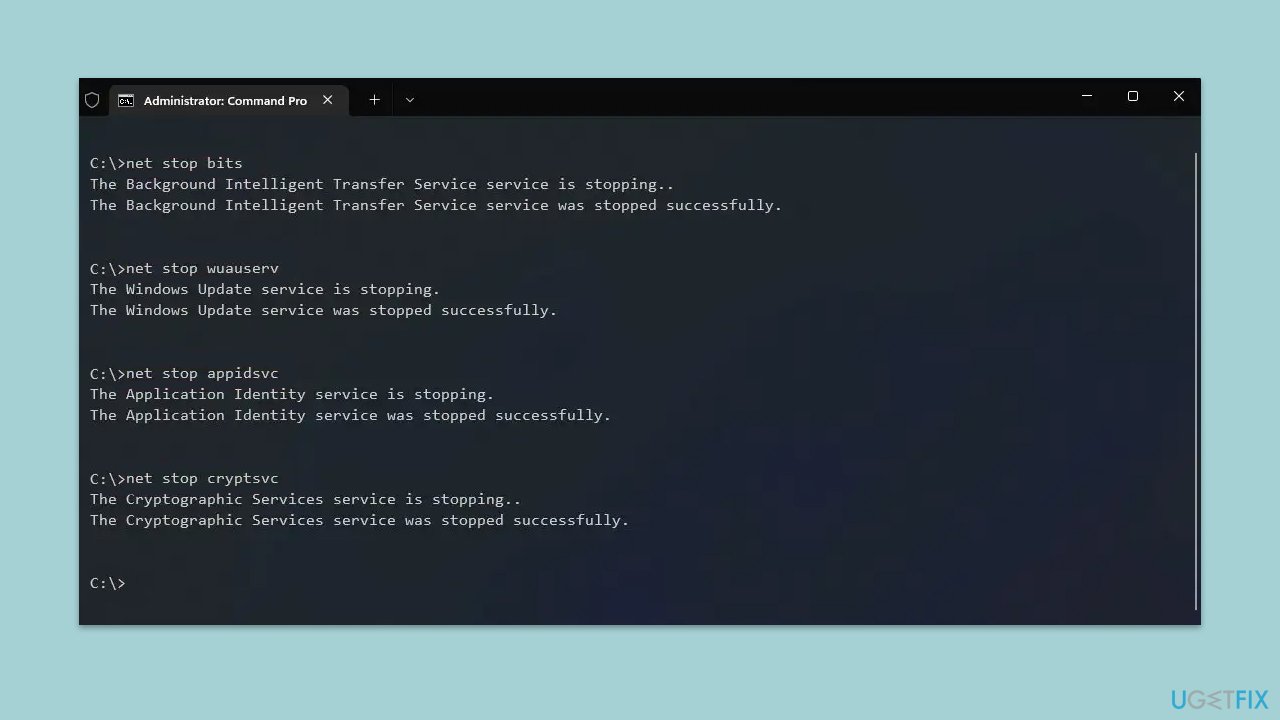
- In the new window, use the following commands, pressing Enter after each:
net stop bits
net stop wuauserv
net stop appidsvc
net stop cryptsvc
Del “%ALLUSERSPROFILE%\Application Data\Microsoft\Network\Downloader\*.*”
rmdir %systemroot%\SoftwareDistribution /S /Q
rmdir %systemroot%\system32\catroot2 /S /Q
regsvr32.exe /s atl.dll
regsvr32.exe /s urlmon.dll
regsvr32.exe /s mshtml.dll
netsh winsock reset
netsh winsock reset proxy
net start bits
net start wuauserv
net start appidsvc
net start cryptsvc - Restart your system.
Note: if you receive an error while trying to perform any of the commands, you should try doing it in the Clean Boot state - see the next fix.
Fix 6. Try Clean Boot
If the issue lies in conflicting software, removing it or temporarily suspending it can resolve the "Something went wrong. Try to reopen Settings later" error. In most cases, it's the security software that causes conflicts, although it can be anything else that tempers with system files or network connections, such as VPN or Firewall.
- Press the Windows key + R to open the Run dialog.
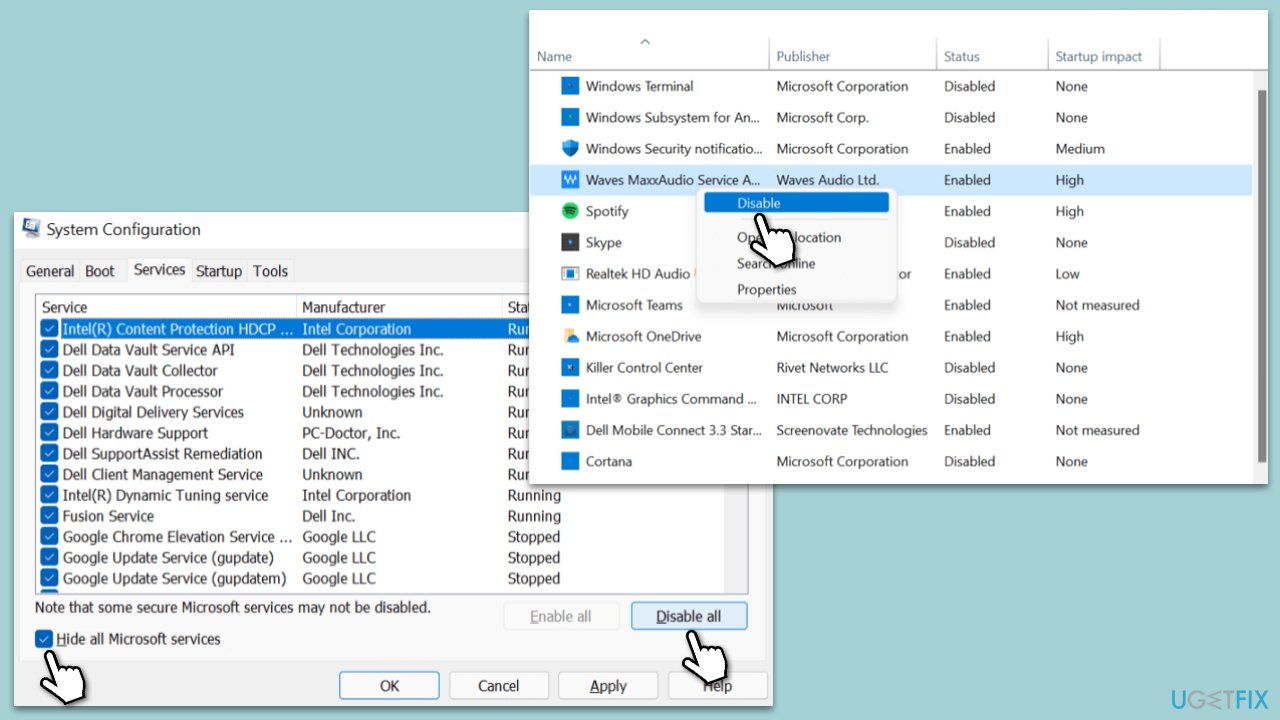
- Type msconfig and press Enter to open the System Configuration window.
- Click on the Services tab and check the Hide all Microsoft Services box.
- Click Disable all to disable non-Microsoft services, then click the Startup tab.
- Open the Task Manager, disable all startup items, and close the Task Manager.
- Go to the Boot tab and mark the Safe boot option.
- Click OK on the System Configuration window and restart your computer.
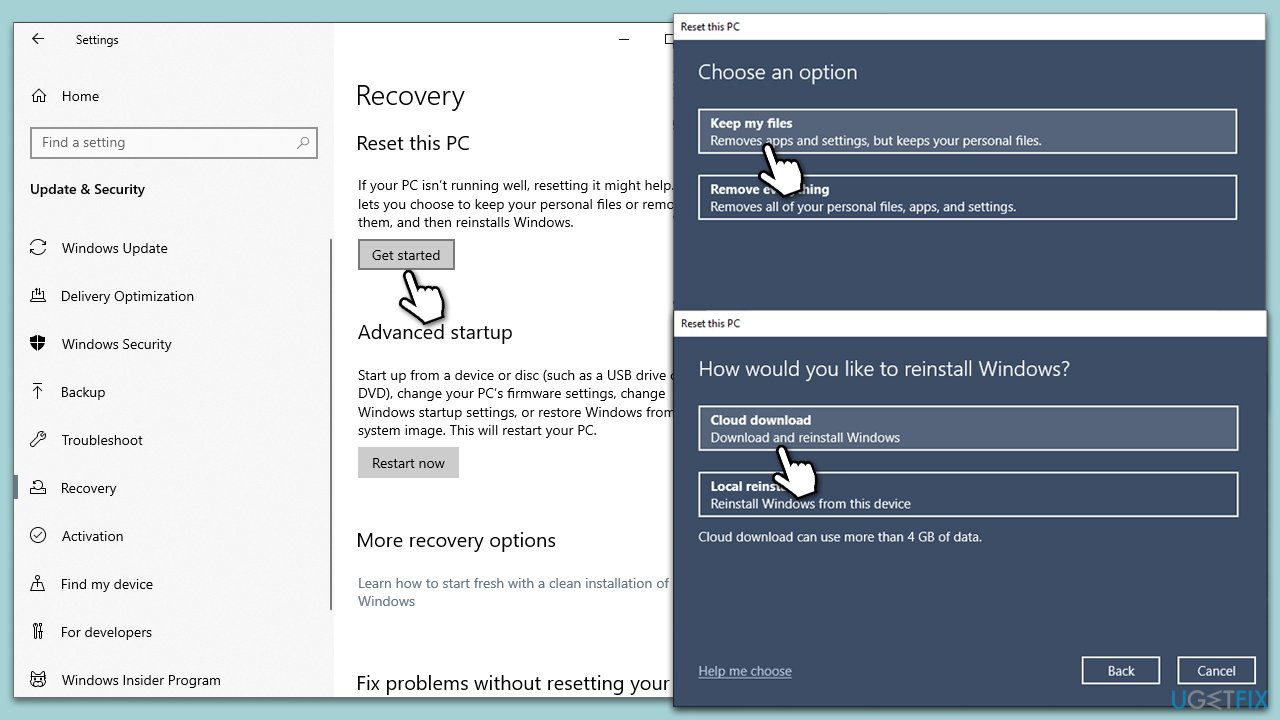
Fix 7. Reset Windows
Resetting Windows reinstalls the operating system, which can fix deeper issues affecting updates without removing your personal files. However, you should back up important data beforehand.
- Right-click on Start and then select Settings.
- Go to Update & Security and pick Recovery on the left side of the window.
- Find Reset this PC section and click Get Started.
- Select Keep my files and Cloud download.
- Next, pick whether you want to reinstall the apps.
- Click Reset.
- Your system will restart, and the process of Windows reset will begin.
Fix 8. Use Media Creation Tool
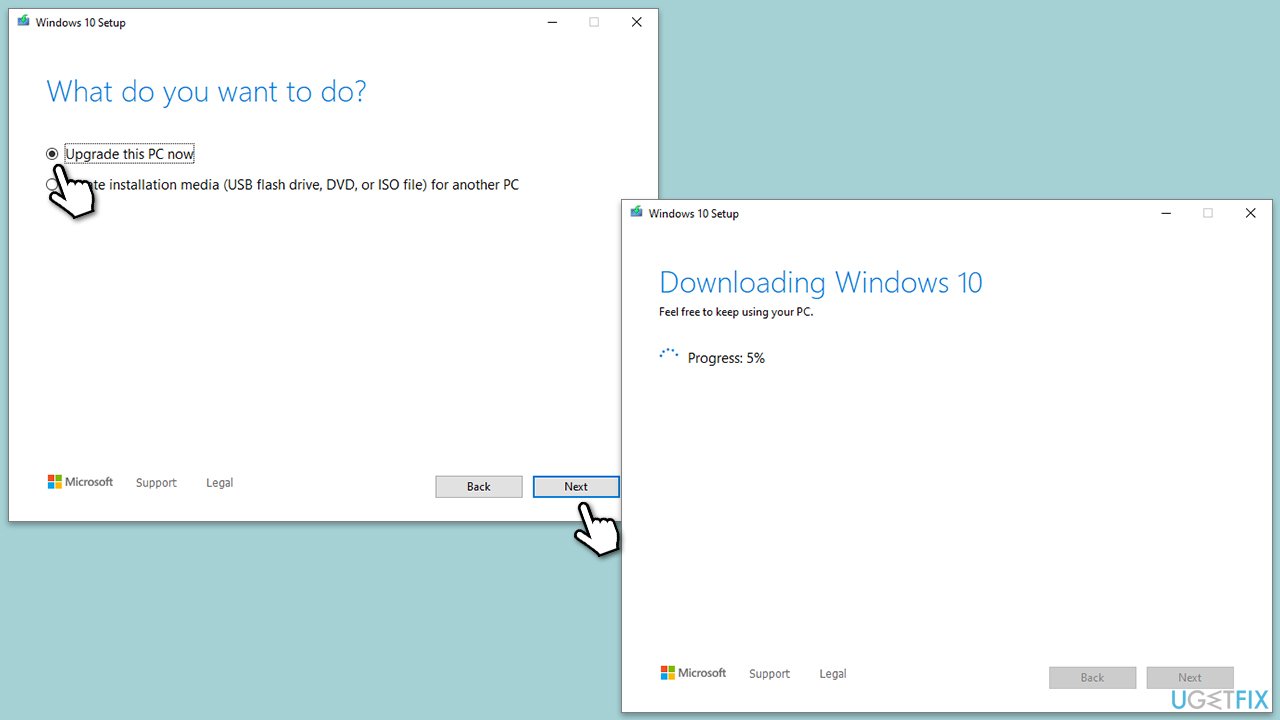
An in-place upgrade repairs the current Windows installation by upgrading to the same version, effectively refreshing all system files without affecting personal data or installed applications.
- Visit the official Microsoft website and download Windows 10 installation media (Windows 11 version).
- Double-click the installer, select Yes when UAC shows up, and agree to the terms.
- Select Upgrade this PC now and click Next.
- Windows will start downloading the needed files.
- Agree to terms once again and click Next.
- Before installing, make sure that you are happy with your choices ( you can click Change what to keep option if not).
- Click Install to begin the upgrade process.
Bottom line
To resolve the 'Something went wrong. Try to reopen Settings later' error, you can run the Windows Update troubleshooter, manually reset the update components, and fix any corrupted system files. If these steps do not work, consider using a PC repair app to help identify and fix deeper issues.
Frequently asked questions
You can try restarting your PC and then reopening the Settings app. If the issue persists, consider running the Windows Troubleshooter to automatically detect and fix problems.
You can repair the Settings app by going to Settings > Apps > Apps & features, finding the Settings app, and selecting 'Advanced options' to click on 'Repair'.
Yes, you can use the Command Prompt to run the 'sfc /scannow' command to scan and repair system files that may be causing the issue.




Report an issue
What's wrong with this guide? We review every report and update or remove content.
Report received — thank you. We'll review and fix it.
You need a free account to submit a report.
Be the first to comment