How to fix
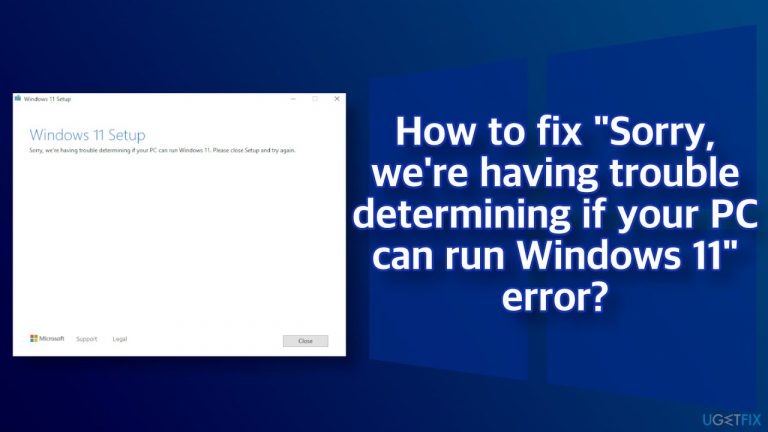
“Sorry, we’re having trouble determining if your PC can run Windows 11” error
on Windows
Resolve the "Sorry, we're having trouble determining if your PC can run Windows 11" error quickly and effortlessly with expert-tested solutions.

What causes How to fix “Sorry, we’re having trouble determining if your PC can run Windows 11” error?
- Hardware does not meet the required specifications
- Insufficient free space for the update
- Third-party antivirus program interference
- Driver issues
- Messed-up system settings
- Underlying system issues such as malware infections or software conflicts
Repairs Windows system files, removes malware, and restores a clean OS state — without reinstalling.
Hello. I have been trying to upgrade to Windows 11, however, every time I run the setup through the ISO file or the installation assistant, I receive an error "Sorry, we're having trouble determining if your PC can run Windows 11." What should I do?
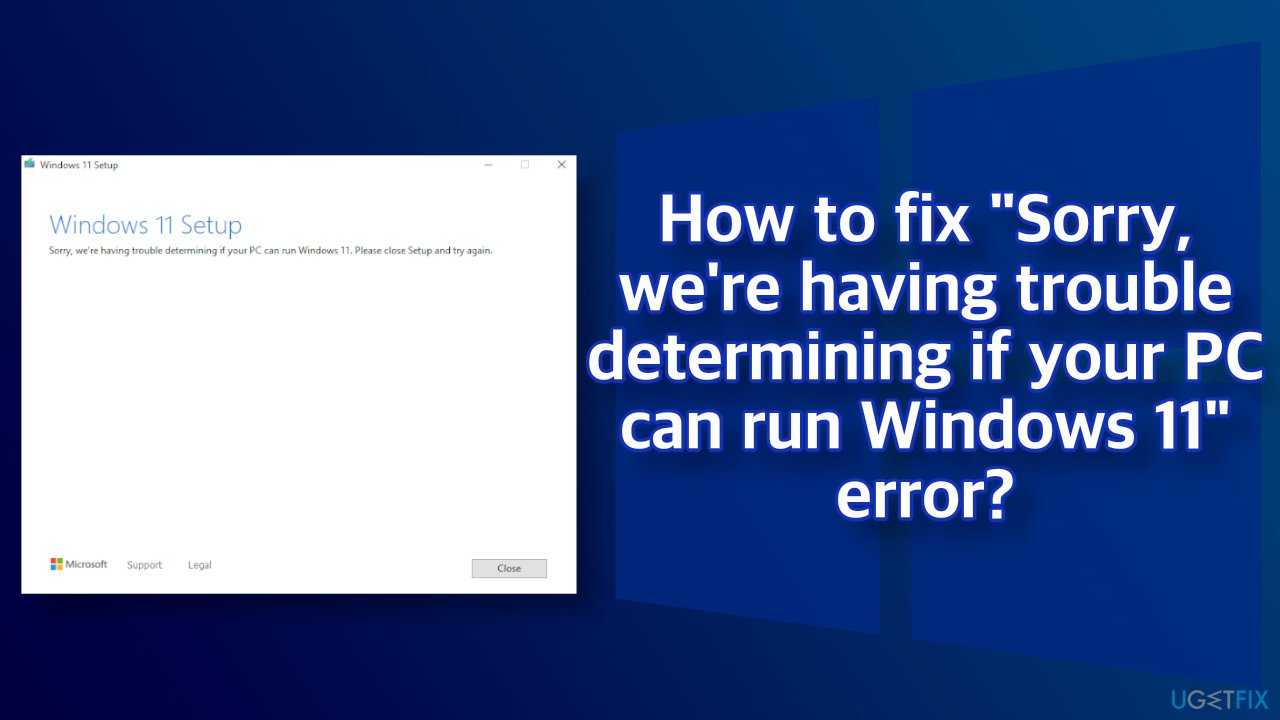
As more users try to upgrade to the newest version of Windows, more reports emerge about various errors. Recently, a new Windows 11 Setup error was reported, saying, "Sorry, we're having trouble determining if your PC can run Windows 11. Please close Setup and try again." Some people do not realize that their hardware does not meet the needed requirements,[ref en-1] and some say that their systems are way above the required level and they still cannot upgrade.
Some people also do not realize that they need to have free space for the update to be able to download. If you have done all the necessary things before attempting to install the update, it is unclear what could be causing this error. The most important thing is not to worry, as Windows 10 will be supported until 2025, so there is no rush to switch the systems. You can also read an article we wrote about all the know issues of Windows 11. You may even change your mind and forget about the new upgrade for a short while.
Besides forgetting to perform needed tasks before upgrading, the issue could also be caused by a third-party antivirus program, drivers,[ref en-2], or messed-up system settings. In this article, we provide seven methods that could fix the "Sorry, we're having trouble determining if your PC can run Windows 11" error. If none of those steps will work, you can clean install Windows 11, which we also have instructions for below.
Besides the technical requirements, you should also ensure that there are no underlying issues on your system - malware[ref en-3] infections, software conflicts, system errors, and more. In order to find and fix these issues, we strongly recommend running a PC repair and maintenance tool [d1]. It might find the cause automatically, so you do not have to go through a lengthy manual troubleshooting process.
Method 1. Free up your disk space
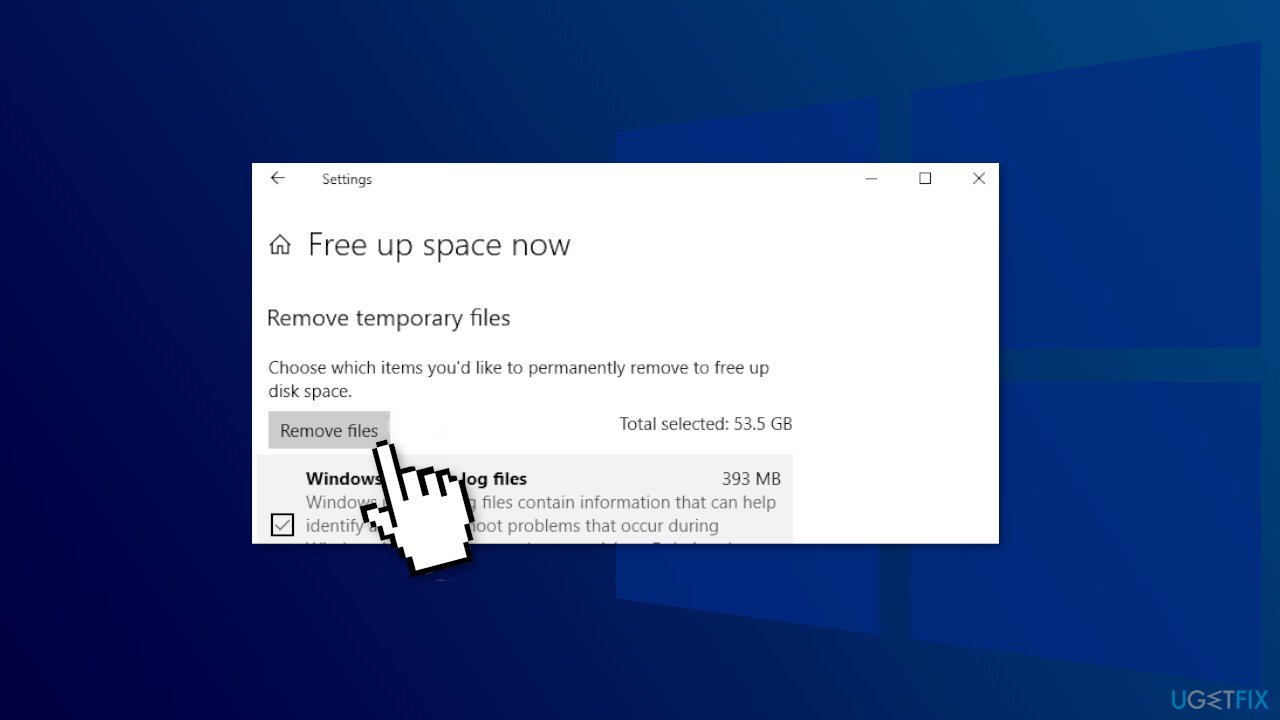
You should have at least 16GB free storage for installing 32-bit OS and 20GB storage for installing the 64-bit version of Windows 11/10. Windows installs some required updates during the setup, and that requires more storage than 16/20GB. If your current hard drive doesn’t have the extra storage, the Windows setup process might be interrupted by showing the error message.
You can find and delete large files, move some files to your external hard drive, transfer some data from Library folders to another hard drive, etc.
Method 2. Disable Antivirus Software
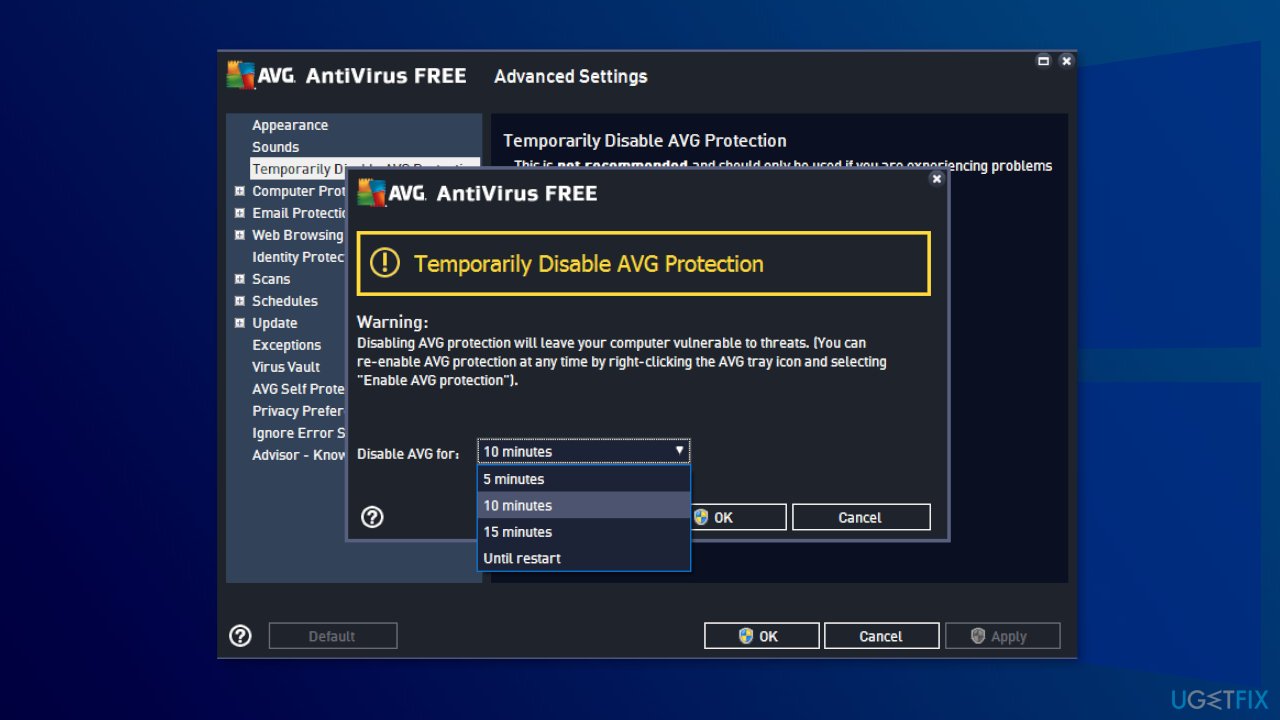
If you have any third-party antivirus software installed on your system, you should try disabling it and then giving the upgrade to Windows 11 another shot. In case you are successful with the antivirus software disabled, it’ll become evident that the issue was caused by it. In such a scenario, it is best just to uninstall it.
Method 3. Mark Partition as Active
- Press Windows + R to open the Run prompt
- Type diskmgmt.msc and hit the Enter button; it should open the Disk Management window on your screen
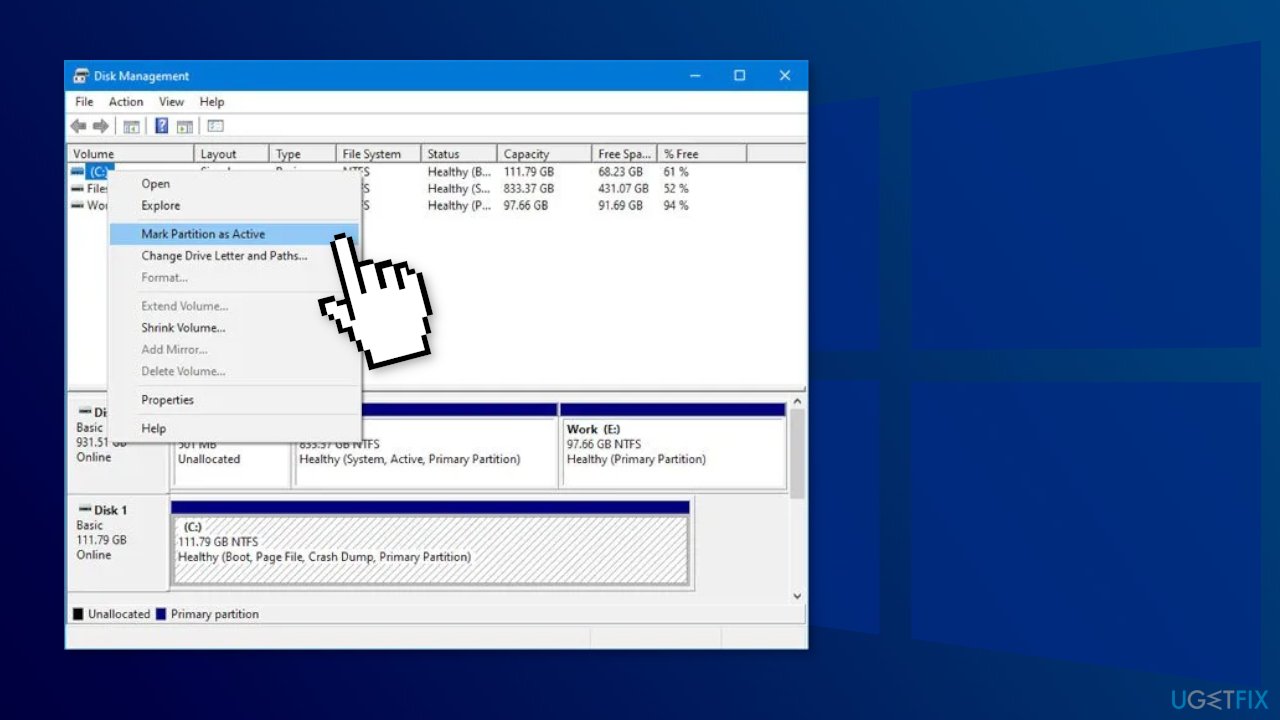
- Right-click on the system drive where your current operating system is installed and select Mark Partition as Active
- Try upgrading to Windows 11
Method 4. Remove GPU Drivers
reported that they managed to install Windows 11 after uninstalling their graphics driver, alternatively you can try updating your drivers with [rev id="DriverFix"] that scans your PC for missing or outdated drivers and updates them automatically.
- Click the Start button, type device manager and select the app from the results
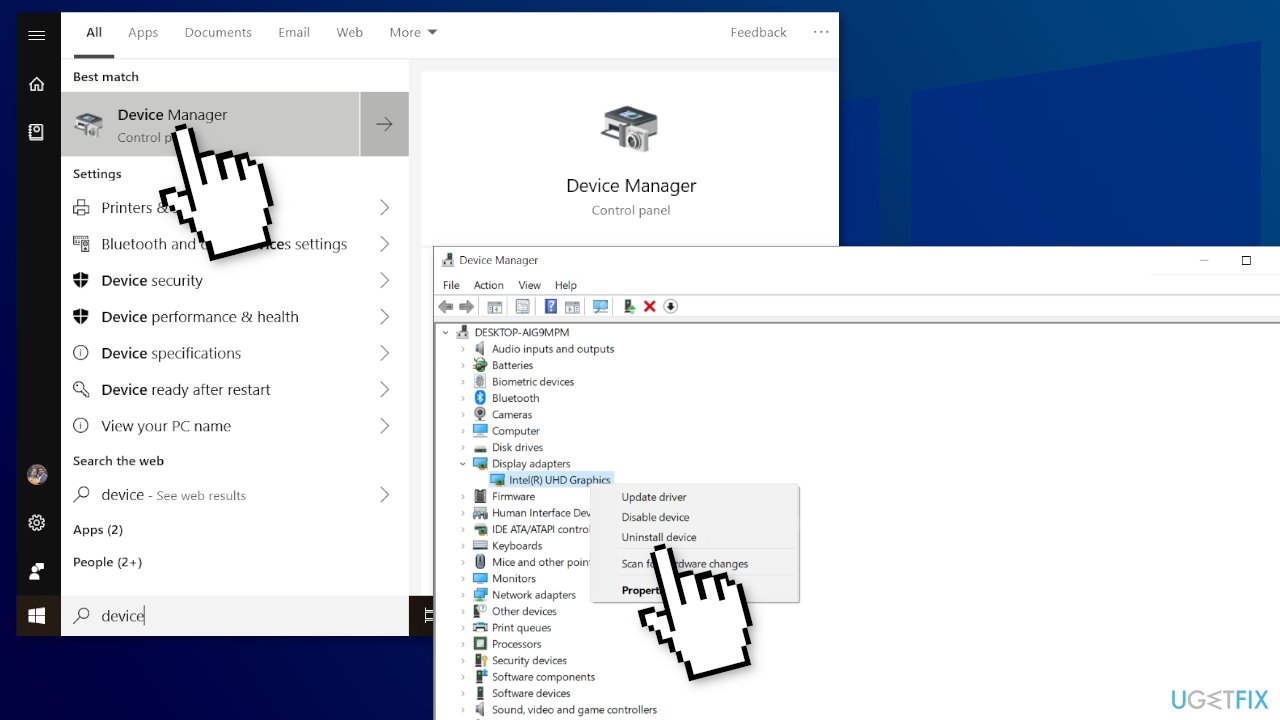
- Extend the Display adapters section, righ-click the graphics driver and select Uninstall device
- The system will install a new driver after that
Method 5. Enable TPM and Secure Boot
Enable TPM:
- Access BIOS/UEFI on your PC. This procedure is different for each manufacturer but usually implies pressing an F key on your keyboard before booting the OS
- Go to the Security section
- Locate the TPM option and enable it
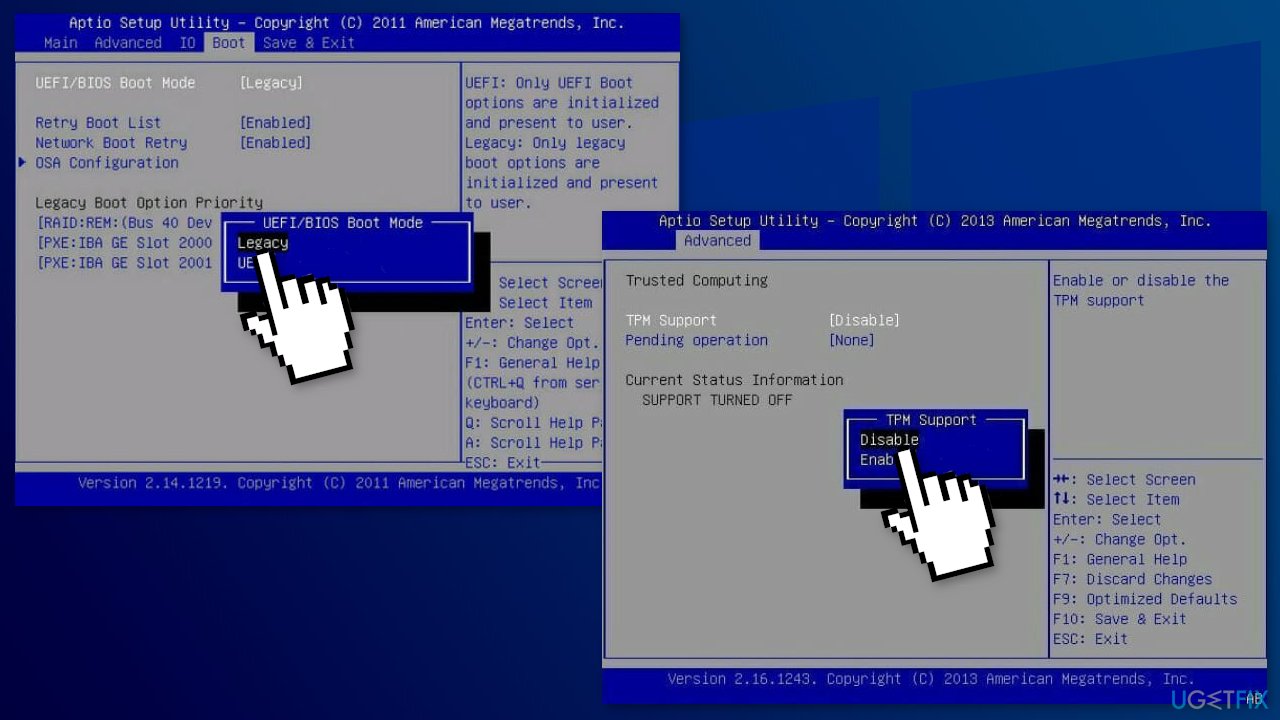
- Save all recently made changes. Usually, you can press the F10 key to save and exit
Enable Secure Boot:
- Click the Start button and select Settings
- Choose Update and Security
- Click the Recovery option from the left pane, then select the Restart now button
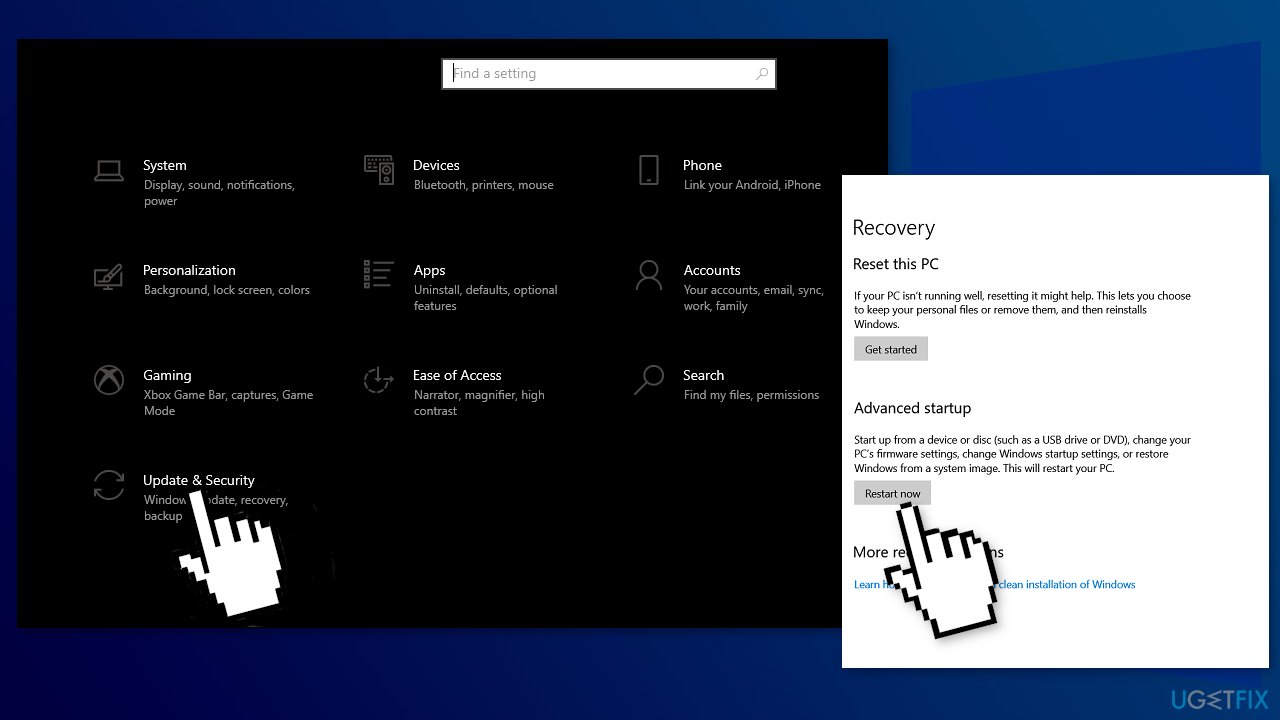
- Select Troubleshoot
- Click on Advanced options
- Choose the UEFI Firmware settings option
- Click on Security, then select the Secure Boot option
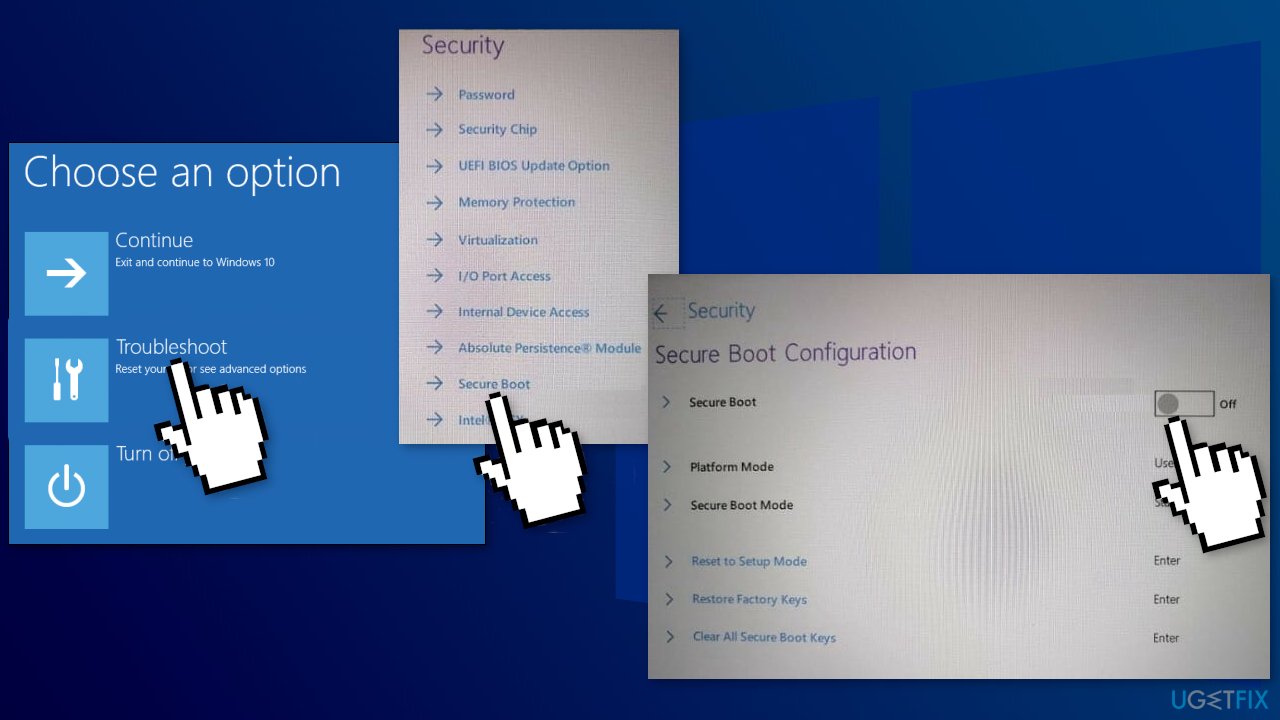
- Toggle the Secure Boot option to On to enable it, then accept the changes
- Save the changes and exit BIOS by pressing the F10 key on your keyboard
- Wait for the PC to reboot, then try to install Windows 11
Method 6. Bypass TPM 2.0 and Secure Boot
- Press the Windows key + R to start Run, type regedit, and press Enter or click OK
- Navigate to the following registry path:
HKEY_LOCAL_MACHINE\\SYSTEM\\Setup
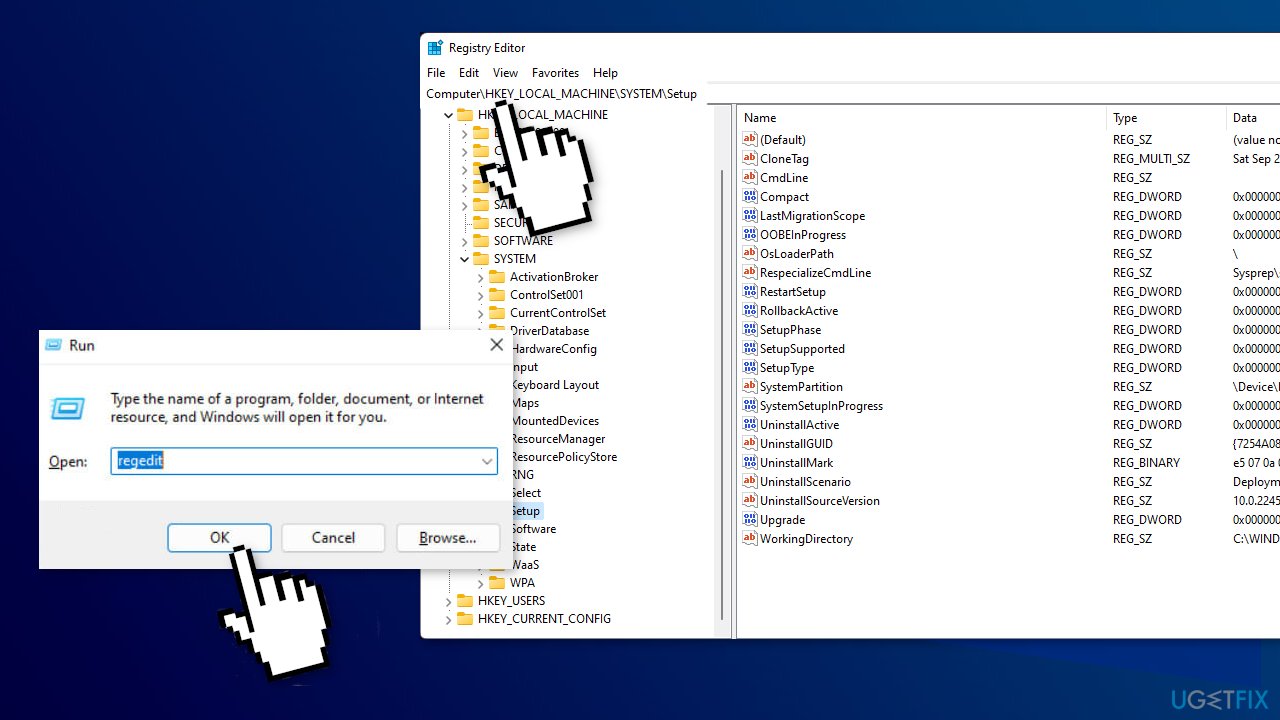
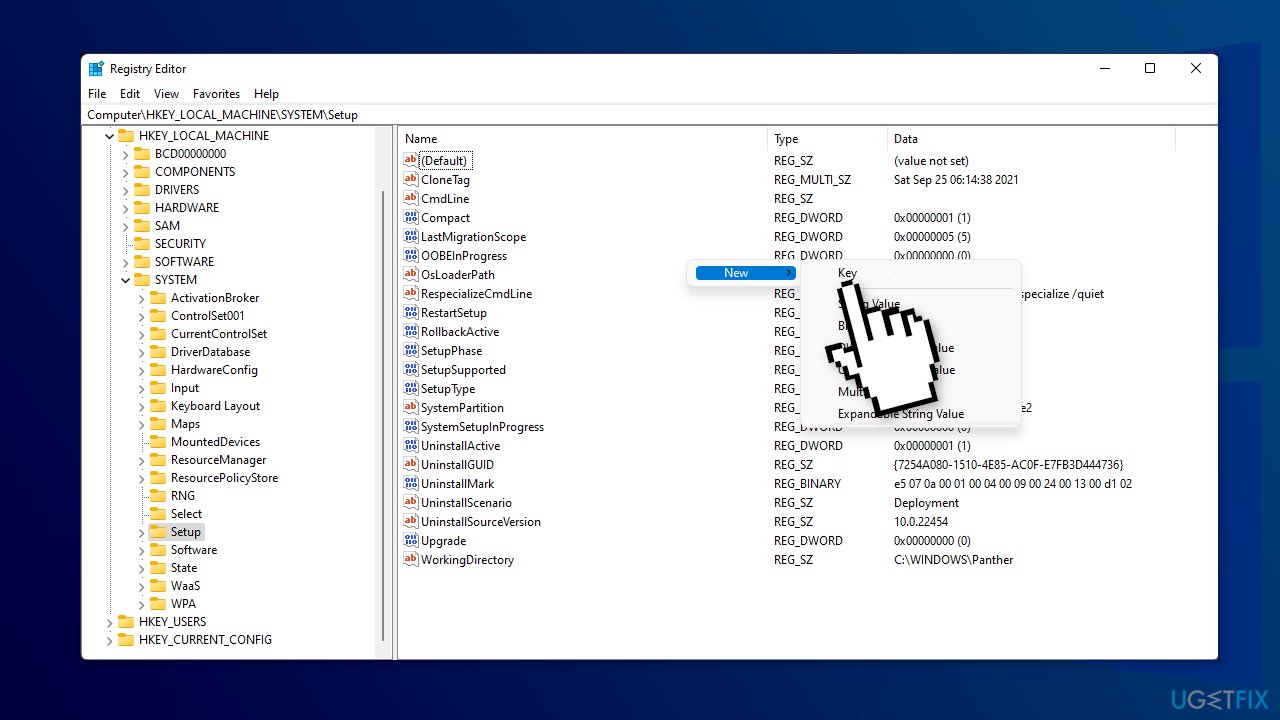
- Right-click on an empty space on the right, select New and select Key, then name it LabConfig
- Click on the new LabConfig key, right-click the blank space to create two DWORD (32-bit) Value options to and name them BypassTPMCheck and BypassSecureBootCheck
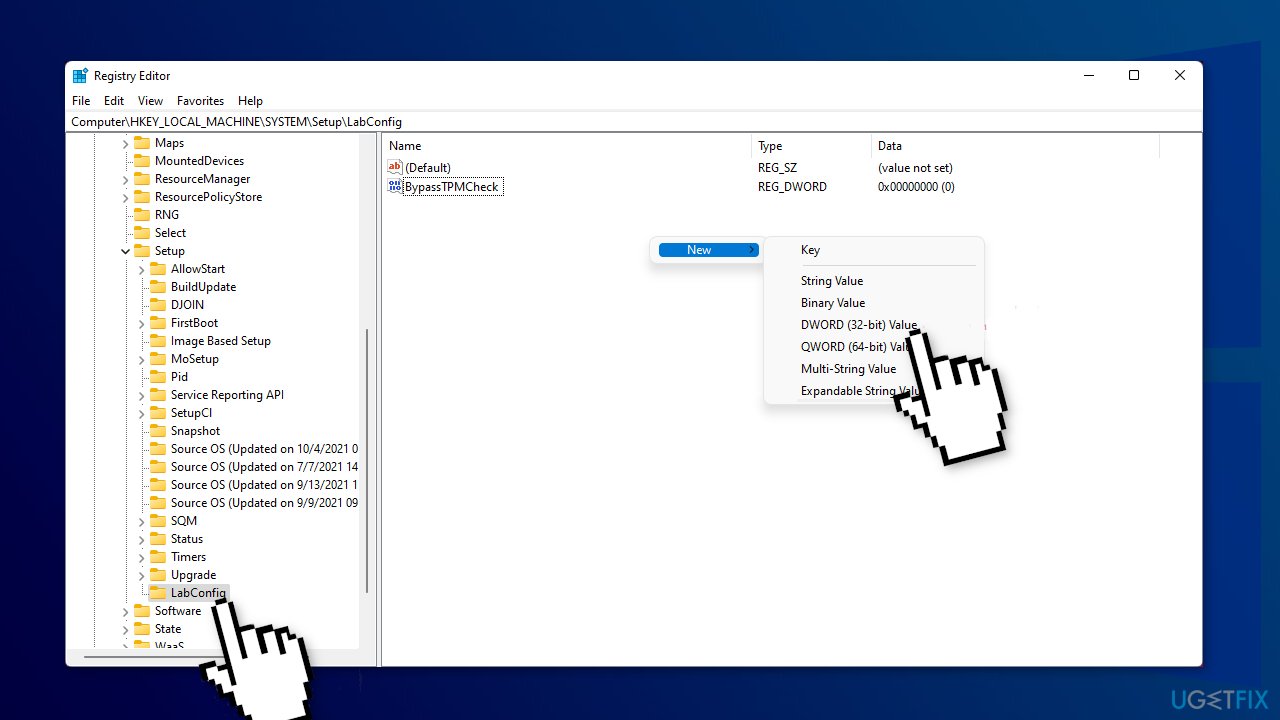
- Double-click the new items one by one, select the Decimal base and set 1 in the Value data field, then click OK
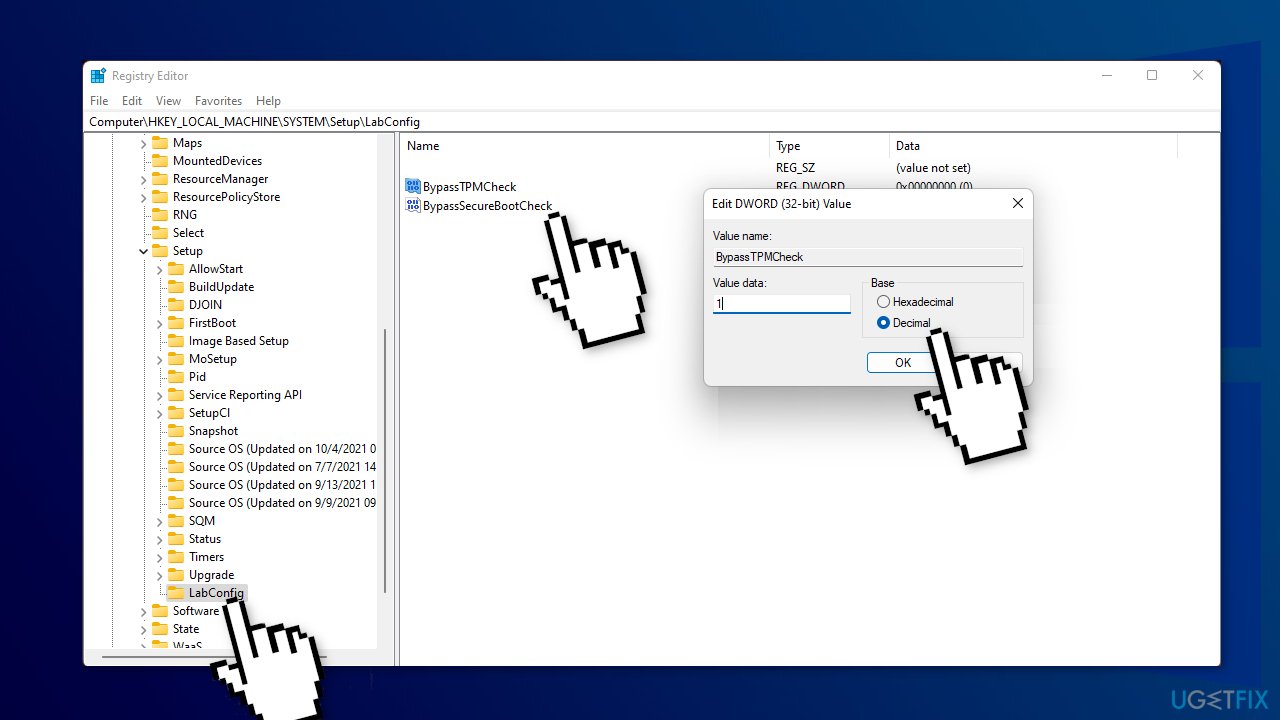
- Close the Registry Editor, then restart your PC. Try to install Windows 11 again
Method 7. Perform a Clean Install
- Go to the official Microsoft page
- Open the Select Download dropdown, pick Windows 11, and hit the Download button
- Select your product language from the Choose one dropdown, hit Confirm, then click 64-bit Download
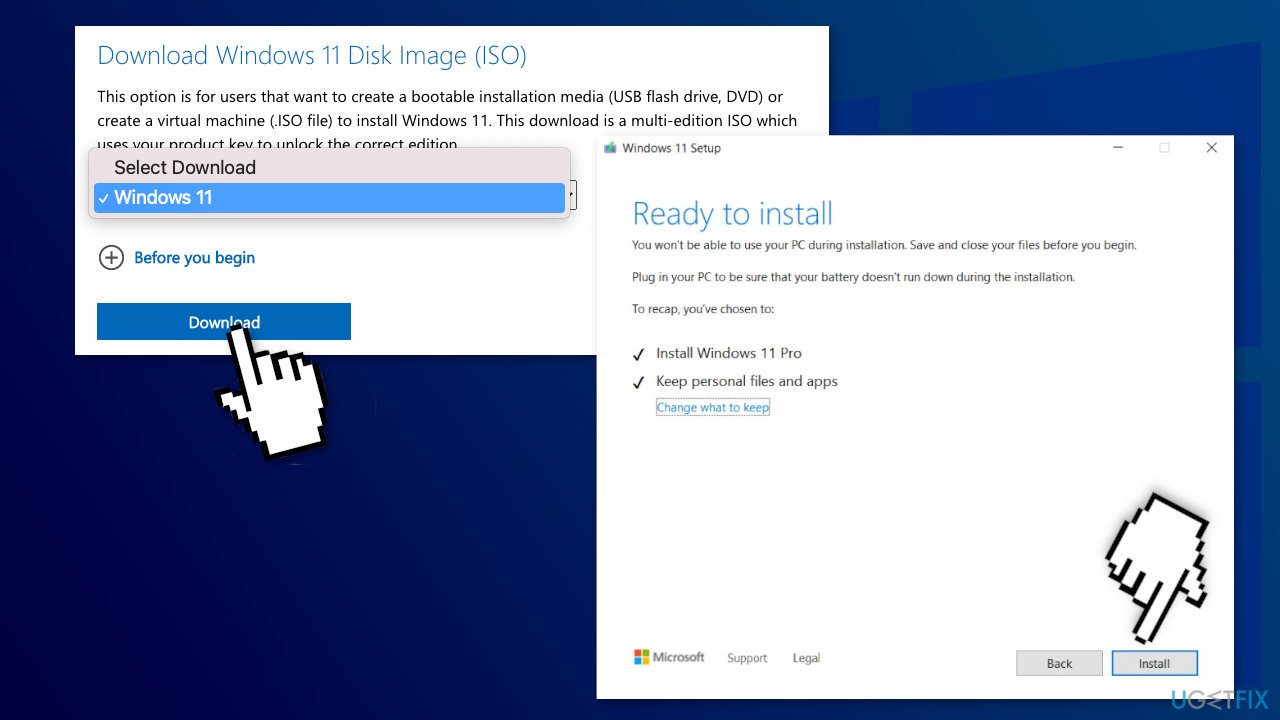
- When the .ISO file finishes downloading, right-click on it and pick Open with > Windows Explorer to mount the virtual disc, then double-click the setup file to begin the installation
- Follow the on-screen instructions
Bottom line
To fix the error, you can try methods such as checking hardware requirements, ensuring sufficient disk space, disabling antivirus programs, updating drivers, and adjusting system settings. If none of these steps resolve the issue, consider performing a clean install of Windows 11.
Frequently asked questions
First, ensure that your PC meets the minimum system requirements for Windows 11, including TPM 2.0 and Secure Boot functionality. You can use the PC Health Check tool provided by Microsoft to verify compatibility.
Try updating your BIOS to the latest version, as outdated BIOS settings can interfere with the installation process. Additionally, ensure that Windows 10 is fully updated before attempting the upgrade.
Yes, you can create a bootable USB drive with Windows 11 and use it to install the OS, bypassing the compatibility check; however, this is not recommended as it may lead to system instability. Always back up your data before attempting such methods.




Report an issue
What's wrong with this guide? We review every report and update or remove content.
Report received — thank you. We'll review and fix it.
You need a free account to submit a report.
Be the first to comment