How to fix
“Sorry, we’re having trouble showing the details of this perk” error in Xbox app
on Windows
Resolve the "Sorry, we’re having trouble showing the details of this perk" error in the Xbox app on Windows 10 or 11 with expert-tested solutions. Fixed…

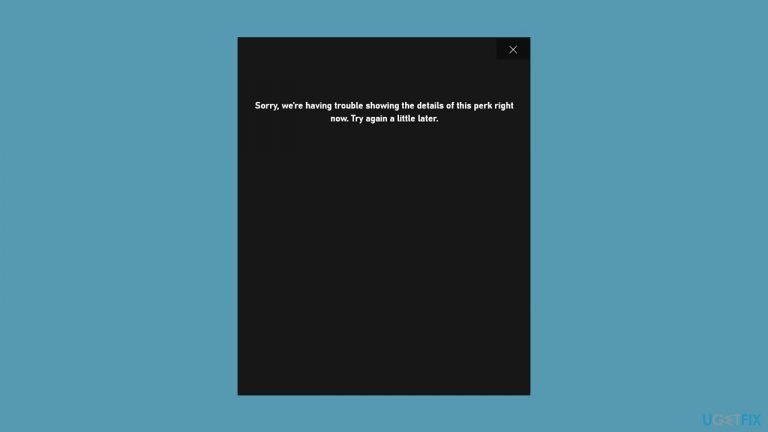
What causes How to fix “Sorry, we’re having trouble showing the details of this perk” error in Xbox app?
- Not subscribed to Xbox Game Pass Ultimate
- Incorrect device for code entry
- Transient issue with Xbox servers
- Incorrect Microsoft account settings
- Corrupt installations of Xbox app or Microsoft Store
Repairs Windows system files, removes malware, and restores a clean OS state — without reinstalling.
Hi, I have recently purchased Game Pass Ultimate because I've seen they are giving three months of Nitro on Discord. And now, when I want to redeem it, I receive a "Sorry, we’re having trouble showing the details of this perk" error in the Xbox App. Any tips on this would be appreciated.
Xbox Game Pass Ultimate members have the added benefit of being able to claim perks from in-game stores, offering a range of content, including player and weapon skins or Discord Nitro. However, it's not uncommon to encounter an error message "Sorry, we're having trouble showing the details of this perk" when trying to redeem these prizes. This can be frustrating, but there are a few things you can try to resolve the issue.
Firstly, it's worth noting that perks are only available to Xbox Game Pass Ultimate members. If you're not currently subscribed to this service, you won't be able to claim any perks. Additionally, make sure you enter the code for your perk on the correct device - Xbox Series X|S, Xbox One console, Xbox Game Pass mobile app, or Xbox app for PC.
If you're still having trouble claiming your perks, there could be a few different reasons why. It's possible that there's a transient issue with Xbox servers, so check the server status at support.xbox.com and wait a while before trying again.
If this doesn't work, try updating the Xbox app on your device or checking your Microsoft account settings to make sure your age and location are correct. If your account is set to a country where the perk isn't supported, you won't be able to claim it. Additionally, make sure the Xbox app and Microsoft Store are installed correctly, as corrupt installations can cause issues with perks.
Below we provide steps to these and other solutions to fix the "Sorry, we’re having trouble showing the details of this perk" error in the Xbox app. Before proceeding, we recommend running a scan with [d1] PC repair software, which can be used to ensure there are no underlying Windows issues causing the error, for example, corrupted system files.

Fix 1. Change your account information
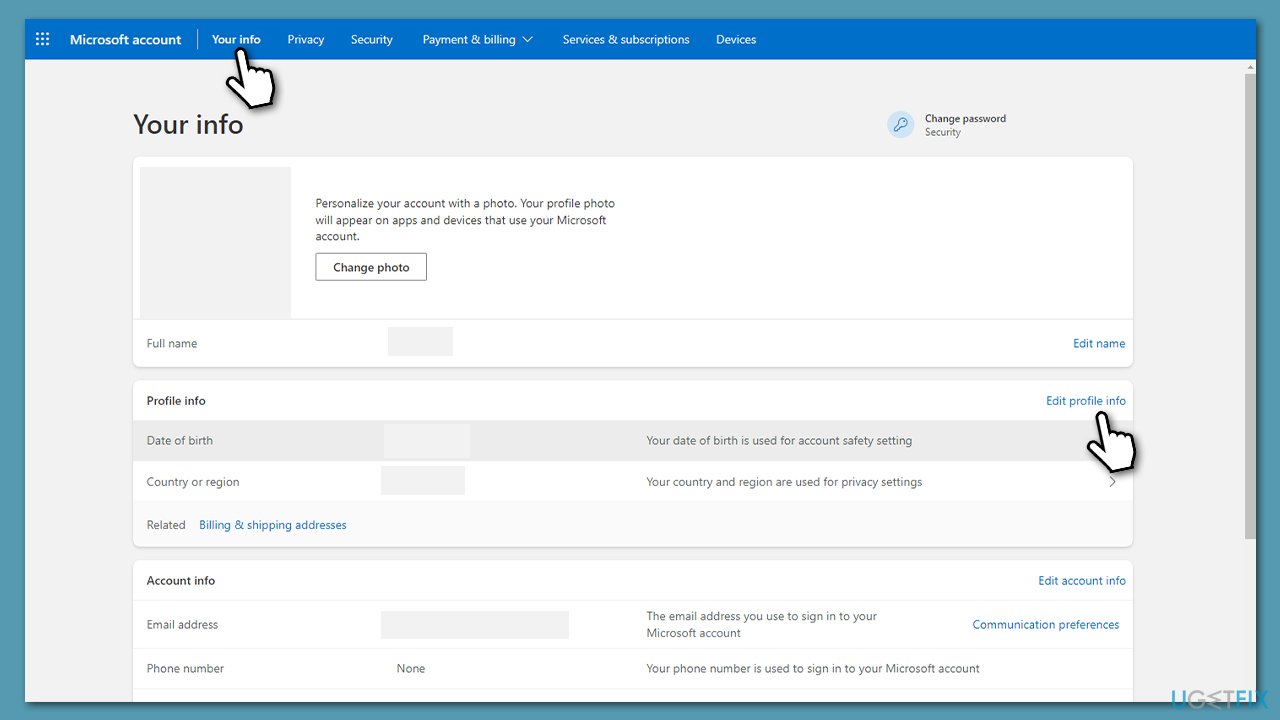
If your Microsoft account is set to age below 18, some perks might not be available to you. The same goes for the location restrictions, as some perks might be restricted in some areas (for example, Australia). Thus, access your account and make adjustments:
- Open your browser and log in to your Microsoft account.
- Click the Your info button at the top.
- Under Profile info, click Edit profile info.
- Verify you are the owner of the account.
- Change your date of birth and country/region, if applicable.
Alternatively, you can always use a VPN such as [rev id="Private Internet Access"] - you won't have to make any changes to your account settings.
Fix 2. Update Windows and Xbox app
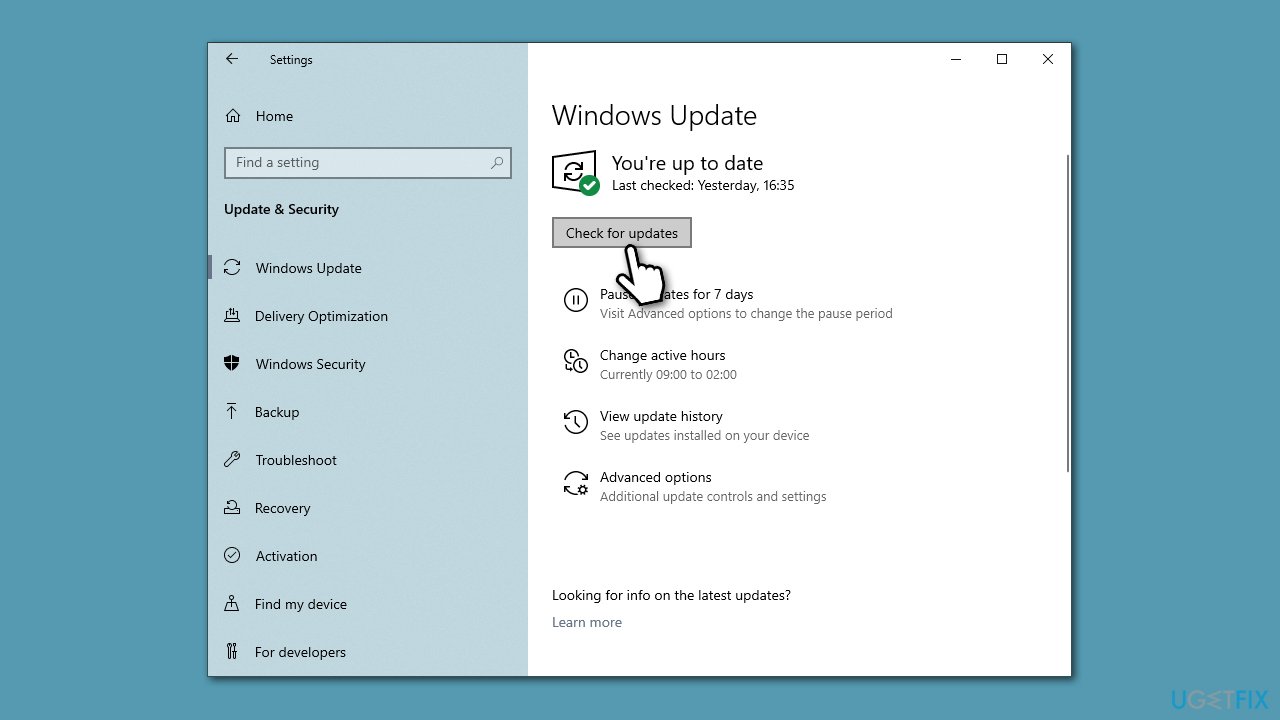
Updates are delivered by Microsoft regularly, and one of their main purposes is to iron out any bugs that could affect the performance of Windows and sometimes cause errors. Thus, make sure your Windows system and the Xbox app are both patched with the latest updates.
- Type Updates in Windows search and press Enter.
- Click the Check for updates button and wait.
- If optional updates are available, install them too.
- Once done, restart your PC.
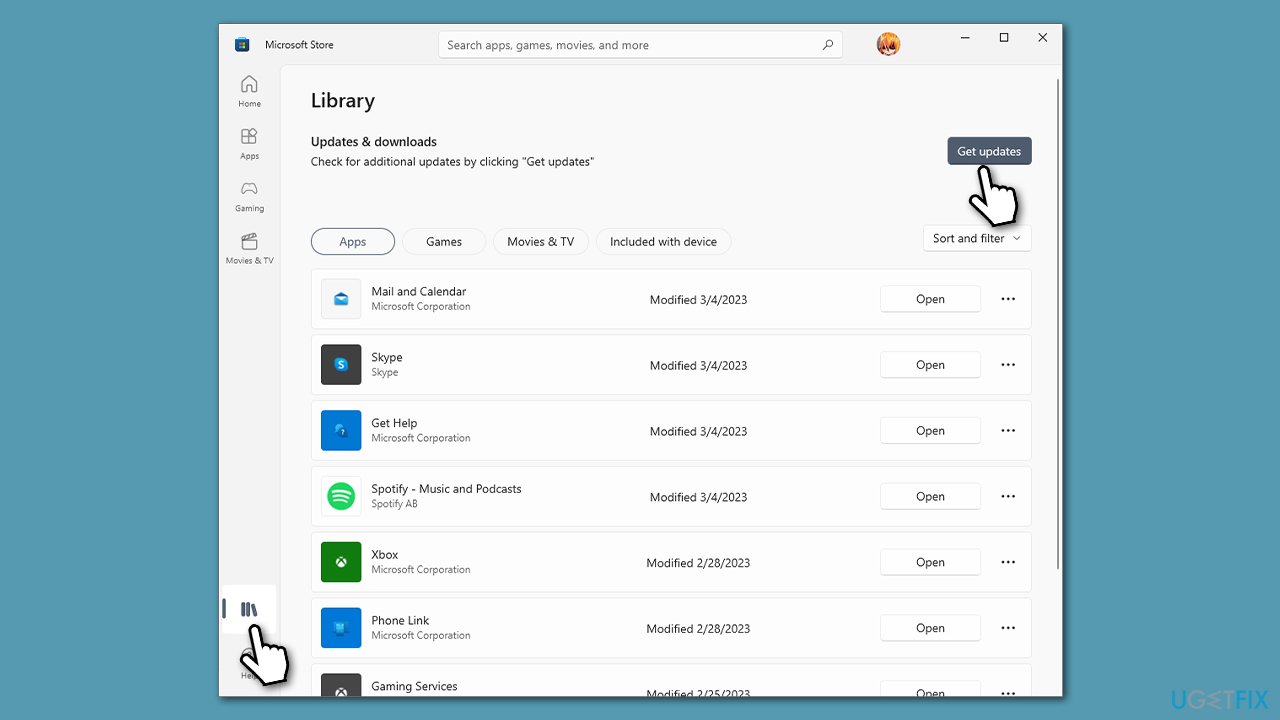
To update the Xbox app, follow these steps:
- Open Microsoft Store.
- Go to Library.
- Here, click Get updates and wait till they are installed.
Fix 3. Clear Microsoft Store app cache
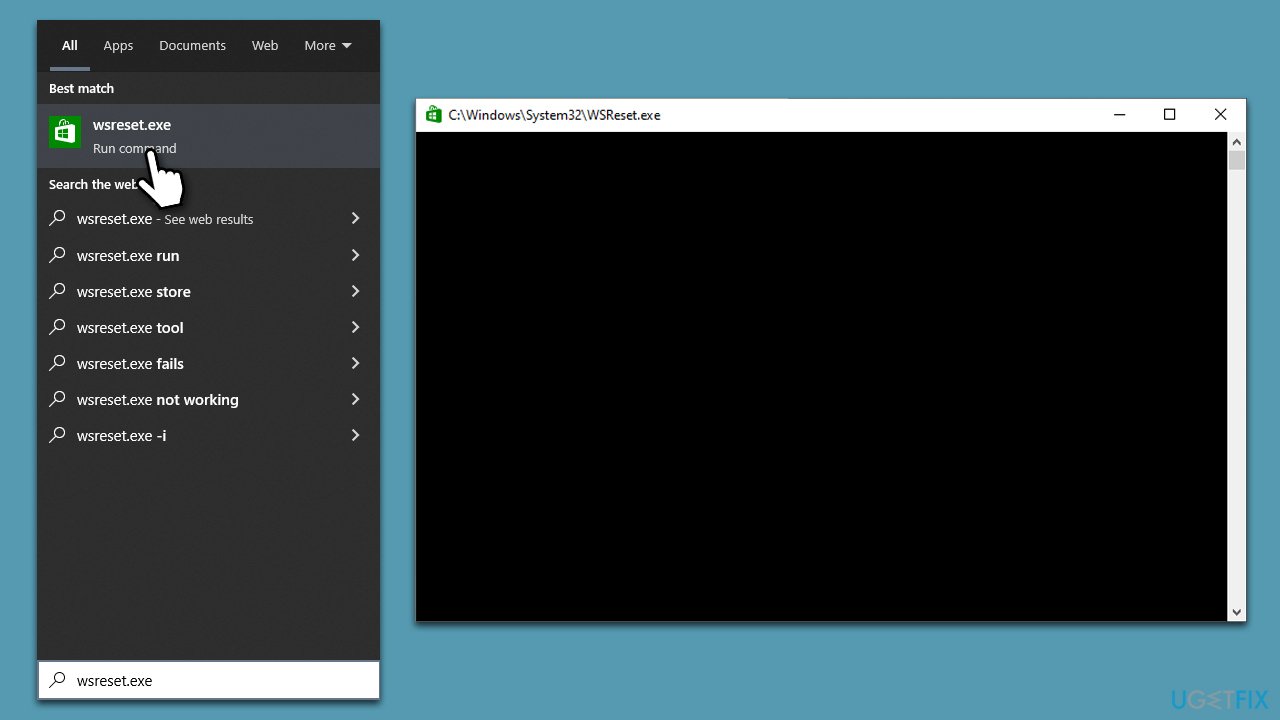
- In Windows search, type in wsreset.exe and hit Enter.
- A black pop-up window will show up at this point – do not close it.
- The cache will be cleared in a moment, and the store will reopen.
If this method does not work, proceed with the next one.
Fix 4. Reset the Microsoft Store app and Xbox app
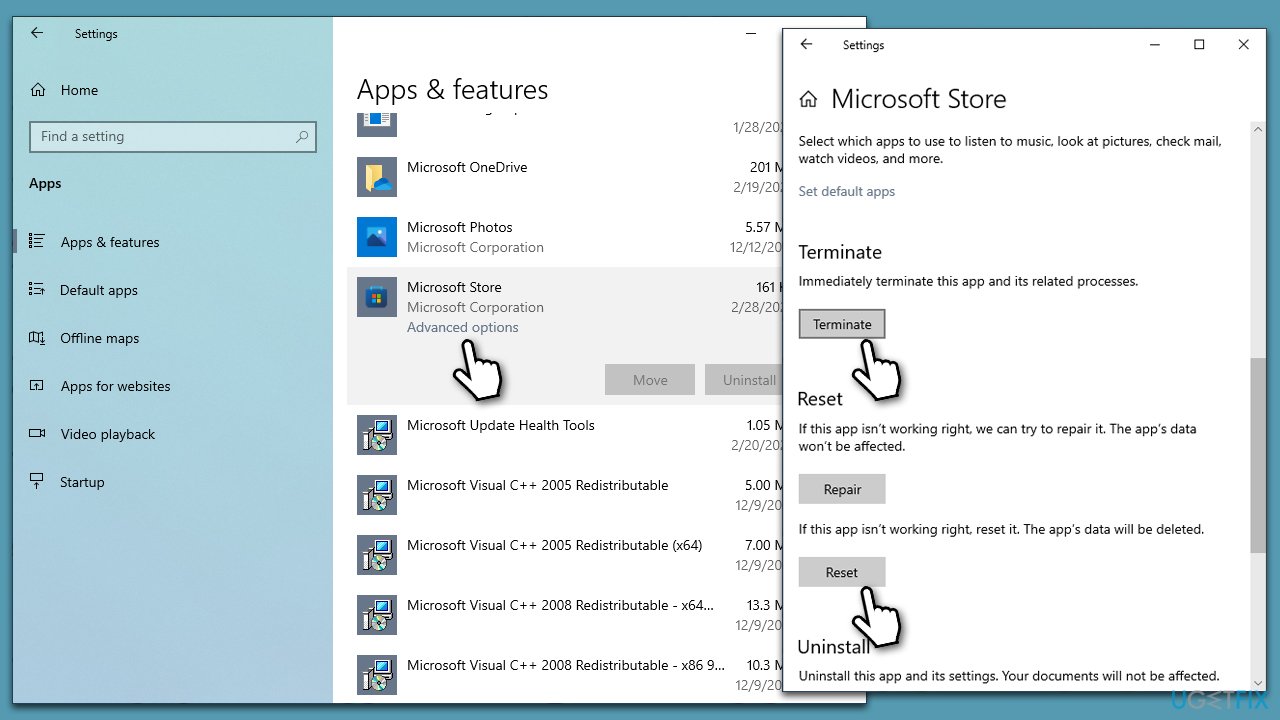
- Right-click on Start and pick Apps & Features.
- Scroll down to find Microsoft Store and click Advanced options.
- Click Terminate.
- Finally, click Reset.
- Now locate the Xbox app and perform the same steps.
Fix 5. Claim your perks using alternative methods
if you're encountering issues when attempting to claim your Perks, it's worth noting that some users have reported success by using the mobile app or console. While the Xbox app for PC can be a convenient option, it's possible that issues with the app itself or with your device's settings may be causing problems. If you cannot claim your Perks via the PC app, consider trying a different device, such as your console or mobile app.
Of course, it's also worth double-checking that you're entering the correct code for your Perk and that your subscription is up-to-date. But if those aren't the issue, switching to a different device may be the solution you need to claim your rewards.
Bottom line
To resolve the error, ensure you are subscribed to Xbox Game Pass Ultimate, enter the code on the correct device, and check the Xbox server status. Additionally, update the Xbox app and verify your Microsoft account settings. If none of these solutions work, consider running a scan with PC repair software to check for underlying Windows issues.
Frequently asked questions
Try resetting the Xbox app by going to Settings > Apps > Apps & features, selecting the Xbox app, and clicking on 'Advanced options' to reset it. Additionally, ensure that your Windows 10 is updated to the latest version.
Yes, you can fix the Xbox app perk error by clearing the app cache and checking your internet connection. Go to Settings > Apps, find the Xbox app, and select 'Repair' to attempt a quick fix.
Open the Microsoft Store, click on 'Library', and then 'Get updates' to ensure that all your apps, including the Xbox app, are up to date. Keeping your apps updated can help prevent errors like the perk issue.




Report an issue
What's wrong with this guide? We review every report and update or remove content.
Report received — thank you. We'll review and fix it.
You need a free account to submit a report.
Be the first to comment