How to fix
“Sort by date modified” feature not working
on Windows
Resolve the "Sort by date modified" issue in Windows 10 and 11 effortlessly. Quick solutions await, ensuring your files are organized perfectly. Expert-…

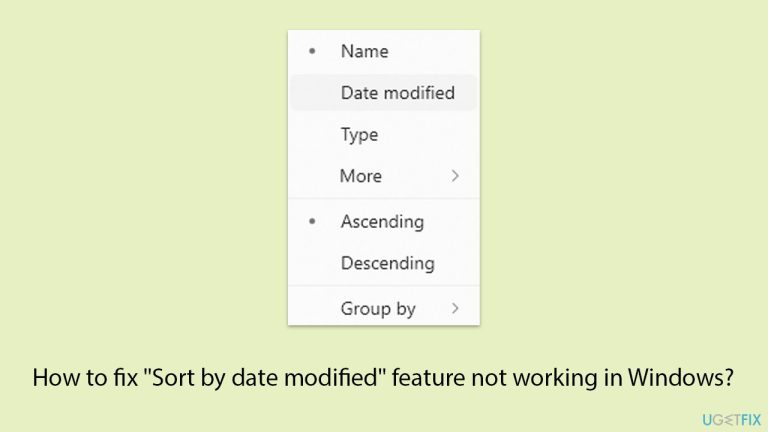
What causes How to fix “Sort by date modified” feature not working in Windows?
- Grouping settings
- Optimization of folders
- Metadata and indexing of files
- Software glitches
Repairs Windows system files, removes malware, and restores a clean OS state — without reinstalling.
Why is File Explorer's "Sort by date modified" not working correctly for certain folders, with files sometimes being grouped by type or not appearing in the correct order, despite the option being set properly? I don't know if it's just me or is it a general bug, but I am not quite sure how to resolve this.
File Explorer’s "Sort by date modified" function can sometimes malfunction, causing files and folders to appear out of order even when the option is correctly selected. This issue isn’t unique and has been reported by several users, especially on Windows 10 and 11.
Files might be grouped incorrectly, newer files could show up alongside or below older ones, and folders or compressed files (e.g., ZIP files) might appear at the top when they shouldn’t.
There are several reasons this might occur:
- Grouping settings. The "Group by" option should be set to "None" in case there is something wrong with the normal date sorting. Otherwise, files will group by type, name, or some other attributes that are not a modification date. Typically it resolves when this grouping is disabled.
- Optimization of folders: Windows optimizes folders by their contents, be it documents or pictures. Most often, an automatic setting may cause sorting errors if one folder contains several types of files. Manual adjustments to the optimization setting to match the type of primary contents may help File Explorer display the files correctly.
- Metadata and indexing of files. corrupt or errant metadata will inadvertently affect the arrangement of files. Other problematic elements of the search index can also affect the way in which File Explorer reads and displays the properties of the files. Rebuilding the search index or refreshing metadata might correct this problem.
- Software glitches. Most of those software glitches are usually caused either by bugs in File Explorer itself or some earlier versions of Windows. Usually, keeping your system updated and resetting folder view settings clear out these glitches.
Before attempting any manual fixes, it’s advisable to try using [d1] to repair potential Windows issues like corrupted files or registry errors, as these underlying problems might be causing the sorting malfunction. This automated tool can streamline the repair process and potentially resolve the issue without manual intervention.
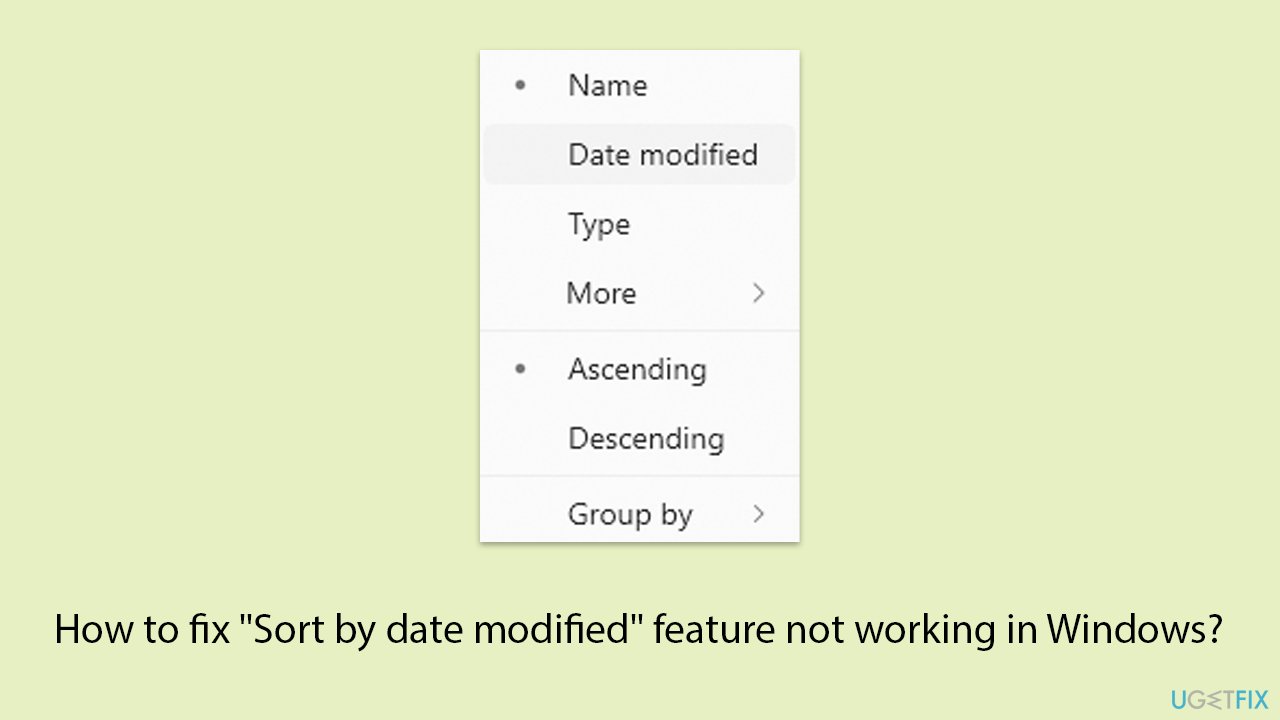
Fix 1. Set Group by to none
Grouping can override the sorting behavior by displaying files in categories other than by date. Disabling this option ensures that files are sorted strictly by the modification date.
- Open File Explorer and go to the folder with the problem.
- Right-click in an empty space within the folder.
- Select Group by and choose None.
- Check if the files are now sorted correctly by date modified.
Fix 2. Reset folder view
Folder view settings can become corrupted or mismatched, causing sorting inconsistencies. Resetting the view helps restore the default settings, ensuring proper sorting behavior.
- Open File Explorer and go to the folder with the problem.
- Click the three dots (or Options in older versions) in the toolbar.
- In the Options or Folder Options window, switch to the View tab.
- Click Reset Folders and then apply the changes.
- Check if sorting by date modified works properly.

Fix 3. Change folder optimization
Windows optimizes folders based on their contents, which may not always match the actual file types. Adjusting the folder optimization to match the content helps ensure sorting options are correctly applied.
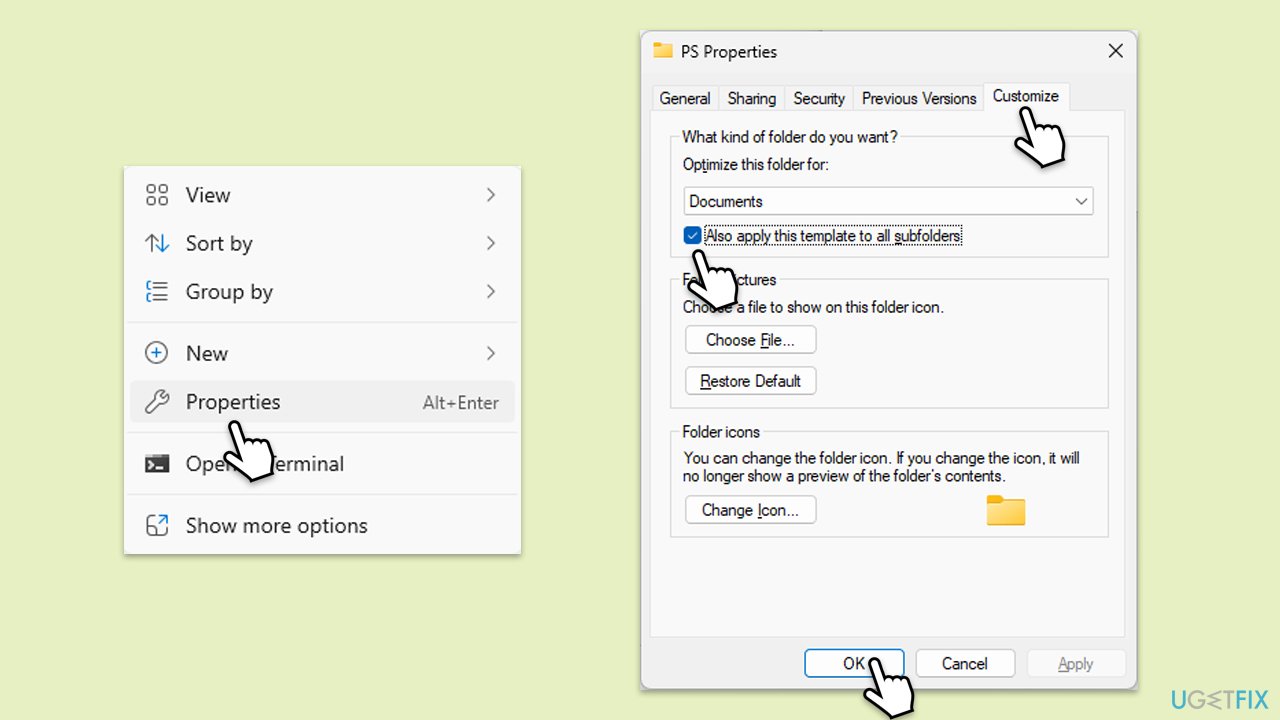
- Right-click the folder where the sorting issue occurs.
- Select Properties and go to the Customize tab.
- Under Optimize this folder for, choose the relevant content type (e.g., documents, pictures).
- Check the box for Also apply this template to all subfolders.
- Click Apply and OK to save the changes.
Fix 4. Rebuild the search index
File Explorer relies on the search index to retrieve file properties like modification dates. Rebuilding the index can correct discrepancies that lead to incorrect sorting.
- Type Control Panel in Windows search and press Enter.
- On the top-right corner, click on View by option and select Small icons.
- Pick Indexing options.
- Click Modify.
- Mark the locations that you want to be indexed and click OK (you can also use Show all locations at the bottom-left of the window if you can't see the location you are looking for).
- In the Indexing Options window, click Advanced.
- Click Rebuild under Delete and rebuild index. This might take a while, depending on how large your drives are. During the rebuilding process, you might not be able to use the search bar or receive incomplete results.
- Click OK.

Fix 5. Update Windows
Software updates often include fixes for known bugs that can affect File Explorer’s performance. Keeping the system updated ensures compatibility and stability.
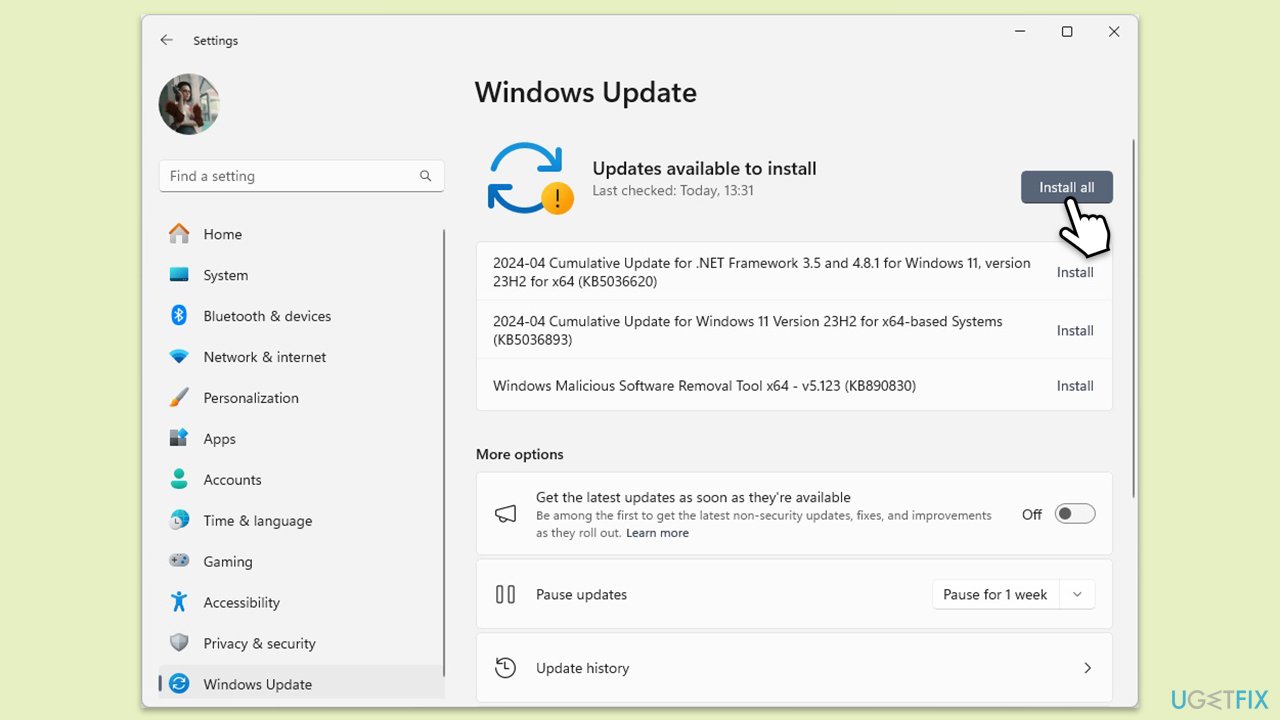
- Type Updates in the Windows search box and press Enter.
- Click Check for Updates or Install all.
- Ensure optional and pending updates are installed as well.
- Wait till the process is finished.
- Restart your device.
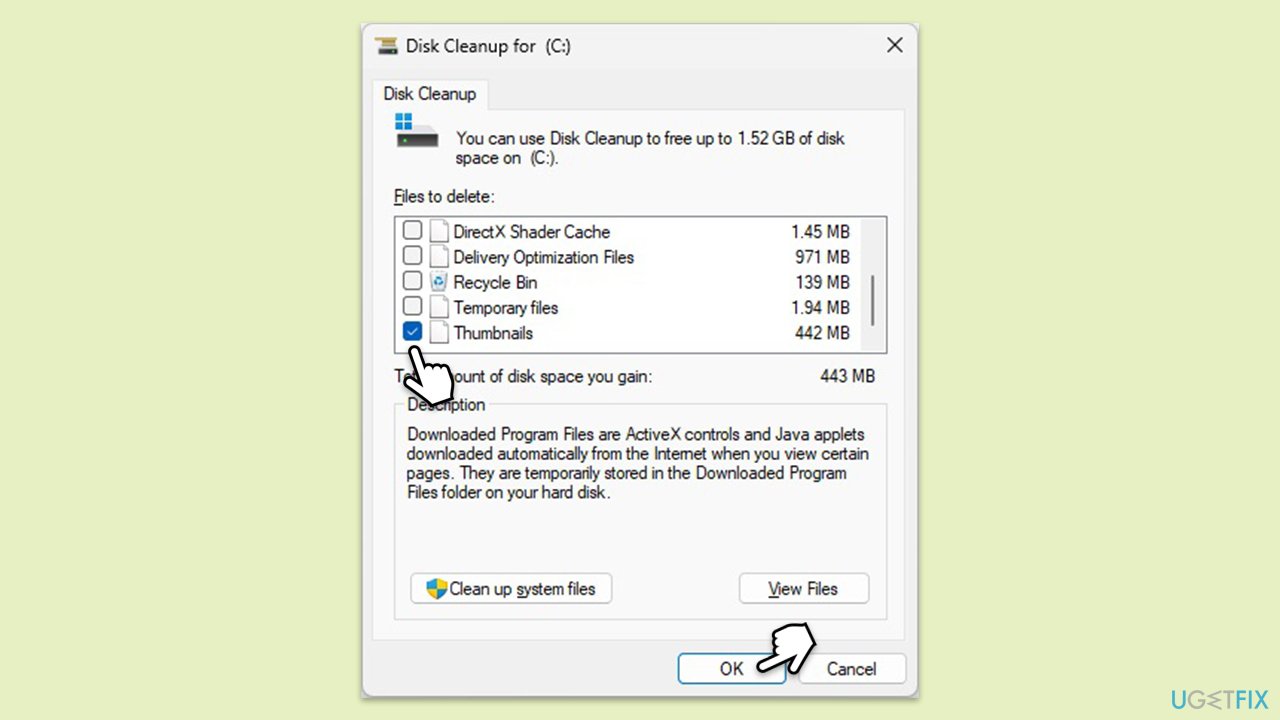
Fix 6. Clear thumbnail cache
Corrupted thumbnail caches can sometimes interfere with file sorting in File Explorer. Clearing the cache removes any potential conflict.
- Type Disk Cleanup in Windows search and hit Enter.
- If your Windows is installed on drive C, pick it from the list (it should be by default) and press OK.
- In the Files to delete section, scroll down to the bottom and find Thumbnails.
- Click OK and wait till all the files are removed.
Bottom line
To resolve the issue with the 'Sort by date modified' feature, try disabling the grouping settings, adjusting folder optimization, rebuilding the search index, and ensuring your system is updated. If these fixes do not work, consider using a repair tool to address potential Windows issues.
Frequently asked questions
This issue may occur due to corrupted file explorer settings or indexing problems. Try rebuilding the search index or resetting the folder view settings to resolve it.
In Windows 11, ensure that the folder is set to 'Details' view and check if the column for 'Date modified' is visible and selected for sorting.
If the problem persists, consider running the System File Checker tool to repair any corrupted system files that might be affecting Windows Explorer.




Report an issue
What's wrong with this guide? We review every report and update or remove content.
Report received — thank you. We'll review and fix it.
You need a free account to submit a report.
Be the first to comment