How to fix
Spacebar not working
on Windows
Is your Spacebar not working on Windows 10 or 11? Discover effective solutions with expert-tested tips to get your keyboard back in action, fixed in min…

What causes How to fix Spacebar not working in Windows?
- Wear and tear of the keyboard
- Dust and debris obstructing key movement
- Limited key lifespan in gaming keyboards
- Intense use leading to degradation of components
Repairs Windows system files, removes malware, and restores a clean OS state — without reinstalling.
Hello. The spacebar key on my Windows laptop has stopped working. Why could this happen? Any suggestions would be appreciated.
The annoyance of a broken spacebar on your Windows keyboard can seriously hamper your productivity and overall user experience. Understanding the various factors that may contribute to this problem can shed light on its causes and potential solutions.
Wear and tear is a common cause of a non-functioning spacebar. Keyboards, like any other piece of hardware, deteriorate naturally over time, especially if they have been heavily used. Continuous key pressing, especially when engaged in activities such as gaming or typing for extended periods of time, can cause gradual degradation of keyboard components such as the spacebar.
Dust and debris can also obstruct the normal operation of your keyboard. Tiny particles may get into the gaps between the keys, interfering with their movement and responsiveness. This accumulation can cause the spacebar or other keys to become unresponsive or sticky over time, affecting your typing experience.
The problem of a non-functional spacebar can arise sooner than expected for avid gamers who rely heavily on their keyboards. Because of the intense use they receive, gaming keyboards frequently have a limited key lifespan. As a result, gamers may experience keyboard issues, such as an unresponsive spacebar, sooner than users who engage in less demanding activities.
While a non-working spacebar can be inconvenient, there are potential solutions to the problem. Cleaning the keyboard to remove dust and debris, checking for and installing necessary software updates, replacing the keyboard if it has outlived its useful life, or seeking professional assistance for repairs if the problem persists are all possible solutions.
In this guide, you will find 7 steps that should help you fix Spacebar not working in Windows. You can also try a system repair tool like [d1] that can fix most system errors, BSODs,[ref en-1] corrupted files, and registry[ref en-2] issues. Otherwise, follow the step-by-step instructions below.
Method 1. Restart the PC
When faced with a problem on your PC, there are numerous approaches to address it, but the fastest and simplest solution is to reboot your computer. By performing a straightforward restart, you can clear your system's memory and refresh all its processes, effectively resolving various unexpected issues, including keyboard malfunctions.
It's not surprising that a restart is frequently suggested as the initial step before delving into more intricate troubleshooting methods. Therefore, before attempting any other measures, it is advisable to give your PC a quick restart and observe if it resolves the specific issue you're experiencing with the spacebar.
Method 2. Update or Reinstall the Keyboard Driver
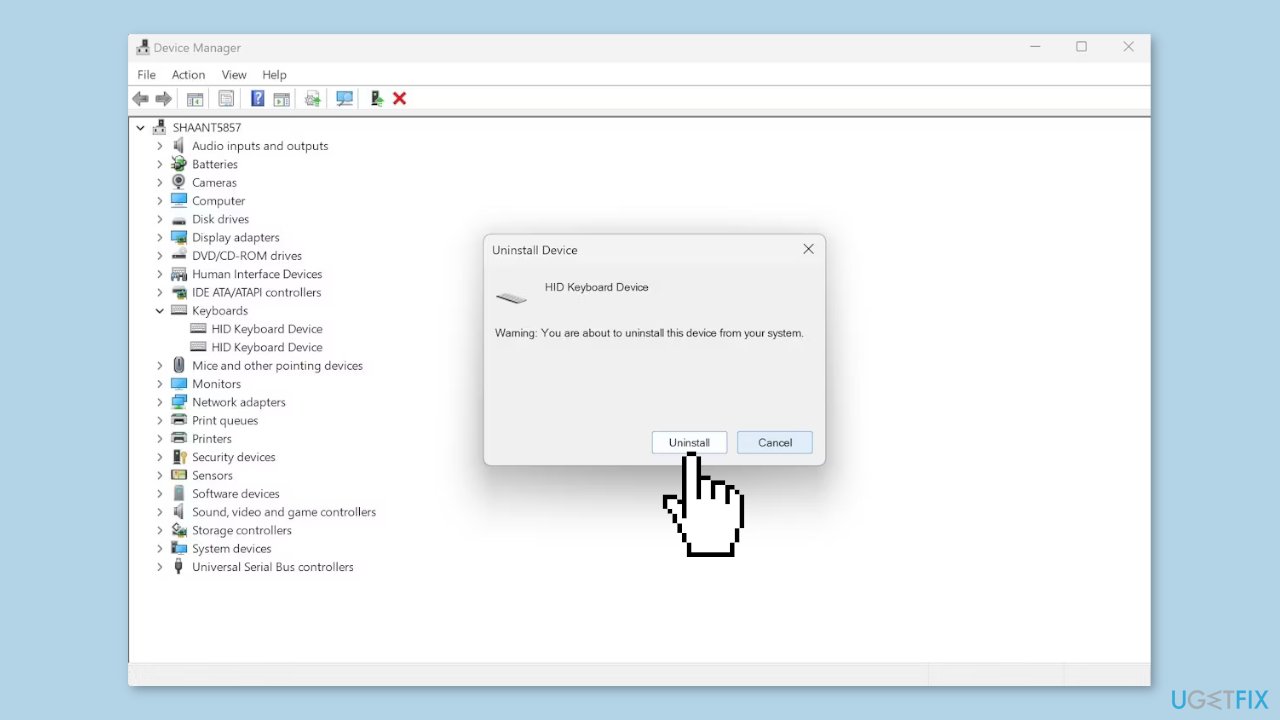
- Right-click the Start button and select Device Manager.
- Expand the Keyboards category.
- Right-click on the HID Keyboard Device.
- Select Update driver.
- Click on Search automatically for drivers.
- If the system finds any new versions, it will install the newest, if not, right-click the Start button.
- Select Device Manager.
- Expand the Keyboards category.
- Right-click on the HID Keyboard Device.
- Select Uninstall device and restart the PC.
- Windows will find the appropriate driver and install it automatically.
You can also use a dedicated utility, like [rev id="DriverFix"] that can find the best drivers for your machine and install them automatically.
Method 3. Run the Keyboard Troubleshooter
- Head to the Start menu search bar.
- Type in settings and select the best match.
- Click on System, then select Troubleshoot.
- Choose Other troubleshooters.
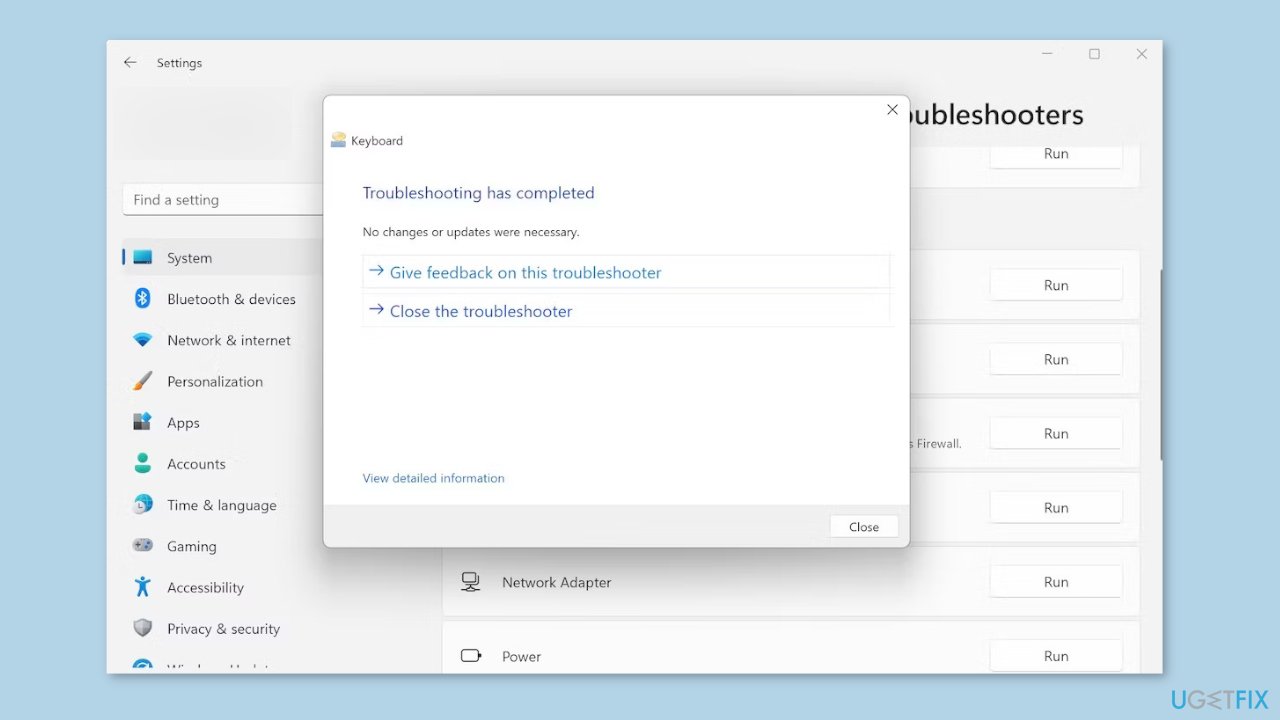
- Scroll down to Keyboard and click on Run.
- If any problems are detected during the Troubleshoot, it will automatically fix them after the scan.
Method 4. Install Windows Updates
- Press the Windows key + R to open the Run box.
- Type ms-settings:windowsupdate in the text box and press Enter.
- Click the Check for updates button.
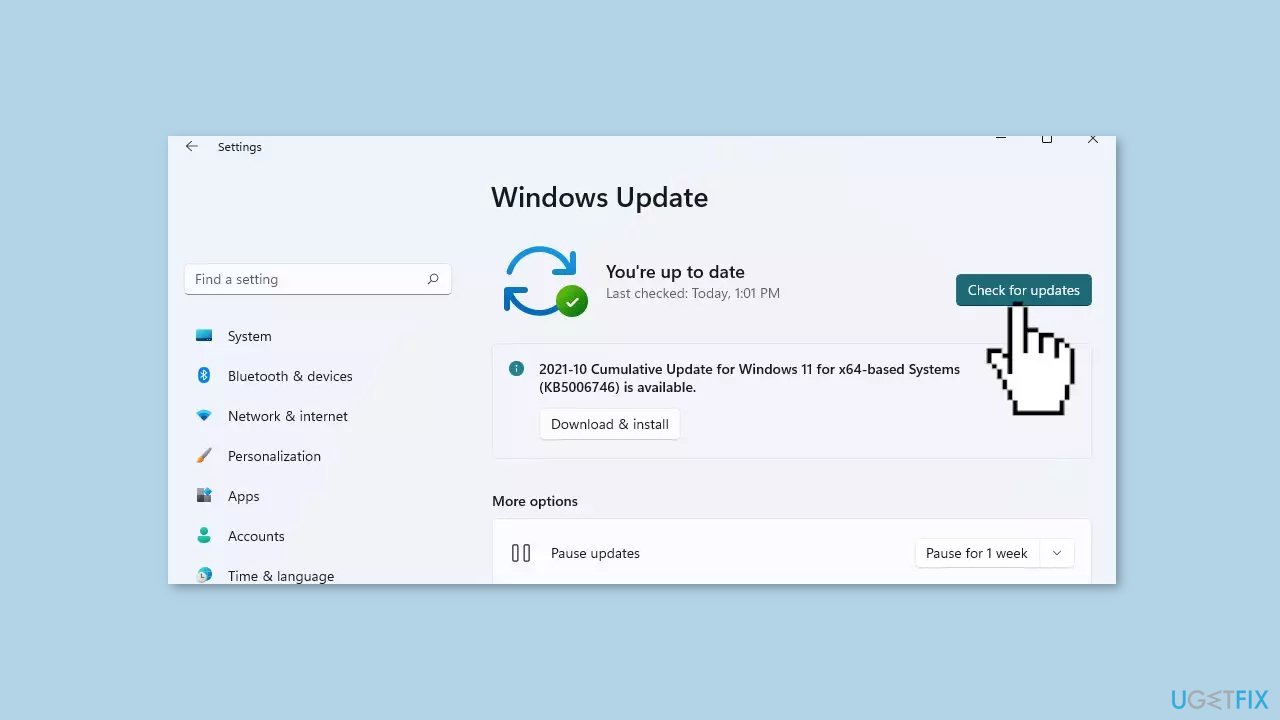
- If a new update is available, click the Download & Install all button.
- Restart your computer after the process is finished and check to see if the problem is fixed.
Method 5. Run a Malware Scan
It is possible that a malware infection may be the cause of the spacebar not working in Windows. It is important to run a comprehensive security scan to rule out this possibility and ensure that the computer is not infected. This can help to prevent further issues with the Windows operating system and ensure that it is functioning properly.
If you have access to a security scanner, or if your organization pays for one, you can use it to scan your entire system to check for a virus infection. Otherwise, you can use Windows Defender to scan your system:
- Click on the Windows Start menu or press the Windows key on your keyboard.
- Type Microsoft Defender in the search bar and click on Microsoft Defender Antivirus to open the application.
- Click on the Virus & threat protection option in the left-hand menu.
- Click on the Quick scan or Full scan option, depending on your preference.
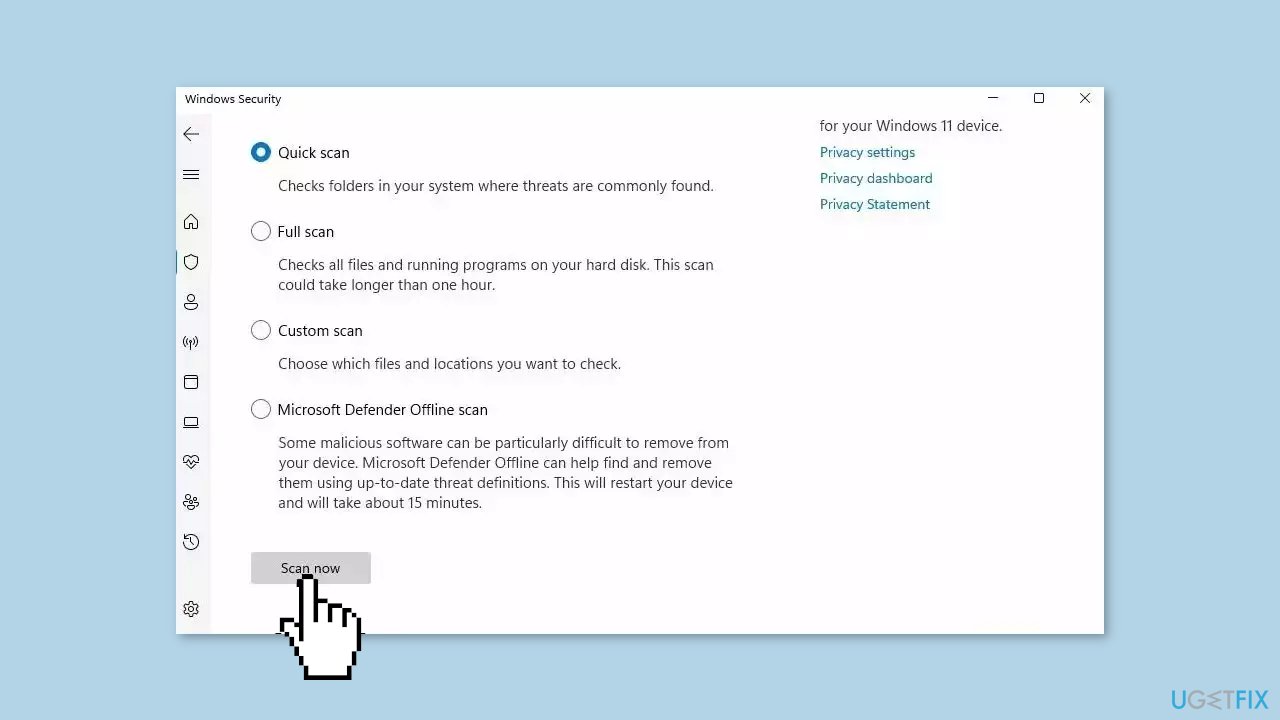
- If you choose Quick scan, Microsoft Defender Antivirus will scan the most vulnerable and commonly infected areas of your computer.
- If you choose Full scan, Microsoft Defender Antivirus will scan your entire computer, including all files, folders, and programs.
- Click on the Scan now button to start the selected scan type and wait for the scan to complete.
- The time it takes will depend on the size of your hard drive and the number of files being scanned.
- Once the scan is complete, you will be informed of any detected threats, and you can choose to quarantine or remove them.
- If no threats are found, Microsoft Defender Antivirus will inform you that your device is secure.
Method 6. Use System Restore
System Restore is a feature in Microsoft Windows that allows users to revert their computer's state to a previous point in time. This can be helpful if you have made changes to your system that are causing problems.
- Press the Windows key + R on your keyboard to open the Run box.
- Type SystemPropertiesProtection and press Enter.
- Go to the System Protection tab.
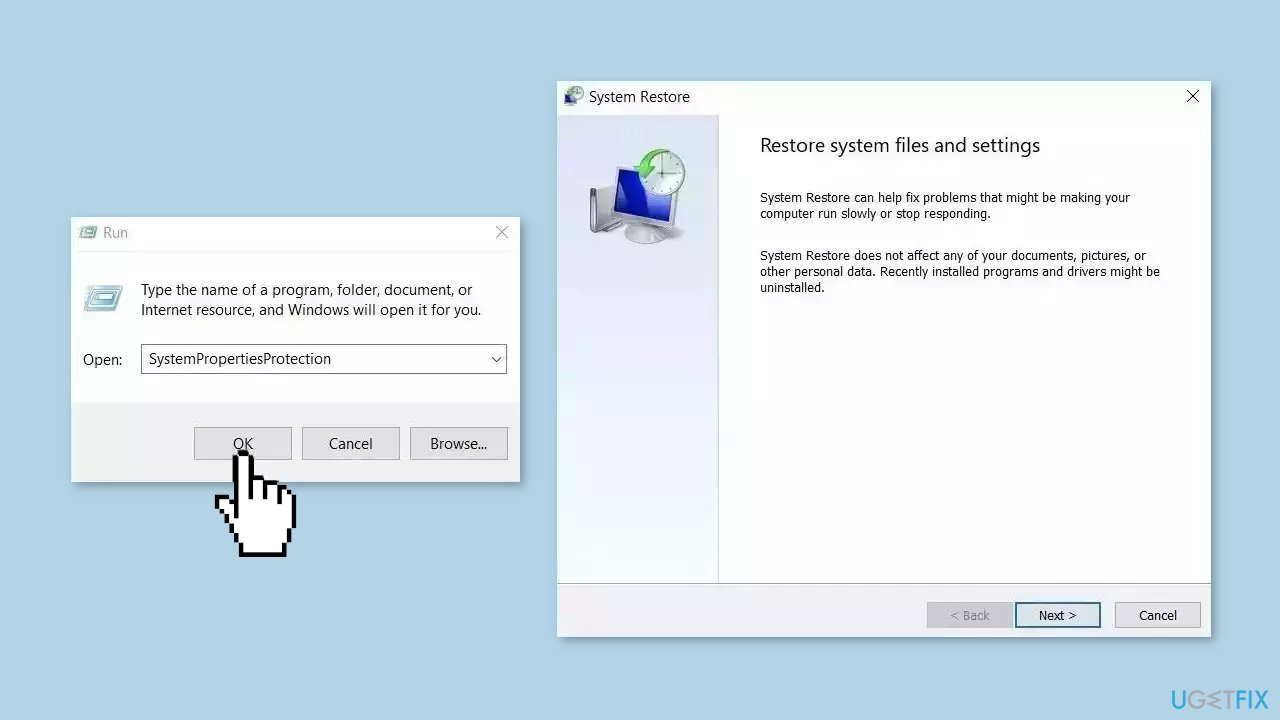
- You will see the System Restore… button. Click it to run System Restore.
- Follow the prompts until you can select a restore point.
- Select the one you want (ideally before the issue started occurring) and go ahead with the process.
Method 7. Replace the Keyboard
Experiencing a gradual loss of functionality in your keyboard is not uncommon. In fact, it is quite normal to encounter the occasional missing key or two, especially when the keyboard is used extensively, such as for gaming. To determine if the issue lies with the hardware, you can perform a test using an alternate keyboard.
Borrow a keyboard from a friend or colleague and connect it to your computer. Check if you encounter the same problem with their keyboard. If their keyboard's spacebar functions normally on your computer, it indicates that the issue resides within your own keyboard's hardware.
Bottom line
To fix a non-working spacebar, you can clean the keyboard, check for software updates, replace the keyboard if necessary, or seek professional assistance. If these solutions do not resolve the issue, consider using a system repair tool to address potential system errors.
Frequently asked questions
First, try rebooting your computer to see if that resolves the issue. If not, check for any stuck keys or debris under the Spacebar that may be causing the problem.
Yes, certain software applications or background processes can interfere with keyboard functionality; try closing unnecessary programs or booting in Safe Mode to identify the issue.
Go to Device Manager, find your keyboard, right-click it, and select 'Update driver' to ensure you have the latest drivers installed for your keyboard in Windows 10 or Windows 11.




Report an issue
What's wrong with this guide? We review every report and update or remove content.
Report received — thank you. We'll review and fix it.
You need a free account to submit a report.
Be the first to comment