How to fix
Speakers not working
on Windows
Resolve your speaker issues on Windows 11 effortlessly with expert-tested solutions and troubleshooting tips, all guaranteed to fix your audio in minutes.

What causes How to fix speakers not working in Windows 11?
- Incorrect sound settings
- Outdated audio drivers
- Corrupted audio drivers
- Hardware problem with the speakers
- Hardware problem with the computer
Repairs Windows system files, removes malware, and restores a clean OS state — without reinstalling.
Hello. I recently installed the 22H2 for Windows 11 on my computer and after that, my speakers stopped working. How do I fix this?
It appears that some users are experiencing an issue where their speakers are not working after updating to Windows 11 version 22H2 which is the first major update for Windows 11. This issue can be frustrating and make it difficult to use your computer for tasks that require audio, such as listening to music or watching videos.
There could be several reasons for this issue, including incorrect sound settings, outdated or corrupted audio drivers,[ref en-1] or a hardware problem with the speakers or the computer. To troubleshoot the problem and get your speakers working again, you can follow our guide, where you will find 6 steps that should help you.
Keep in mind that the manual troubleshooting process can be lengthy. [d1] is a powerful repair and maintenance tool for Windows that can help you keep your computer running smoothly and efficiently. It can help easily and quickly fix common problems, such as system errors, BSODs,[ref en-2] corrupted files, and registry[ref en-3] issues. It can also clean up clutter and junk files, such as cookies or cache, and optimize your system's performance. Otherwise, follow the step-by-step instructions below.
Method 1. Run the Audio Troubleshooter
The Audio Troubleshooter is a built-in tool in Windows that can help you diagnose and fix problems with your audio devices and settings. It can automatically detect and diagnose common audio problems, and then provide you with recommendations and solutions to fix them.
- Press the Start button on the taskbar
- Click on the Settings app to open it
- Next, select Troubleshoot on the System tab
- Select Other troubleshooters
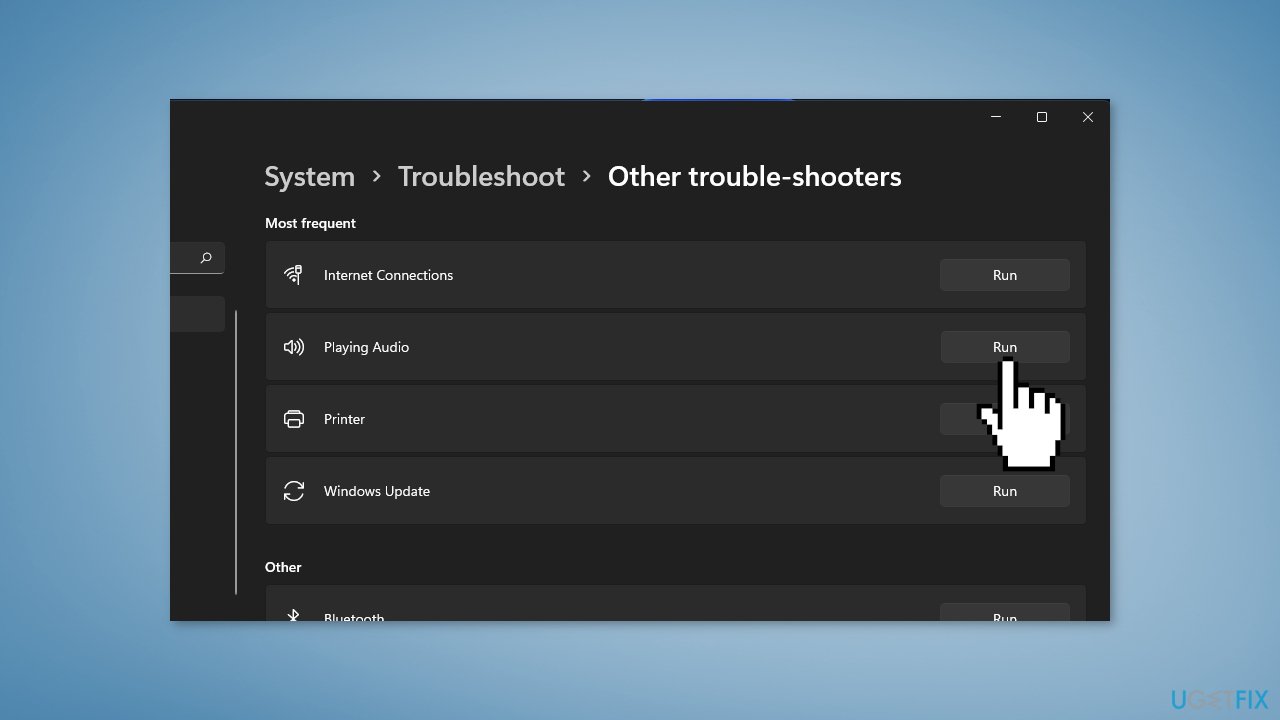
- Then click the Run button for the Playing Audio troubleshooter
If the Audio Troubleshooter has identified any problems with your audio, it will provide you with a list of recommended solutions. These may include updating your audio drivers, adjusting your audio settings, or restarting your computer. You can then select the solution you want to apply and follow the on-screen instructions to fix the problem.
Method 2. Install Windows Updates
- Press the Windows key + R to open the Run box
- Type ms-settings:windowsupdate in the text box and press Enter
- Click the Check for Updates button
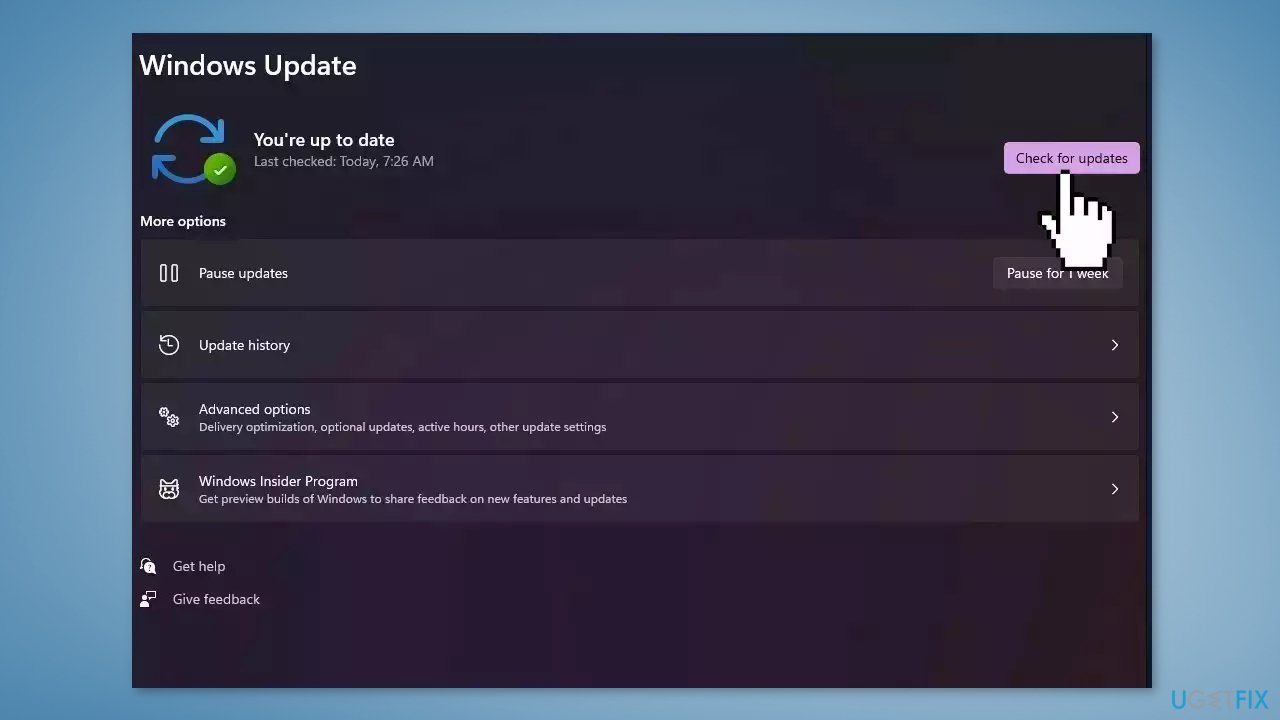
- If a new update is available, click the Download & Install all button
- Restart your computer after the process is finished and check to see if the problem is fixed
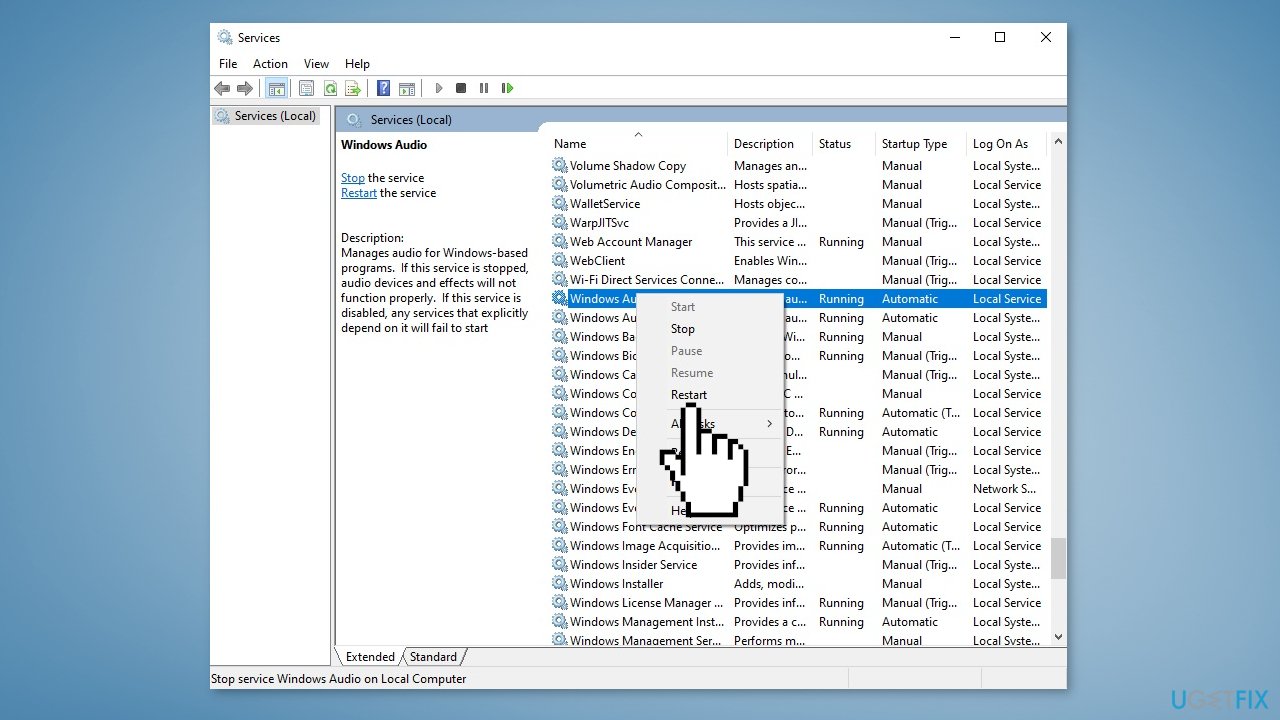
Method 3. Restart Windows Audio Service
- Right-click on the taskbar’s Start button to select the Run shortcut
- To open Services, type this in the text box and click OK:
services.msc
- Right-click the Windows Audio service and select Restart
- Do the same for the Windows Audio Endpoint Builder and Remote Procedure Call (RPC) services
Method 4. Roll Back Driver
- Press the Windows key + X and click on Device Manager
- Expand the Sound, video and game controllers
- Look for Realtek (R) Audio or High Definition audio
- Right-click and click Update Driver
- Look for the Browse my computer for drivers option
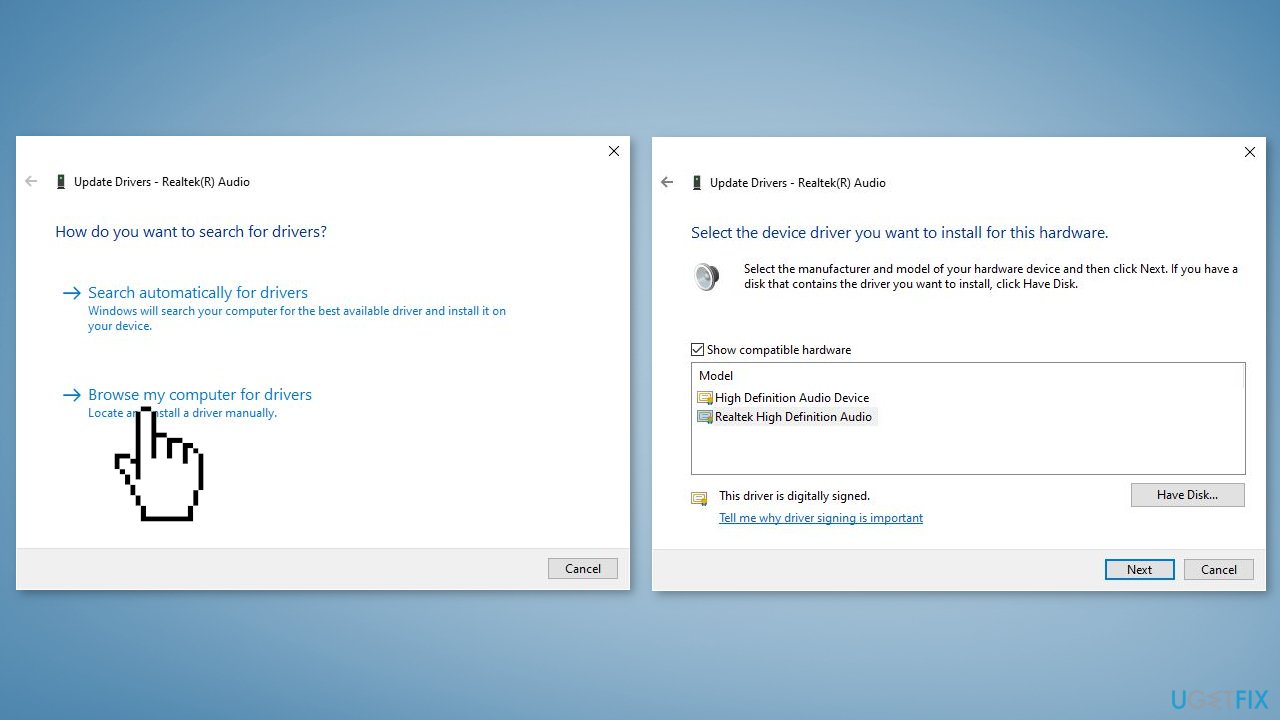
- Click Let me pick available drivers on my computer
- Choose an old driver or another name of the driver then select it and hit Next until it installs
- Restart your computer
Method 5. Reinstall Speaker Drivers
- Press the Windows key + X to open a shortcut menu
- Select the Device Manager
- Double-click the Audio inputs and output category near the top of Device Manager
- Next, right-click the output audio device for which you need to fix the sound issue and select Uninstall device
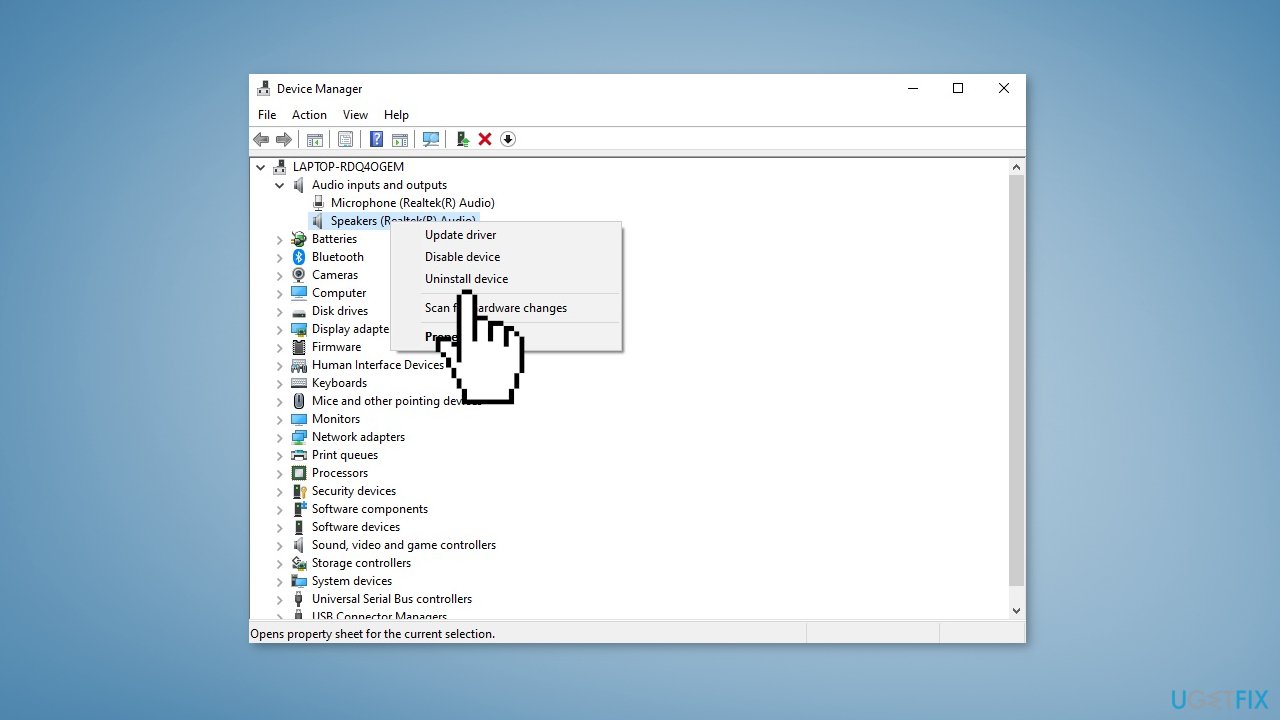
- Click Uninstall on the confirmation dialog box
- Restart Windows
- You can also use a dedicated utility, like [rev id="DriverFix"] that can find and install the best drivers for your machine
Method 6. Reset Windows
The reset option in Windows will reinstall the operating system but will keep your personal files. However, any apps or drivers that you have installed will be removed, as well as any changes you have made to the settings. The reset option is intended to be used as a last resort when other methods of troubleshooting and repair have failed.
- Click Start and select Settings
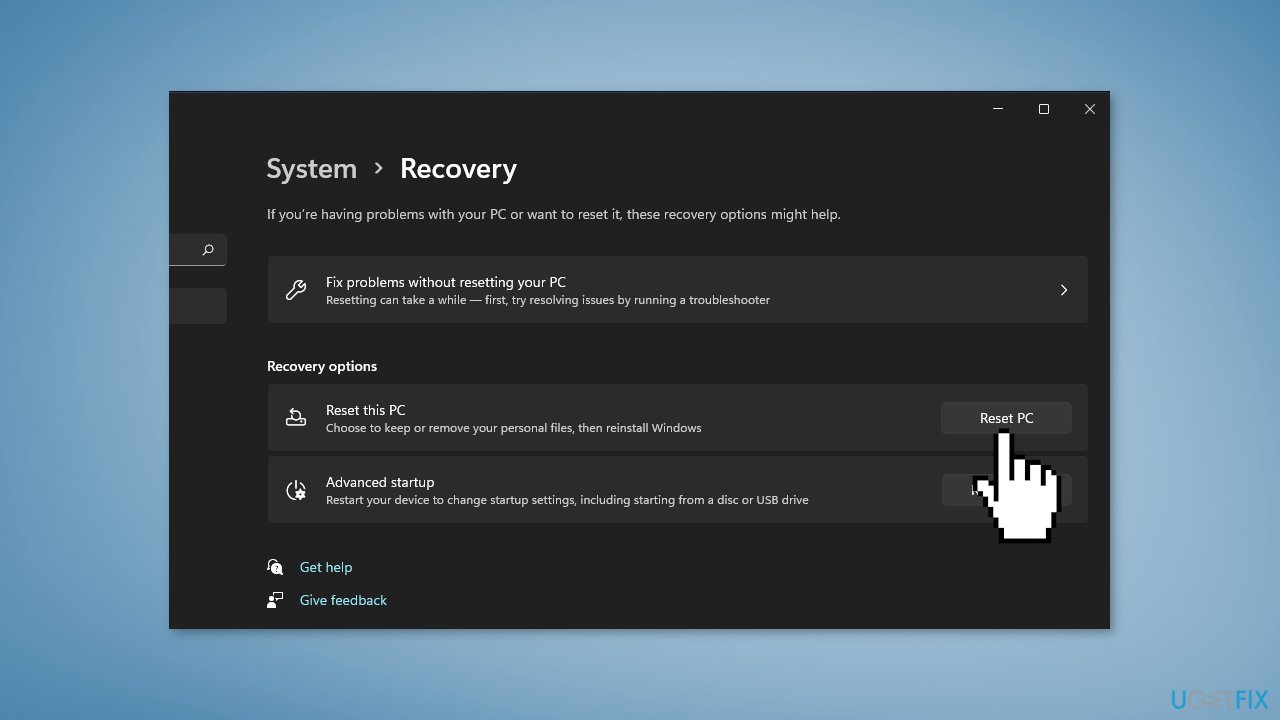
- Select Recovery on the System tab
- Next, press the Reset PC button
- Select Keep my files in the Reset this PC window
- Choose either the Cloud download or Local reinstall option
- Select the Reset option
- Wait for the process to finish and check if the issue is resolved
Bottom line
To fix the speakers not working issue in Windows 11, you can run the Audio Troubleshooter, update your audio drivers, and adjust your audio settings. If these steps do not resolve the problem, consider checking for hardware issues or using a repair tool for further assistance.
Frequently asked questions
First, ensure that your speakers are properly connected and powered on. Then, check the sound settings in Windows 11 to make sure the correct playback device is selected.
To update your audio drivers, right-click on the Start button, select Device Manager, expand the Sound, video and game controllers section, right-click your audio device, and choose 'Update driver'.
If the troubleshooter does not fix the issue, try rolling back the audio driver or restoring your system to a previous point when the speakers were working correctly.




Report an issue
What's wrong with this guide? We review every report and update or remove content.
Report received — thank you. We'll review and fix it.
You need a free account to submit a report.
Be the first to comment