How to fix
Split Screen not working
on Windows
Resolve Split Screen issues on Windows 10 and 11 effortlessly. Get expert-tested tips and tricks to restore functionality quickly and efficiently.

What causes How to fix Split Screen not working in Windows?
- Snap Windows is disabled
- Incorrect display settings
- Outdated display drivers
- Improper display resolution
- System errors or corrupted files
Repairs Windows system files, removes malware, and restores a clean OS state — without reinstalling.
Hello. The split screen function does not work on my Windows PC. Is there a way to fix this? Any suggestions would be appreciated.
Windows Split Screen function allows users to divide their screen into multiple sections, allowing them to view and work with multiple applications or windows at the same time. It increases productivity by eliminating the need to constantly switch between different windows, allowing for more efficient multitasking.
People frequently use the Split Screen function to perform multiple tasks at the same time, such as comparing information from various sources, referencing documents while writing, monitoring multiple applications, or conducting research while taking notes. Users can improve their overall efficiency by using the Split Screen feature to streamline their workflow.
When the Split Screen function in Windows fails, it has a significant impact on users' ability to multitask effectively. Users may experience frustration and inconvenience as they must manually resize and position windows or switch between applications on a regular basis, which can slow down productivity and disrupt workflow.
There are several possible solutions to this problem, including checking the system settings, updating display drivers, adjusting display resolution, or restarting the computer. This guide will walk you through five steps that should help you fix Split Screen not working in Windows.
You can also try using a maintenance tool like [d1] that can fix most system errors, BSODs,[ref en-1] corrupted files, and registry[ref en-2] issues. Otherwise, follow the step-by-step instructions below.
Solution 1. Enable Snap Windows
- Right-click on Start.
- Select Settings.
- In the Settings window, choose System.
- Select Multi-tasking.
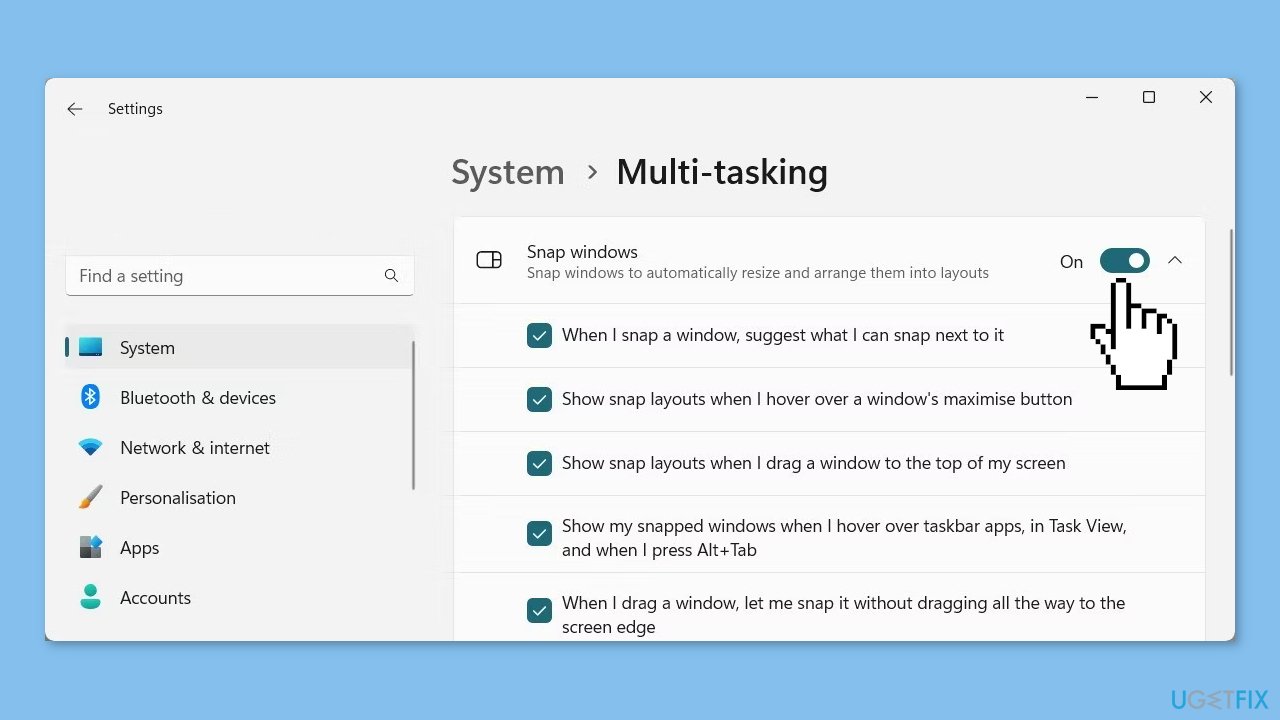
- On the next page, locate the Snap windows option.
- Turn on Snap windows.
- Click the down arrow key.
- Ensure that all checkboxes are selected.
Solution 2. Check Display Settings
- Open Windows Settings.
- Navigate to System > Display.
- In the right pane, scroll down to the Scale & layout section.
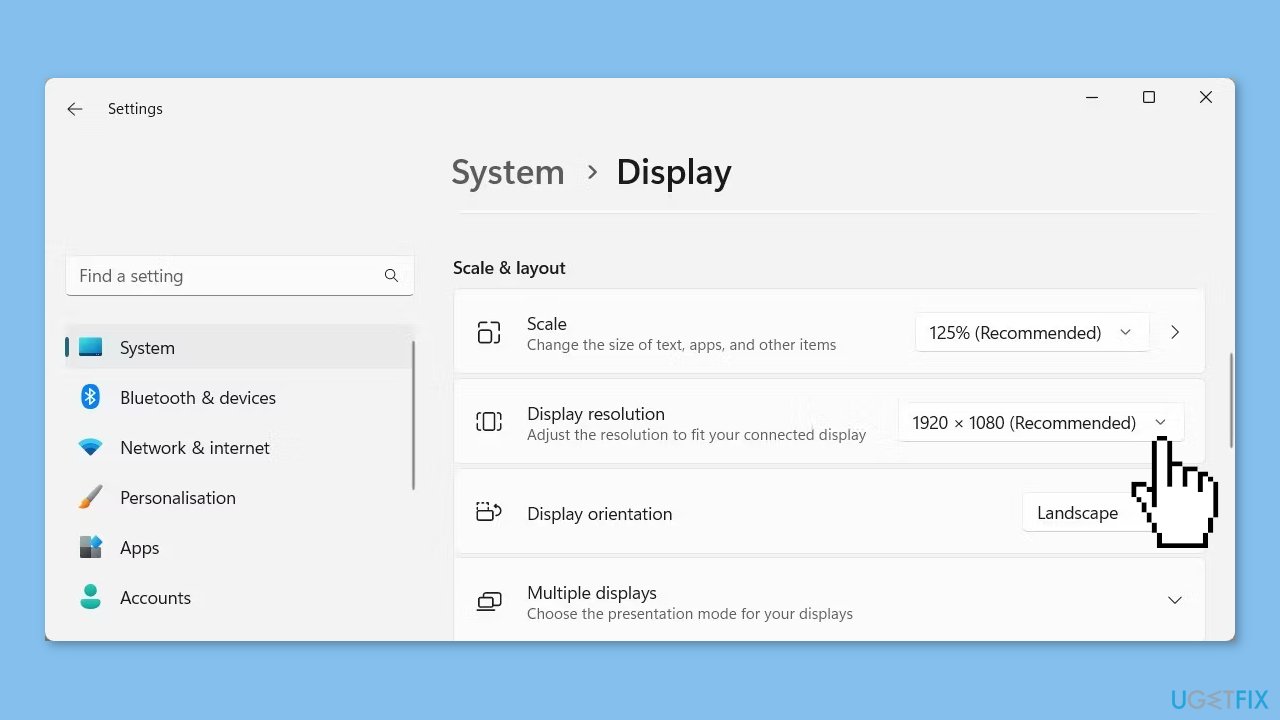
- Click the Display resolution drop-down menu.
- Adjust the resolution to fit your connected display.
- Once you've done that, try using split screen again.
Solution 3. Restart Windows Explorer
- Right-click on the taskbar and select Task Manager. Alternatively, you can press Ctrl + Shift + Esc to open the tool directly.
- In the Task Manager window, go to the Details tab.
- Scroll down and locate the process named Windows Explorer.

- Right-click on the Windows Explorer process and select End task. This will terminate the Windows Explorer process.
- Click on File at the top of the Task Manager window.
- Select Run new task.
- In the Open field, type explorer.exe.
- Click OK. This will start a new Windows Explorer instance.
Solution 4. Uninstall Third-Party Software
In case you have any third-party software or applications responsible for managing Windows or screen layouts, temporarily uninstall them.
- Press the Windows key + S on your keyboard to open Windows search.
- Type Control Panel in the search bar and hit Enter.
- In the Control Panel window, set the View by option to Category.
- Click on Programs.
- Then click on Programs and Features.
- Select Uninstall a program.
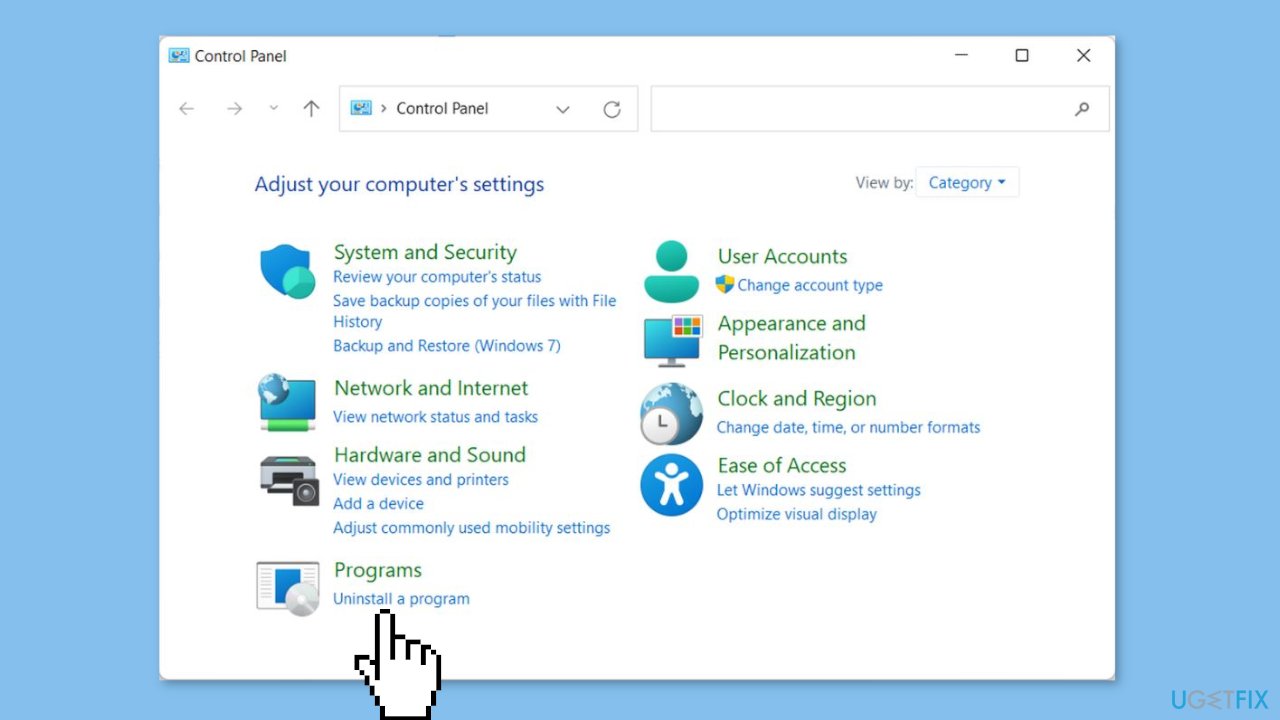
- Locate the application that interferes with the split screen.
- Right-click on the application.
- Select Uninstall from the context menu.
- Follow the instructions provided to complete the uninstallation process.
Solution 5. Use Shortcut Keys
- Press the Windows key + Left Arrow on your keyboard to make one window dominate the left side of your screen.
- Press the Windows key + Right Arrow on your keyboard to make one window take up the right side of your screen.
- Press the Windows key + Up Arrow on your keyboard to snap windows into a quarter-screen size, allowing you to have four windows open simultaneously.
- Press the Windows key + Down Arrow on your keyboard to snap windows into a quarter-screen size, allowing you to have four windows open simultaneously.
Bottom line
To fix the Split Screen not working issue in Windows, you can enable Snap Windows, check and adjust your display settings, and update your display drivers. If these solutions do not resolve the problem, consider using a maintenance tool to fix system errors or restarting your computer.
Frequently asked questions
The Split Screen feature may not work in Windows 10 due to disabled Snap settings or outdated graphics drivers. Check your settings under System > Multitasking to ensure Snap is enabled and update your drivers if necessary.
To enable Split Screen on Windows 11, go to Settings > System > Multitasking and turn on the Snap windows option. You can also use the Windows key + Z shortcut to choose your preferred layout.
If Split Screen is still not functioning, try restarting your computer or checking for Windows updates, as these may resolve underlying issues.




Report an issue
What's wrong with this guide? We review every report and update or remove content.
Report received — thank you. We'll review and fix it.
You need a free account to submit a report.
Be the first to comment