How to fix
Spooler Subsystem App error
on Windows
Resolve the Spooler Subsystem App error on Windows 10 and 11 with our expert-tested solutions for seamless printing. Fixed in minutes!

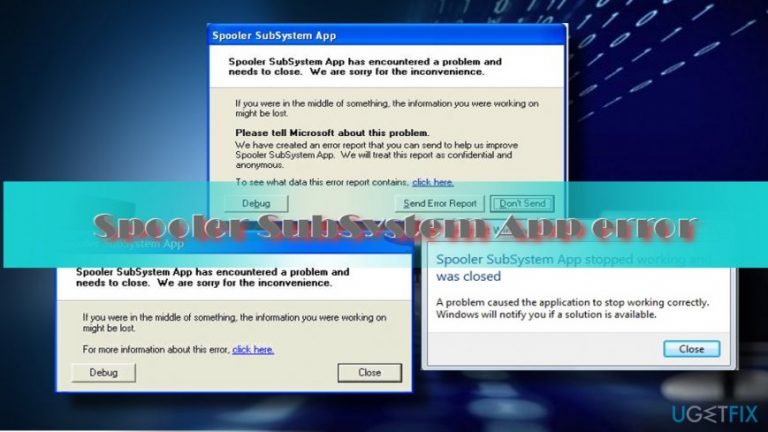
What causes How to fix Spooler Subsystem App error?
- Outdated or corrupted printer driver
- Corrupted Spooler SubSystem service
- Incompatible, outdated or missing registry entries
- Malware infection
Repairs Windows system files, removes malware, and restores a clean OS state — without reinstalling.
Hello. I have a question regarding Spooler SubSystem App. I keep receiving a warning notification, which says that this app has stopped working. However, I keep finding spoolsv.exe file consuming an excessive amount of CPU. Could you please tell me what is wrong with my PC and how can I fix that?
Spooler SubSystem App is one of the Microsoft’s services,[ref en-1] which comes with Windows OS by default. It’s responsible for print and fax jobs that are sent to the PC’s printer or print server. The executable file of this app is spoolsv.exe, which is typically located in C:\\Windows\\System32.
The Spooler SubSystem App service keeps running regardless of the current printer’s state, i.e., on, off or busy. It holds onto the print job and waits for the printer to be prepared to execute the waiting print job. Since it’s a default Windows app, there’s no need to disable the service or modify it in any sense.
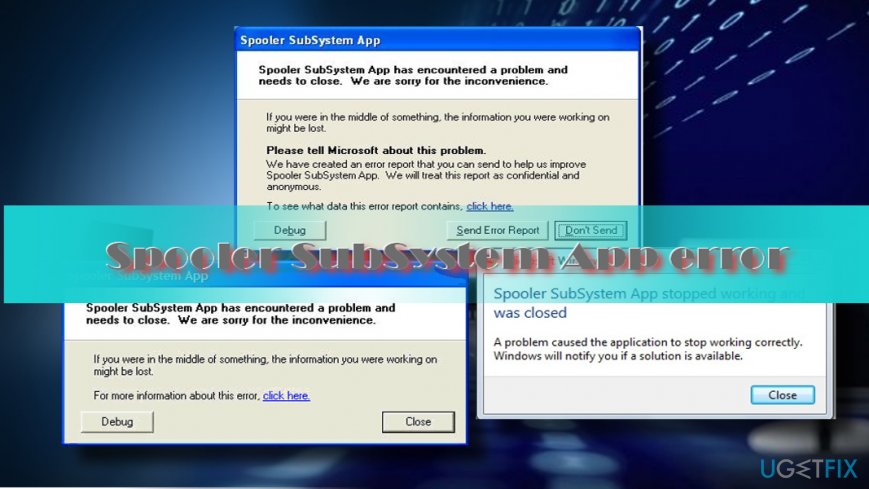
Nevertheless, Windows 8 and 10 users keep reporting irritating Spooler SubSystem App error,[ref en-2] which happens out of nowhere. The error says:
Spooler SubSystem App has encountered a problem and needed to close.
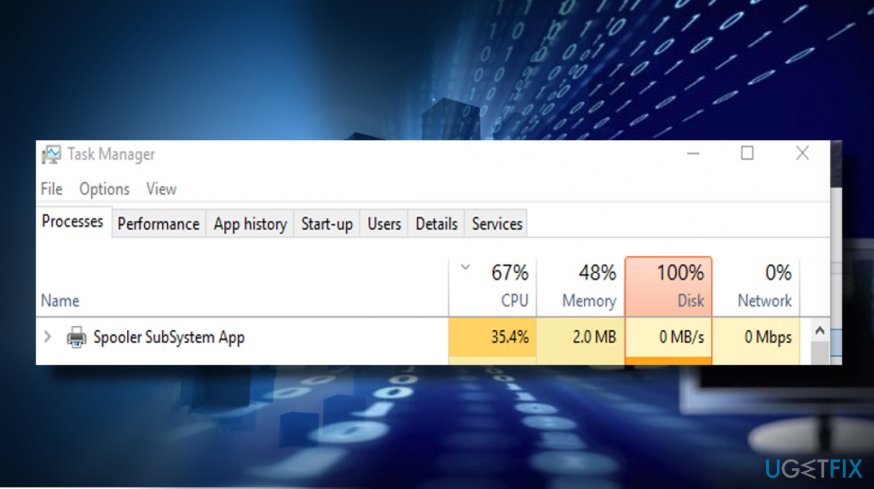
Besides, users also reported a high CPU usage[ref en-3] by spoolsv.exe process. The consumption is excessively ranging from 30% to 99%. As a consequence, the system may start lagging, fail to execute a process, launching app takes more than usually, etc.
The exact culprit of the Spooler SubSystem App and the underlying file is named spoolsv.exe error is not clear. Nevertheless, the problem may be stem from the following issues:
- Outdated or corrupted Printer driver;
- Corrupted Spooler SubSystem service;
- Incompatible, outdated or missing registry entries;
- Malware infection.
To address the issue, we would strongly recommend you to run a scan with [d1]. This optimization tool will clarify whether there are any damaged or missing system’s files that may result in Spooler SubSystem App error. Besides, the inbuilt Avira Antivir scanner will check the system for malware or virus infection. In case that did not help or you are not fond of using alternative software, you can find a list of standard Spooler SubSystem App error fixes down below.
IMPORTANT: the original Spooler SubSystem App and spoolsv.exe executable file are not related to the virus, spyware, malware, and other intrusive software. However, cybercriminals often camouflage such and similar files to disguise malicious processes to evade detection and removal.
The original spoolsv.exe file should be located in C:\\Windows\\System32. Thus, you should navigate to the System32 folder and check if the corresponding .exe file is included in the list. If it’s not there, you should scan the system with anti-virus.
Here is a helpful video for you:
[youtube cE4r-WZjcIY]
Run Windows Printing Troubleshooter
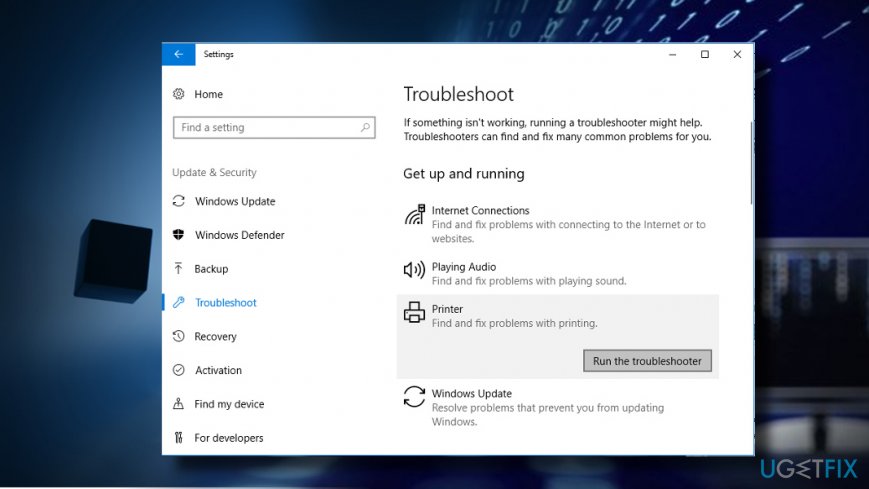
To fix Spooler SubSystem App error, first of all, take advantage of the automatic Windows Printing Troubleshooter.
- Press Windows key + I to open Settings.
- Open Update & Security section and head to Troubleshoot on the left.
- Find Windows Print Troubleshooter, click on it, and select Run Troubleshooter. (Windows 10)
Windows 7 users should run the troubleshooter this way:
- Open Control Panel and select System and Security.
- Click on Find and Fix Problems option.
Cancel Printer’s Queue
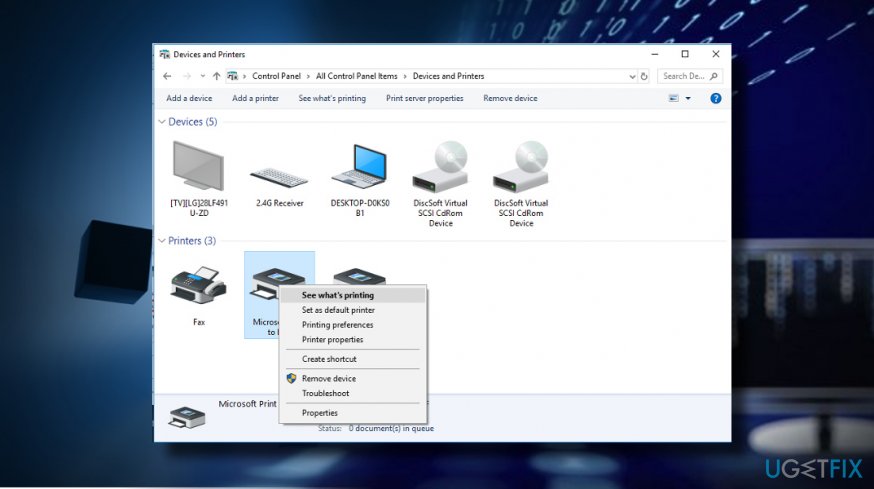
- Open Hardware and Sound section on Control Panel.
- Open Devices and Printers.
- Right-click on the printer and select See what's printing.
- If there are any print jobs that you don’t need, right-click on them and select Cancel.
- You can cancel all queue by clicking on Printer and selecting Cancel All Documents.
Update Printer Drivers
If previous methods did not help, try to update Printer drivers manually:
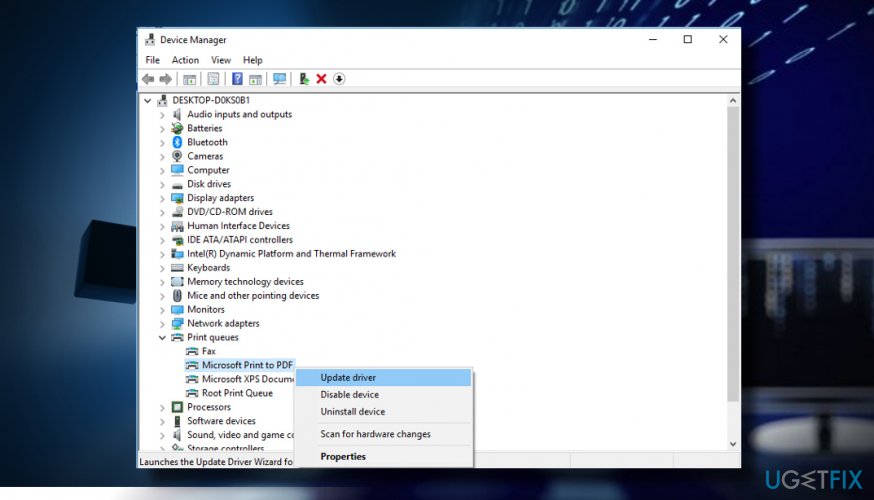
- Right-click on Windows key and select Device Manager.
- Open Print Queues section.
- Right-click on each entry and select Update Driver.
Disable Print Spooler process
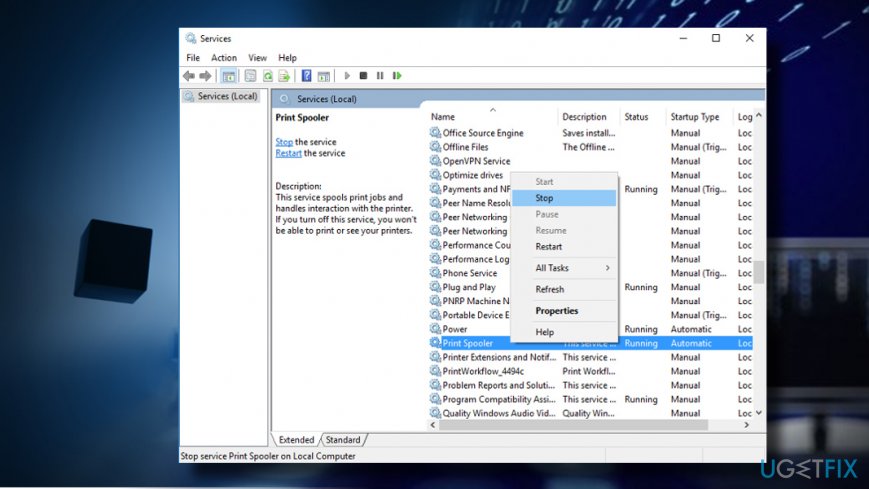
- Press Windows key + R, type services.msc, and press Enter.
- In the list of services, find Print Spooler entry.
- Right-click on it and select Stop.
- Then open Task Manager and check if spoolsv.exe is gone.
In case it’s still running even if you disabled it, we would strongly recommend scanning your PC with anti-malware tool while in Safe Mode with Networking.
NOTE: after disabling the Print Spooler process, you won’t be able to print, fax or see a list of installed printers.
Bottom line
To fix the Spooler Subsystem App error, it is recommended to run a scan with an optimization tool to identify any damaged or missing system files. Additionally, using the inbuilt Avira Antivir scanner can help check for malware or virus infections. If these solutions do not resolve the issue, consider seeking further assistance.
Frequently asked questions
The Spooler Subsystem App error is often caused by issues with the print spooler service, corrupted printer drivers, or conflicts with third-party applications. Ensuring that your printer drivers are up to date can often resolve this issue.
To restart the Print Spooler service, press Win + R, type 'services.msc', locate 'Print Spooler', right-click it, and select 'Restart'. This can help clear any temporary issues causing the error.
If reinstalling printer drivers doesn't resolve the issue, try running the built-in Windows Troubleshooter for printers or check for Windows updates that may address related bugs. Additionally, ensure that no other print jobs are stuck in the queue.




Report an issue
What's wrong with this guide? We review every report and update or remove content.
Report received — thank you. We'll review and fix it.
You need a free account to submit a report.
Be the first to comment