How to fix
Spotify app crashing
on Windows
Discover effective solutions to resolve Spotify crashing issues on Windows 10 and Windows 11. Get back to your music quickly, expert-tested fixes!

What causes How to fix Spotify app crashing in Windows?
- Outdated software
- Corrupted cache or settings
- Conflicting software or hardware drivers
- Hardware acceleration issues
Repairs Windows system files, removes malware, and restores a clean OS state — without reinstalling.
Hello. The Spotify application on my Windows PC keeps crashing constantly. Why is it happening and is there a way to fix it?
Spotify is an online music streaming service that allows users to listen to millions of songs from different artists, albums, and genres. It has an extensive music library that can be accessed through desktop, mobile, and web apps. Users can also create and share playlists, browse and follow the playlists of other users, and discover new music via recommendations.
Some users, however, may encounter problems with the Spotify app, such as the app crashing on their Windows computer. This problem may prevent users from listening to their favorite music, playlists, or podcasts. It can also interfere with their work or leisure activities, particularly if they use Spotify for background music or entertainment.
The Spotify app crashing issue in Windows can be caused by a variety of factors, including outdated software, corrupted cache or settings, conflicting software or hardware drivers, or hardware acceleration issues. Users can try updating the Spotify app, clearing cache and app data, disabling hardware acceleration, disabling conflicting software or hardware drivers, or reinstalling the Spotify app to resolve this issue.
In this guide, you will find 6 steps that should help you fix Spotify app crashing in Windows. However, you can also try using a maintenance tool like [d1] that can fix most system errors, BSODs,[ref en-1] corrupted files, registry[ref en-2] issues, or clear cookies and cache[ref en-3] automatically. Otherwise, follow the step-by-step instructions below.
Solution 1. Restart the App
- Right-click on the Start button.
- Select Task Manager from the context menu that appears.
- Once Task Manager is open, navigate to the Processes tab.
- Look for the Spotify process in the list of running processes.
- Right-click on the Spotify process.
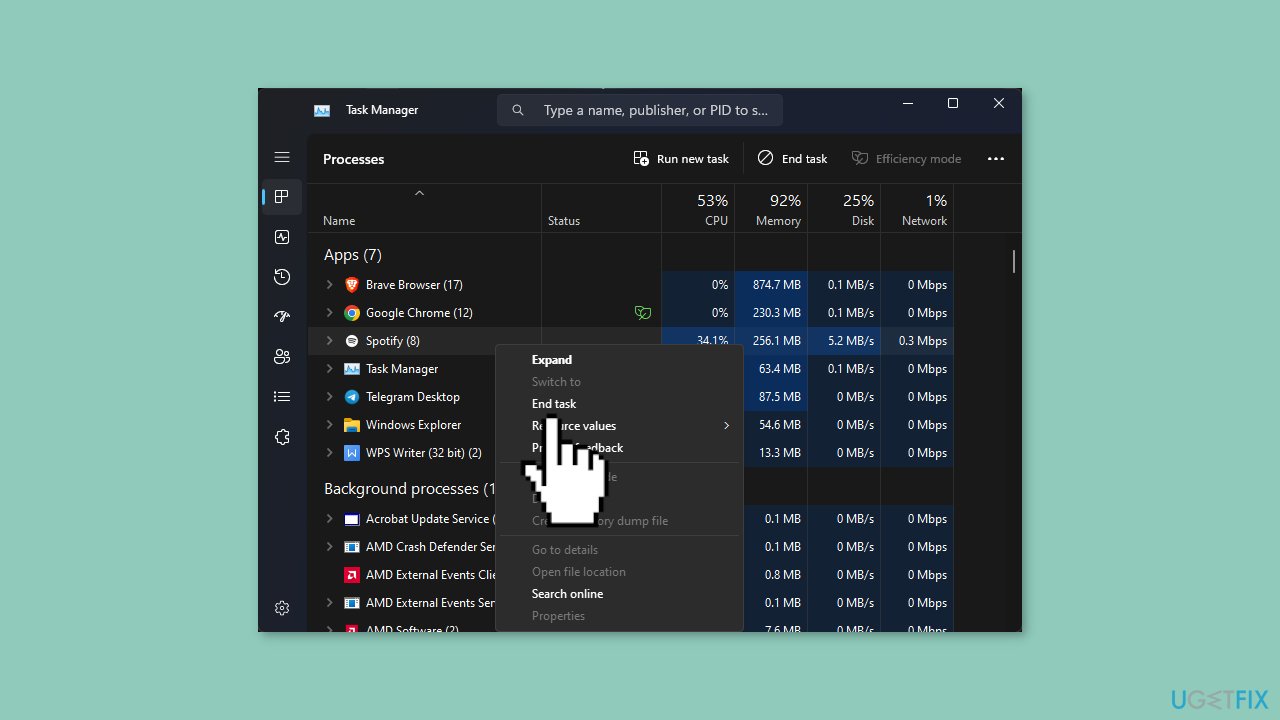
- Select the End task option from the context menu.
- Confirm that you want to end the Spotify process if prompted.
- Now, close Task Manager and open Spotify.
- Check if the problem you were experiencing with Spotify is resolved.
Solution 2. Run Microsoft Store Apps Troubleshooter
- Press the Windows key + I to open the Settings app.
- Navigate to the System option.
- Click on Troubleshoot located under the System menu.
- Scroll down to find Other troubleshooters and click on it.
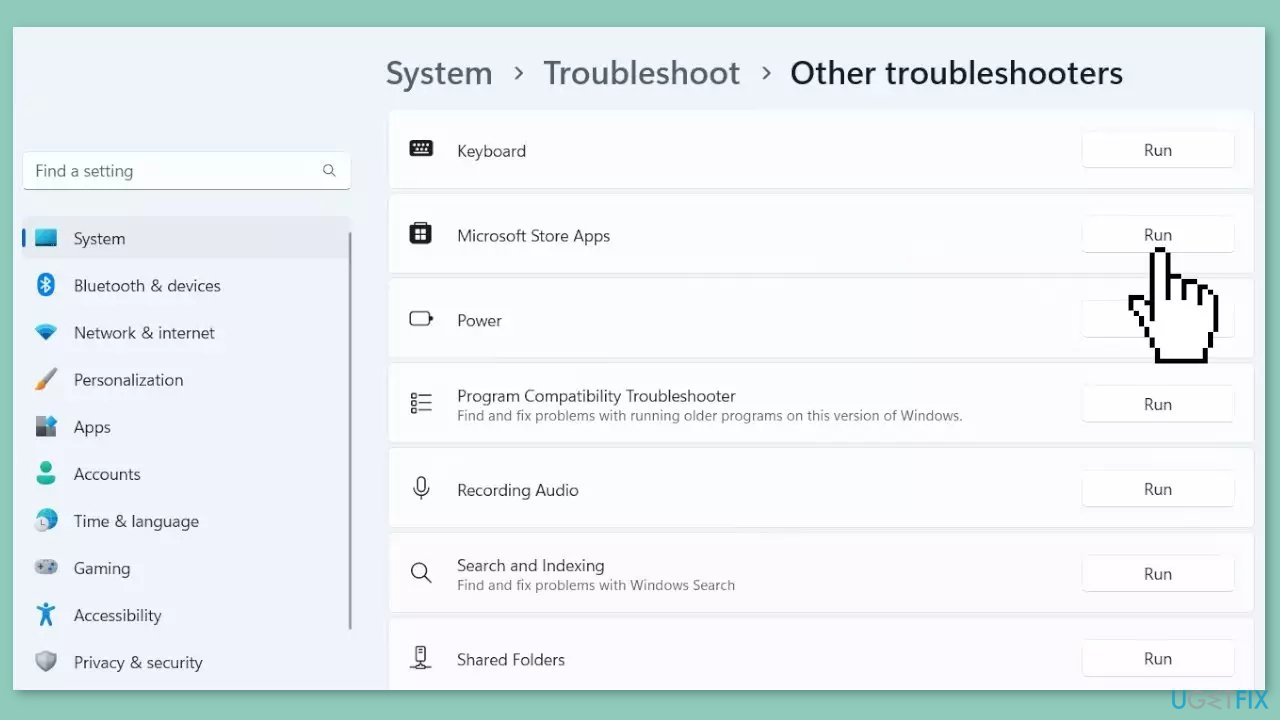
- Locate Microsoft Store Apps from the list and click the Run button next to it.
- Wait for the troubleshooting process to complete.
- Implement any suggested solutions provided by the troubleshooter.
- Allow the troubleshooter to apply any fixes automatically.
Solution 3. Run Spotify as an Administrator
- Right-click the Spotify icon on your desktop.
- Select the Run as administrator option from the context menu.
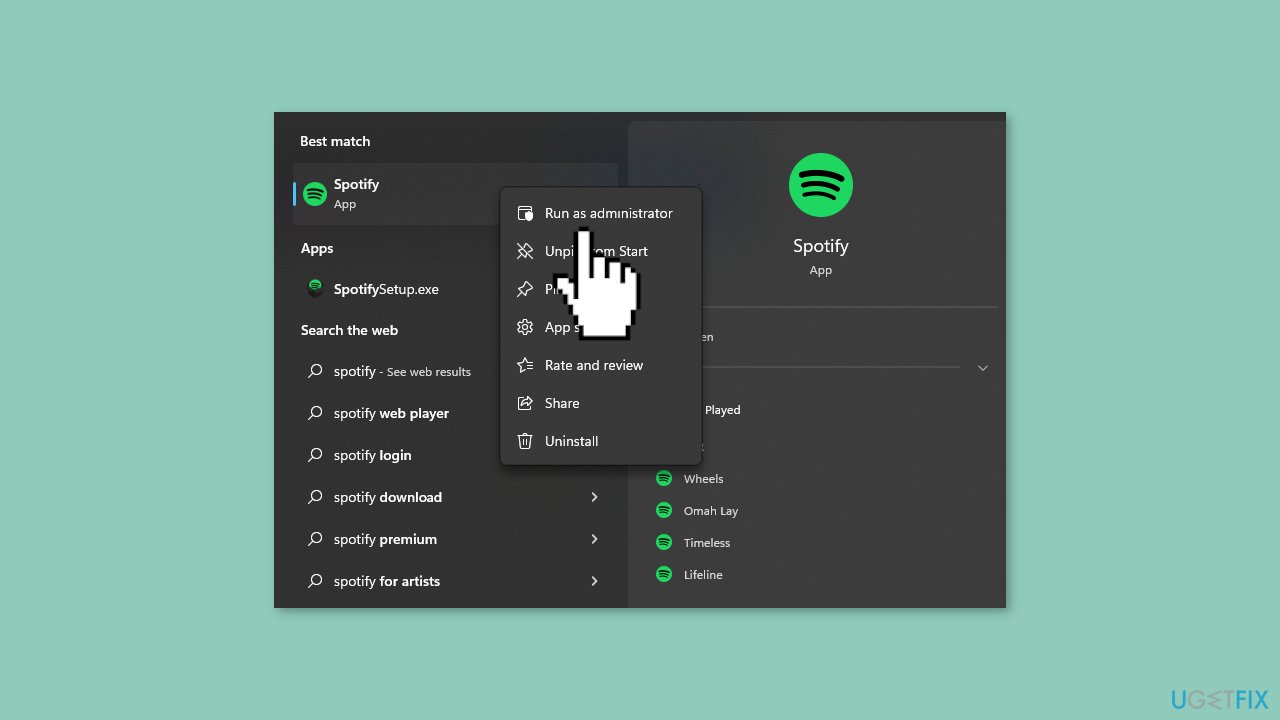
- If a User Account Control (UAC) prompt comes up, click on Yes to allow the app to make changes to your PC.
- Wait for Spotify to launch and check if the problem you were experiencing with it is resolved.
Solution 4. Run Spotify in Compatibility Mode
- Click on the Start button.
- Type Spotify in the search box.
- Right-click on the Spotify icon and select Properties.
- In the next pop-up window, select the Compatibility tab.
- Check the box for Run this program in compatibility mode.
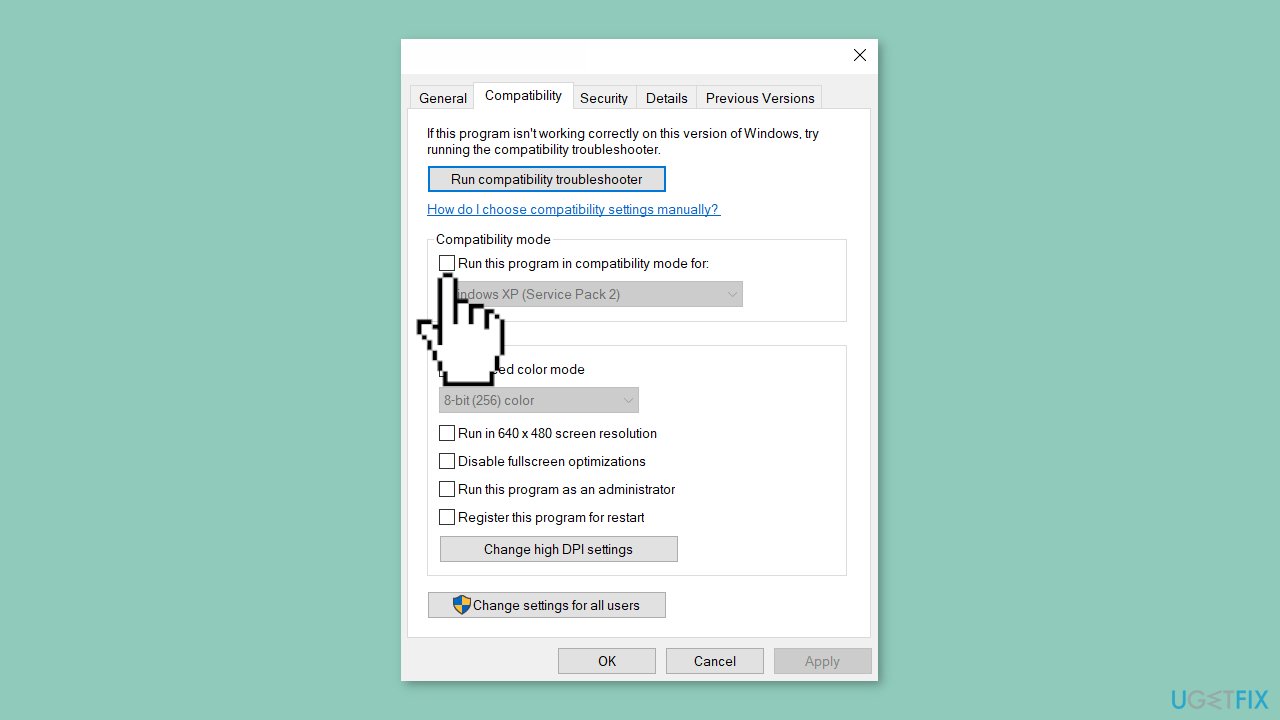
- Select an older version of Windows from the drop-down menu.
- Click OK to close the pop-up window and apply the changes.
- Now, launch Spotify and check if the problem you were experiencing is resolved.
Solution 5. Clear the Cache
- Press the Windows key + R to open the Run dialog box.
- Paste the following text: %LocalAppData%\Spotify\Storage.
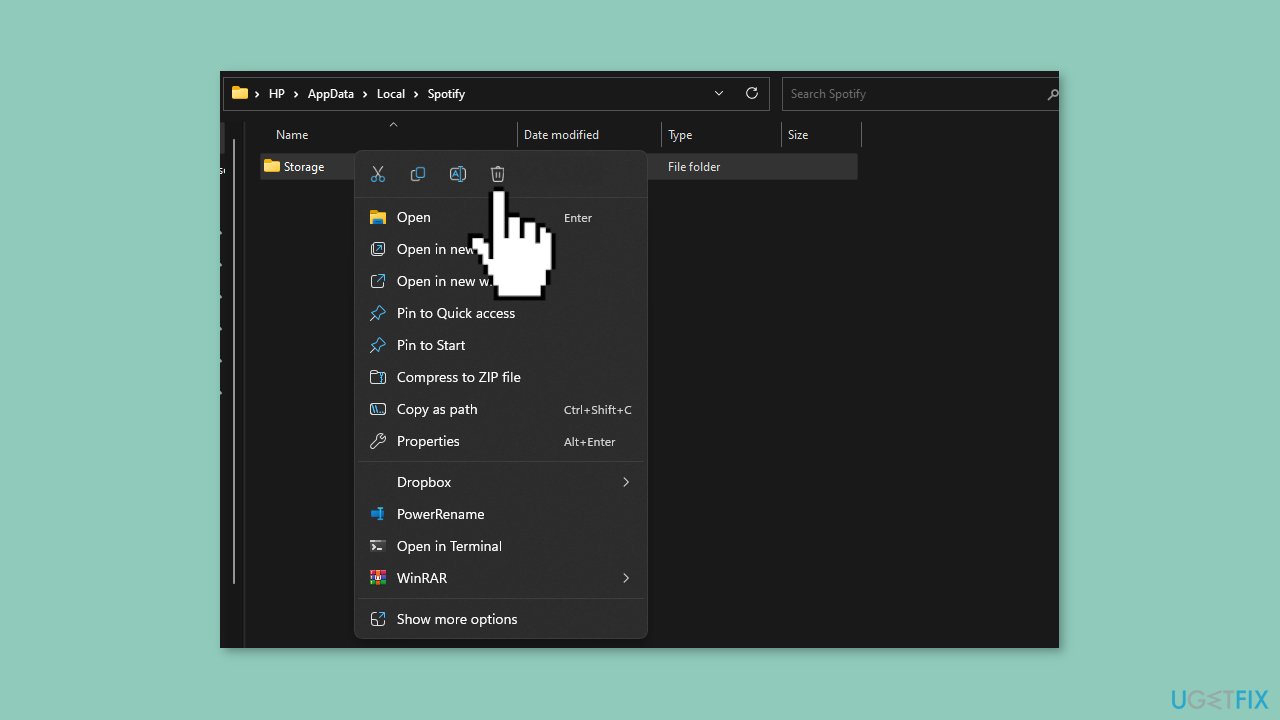
- Press the Enter key.
- Press the Ctrl + A keys to select all the files in the folder.
- Press the Shift + Delete keys to permanently delete the selected files.
- When prompted by a pop-up window to confirm the deletion, click Yes.
- Close the folder and launch Spotify to check if the issue you were experiencing is resolved.
Solution 6. Disable Hardware Acceleration
- Open the Spotify app.
- Click on your username located at the top right corner of the window.
- Select the Settings option from the drop-down menu.
- Scroll down to the Compatibility section in the Settings.
- Locate the toggle for Enable hardware acceleration.
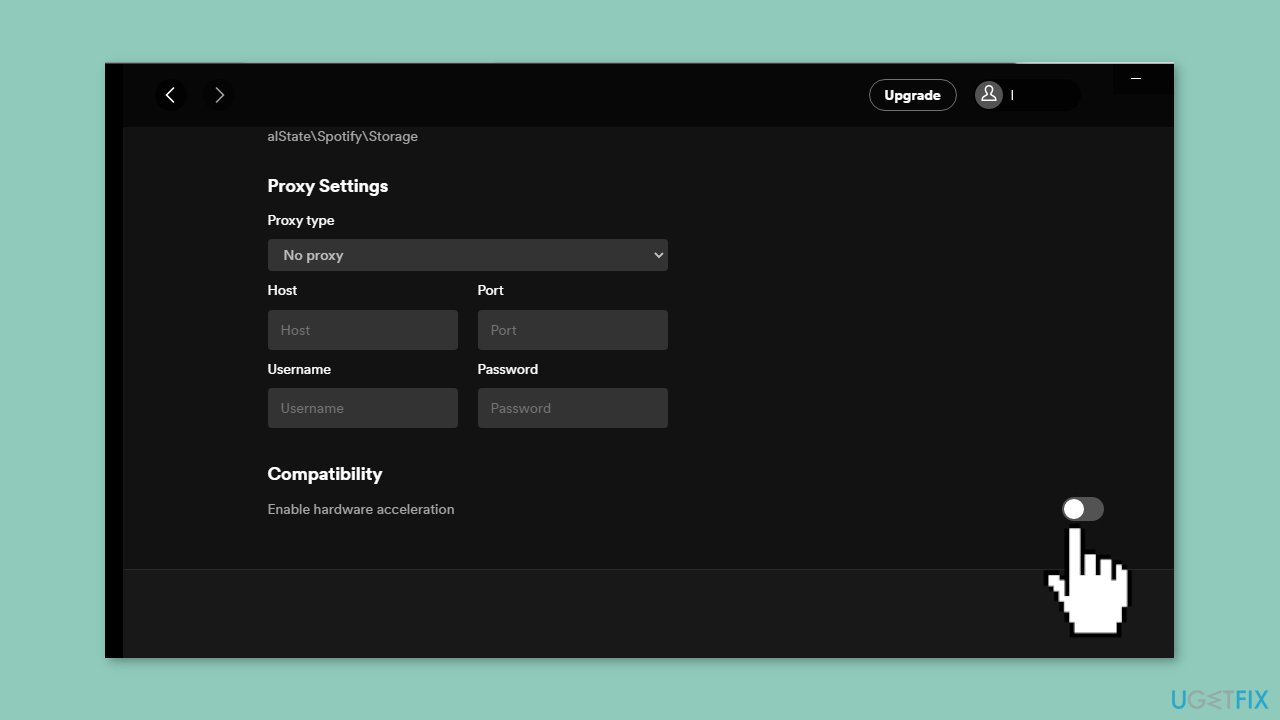
- Click the toggle to turn it off.
- Close the Settings window.
- Check if the problem you were experiencing with Spotify is resolved.
Bottom line
To fix the Spotify app crashing on Windows, you can try updating the app, clearing cache and app data, disabling hardware acceleration, or reinstalling the app. If these steps do not resolve the issue, consider using a maintenance tool to fix system errors or corrupted files.
Frequently asked questions
You can try clearing the app's cache by navigating to Settings > Apps > Apps & features, selecting Spotify, and clicking on 'Advanced options' to reset it. Additionally, ensure that your Windows 10 is updated to the latest version.
First, check for any available updates for Spotify in the Microsoft Store, and install them if necessary. If the problem persists, consider reinstalling the app completely.
Yes, disabling hardware acceleration can help stabilize the Spotify app; you can do this by going to Settings within the app and toggling off the 'Enable Hardware Acceleration' option.




Report an issue
What's wrong with this guide? We review every report and update or remove content.
Report received — thank you. We'll review and fix it.
You need a free account to submit a report.
Be the first to comment