How to fix
Spotify Error code Auth 74
on Windows
Resolve Spotify Error code Auth 74 on Windows 10 and 11 effortlessly. Follow our clear guide and enjoy uninterrupted music again, expert-tested.

What causes How to fix Spotify Error code Auth 74 in Windows?
- Authentication process issue
- Internet connection problems
- Windows Defender Firewall blocking
- Third-party VPN software interference
- Proxy settings enabled
Repairs Windows system files, removes malware, and restores a clean OS state — without reinstalling.
Hello. My Spotify app keeps crashing and I receive a message with Error code Auth 74. What can I do to fix this?
Spotify is a music streaming service that allows users to listen to millions of songs, and podcasts from artists all over the world. It offers several advantages including a large library of songs, personalized playlists, and the ability to share music with friends.
The Spotify Error code Auth 74 is a common issue faced by Windows users. This error is related to the authentication process of the Spotify app, causing the app to crash. This error can impact users by preventing them from accessing their music, playlists, and other features of the app.
Possible solutions to the Spotify Error code Auth 74 include checking the internet connection, allowing Spotify through Windows Defender Firewall, and reinstalling the Spotify app. In addition, it could be a problem with third-party VPN software.
In this guide, you will find 7 steps that should help you fix Spotify Error code Auth 74 in Windows. Keep in mind that the manual troubleshooting process can be lengthy. Instead, you can try using a maintenance tool like [d1] that can fix most system errors, BSODs,[ref en-1] corrupted files, registry[ref en-2] issues, or clear cookies and cache.[ref en-3] Otherwise, follow the step-by-step instructions below.
Solution 1. Allow Spotify through Windows Firewall
- Press the Windows key + R to open the Run dialog box
- Type Control firewall.cpl and press Enter
- In the left pane, select Allow an application or feature through Windows Defender Firewall
- Click Change Settings on the next page
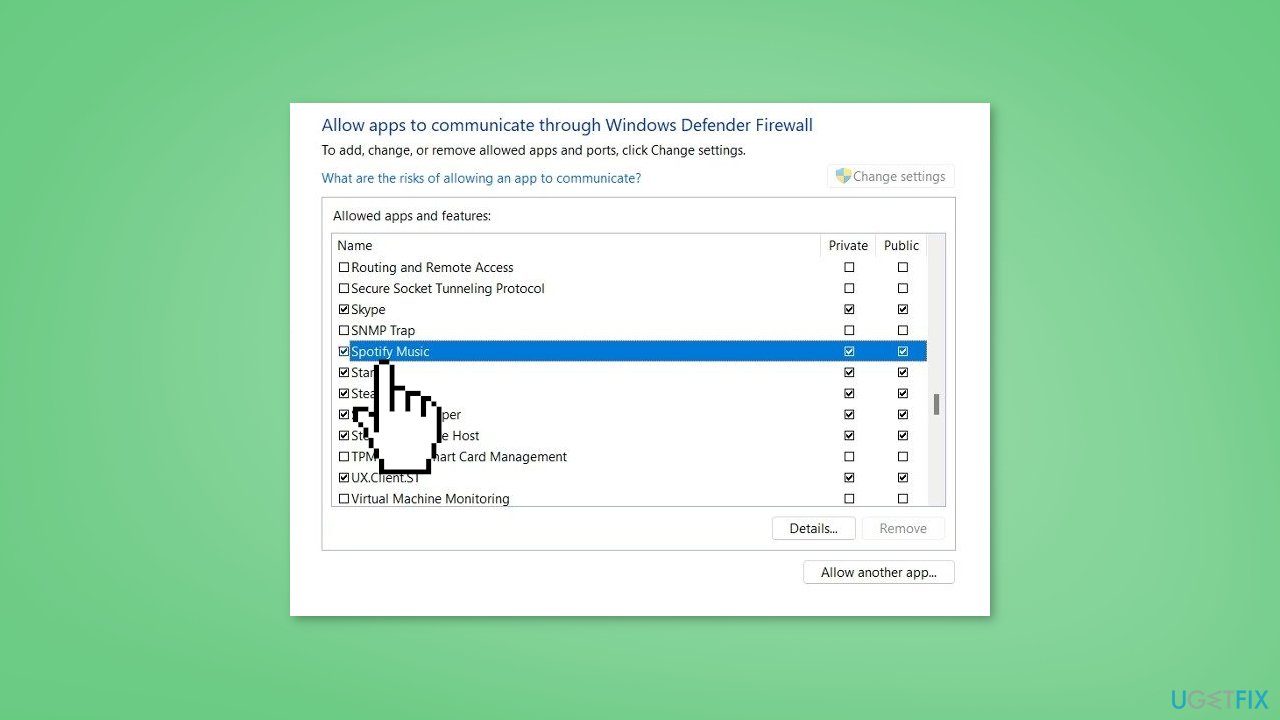
- Check Spotify in the list and confirm that both the private and public boxes are ticked
- Select the OK button to confirm your selection
Solution 2. Disable Proxy Settings
- Press the Windows button
- Select Settings
- Click on Network & Internet
- From the right pane, select Proxy
- Check to see that there is no proxy listed. If any are available, remove them.
- Click on Proxy again
- Turn off Use a Proxy Server
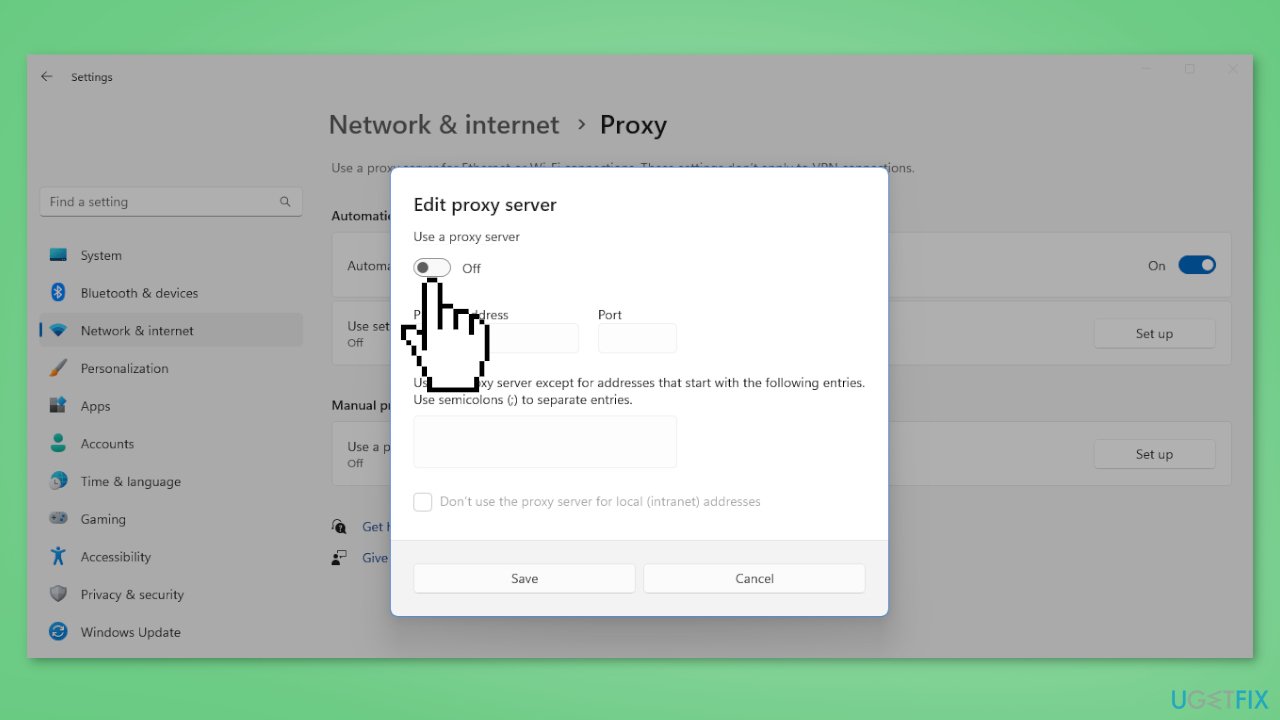
- Select Save
- See if the Spotify error is resolved
Solution 3. Disable or Uninstall VPN software
If you want to disable VPN:
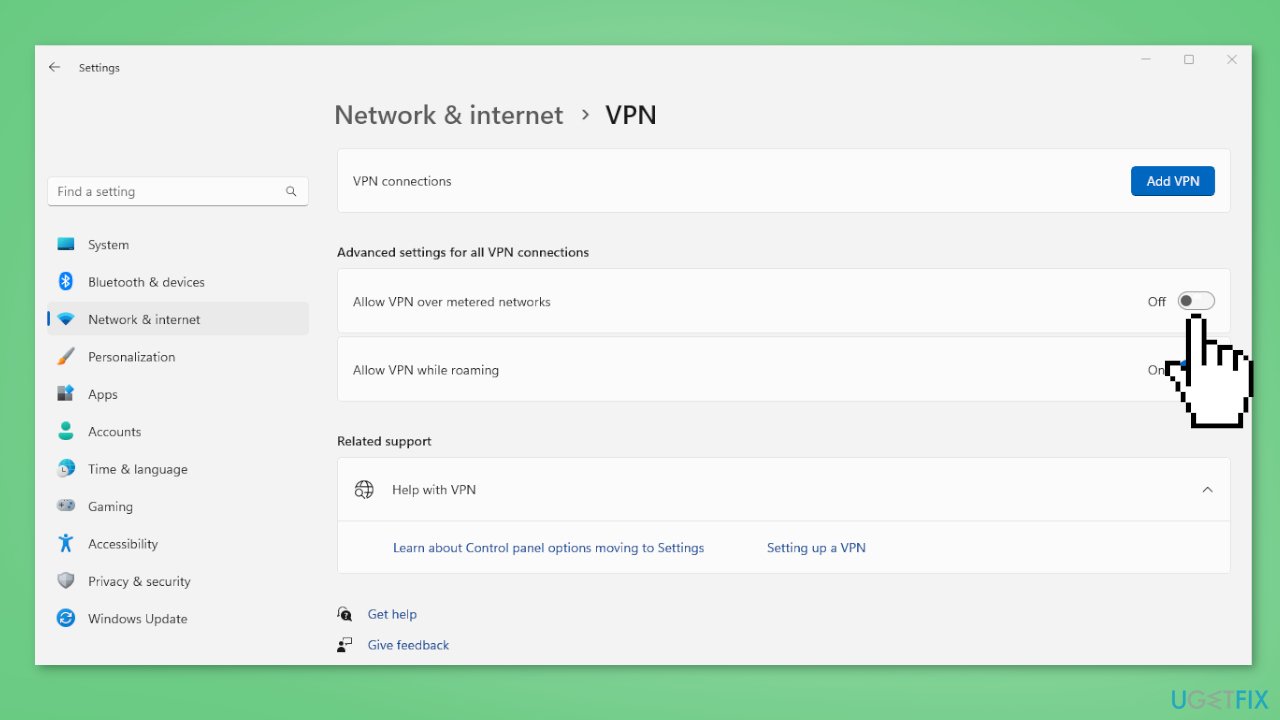
- Launch the Windows Settings app
- Select Network & Internet
- Choose VPN from the list located on the right
- To disable this feature, turn off the Allow VPN over metered networks
If you want to uninstall VPN:
- On Settings, select Apps
- Click on Installed apps
- Locate the VPN tool on the next page, and then click on the 3 dots icon
- Select Uninstall
Solution 4. Modify the Hosts File
- Navigate to the directory C:\Windows\System32\drivers\etc.
- Right-click on the Hosts file
- Select Open with
- Choose Notepad
- Find the IP address 0.0.0.0 weblb-wg.gslb.spotify.com0.0.0.0
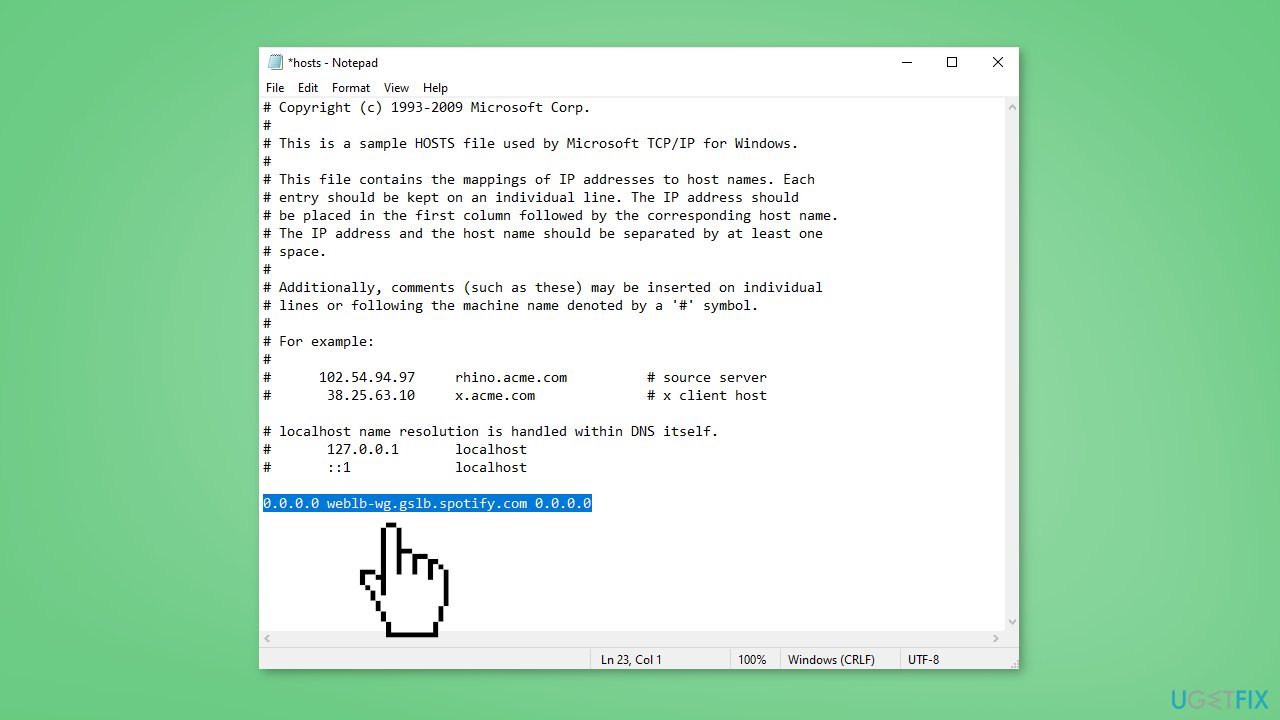
- Remove it, if available
- Make sure the file is saved, and then close it
- Start the Spotify app and attempt to play some music
Solution 5. Change the Current Country
- Open the login page of Spotify
- Type your Username or Email Address
- Click the green Login button and type the correct password
- Alternatively, choose to Keep with Facebook, Apple, Google, or your Phone Number to log in to Spotify.
- Open the drop-down menu and select Profile
- Go with Account Overview from the list on the left
- Click the button on the right that states Edit Profile
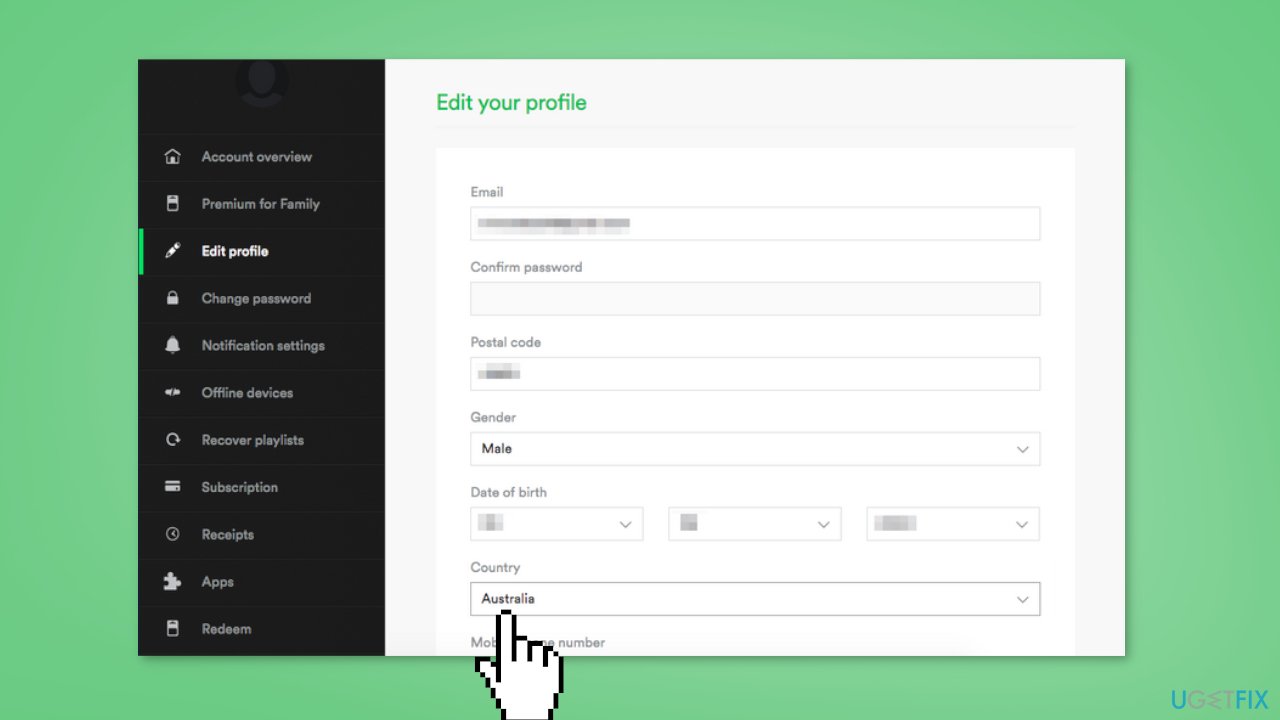
- Navigate to the part that says country and change the current country to a different one
- Select the button that says Save Profile
- Restart your Spotify app and try to sign in again
Solution 6. Reinstall Spotify
- Right-click on the Start menu and select Installed apps
- Find Spotify on the Settings page
- Click on the menu and select Uninstall
- Approve the pop-up and wait for the process to finish
- Navigate to the Microsoft Store
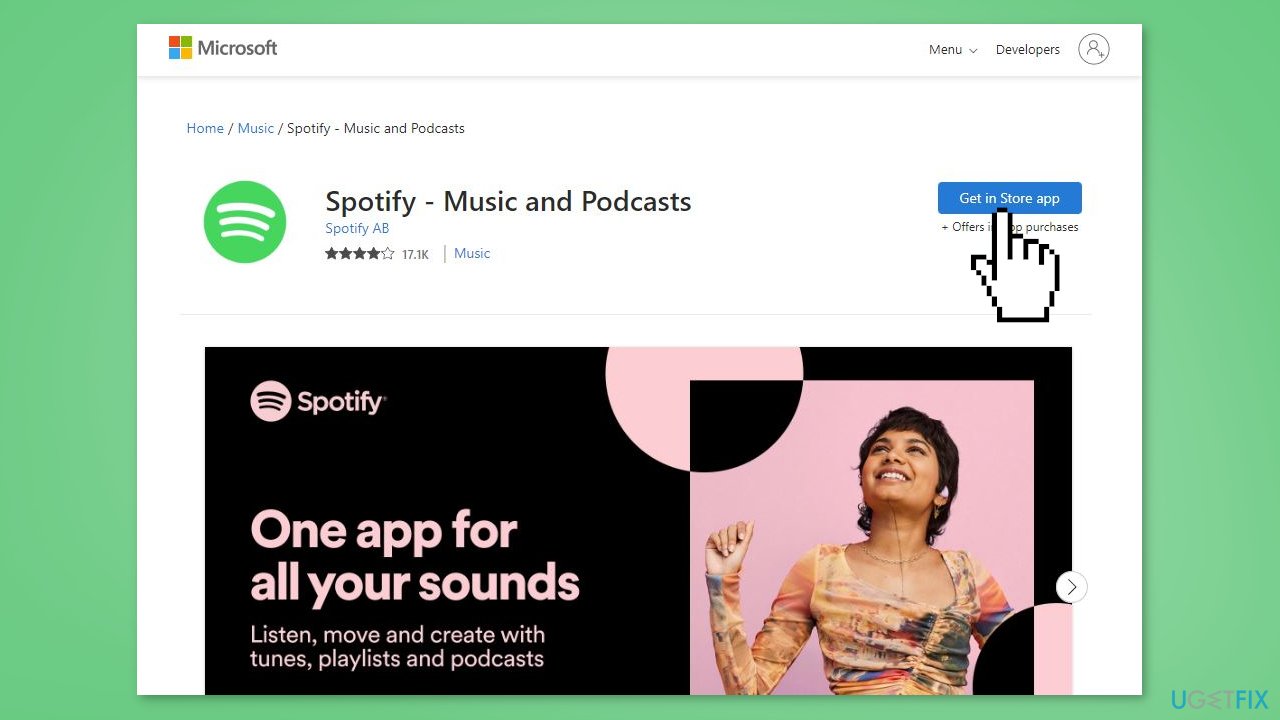
- Click on Get in Store app
- Select Install
Solution 7. Check your Connection
- Check your internet or wireless network connection. Intermittency or network data dropout from your internet service may be causing the problem.
- Try switching to an alternative internet connection such as a hotspot or an ethernet cable.
- If the problem persists, contact your internet service provider.
Bottom line
To fix Spotify Error code Auth 74, you can allow Spotify through Windows Firewall, disable proxy settings, or check your internet connection. If these solutions do not resolve the issue, consider reinstalling the Spotify app or using a maintenance tool to address system errors.
Frequently asked questions
Spotify Error code Auth 74 typically occurs due to issues with your account authentication, network settings, or corrupted app data on Windows 10 or Windows 11.
To fix Spotify Error code Auth 74, try logging out of the app, clearing the cache, and then logging back in; if that doesn't work, reinstalling the Spotify app may help.
Yes, resetting your network settings in Windows 10 or Windows 11 can help resolve connectivity issues that may trigger Spotify Error code Auth 74.




Report an issue
What's wrong with this guide? We review every report and update or remove content.
Report received — thank you. We'll review and fix it.
You need a free account to submit a report.
Be the first to comment