How to fix
Spotify song change notifications not working
on Windows
Get Spotify song change notifications working again on Windows 11 with our expert-tested solutions. Fix issues in minutes for seamless music enjoyment!


What causes How to fix Spotify song change notifications not working on Windows 11?
- Spotify application not running properly
- Issues with Windows Store Apps
- Outdated Spotify version
- Corrupted files or registry issues
- Task Manager not ending Spotify process correctly
Repairs Windows system files, removes malware, and restores a clean OS state — without reinstalling.
Hello. For some reason, I do not receive the Spotify song change notifications on my Windows 11 computer. How do I fix this?
Spotify is an audio streaming service that has over 433 million monthly active users. It offers a variety of digital copyright-restricted recorded music and podcasts. People can find music from the biggest artists in the world, as well as explore and find new music from indie artists using algorithm playlists.
Spotify has mobile and desktop applications that are easy to use. Streaming[ref en-1] has significantly impacted the music industry. It has made music more accessible. People do not have to go to the store to buy their favorite artist's CD. All they have to do is open the Spotify app and choose from more than 82 million songs.
When people are using the Spotify app on their Windows computer, they receive desktop notifications when the songs change. It tells the artist's and the song's name. However, some Windows 11 users are saying that the Spotify song change notifications are not working.
If you want to skip the lengthy manual troubleshooting process, you can use a maintenance tool like [d1]. It can fix most system errors, BSODs,[ref en-2] corrupted files, and registry[ref en-3] issues. Otherwise, you may follow the step-by-step instructions below carefully.
Method 1. Restart Spotify
- Close the Spotify desktop application
- Type Task Manager in the search area of the taskbar and click Open
- Go to the Processes tab and look for Spotify
- Right-click on it and select End task from the context menu
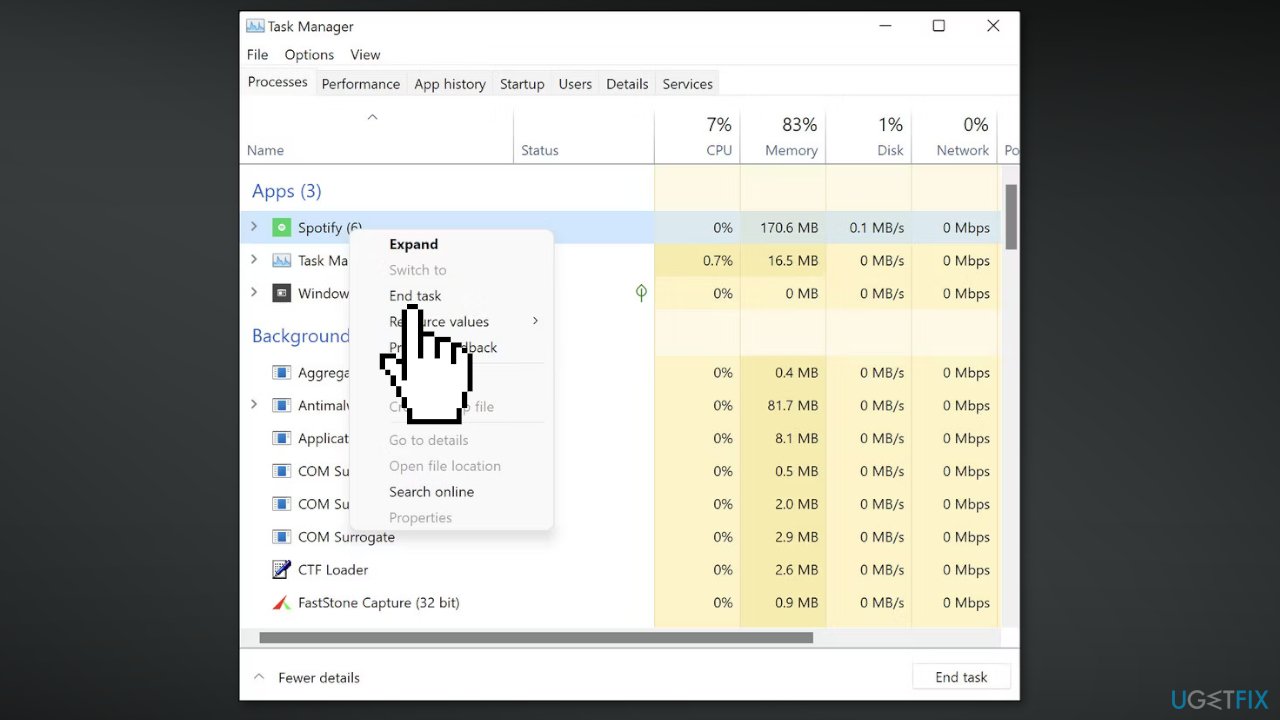
- Close the Task Manager window and launch Spotify again
Method 2. Run the Windows Store Apps Troubleshooter
- Press the Windows key + I to open Windows Settings
- Choose System, and then Troubleshoot
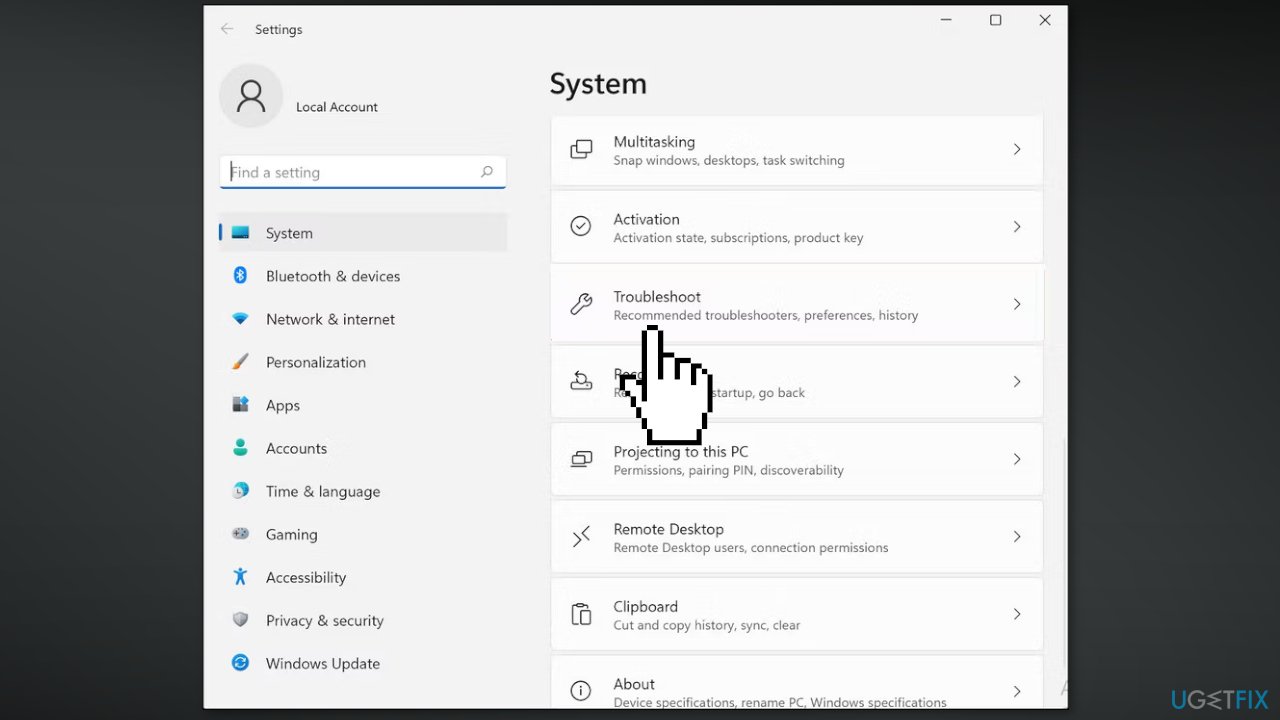
- Click on Other troubleshooters
- Look for Windows Store Apps troubleshooter and click on the Run button
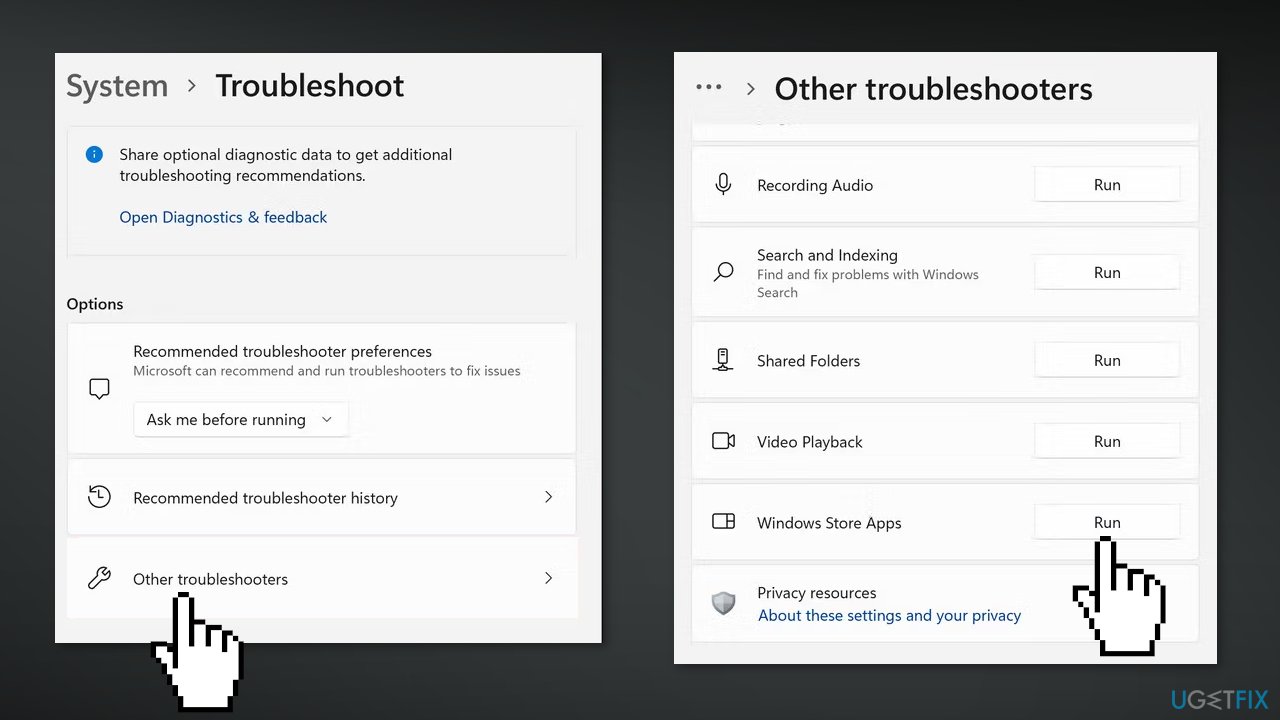
- If any issues are identified click on Apply this fix to proceed
- If no problems are found, click on Close the troubleshooter
Method 3. Update Spotify
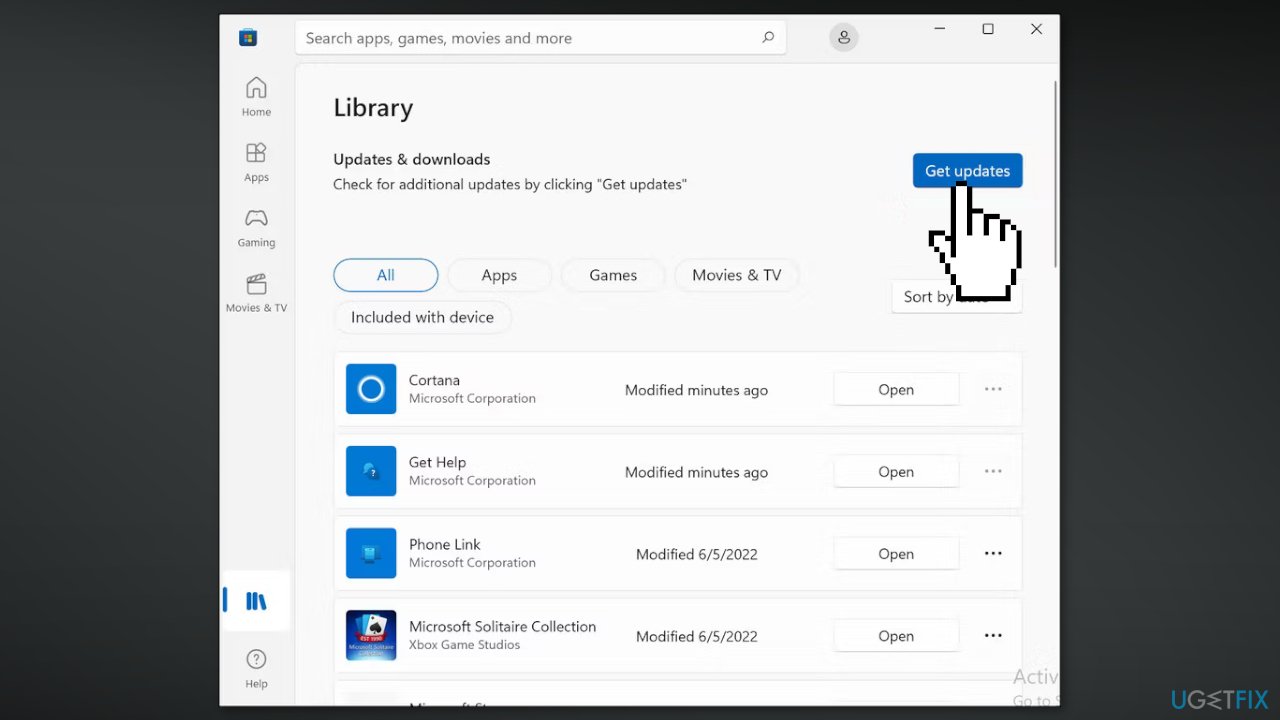
- Launch Windows Store and click on the Library icon in the bottom-left corner of the window
- Click on Get updates and wait for the Spotify update to download
Method 4. Clear Spotify's Cache
- Press the Windows key + E together to open File Explorer
- Navigate to the following location:
C: > Users > UserName (Your User Name)
- Click on View in the top pane and choose Show > Hidden items
- Navigate to the following location in the same window:
AppData > Local > Packages > SpotifyAB.SpotifyMusic_zpdnekdrzrea0 > LocalCache
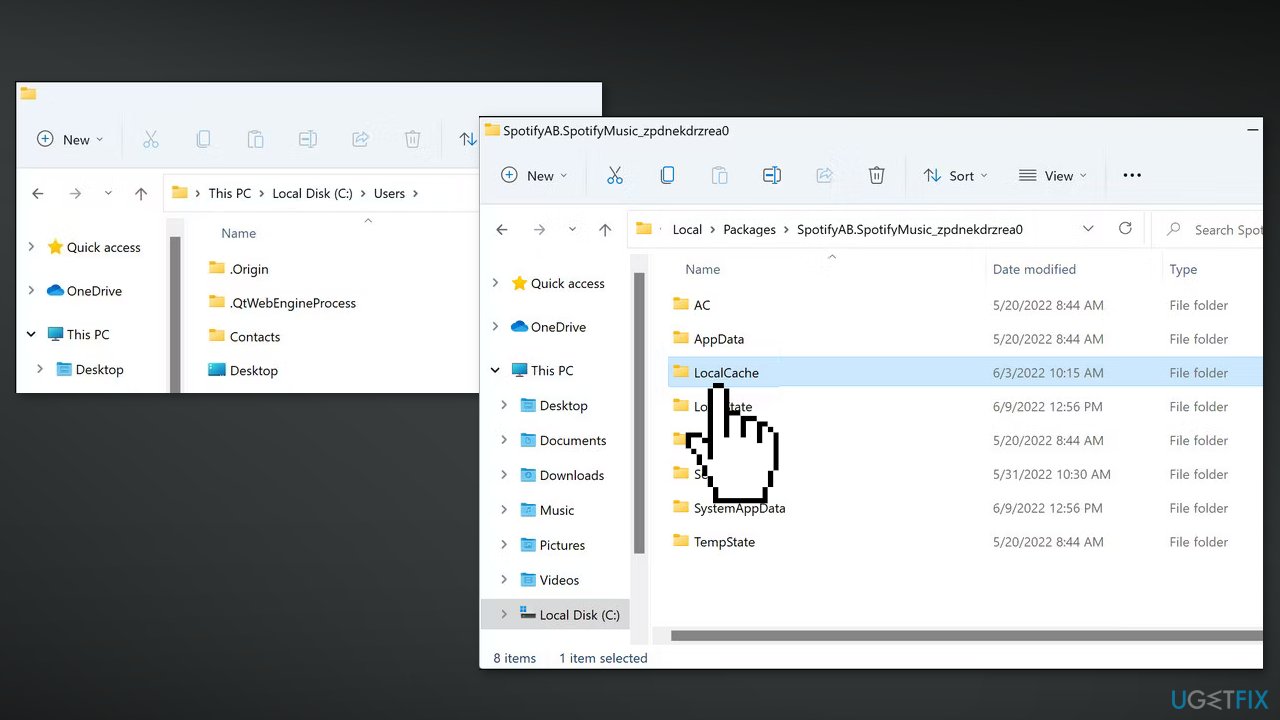
- Launch Spotify and delete all the contents present in the folder
Method 5. Update Windows
- Click Start on the taskbar
- Select the Setting app pinned to the Start menu
- Click Windows Update on the left side of Settings
- Press the Check for updates button to download and install new patch updates
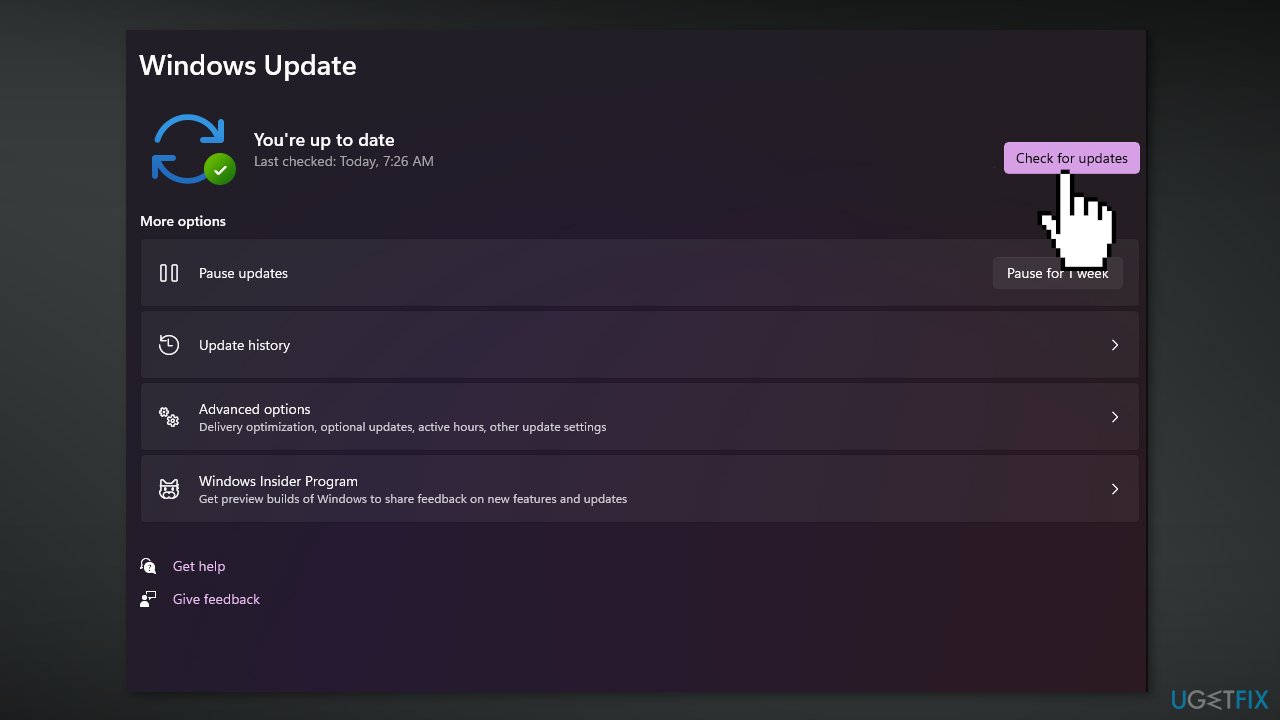
- You can also install optional updates by going to the Advanced tab
Method 6. Reinstall Spotify
- Go to Apps & features
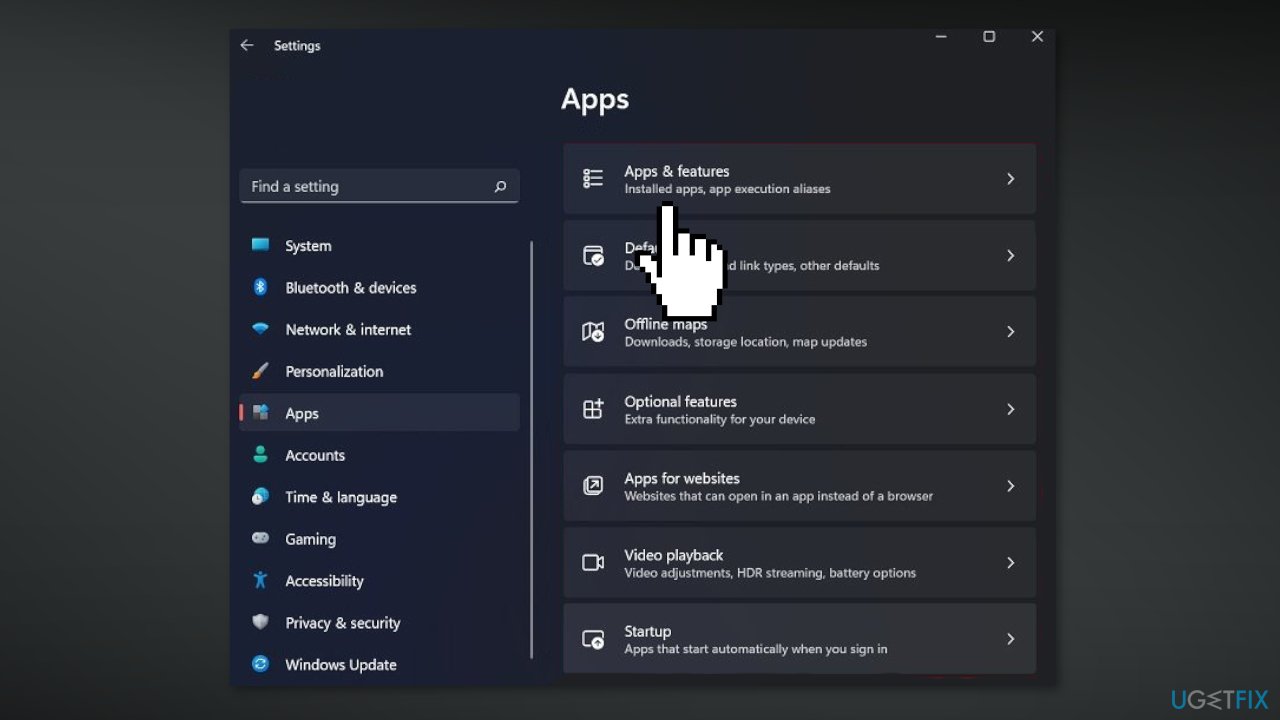
- Find Spotify in the list and click Uninstall
- Install Spotify again the same way you did before
Method 7. Fix Corrupted System Files
Use Command Prompt commands to repair system file corruption:
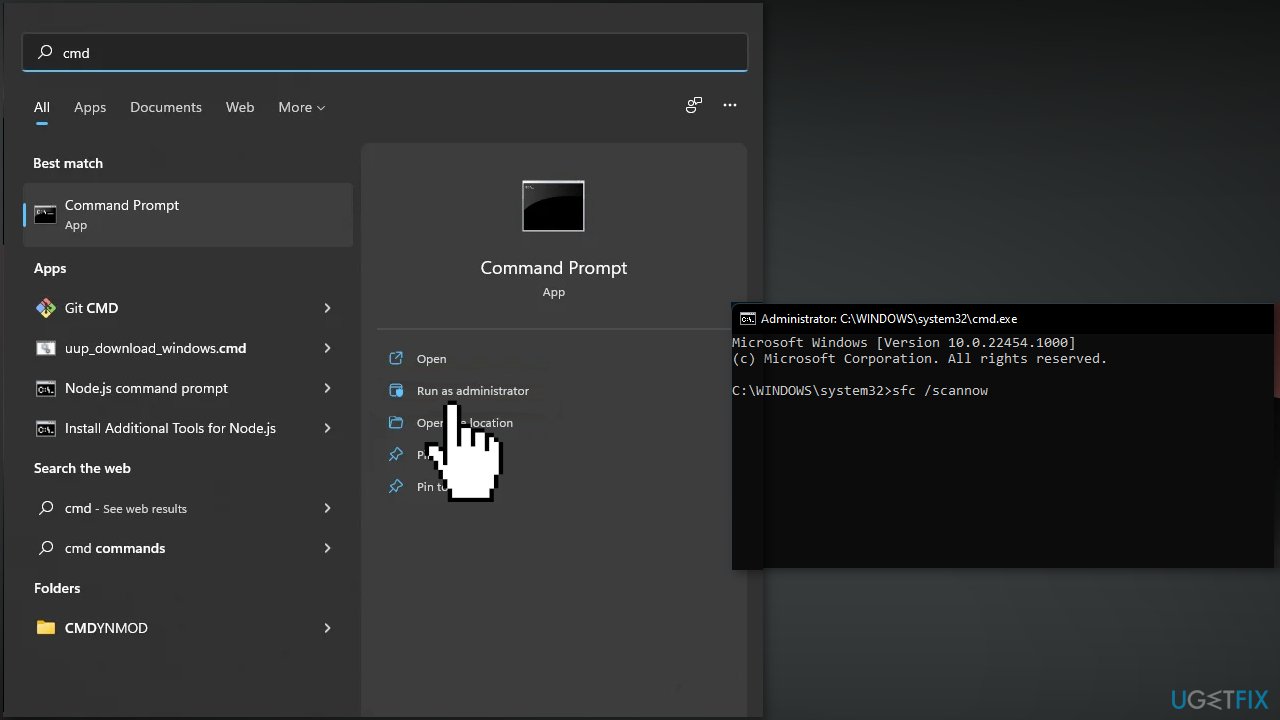
- Open Command Prompt as administrator
- Use the following command and press Enter:
sfc /scannow
- Reboot your system
- If SFC returned an error, then use the following command lines, pressing Enter after each:
DISM /Online /Cleanup-Image /CheckHealth
DISM /Online /Cleanup-Image /ScanHealth
DISM /Online /Cleanup-Image /RestoreHealth
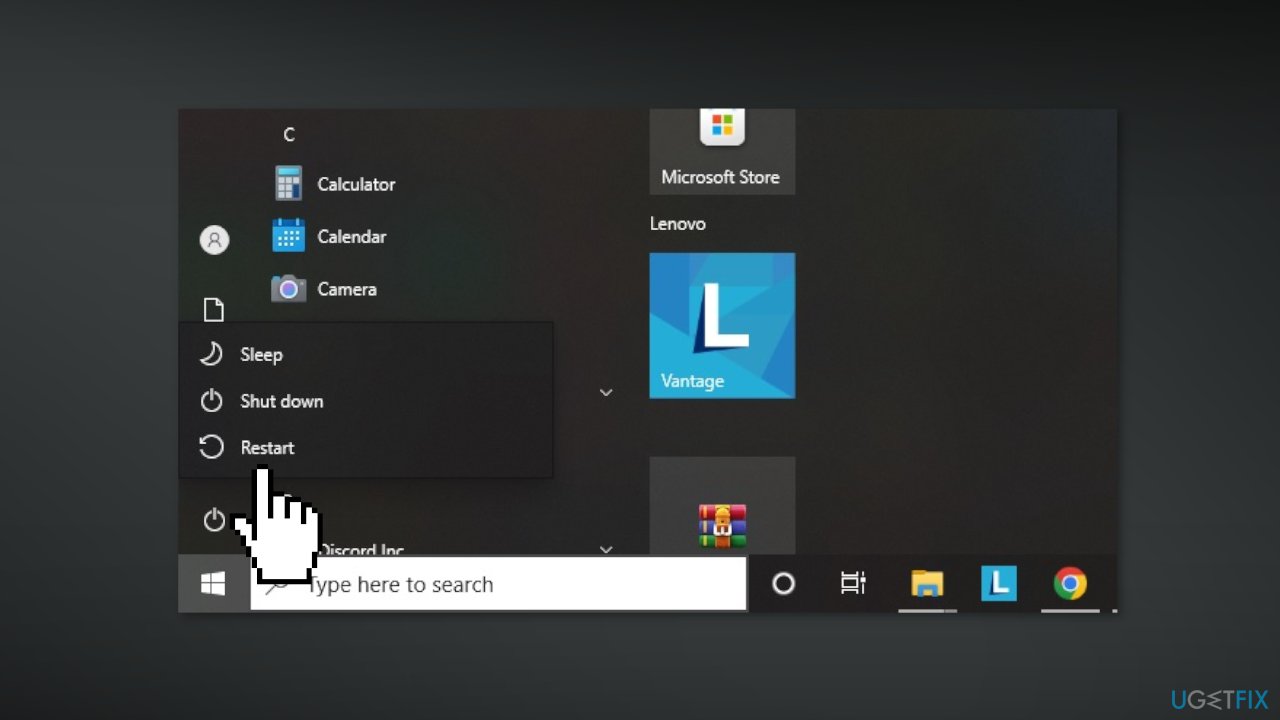
Method 8. Restart Windows
If none of the above methods fixed the issue for you, you can try restarting your Windows device. It may seem too simple, but sometimes restarting Windows helps fix various bugs.
Bottom line
To fix the Spotify song change notifications not working on Windows 11, you can restart the Spotify application, run the Windows Store Apps troubleshooter, or update Spotify. If none of these methods work, consider using a maintenance tool to address potential system errors.
Frequently asked questions
This issue may occur due to incorrect notification settings in Windows 11 or within the Spotify app itself. Ensure that both Windows notifications and Spotify notifications are enabled in your settings.
To enable Spotify notifications, go to Settings > System > Notifications & actions, and make sure notifications for Spotify are turned on. Additionally, check Spotify's settings to ensure notifications are enabled.
If resetting the notifications doesn't resolve the issue, try reinstalling the Spotify app or checking for updates in Windows 11 to ensure compatibility.




Report an issue
What's wrong with this guide? We review every report and update or remove content.
Report received — thank you. We'll review and fix it.
You need a free account to submit a report.
Be the first to comment