How to fix
“SSD not recognized” error
on Windows
Resolve the "SSD not recognized" error in Windows 10 and 11 effortlessly. Our expert-tested solutions ensure your drive is detected, fixed in minutes!

What causes How to fix “SSD not recognized” error in Windows?
- Improperly connected SSD to the motherboard
- Outdated or incompatible drivers
- Incorrect BIOS settings
- Faulty or incompatible SSD
Repairs Windows system files, removes malware, and restores a clean OS state — without reinstalling.
I've recently got a new SSD to replace my old one and I am now facing an issue where SSD is not recognized in Windows. How can I resolve this?
Windows operating systems are prevalent in many personal computers and laptops across the globe, serving as a central hub for managing files, applications, and various functions. A critical aspect of any computer's operation is storage, where all the necessary data is housed. Storage devices come mainly in two forms: Solid State Drives (SSD) and Hard Disk Drives (HDD).
Unlike HDDs, which store data on spinning disks, SSDs utilize flash memory to hold information. This fundamental difference means that SSDs offer faster access times, lower energy consumption, and greater durability. As a result, SSDs have become an increasingly popular choice among computer users, replacing traditional HDDs in many instances.
However, the transition to SSDs has not been without problems. One issue that some users may encounter is an error message indicating "SSD not recognized." This error means that the Windows operating system is unable to detect the SSD, rendering it inaccessible. The inconvenience and potential loss of data that can result from this error are substantial, leading many to seek immediate solutions.
The reasons behind the "SSD not recognized" error are numerous. Firstly, the SSD might be improperly connected to the motherboard, resulting in a lack of communication between the device and the system. Secondly, outdated or incompatible drivers might fail to recognize the SSD, requiring an update or replacement. Thirdly, incorrect BIOS settings may lead to this issue, necessitating careful adjustments. Lastly, the SSD itself may be faulty or incompatible with the Windows version being used, calling for professional evaluation or replacement.
Fortunately, many of these problems have corresponding solutions that can be carried out by the users themselves. Carefully checking physical connections, updating drivers, and adjusting BIOS settings are common fixes that might resolve the issue. For those who are not comfortable with these manual adjustments, seeking professional assistance is a viable option.
Below this article, readers will find a comprehensive guide detailing step-by-step instructions to address the "SSD not recognized" issue. These instructions are designed to be accessible and efficient, allowing even those with limited technical knowledge to remedy the problem.
In addition to these instructions, using tools like the [d1] PC repair tool might be beneficial for general computer maintenance and optimization, aiding in the prevention of such errors and contributing to a smoother computing experience.
Fix 1. Enable IDE Compatibility Mode
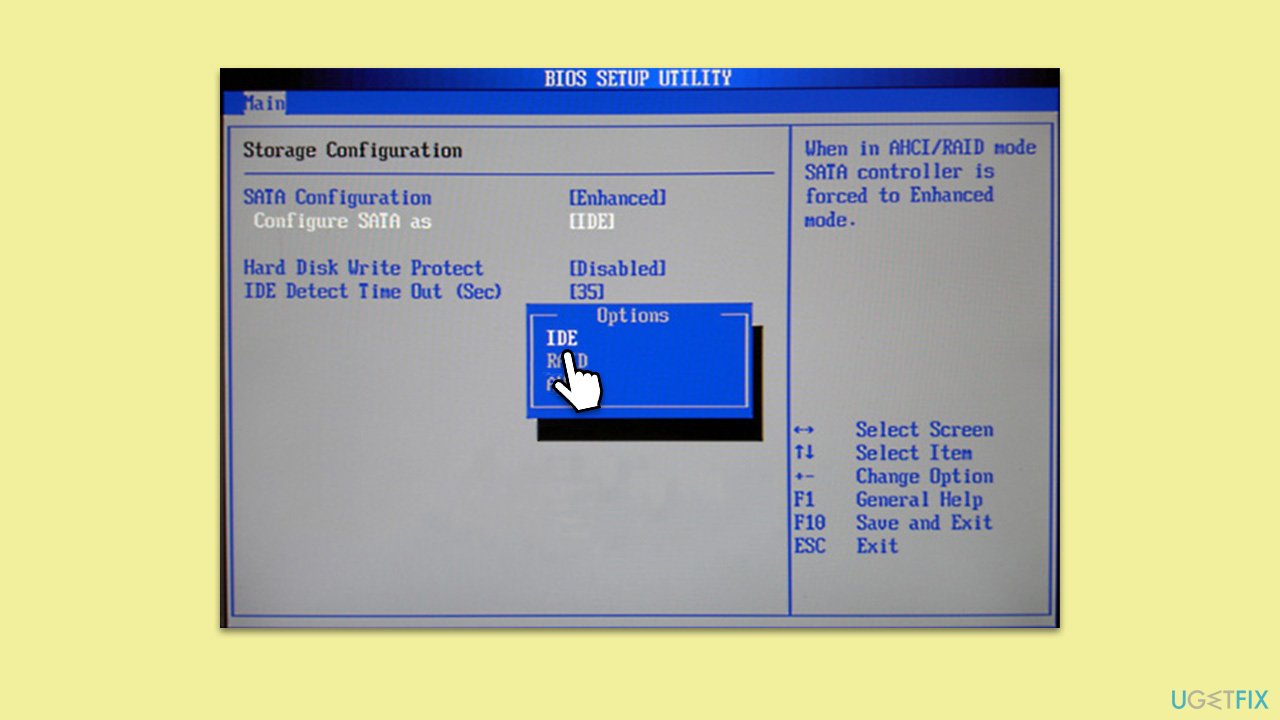
This solution helps align the SSD with the Integrated Drive Electronics (IDE) interface, ensuring that the SSD communicates correctly with the system. This is particularly useful when dealing with older systems that might not support newer SSD technologies.
- Open BIOS during startup by pressing the appropriate key (usually F2, F12, or Delete).
- Navigate to the Advanced tab or appropriate section.
- Locate and select the IDE Compatibility Mode option.
- Enable the mode and exit BIOS, saving changes.
Fix 2. Update disk and storage controller drivers
Outdated or incompatible drivers may lead to the SSD not being recognized. Updating them ensures that they can properly communicate with the SSD.
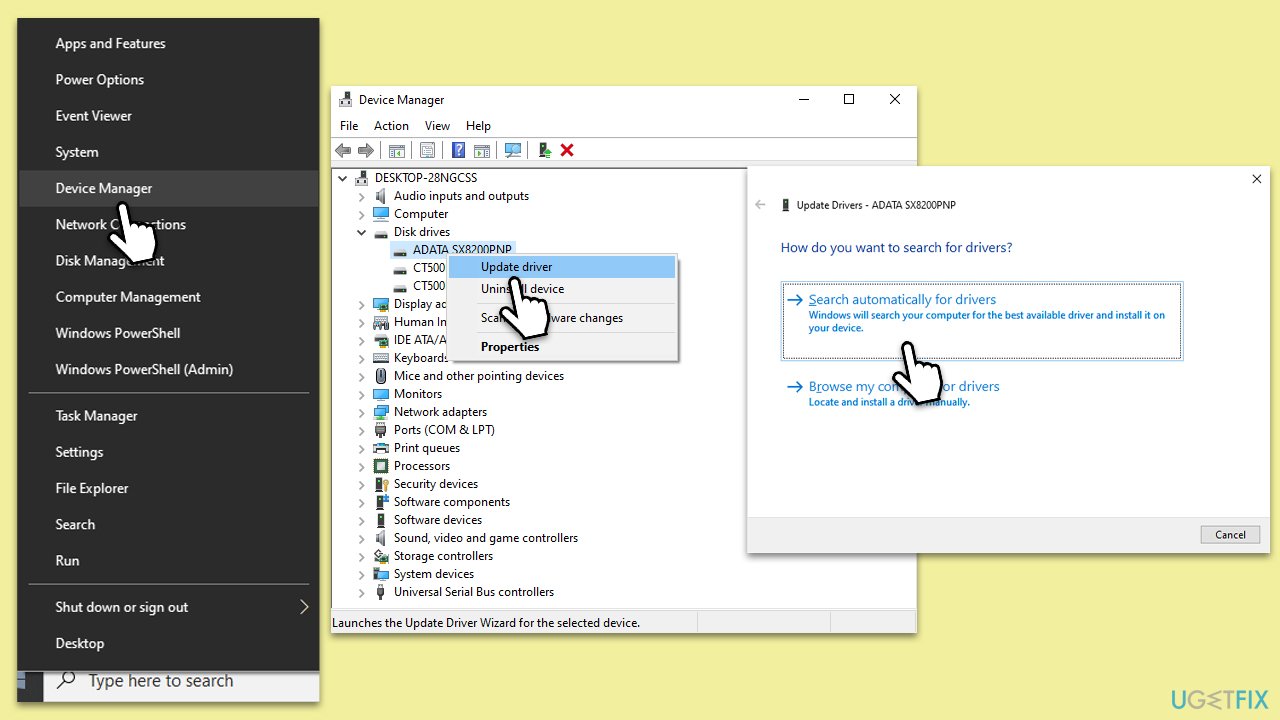
- Right-click on the Start button and select Device Manager.
- Expand the Disk drives section.
- Right-click on the SSD and choose Update driver.
- Pick Search automatically for drivers.
- Follow the on-screen instructions to complete the update.
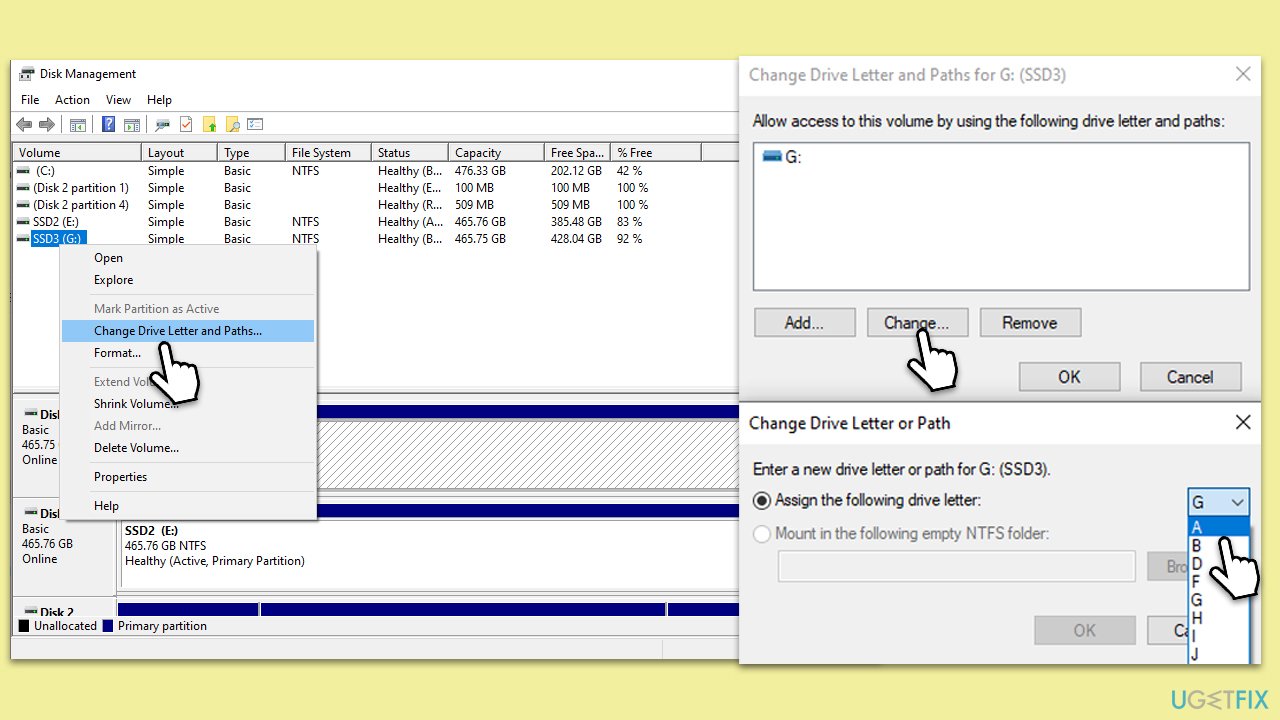
Fix 3. Change SSD's drive letter in Disk Management
Sometimes, conflicting drive letters can cause detection issues. Assigning a new drive letter can resolve this.
- Right-click on Start, and select Disk Management.
- Choose Disk Management under Storage.
- Right-click on the SSD and select Change Drive Letter and Paths.
- Assign a new drive letter and click OK.
Fix 4. Ensure SSD is initialized
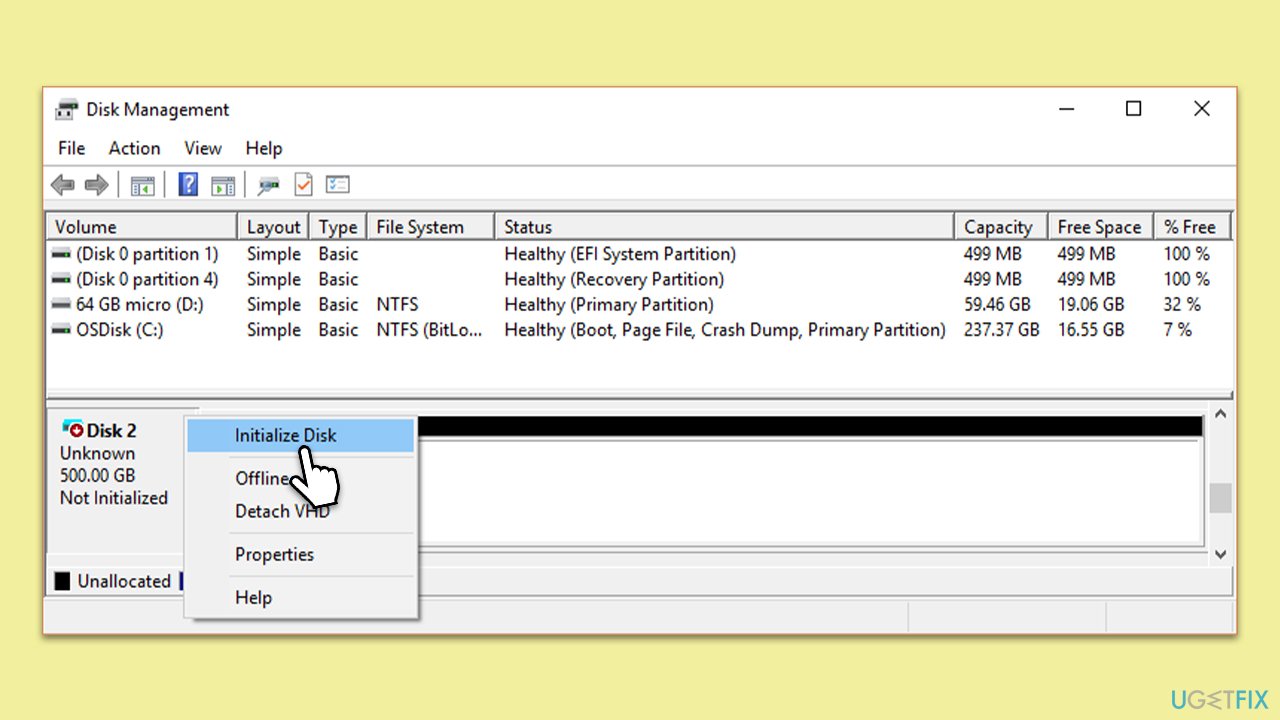
If the SSD is new and not initialized, Windows will not recognize it. Initializing it creates a system that Windows can interact with.
- Open Disk Management once again.
- If the SSD is listed as "Not Initialized," you need to initialize it.
- To do so, right-click on the SSD and pick Initialize Disk.
- Select the disk by ticking the checkbox and pick the partition style of your preference (MBR or GPT).
- Click OK.
Fix 5. Make relevant checks in BIOS
Ensuring the correct settings in BIOS can alleviate recognition issues.
- Open BIOS as in Fix 1.
- Boot Order: Ensure that the SSD is included in the boot sequence if it's your boot drive.
- Navigate to the boot section.
- Adjust the order as needed so that the SSD is recognized during boot.
- Drive Interface Settings: Check if the SSD mode is set to AHCI (Advanced Host Controller Interface), which offers better performance and compatibility with modern SSDs.
- Locate the SATA or storage configuration section.
- Select AHCI mode.
- Compatibility Settings: If you're using an older system, you might need to set it to Legacy or IDE mode to recognize the SSD.
- Locate the relevant option for legacy or IDE mode.
- Enable as needed based on your system.
- RAID Configuration: If you are using multiple drives, ensure that RAID is configured properly if it is being used.
- Locate the RAID configuration section.
- Adjust settings as necessary according to your RAID setup.
- Save changes and exit BIOS.
Fix 6. Use Windows Memory Diagnostic
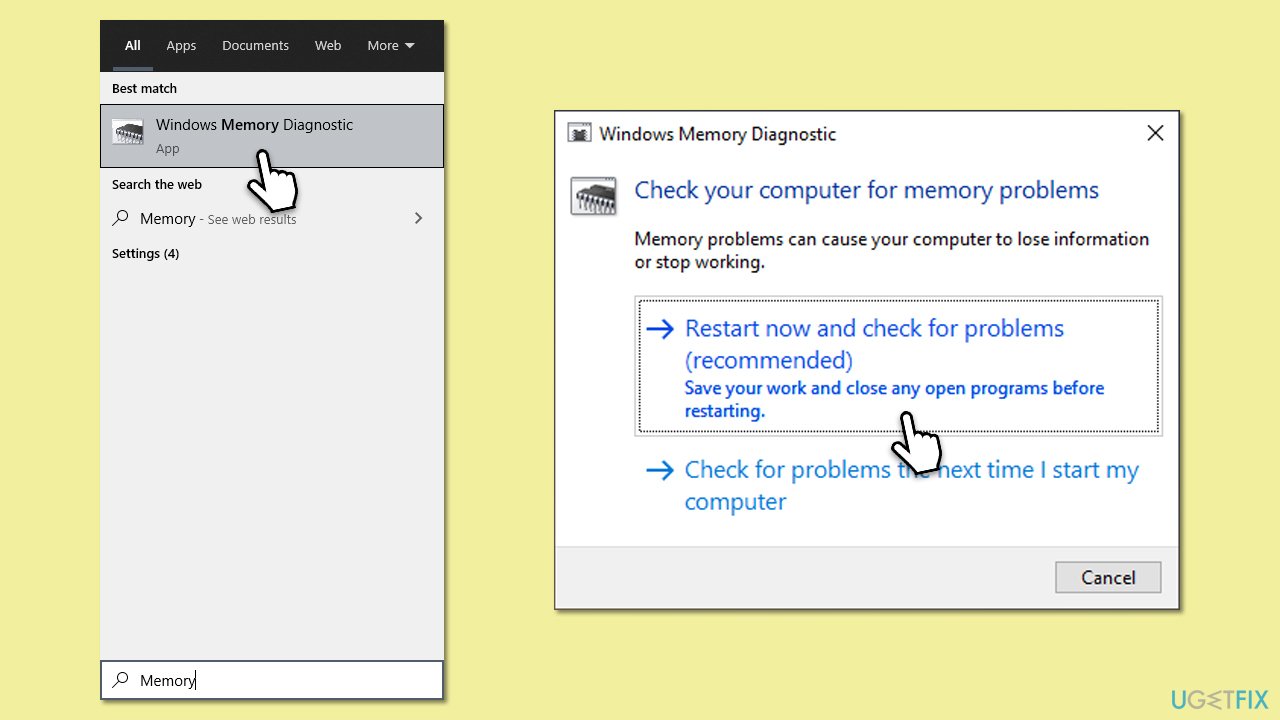
This can detect and resolve problems related to memory, which can indirectly affect SSD recognition.
- Type Memory in Windows search and press Enter.
- Select Windows Memory Diagnostics result.
- Click Restart now and check for problems (recommended) (note that your PC will restart immediately).The
- A memory test will run during startup and display any detected errors - this might take a while.
- Replace or repair faulty RAM module(s) if errors are found.
Bottom line
To fix the 'SSD not recognized' error in Windows, users can check physical connections, update drivers, and adjust BIOS settings. If these solutions do not resolve the issue, seeking professional assistance is recommended.
Frequently asked questions
First, ensure that the SSD is properly connected to your motherboard and powered on. You can also check Disk Management to see if the drive appears there.
You can update your SSD drivers by going to Device Manager, right-clicking on the SSD, and selecting 'Update driver.' Make sure to also check for Windows updates as they can provide necessary driver updates.
If the SSD is still not recognized, try connecting it to a different SATA port or using a different cable, as these can sometimes be the source of the issue in Windows 10 or Windows 11.




Report an issue
What's wrong with this guide? We review every report and update or remove content.
Report received — thank you. We'll review and fix it.
You need a free account to submit a report.
Be the first to comment