How to fix
SSD not showing up
on Windows
Resolve SSD not showing up on Windows 10 or 11 with our expert-tested solutions. Get your drive recognized quickly and easily, fixed in minutes!

What causes How to fix SSD not showing up on Windows?
- Compatibility issues
- Wrong settings of the SATA storage controller mode
- Incorrect protocol setting for the SSD
- SSD installed as HDD in BIOS
- Disk management tool issues with UDF format
Repairs Windows system files, removes malware, and restores a clean OS state — without reinstalling.
I tried to move some files to my SSD, but the system crashed and stopped responding. Now I try to do the same, but SSD is not showing up. I restarted a few times and turned off the PC, all that. I can sometimes see it, but nothing happens. Mainly it doesn't show up, and I cannot do anything. Can you help?
SSD not showing up on Windows is the issue that can create problems for the user because Solid State Drives are important and getting more acceptance than the previously known and used Hard Disk Drives due to speed, stability, and other features.[ref en-1] However, SSD still has some problems as any part of the computer does. This issue when the drive is not found on the computer is pretty common.[ref en-2]
You need to go through some methods and troubleshooting steps when the drive is not showing up on My computer, BIOS, or on the Disk Management, so it can be determined what the root cause and the main issue is. SSD not showing up on Windows can be the problem that users encounter because of the compatibility issues.
Another possible reason for frustration is the wrong settings of the SATA storage controller mode. If the protocol for the SSD is set incorrectly or you had installed the SSD as HDD on the BIOS, this issue occurs, and the drive cannot be recognized. Windows[ref en-3] have some issues with the disk management tool when the UDF format is not read properly with new SSDs.
So this problem might be related to this problem and easily fixed by using a third-party disk management application. You might want to check for system issues and possible data damage with [d1] before you go after the manual solutions listed below. Then follow these steps thoroughly, so you can fix and troubleshoot problems with the machine.
Option 1. Troubleshoot hardware issues
- Press Windows Key + R to open Run.
- Type control panel and hit enter.
- Type Troubleshooting in the search bar and click on Troubleshooting from the results.
- Click View All on the left.
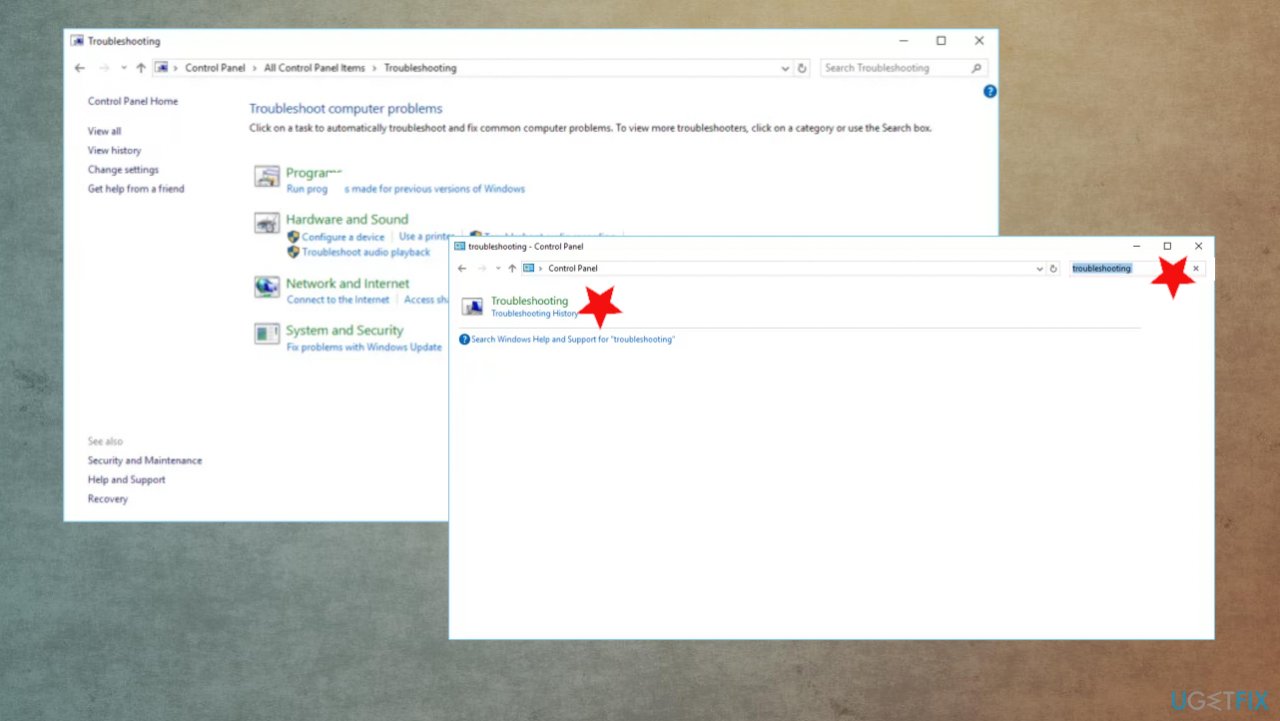
Ssd not showing up fix control panel - Choose Hardware and Devices.
- Click on Next in the popup window and follow the instructions.
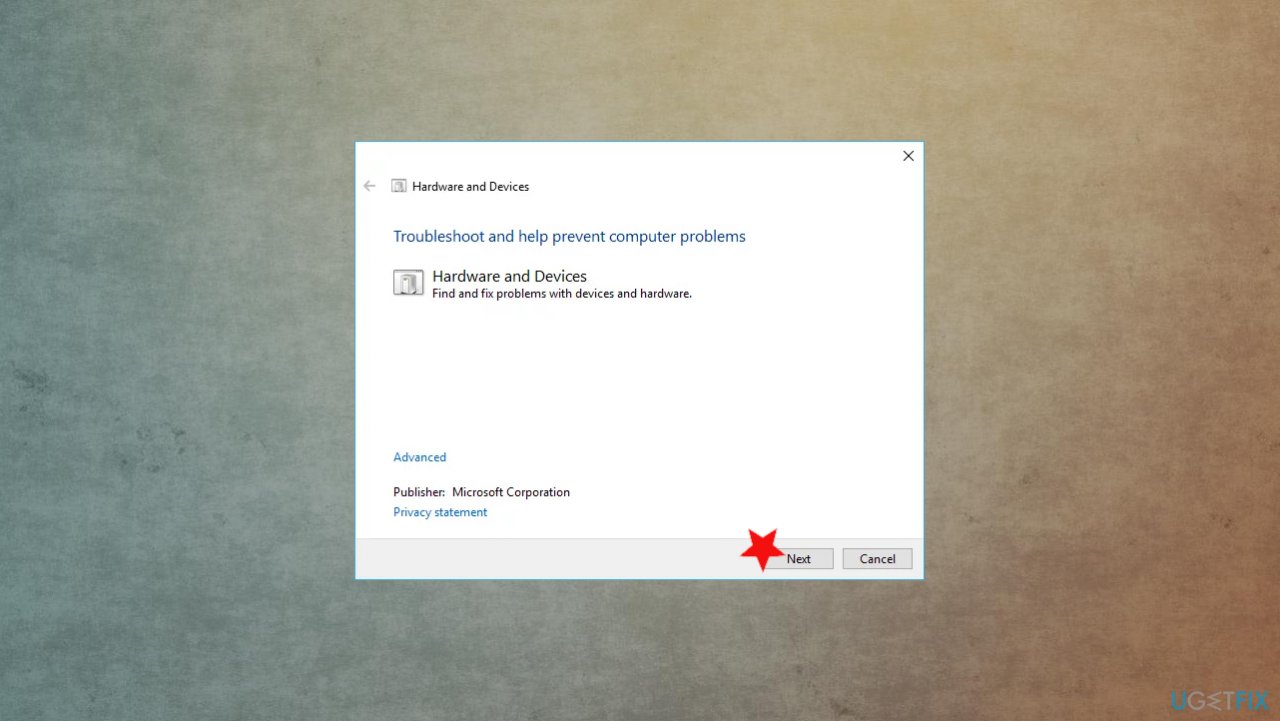
Ssd not showing up fix hardware devices - The troubleshooter will scan for problems.
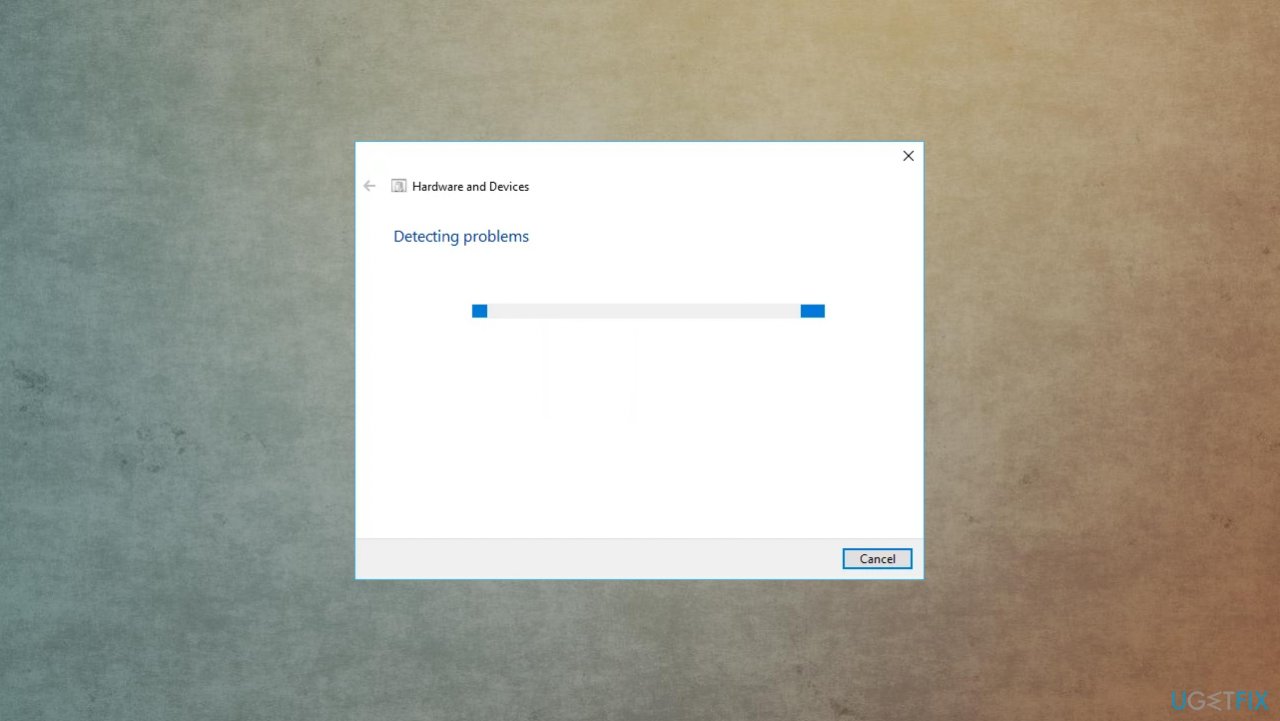
Ssd not showing up fix detecting problems - Click Apply this fix and resolve issues.
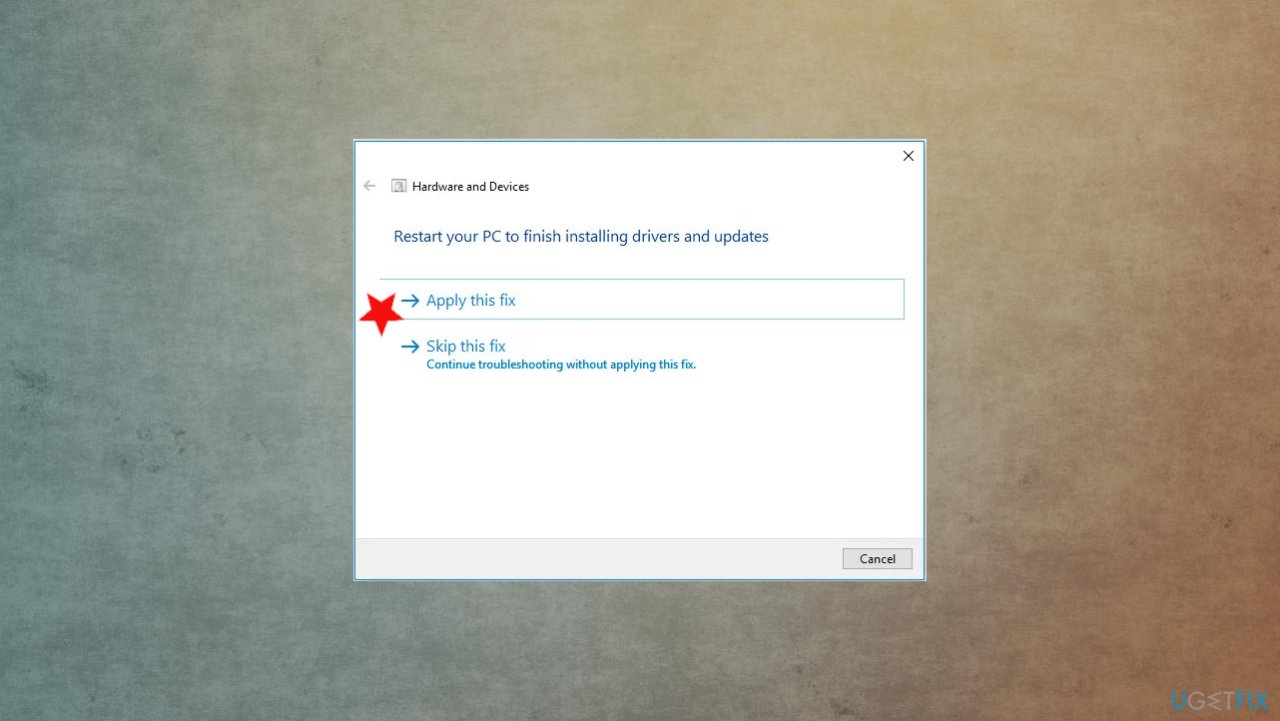
Ssd not showing up fix apply fix - Restart the device.
Option 2. Alter settings via Disk Management tool
- Press the Win+R.
- Type in diskmgmt.msc and press Enter.
- Identify your SSD drive inside the list and select it.
- Right-click your SSD drive where the name is located.
- Hit Initialize Disk to format the drive.
- Choose between the bootable (MBR) or storage device (GPT) and click Ok.
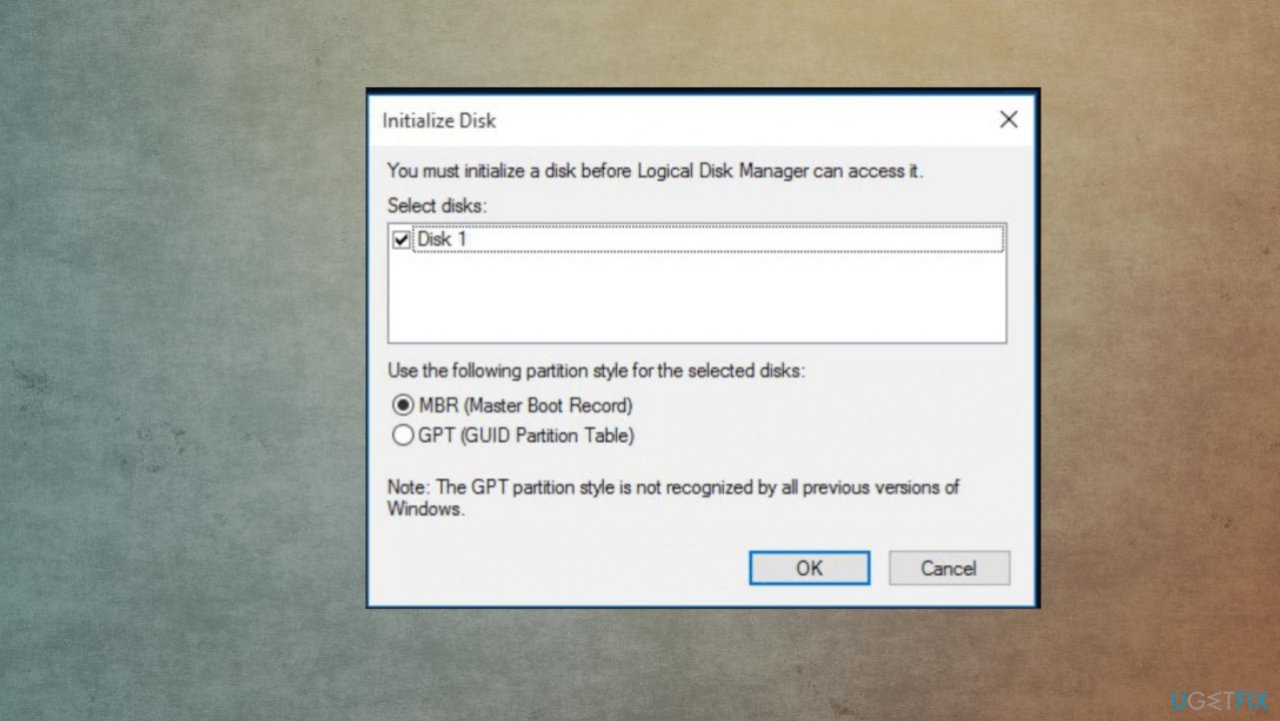
Ssd not showing up fix initialize disk - Right-click the HDD size of your SSD.
- Then choose New Simple Volume.
- Select the needed space.
- Once the Format Partition opens up, choose NTFS.
- Then follow the on-screen instructions to finish.
Option 3. Update motherboard storage controllers
- Press Windows key + R to open Run.
- Type devmgmt.msc and hit OK.
- Expand the Storage Controllers section
- Right-click on your controller and select Update driver software.
- On the next window, click Search automatically for updated driver software option.
- The system will search for drivers online and install them.
- Do the same for the IDE ATA/ATAPI Controllers section. (you might even reinstall these controllers entirely.
- Restart your PC for effect to check if this method helped to fix SSD not showing up issue.
- You can always use tools like [rev id="DriverFix"] for the automatic driver upkeep because this application checks, finds, and installs all the needed driver updates for you.
Option 4. Run memory diagnostics tool
- Press Win + R keys on your keyboard to open the Run.
- Type mdsched.exe and press Enter.
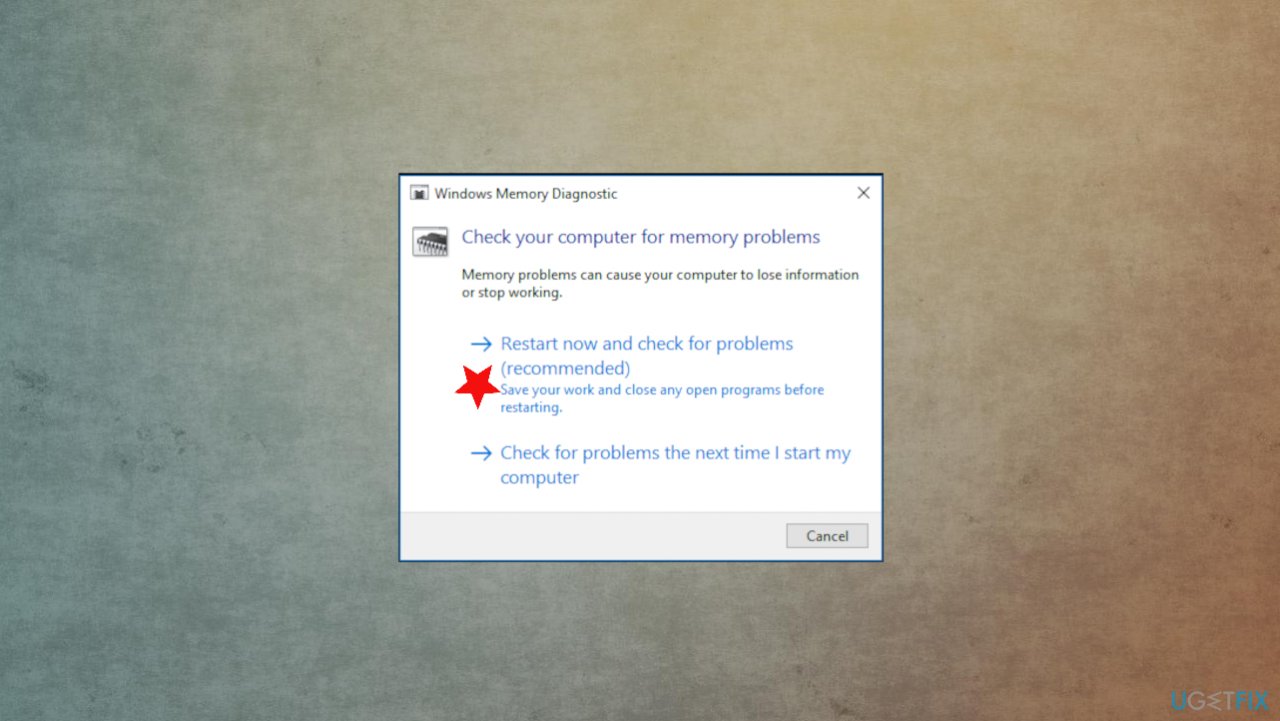
Ssd not showing up fix memory diagnostics - Click Restart now and check for problems (recommended).
- Windows is checking for memory problems and indicates any issues.
Option 5. Change SATA controller mode
- Restart your PC.
- While it reboots, press F2 or F10 keys so as to boot into BIOS.
- Navigate to the Advanced tab and then scroll to SATA Controller Mode.
- Select the SATA port that connects your SSD and press enter.
- Save the changes and exit.
- Restart your system.
Bottom line
To fix the SSD not showing up on Windows, you can troubleshoot hardware issues, check BIOS settings, and use a third-party disk management application. If these methods do not resolve the issue, consider checking for system issues and possible data damage.
Frequently asked questions
First, check if the SSD is properly connected to your computer and powered on. If it still doesn't appear, try updating your storage drivers through Device Manager.
You can initialize your SSD by opening Disk Management, right-clicking on the unallocated space, and selecting 'Initialize Disk'. Make sure to choose the correct partition style for your needs.
Ensure that the SSD is enabled in the BIOS settings and that the SATA mode is set correctly. If it still doesn't show up in Windows, consider checking for firmware updates or reformatting the SSD.




Report an issue
What's wrong with this guide? We review every report and update or remove content.
Report received — thank you. We'll review and fix it.
You need a free account to submit a report.
Be the first to comment