How to fix
SSL_ERROR_RX_RECORD_TOO_LONG on Mozilla Firefox
on Windows
Resolve the SSL_ERROR_RX_RECORD_TOO_LONG error on Firefox for Windows 10 and 11 effortlessly. Expert-tested solutions await, fixed in minutes!

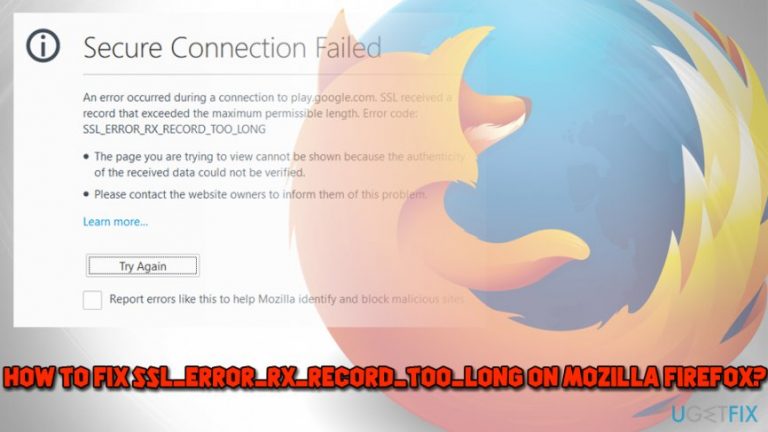
What causes How to fix SSL_ERROR_RX_RECORD_TOO_LONG on Mozilla Firefox?
- Wrongly configured SSL certificate on the web server
- Corrupted encrypted data
- Anti-virus software interfering with SSL connection
- Issues with SSL protocol
Repairs Windows system files, removes malware, and restores a clean OS state — without reinstalling.
Hello there. I am using Mozilla Firefox as my primary browser, and recently I have been experiencing some issues with it. Every time I try to open "https" website I receive a ssl_error_rx_record_too_long error and the web page does not load. I have been using this browser since I can remember and it is my favorite one, can you please help me to fix this issue? Thanks in advance.
According to statistics, Mozilla Firefox is used by 5.27% of internet users in May 2018. Although it might not seem like a lot, it is a five percent of a total of almost 3.6 billion internet[ref en-1] users which equals to 190 million people worldwide. Thus, issues with Mozilla Firefox are just as important as of any other browser. Therefore, we suggest you read through this article to find out how to fix SSL_ERROR_RX_RECORD_TOO_LONG error on Mozilla Firefox.
The SSL_ERROR_RX_RECORD_TOO_LONG error is quite common and can occur due to issues with SSL.[ref en-2] Many users reported that they see this message when they are trying to access websites using HTTPS[ref en-3] protocol. Firefox displays a Secure Connection Failed window and informs that the SSL certificate could not be verified.
SSL certificates are used to encrypt data which is hosted on the hosted server. As soon as there is a request to retrieve it, the SSL sends the encrypted data and then decrypts it for the user to view. This way, there is no way for hackers to intercept the information, and it dramatically reduces the chances of hacks.

However, when something goes wrong, and the encrypted data gets corrupted in some way, Mozilla Firefox cannot verify this information as secure anymore, and that's why it displays the SSL_ERROR_RX_RECORD_TOO_LONG error. In most cases, it is due to wrongly configured SSL certificate on the web server.
Occasionally, the issue can be caused by an anti-virus software installed on your machine. In such case, you should try disabling it and see if the problem is fixed. However, we do not recommend leaving your PC unprotected, as malicious software can be hidden anywhere on the internet. Therefore, we advise you to install [d1] and make sure that no malware is affecting the device.
Fix 1. Connect to the website using HTTP protocol
You should always start with the very basics when it comes to computer problems. Thus, the first thing you should try is simply to bypass the secure protocol and attempt to connect to the website without it:
- Go to the desired website
- Replace https:// with http:// and hit Enter
- Check if the site can be loaded
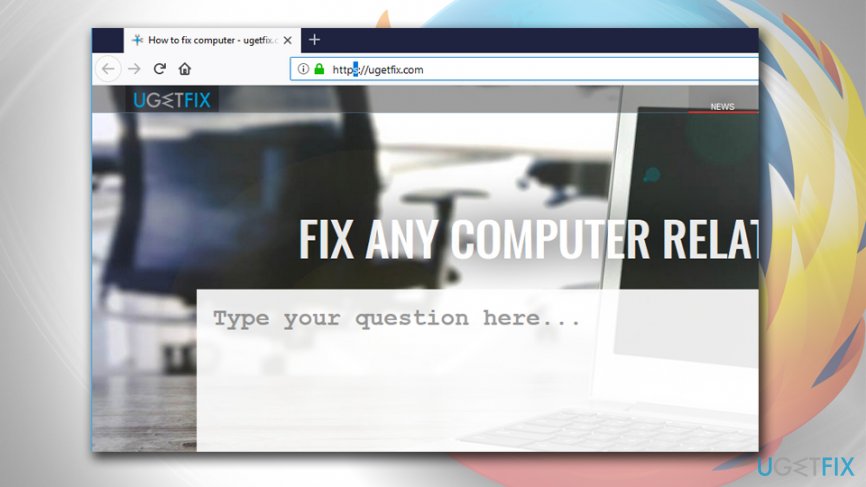
Ssl error rx record too long try tu use http protocol
Fix 2. Make sure Firefox is up to date
Firefox usually updates itself automatically, but you can sometimes miss an update by accident. Therefore, you should check if the browser is the latest version - it can help you fix SSL_ERROR_RX_RECORD_TOO_LONG error:
- Click on Open menu and select Help > About
- An update window will indicate whether or not you need to update your browser
- If there is an update available, click Restart to update Firefox
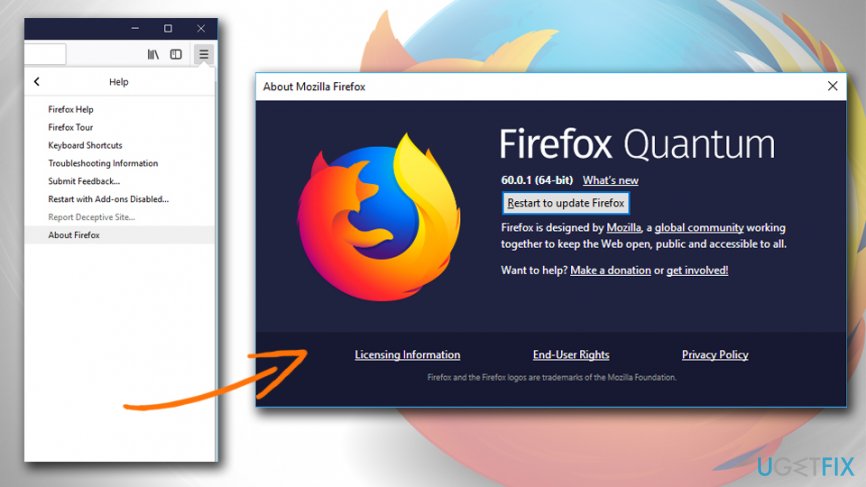
Ssl error rx record too long update firefox
Fix 3. Refresh Firefox
Resetting your browser to default settings is always a good practice from time to time, as various potentially unwanted programs[ref en-4] can modify browser settings and display unwanted advertisements or annoy users in other ways. It is also useful when Firefox encounters certain errors; thus you should try refreshing it:
- Open Firefox and type in about:support into the address bar
- Hit Enter - the Troubleshooting window should open
- On the right side of the window, click on Refresh Firefox...
- When the warning window appears, click on Refresh Firefox
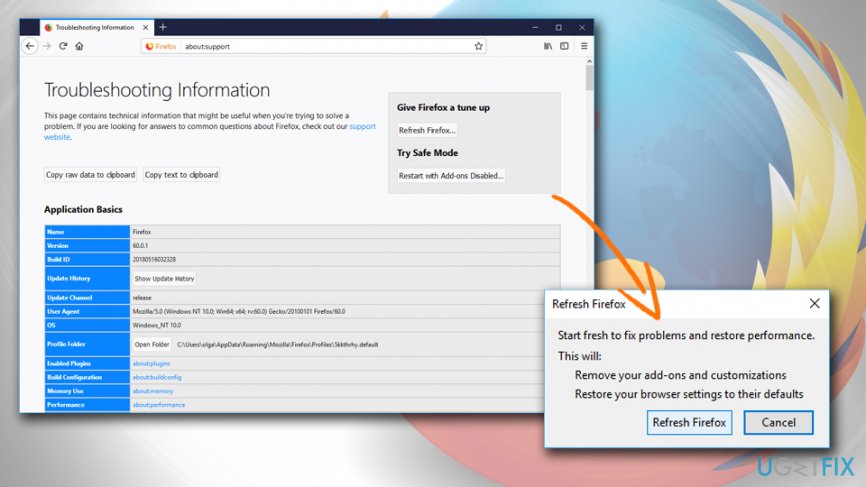
Ssl error rx record too long refresh firefox
Fix 4. Disable all Firefox extensions
The SSL_ERROR_RX_RECORD_TOO_LONG error could be caused by certain add-ons or browser extensions, because they may be hard-coded to connect via the HTTPS protocol, which can easily cause issues with the corrupt SSL certificate:
- Click on the Open menu and select Add-ons
- Click Disable next to every installed add-on
- Restart Firefox and try to connect to the desired website
Fix 5. Try to load the website in Safe Mode
Similarly to Windows, Firefox has a Save Mode setting where various issues can be addressed. Therefore, try entering it and launching the website from there:
- Go to Open menu > Help
- In the help menu, pick Restart with Add-ons Disabled...
- When prompted, click Restart and then Start in Safe Mode
- Try to connect to the desired website
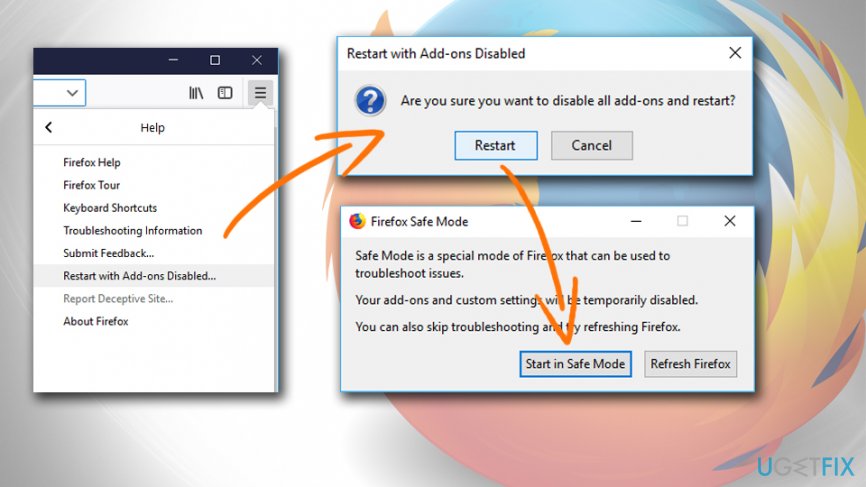
Ssl error rx record too long start firefox in safe mode
Bottom line
To fix the SSL_ERROR_RX_RECORD_TOO_LONG error, you can check the SSL certificate configuration on the web server, disable any interfering anti-virus software, and ensure that the SSL protocol is functioning correctly. If none of these solutions work, consider seeking further technical support.
Frequently asked questions
This error typically occurs when the server is misconfigured or when there is an issue with the SSL certificate. It may also happen if you're trying to access a website over HTTPS that doesn't support SSL properly.
To fix this error, you can try clearing your browser cache, resetting Firefox settings, or checking your proxy settings. Additionally, ensure that your antivirus or firewall is not interfering with the connection.
While you can try accessing the site via HTTP instead of HTTPS, this is not recommended for security reasons. It's better to address the underlying issue for a proper connection.




Report an issue
What's wrong with this guide? We review every report and update or remove content.
Report received — thank you. We'll review and fix it.
You need a free account to submit a report.
Be the first to comment