How to fix
Starfield error 0xc000001d
on Windows
Resolve the Starfield error 0xc000001d on Windows 10 and Windows 11 effortlessly with our expert-tested solutions. Get back to gaming in minutes!

Repairs Windows system files, removes malware, and restores a clean OS state — without reinstalling.
Hello. When I try to launch Starfield in Windows, I get the 0xc000001d error. Is there a way to fix this?
The much-anticipated video game Starfield has been made available for Windows PCs. However, a unique fault, known as error code 0xc000001d, has been seen by some users, preventing them from correctly opening the game. Players who were ready to get into the game and have fun have experienced irritation and inconvenience as a result of this problem.
The error code 0xc000001d primarily arises due to the absence of the Advanced Vector Extensions (AVX) instruction set on the user's CPU, which is often a result of the CPU's AVX instructions not being enabled in the BIOS configuration. A collection of CPU instructions known as AVX is necessary for carrying out various complex tasks, including those needed by several modern video games like Starfield. The game has trouble operating when certain instructions are unavailable or disabled, which causes the error.
Users who have been eager to play Starfield may feel the effects of this problem pretty strongly. As the error message offers no insight into the underlying cause, it not only prevents them from fully enjoying the game but also has the potential to frustrate and perplex them. A lot of effort may be spent by gamers researching the issue, looking for fixes, or even attempting to update their hardware to fix it.
The AVX instructions must normally be enabled in the BIOS settings as a potential fix for this issue. But for some people, altering BIOS settings can be scary and might call for technical knowledge. Furthermore, some older CPUs may not have any AVX functionality at all, leaving customers with incompatible hardware. Users may need to think about hardware upgrades or other options in certain circumstances in order to enjoy the game.
In this guide, you will find 5 steps that should help you fix Starfield error 0xc000001d in Windows. You can also use a maintenance tool like [d1] that can fix most system errors, BSODs,[ref en-1] corrupted files, registry[ref en-2] issues, or clear cookies and cache.[ref en-3] Otherwise, follow the step-by-step instructions below.

Solution 1. Restore Starfield Saves Files
- Open the Run dialogue box by pressing the Windows key + R.
- Copy and paste the following path and press Enter:
%LOCALAPPDATA%\Packages\BethesdaSoftworks.ProjectGold_3275kfvn8vcwc\SystemAppData\wgs
- Copy all of the saved files to another location. Then, delete the files from the folder.
- Go to the Starfield installation file on your PC and delete all of the files and folders except data.
- Open the Steam client and go to Library. Then, right-click Starfield to select Properties.
- Go to the Installed Files tab in the Properties window and click the Verify integrity of game files option.
- Restore the saved files by copying the backup to the original location.
Solution 2. Update Graphics Card Driver
- Right-click the Start button and select Device Manager.
- Double-click the Display adapters category to view your device.
- Right-click your graphics card and choose Update driver.
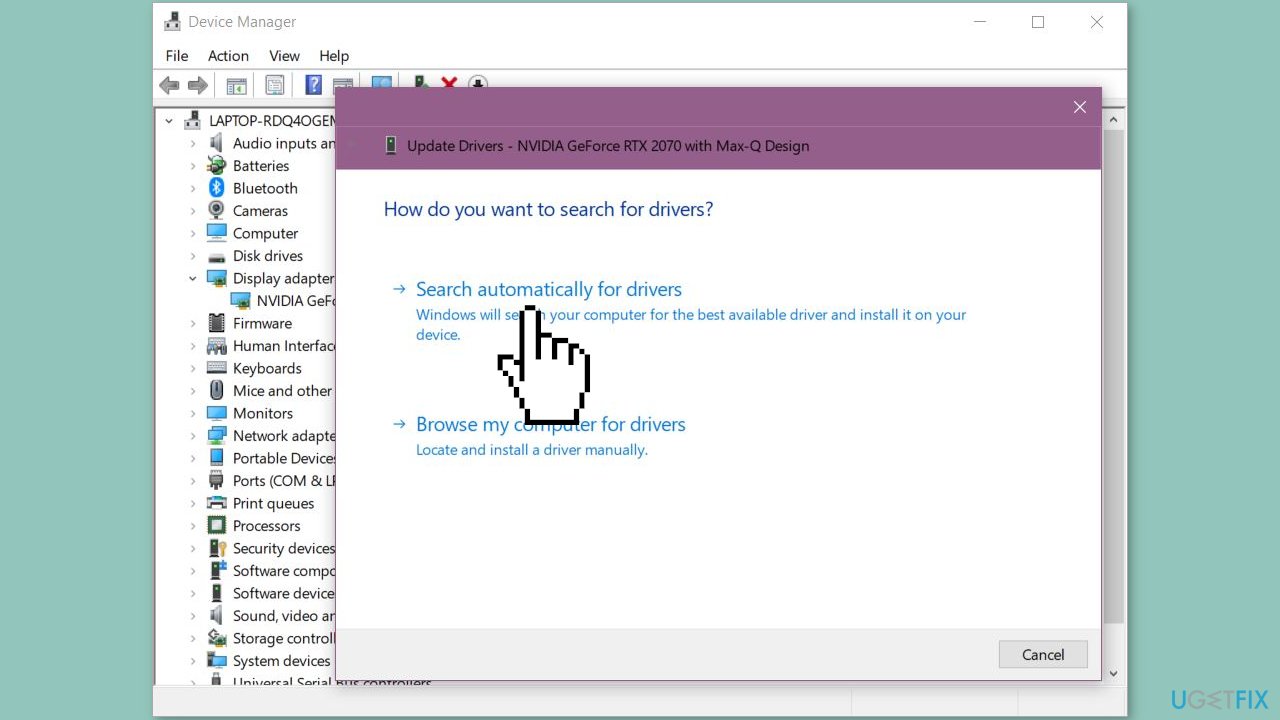
You can also use a dedicated utility like [rev id="DriverFix"] that can find the best drivers for your machine and install them automatically.
Solution 3. Enable AVX Extension
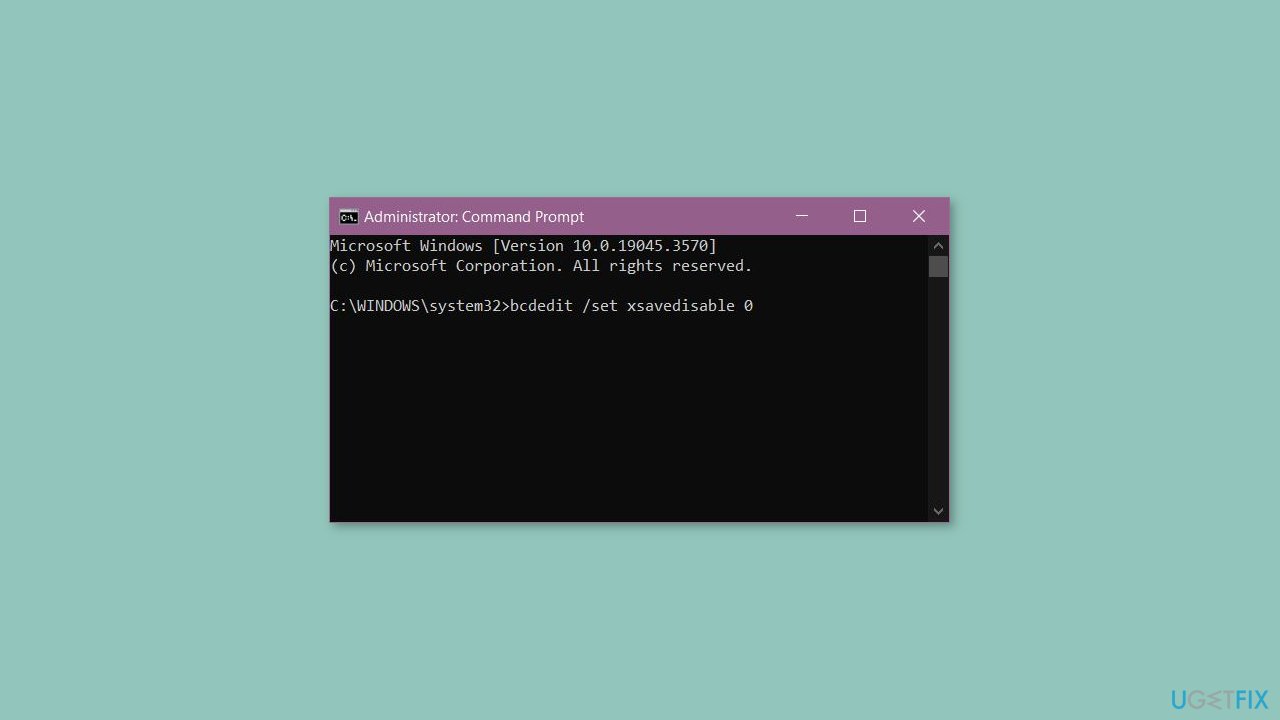
- Run Command Prompt as an administrator.
- Type the following command and press Enter:
bcdedit /set xsavedisable 0
- Open your BIOS or UEFI setup menu, and find a section called Overclocking or Advanced Settings.
- Find AVX extensions and check if it is enabled.
Solution 4. Update or Reinstall Starfield
Update Starfield:
- Open the Steam client.
- Go to LIBRARY.
- Click on Starfield. It will automatically search for the available update.
- If there is an update available, you can click Update.
Reinstall Starfield:
- Go to Control Panel to uninstall it.
- Go to Steam to download it again.
Solution 5. Delete GPU Cache
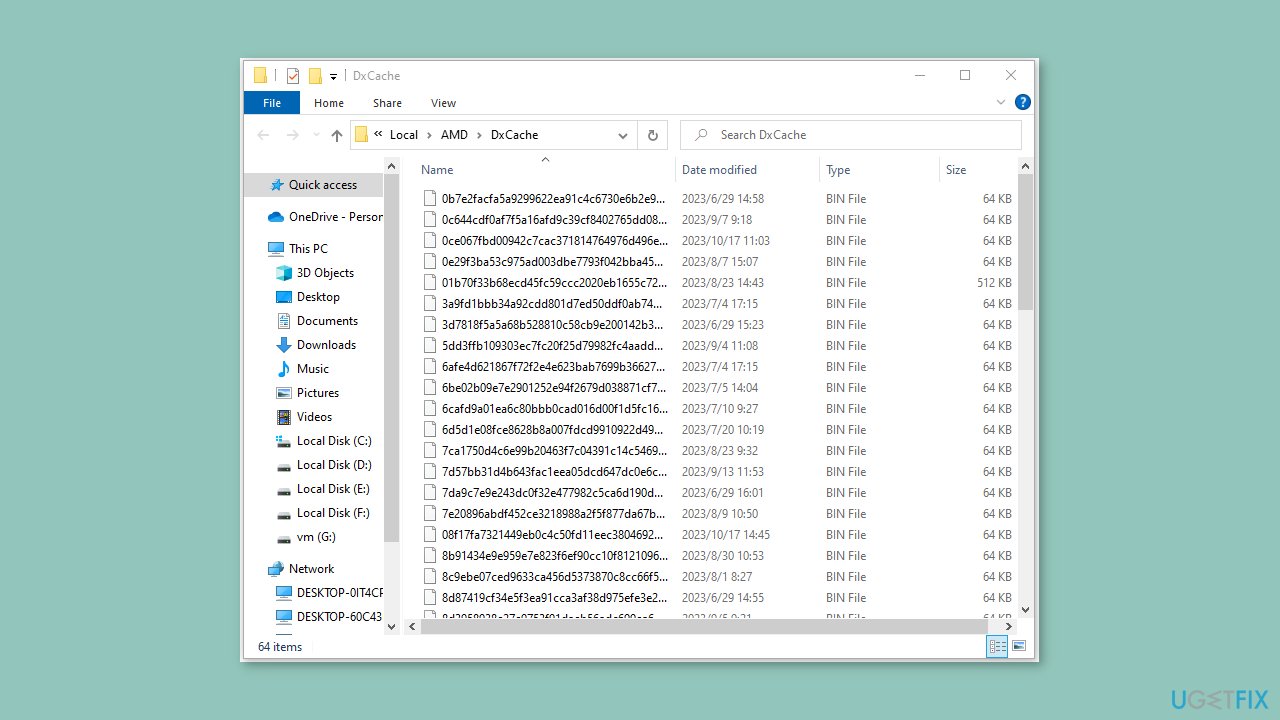
- Press the Windows key + R to open the Run dialog box.
- Type or paste: %LOCALAPPDATA%\AMD\DxCache (for AMD GPUs) or %LOCALAPPDATA%\NVIDIA\DxCache (for NVIDIA GPUs) and press Enter.
- Delete all of the files inside the DxCache folder.
- After that, open the Run box again, type %LOCALAPPDATA%\Starfield\ and press Enter.
- Delete the pipeline.cache file in the Starfield folder.
Frequently asked questions
The error 0xc000001d in Starfield is often caused by incompatible hardware or outdated drivers, particularly related to graphics cards. Ensuring your system meets the game's requirements and updating your drivers can help resolve this issue.
To update your graphics drivers, go to Device Manager, find your display adapter, right-click it, and select 'Update driver.' Alternatively, you can download the latest drivers directly from the manufacturer's website for Windows 10 or Windows 11.
Yes, make sure your PC meets the minimum system requirements for Starfield, including CPU, RAM, and GPU specifications, as running the game on unsupported hardware can trigger error 0xc000001d on Windows 10 or Windows 11.




Report an issue
What's wrong with this guide? We review every report and update or remove content.
Report received — thank you. We'll review and fix it.
You need a free account to submit a report.
Be the first to comment