How to fix
Start Menu resets to default automatically
on Windows
Fix the Start Menu resetting to default in Windows 10 or Windows 11 effortlessly. Get expert-tested solutions and resolve the issue in minutes.

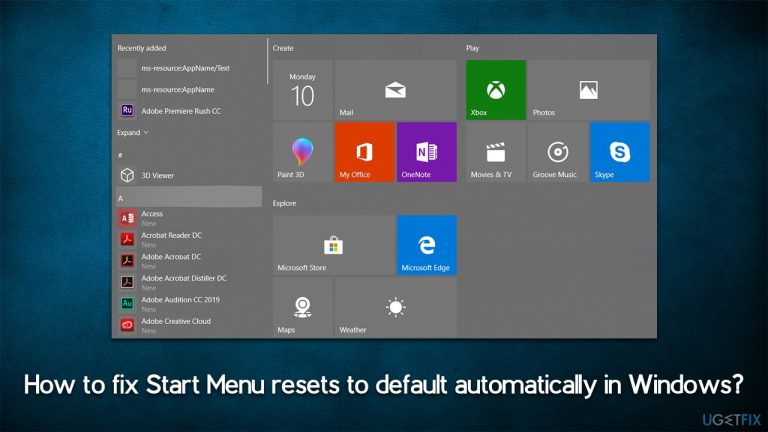
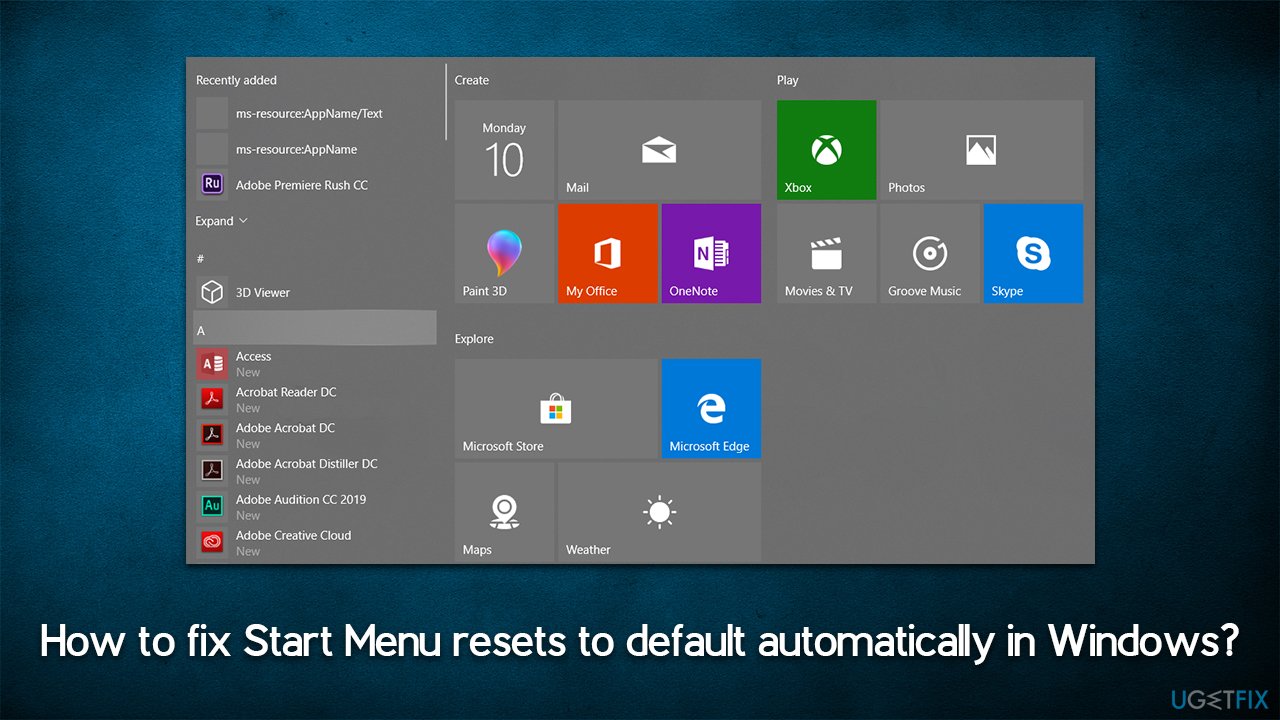
What causes How to fix Start Menu resets to default automatically in Windows?
- Corrupted system files
- User profiles
- Buggy updates
- Recent Windows update
- No changes made to the system
Repairs Windows system files, removes malware, and restores a clean OS state — without reinstalling.
Hello. I have recently updated my Windows, and I now have a problem with the Start Menu - every time I reboot my PC, it should all programs installed as "New." Also, I have customized tiles to suit my preferences, and those reset along with the Start Menu, which is really annoying. Is there any way I can do to fix this?
The Windows Start menu is a feature that Microsoft Windows users have come to rely on for both their personal and professional computing needs. It allows the user to access programs and system settings quickly, making it one of the most efficient user interfaces available.
The Start menu also includes convenient search tools, along with drag-and-drop support and comprehensive folders that can be accessed by navigating through its hierarchical layout. Additionally, due to its customizable look, users can tailor the Start menu experience according to their own preferences.
This makes it perfect for organizations or individuals who require quick access to vital applications - such as business software or document processing solutions - without sacrificing an organized desktop environment. However, some users have said that their Windows Start Menu started misbehaving, causing trouble.
According to multiple user reports, every time they restart the system, the Start Menu resets - all of the customized applications pinned to the tiles section go missing too. This issue usually shows up after some event, such as a Windows update, although others spotted it when making no changes to their systems.
Corrupted system files, user profiles, buggy updates, and other issues could be causing Start Menu resets. Since there are several reasons for this to happen, we will provide several solutions as well - please check them below. Note that many of these can be performed automatically with tools such as [d1], which could save you a lot of time in many cases.
Fix 1. Backup your Start Menu [workaround]
The frequency at which the Start Menu resets varies between different users, although to most, this happens every time they restart Windows. For this reason, this solution might not be optimal, although it may work for some.
You can create a Start menu backup and use it whenever your Start menu resets. Here's how:
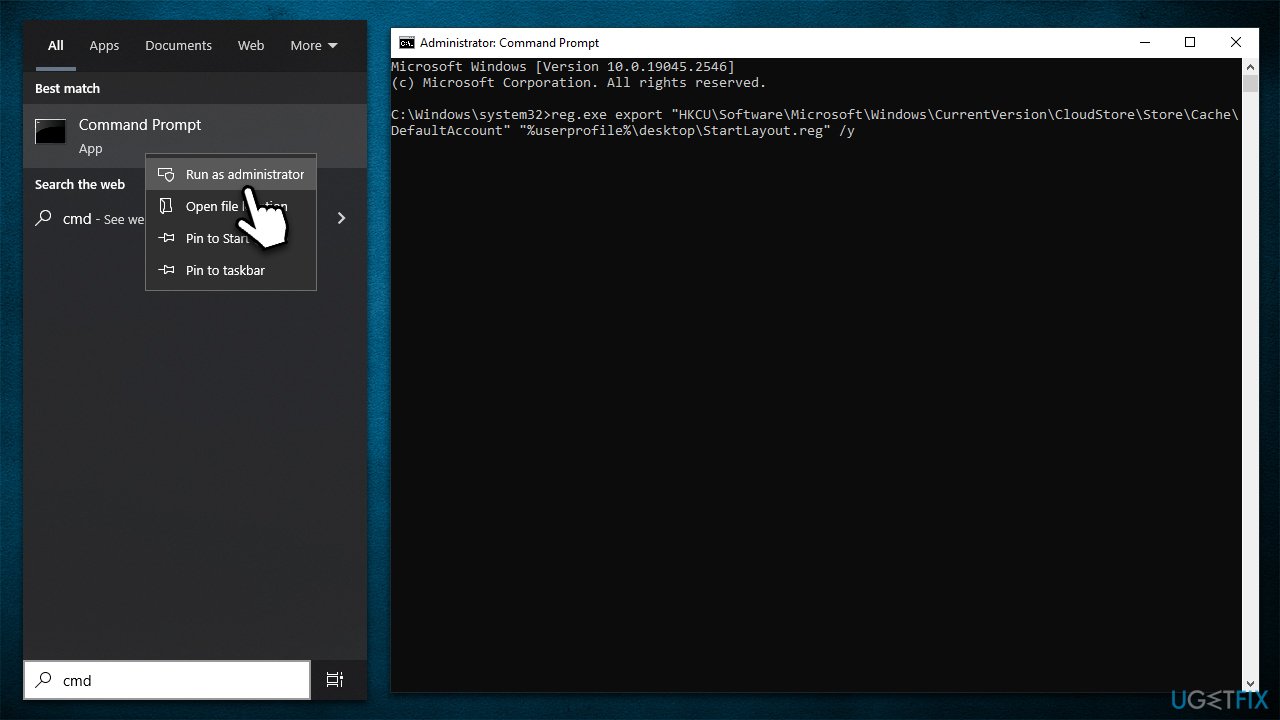
- Type cmd in Windows search.
- Right-click on the Command Prompt result and select Run as administrator.
- User Account Control (UAC) will ask whether you want to make changes - click Yes.
- In the opened window, copy and paste the following command, pressing Enter after:
reg.exe export "HKCU\Software\Microsoft\Windows\CurrentVersion\CloudStore\Store\Cache\DefaultAccount" "%userprofile%\desktop\StartLayout.reg" /y - Next, use the following command:
copy "%LocalAppData%\Packages\Microsoft.Windows.StartMenuExperienceHost_cw5n1h2txyewy\LocalState\start.bin" "%userprofile%\desktop\" - Close down Command Prompt.
Fix 2. Uninstall the latest Windows update
If your issues began after updating Windows, you can uninstall the latest update and see if that resolves the Start Menu resets.
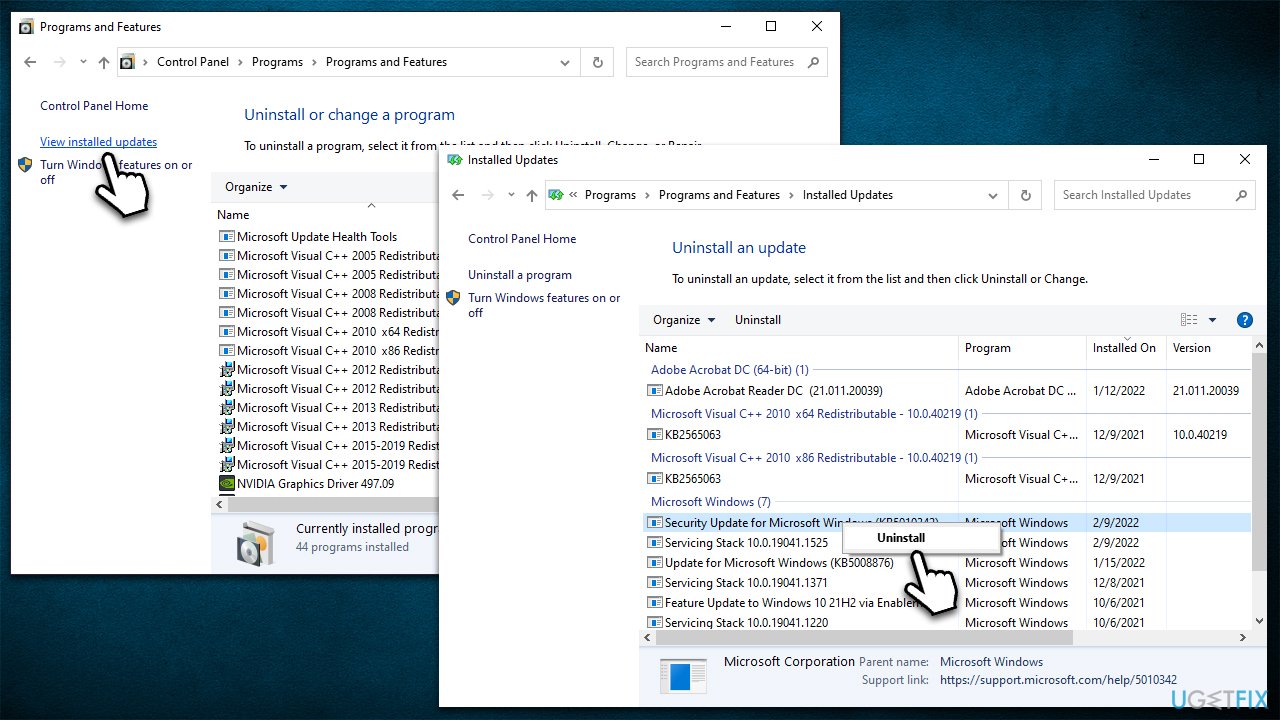
- Type Control Panel in Windows search and press Enter.
- Navigate to Programs > Uninstall a program.
- Select View installed updates.
- From the list, uninstall the most recent Windows update (right-click > Uninstall).
- Type in Updates in Windows search and press Enter.
- Here, click the Pause updates for 7 days button (or if you are using Windows 11, you can customize the time you can pause the updates).
Fix 3. Run SFC and DISM
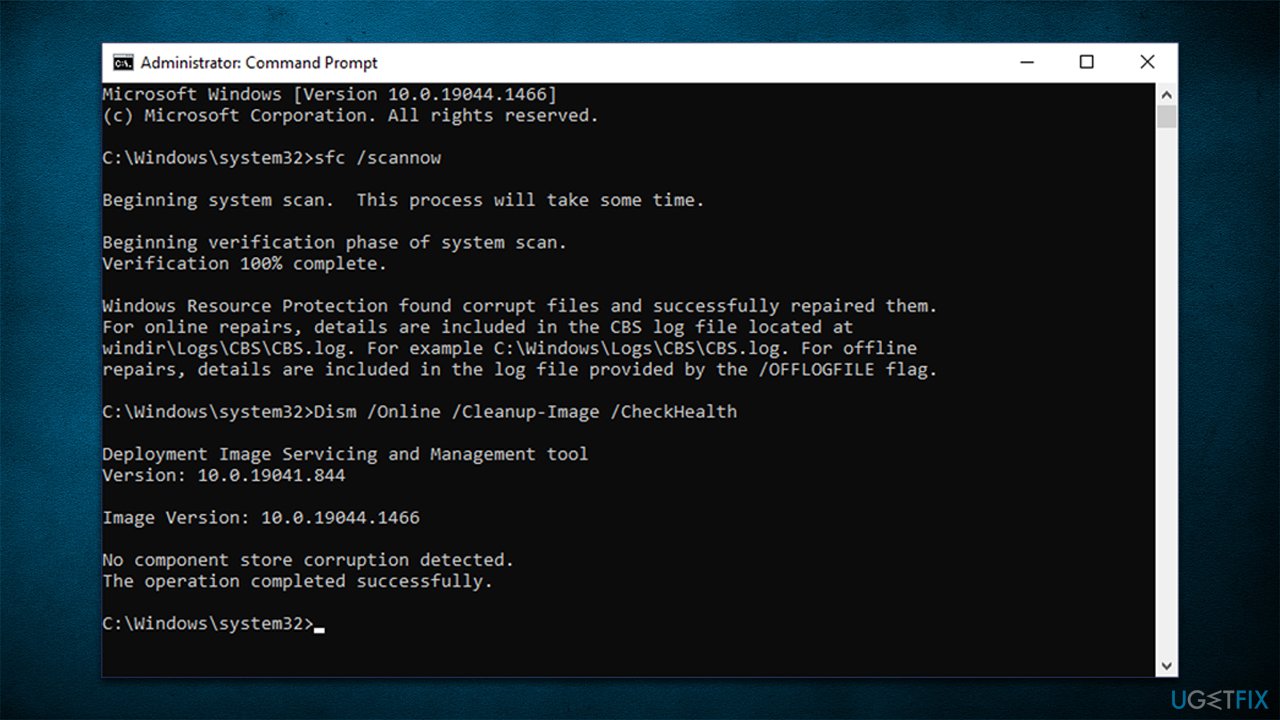
- Open Command Prompt as administrator.
- Use the following command lines, pressing Enter after each:
sfc /scannow
DISM /Online /Cleanup-Image /CheckHealth
DISM /Online /Cleanup-Image /ScanHealth
DISM /Online /Cleanup-Image /RestoreHealth - Restart your system.
Fix 4. Re-register the Start Menu
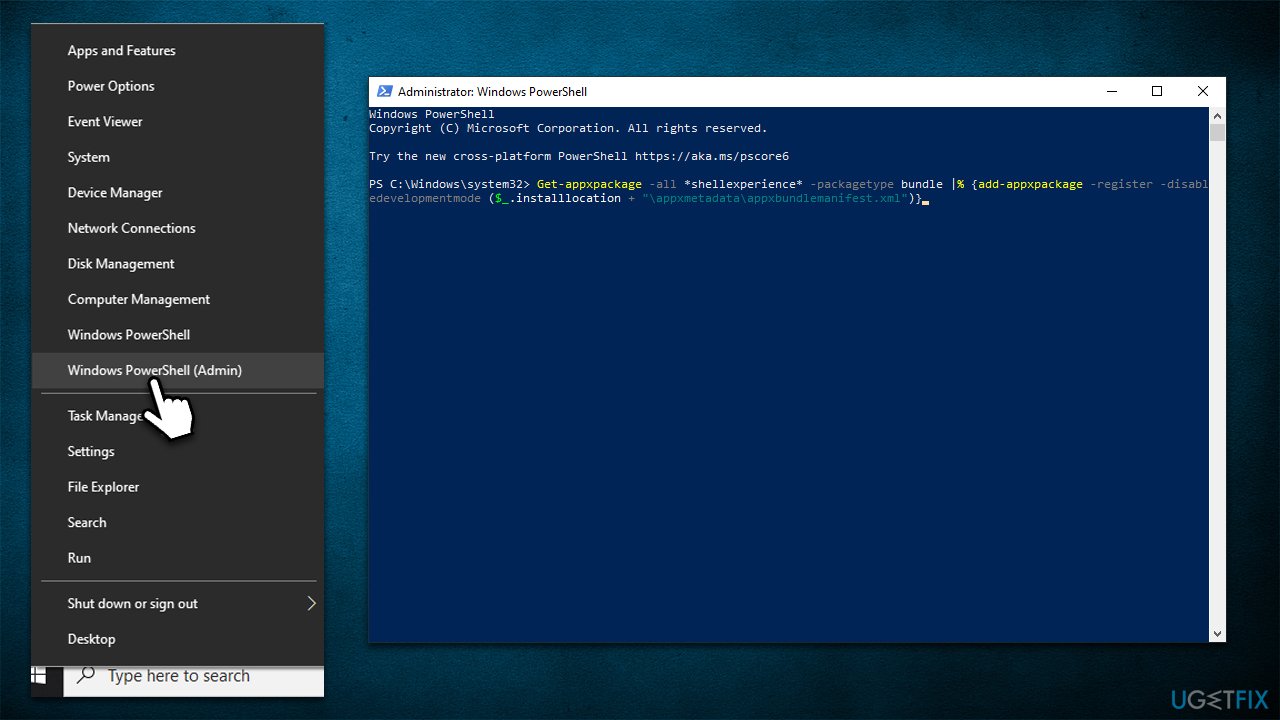
- Right-click on Start and select PowerShell (Admin).
- Click Yes when UAC shows up.
- Copy and paste the following command and press Enter:
Get-appxpackage -all *shellexperience* -packagetype bundle |% {add-appxpackage -register -disabledevelopmentmode ($_.installlocation + “\appxmetadata\appxbundlemanifest.xml”)} - Close down PowerShell and restart your computer.
Fix 5. Use System Restore
You could attempt to restore your system to a time when Start Menu was not problematic.
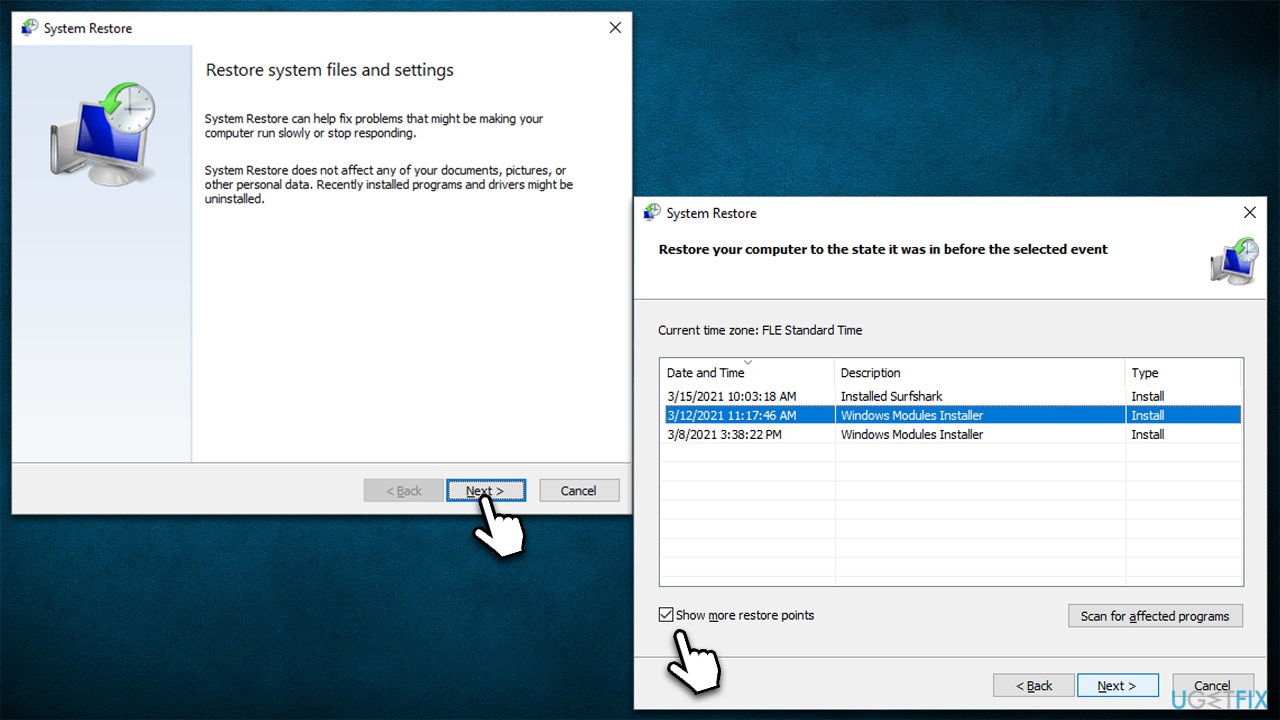
- Type in Create a Restore point in Windows search and hit Enter.
- In the System Protection tab, pick System restore.
- Click Next.
- Click Show more restore points (if available).
- Pick the time before the problem occurred and click Next.
- Your computer will reboot.
Bottom line
To fix the Start Menu resetting issue, users can try backing up their Start Menu as a workaround. If the problem persists, consider using automated tools to address the underlying issues. If none of these solutions work, further investigation into system settings may be necessary.
Frequently asked questions
The Start Menu may reset to default due to corrupted user profiles, system updates, or third-party software conflicts.
To prevent this issue, ensure that your Windows 10 or Windows 11 is up to date and consider disabling problematic third-party applications that may interfere with the Start Menu.
If the Start Menu continues to reset, you may need to create a new user profile or perform a system repair using Windows 10 or Windows 11 recovery options.




Report an issue
What's wrong with this guide? We review every report and update or remove content.
Report received — thank you. We'll review and fix it.
You need a free account to submit a report.
Be the first to comment