How to fix
Start menu search stopped working after Windows update
on Windows
Resolve Start menu search issues after a Windows update effortlessly. Get back to productivity with expert-tested solutions for Windows 10 and 11. Zero …


What causes How to fix Start menu search stopped working after Windows update?
- Damaged system files
- Malfunctioning Windows Search service
- Corruption in Windows Search Indexer
- Interference from third-party software
- Incomplete update installations
Repairs Windows system files, removes malware, and restores a clean OS state — without reinstalling.
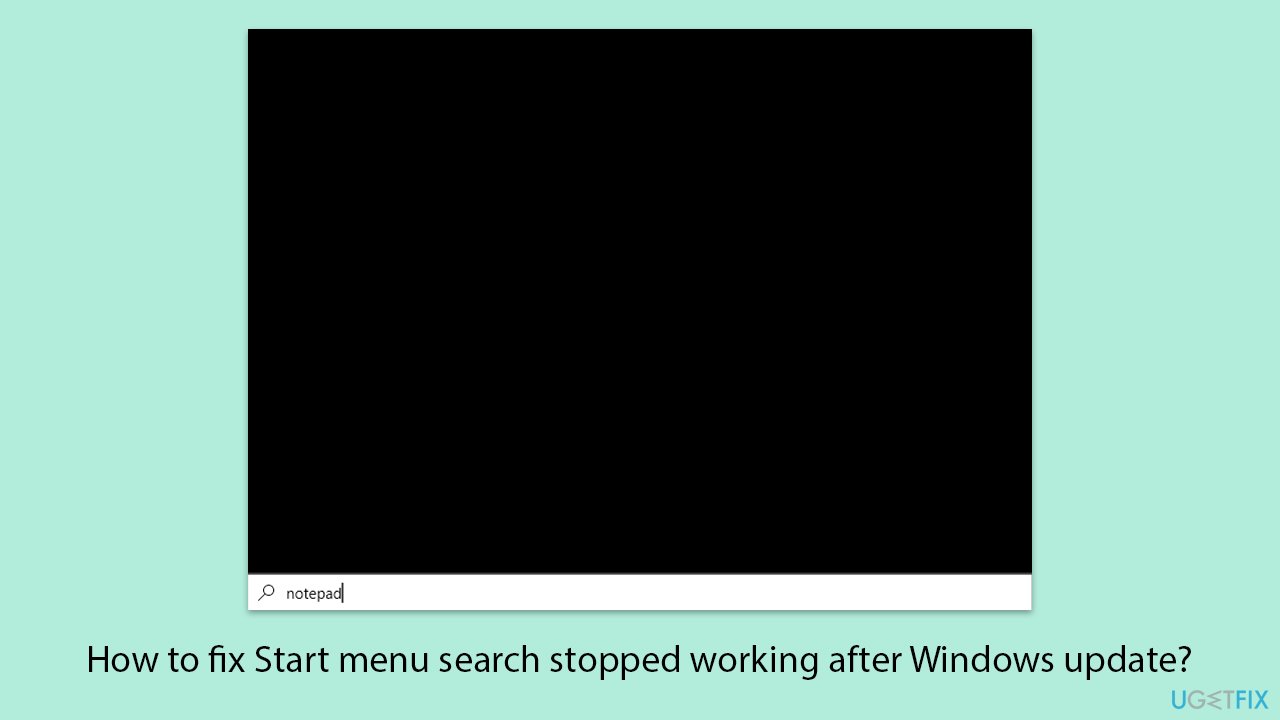
Start menu search has stopped working for me as of the latest September updates. After I enter the query, it first seems like it is loading and looking for something but then it literally just stays blank. Please give some tips on what to do, as this is extremely annoying.
After some updates, users sometimes have problems with the Windows Start menu search. Sometimes, the problem means that the search bar ceases to act or respond; sometimes, the results do not appear after typing, or the whole Start menu simply freezes. Most likely, this problem will appear after big updates or patches, since there is a chance that one or another in-service or file of your system might get damaged.
The failure of the Start menu search is common when important services are malfunctioning, such as Windows Search or Cortana, or in cases when some failure happens with the Windows Search Indexer.
In other cases, it can be related to system file corruption, interference of third-party software, or incomplete update installations. Others claimed that rolling back recent updates solves the problem, citing the fact that certain update packages render the capability to search broken.
Potential solutions could include restarting Windows essential services such as Windows Explorer or SearchApp.exe, rebuilding the search index, or using built-in troubleshooters or system repair tools such as DISM and SFC to fix corrupt files.
For the more insidious problems, a dedicated system repair tool such as [d1] can resolve underlying system conflicts or file corruption that prevents the Start menu search from working properly.
Fix 1. Restart the Windows search service
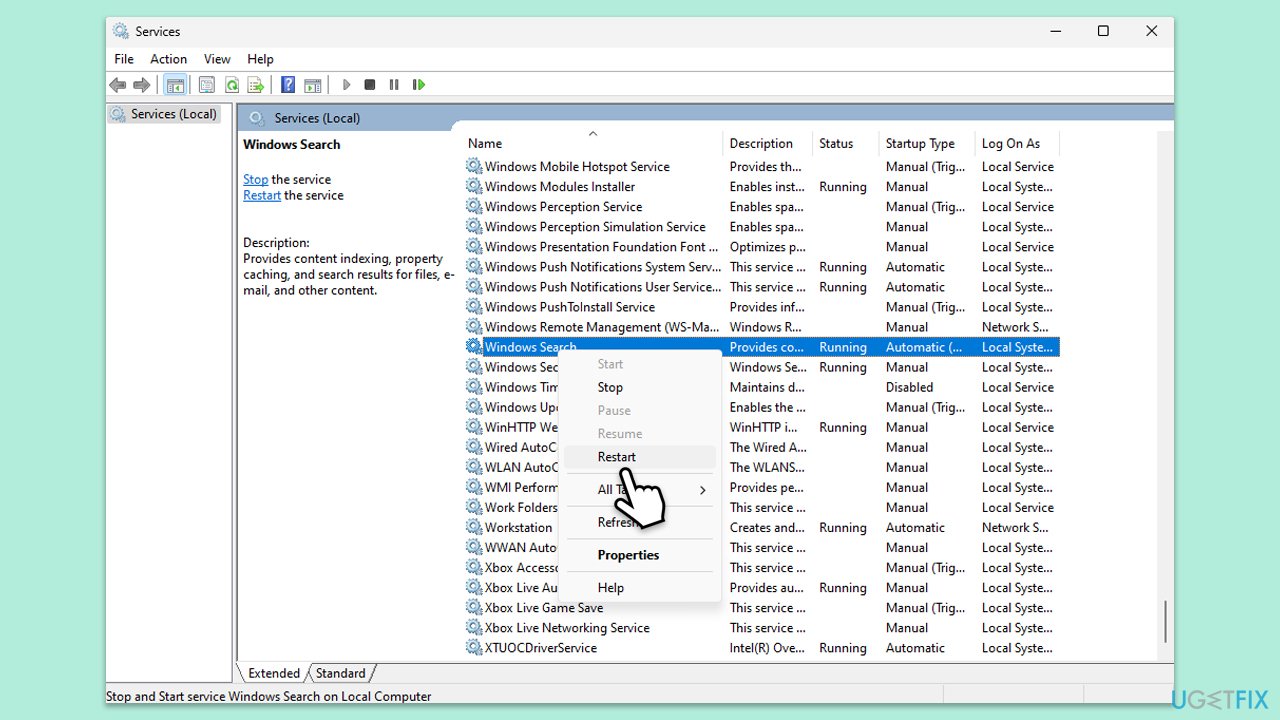
The Windows Search service is crucial for the Start menu search to function properly. Restarting this service can refresh it and resolve temporary glitches that may cause the search to stop working.
- Type Services in Windows search and press Enter.
- Locate Windows Search Service.
- If it is already running, right-click and select Restart.
- if the service is not running, double-click it, and pick Automatic under the Startup type from the drop-down menu.
- Click Start, Apply, and OK.
Fix 2. Restart Windows Explorer
Windows Explorer manages the Start menu and search functions. Restarting it can resolve issues related to the user interface and search responsiveness.
- Press Ctrl + Shift + Esc to open Task Manager.
- Click More details if needed.
- Look for Windows Explorer.
- Right-click and select Restart.
- Several UI elements will disappear for a few moments and reappear soon thereafter.

Fix 3. Rebuild the search index
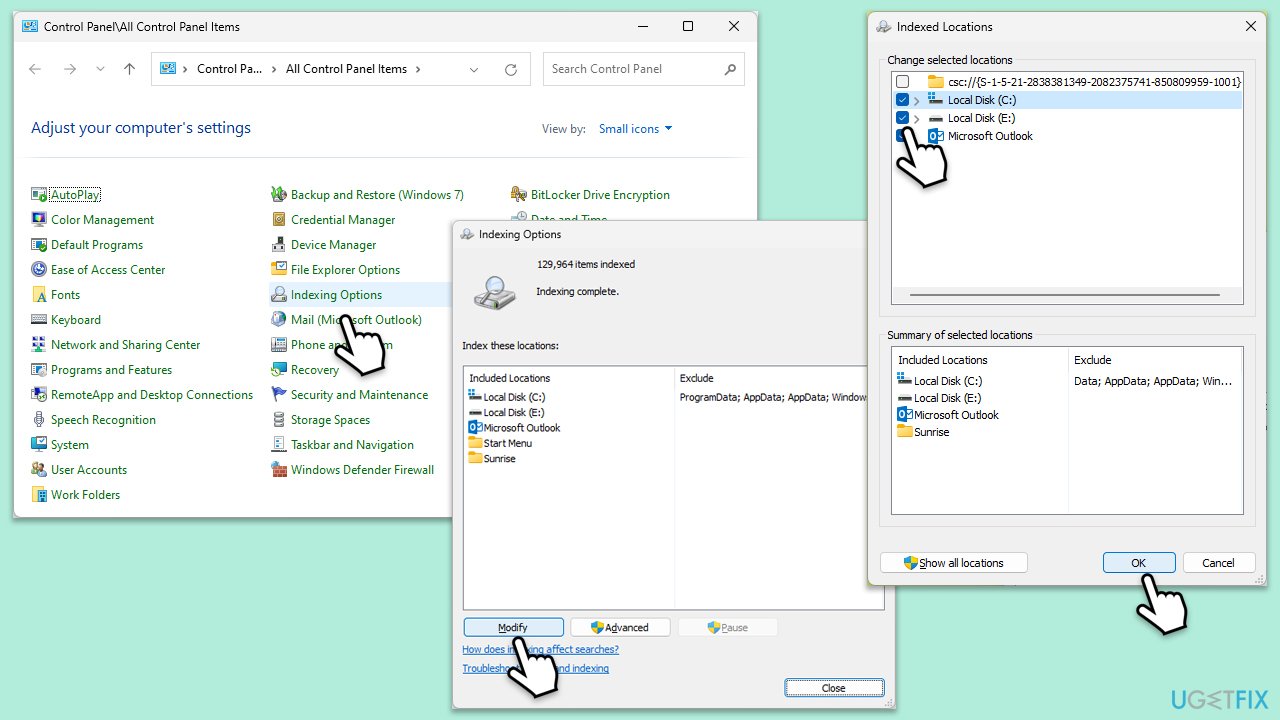
If the search results are incomplete or not showing, rebuilding the search index can resolve indexing issues by refreshing the database that Windows uses to locate files and apps.
- Open Control Panel.
- On the top-right corner, click on View by option and select Small icons.
- Pick Indexing options.
- Click Modify.
- Mark the locations that you want to be indexed and click OK (you can also use Show all locations at the bottom-left of the window if you can't see the location you are looking for).
- In the Indexing Options window, click Advanced.
- Click Rebuild under Delete and rebuild index. This might take a while, depending on how large your drives are. During the rebuilding process, you might not be able to use the search bar or receive incomplete results.
- Click OK.
Fix 4. Run the Search and Indexing troubleshooter
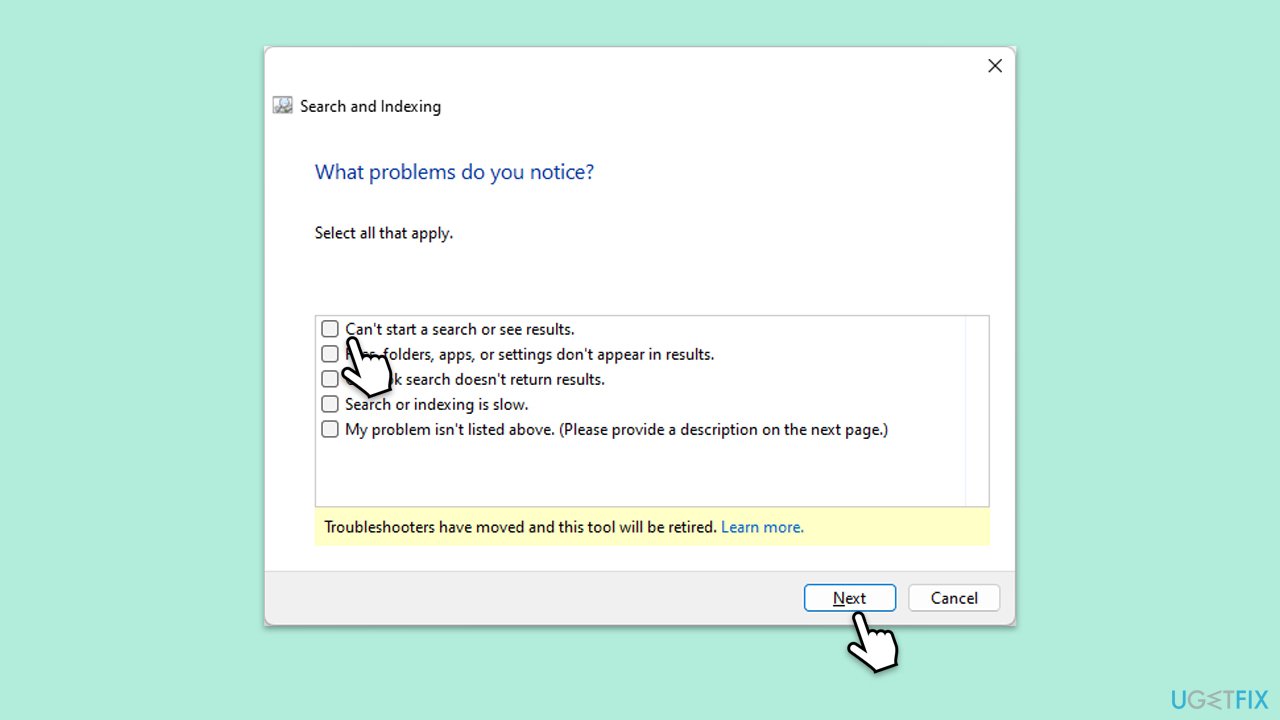
Windows has a tool that quickly finds and fixes problems with the Start menu search.
- Click Start and select Settings.
- Go to the Update & Security (Win10) or System (Win11) section.
- Select Troubleshoot.
- Pick Additional troubleshooters/Other troubleshooters.
- Scroll down to find the Search and Indexing troubleshooter.
- Click on it and select Run the troubleshooter/Run.
Fix 5. Run SFC and DISM
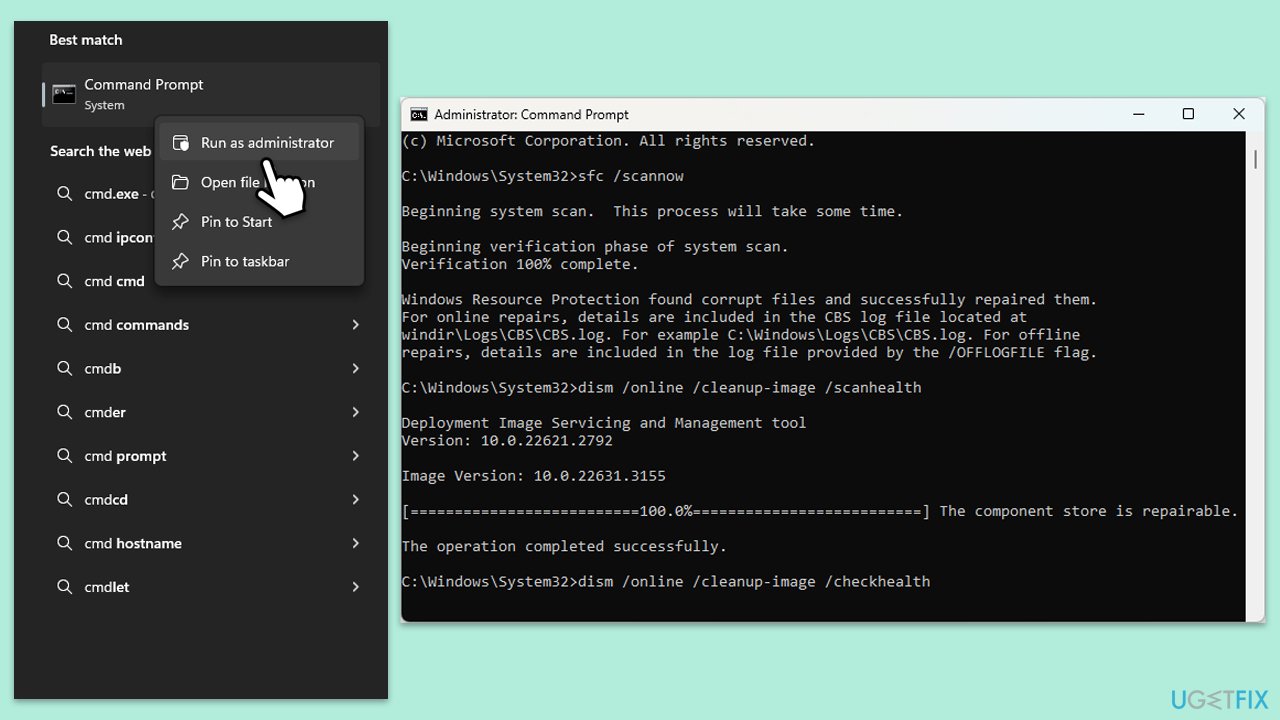
Corrupted system files can interfere with the Start menu and search functionality. Running SFC and DISM can repair these files.
- Type cmd in Windows search.
- Right-click on Command Prompt and pick Run as administrator.
- User Account Control window will show up - click Yes when prompted.
- Type this command and press Enter:
sfc /scannow - Wait for the scan to finish.
- As soon as the scan finishes, Windows will report whether integrity violations were found and if they could be fixed. Regardless of the outcome, use these commands next, pressing Enter after each:
Dism /Online /Cleanup-Image /CheckHealth
Dism /Online /Cleanup-Image /ScanHealth
Dism /Online /Cleanup-Image /RestoreHealth
(Note: if you get an error executing this last command, add /Source:C:\RepairSource\Windows /LimitAccess to it and try again). - Close down the Command Prompt and restart your computer.
Fix 6. Re-register Cortana and Start menu
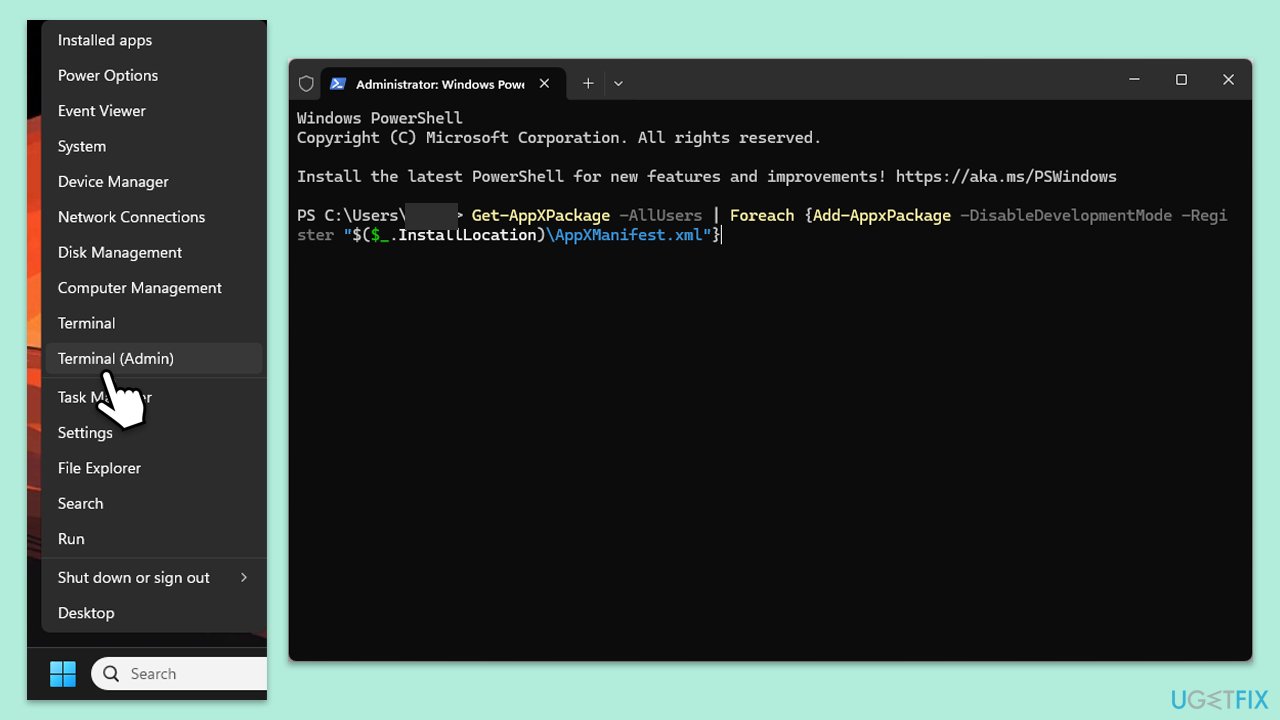
Re-registering Cortana and the Start menu can help resolve issues where search or the Start menu itself becomes unresponsive.
- Press Win + X and select Windows PowerShell (Admin)/Terminal (Admin).
- Right-click and select Run as administrator.
- When UAC shows up, click Yes.
- Copy and paste the following command, pressing Enter after:
Get-AppXPackage -Name Microsoft.Windows.Cortana | Foreach {Add-AppxPackage -DisableDevelopmentMode -Register "$($_.InstallLocation)\AppXManifest.xml"} - Restart your system.
Fix 7. Create a new user account
Sometimes the issue is related to a corrupted user profile. Creating a new user account can bypass this problem and restore functionality.
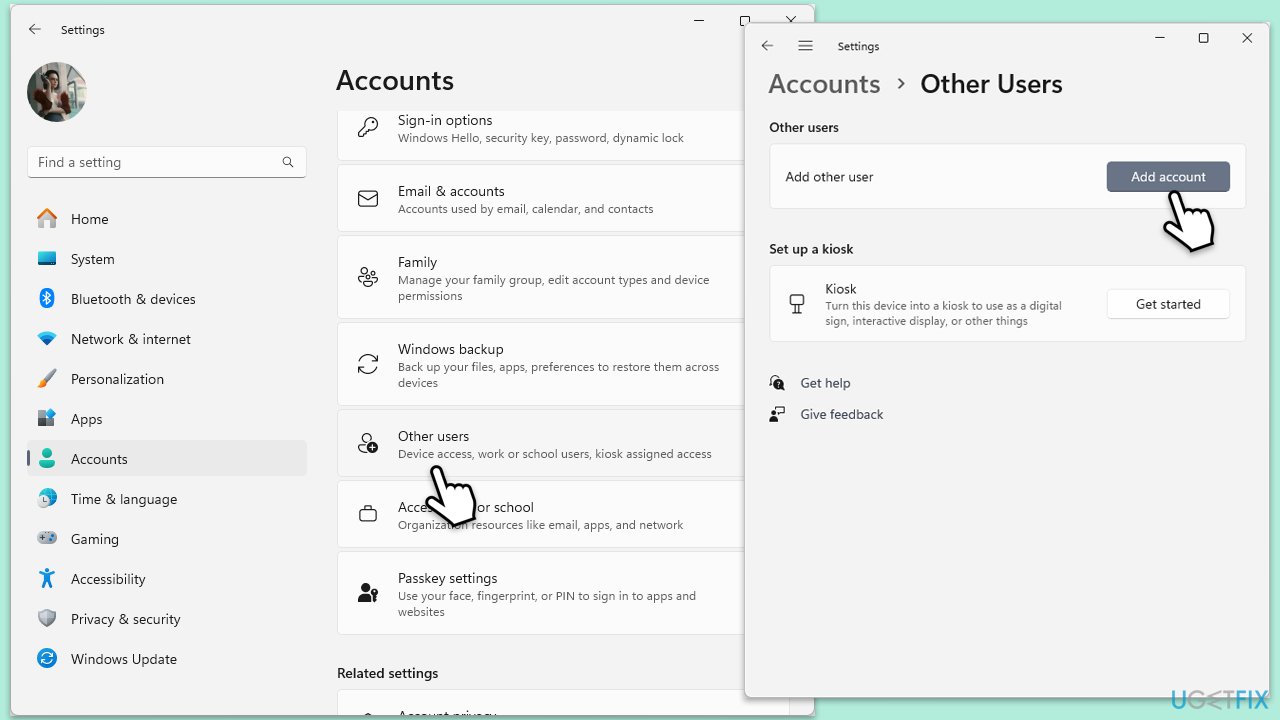
- Open Windows Settings.
- Go to Accounts then Family/Family & other users.
- Under Other users, click Add account/Add someone else to this PC.
- Follow the prompts to create a new user account. If you don't have Microsoft account details, you can choose I don't have this person's sign-in information followed by Add a user without a Microsoft account.
- Assign a username and password for the new account and complete the setup.
- Log out of your current account and log into the new account.
- Try installing Microsoft Office again using the new user profile.
Fix 8. Uninstall the most recent Windows update
You can always opt to uninstall the update that caused you issues.
- Type Control Panel in Windows search and press Enter.
- Select Programs > Uninstall a program.
- Click on View installed updates on the left side of the window.
- Sort all the updates by date.
- Right-click on the most recent update and select Uninstall.
- Proceed with on-screen instructions.
- Then, type Updates in Windows search and press Enter.
- Click Pause the updates for 7 days (in Windows 11, you can pick a different time period).
- Install updates only once the issue is addressed by Microsoft.
Bottom line
To fix the Start menu search issue, you can restart the Windows Search service, rebuild the search index, or use built-in troubleshooters like DISM and SFC. If these solutions do not resolve the problem, consider rolling back recent updates or using a dedicated system repair tool.
Frequently asked questions
Windows updates can sometimes cause compatibility issues or corrupt files, leading to the Start menu search malfunctioning in Windows 10 or Windows 11.
You can try resetting the search index, running the Search and Indexing troubleshooter, or re-registering the Start menu apps using PowerShell in Windows 10 or Windows 11.
Reinstalling the latest update may resolve the problem, but it's often more effective to first try the built-in troubleshooting tools available in Windows 10 or Windows 11.




Report an issue
What's wrong with this guide? We review every report and update or remove content.
Report received — thank you. We'll review and fix it.
You need a free account to submit a report.
Be the first to comment